Notifications can pile up fast on iPhone when apps, messages, summaries, and mirrored devices all compete for the same screen. You can clear the current mess in seconds, then change the settings that keep bringing it back.
Clear one notification or a grouped stack
On the Lock Screen, swipe up from the middle of the screen to open your notifications. From any other screen, swipe down from the top-left corner to open Notification Center; on iOS 26 and earlier, swipe down from the top center instead.
Find the alert you want to remove, then swipe left on that notification. Tap Clear to delete a single notification from the list.
When several alerts from the same app are grouped together, swipe left on the group instead. Tap Clear All to remove that app's visible stack from Notification Center.
Wipe Notification Center history
Use this when you want a clean slate instead of deleting alerts one by one. It clears notification history from Notification Center, but it does not turn off future notifications.
Open Notification Center from the Lock Screen by swiping up from the middle of the screen. From inside an app or the Home Screen, swipe down from the top-left corner; on iOS 26 and earlier, swipe down from the top center instead.
Tap the Clear Notifications button, then tap Clear to confirm. After that, the notification history disappears until new alerts arrive.
Stop the same app from coming back
The most common cause of repeat clutter is an app that keeps sending new notifications after you clear the old ones.
When one of its notifications is visible, swipe left on it and tap Options. Choose a mute option to quiet that app for an hour or a day; during that time, future alerts go directly to Notification Center without showing on the Lock Screen, playing a sound, waking the screen, or interrupting with a banner.
To stop that app from the same notification, swipe left, tap Options, then tap Turn Off. For the app's full notification controls, swipe left, tap Options, then tap View Settings.
You can also use Settings. Open Settings, tap Apps, choose the app, tap Notifications, then turn Allow Notifications off; if Notifications does not appear, the app might not be able to send notifications.
Make the Lock Screen less crowded
Deleting notifications is not the only way to clean up the Lock Screen. Open Settings, tap Notifications, then use Display As to choose Count, Stack, or List.
Choose Count for the least clutter. Choose Stack to group notifications more compactly, or List to see more of them at once.
You can also pinch notifications on the Lock Screen to change how they are displayed. This changes the layout only; it does not delete any alerts.
For privacy, open Settings, tap Notifications, choose the app below Notification Style, tap Show Previews, then choose Always, When Unlocked, or Never.
Silence notifications without deleting them
Use Do Not Disturb or a Focus when you want fewer interruptions but still want alerts saved for later.
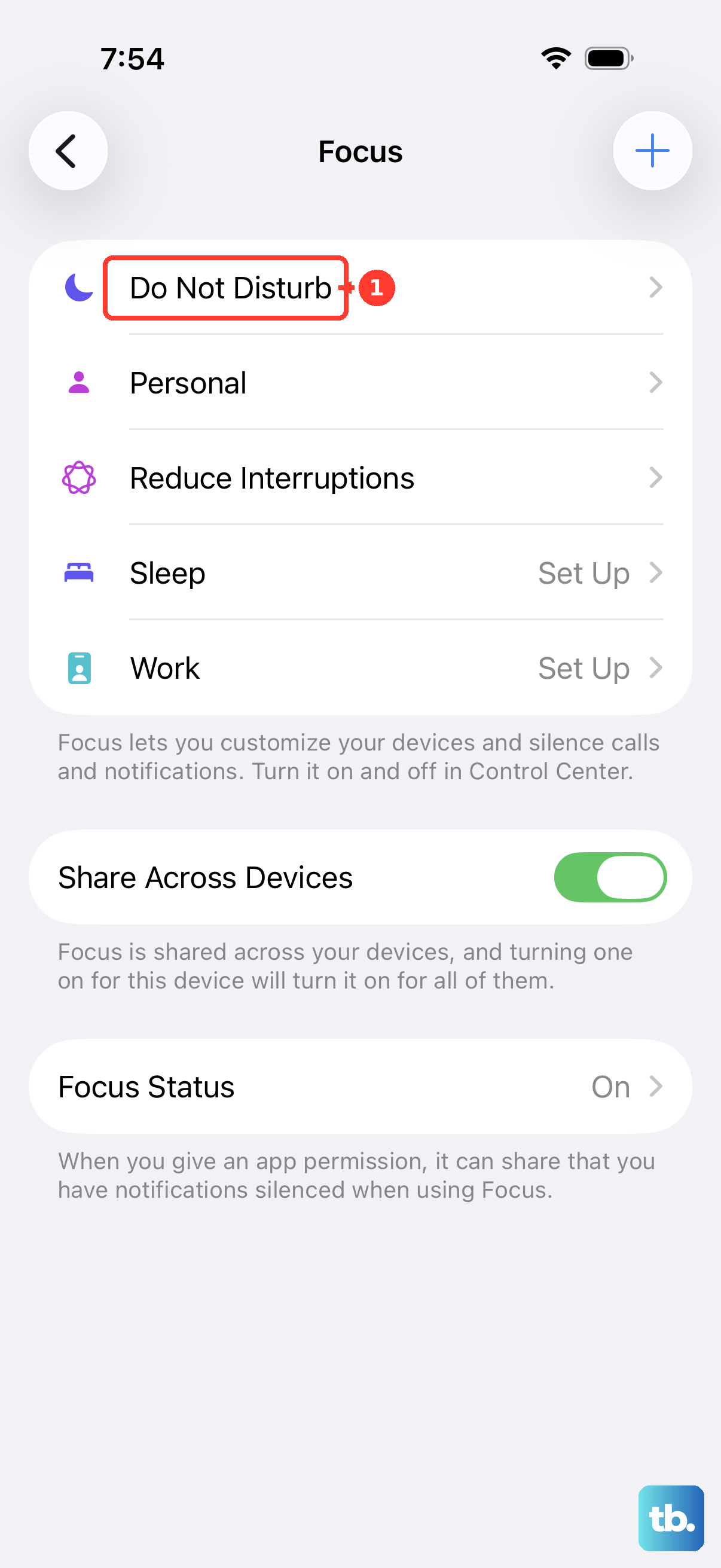
Open Control Center, then tap the Do Not Disturb icon on the Focus button. On iPhone X and later, swipe down from the top-right corner to open Control Center; on iPhone SE and iPhone 8 and earlier, swipe up from the bottom edge.
For more control, touch and hold Focus in Control Center, then tap Do Not Disturb. You can also ask Siri to turn Do Not Disturb on or off.
If Do Not Disturb keeps turning itself back on, open Settings, tap Focus, tap Do Not Disturb, then check Set a Schedule for active schedules to turn off.
If this method fails because important apps still interrupt you, open Settings, tap Focus, choose a Focus, then adjust People or Apps so only the alerts you want can break through.
Quiet Messages and Mail threads
Use thread controls when one conversation keeps generating alerts:
- 1.In Messages, open the conversation list, swipe left on the conversation, then tap the Mute button.
- 2.As another Messages path, open the conversation, tap the contact or icon at the top, then turn on Hide Alerts.
- 3.To stop all Messages alerts, open Settings, tap Notifications, tap Messages, then turn off Allow Notifications.
- 4.In Mail, open a message in the thread, tap the Reply button, then tap Mute.
- 5.To choose what happens to muted email threads, open Settings, tap Apps, tap Mail, then tap Muted Thread Action.
Dismiss banners while using another app
Use this when a notification drops down while you are already doing something else on your iPhone. This dismisses the visible banner; it is not the same as clearing every saved alert in Notification Center.
When the banner appears, tap it if you want to open and view it. To get it out of the way, swipe up on the banner.
If banners from the same app keep interrupting you, change that app's notification settings or mute it from one of its notifications. Clearing a banner alone does not stop the next one.
Check connected devices and special alerts
If you read or dismiss notifications on Apple Watch, Apple says they are also dismissed from iPhone. On Apple Watch, open Notification Center, swipe left on one notification, then tap the delete button, or go to the top and tap Clear All for unread notifications.
For iPhone notifications appearing on a Mac through iPhone Mirroring, open Settings on iPhone, tap Notifications, choose the app, then turn off Show on Mac. To remove that Mac's access, open Settings, tap General, tap AirPlay & Continuity, tap iPhone Mirroring, swipe left on the Mac name, then tap Delete.
Some alerts need their own controls. Open Settings, tap Notifications, then scroll to Government Alerts to turn available alert types on or off; in some countries or regions, some government alerts cannot be turned off.
For App Clips, open Settings, tap Notifications, then tap App Clips. To disable App Clips and delete App Clips currently on the device, open Settings, tap Screen Time, tap Content & Privacy Restrictions, tap App Store, Media, Web & Games, tap App Clips, then choose Don't Allow.
Fix blocked notification controls
The most common cause is that the iPhone is managed by a workplace, school, or family Screen Time setup.
For a child account managed with Screen Time, app deletion can be blocked. With the current parental controls, the family organizer can open Settings, tap Family, choose the child's name, tap Apps & Websites, tap Restrictions, then allow deleting apps. If your family is still on the previous version of Screen Time, open Settings, tap Screen Time, choose the child's name under Family, tap Content & Privacy Restrictions, tap iTunes & App Store Purchases, then set Deleting Apps to Allow.
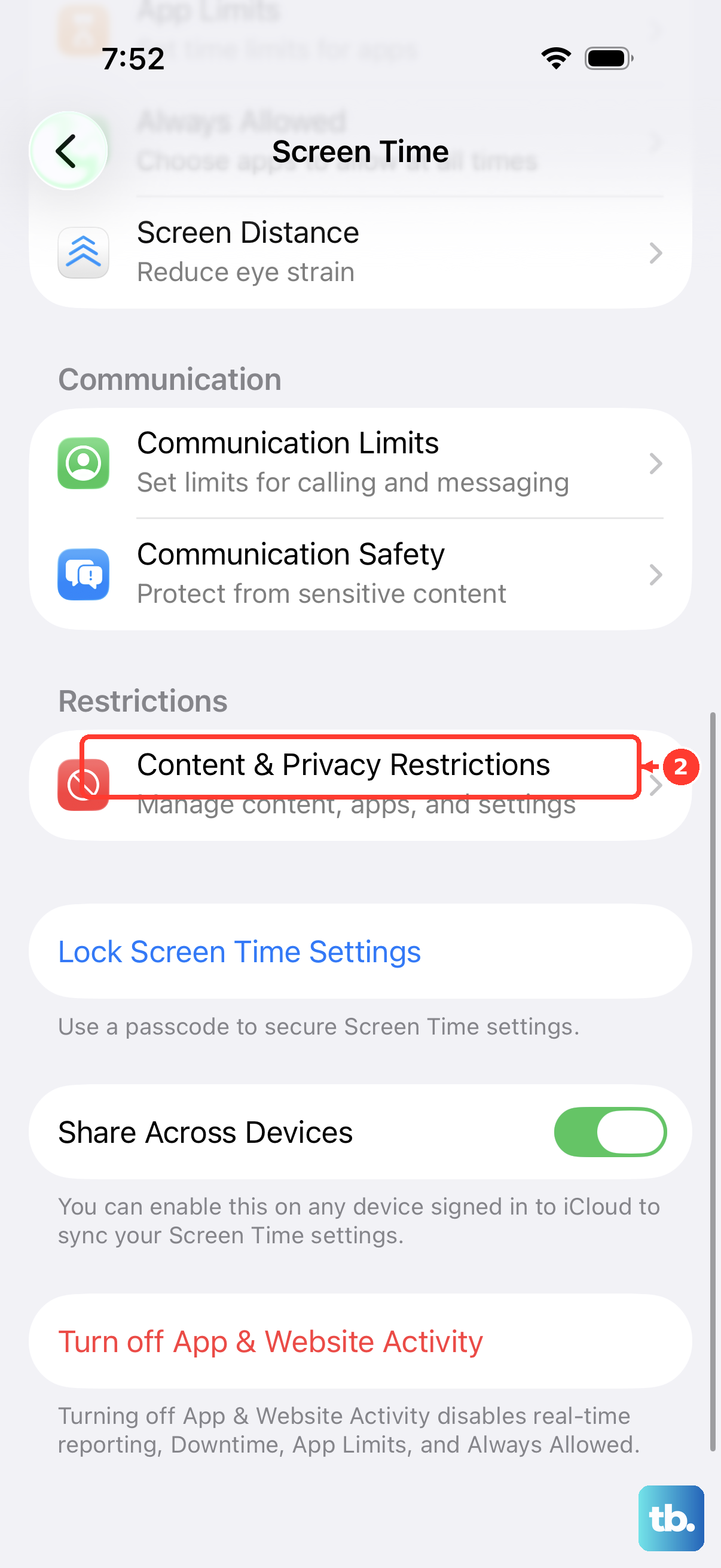
A work or school iPhone can have notification settings controlled by the organization. When notification controls are missing, locked, or keep changing back, contact the administrator for that device.
For U.S. test emergency alerts on current iOS, use Settings, tap Notifications, then turn Test Alerts on or off. To clear Notification Center history, use the Clear Notifications button followed by Clear, or swipe left on notifications and use Clear or Clear All.
Frequently Asked Questions
Can I delete all iPhone notifications at once?
Yes. Open Notification Center, tap the Clear Notifications button, then tap Clear. This removes notification history, but new alerts can still arrive.
Does deleting a notification turn off that app's notifications?
No. Clearing a notification only removes it from view. To stop future alerts, turn off Allow Notifications for that app or use Options from the notification to mute or turn it off.
Why do notifications come back after I clear them?
The app is sending new alerts. Clear removes the current notification history; it does not block future notifications from that app.
Can Siri clear all notifications on iPhone?
No. Apple supports Siri for turning Do Not Disturb on or off, but not for clearing all Notification Center history.