Your iPhone doesn’t need to interrupt you for every message, email, or app update. You can stop an app’s notifications completely, silence its sounds, or take a temporary break with Do Not Disturb. Start with the setting that matches what’s bothering you.
Turn off notifications from an app
For an app you never want alerts from, open Settings > Notifications and select the app.
Turn off Allow Notifications. Repeat this for each unwanted app. There’s no universal switch that permanently disables every iPhone alert.
Already looking at an unwanted notification? Swipe left over the alert or group on the Lock Screen or in Notification Center.
Tap Options > Turn Off to disable that app’s notifications. For alerts without Options, use Settings > Notifications.
Silence the sounds and vibrations
Enabled notification sounds let an app keep making noise even when you’ve hidden its banners.
Open Settings > Notifications and select the noisy app.
Turn off Sounds where a toggle is available. Visual notifications can stay enabled.
For Messages, select Sounds > None instead.
To silence alert sounds across an iPhone with a Ring/Silent switch, flip the switch toward the back of the phone. Silent mode still allows Clock alarms and doesn’t turn off vibrations.
On an iPhone with the Action button assigned to Silent Mode, press and hold the button.
Alternatively, on an Action-button-equipped iPhone, open Settings > Sounds & Haptics.
Enable Silent mode.
To stop notification vibrations on iOS 26, open Settings > Sounds & Haptics > Haptics.
Select Don’t Play in Silent Mode. Choose Never Play instead to stop these haptics even when Silent mode is off.
On iOS 27, that single Haptics menu is gone. Open Settings > Sounds & Haptics, tap a sound category such as Text Tone or Calendar Alerts, tap Haptics, then select None. Repeat for each category you want silent.
To stop every vibration on either version, open Settings > Accessibility > Touch and turn off Vibration. This also turns off vibrations for earthquake, tsunami, and other emergency alerts.
Use Do Not Disturb for a temporary break
Do Not Disturb gives you a break without changing every app’s notification permissions. Configured exceptions still allow interruptions.
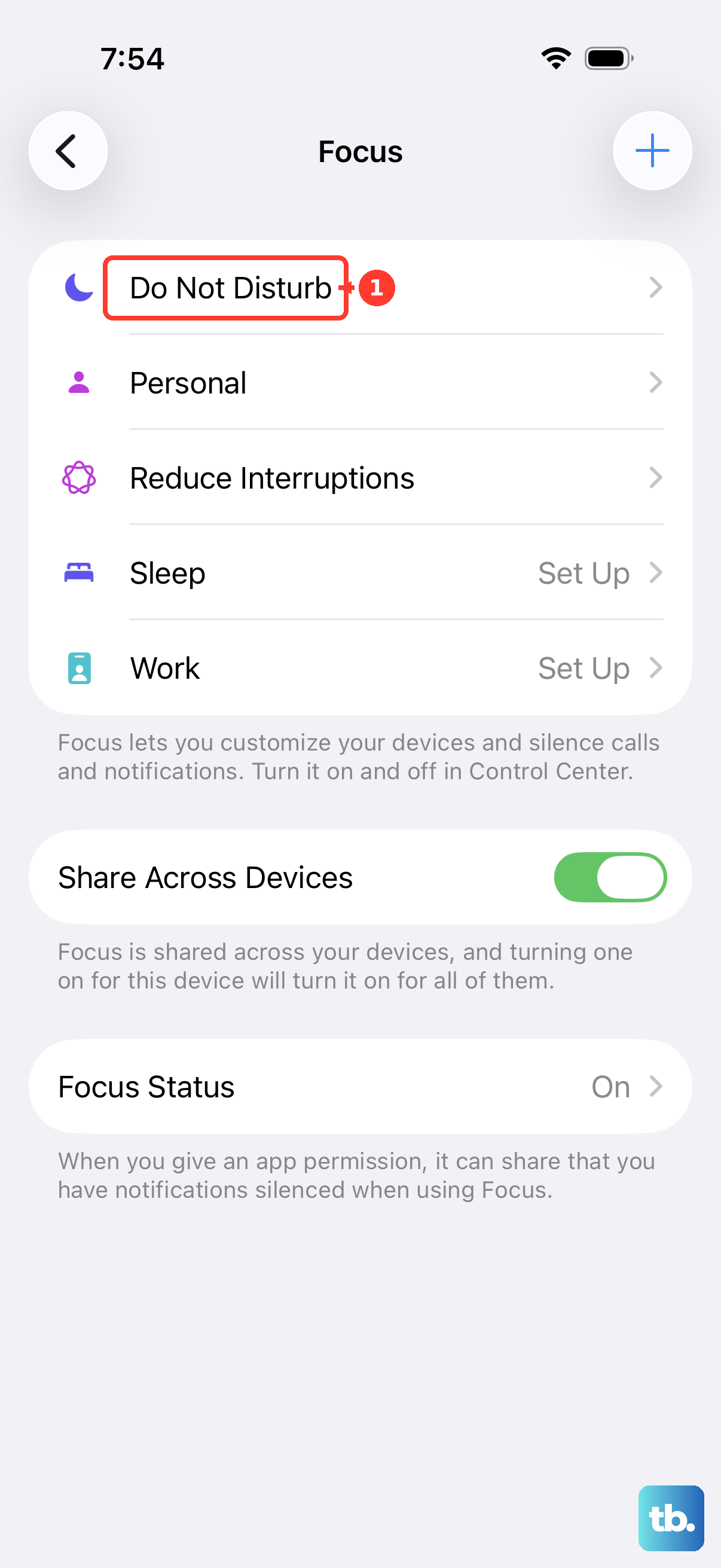
Open Control Center by swiping down from the upper-right corner on an iPhone with Face ID, or up from the bottom on a model with a Home button.
Touch and hold Focus.
Select Do Not Disturb.
For a break from just one app, swipe left over one of its notifications.
Choose Options > Mute for 1 Hour or Options > Mute for Today, where offered. Both pause that app’s alerts temporarily.
Close the exceptions that let alerts through Focus
Still getting interrupted? Focus exceptions, Critical Alerts, and a contact’s Emergency Bypass each let certain alerts through.
Open Settings > Focus and select the Focus you’re using.
Review People for allowed contacts and call exceptions.
Turn off Allow Repeated Calls where offered.
Disable Allow Calls From Silenced People in a Focus with that option.
Review Apps for allowed apps.
Turn off Time Sensitive Notifications where offered.
On supported Apple Intelligence devices, disable Intelligent Breakthrough & Silencing if it is admitting unwanted alerts.
For an app that supports Critical Alerts, open Settings > Notifications and select the app.
Turn off Critical Alerts. These alerts otherwise bypass both Silent mode and Focus.
For a contact with Emergency Bypass enabled, select the person in Contacts.
Tap Edit.
Open Ringtone.
Turn off Emergency Bypass.
Open Text Tone to review its separate setting.
Turn off Emergency Bypass there too if enabled.
If an app still interrupts you, select it under Settings > Notifications and turn off Allow Notifications to stop its notifications entirely.
Quiet a conversation or repeated text alerts
Open the conversation you want to mute in Messages.
Tap the contact or group icon at the top.
Enable Hide Alerts. Messages will continue arriving in that conversation.
To stop repeated text alerts instead, open Settings > Notifications > Messages > Customize Notifications > Repeat Alerts.
Select Never. This stops repeat alerts while keeping the initial notification.
Tip: For a shortcut, swipe left on a conversation in Messages and tap the mute button with the bell icon.
Choose what stays visible
You don’t have to remove every alert location. Keep the ones you use and switch off the rest.
Open Settings > Notifications and select the app.
Under Alerts, deselect the locations you don’t want: Lock Screen, Notification Center, or Banners. Available options vary by app.
Turn off Badges separately to remove the notification badge on the app icon.
To hide notification content, open Settings > Notifications > Show Previews.
Select Never. The notification itself stays visible, but its preview content is hidden.
If hiding selected alert locations still leaves more notifications than you want, select the app under Settings > Notifications and turn off Allow Notifications.
Stop spoken and flashing alerts
These controls stop Siri announcements and notification flashes.
Open Settings > Siri > Announce Notifications, or Settings > Apple Intelligence & Siri > Announce Notifications on iPhones using that menu name.
Turn off Announce Notifications.
For announcements through the iPhone speaker, open Settings > Accessibility > Siri.
Turn off Announce Notifications on Speaker.
For message announcements in CarPlay, open Settings > Notifications > Announce Notifications > CarPlay on your iPhone.
Turn off Announce Messages.
For flashing alerts, open Settings > Accessibility > Audio & Visual > Flash for Alerts.
Turn off Flash for Alerts.
Review government and safety alert settings
These alerts have separate controls, and some government alerts cannot be disabled.
- 1.Open Settings > Notifications.
- 2.Scroll to Government Alerts and turn off the optional categories you don’t want. Available categories depend on your carrier and region.
- 3.On supported U.S. carrier connections, including Puerto Rico, turn off Test Alerts to stop emergency test alerts.
- 4.For Enhanced Safety Alerts in the United States and Taiwan on iOS 26.2 or later, open Enhanced Alerts > Enhanced Safety Alerts and turn off Earthquake Alerts or Imminent Threat Alerts. These are separate from carrier-delivered government alerts.
Frequently Asked Questions
Can I hide notifications while sharing my screen?
Yes. Open Settings > Notifications > Screen Sharing. Turn off Allow Notifications. This controls notifications during screen-sharing sessions and is separate from iPhone Mirroring to a Mac.
Can I receive notifications together instead of throughout the day?
Yes. Open Settings > Notifications > Scheduled Summary. Enable Scheduled Summary. Tap Continue if shown. Set delivery times. Tap A to Z and select apps. Scheduled Summary delays selected notifications instead of disabling them.
Why are iPhone notifications still appearing on my Mac?
iPhone Mirroring has separate notification controls. On your iPhone, select the app under Settings > Notifications. Turn off Show on Mac. To stop all iPhone notification copies on the Mac, open Apple menu > System Settings > Notifications > Allow notifications from iPhone. Turn that setting off.
Will lowering the volume stop notification sounds?
Lowering the ringer and alert volume reduces how loud alerts are, but it isn’t a reliable substitute for Silent mode. To lower it, open Settings > Sounds & Haptics and drag the volume slider: on iOS 26 it sits below Ringtone and Alerts, and on iOS 27 it sits below Ringtone. On iOS 27 you can also turn off Match Ringtone Volume under Alerts and System Sounds to set the alert volume separately. Enable Change with Buttons to use the side buttons when no call or media is active. During calls or media playback, those buttons control that audio instead.