To recover deleted apps on iPhone, open the App Store, tap your photo or My Account, then Apps & Purchase History > Your Apps, choose My Apps if you use Family Sharing, open Not on this iPhone, and tap the app's Redownload button. If only the icon is missing, check App Library before downloading anything.
The short version
- Deleted app: find it under Your Apps and tap Redownload.
- Forgotten name: check Purchase History and change the date filter.
- Missing icon: search App Library and check the Hidden folder on iOS 18 or later.
- Cloud beside an icon: tap it to reinstall an offloaded app with its retained data.
- Missing purchase: check hidden purchases, the original Apple Account, or eligible family purchases.
The table estimates cover finding the app or starting the check. Allow extra time for installation.
| Method | What it does | Estimated time to start | Use it when |
|---|---|---|---|
| Your Apps | Starts a previous download | About a minute | You deleted an app |
| App Store search | Finds the app's listing | Under a minute | You know its name |
| Purchase History | Helps identify an old app | A few minutes | You forgot its name |
| Search and App Library | Finds an installed app | About a minute | The icon disappeared |
| Offloaded app icon | Reinstalls an offloaded app | Under a minute | The icon has a cloud |
| Hidden apps and purchases | Unhides an installed app or restores a purchase to your list | A few minutes | An installed app is hidden or a purchase is missing from Your Apps |
| Account and family checks | Finds the purchase owner | A few minutes | The app is missing from your list |
| Download troubleshooting | Checks a stalled installation | A few minutes | Redownload does not finish |
Find deleted apps in your App Store account
Open the App Store and tap your photo or My Account at the top. Choose Apps & Purchase History, then Your Apps. If you use Family Sharing, choose My Apps for your own downloads.
Open Not on this iPhone to narrow the list to apps absent from this device. Find the app and tap the cloud-shaped Redownload button beside it.
For the older menus documented for iOS 18 and iOS 17.4 or later, choose Apps from the account screen, then My Apps for your own downloads. Continue to Not on this iPhone and use Redownload. Follow the current path above when your account screen has Apps & Purchase History.
These are account purchases, so do not treat the list as a record of apps deleted from this particular phone. An app must still be available and compatible with your iPhone to be downloaded again.
Search directly when you know the app's name
Open the App Store, tap Search, and enter the app's name. Open its listing and check the developer before tapping Redownload. For a deleted built-in Apple app, search using its exact name and choose Apple's listing.
Complete any authentication prompt that appears. On a Face ID iPhone, double-click the side button when asked and look at the screen; on a Touch ID iPhone, touch the Home button when prompted. Enter your Apple Account password if requested, and open the app after installation finishes.
If Face ID stops the download confirmation, use the steps for setting up and fixing Face ID on iPhone. For Apple Arcade games, search directly because they do not appear in your purchases. You need Apple Arcade subscription access to play them.
Identify an app whose name you forgot
Open the App Store, tap your photo or My Account, and choose Apps & Purchase History > Purchase History. Tap Last 90 days to change the filter and review older purchases. Use the name you find to search the App Store and redownload the correct app.
In the older iOS 18 and iOS 17.4 or later menus, Purchase History opens directly from the account screen. Tap it to review downloads associated with that account.
If the filter includes Paid, change the cost filter to include free apps as well. Purchase history covers both free and paid downloads, so an app need not have cost money to appear.
Find an installed app and restore its icon
Swipe down from the middle of the Home Screen and enter the app's name in Search. Tap its icon if it appears. If you still cannot find it, swipe left past all your Home Screen pages to reach App Library, then use its search field.
To put an app back on the Home Screen, touch and hold it in App Library and drag it onto the page where you want it. Tap Done to finish. This restores access to an installed app without downloading another copy.
A missing icon can mean that the app was removed only from the Home Screen. If App Library opens it, use the existing app and restore its icon rather than reinstalling. Apps hidden individually on iOS 18 or later need the separate check below.
Reinstall an offloaded app without losing retained data
Reinstall from the retained icon
A cloud symbol beside a retained Home Screen icon points to an offloaded app. Offloading removes the software but keeps its documents and data on your iPhone. Tap the icon to download the app again, provided it is still available in the App Store.
Inspect storage before deleting anything
To inspect storage, open Settings > General > iPhone Storage. This screen shows storage recommendations and the apps using space, including the offloading recommendation shown below. Offloading and deleting have different effects, so avoid Delete App if your aim is to keep the app's local documents.
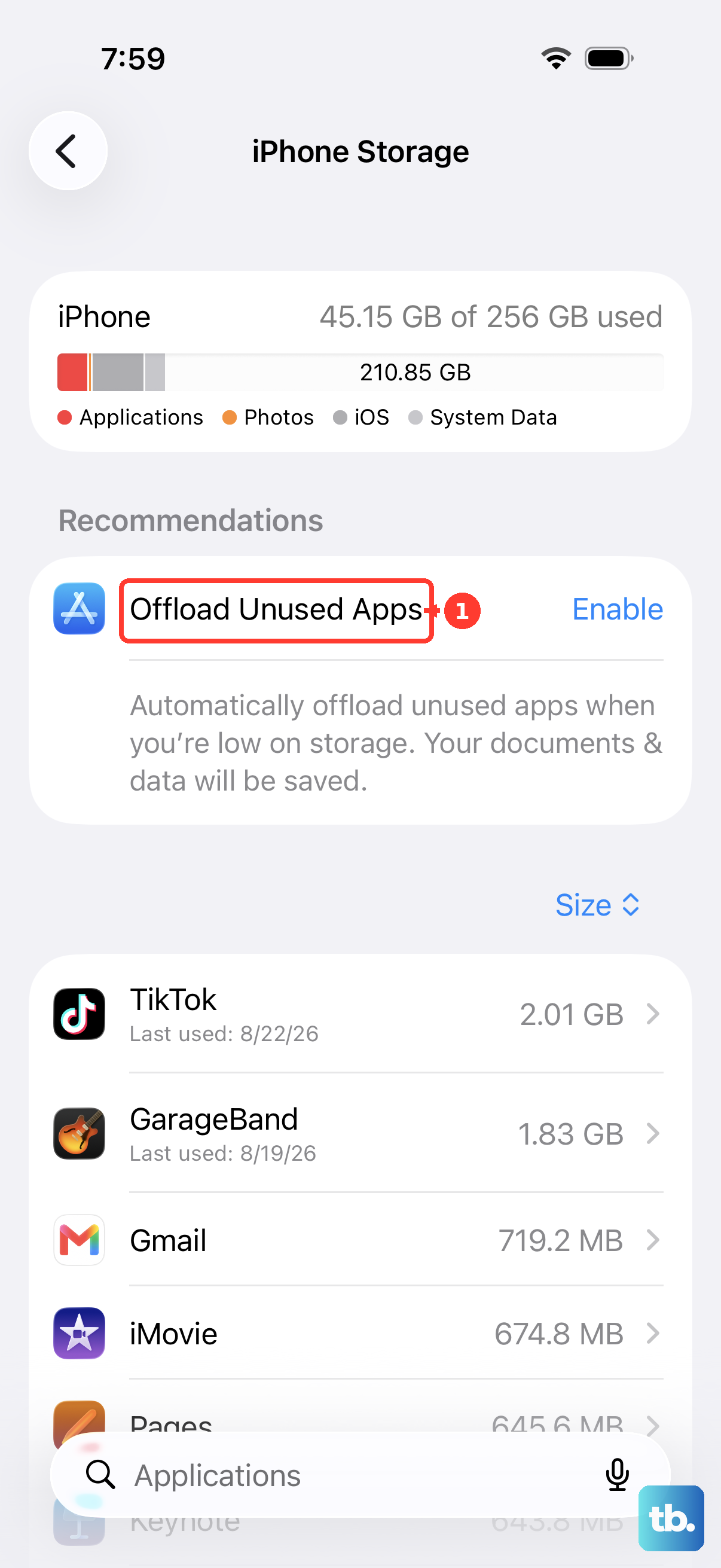
Disable automatic offloading
To prevent future automatic offloading, open Settings > Apps > App Store and turn off Offload Unused Apps. On iOS 17, the App Store settings are directly under Settings > App Store. Turning off the setting prevents future offloading; tap each offloaded app's icon to reinstall it.
Unhide installed apps and App Store purchases
Check the Hidden folder
On iOS 18 or later, individually hidden apps do not appear in ordinary search results. Swipe left past your Home Screen pages to App Library, scroll to Hidden, and tap the folder. Unlock it with Face ID, Touch ID, or your passcode.
Touch and hold the app and choose Don't Require Face ID, or the corresponding Touch ID or Passcode option, then authenticate again. The app returns to App Library. Move it to the Home Screen using the steps above if you want its icon there.
Check hidden purchases
A hidden App Store purchase is a separate case. Open the App Store, tap your photo or My Account, tap your name, then open Hidden Purchases. Find the app and tap Unhide.
Unhiding a purchase does not reinstall a deleted app. Find it again through App Store > Search and tap Redownload. Check this list when you remember downloading an app but cannot find it among your account's visible purchases.
Check the original account and family purchases
Confirm and use the original purchase account
If an app is absent from your purchase history, you may have acquired it with another Apple Account. Check the purchase history for that account before buying anything again. Only change the purchase account after confirming that the original purchase belongs to another account.
Signing out of Media & Purchases removes downloaded content from Apple services, so you may need to download that content again afterward. To change the purchase account, open Settings > your name > Media & Purchases, tap Sign Out, then tap Media & Purchases again and choose Not [your name]? to sign in with the original account.
Return to the App Store download list and find the app under that account. If the phone reports that it is associated with another Apple Account, the wait to associate it with a different account can be up to 90 days. Use Apple's associated device instructions if that message blocks redownloading.
Download eligible family purchases
For an eligible family purchase, open App Store > your photo or My Account > Apps & Purchase History > Your Apps and choose the family member's name. Tap Redownload beside the app. Purchase sharing must be enabled; use the steps to set up Family Sharing on iPhone if your family has not configured it.
Fix an app that will not download
If an installation is waiting, touch and hold its Home Screen icon and choose Prioritize Download. Restart your iPhone and try again if it remains stuck. If the App Store itself will not connect, open a website in your browser to check whether your internet connection works.
A free download may still require a valid payment method. Messages such as verification required or billing problem with a previous purchase can indicate an unpaid balance that you need to resolve. Use Apple's payment troubleshooting steps when one of these messages appears.
If just one app is missing, check its listing and compatibility rather than repeating the download attempt. An unavailable app cannot be recovered by these reinstall steps.
Before updating, check Apple's System Status page for an App Store outage in your country or region. If there is an outage, try again later. If there is no outage and connection trouble continues, update iOS and try the App Store again; the steps for updating Apple software on iPhone cover that task.
Frequently Asked Questions
Can I see exactly when I deleted an app?
Do not use Purchase History to establish a deletion date. It records purchases, so its dates can help identify the app you want but do not confirm when you removed it.
Will reinstalling an app bring back its deleted data?
Reinstallation does not guarantee that deleted local data will return. Deleting an app removes its related data, while offloading preserves its documents and data for reinstallation.
Do I have to pay for a deleted app again?
Use the Apple Account that purchased it and tap Redownload to download it again without buying it again. The app must still be available and compatible with your iPhone.
Should I restore an iCloud backup to recover one app?
Try redownloading and reopening the app first to check whether its synced data returns; iCloud Drive data is stored separately from iCloud Backup. An iCloud backup restore is a device restore, and an already configured iPhone must be erased first. To recover local app data from an iCloud backup, that backup must contain it. Unavailable or refunded purchases may not restore.
Why is the app missing from the Home Screen after reinstalling?
Look in App Library and move the icon to your Home Screen. Downloaded apps can be placed in App Library only, depending on your Home Screen settings.