
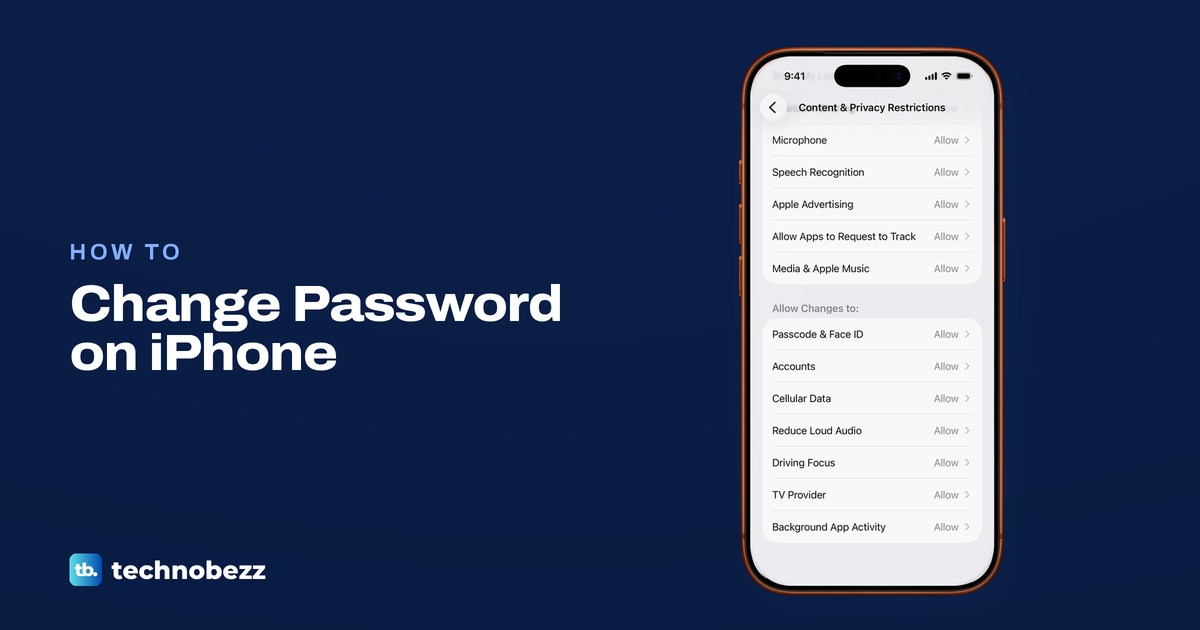
To change your iPhone passcode, open Settings, tap Face ID & Passcode and enter your current code, then tap Change Passcode, enter the current code again and type the new one twice. If you mean your Apple Account password, go to Settings, tap your name, then Sign-In & Security and Change Password.
"Password" on an iPhone can mean three different things, and each one is changed in a different place. The lock screen passcode protects the phone itself, the Apple Account password protects iCloud and your purchases, and logins for websites and apps are kept in the Passwords app. If you no longer know the current code, go to our guide to a forgotten iPhone passcode instead, because a normal change needs it.
The short version
- Lock screen passcode: Settings, Face ID & Passcode, Change Passcode. You need the current code.
- Another type of code: tap Passcode Options for four digits, a custom number, or letters and numbers.
- The old code: on iOS 17 or later it can get you back in once within 72 hours through Forgot Passcode?, if the iPhone is online with Find My on, unless you tap Expire Previous Passcode Now.
- Apple Account (Apple ID) password: Settings, your name, Sign-In & Security, Change Password.
- Website and app logins: start in the Passwords app, then change the password on the site or in the app.
- Screen Time and voicemail each have their own separate code.
Which iPhone password do you mean
Start by matching what you want to change to the right screen. The table lists the five codes and passwords people most often mean, where each one is changed and what it protects. Only the first one unlocks the phone.
| What you want to change | Where to change it | What it protects |
|---|---|---|
| Lock screen passcode | Settings > Face ID & Passcode > Change Passcode | Unlocking the iPhone, and the fallback when Face ID or Touch ID fails |
| Apple Account password | Settings > your name > Sign-In & Security > Change Password | iCloud, the App Store, iCloud Mail and other Apple services |
| Saved website or app login | Passwords > All > the account > Edit > Change Password | That one website or app account |
| Screen Time passcode | Settings > Screen Time > Manage Screen Time, if shown > Change Screen Time Passcode | Screen Time limits and restrictions |
| Voicemail password | Settings > Apps > Phone > Change Voicemail Password | Your carrier voicemail, where the carrier offers it |
Email accounts are one more case. A Gmail, Outlook or Yahoo password is changed with that provider and then entered again on the iPhone, and our steps to change an email account password on iPhone cover each provider. iCloud Mail is the exception, because its password is your Apple Account password.
Change your iPhone passcode in Settings
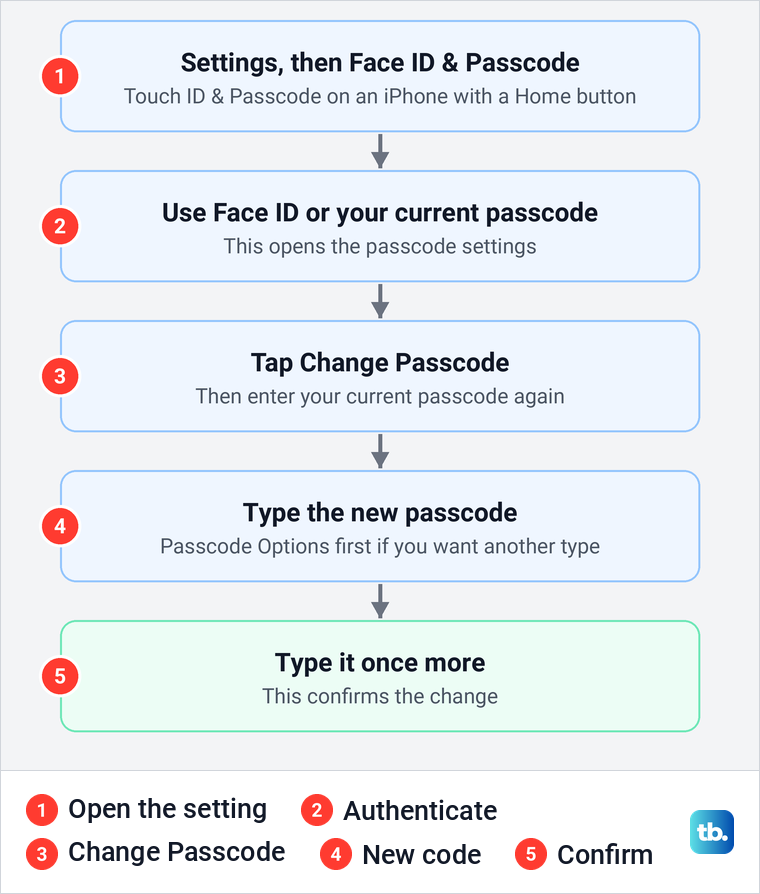
You need the code you use now for every step of this. Open Settings and tap Face ID & Passcode, or Touch ID & Passcode on an iPhone with a Home button, then use Face ID or enter your passcode to open the passcode settings. Tap Change Passcode and enter your current passcode again, as Apple's steps ask.
Type the new passcode, then type it once more to confirm the change. By default the iPhone asks for six digits. To pick another type, tap Passcode Options on the screen that asks for the new code, before you type anything.
Make sure you will remember the new code before you confirm it. Apple's only way back into an iPhone whose passcode is forgotten, once the 72-hour window below has passed, is to erase it. That is why a fresh copy of your data is worth having first, and our guide shows how to back up your iPhone to iCloud or a computer.
Choose four digits, six digits or letters
The new code is six digits by default. Passcode Options lets you switch to a four-digit numeric code, a custom numeric code or a custom alphanumeric code with letters and numbers, and Apple says the most secure options are the custom alphanumeric and custom numeric codes. A longer code is less of a chore than it sounds, because Face ID or Touch ID unlocks the iPhone most of the time.
Apple still asks for the passcode itself in some cases, for example after you turn on or restart the iPhone and when it has not been unlocked for more than 48 hours. Pick something you can type quickly at those moments, not just something hard to guess.
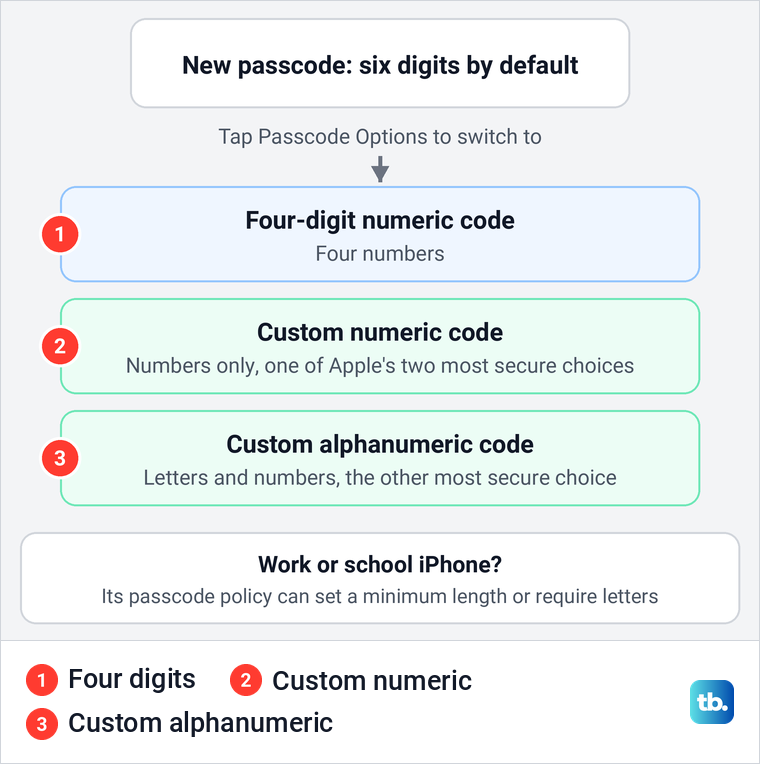
Going back to four digits works the same way: tap Change Passcode, enter the current code, tap Passcode Options and choose the four-digit numeric code. On an iPhone managed by an employer or school, some choices may be refused. Apple's passcode policy for organizations can set a minimum length, require letters and numbers, block codes you used before and make you change the code after a set number of days.
What happens to your old passcode
For 72 hours after a change, the old code can still get you back in once, but only through Forgot Passcode? on the lock screen, not as an everyday code. On iOS 17 and later, Apple's Passcode Reset allows that one use in case you forget the new passcode, and Apple says you are asked to change your passcode again as soon as you use it.
Apple says Forgot Passcode? appears only when the iPhone is connected to Wi-Fi or cellular, signed in to your Apple Account and has Find My turned on. After five incorrect passcode attempts the iPhone Unavailable screen appears, and with those conditions met you tap that option in the bottom corner, then Enter Previous Passcode, and type the old code to set a new one.
If Forgot Passcode? does not appear, stop trying codes. Apple says that after ten failed attempts the iPhone erases itself if Erase Data is on, or otherwise has to be restored with a computer. Use the forgotten passcode guide linked at the top of this page instead.
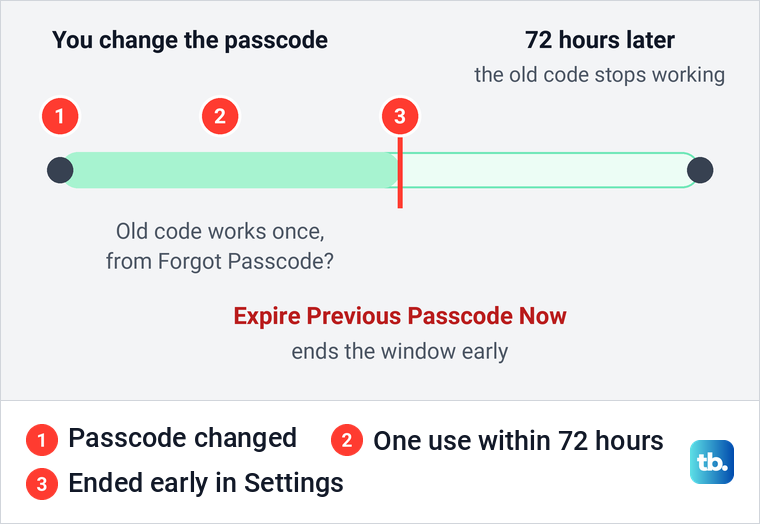
If someone else knew your old code, close that window early. Apple's steps are to open Settings, tap Face ID & Passcode, use Face ID or enter your current passcode, then tap Expire Previous Passcode Now. After that, the old code can no longer get anyone in, so be sure you know the new one.
What still works after a new passcode
Changing the passcode is not the same as turning it off or resetting Face ID, and Apple treats those as separate controls in the same part of Settings. Apple's Change Passcode steps do not include setting up Face ID again or adding your cards to Wallet again. After the change, lock the iPhone once, unlock it with Face ID, then open Wallet and check that your cards are there.
Everything that falls back to the passcode now takes the new one. Apple says Face ID, Touch ID and Apple Pay can use your passcode instead, so the new code is what you type when Face ID does not recognize you. If recognition keeps failing afterwards, the steps to set up and fix Face ID on iPhone deal with that separately.
Apps you locked with Require Face ID use the same code. On our iPhone 17 Pro with iOS 26.6, the lock sheet said such an app needs Face ID or the passcode to open, and our guide shows how to lock an app with Face ID. If Wallet needs attention after the change, our guide to set up Apple Pay on iPhone covers adding cards again.
Why your iPhone makes you wait an hour
With Stolen Device Protection on, a passcode change can come with a security delay. Apple says that when the iPhone is not in a familiar location, you must authenticate with Face ID or Touch ID, wait an hour for the delay to end, then authenticate with Face ID or Touch ID again. Changing your passcode and changing your Apple Account password are both on Apple's list.
By default the extra steps apply only away from familiar places, such as home and work. Apple also lets you set Stolen Device Protection to require them always, and with that setting the delay appears at home too. Apple says the iPhone may end the delay early once it detects that you have arrived at a familiar location.
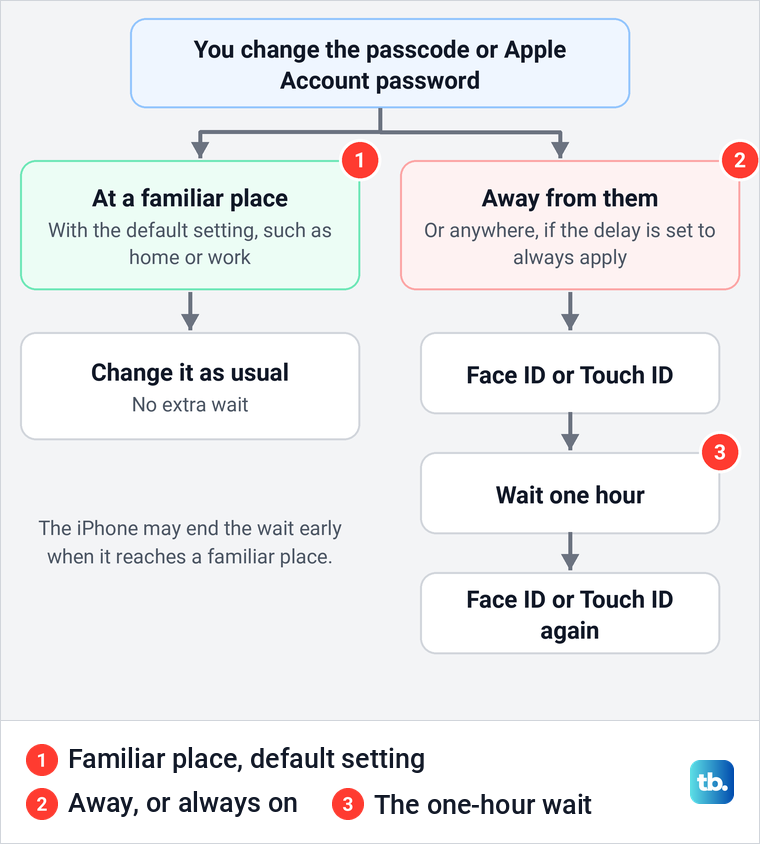
The delay is the feature doing its job, so wait it out rather than switching protection off. Turning Stolen Device Protection off is on the same delayed list, and our guide shows where the Stolen Device Protection settings live.
Change your Apple Account password
Apple ID is now called Apple Account, and its password is the one you use for iCloud, the App Store and iCloud Mail. Apple's easiest route is an iPhone that is already signed in to the account. Open Settings, tap your name at the top, then tap Sign-In & Security and Change Password.
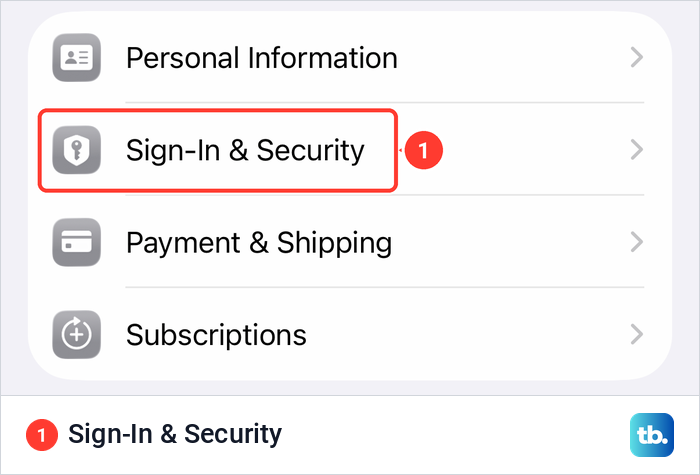
On our iPhone 17 Pro with iOS 26.6, Sign-In & Security was the second row on the Apple Account page, right under Personal Information. From there Apple says to follow the onscreen instructions, and the one-hour Stolen Device Protection delay can apply here too.
If other devices use the same account, Apple gives you a choice at the end. Keep All Devices Signed In leaves them as they are, while Remove Other Devices makes each of them sign in again. Choose the second one if you are changing the password because someone else may know it.
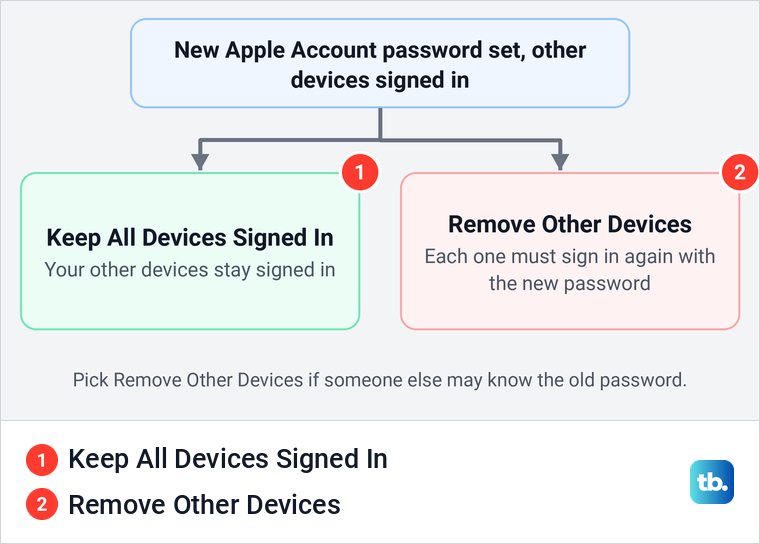
Apple's website at account.apple.com sends you to a trusted device when it can, so starting on the iPhone saves a step. If you have forgotten the password rather than wanting a new one, follow the separate steps to reset a forgotten Apple Account password.
Change a saved website or app password
The Passwords app stores your logins, but the password itself has to be changed by the website or app. Apple's steps are to open Passwords, tap All, find the account and tap it, then tap Edit and Change Password. That takes you to the website or app to set the new password, and for many accounts the iPhone can create a strong one for you.
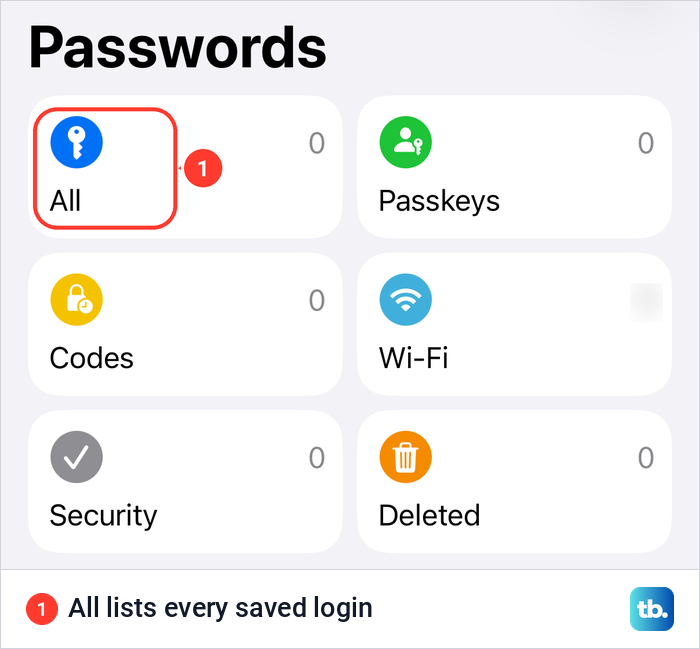
On iOS 26.5, the Passwords app opened to six tiles, All, Passkeys, Codes, Wi-Fi, Security and Deleted, with a Search field at the bottom. All is where Apple's steps start, and Search is quicker when the list is long. Our guide to find saved passwords on iPhone shows how to locate the right entry before you change it.
Change the Screen Time passcode
Screen Time has its own four-digit passcode, and Apple is clear that it is not the same as the code that unlocks the iPhone. You need it to change Screen Time limits and restrictions. To change it, Apple's iPhone guide says to open Settings, tap Screen Time, tap Change Screen Time Passcode twice, enter your current Screen Time passcode, then enter the new four-digit code twice.
Apple's support article adds Manage Screen Time before Change Screen Time Passcode, so tap it if you see it. If you forgot the Screen Time passcode, Apple's reset uses the same route, and when asked you enter the Apple Account email and password you used to set up the Screen Time passcode.
Apple's steps create a Screen Time passcode in the first place with Lock Screen Time Settings. On iOS 26.5 with no Screen Time passcode set, the line "Use a passcode to secure Screen Time settings." sat under that button at the end of the Screen Time page.
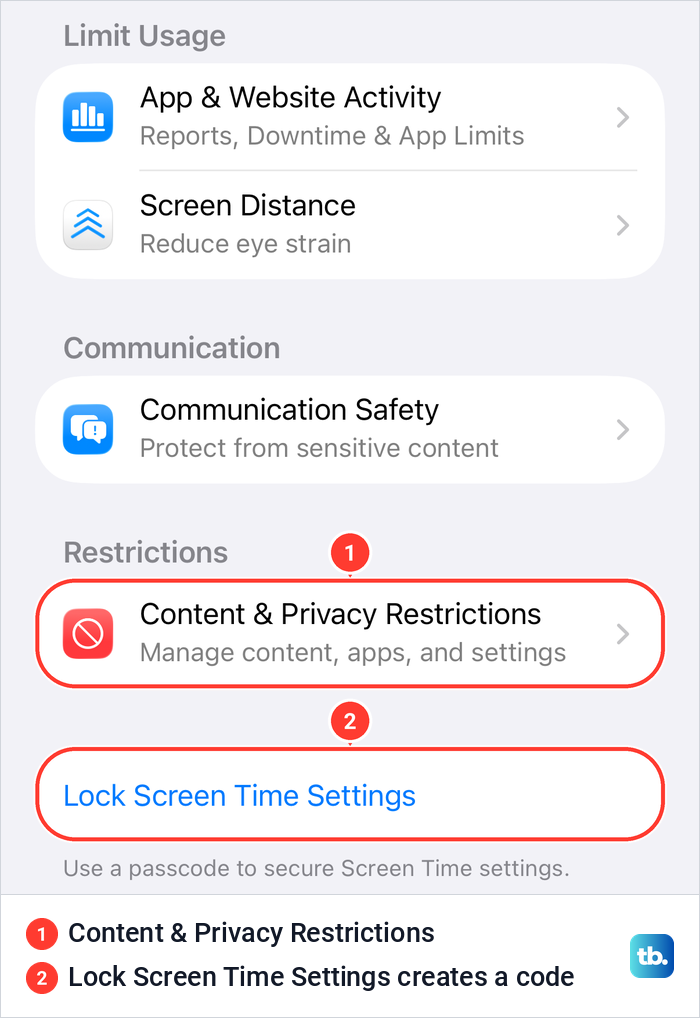
For a child's iPhone, Apple says the family organizer or a parent changes the code on their own device, not on the child's. Open Settings, tap Screen Time, tap the child's name under Family, then Manage Screen Time and Change Screen Time Passcode. The same code protects the limits you set to block websites on a child's iPhone, so change it if your child may have seen it.
Change your voicemail password
Voicemail has a separate password that belongs to your carrier's service. Apple's steps are to open Settings, tap Apps, then Phone, tap Change Voicemail Password and enter the new one. Apple notes that voicemail is offered by select carriers in select countries or regions, so if the option is missing or the change fails, your carrier is the one to ask.
Apple says the first time you tap Voicemail in the Phone app, you are asked to create a voicemail password and record a greeting. If you have never done that, start with how to set up voicemail on iPhone and change the password afterwards.
When Change Passcode is grayed out or refused
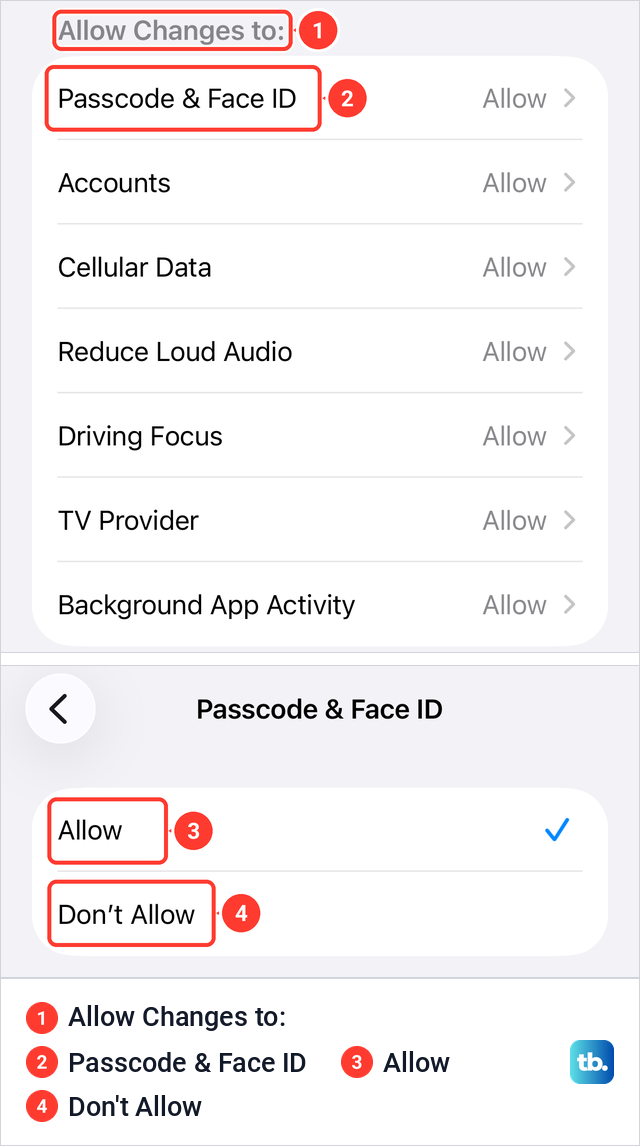
Two settings can block a passcode change outright, a Screen Time restriction or a management profile from an employer or school. The Stolen Device Protection delay above can also hold it up for an hour, and Screen Time is the quicker of the two settings to check. Go to Settings, Screen Time, Content & Privacy Restrictions and scroll to the bottom, where Apple groups these settings under Allow Changes To.
On iOS 26.5 the heading read Allow Changes to: and its first row was Passcode & Face ID, set to Allow. Opening that row showed two choices, Allow and Don't Allow, and Apple's instruction for every row in that group is to pick one of the two. If yours says Don't Allow, set it to Allow, which needs the Screen Time passcode if one is set.
On a work or school iPhone, the rules can come from a management profile instead. Apple says an alert that your unlock passcode has expired is likely a mobile device management requirement. To check, open Settings, General and VPN & Device Management, and look for a profile under Mobile Device Management.
Apple's next steps are to tap the profile, then More Details and Mobile Device Management, and look for a passcode policy in its list of rights. Such a policy can demand a longer code, letters as well as numbers, or a code you have not used before, and the iPhone refuses a new code that breaks it. The organization sets those rules, so its IT team is the one to ask.
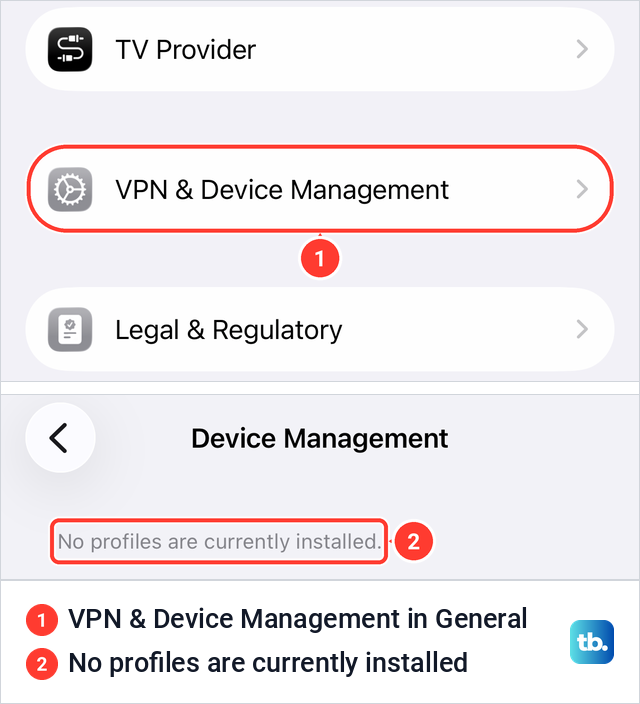
On our iPhone 17 Pro with iOS 26.6, VPN & Device Management sat near the bottom of General, below TV Provider. On iOS 26.5 with nothing installed, the page that opened was titled Device Management and read "No profiles are currently installed." If yours says the same, no profile is setting your passcode rules.
If you forgot the current passcode
Change Passcode always asks for the current code, so it cannot help once that is gone. If you changed the code in the last 72 hours on iOS 17 or later, and the iPhone is online, signed in and has Find My on, the previous passcode route above gets you back in without losing anything. Otherwise every route Apple offers erases the iPhone, and you get your data back from a backup.
Face ID does not get you around this. Face ID can open the passcode settings, but Change Passcode itself asks for the current passcode, so an iPhone you can still open with your face cannot be given a new code. If that is your situation, back it up to iCloud now and avoid restarting it, because Apple says the iPhone asks for the passcode after a restart or after 48 hours without an unlock.
How we tested this guide
We tested this on iOS 26.5, going through the Screen Time page and the Passcode & Face ID setting in Content & Privacy Restrictions.
Frequently Asked Questions
Can I change my iPhone passcode without knowing the old one?
Not with Change Passcode, which asks for the current code. If you changed it in the last 72 hours on iOS 17 or later, Forgot Passcode? and Enter Previous Passcode can get you in when the iPhone is online, signed in and has Find My on, and otherwise Apple's routes erase the iPhone.
How do I go back to a four-digit passcode?
Tap Change Passcode, enter the current code, then tap Passcode Options and choose the four-digit numeric code. A work or school profile can require a longer code, and then the iPhone refuses the shorter one.
Does my old passcode still work after I change it?
Only once, as a way back in. On iOS 17 and later Apple accepts it one time from Forgot Passcode? within 72 hours, which needs the iPhone online with Find My on, and then asks you to set a new code. Expire Previous Passcode Now ends that window early.
Why is Change Passcode grayed out on my iPhone?
Check Screen Time first, under Content & Privacy Restrictions, where Passcode & Face ID sits under Allow Changes to. If that is set to Allow, look in General, VPN & Device Management for a work or school profile with a passcode policy.
Will changing my Apple Account password sign me out everywhere?
Only if you want it to. Apple offers Keep All Devices Signed In or Remove Other Devices when you change it, and only the second one makes your other devices sign in again.
Is the Screen Time passcode the same as my iPhone passcode?
No. Screen Time uses its own four-digit code, and Apple says it is not the code that unlocks your device, while voicemail has a separate carrier password too.