

To unhide an app on iPhone, swipe left past your last Home Screen page to open App Library, scroll to the bottom and tap the Hidden folder, then unlock it with Face ID or your passcode. Touch and hold the app and tap Don't Require Face ID. Apple says the app then appears near the top of App Library, so drag it onto a Home Screen page if you want its icon back there.
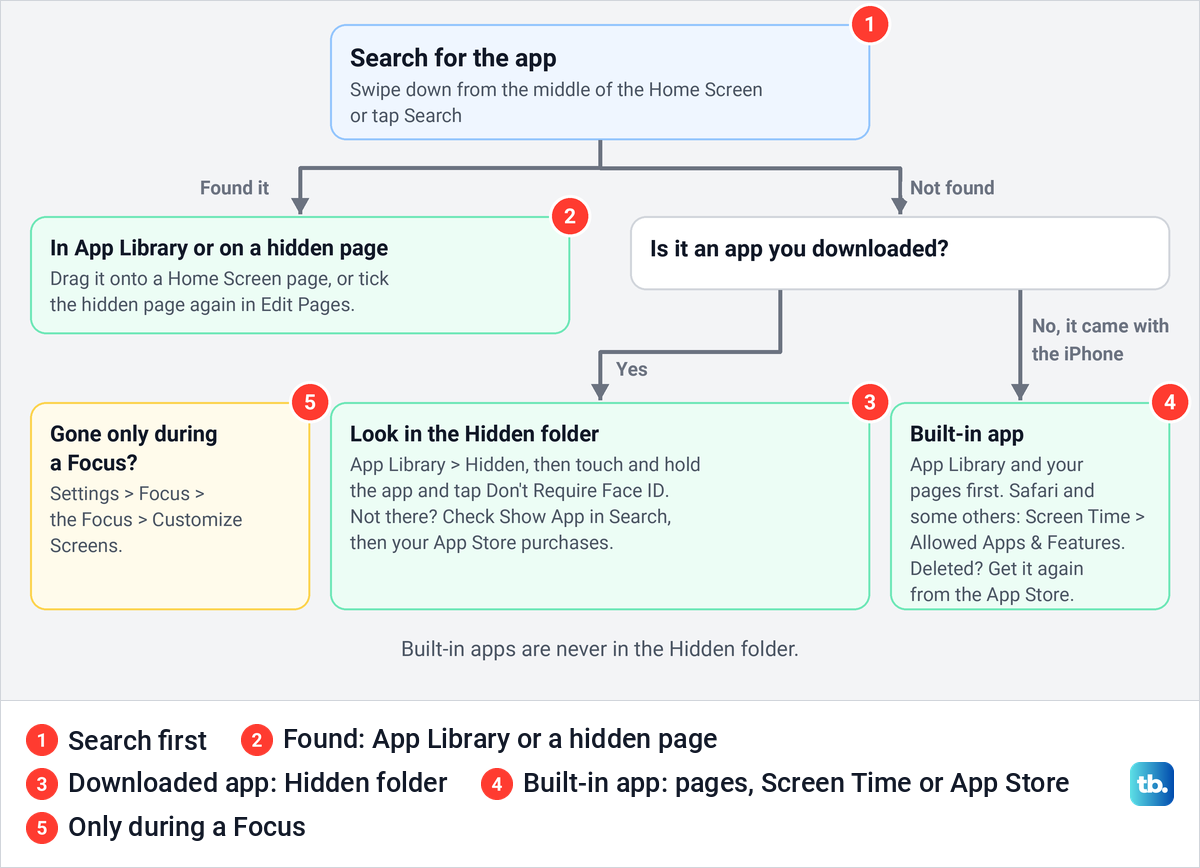
If the app is not in that folder, it is out of sight in another way. It may be only in App Library, on a hidden Home Screen page, on a page a Focus leaves out, or switched off in Screen Time, which is how Safari and some other built-in apps disappear. The table and the diagram below tell you which one you have.
The short version
- Find hidden apps: open App Library, scroll to the bottom, tap Hidden, then use Face ID or your passcode.
- Unhide: touch and hold the app and tap Don't Require Face ID.
- Back on the Home Screen: the app returns to App Library, so drag it onto a page.
- Built-in apps: apps that came with your iPhone can't be hidden, so look for a missing Safari in App Library and Screen Time.
- A whole page gone: tick the hidden page again in the Home Screen's Edit Pages view.
Where your missing app can be
A missing app is in one of a handful of places, each with its own way back. Start with Search: swipe down from the middle of the Home Screen or tap Search at the bottom, and type the app's name. Apple says a hidden app can't be found with Search, while apps on a hidden Home Screen page can. If the icon doesn't appear, Apple's next steps are to check the Hidden folder or download the app again.
| What you notice | Where the app is | How to get it back |
|---|---|---|
| Search finds nothing, and it is an app you downloaded | The Hidden folder | App Library > Hidden, touch and hold the app, then Don't Require Face ID |
| Search finds the app, but no Home Screen page shows it | App Library only | Drag it from App Library onto a Home Screen page |
| A whole page of apps is gone | A hidden Home Screen page | Touch and hold the Home Screen, tap Edit, then Edit Pages, and tick the page |
| Apps vanish only while a Focus is on | A page that Focus does not show | Settings > Focus > the Focus > Customize Screens |
| Safari is gone | Switched off in Screen Time | Screen Time > Content & Privacy Restrictions > Allowed Apps & Features |
| Wallet, News or Health is gone | Switched off in Screen Time, or deleted | Check Allowed Apps & Features, then get it from the App Store |
| Camera, Messages or another built-in app is gone | App Library, a hidden page, or deleted where Apple allows it | Search App Library, tick the page in Edit Pages, or get it from the App Store |
| One app never shows in Search but is not hidden | Left out of Search | Settings > Search > the app > Show App in Search |
| An app is missing from your App Store purchases | Hidden Purchases | App Store > your photo > your name > Hidden Purchases > Unhide |
| A downloaded app is nowhere at all | Deleted | App Store > your photo > Apps & Purchase History > Your Apps |
The rows follow Apple's instructions, with the labels as they read on iOS 26. One rule saves time: apps that came with your iPhone can't be hidden, so if Safari, Camera or Messages is missing, skip the Hidden folder and look in App Library, on your Home Screen pages and, for Safari, in Screen Time.
Open the Hidden folder in App Library
The Hidden folder arrived with iOS 18, so if App Library ends without one, check which version of iOS your iPhone runs. To get there, go to the Home Screen and keep swiping left past your last page until App Library opens. Then scroll all the way down, past every category folder.
On our iPhone 17 Pro with iOS 26.6, the bottom row held the Other folder and the Hidden folder. Hidden was there even though no app on that iPhone was hidden, and its tile showed blank frosted squares instead of app icons. So the folder being there doesn't tell you whether anything is inside it.
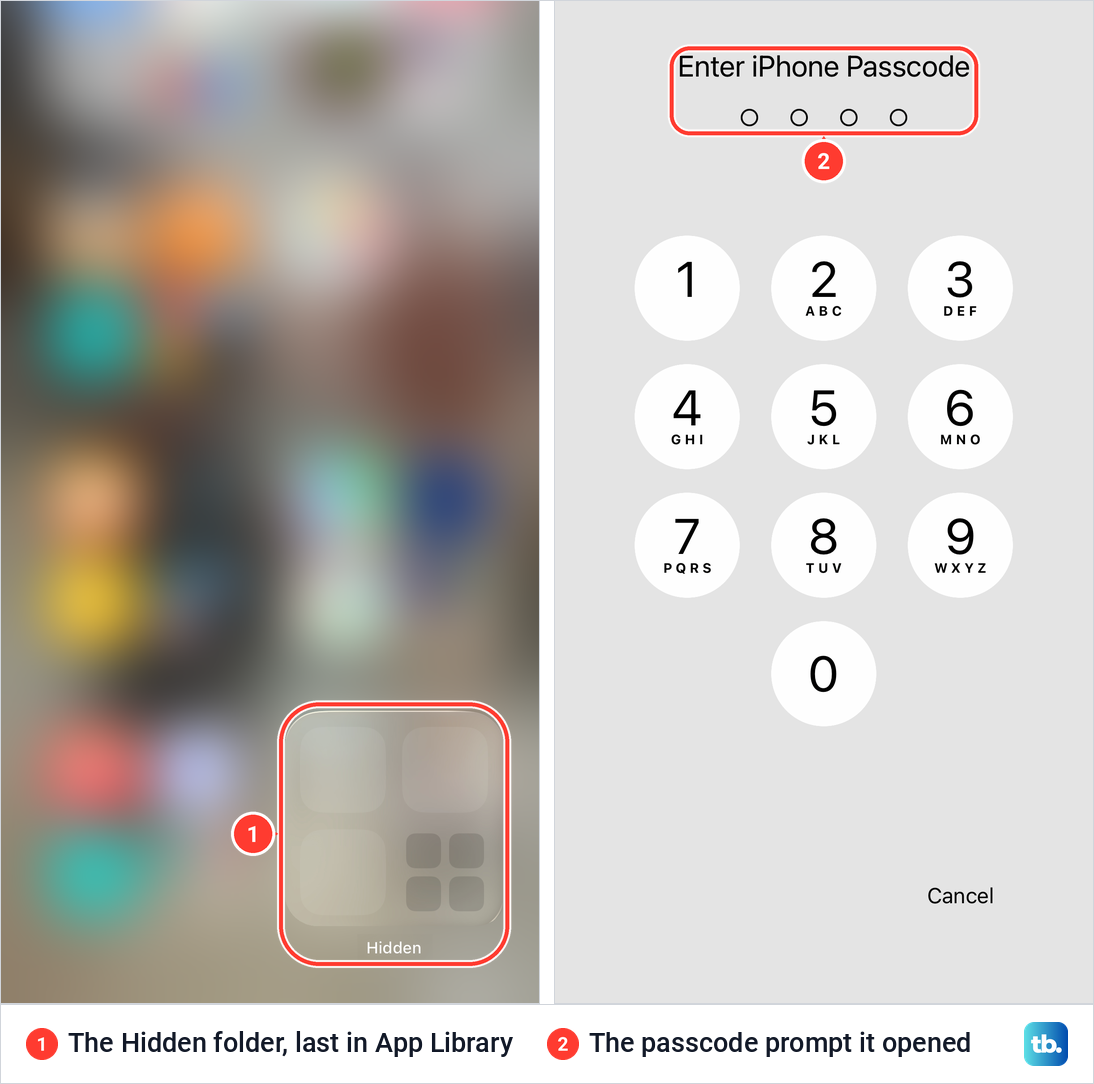
Tap Hidden and iOS asks you to prove it's you. Apple says Face ID, Touch ID or your passcode unlocks the folder, and when we tapped it, a full-screen Enter iPhone Passcode keypad appeared within a second. If you forgot your iPhone passcode, that has to be solved before the folder will open.
Hidden apps are locked as well. Apple's Personal Safety guide describes a hidden app as locked, gone from the Home Screen and moved to the Hidden folder at the bottom of App Library. Apple also says a locked app's information stays out of notification previews, search and Siri suggestions.
This is also how an app ends up in the folder. When we touched and held YouTube on our iPhone and tapped Require Face ID, the sheet offered Hide and Require Face ID next to Require Face ID, and Apple's next step after that choice is Hide App. Anyone who chose that option and then tapped Hide App sent the app to Hidden.
Unhide the app with Don't Require Face ID
Once the folder is open, these are Apple's steps for iOS 26, and Apple's iOS 27 guide gives the same ones. The label follows how your iPhone unlocks, so an iPhone with Touch ID shows Don't Require Touch ID instead.
- 1.Touch and hold the app inside the Hidden folder until its menu opens.
- 2.Tap Don't Require Face ID (or Touch ID, or Passcode).
- 3.Confirm with Face ID, Touch ID or your passcode.
- 4.Find the app near the top of App Library, and drag it onto a Home Screen page if you want the icon there.
Expect the app in App Library, not on your Home Screen. Apple's iPhone User Guide says the app "appears near the top of App Library", and its support article says it "returns to your App Library". One older Apple guide says it also appears on the Home Screen, so if you see nothing there, look in App Library before you repeat the steps.
Unhiding works on one device at a time. Apple says the locked or hidden status of an app doesn't sync with iCloud, so unhiding an app on your iPhone changes nothing on your iPad.
See every hidden app in Settings
Settings keeps a list of what is hidden, which is the quickest check before you go hunting in App Library. Apple's path is Settings > Apps > Hidden Apps, and on our iPhone the Hidden Apps row was the very last one, below the "#" group at the end of the A to Z list.
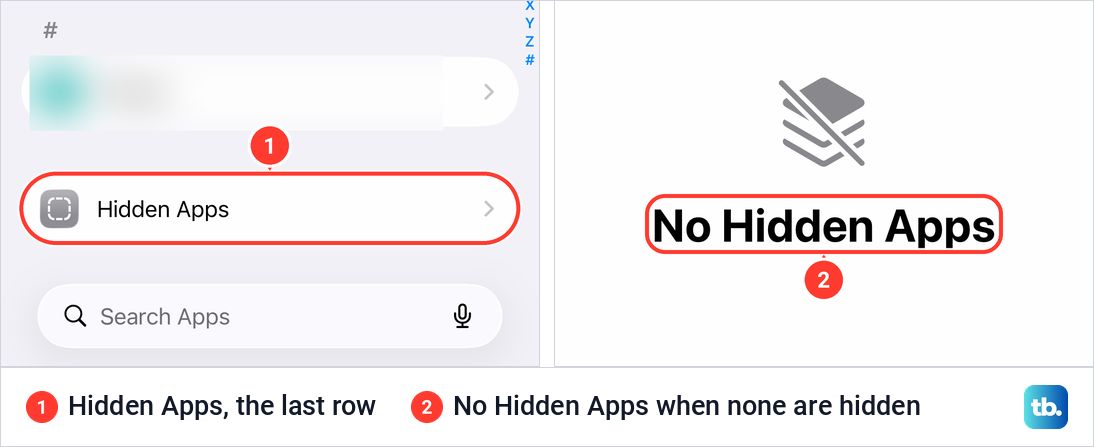
With nothing hidden, the page showed a crossed-out stack icon and the words No Hidden Apps. Apple says the list asks for Face ID, Touch ID or your passcode, and its unhide steps all go through the Hidden folder in App Library. Use this list to confirm the app's name, then unhide it there.
Put the app back on your Home Screen
An unhidden app, an app you removed from the Home Screen and a new download set to App Library all end up in the same place. Open App Library and either type the name into the search field at the top or browse the groups. On our iPhone the top of App Library held the search field, then the Suggestions and Recently Added groups, which Apple's iOS 27 guide describes as the apps you use most and your newest apps.
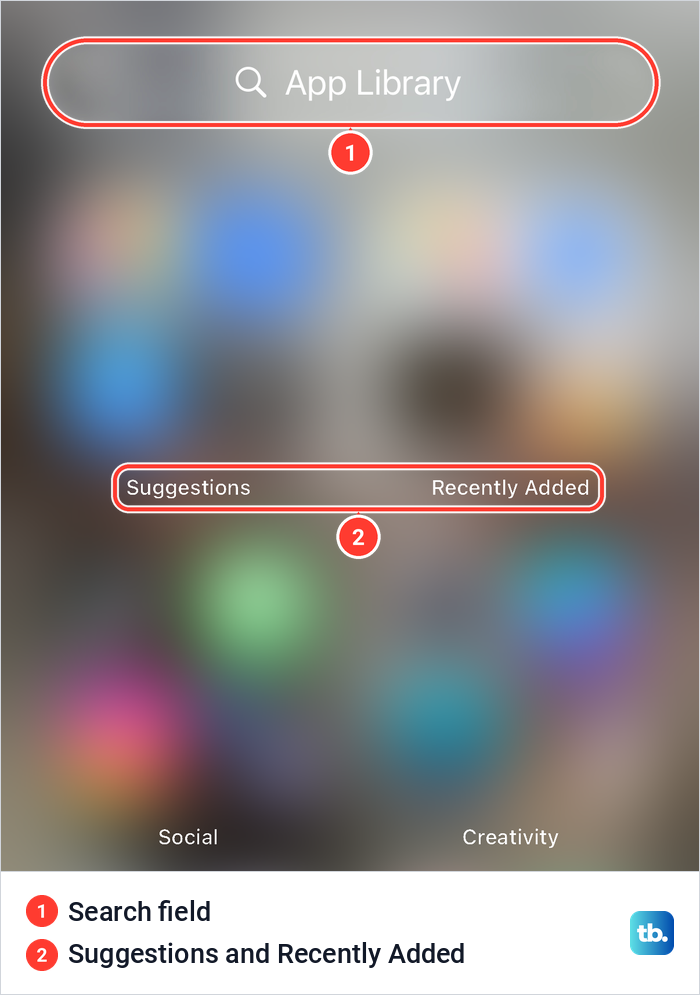
To move the app, Apple's support article says to touch and hold it in App Library, drag it to the Home Screen page where you want it, and tap Done. Apple's User Guide words it slightly differently: touch and hold until the icons jiggle and the app moves to the Home Screen, then lift your finger. Once the icon is on a page, you can move apps and organize your Home Screen the usual way.
App Library sorts apps into categories, and Apple says you can't move an app to another category there. If new apps keep landing only in App Library, open Settings > Home Screen & App Library and choose Add to Home Screen instead of App Library Only. Apple adds that while Home Screen pages are hidden, new downloads may go to App Library instead of the Home Screen.
The same applies to an app you took off the Home Screen yourself. Apple's Remove App menu offers Remove from Home Screen, which keeps the app in App Library, and Delete App, which removes it from the iPhone. Our guide on how to undownload apps on iPhone explains the choices that delete or offload an app.
Show a hidden Home Screen page
When a whole page of apps disappears at once, check whether the page itself is hidden. Apple says the apps on a hidden page still appear in App Library and in Search, so nothing is lost. Touch and hold an empty area of the Home Screen, tap Edit, then Edit Pages, or tap the dots near the bottom of the screen.
Your pages then appear as small thumbnails, each with a circle below it. Apple says to tap any unchecked circle to show that page again, then tap Done. On an iPhone with a Home button, Apple says to press the Home button instead of tapping Done.
Check the Home Screen pages a Focus uses
If apps vanish only at certain times, a Focus may be choosing your pages. Apple says a Focus can switch to a chosen Home Screen page while it is on, and even suggests putting all your work apps on one page for a Work Focus. The apps on the other pages stay installed, but those pages are out of view while that Focus is on.
On our iPhone, Settings > Focus listed Do Not Disturb, Personal, Sleep and Work. Opening Do Not Disturb showed a Customize Screens section, "Choose a Lock Screen or Home Screen page to turn on to help limit distractions", with a Choose button under a Home Screen picture. Open the Focus that is on when your apps disappear and check that Home Screen choice.
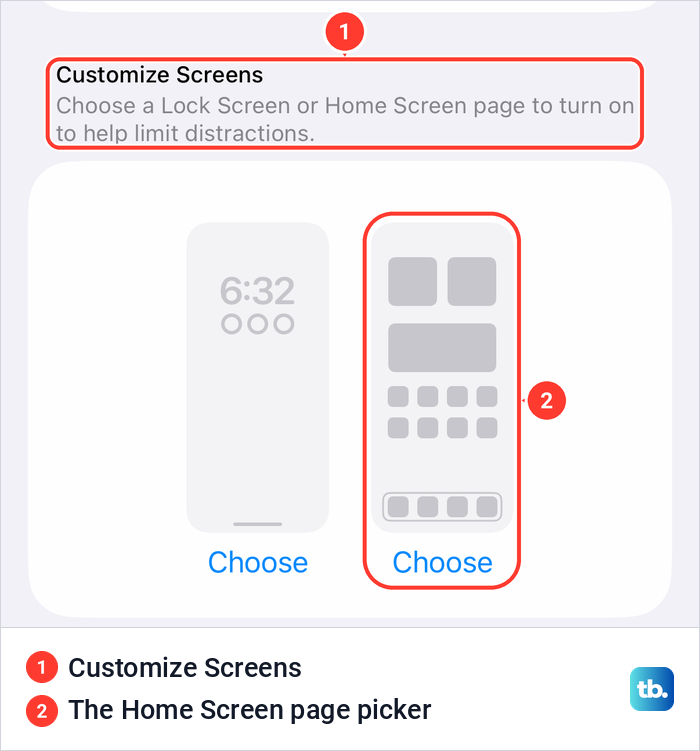
If the missing apps come back when you turn off Focus on your iPhone, the Focus is the cause. Do Not Disturb is a Focus too, so if Home Screen pages were picked for it, the other pages drop out of view every time it starts, and our guide shows how to turn off Do Not Disturb when it keeps coming back.
Why built-in apps are never in the Hidden folder
Apple says apps that come installed can't be hidden, only apps you download separately from the App Store, and an app set as your default web browser can't be hidden either. We saw the difference on our iPhone. YouTube's Require Face ID sheet offered Hide and Require Face ID, while Safari's sheet offered only Require Face ID and Cancel.
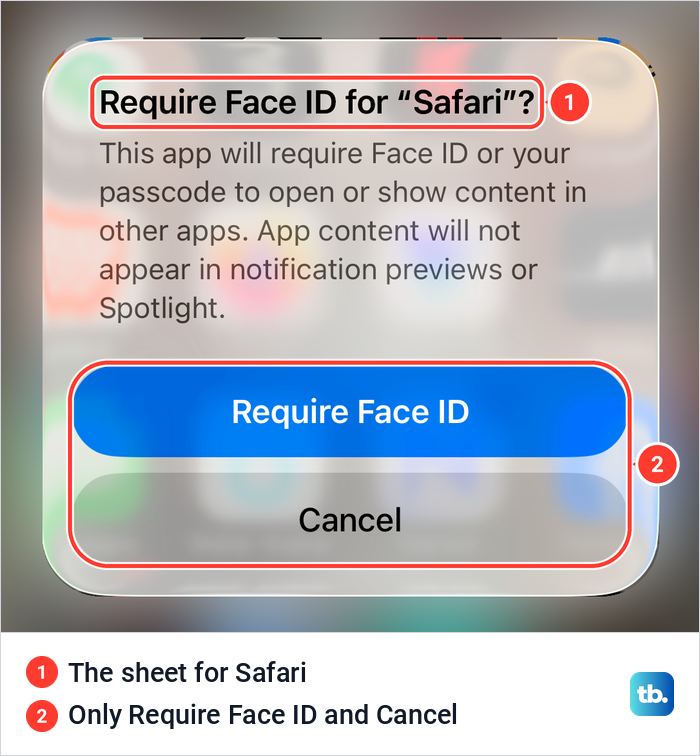
So a missing Safari, Camera or Messages was never hidden. Outside the European Union, Apple's list of built-in apps you can delete leaves out Safari, Camera, Messages, Phone and Photos, so look in App Library, on a hidden page and, for Safari, behind the Screen Time switch below. In the EU, Apple says there may be other built-in apps you can delete, so a missing one may need downloading again from the App Store.
Turn a built-in app back on in Screen Time
Screen Time can take a built-in app off the Home Screen without deleting it. Apple's wording for iOS 26 is that a switched-off app "isn't deleted; it's temporarily hidden from your Home Screen until you turn it back on". Go to Settings > Screen Time > Content & Privacy Restrictions and tap Allowed Apps & Features.
On iOS 26.5, the Allowed Apps & Features page listed Safari first among its switches, with Wallet, AirDrop, News and Health further down. A note at the top of the page reads: "Turning off an app or feature will remove it from the Home Screen, but will not delete it from iPhone." Turn the missing app's switch back on.
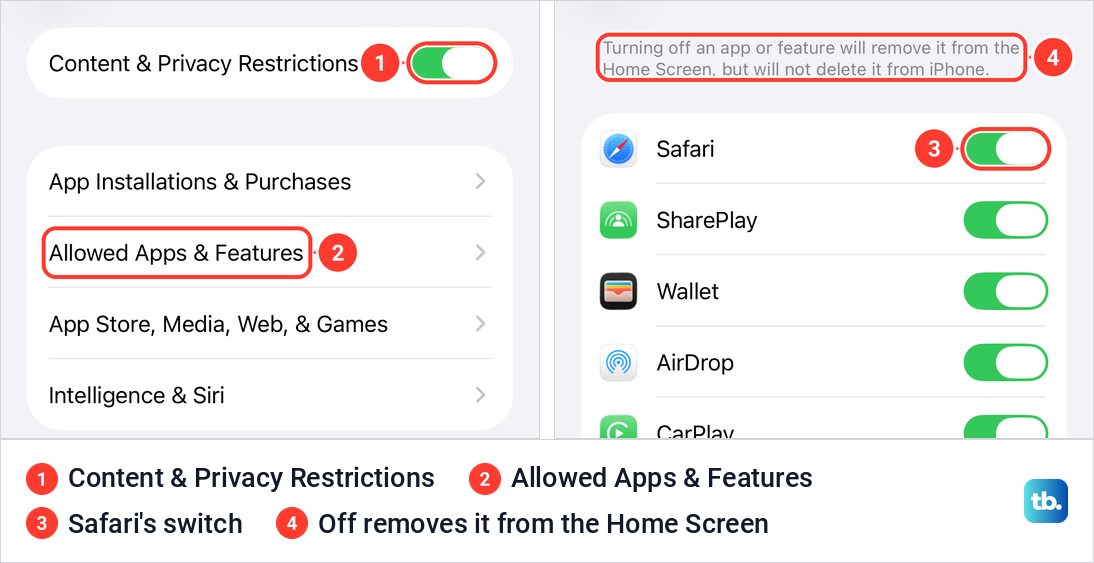
We switched Safari off to see what happens, and Safari disappeared from the Dock, leaving Messages on its own. Then we switched it back on. If a Screen Time passcode was set, Apple says it must be entered before these settings can be changed, so you need it from whoever set it up.
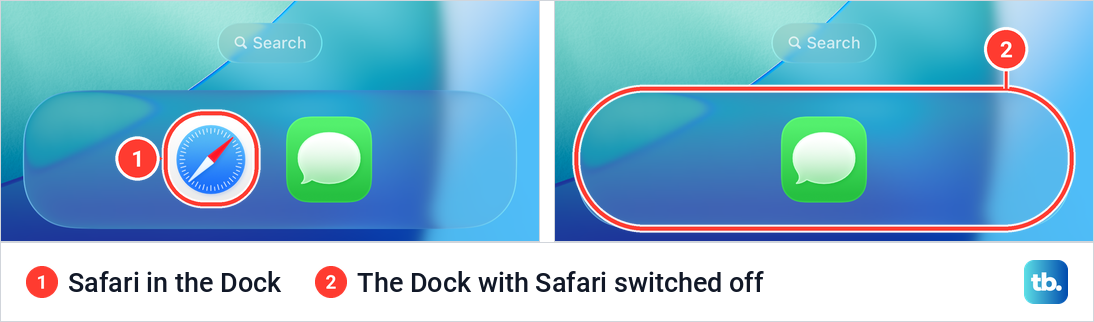
If you set up Family Sharing on iPhone for a child, Apple says to tap the child's name in Screen Time first. Apple's iOS 27 guide calls the list Other Features and names AirDrop and Camera among the things it can block. In iOS 27, Apple's new parental controls can also block apps by age rating, and they dim a blocked app instead of removing it.
Make an app show up in Search again
If an installed app never shows in Search, check its Search setting. On iOS 26, Apple's path is Settings > Search, then scroll down, tap the app and turn on Show App in Search. Older advice points to a Siri & Search page, which is not where Apple's iOS 26 guide puts this switch. With the switch off, an app can look hidden when it isn't, so check it when the Hidden folder and the Hidden Apps list are both empty.
Unhide an app in your App Store purchases
The App Store has its own Hidden Purchases list, and it has nothing to do with the Hidden folder. Apple says hiding a purchase won't remove the app from your device or from other devices signed in to your Apple Account. It only takes the app out of your purchase list, and family members can't redownload it from your shared purchases while it is hidden.
To bring a purchase back, open the App Store, tap your photo or initials, tap your name, then tap Hidden Purchases. Find the app and tap Unhide. Apple notes that if you deleted the app, unhiding the purchase doesn't put it back on your Home Screen, so download it again from the App Store, and you don't have to buy it again.
If the app is no longer on your iPhone
When a downloaded app is missing from Search, from App Library and from the Hidden folder, it was deleted rather than hidden. For a built-in app, check the Screen Time switch described above first. In the App Store, tap your photo, then Apps & Purchase History and Your Apps; on our iPhone that sheet was titled Apple Account. Apple says you can download any app there that is still available in the App Store.
Our step-by-step guide shows how to find deleted apps on iPhone and reinstall them. Apple's list of built-in apps you can delete includes Calculator, Calendar, Mail, Maps, Notes and Weather, so those can be gone for real and come back the same way.
Reset the Home Screen layout as a last resort
If your pages are a mess and you would rather start over, iOS can put the Home Screen back to its original layout. Apple's path is Settings > General > Transfer or Reset iPhone > Reset > Reset Home Screen Layout, then Reset Home Screen. Apple says folders you created are removed, and apps you downloaded are arranged alphabetically after the apps that came with your iPhone.
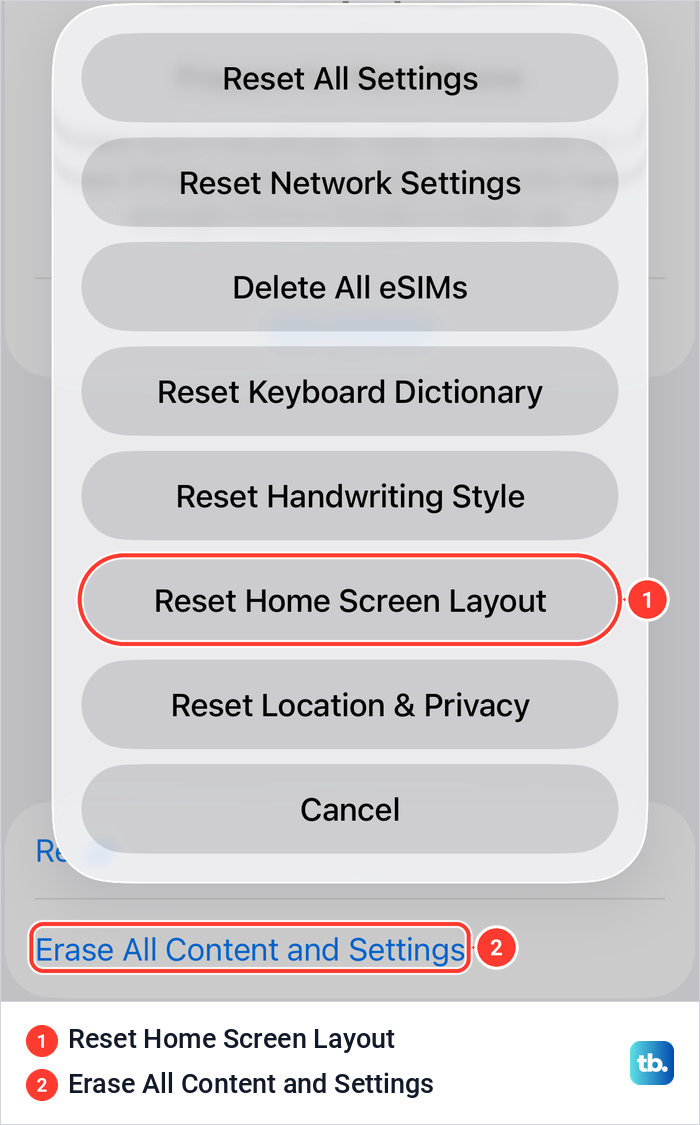
On our iPhone, Reset Home Screen Layout sat in the same sheet as Reset All Settings and Reset Network Settings, with Erase All Content and Settings on the page behind it, so read the row before you tap. Cancel at the bottom of the sheet closes it without resetting anything. Apple doesn't say a layout reset brings hidden apps back, so unhide them from the Hidden folder first.
Erase All Content and Settings is a different job that wipes the iPhone. Our guide on how to erase an iPhone completely covers it.
How we tested this guide
We tested this on an iPhone 17 Pro with iOS 26.6, opening the Hidden folder in App Library and the Hidden Apps list in Settings.
Frequently Asked Questions
Where do hidden apps go on iPhone?
They go into the Hidden folder at the bottom of App Library, which opens with Face ID, Touch ID or your passcode. Settings > Apps > Hidden Apps also lists them.
Why isn't my unhidden app on the Home Screen?
Apple says an unhidden app appears near the top of App Library, not on the Home Screen. Touch and hold it there and drag it onto a Home Screen page.
Can I unhide an app without Face ID?
Yes. Apple's steps accept Face ID, Touch ID or your passcode, and on our iPhone the Hidden folder showed a passcode keypad within a second of tapping it.
Why can't I see the Hidden folder?
It needs iOS 18 or later, and it sits below every category folder at the very bottom of App Library. On our iPhone it was there even with no app hidden, so the folder alone doesn't mean anything is inside.
Why is Safari missing from my iPhone?
Safari can't be hidden, and outside the EU it can't be deleted, so it is in App Library, on a hidden page or a page a Focus leaves out, or switched off in Screen Time. Check Settings > Screen Time > Content & Privacy Restrictions > Allowed Apps & Features and turn Safari back on. In the EU, Apple says there may be other built-in apps you can delete, so if it is in none of those places, look for it in the App Store.
If I unhide an app on my iPhone, is it unhidden on my iPad too?
No. Apple says hiding and unhiding apply only to the device you do it on and don't sync with iCloud.
Can a child hide apps from a parent?
Apple says children under 13 in a Family Sharing group can't hide apps. Teens aged 13 to 17 can, but a parent in the group can still see the app and how much it is used, and restrict it with Screen Time. These ages vary by country or region.