Focus is the reason your iPhone can go quiet and show people in apps such as Messages that your notifications are silenced. The fastest fix is Control Center, but the setting can return from a schedule, Sleep, Driving, or another Apple device. Here is how to turn it off and stop it from switching back on.
Turn Off Focus From Control Center
This fixes the active Focus right now.
Open Control Center on your iPhone.
Tap Focus.
Tap the Focus that is currently on, such as Do Not Disturb, Sleep, or Driving, to turn it off.
Use the Lock Screen Shortcut
The Lock Screen gives you a direct off switch when a Focus is already active. Touch and hold the active Focus icon on the Lock Screen.
When the Focus menu opens, tap the Focus that is on. That turns it off for the current session.
Use this when the Lock Screen already shows the Focus name and you want notifications back without opening Settings.
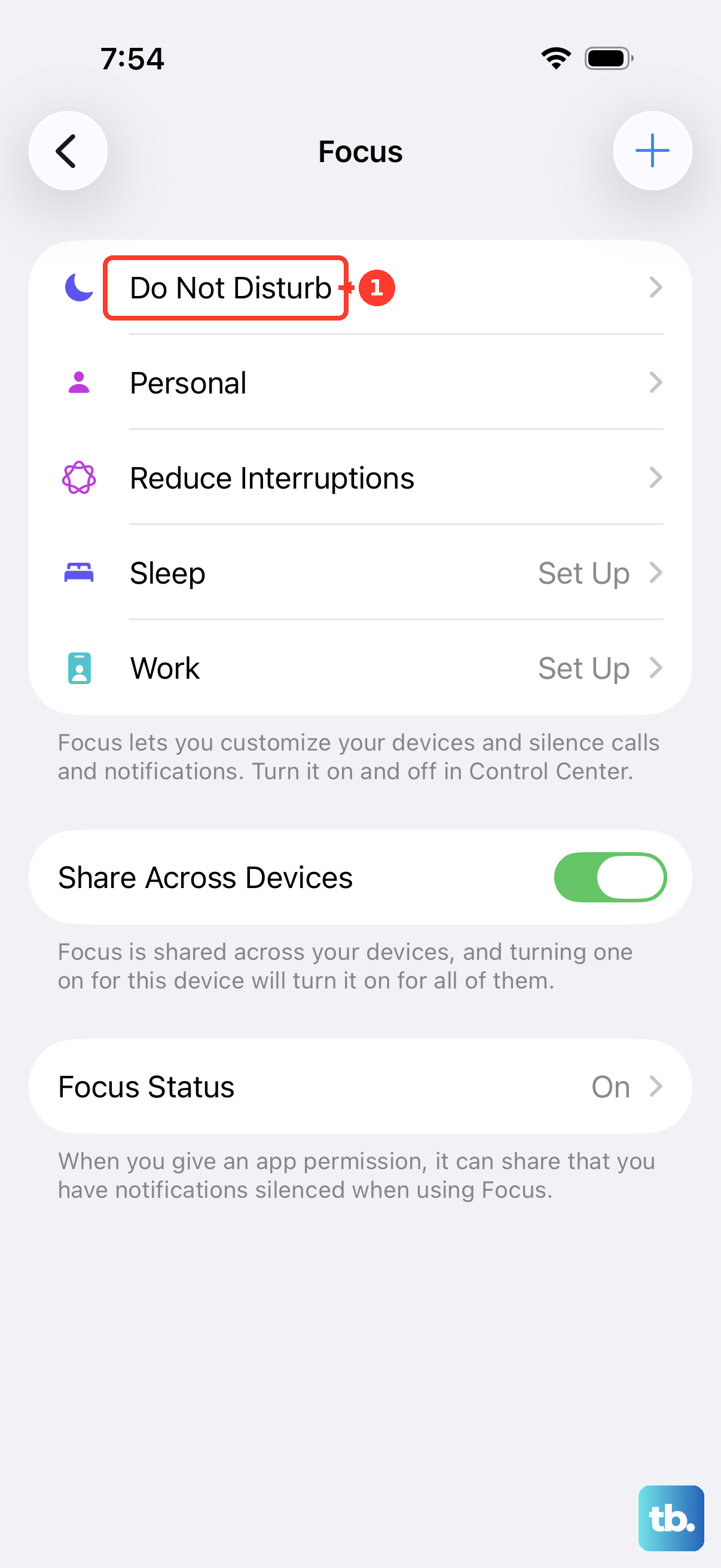
Turn Off Focus in Settings
Use Settings when you want to open a specific Focus and shut it off from its own screen.
- 1.Open the Settings app.
- 2.Tap Focus.
- 3.Tap the Focus you want to turn off.
- 4.Turn that Focus off.
Stop Focus From Turning Back On
This fixes Focus when it turns off, then returns later.
Open Settings.
Tap Focus.
Choose the Focus that keeps coming back.
Under Set a Schedule, tap any active schedule.
Turn the schedule off.
Turn Off Do Not Disturb
Do Not Disturb is a Focus option on iPhone. Open Control Center and tap the Do Not Disturb icon on the Focus button.
When the icon color dims and the button text changes to Focus, Do Not Disturb is off.
If that method fails, open Control Center, touch and hold the button showing Focus, Do Not Disturb, or another Focus option, then tap Do Not Disturb. You can also ask Siri to turn Do Not Disturb off.
Fix Sleep Focus Separately
Sleep Focus needs its own fix when it is tied to your sleep schedule. Turning it off from Control Center handles the current session; changing the Health schedule stops it from following your bedtime settings.
To stop Sleep Focus right now, open Control Center, tap Sleep, then tap Sleep again.
From the Lock Screen, touch and hold Sleep, then tap Sleep.
To stop Sleep Focus from following your sleep schedule, open the Health app, tap Search, tap Sleep, tap Sleep again, scroll to Your Schedule, tap Full Schedule & Options, then turn off Use Schedule for Sleep Focus.
Change Driving Focus Activation
The most common cause is automatic Driving Focus activation while driving, through car Bluetooth, or with CarPlay.
Open Settings, then tap Focus.
Tap Driving.
Under Turn on Automatically, tap While Driving.
Select Manually to stop Driving Focus from turning itself on automatically.
Stop Other Apple Devices From Reenabling Focus
Focus can be shared across Apple devices signed in to the same Apple Account. On iPhone, go to Settings, tap Focus, then turn off Share Across Devices.
If the Focus is coming from Apple Watch, press the side button on the watch to open Control Center, then tap the Focus control. Apple Watch Focus settings are shared with iPhone when device sharing is enabled.
On Mac, open Control Centre from the menu bar, click anywhere in the Focus section, then click the highlighted Focus to turn it off.
Hide Your Focus Status
Turning off Focus is different from hiding Focus Status. Focus Status is the setting that lets apps such as Messages tell people your notifications are silenced.
To stop sharing it everywhere, open Settings, tap Focus, tap Focus Status, then turn off Share Focus Status.
For one Messages conversation, open Messages, tap a one-to-one conversation, tap the contact icon at the top, then turn off Share Focus Status. If people still see that your notifications are silenced, turn off the active Focus itself from Control Center.
Frequently Asked Questions
Why does Focus keep turning on after I turn it off?
A Focus schedule, a Sleep schedule in Health, Driving activation, or another Apple device signed in to the same Apple Account can turn Focus back on. Also open Shortcuts, tap Automation, and disable any automation you set up around Focus.
Is Do Not Disturb separate from Focus on iPhone?
No. On iOS 15 and later, Do Not Disturb is a Focus option. Use Control Center or Settings > Focus > Do Not Disturb.
Can I delete a Focus completely?
Yes. Go to Settings > Focus, tap the Focus, scroll to the bottom, and tap Delete Focus. Custom Focus modes are deleted; provided Focus modes can be set up again later.
Does turning off Focus Status turn off Focus?
No. Focus Status only hides the message that your notifications are silenced. It does not disable the active Focus mode.