Your favorite apps shouldn't be hard to find on a crowded Home Screen. You can bring icons within reach, group related apps in folders, and clear away clutter without uninstalling anything. Start with one app, then tackle whole pages when you're ready for a bigger cleanup.
Move an app where you want it
A quick drag puts an app where you want it on your Home Screen.
Touch and hold the Home Screen background until the icons jiggle.
Drag the app to its new position. On iOS 18 and later, you can place icons at the top, bottom, or sides and leave empty spaces between them.
Tap the background to finish, or press the Home button on an iPhone with one.
Prefer to start from the app itself? Touch and hold its icon.
Choose Edit Home Screen from the shortcut menu.
Drag the icon to the spot you want.
Tap Done, or press the Home button on models with one.
Shift apps to another page or into the Dock
Use another Home Screen page to separate groups of apps. For an app you want in the Dock, you can drag it there too.
Hold an empty area of the Home Screen until the icons jiggle.
Drag an app to the screen edge and keep holding it there until the adjacent page opens.
Release the app in its new position.
To create another page instead, drag an app beyond the last existing page. Moving every app off a page removes that emptied page.
To move an app into the Dock, drag it there while the icons are jiggling.
To move an app out of the Dock, drag it onto the Home Screen.
Tap Done, or press the Home button on models with one, when you finish.
Group related apps in folders
Games together, travel tools together. Folders keep related apps in one place, and each folder can hold multiple pages.
Touch and hold the Home Screen background until the icons jiggle.
Drop one app onto another to create a folder.
Drag additional apps into the folder.
Tap Done to finish.
To take an app out, open its folder.
Hold the app until the icons jiggle.
Drag it onto the Home Screen. Taking every app out makes the empty folder disappear without deleting the apps.
Want a clearer folder name? Touch and hold the folder.
Choose Rename.
Enter the new name.
Tap Done to save it.
If holding the folder makes the icons jiggle instead of opening its shortcut menu, tap the background to leave editing mode.
Then try holding the folder again to reach Rename.
Rearrange or hide entire Home Screen pages
The page overview lets you change a whole screen of apps at once.
- 1.Touch and hold an empty Home Screen area until the icons jiggle.
- 2.Tap the page dots to open the page overview.
- 3.To reorder pages, hold a page thumbnail and drag it into its new position.
- 4.To hide a page, deselect its circle. Select the circle again to reveal it.
- 5.To remove a page entirely, deselect its circle, tap the minus button, then tap Remove. Its apps remain in App Library.
- 6.Tap Done when you finish.
Keep fewer icons with App Library
If you want fewer icons without uninstalling apps, use App Library. It keeps your apps accessible through automatic categories and an alphabetical list.
Touch and hold an app you want to take off the Home Screen.
Tap Remove App.
Choose Remove from Home Screen. The app stays in App Library.
To find it later, swipe left past all your Home Screen pages.
Browse the App Library categories. Apple assigns these automatically, so you cannot move apps between them.
For the alphabetical list, tap the search field.
Scroll through the list to find your app.
To restore an app to the Home Screen, hold it in App Library until the icons jiggle and it moves onto the Home Screen.
Release the app to place it.
To choose where future downloads appear, open Settings > Home Screen & App Library.
Select App Library Only to keep new downloads off the Home Screen, or Add to Home Screen to put them there automatically.
Frequently Asked Questions
Can I automatically alphabetize my iPhone Home Screen?
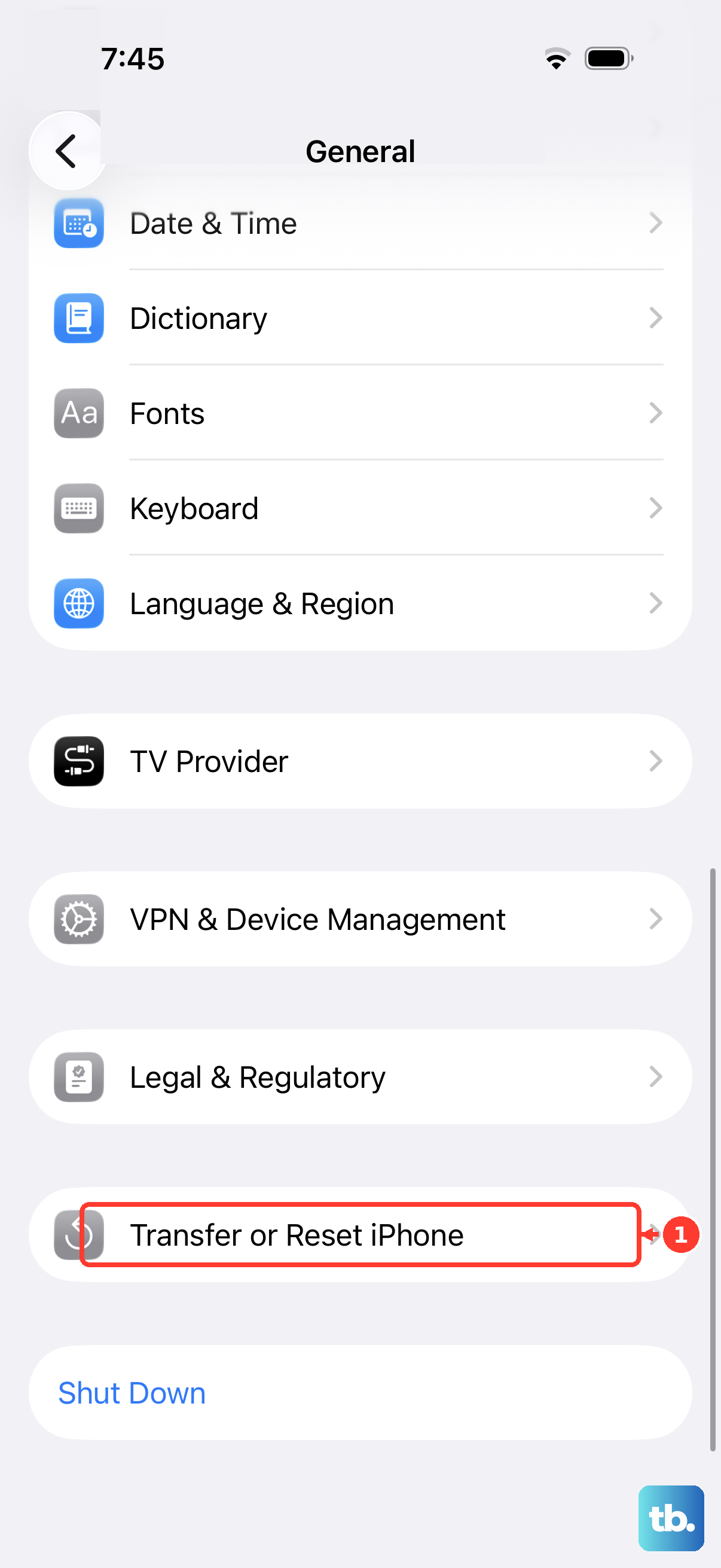
Open Settings > General > Transfer or Reset iPhone > Reset > Reset Home Screen Layout. Tap Reset Home Screen to confirm. This removes custom folders and places downloaded apps alphabetically after Apple’s included apps. It is a one-time layout reset, not a setting that keeps apps alphabetized.
Does removing an app from the Home Screen delete its data?
No. Remove from Home Screen keeps the app installed with its data. Delete App removes the app and its local data. Deleting an app does not guarantee removal of its data stored in iCloud.
Will offloading unused apps clear icons from my Home Screen?
No. Offloaded apps retain their Home Screen icons with a cloud symbol. Offloading removes the software while keeping its documents and data. Tap an offloaded app’s icon to reinstall it.
Can I move apps using VoiceOver?
Yes. With VoiceOver enabled, select an app. Double-tap and hold until you hear three rising tones. Drag while listening to position feedback. Release at the destination. Select Done. Double-tap to finish.