

To delete a SharePoint site, open it, select Settings (the gear at the top right), choose Site information and scroll to Delete site at the bottom of the panel. Read the warning in the box that opens before you tick its checkbox: on a team site connected to a Microsoft 365 group, it deletes the whole group and its resources too. Select Delete only if the warning names what you mean to remove.
Whether you call it deleting or removing a SharePoint site, Microsoft says you need to be a site administrator or a SharePoint administrator to do it. On our PC, a communication site asked us to confirm the site and its content, while a team site asked us to confirm its Microsoft 365 group and all of the group's resources. The steps below cover both boxes, the Outlook route a group owner can use instead, and how to get a deleted site or group back.
The short version
- Delete a site: open it, choose Settings > Site information > Delete site, read the warning, then tick the checkbox and select Delete.
- Communication site: the box confirms the site and all of its SharePoint content.
- Team site with a group: the box is titled Delete Microsoft 365 Group and takes the group's conversations, files and calendar with it.
- Group owners can also delete the group, and its site, from Edit Group in Outlook.
- Changed your mind: Microsoft keeps a deleted site for 93 days and a deleted group for 30 days by default.
Ways to delete a SharePoint site at a glance
| What you are deleting | Where to click | What the warning covers | Who can do it | How long it can be restored |
|---|---|---|---|---|
| Communication site | Settings > Site information > Delete site | The site and all SharePoint content in it | Site administrator or SharePoint administrator | 93 days, by a SharePoint administrator |
| Team site connected to a Microsoft 365 group | Settings > Site information > Delete site | The group and all its resources, including the site, files, conversations and calendar | Site administrator or SharePoint administrator (group owners are site admins) | 30 days for the group and its resources, 93 days for the site |
| The group, in classic Outlook | Group Settings > Edit Group > Delete group | Group email, files including SharePoint files, the group notebook and Planner tasks | Group owner | 30 days |
| The group, in Outlook on the web or new Outlook | Edit group (pencil) > Delete group | Conversations, files including files in SharePoint, the group notebook and Planner tasks | Group owner | 30 days |
| A site, from the admin center (a hub site must be unregistered first) | SharePoint admin center > Active sites > Delete | The selected site, plus its group for a group site | SharePoint administrator | 93 days for the site in Deleted sites, 30 days for group resources |
| Classic site or subsite | Settings > Site settings > Site Actions > Delete this site (a SharePoint Server 2019 subsite uses Site information > Delete site) | That site and its content | Site administrator with permission to delete it | Subsite: usually from the site collection recycle bin, by a site collection administrator. Top-level site: Deleted sites in the SharePoint admin center, 93 days |
The first two rows start from the same link, so the box that opens is your last check of which kind of site you are on. The restore periods are Microsoft's defaults, and the 30-day group window is the one that runs out first.
Check what kind of SharePoint site you have
Modern SharePoint has two main kinds of site. When we started a new site from Build in SharePoint, the template picker described a team site as integrated with Microsoft 365 Groups and Teams, and a communication site as not connected to Microsoft 365 Groups or Teams.
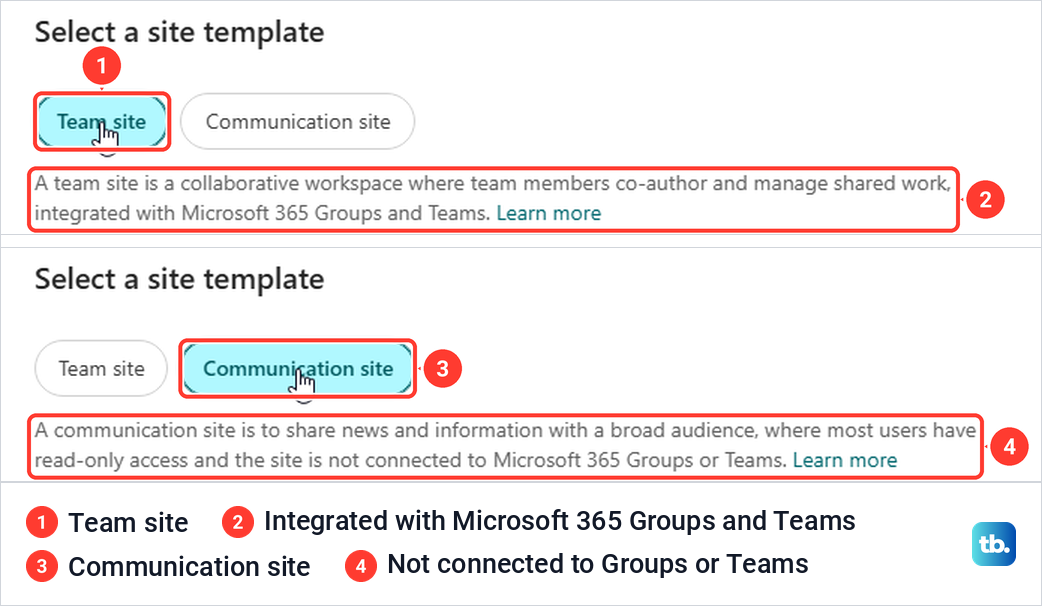
That difference decides what a deletion takes with it. The team site form told us the site will be connected to a Microsoft 365 group, and it asked for a group email address and a privacy setting before it would create anything. Microsoft also says that creating a team in Teams creates a Microsoft 365 group, with a SharePoint site and a mailbox made at the same time.
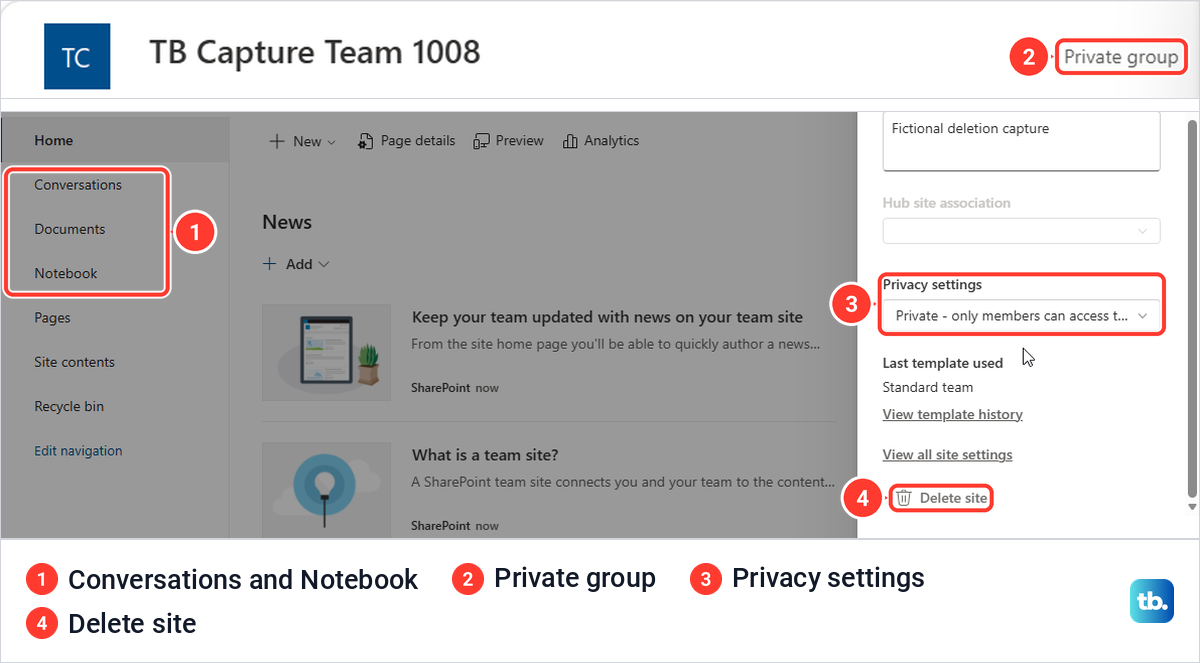
On the team site we opened, the group showed in a few places: the navigation listed Conversations and Notebook, and the header said Private group. Treat these as clues, because a customized site may look different, and let the warning box be the final check.
Make sure a whole site is what you want gone. Microsoft gives a single page its own delete action, separate from deleting the site. If what bothers you is a chat in the team rather than the site, you can delete chats and messages in Teams without touching the site.
What deleting a site removes and who can do it
Microsoft says that deleting a communication site or team site also deletes its pages, content and user information, including documents, document libraries and lists. Deleting a Microsoft 365 group goes further. Microsoft says all of the group's inbox content and related data are deleted, the mailbox alias used for conversations and Teams meeting invites is removed, and the SharePoint site is marked for deletion.
That means deleting the group is not a way to keep its site, and the normal delete for a team site does not keep the group. If the group's mailbox, calendar or Planner tasks still matter, stop before the checkbox and talk to your SharePoint administrator about what should move first.
Microsoft's admin page adds that deleting a group-connected site deletes the group and all its resources, including the Outlook mailbox and calendar, and any Teams channels. If the group also runs a team, ask its members what they still keep in its channels, and our guide on how to use Microsoft Teams shows where to find them.
Microsoft's rule for permissions is short: you must be a site administrator or SharePoint administrator to delete a site. For a team site, group owners are automatically site admins. Membership alone does not let you delete a site, and Microsoft says only group owners can edit or delete the group in Outlook.
Before you delete anything, copy out what the team still needs. To see what a site holds before it goes, open its libraries, lists and pages as shown in our guide to using SharePoint for files. If all you wanted was to get rid of the group's notebook, you can delete a notebook in OneNote on its own. If you only need to keep emailing the same people afterward, you can save them as a distribution list in Outlook.
Delete a communication site in SharePoint
Open the site in your browser and select Settings, the gear at the top right of the SharePoint bar. In the Settings panel, select Site information.
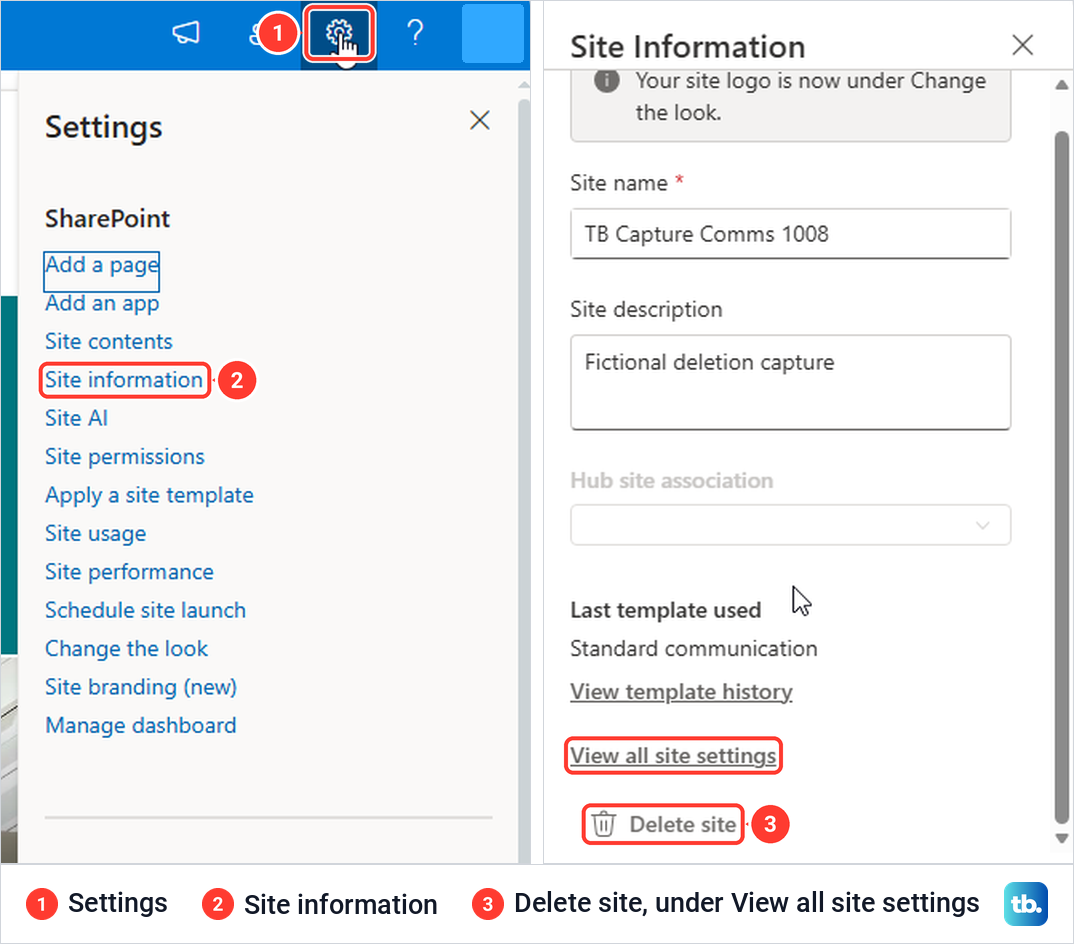
The Site Information panel opens on the right. Delete site is the very last item, under View all site settings, and on our screen it sat below the bottom edge of the panel. Scroll the panel down if you do not see it, then select it.
The box that opens is titled Delete site. Its warning names the site, then reads: This will delete all SharePoint content in the site. Please backup any files or other content before proceeding. Under it is one checkbox, labelled Yes, delete this site and its associated content.
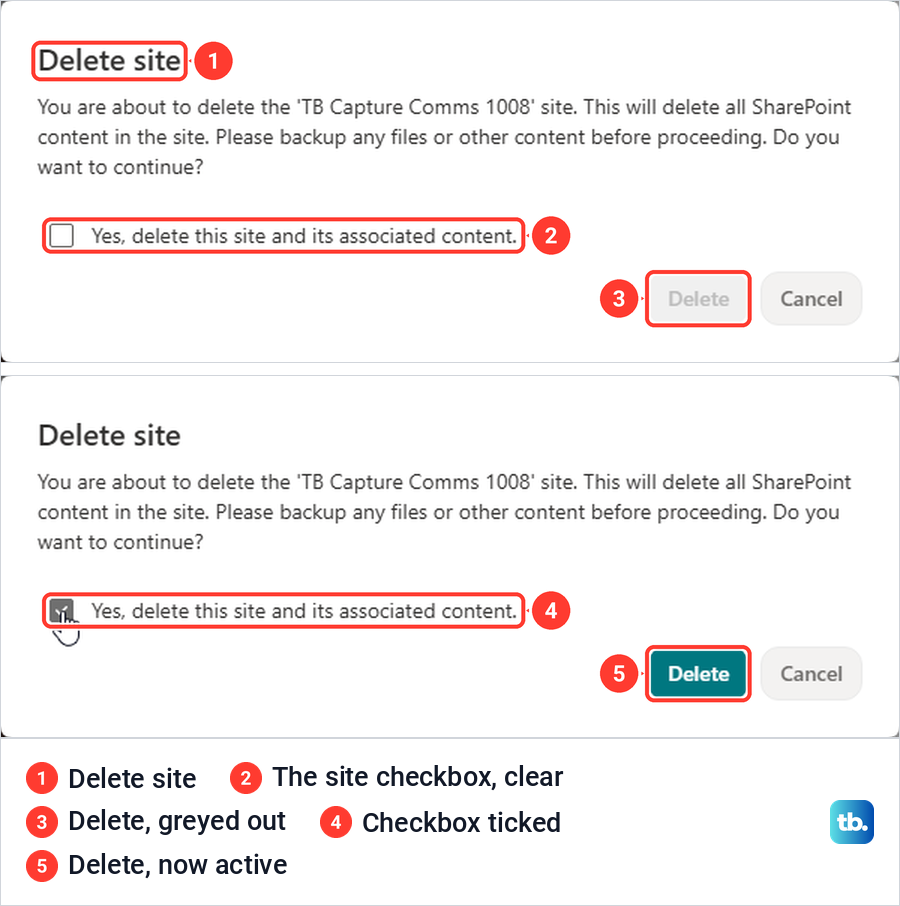
Check that the name in the warning is the site you mean. Delete stays greyed out until the box is ticked, and when we clicked it with the box clear, nothing happened. Tick the box only when you are sure it is the right site, then select Delete.
We saw no confirmation message after selecting Delete. Within two seconds the tab moved to the SharePoint start page, and the site we had just removed was still listed under Recent sites. When we opened its address about a minute later, the browser showed a plain page reading 404 FILE NOT FOUND.
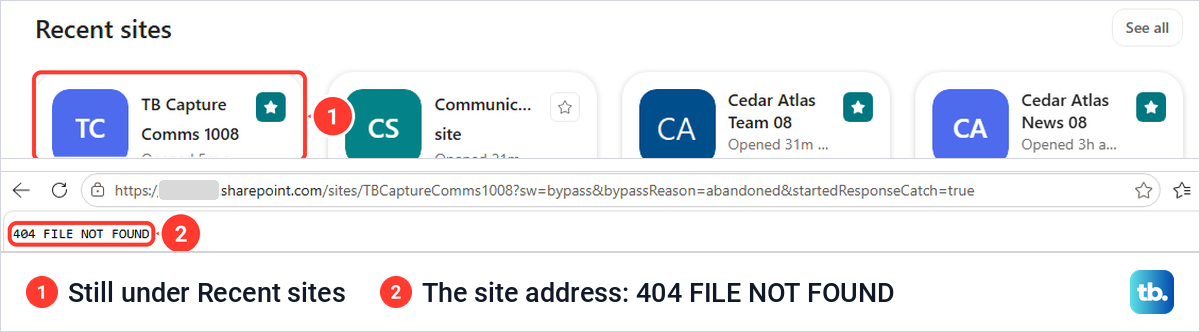
So the Recent sites tile is not proof that a site still exists. Check the site's address instead, and give SharePoint a moment to catch up.
Delete a team site connected to a Microsoft 365 group
The route is the same: Settings > Site information > Delete site. You can tell you are on a group-connected team site before you get there. On ours, the left navigation listed Conversations and Notebook, the header said Private group, and Site Information had a Privacy settings box that the communication site did not.
This time the link opens a box titled Delete Microsoft 365 Group. Its warning says this will delete all of the group's resources, including the site, files, conversations, calendar and more. The checkbox under it says Yes, delete this group and all its associated resources.
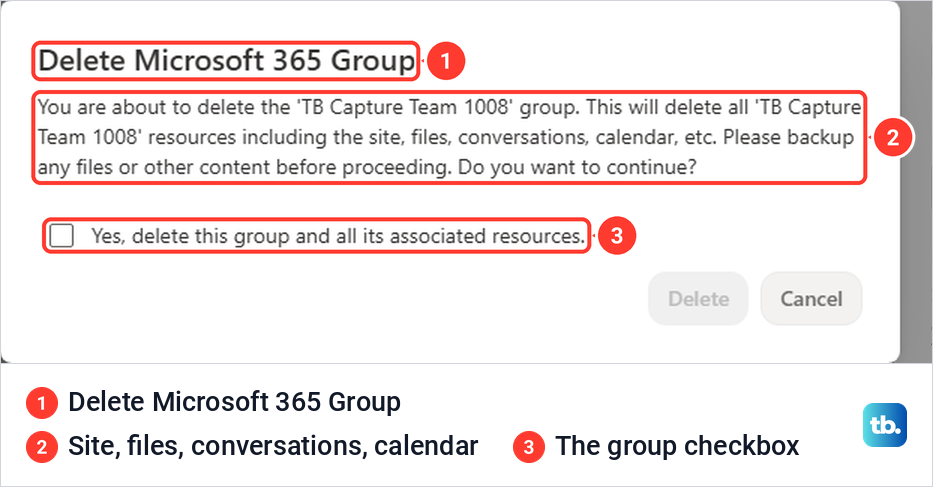
Stop here if anyone still relies on the group's email, calendar, team or tasks. When we ticked the box and selected Delete, a spinner appeared and the tab returned to the SharePoint start page, again with no confirmation.
The group went with the site. Within about a minute, Outlook on the web no longer listed the group under Groups, and the site's address returned 404 FILE NOT FOUND. Microsoft says deleting the group marks its site for deletion as well, so the SharePoint route and the Outlook routes below end in the same place.
Delete the group in classic Outlook
The group behind a team site is the same kind of Microsoft 365 Group you can make when you create a group in Outlook, so its owner can delete it there, site and all. In classic Outlook for Windows, select the group under Groups in the folder pane. On the group's ribbon, select Group Settings, then Edit Group. If you do not see Group Settings on the ribbon, look under More options (the three dots).
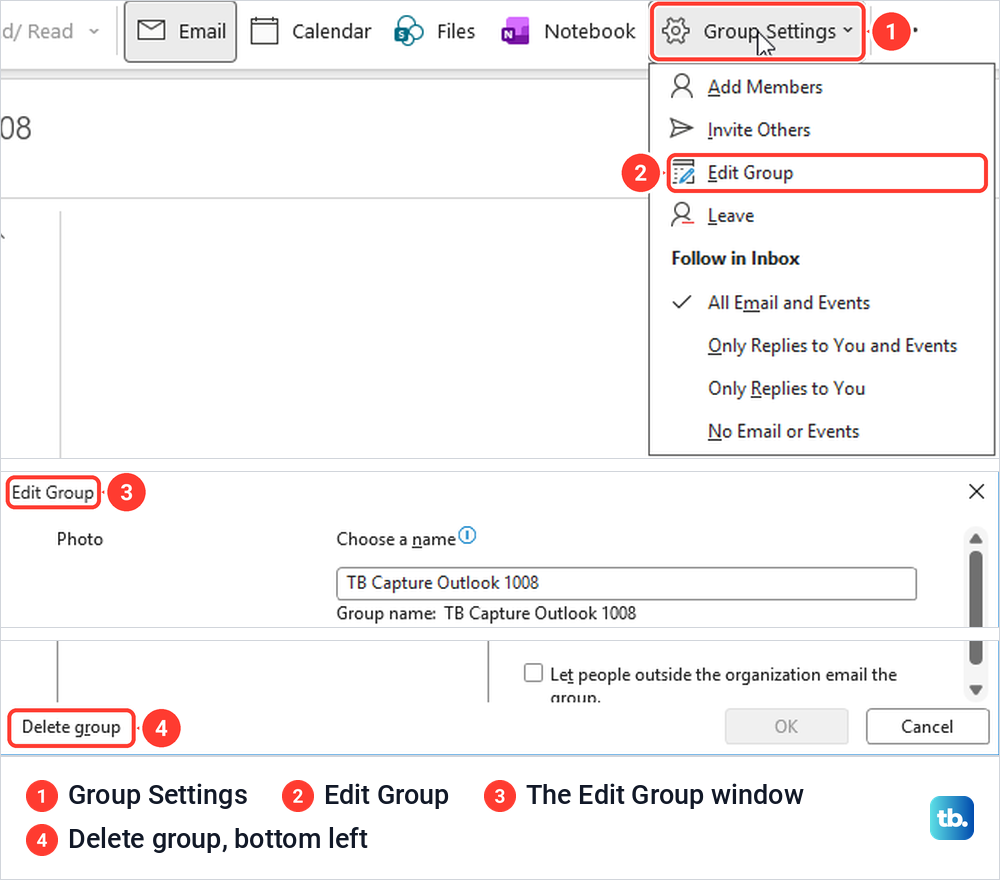
Delete group is the button at the bottom left of the Edit Group window. The warning that follows says everything related to the group will be deleted, including group email, files (including SharePoint files), the group OneNote notebook, and Planner tasks.
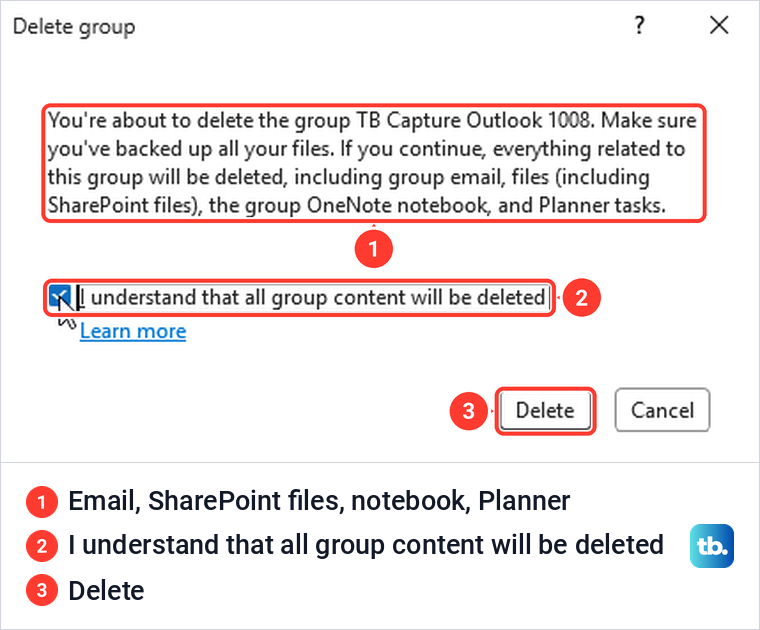
Delete stays greyed until you tick the box confirming that all group content will be deleted. After Delete, the group left the Groups list within seconds. Outlook showed no message and moved on to the next group in the list.
Delete the group in Outlook on the web or new Outlook
In Outlook on the web, select Go to Groups in the folder list, or Groups in the app bar on the left, then select the group. The edit control is an unlabelled pencil next to the group's name, and hovering over it shows Edit group. Microsoft gives the same steps for new Outlook for Windows.
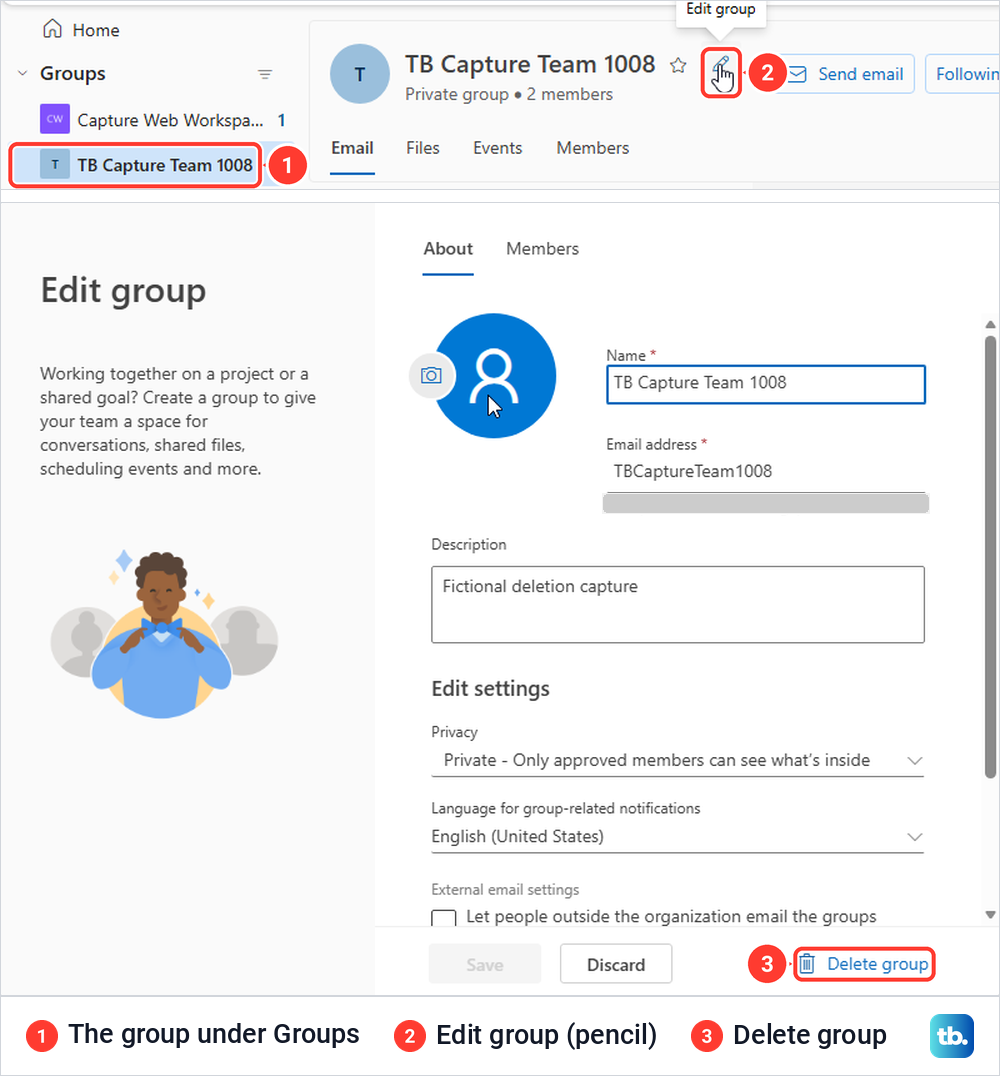
Select the pencil, then Delete group at the bottom right of the Edit group window. The confirmation, titled Delete group?, lists conversations, files including files in SharePoint, the group notebook and Planner tasks.
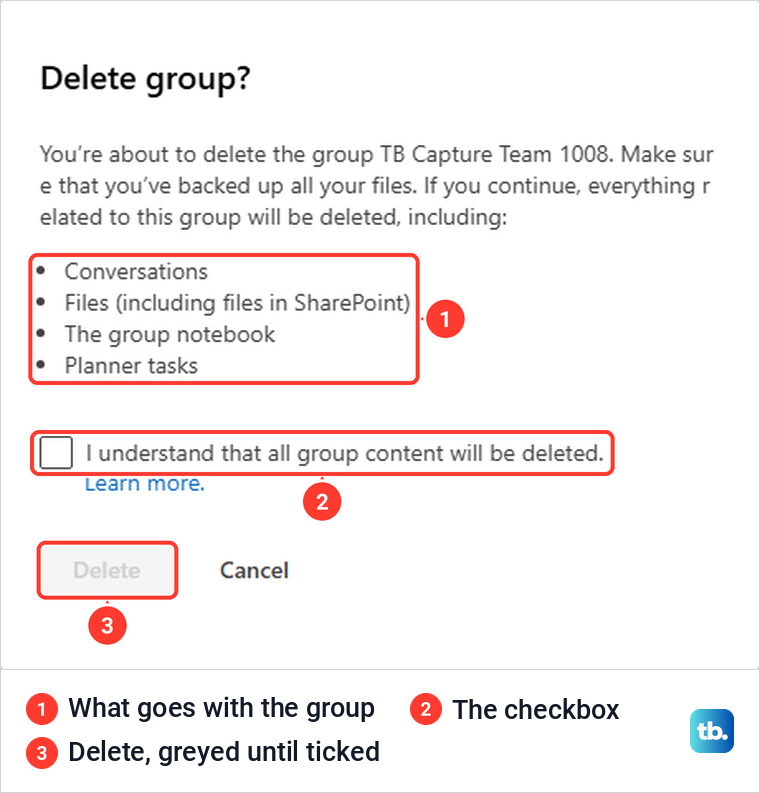
As in classic Outlook, Delete only works after you tick the box confirming that all group content will be deleted. Microsoft says a deleted group can be restored for up to 30 days after it is deleted.
Delete a site from the SharePoint admin center
SharePoint administrators can delete a site without opening it. Microsoft's steps are to go to Active sites in the SharePoint admin center, select the site, select Delete and confirm with Delete. The deleted site is kept as a deleted site for 93 days, while a deleted Microsoft 365 group is kept for only 30.
Two kinds of site need care. Microsoft says a hub site must be unregistered as a hub before it can be deleted, although a site that is only associated with a hub can be deleted like any other. Microsoft also does not recommend deleting the root site for your organization, because other sites become inaccessible until it is restored or replaced.
Permanent deletion has its own limit. If you try to permanently delete a group-connected site from the SharePoint admin center, Microsoft documents the error This site can't be permanently deleted because it's connected to a Microsoft 365 group. Its fix is to connect to the SharePoint Online Management Shell as a SharePoint admin and run the Remove-SPODeletedSite command with the site's address.
Delete a classic site or subsite
The classic experience, earlier versions of SharePoint in Microsoft 365 and SharePoint Server 2016 use a different route. Microsoft's steps there are Settings > Site settings > Site Actions > Delete this site, then Delete. A SharePoint Server 2019 subsite instead uses Settings > Site information > Delete site. Microsoft adds that if Delete this site does not appear, you may not have permission, or the site may be a top-level site connected to a Microsoft 365 group.
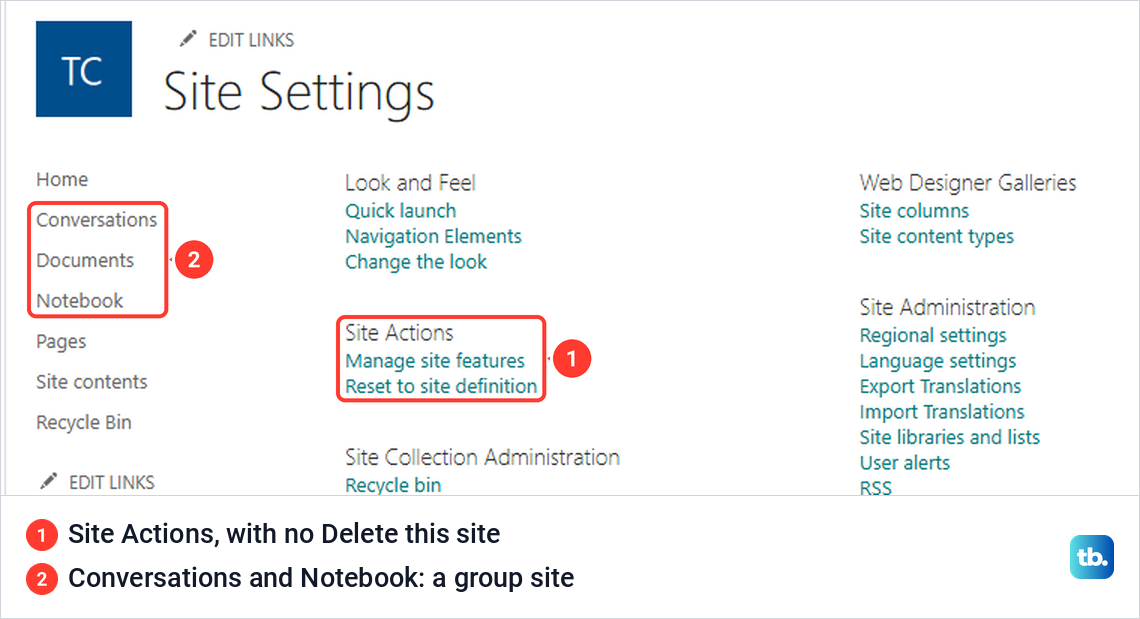
That second case is what we found on our modern team site. View all site settings opened the classic Site Settings page, but Site Actions listed only Manage site features and Reset to site definition. On a modern site, go back to Site information and use Delete site there.
If Delete site or Delete group is missing
Scroll the Site Information panel first, because Delete site is the last item in it. If Site information itself is missing from the Settings panel, Microsoft says to work with your SharePoint administrator to get access, since only site administrators and SharePoint administrators can delete sites.
In Outlook, deleting belongs to the group's owners. When we opened a group we were only a member of in classic Outlook, Group Settings showed Add Members and Edit Group greyed out, while Invite Others and Leave stayed available. Without Edit Group there is no way to reach Delete group.
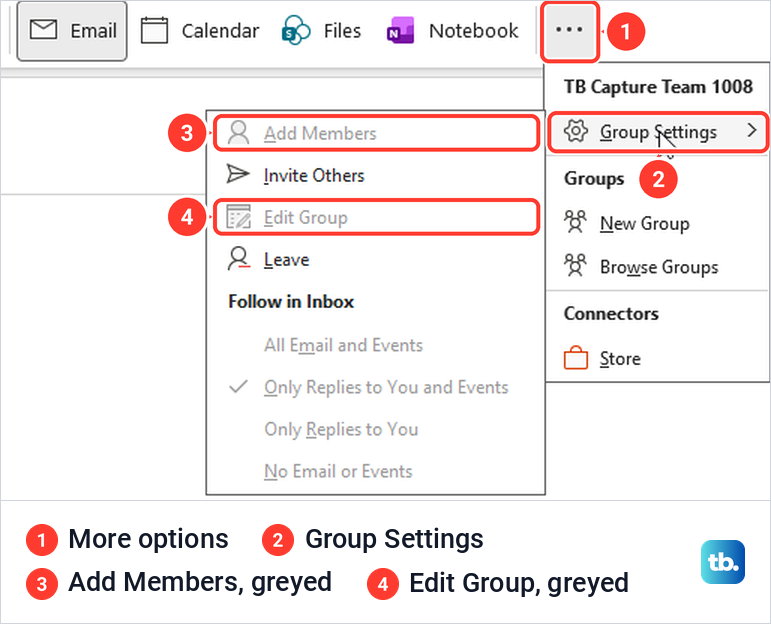
Ask a group owner or an administrator to delete it instead. A site can also be protected on purpose: Microsoft says an eDiscovery hold or a retention policy can block deletion. That is your administrator's decision, so do not look for a way around it.
Restore a deleted site or group
A deleted site comes back from the SharePoint admin center, not from a Recycle bin inside the site. Microsoft says a SharePoint administrator goes to Deleted sites, selects the site and selects Restore. Deleted sites are kept for 93 days, after which the site and all its content and settings are permanently deleted.
For a group-connected site, Microsoft says restoring the site restores the Microsoft 365 group and all its resources, but the other group resources are kept for only 30 days, whereas the site is kept for 93. Restore within 30 days if you need the group's resources back, and do not count on them after that. A deleted subsite can usually be restored from the site collection recycle bin by a site collection administrator.
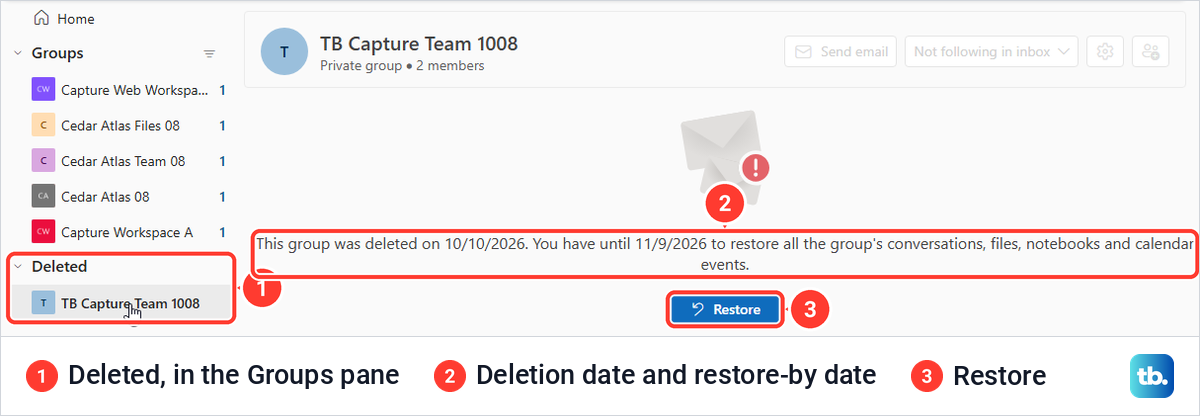
A group owner can bring a group back in Outlook on the web. After the deletion, a Deleted entry appeared in the Groups pane for us. Selecting the group showed the date it was deleted, a restore-by date 30 days later and a Restore button. Microsoft's help page reaches the same list through Manage groups, and says to contact an administrator if the group is not there.
We pressed Restore, and the group was back in the Groups list at once with a message saying it was successfully restored. Its SharePoint address still returned 404 FILE NOT FOUND about a minute later. Microsoft says it can take as long as 24 hours for a group and all of its data to be restored.
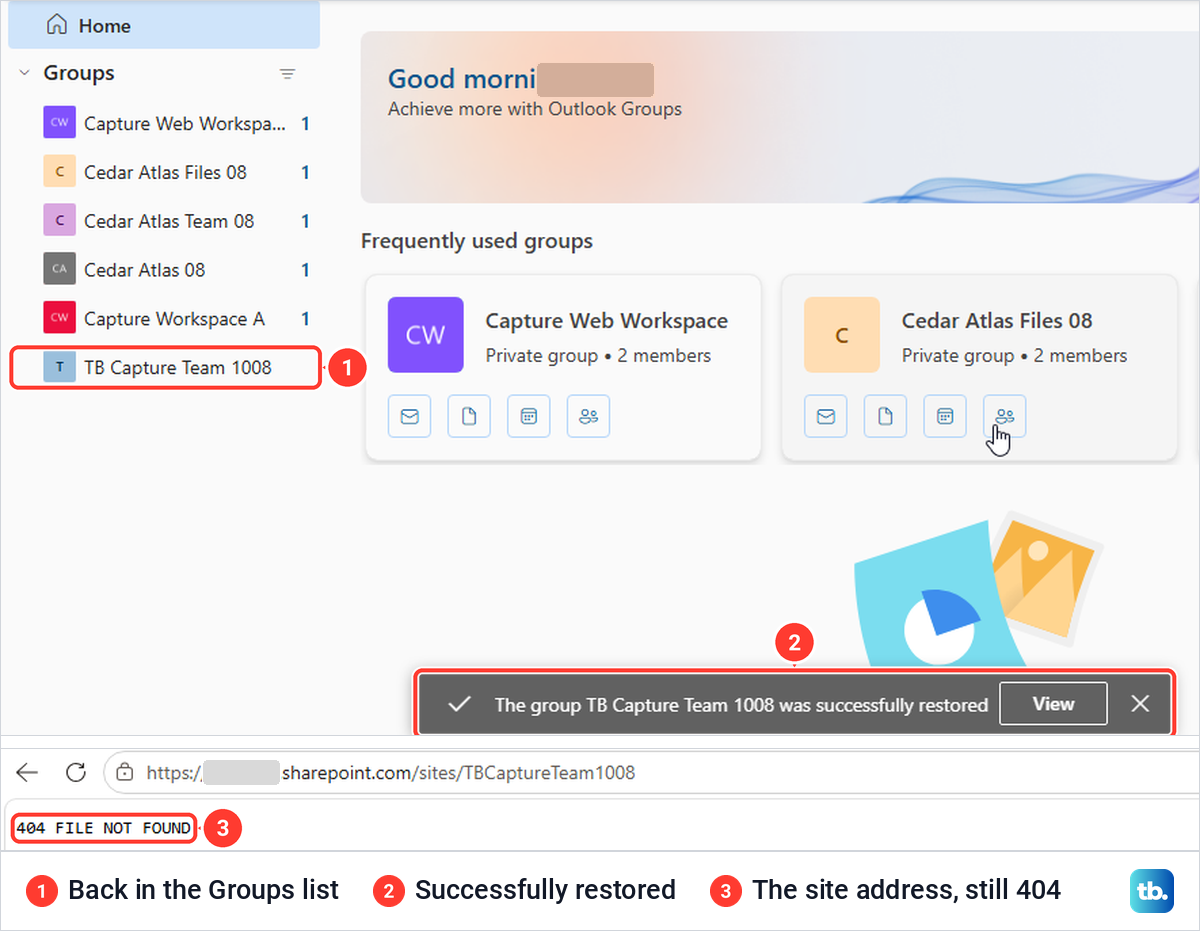
Give it time before you decide a restore has failed. If the old site is past saving, or the team needs a fresh start, you can create a new SharePoint site with the right site type.
How we tested this guide
We tested this in SharePoint in Microsoft Edge and in Outlook for Microsoft 365 on Windows 11, version 25H2, deleting a communication site and a group-connected team site.
Frequently Asked Questions
Can I delete a SharePoint site without deleting its Microsoft 365 group?
Not with the normal delete. On a group-connected team site, Delete site opens Delete Microsoft 365 Group and removes the group and its resources, so ask your administrator about moving what you need first.
Why is Delete site missing from Site information?
It is the last item in the panel, so scroll down first. If Site information is missing altogether, you are probably not a site administrator, and Microsoft says to ask your SharePoint administrator for access.
Why is Delete this site missing from Site Settings?
Delete this site belongs to the classic route. On a modern site connected to a Microsoft 365 group it may not be there, so use Settings, then Site information, then Delete site.
Does deleting a SharePoint site delete its files?
Yes. Microsoft says the pages, documents, document libraries and lists go with the site, and a group-connected site also takes the group's conversations and calendar.
Can I restore a deleted SharePoint site?
Yes, for 93 days. A SharePoint administrator restores it from Deleted sites in the SharePoint admin center. For a group-connected site, Microsoft keeps the group's other resources for only 30 days.
How long can I restore a deleted Microsoft 365 group?
Microsoft keeps a deleted group for 30 days by default. A group owner can restore it from Deleted under Groups in Outlook on the web, and an administrator can do it if it is not listed there.
Why does a deleted site still show under Recent sites?
The start page can lag behind. For us, the deleted site was still under Recent sites right after Delete, but its address returned 404 FILE NOT FOUND about a minute later.











