
To use Microsoft Teams, sign in with your work or school account, select Chat to find your conversations, teams and channels, and select New message to write to someone. Use Calendar to schedule or join meetings, and share files with the paperclip in the message box, checking who the file link works for before you select Send.
To use Teams for work, the first choice that matters is where you post. A chat reaches only the people you add to it, while a standard channel is open to every member of its team, and Microsoft says anything posted there is searchable by others. This guide covers Teams with a work or school account.
The short version
- Open it: start the Teams app from the Start menu, or go to teams.microsoft.com in a browser.
- Write to someone: select Chat > New message, pick the person in the To box and select Send.
- Find anything: press Ctrl + Alt + E in a browser or Ctrl + E in the app, then use the All chip if results go missing.
- Before you send a file: read the link line on the file card and change it if it says Anyone.
- Before you send an invite: make sure the Teams meeting switch is on, or the invite may have no Join button.
Where everything is in Teams
| What you want to do | Where to go | What you get |
|---|---|---|
| Message one or more people | Chat > New message | A new chat with a To box |
| Post for a whole team | Chat > Teams and channels > a channel > Post in channel | A post everyone with access to the channel can see |
| Find an old message or file | Search at the top, or Ctrl + Alt + E in a browser | Messages and Files results with filter chips |
| Send a file | Paperclip in the message box > Upload from this device | A file card showing who the link works for |
| Find a file sent earlier | The chat's or channel's Shared tab | Recent, Files, Links and Media lists |
| Join or start a team | Arrow beside New message > Join team or New team | A team search, or the Create a team form |
| Schedule an online meeting | Calendar > New, with Teams meeting switched on | An invite that shows Join and Chat |
| Present in a meeting | Share > Screen, window, or tab | A choice of tab, window or entire screen |
Open Teams on your PC or in a browser
On Windows, press the Windows key, type teams and open Microsoft Teams, then sign in with your work or school account if it asks. If you are not sure which account that is, ask whoever runs IT at your workplace or school.
Check that Microsoft Teams under Apps is the result you open, because on our PC a Word document with Teams in its name was the Best match and Enter opened that instead. A copy of Teams that nobody has signed in to yet opens on Welcome to Teams and Pick an account to continue, with Create or use another account and a Join a meeting button.
Teams also runs in a browser. Microsoft's address for it is teams.microsoft.com, and in Microsoft Edge, already signed in to the work account, it opened straight into Teams with no password prompt. The page moved itself to teams.cloud.microsoft and showed a bar reading Teams has a new URL, so do not worry when the address changes. On a phone, Microsoft says to use the Teams mobile app instead, because Teams for the web is not supported on mobile devices.
Find your chats, teams and channels
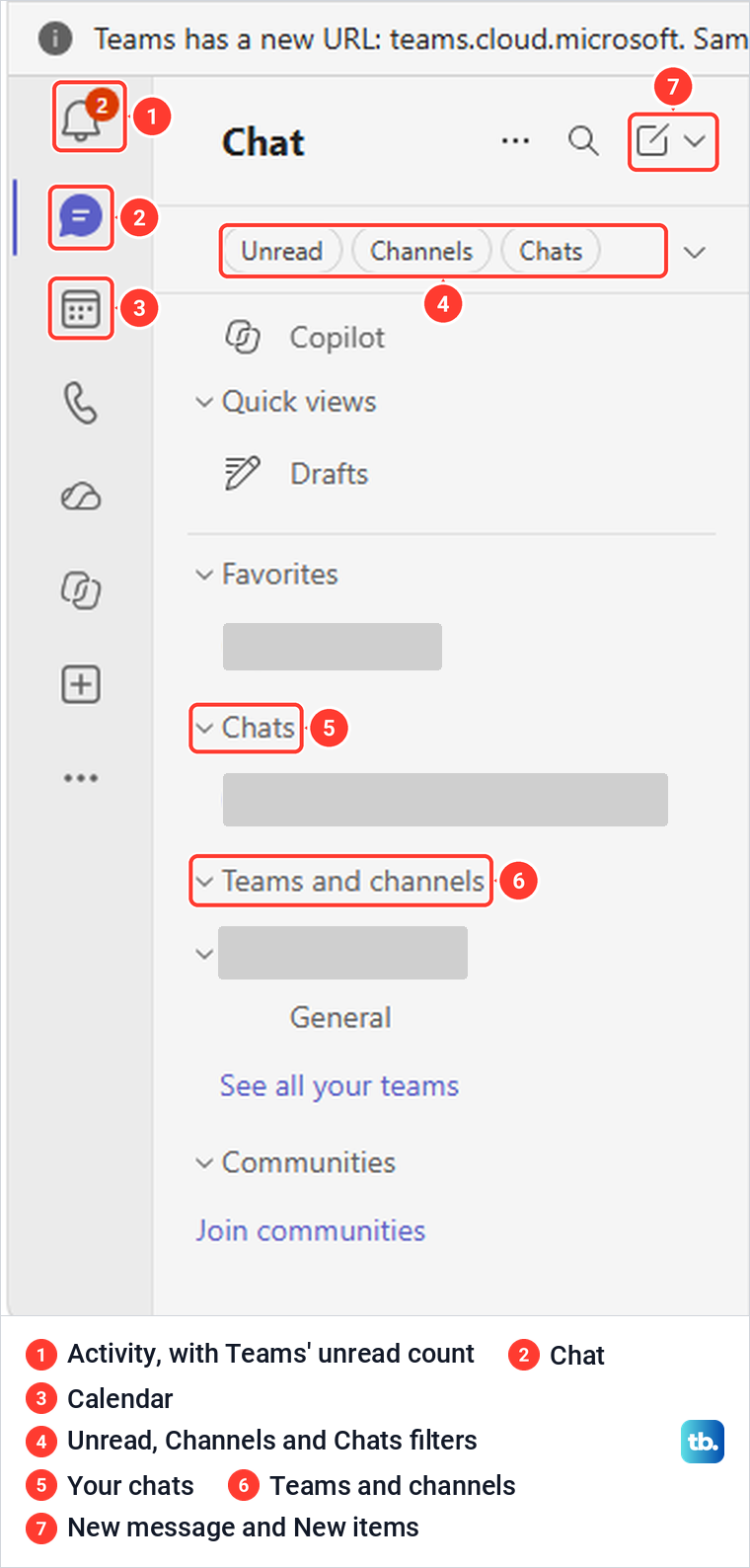
Select Chat on the narrow bar at the far left. Teams can show chats and channels together in one combined list, and that is how ours opened, with sections for Favorites, Chats and Teams and channels. Across the top are Unread, Channels and Chats filters, and the bar on the left also holds Activity, Calendar, Calls and OneDrive.
Activity, the bell at the top of that bar, showed a red number on ours when there was something new to read. If Activity shows a new message but you hear no alert, use the guide to fix Teams notification sounds before you assume nobody is writing to you.
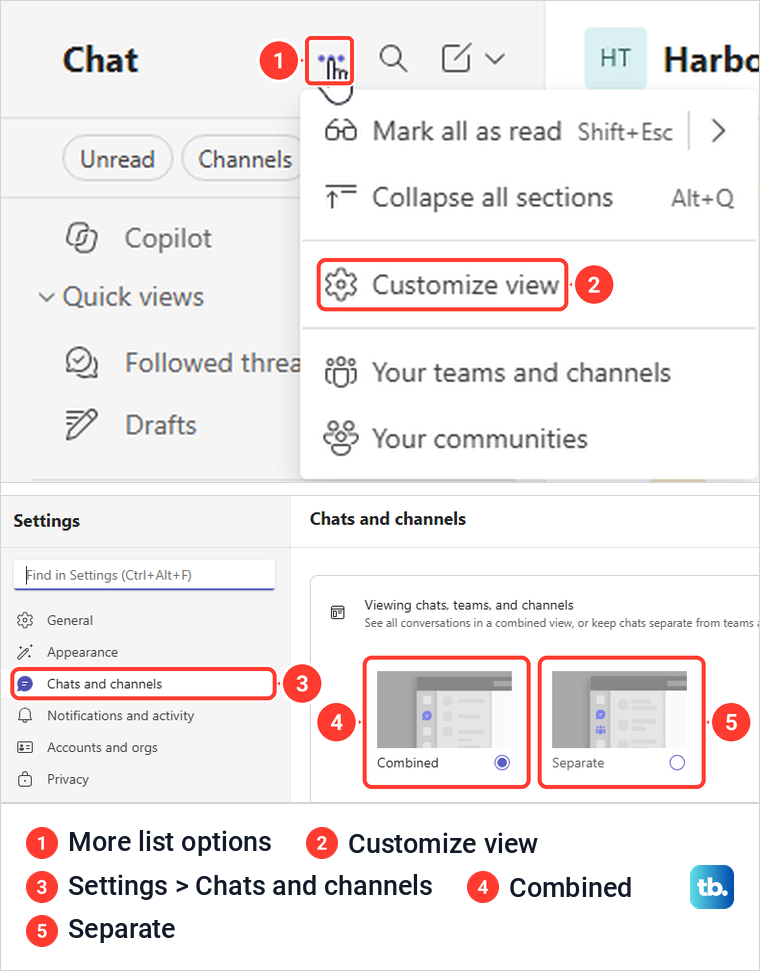
If you would rather have the older layout with a separate Teams area, select the three dots at the top of the chat list, labelled More list options, and choose Customize view. Settings opened on Chats and channels, where we found Combined selected and Separate beside it. Pick one and the list changes.
Send your first chat message
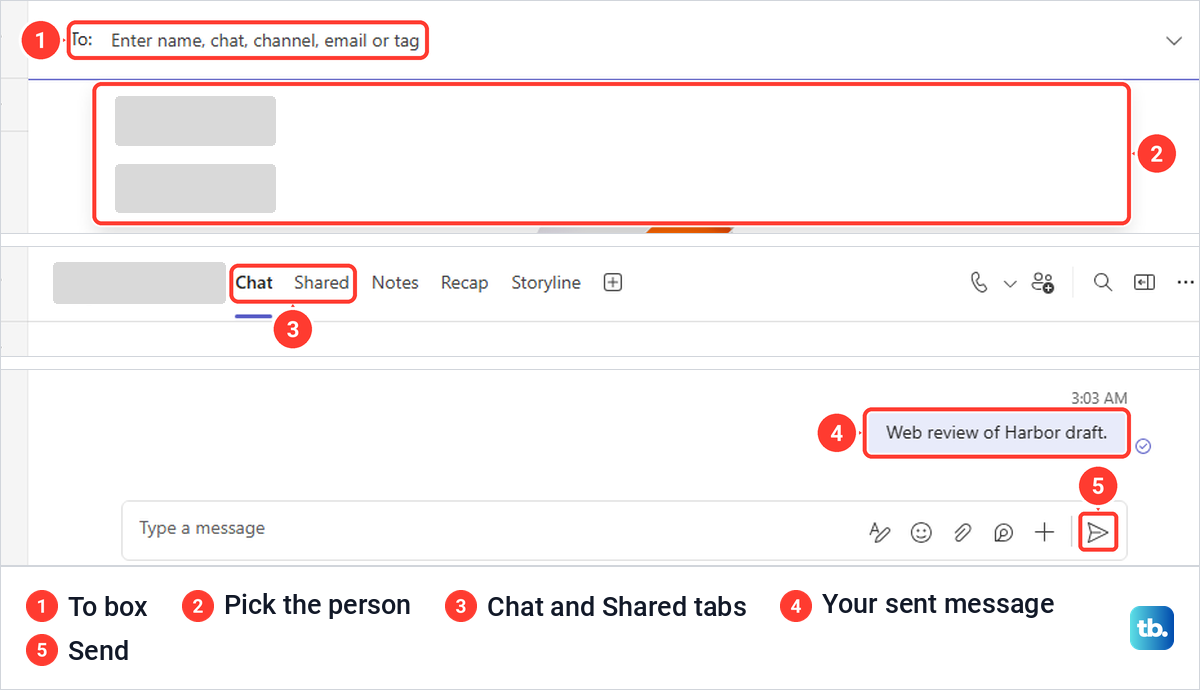
Select the pencil at the top of the chat list, labelled New message. In the To box, which accepts a name, chat, channel, email or tag, start typing and pick the person from the suggestions. Type your message in the box at the bottom and select Send, and use Shift + Enter when you want a new line instead.
Our message appeared on the right of a new one-to-one chat, and that chat moved to the top of the Chats list. After the first message, the chat header gained tabs for Chat, Shared, Notes, Recap and Storyline, and Shared is the one you will come back to for files.
Shortcuts differ between the app and the browser. Microsoft lists Ctrl + N for a new chat in the desktop app and Left Alt + N in the web app, but Left Alt + N did nothing in our Edge window. The shortcut sheet inside Teams for the web listed Alt + Shift + N for Start new chat, and that opened the New message form at once.
To see the list your own copy uses, open the three dots beside your picture at the top right, labelled Settings and more, and choose Keyboard shortcuts, or press Ctrl + Period. Ours also listed Ctrl + Alt + E for Search and Ctrl + Alt + G to go straight to a chat or channel.
If you sent something to the wrong place, Microsoft says to hover over the message and select Edit, or choose More options > Delete, which leaves an Undo button where the message was. For clearing out whole conversations, follow our guide to delete a Teams chat or message.
Search for an old message or file
Click the Search box at the top of Teams, or press Ctrl + Alt + E in a browser, then type a word and press Enter. Microsoft gives Ctrl + E for the desktop app. Our search for a project name returned the chat message under Messages and two documents under Files, with chips for All, Messages, Files, People, Channels, Group chats and Meetings, and In, Person and Date menus below them.
The chips are where searches go wrong. When we selected Channels, the box changed to Harbor is:Channels and Teams said it could not find any results, even though the message was in a chat sent minutes earlier. Selecting All brought it straight back, because a chat message is not in a channel.
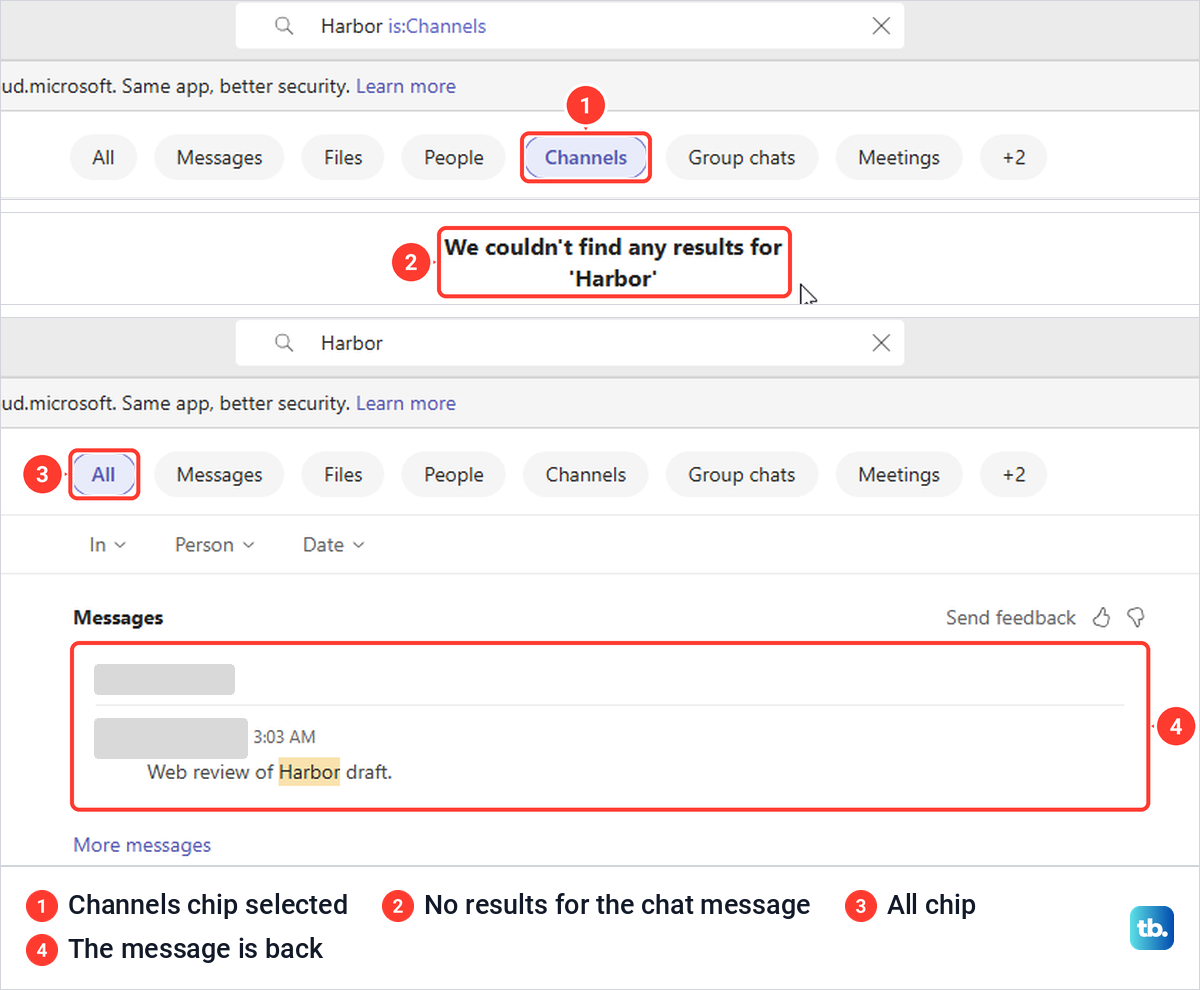
Selecting a message result opened that chat in a pane beside the results, with the message highlighted and a box to reply. The results stayed on the left, so you can check several hits without losing your search, and the pane's X closes it.
Share a file and check who can open it
Open the chat or channel and select the paperclip in the box where you type. In our Teams for the web, it offered Attach cloud files for something already in OneDrive and Upload from this device for a file on the PC. Microsoft's help page gives the route as Actions and apps > Attach file, but the plus button in our message box held Schedule message, Schedule meeting, Record video clip and apps, with no Attach file.
Microsoft also says you can drag a file from your computer's folders into the message. Either way, the file lands in the message box as a card before anything is sent.
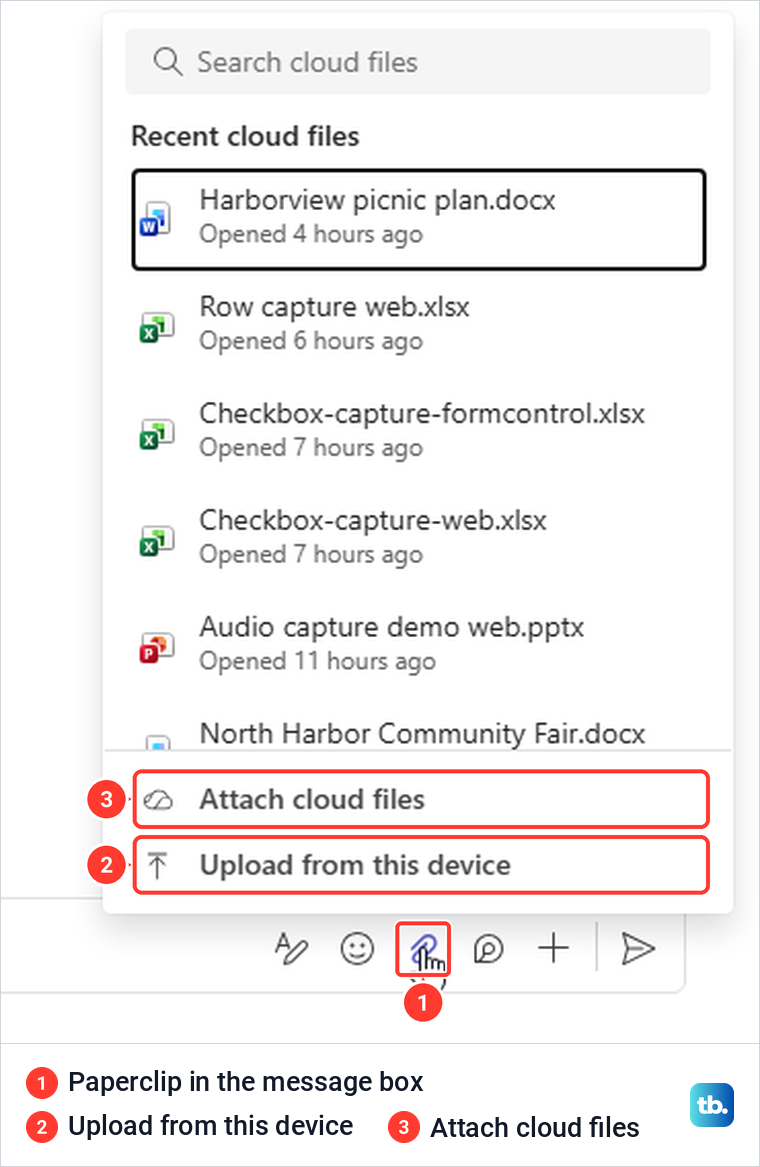
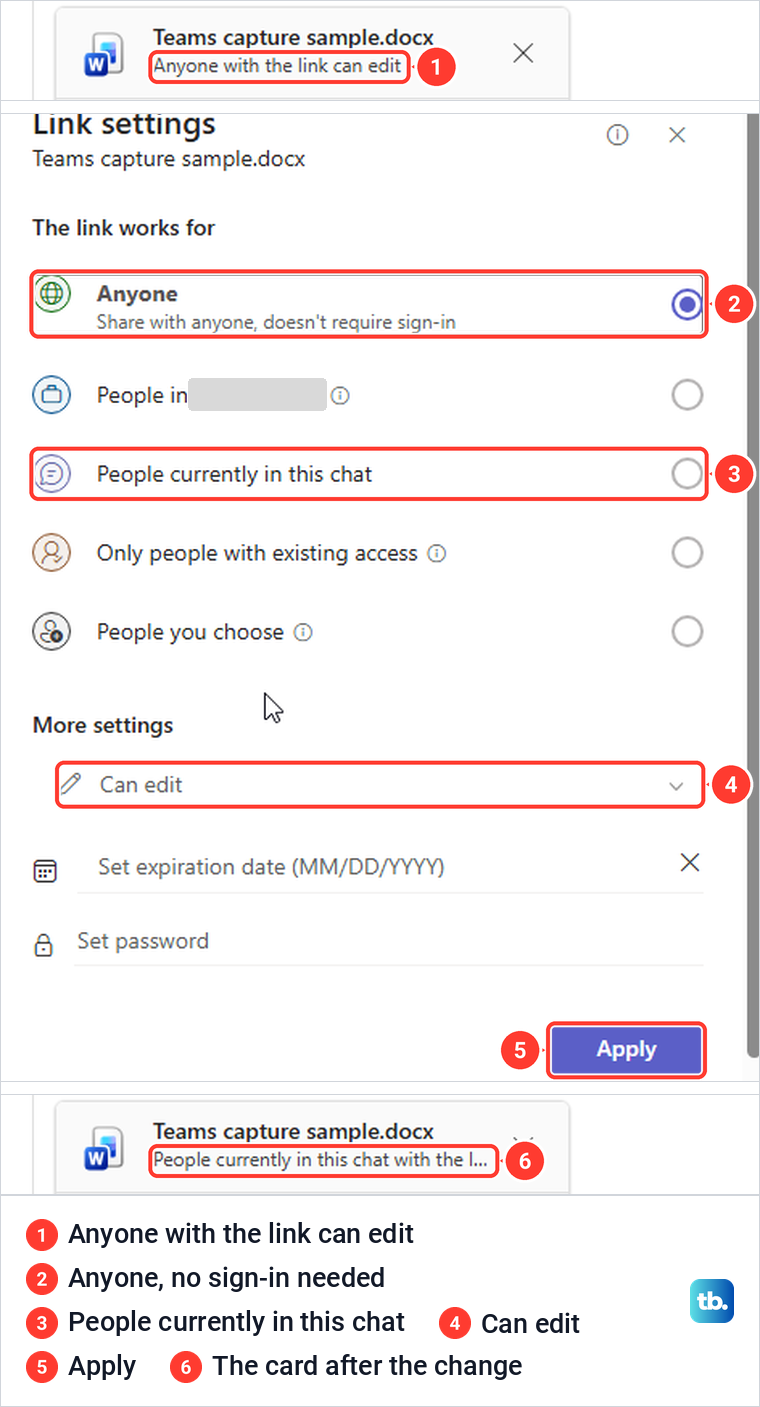
Read the line under the file name before you send. Our file, uploaded from the PC into a one-to-one chat, showed Anyone with the link can edit, and the Link settings behind that line described Anyone as share with anyone, doesn't require sign-in. Sent like that, whoever gets the link could open and change the file without signing in.
Select that line to open Link settings. Ours offered Anyone, People in your organization (shown by its name), People currently in this chat, Only people with existing access and People you choose, with Can edit, an expiry date and a password under More settings. We chose People currently in this chat and selected Apply, and the card changed to match. Read the line every time rather than assuming it.
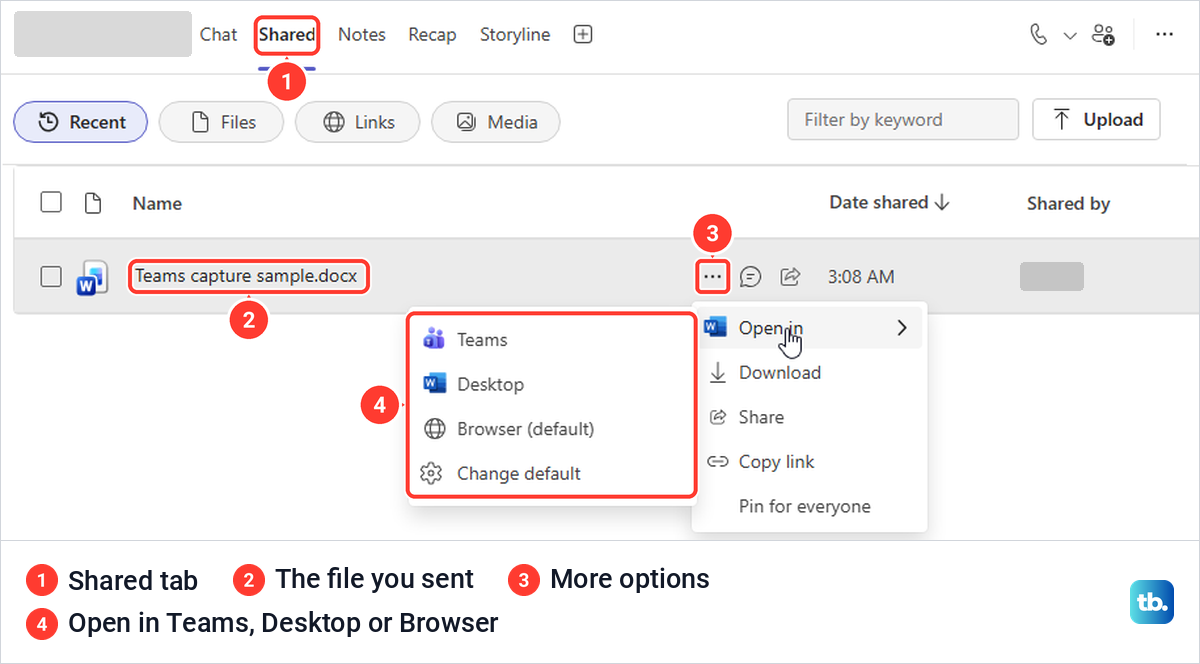
After we sent it, the file appeared in the chat and in the chat's Shared tab, which has Recent, Files, Links and Media views and its own Upload button. Microsoft says every chat and channel has a Shared tab listing the files and links shared there, so look there first for a file someone sent you last week.
Point at the file in Shared, select its three dots and choose Open in. Ours offered Teams, Desktop and Browser, with Browser marked as the default and a Change default entry. Teams opened the document in Word for the web inside the Teams window, and a Close button took us back to the list.
Where the file is stored depends on where you shared it. Microsoft says files you send in a chat are stored in your OneDrive for Business and shared only with the people in that conversation, while files uploaded to a channel go to the team's SharePoint folder. That describes where the file lives, and the link line on the card still decides who else can open it.
To work with a channel's library outside Teams, use SharePoint for channel files. If you also want your chat files in File Explorer, set up OneDrive on Windows with the same work account.
Join or create a team
Before you create a team, check whether one already exists for your group. Select the small arrow beside the New message pencil to open New items, choose Join team and search by name or topic. Microsoft says you can join a public team right away, but for a private team you must ask and wait for the owner's approval.
To start a new one, choose New team from the same menu. Our Create a team form asked for a team name, an optional description, the team type and a first channel name, with the type already set to Private. Microsoft says teams are private automatically if the organization allows it, and that your organization can restrict who can create teams, so check with your IT admin if New team is missing.
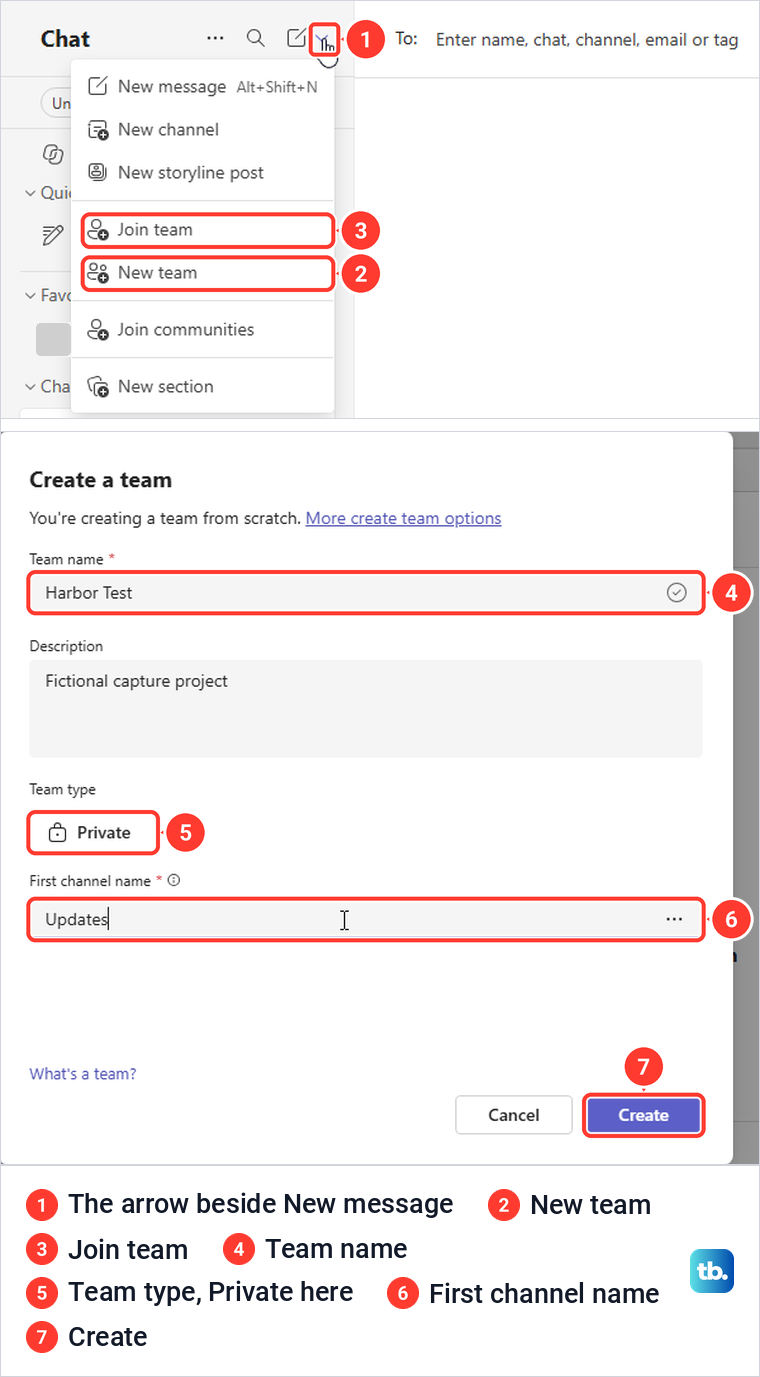
After we selected Create, Teams went straight to an Add members box for the new team, where you type a name, distribution list or security group, or select Skip. The person we added was listed with the role Member, and the team opened on its first channel with a Post in channel button. Microsoft notes that as the creator, you are the team's owner.
To manage the team later, right-click it in the list or use its three dots. Ours offered Add member, Add channel, Manage team, Manage tags, Copy link, Archive, Leave team and Delete team. Manage team lists the channels, the members with their roles and any pending requests.
Add a channel and post in it
Channels split a team's work by topic. Choose New channel from New items, pick the team, give the channel a name and choose a type. Our form described the three types in plain words: Standard, everyone on the team has access; Shared, people or teams in your org or outside your org can have access; and Private, specific people on the team have access.
Below the type is the Layout choice, and on our form Threads was already selected. Threads looks like a chat with replies at the side, while Posts reorders posts by the most recent reply and suits announcements. The form says channel owners can change the layout at any time, so pick the one your team expects rather than the one that happens to be ticked.
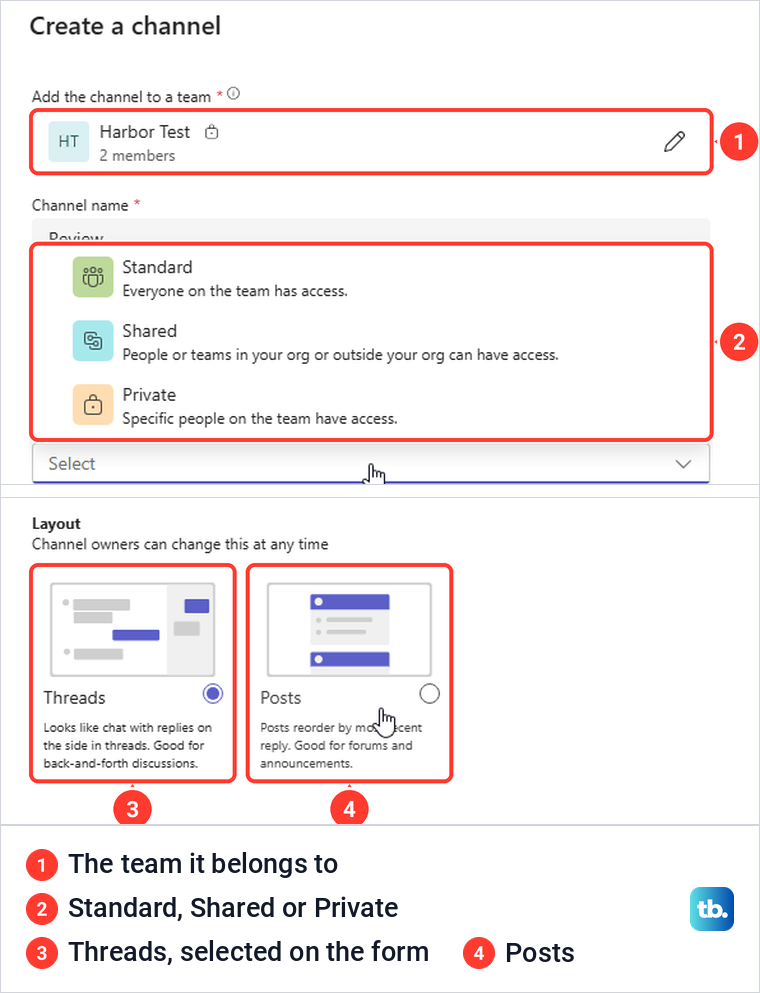
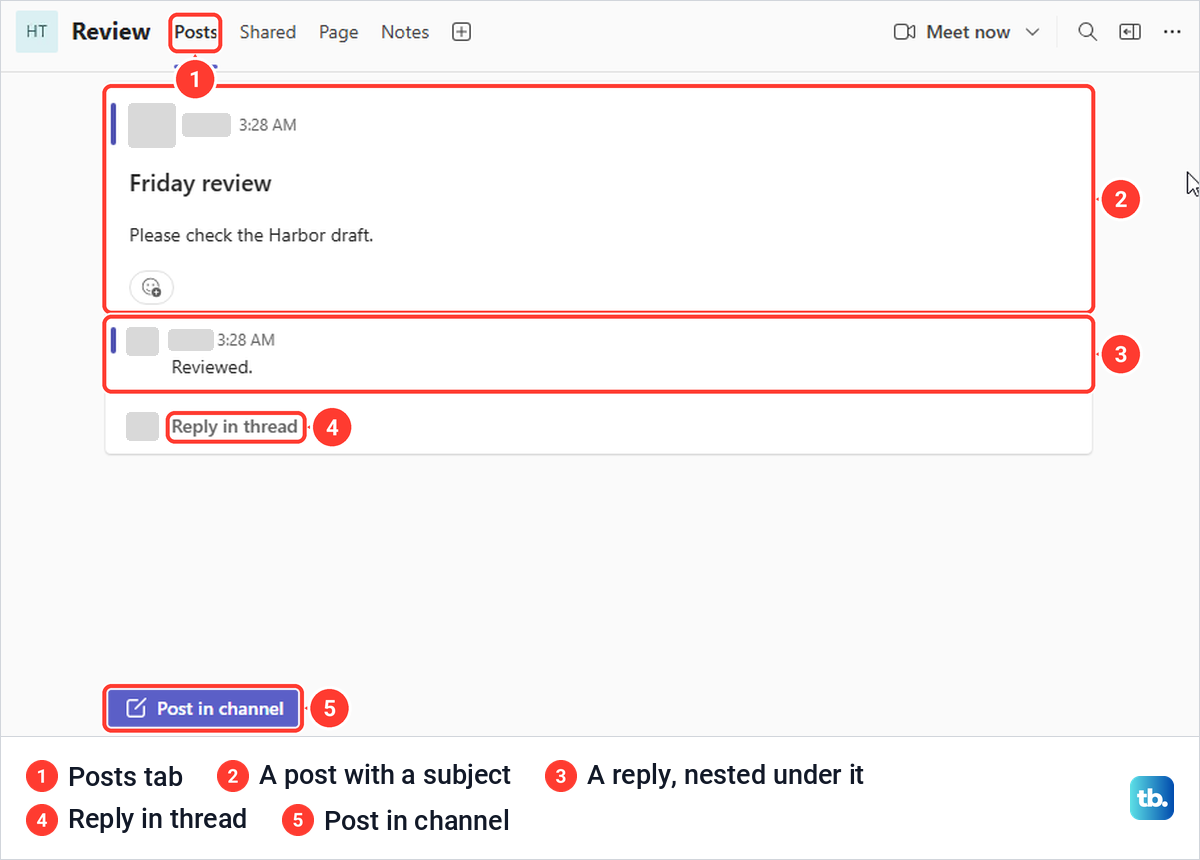
We chose Posts. In a Posts channel, Post in channel opens a box with Add a subject above the message and a Post button, and each post gets a Reply in thread link under it. Our reply sat indented under the post, so the conversation stayed together. Microsoft's help page calls these Start a post and Reply, so your labels may differ slightly.
Remember who reads a channel. Microsoft says everyone with access to the channel can see its messages, so keep anything meant for one or two people in a chat.
Schedule a meeting and join it
Select Calendar on the left bar. Ours opened on a Work week view with Today, Meet now and New along the top, and Microsoft says the calendar shows all your upcoming meetings and events scheduled in Teams, Exchange or Outlook. Meetings you schedule in Teams also appear in your Outlook calendar, Microsoft adds.
Select New, add a title and type a name under Invite required attendees. The form has a Teams meeting switch, and it decides whether the event gets a Join button. On our form the switch was off when it opened and turned itself on the moment we added an attendee, and the Save button became Send. Microsoft only says to turn on the Teams meeting toggle, so look at it before you send.
We sent two invites to compare. The one we sent after turning the switch off by hand showed only Edit and Cancel when we opened it, while the one with the switch on showed Join and Chat. Microsoft's help says the same from the other side: no Join option can mean the meeting was not organized as an online meeting, and the organizer should turn the toggle on.
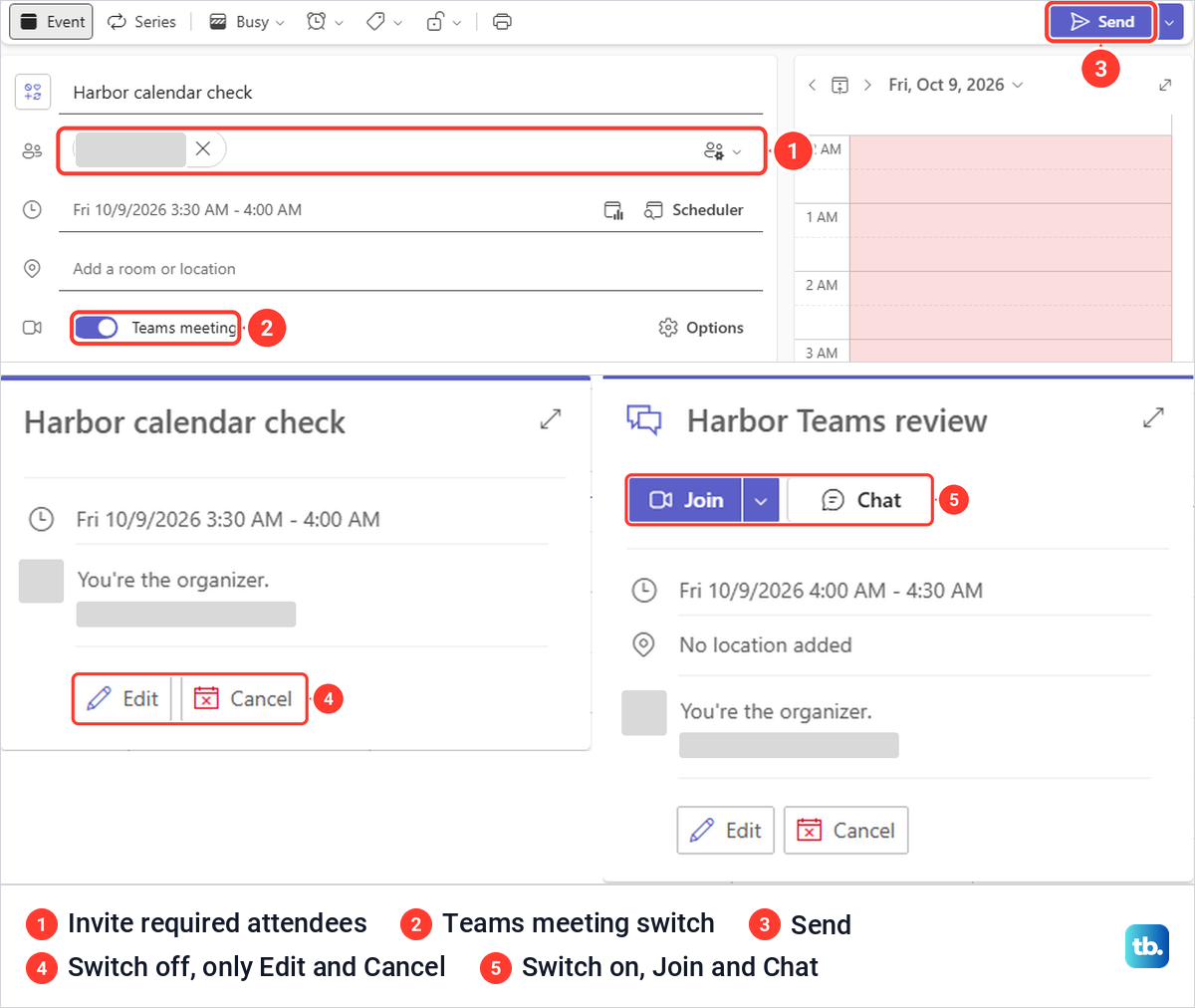
For finding a time that suits everyone, repeating meetings and the rest of the invite fields, follow the full guide to schedule a Teams meeting and send invites. Microsoft says Teams meetings in your calendar carry a Teams icon and a Join button, so a meeting someone else set up is joined the same way.
Use the controls in a meeting
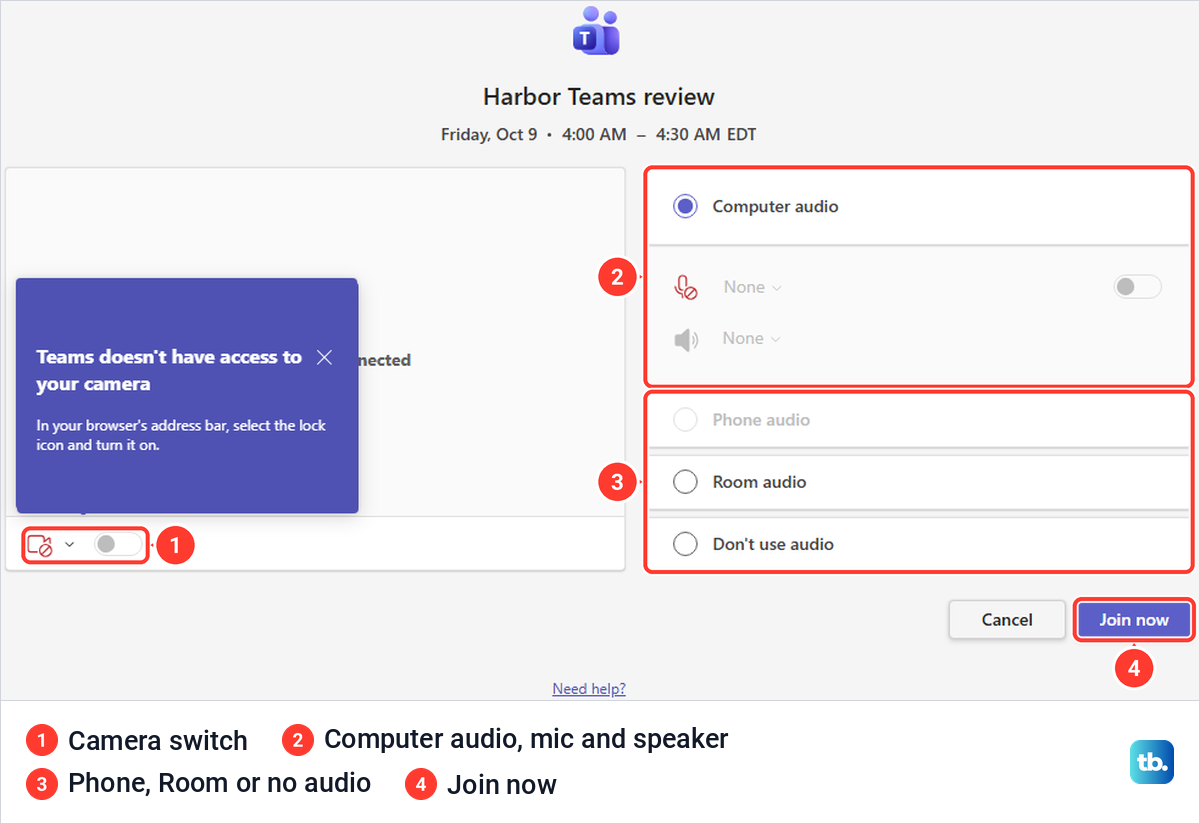
Select Join on the event, and Teams first shows a prejoin page with the meeting title and time, a camera switch under the video preview and the audio choices. Ours offered Computer audio with microphone and speaker pickers, Phone audio, Room audio and Don't use audio. Select Join now when you are ready.
Set your devices here, before anyone sees or hears you. When the browser had not been given access, the page said so and pointed to the lock icon in Edge's address bar. To choose which camera Teams uses, change your Teams camera settings, and if the mic control cannot use your device, fix a Teams microphone that is not working.
Before you join, you can also change your background in Teams if you would rather hide the room behind you. After Join now, some organizers place attendees in a lobby before admitting them, Microsoft says, so wait or contact the organizer if nobody lets you in.
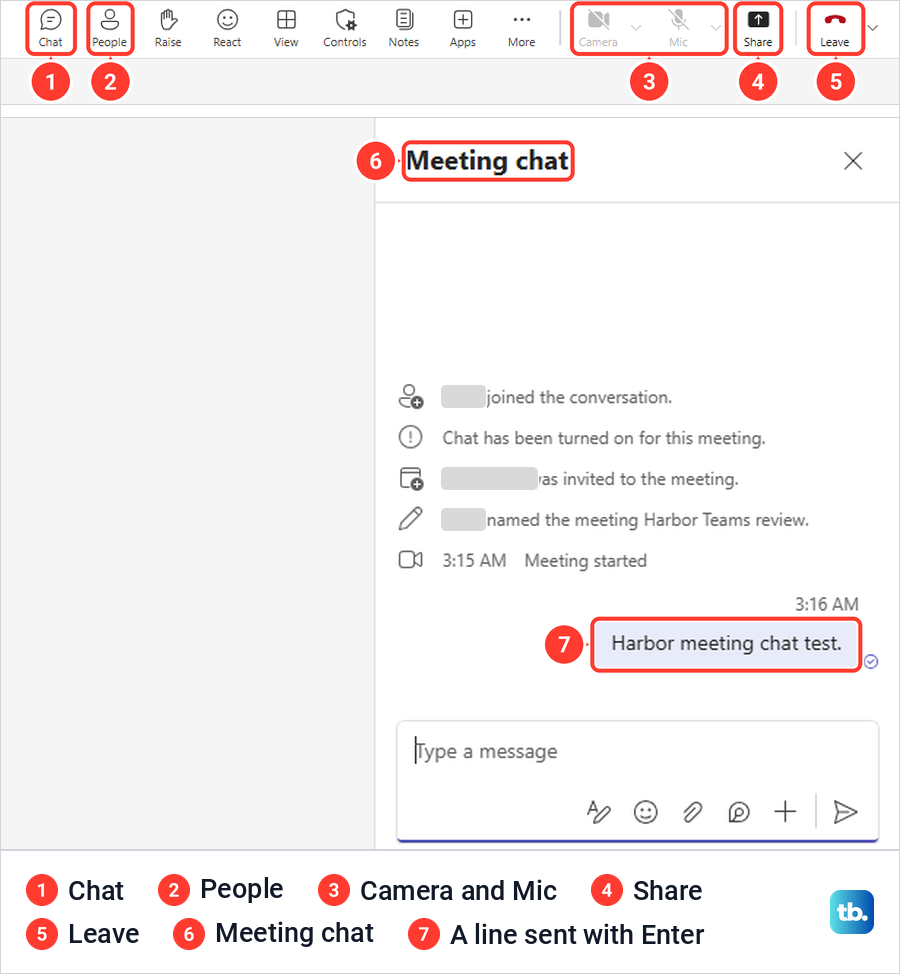
Inside the meeting, the controls run along the top: Chat, People, Raise, React, View, Controls, Notes, Apps and More, then Camera, Mic, Share and Leave. Camera and Mic each have an arrow beside them for device choices.
Chat opens Meeting chat at the side, and a line we typed there went in when we pressed Enter. People opens Participants, which listed the organizer under In this meeting and the person we invited under Others invited, with a Share invite button at the top. Leave took us out and, on ours, opened a How was the call quality? survey with Dismiss and Send feedback.
Recording is a separate meeting action, so use our guide to record a Teams meeting and find the video. Follow your organization's policy, and tell people before you record.
Share your screen in a meeting
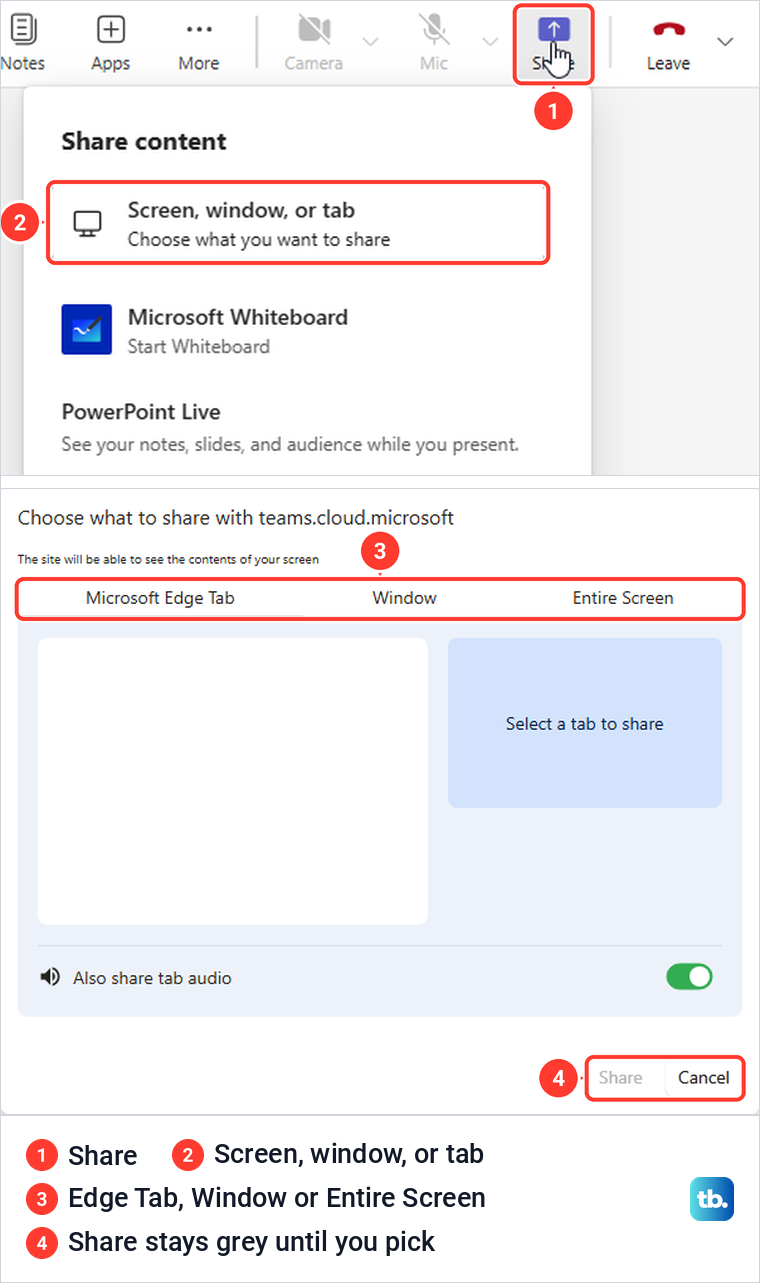
Select Share in the meeting controls. Our Share content panel offered Screen, window, or tab, Microsoft Whiteboard, PowerPoint Live with recent presentations and Excel Live with recent workbooks. To show your screen, a window or a browser tab, choose Screen, window, or tab, and Microsoft notes that sharing your entire screen also shows your notifications and other activity. For a PowerPoint file, PowerPoint Live shares the file itself, which Microsoft describes as a PowerPoint file others can interact with.
In Teams for the web, the browser asks what to share. Edge's picker, titled Choose what to share with teams.cloud.microsoft, had Microsoft Edge Tab, Window and Entire Screen tabs, and its Share button stayed grey until we picked something. Microsoft says Teams for the web can share a screen in Google Chrome or the latest version of Microsoft Edge.
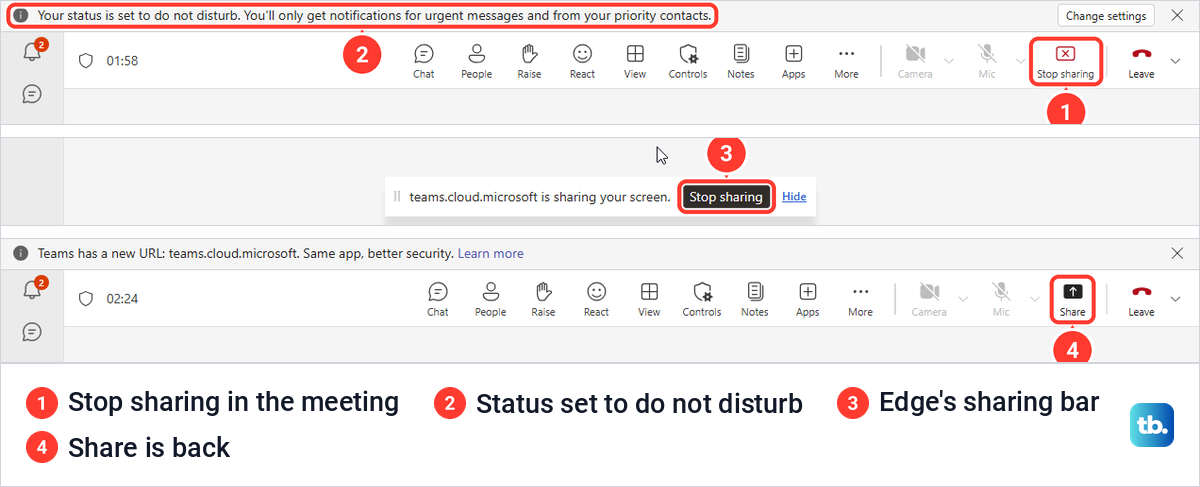
Once sharing started, Edge showed a bar reading teams.cloud.microsoft is sharing your screen with Stop sharing and Hide, and the Share button in the meeting became Stop sharing. Teams also set our status to do not disturb and said we would only get notifications for urgent messages and from priority contacts. To set your own status, see how to keep your Teams status green.
Select Stop sharing in the meeting controls to finish. On ours, that removed the Edge bar and the status notice and brought the Share button back. If the picker opens but the share does not start, follow the focused steps to fix Teams screen sharing when it fails.
Fix common problems on your first day
If your channels are missing, open Chat and look under Teams and channels, unselect any filter at the top of the list so it shows everything again, or switch to Separate in Customize view. If a team you know about still does not appear, Microsoft says a private team whose owner has not turned on discoverability cannot be found by search, so contact the owner and ask to join.
If New team is missing, your organization may restrict who can create teams, so check with your IT admin. If a meeting has no Join button, the organizer should open the event and turn on Teams meeting. If a file card says Anyone, change the audience in Link settings before you select Send.
If a search misses a chat message you know is there, select the All chip, because the Channels chip can hide chat results. If a keyboard shortcut does nothing, open Settings and more > Keyboard shortcuts and use the keys your copy lists.
How we tested this guide
We tested this in Teams for the web in Microsoft Edge on Windows 11, version 25H2, going from a first chat message to sharing a screen in a meeting.
Frequently Asked Questions
Where did my Teams channels go?
In the combined view they are in Chat, under Teams and channels below your chats, and See all your teams lists every team you belong to. To get a separate Teams area back, select More list options at the top of the chat list, choose Customize view and pick Separate.
Where do files shared in Teams go?
Microsoft says chat files are stored in your OneDrive for Business and channel files in the team's SharePoint folder. Either way, you can find them in that conversation's Shared tab.
Can I make a shared file view only?
Select the link line on the file card before you send it, then under More settings change Can edit to Can view if that option is available. Microsoft lists Can edit, Can review, Can view and Can't download among the permissions you can set in Sharing settings.
Why is there no Join button on my Teams meeting?
The event may have been sent without the Teams meeting switch turned on. For us, the event sent with it off showed only Edit and Cancel, so ask the organizer to open it and turn the switch on.
What is the shortcut for a new chat in Teams?
Microsoft lists Ctrl + N for the desktop app. In Teams for the web in Edge, Alt + Shift + N opened a new chat for us, while the Left Alt + N that Microsoft lists for the web did nothing.
Can I use Teams in a browser?
Yes. Go to teams.microsoft.com in a desktop browser and sign in with your work or school account. Teams may move you to teams.cloud.microsoft, which is the same app.