
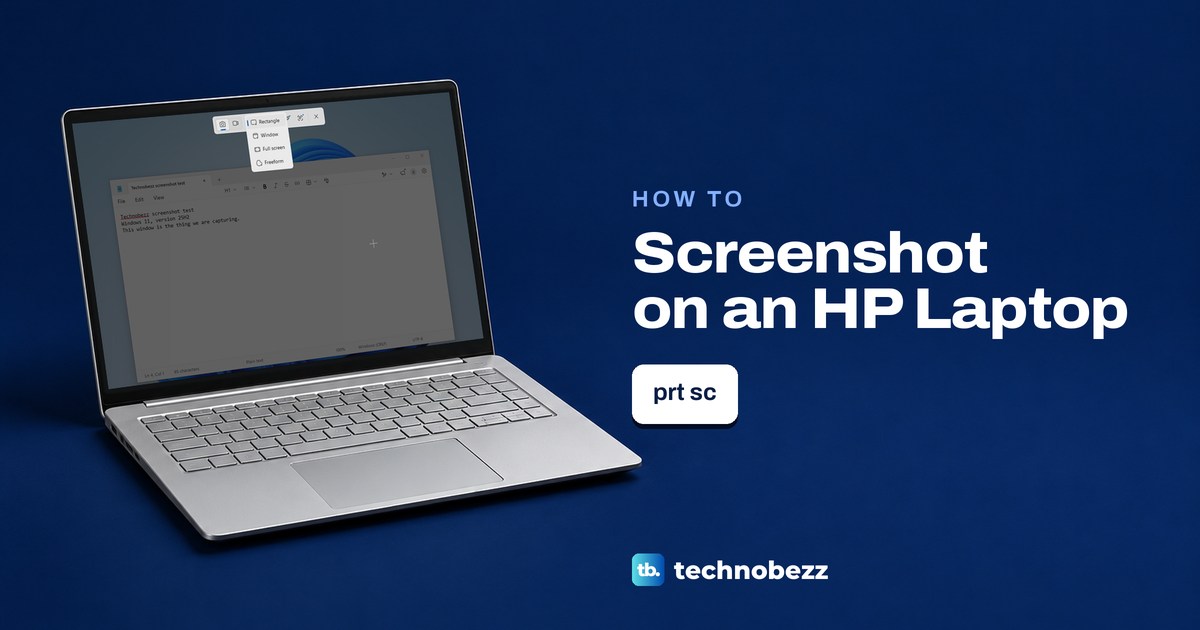
To take a screenshot on an HP laptop running Windows 10 or 11, press Windows logo key + Shift + S, pick Rectangle if it is not already selected, then drag across the part of the screen you want and let go. The picture is now on your clipboard, so press Ctrl + V to paste it into an email, chat or document.
The short version
- An HP running Windows: press Windows + Shift + S, pick Rectangle if it is not already selected, then drag.
- The whole screen as a file: press Windows + prt sc and look in Pictures > Screenshots.
- prt sc printed on the right Shift key: hold fn first, then press the right Shift key.
- A Snipping Tool key: the key with a rectangle and plus icon, on f11 or f12 or a key of its own after f12, opens Snipping Tool.
- A folded 2-in-1 with its keyboard disabled: open Snipping Tool from Start and select New.
The tricky part on an HP is finding Print Screen. It can be a separate key in the top row or a small label on the right Shift key. Some models also have a Snipping Tool key marked with a rectangle and plus sign.
We ran Windows + Shift + S, Print Screen, Windows + Print Screen and Alt + Print Screen on Windows 11, version 25H2. Pressing Print Screen opened the capture bar instead of silently copying the screen, which is what HP's own screenshot pages still describe.
HP screenshot keys at a glance
| Press | What your HP has | What happens |
|---|---|---|
| Windows + Shift + S | Any keyboard | A capture bar opens. Select Rectangle, then drag. On Windows 11 it is copied and saved in Pictures > Screenshots by default |
| prt sc | A separate prt sc key | On Windows 11 the same capture bar opens by default |
| Windows + prt sc | A separate prt sc key | The whole screen is saved as a PNG in Pictures > Screenshots and copied |
| Alt + prt sc | A separate prt sc key | The active window is copied to the clipboard. Nothing is saved |
| Hold fn, then press the right Shift key | prt sc printed on the right Shift key | Uses the key's prt sc label, following HP's rule for keys with two labels |
| The Snipping Tool key, with fn if your action keys need it | A key with a rectangle and plus icon, on f11, f12 or a key of its own after f12 | The Snipping Tool app opens |
| Hold Power and Volume Down for about two seconds, or Power and Volume Up | An HP tablet | HP says the screen flashes and the picture goes to the tablet's photo folder. Microsoft gives Volume Up for most Windows tablets |
| Windows + Ctrl + O, then click PrtScn | No key that works | The On-Screen Keyboard's PrtScn key opens the capture bar |
The first four rows and the last one describe Windows 11 with its default settings. The rows for the right Shift key, the Snipping Tool key and tablets follow HP's user guides and support pages.
Find the Print Screen key on your HP keyboard
HP's keyboard drawings print the key as prt sc, and this guide uses that spelling for the key on an HP. HP's support documents also write prt scr, some HP keyboards print it in capitals as PRT SC, and Windows calls the same key Print Screen or PrtScn. HP's general advice is that the key is usually in the upper right of the keyboard, and that on some laptops you need to hold fn before pressing it.
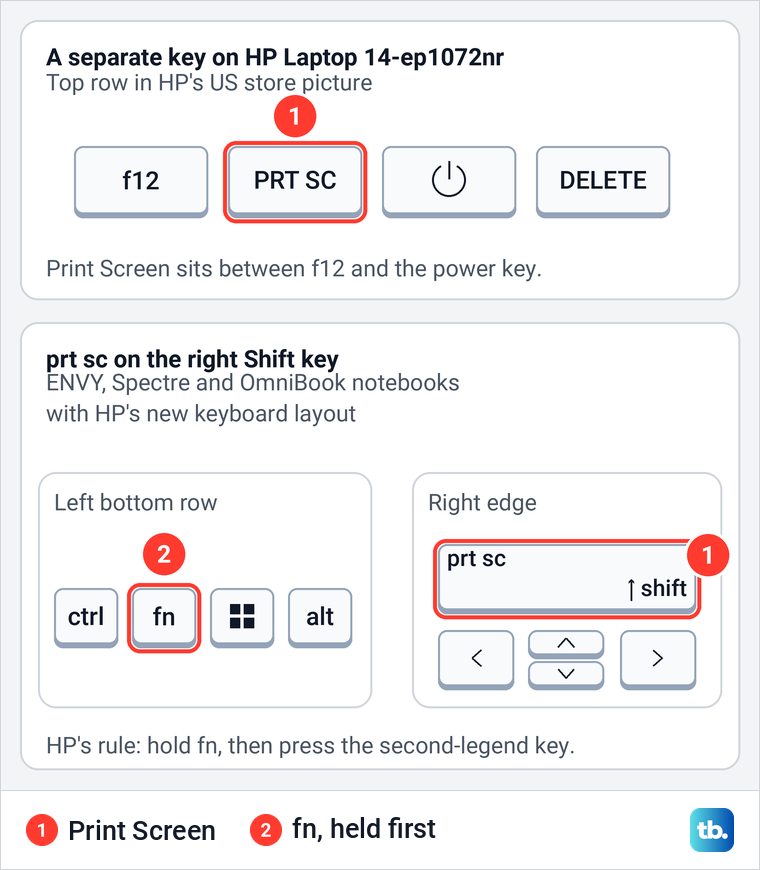
HP's own product pictures show Print Screen right after f12, beside the power key, on the HP Laptop 14 (14-ep1072nr), HP Laptop 15 (15-fd2077nr), HP Laptop 17 (17-cn4010nr) and ProBook 450 G10. On the Victus 15 (15-fa2047nr) it is the last key in the top row, above the number pad. The EliteBook 840 G11 puts prt scr on the right Shift key instead.
Check those two places first: the right end of the top row and the right Shift key. If neither shows prt sc, look for a small rectangle with a plus sign on f11, f12 or the key after f12. Match the model series below to your laptop, since layouts change between generations.
When prt sc is printed on the right Shift key
HP's support document for ENVY, Spectre and OmniBook notebooks with the new keyboard layout shows the right Shift key with prt sc printed small in its top left corner, and the shift arrow at the bottom right. That small label is easy to miss, and it is the one to use.
HP's rule for any key with a second label is to press and hold fn, then press the key. So for Print Screen on this layout, hold fn and press the right Shift key. HP adds that in a longer combination, fn goes directly before the key with the second label, because pressing it at another point might do nothing or trigger something else.
That order matters for the other shortcuts. Following HP's rule, hold Windows logo key, then fn, then press the right Shift key to save the whole screen as a file. For one window, hold Alt, then fn, then press the right Shift key. If that feels awkward, Windows + Shift + S needs no prt sc key at all.
The Snipping Tool key on newer HP laptops
HP's guides put the Snipping Tool key on f12 for the OmniBook Ultra 14 (14-fd0000), OmniBook X 14 (14-fe0000) and OmniBook X Flip 14 (14-fk0000). On the Spectre x360 14 and 16 (14-eu0000 and 16-aa0000), it is f11, while f12 opens HP Hubs Launcher.
The ENVY x360 14 2-in-1 (14-fc0000) has a separate Snipping Tool key between f12 and the power key. Here too, f12 opens HP Hubs Launcher.
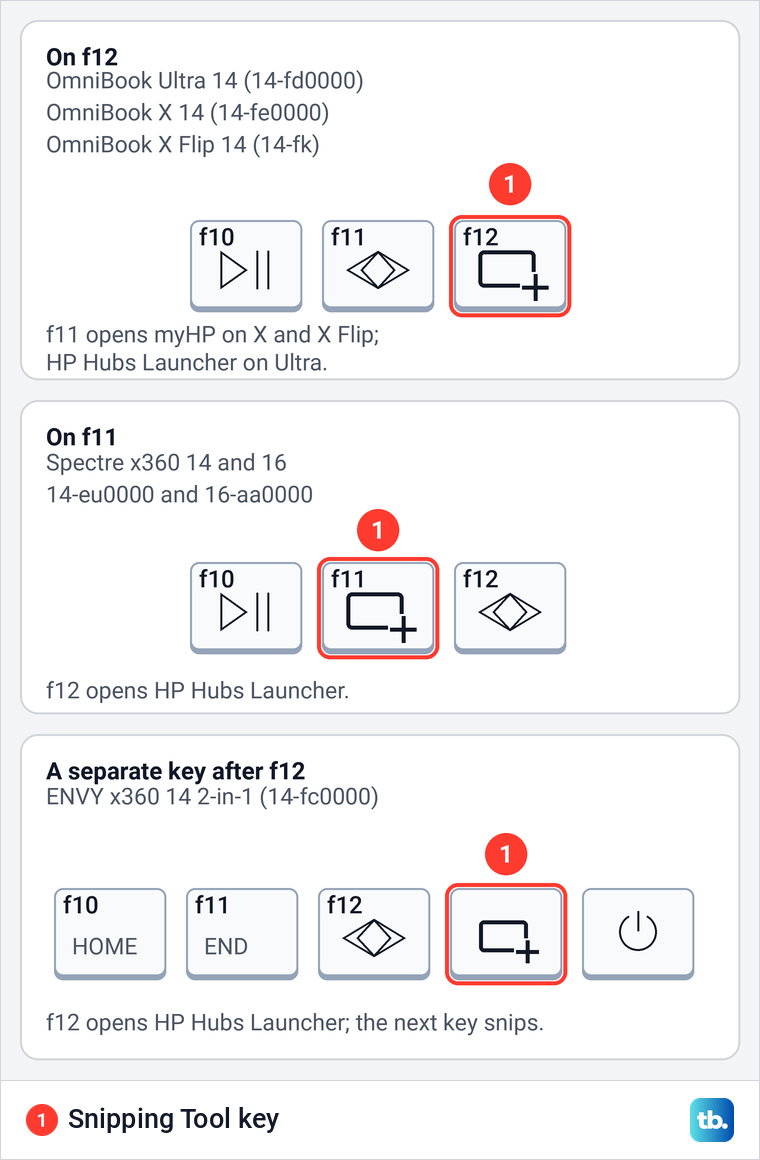
Look for a small rectangle with a plus sign at its lower right corner. HP's guides describe the key the same way for each of these models: it opens the Snipping Tool app, which takes snapshots to copy words or images from all or part of the screen. You can then mark the picture up, save it and share it.
Not every HP has this key. HP's user guides for models such as the Pavilion 15-eg3000, Victus 15-fa1000, OMEN 16-am0000, HP 15-fd1000, OmniBook 3 15-fn0000, OmniBook 5 16-af1000, OmniBook 7 Aero 13-bg1000 and EliteBook 840 G11 list no such key, so on those keyboards look for prt sc instead. If the key is there but only works with fn, the next section explains why.
Why some HP keys need fn
Many HP function keys also have an action printed on them, such as brightness, volume or Snipping Tool. The available actions vary by model. HP's guides say that to use an action key you press and hold it, and that on some products you must press fn with it.
Which way your laptop behaves depends on a setting HP calls Action Keys Mode. When it is enabled, pressing the key alone runs the action printed on it. When it is disabled, you hold fn to get the action, and the key on its own works as a plain function key.
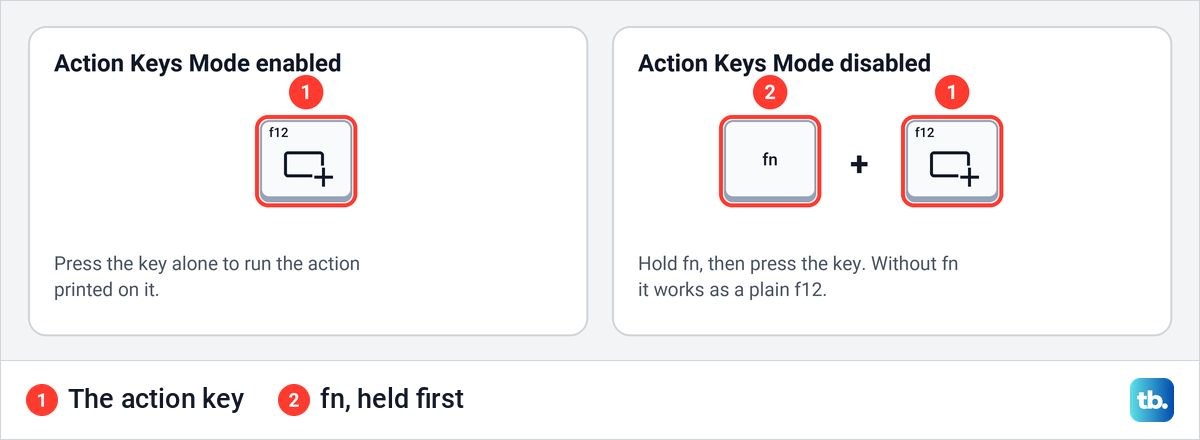
Action Keys Mode is a BIOS setting, so you first have to enter BIOS setup on an HP computer. HP's steps are to turn the laptop on and press f10 repeatedly, open System Configuration, select Action Keys Mode, choose Enabled or Disabled, then press f10 to save. Our guide on how to turn off the Fn key on a laptop keyboard covers this setting and the fn and left Shift switch on business models.
Screenshot on an HP EliteBook or ProBook
On an EliteBook running Windows, Windows + Shift + S avoids the hunt for Print Screen. For the physical key, HP's US store picture of the EliteBook 840 G11 gives a precise answer: prt scr is printed at the upper right of the right Shift key. Following HP's rule for second labels, hold fn, then press the right Shift key.
The ProBook 450 G10 picture shows a separate prt scr key between f12 and the power key. HP's specification sheet for the EliteBook 840 G10 lists no Print Screen key in the top row. Check the labels printed on your keyboard rather than assuming a newer model's layout applies.
Some HP business laptops can also switch the action keys from the keyboard. HP's guide for the EliteBook 840 G11 says the action key feature is on from the factory, and that on select products holding fn and the left Shift key turns it off and lights the fn lock light. HP's support page gives the same fn and left Shift switch for ProBook 440, 450 and 470 G5 and EliteBook 830, 840 and 850 G5 laptops.
Take the screenshot with Windows + Shift + S
This shortcut works on any HP laptop running Windows 10 or 11, whatever its keyboard looks like, because it does not use the Print Screen key. Press Windows logo key + Shift + S together. On our PC the screen dimmed and a capture bar appeared at the top center, and the tooltip on its Close button says Esc closes it.
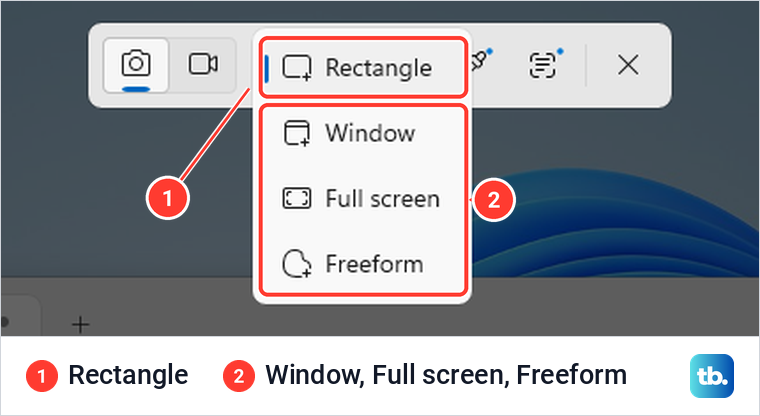
Open the Snipping area menu, the third button on the bar, to choose a shape. The first time we opened it, Rectangle was selected, with Window, Full screen and Freeform below it. The bar also remembered the last shape we used the next time it opened, so check this menu if dragging does nothing.
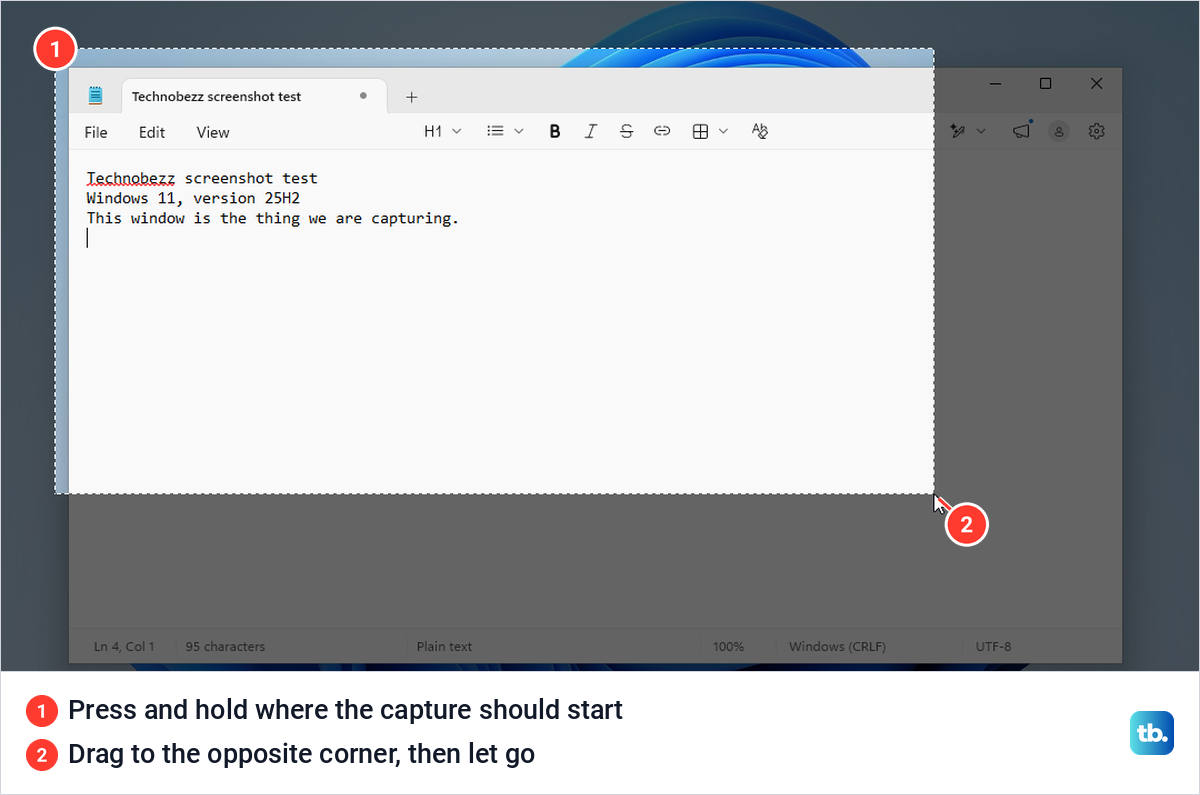
With Rectangle selected, click where the capture should start, hold the mouse button, drag to the opposite corner and let go. The capture is taken the moment you release.
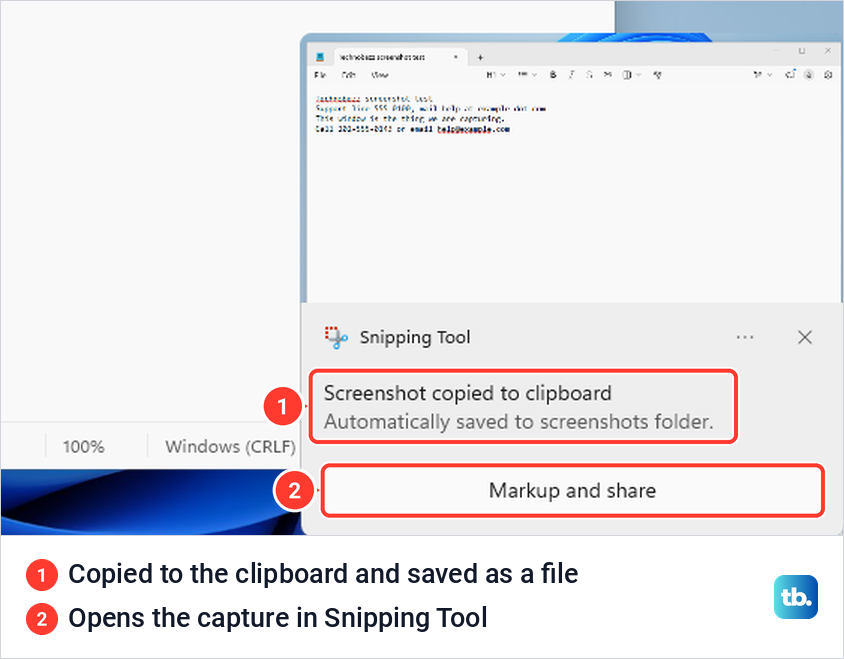
A notification then appeared at the bottom right of our screen. It read Screenshot copied to clipboard, with Automatically saved to screenshots folder under it, so you can paste it with Ctrl + V straight away or select Markup and share to open it in Snipping Tool.
The capture bar can do much more, from Window mode to copying text out of a picture, and all of it is in our full guide to taking a screenshot on Windows. If nothing appears when you press the keys, here is what to do when Windows + Shift + S stops working.
What the prt sc key does in Windows 11
Windows 11 changed the default Print Screen action in 2023. On our PC, pressing Print Screen dimmed the screen and opened the same capture bar as Windows + Shift + S.
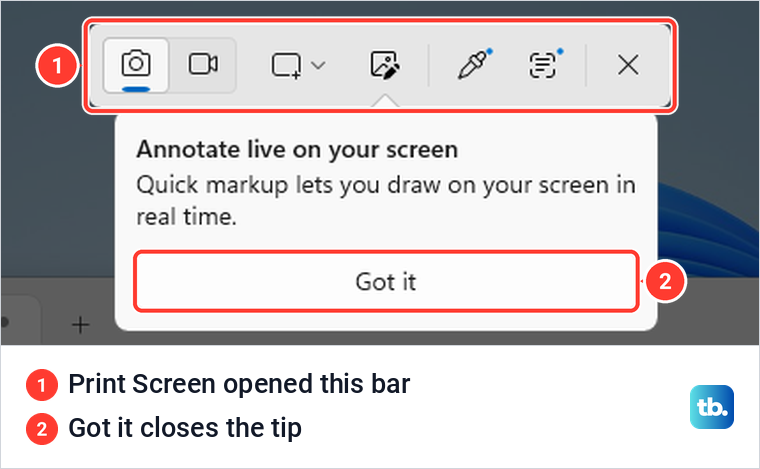
A capture started this way was copied and saved just like any other snip. The first time the bar opened from the key, it also showed a tip about Quick markup, which Got it dismisses.
If you want the old silent copy back, turn off the switch named Use the Print screen key to open screen capture. On our PC it sat under Settings > Accessibility > Keyboard, and typing print screen into the search box at the top of Settings brought it up as the only suggestion.
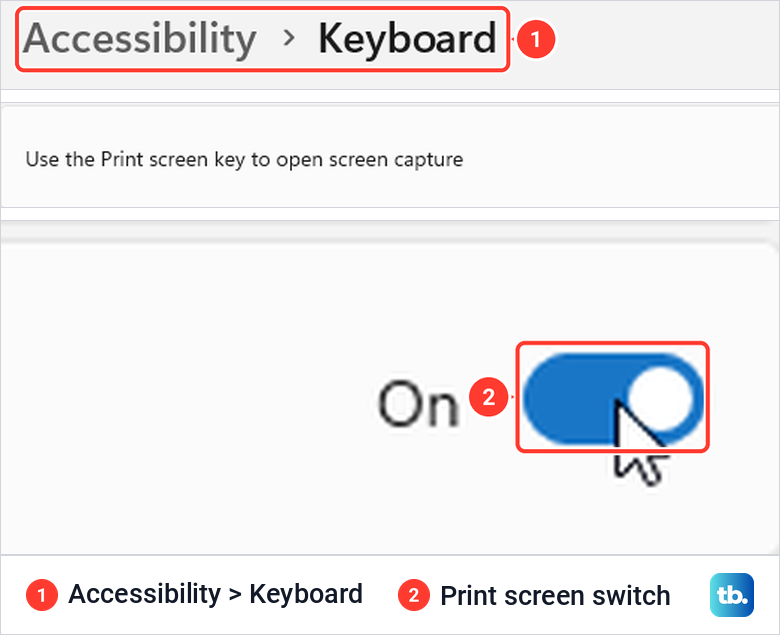
With the switch off, Print Screen went back to copying the entire screen with no sign that anything happened, and no file was saved. Paste the picture before copying something else. If you have already overwritten it, check Windows + V; clipboard history may contain it if it was enabled beforehand.
Save the whole screen or just one window
To save the whole screen as a file with no clicks, hold Windows logo key and press prt sc. On our PC this saved a PNG named Screenshot (1).png in Pictures > Screenshots and also put the same picture on the clipboard. HP's support page describes the same shortcut and the same folder.
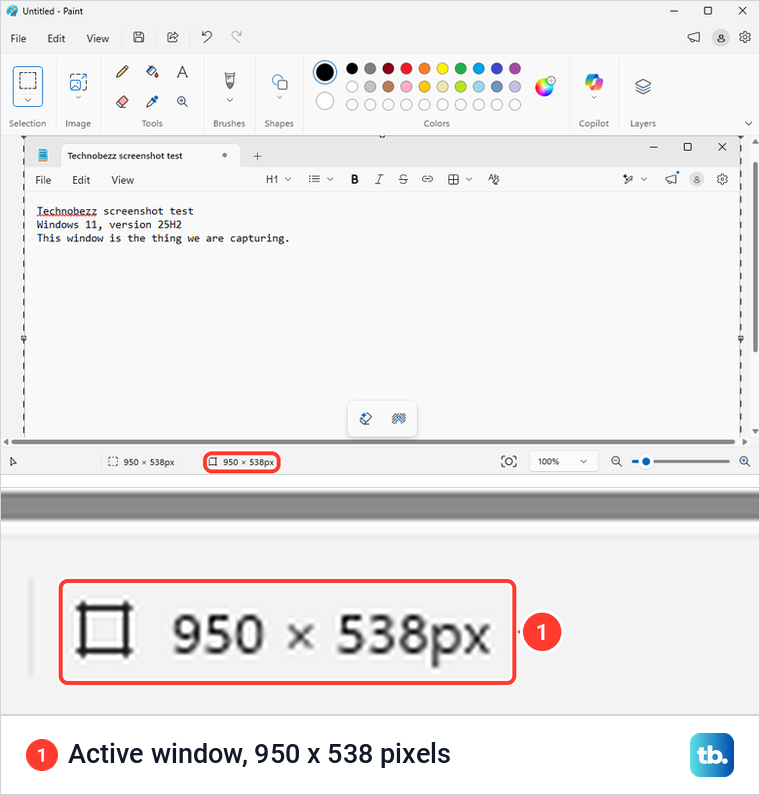
To copy only the active window, click it first, then hold Alt and press prt sc. When we pasted the result into Paint, it was exactly the size of the Notepad window we had clicked, 950 x 538 pixels, and nothing was saved as a file.
Where HP screenshots are saved
On Windows 11, by default, captures from Windows + Shift + S, the Print Screen capture bar and Windows + prt sc all land in Pictures > Screenshots. Open File Explorer, select Pictures and open the Screenshots folder. Alt + prt sc, and Print Screen with its switch turned off, leave the picture on the clipboard only.
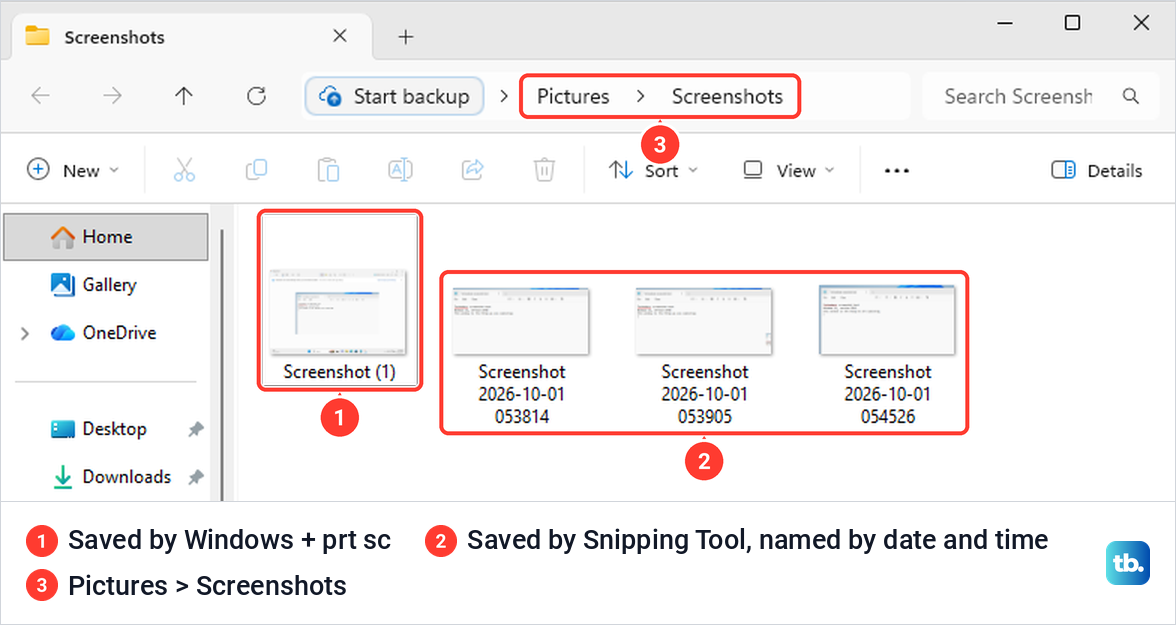
The file names tell you whether a capture came from Windows + prt sc or from Snipping Tool. Windows + prt sc uses numbered names such as Screenshot (1).png, while Snipping Tool names its files with the date and time.
If a new snip is missing, open Snipping Tool's three-dot menu, choose Settings and check Automatically save original screenshots and Screenshots are saved to. Select Open folder to reach the configured location. If automatic saving is off, open the current capture and select Save as.
On Windows 10, Microsoft describes Windows + Shift + S as a clipboard capture. Paste it into Paint and save it there, or use Windows + prt sc for a file in Pictures > Screenshots.
Copied a capture and then copied something else over it? Press Windows logo key + V. If Windows offers to turn on clipboard history in Windows 11, it was off and cannot bring back the earlier capture, but from then on it keeps a list of what you copy, screenshots included.
Screenshot on an HP 2-in-1 or tablet
A convertible needs a different approach once it is folded. HP's guide for the OmniBook X Flip 14 says the keyboard area, function keys included, is disabled in stand, tent and tablet modes, and comes back in clamshell mode. In those modes no key on the keyboard will take a screenshot.
Instead, select Start, type Snipping Tool, open the app and select New. On our PC that brought up the same capture bar, and the capture was saved like any other. HP also notes that action keys do not appear on the touch keyboard, so it cannot stand in for the Snipping Tool key.
For HP tablets, HP's instruction is to press and hold Power and Volume Down together. After about two seconds the screen flashes, and the picture goes to the tablet's photo folder. Microsoft's instruction for most Windows tablets uses volume up with the power button instead, so try that pair if volume down does nothing.
If no key on your HP will take a screenshot
You do not need a Print Screen key at all. Windows + Shift + S does not use it, and the New button in Snipping Tool gives the same capture bar with no shortcut. There are more routes in our guide on how to take a screenshot on Windows without Print Screen.
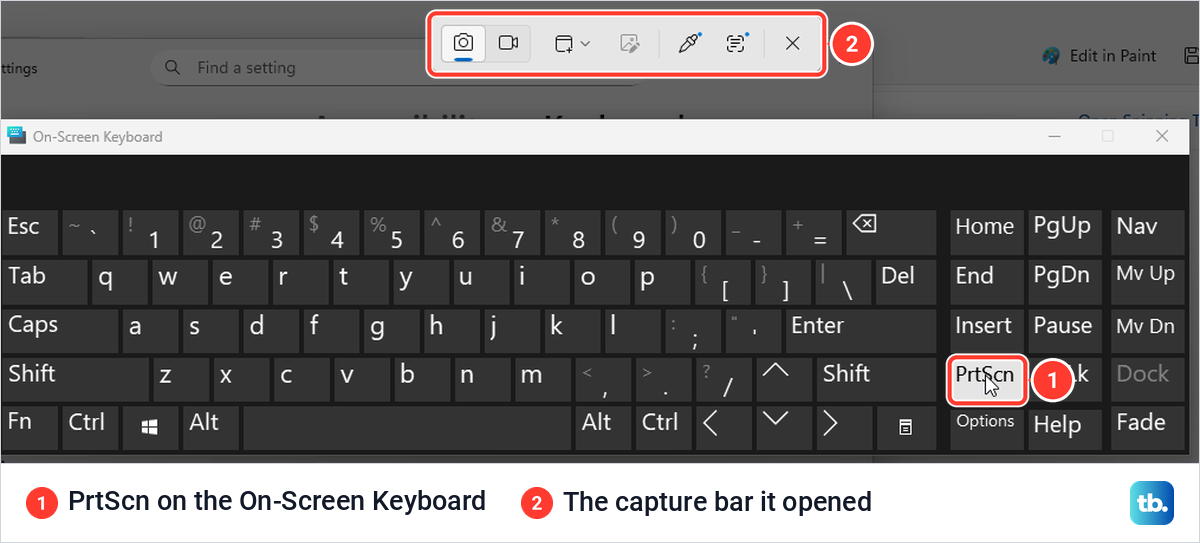
Windows also has a full keyboard on screen, with its own PrtScn key. Press Windows logo key + Ctrl + O to open the On-Screen Keyboard, then click PrtScn. When we did, the capture bar opened exactly as if we had pressed a physical key.
Microsoft also lists Fn + Windows logo key + Space Bar for devices with no Print Screen key, but only depending on the hardware, and HP's keyboard guides do not mention it. On an HP, the routes above are the ones to rely on.
When the screenshot key does nothing
Start by pressing Windows + Shift + S. If the bar appears, the capture bar itself is working, so check the Print Screen setting and try pasting into Paint before you look at fn behavior, other software or the keyboard.
First, rule out the Windows switch. If Use the Print screen key to open screen capture is off, the key copies the screen silently and looks dead. Open Paint and press Ctrl + V to check whether a picture is waiting on the clipboard.
HP's checklist also includes restarting, checking for conflicting screenshot software, updating the keyboard drivers through HP Support Assistant or Windows Update, and inspecting the key for damage. If the top row seems stuck in the wrong mode, see how to turn off Fn Lock. If HP Support Assistant is missing or will not open, you can download or repair HP Support Assistant, and for a key that stays dead in every app, work through our fixes for Print Screen not working in Windows.
If no shortcut brings up the capture bar, repair Snipping Tool. Open Settings > Apps > Installed apps, search for Snipping Tool, open its three-dot menu and choose Advanced options. Select Repair first, which keeps the app's data, and Reset only if that does not help.
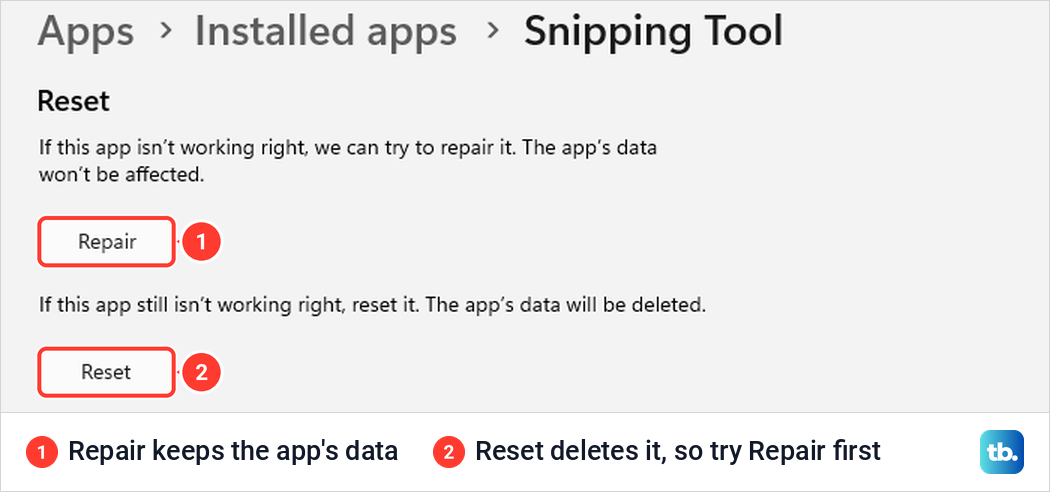
If neither button fixes it, our guide to Snipping Tool not working in Windows 11 goes further. On a work or school laptop, screenshots may also be blocked by policy, and only your administrator can change that.
HP Chromebooks use different keys
An HP Chromebook runs ChromeOS rather than Windows, so the shortcuts in this guide do not apply to it. Follow our guide on how to take a screenshot on a Chromebook instead.
How we tested this guide
We tested this on Windows 11, version 25H2, with the built-in Snipping Tool, pressing Windows + Shift + S and the Print Screen key.
Frequently Asked Questions
How do I screenshot on an HP laptop without the Print Screen button?
On an HP running Windows 10 or 11, press Windows logo key + Shift + S, pick Rectangle if it is not already selected, then drag across the area you want. On several newer Spectre, OmniBook and ENVY models, the key with a rectangle and plus icon, on f11 or f12 or a key of its own after f12, opens Snipping Tool.
Where is the Print Screen key on an HP laptop?
HP's own product pictures put it right after f12, beside the power key, on the HP Laptop 14, HP Laptop 15, HP Laptop 17 and ProBook 450 G10, and last in the top row on the Victus 15. On the EliteBook 840 G11 and HP's newer ENVY, Spectre and OmniBook layout, look on the right Shift key.
Which keys take a screenshot on an HP laptop?
Press Windows logo key + Shift + S and pick Rectangle for part of the screen, Windows logo key + prt sc for the whole screen saved as a file, or Alt + prt sc for the active window. On Windows 11, prt sc on its own opens the capture bar by default.
Why do I need to hold fn to take a screenshot on my HP?
When prt sc is a second label on a key, HP's rule is to hold fn and then press that key. On some HP laptops the actions printed on f1 to f12 need fn as well, depending on a BIOS setting HP calls Action Keys Mode.
Where do screenshots go on an HP laptop?
On Windows 11, by default, captures from Windows + Shift + S, the Print Screen capture bar and Windows + prt sc are saved in Pictures > Screenshots. Alt + prt sc only copies the window to the clipboard. On Windows 10, paste a snip into Paint and save it, or use Windows + prt sc to save directly.
How do I crop a screenshot on an HP laptop?
Select the notification after the capture to open it in Snipping Tool, choose Image crop, drag the edges in and save. Faster still, drag around only the part you need in the first place.
How do I take a screenshot on an HP EliteBook?
Press Windows logo key + Shift + S, pick Rectangle if it is not already selected, then drag to capture an area on Windows 10 or 11. HP's picture of the EliteBook 840 G11 shows prt scr on the right Shift key; following HP's rule for second labels, hold fn, then press that key.