


If the Print Screen key seems to do nothing, press it once, then open Paint and press Ctrl + V before you change anything. To be sure the picture is new, copy a few words of text first, then press Print Screen and paste: a picture of your whole screen means the key works and is set to copy silently, while the pasted text means the key press did not capture anything. If nothing pastes, press Windows + Ctrl + O and click PrtScn on the On-Screen Keyboard: when that works and your own key does not, the fault is the key, its Fn layer, the keyboard's software or a key remapping.
Windows 11 also changed what the key does in 2023. By default it now opens a small capture bar at the top of the screen instead of copying everything, so a PrtSc key that opens Snipping Tool is doing what Microsoft intended. On a laptop, hold Fn and press the key before you try anything else.
The short version
- Nothing seems to happen: open Paint and press Ctrl + V. A full-screen picture means the key works and copies silently.
- A capture bar opens instead: that is the Windows 11 default. Turn off Use the Print screen key to open screen capture to get the full-screen copy back.
- On a laptop: hold Fn and press PrtSc, then check Fn Lock.
- Is the key dead? Press Windows + Ctrl + O, click PrtScn on the On-Screen Keyboard and paste if no bar opens. If that works and your key does not, look at the keyboard and any key remapping.
- Still nothing: quit Dropbox, screenshot tools and keyboard software one at a time, pressing PrtSc after each.
What each Print Screen combination does
A key that looks broken may be doing something you did not expect. We pressed each combination in the table below on Windows 11, version 25H2, first with the Print screen switch on and then with it off, and checked what each one put on the clipboard and in Pictures > Screenshots.
| Keys | With the switch on (the default) | With the switch off |
|---|---|---|
| PrtSc | Opens the capture bar. The snip you take is copied and, by default, saved in Pictures > Screenshots | Copies the whole screen with no sign on screen. No file |
| Shift + PrtSc or Ctrl + PrtSc | Copies the whole screen with no sign. No bar, no file | The same |
| Alt + PrtSc or Ctrl + Alt + PrtSc | Copies only the active window with no sign. No file | The same |
| Windows + PrtSc | Saves the whole screen as Screenshot (number).png in Pictures > Screenshots and copies it | The same |
| Windows + Alt + PrtSc | Saves a screenshot of the game or app in Videos > Captures (Windows + G opens Game Bar). Over an ordinary app it said gaming features were not available until we enabled them | Saves the screenshot the same way |
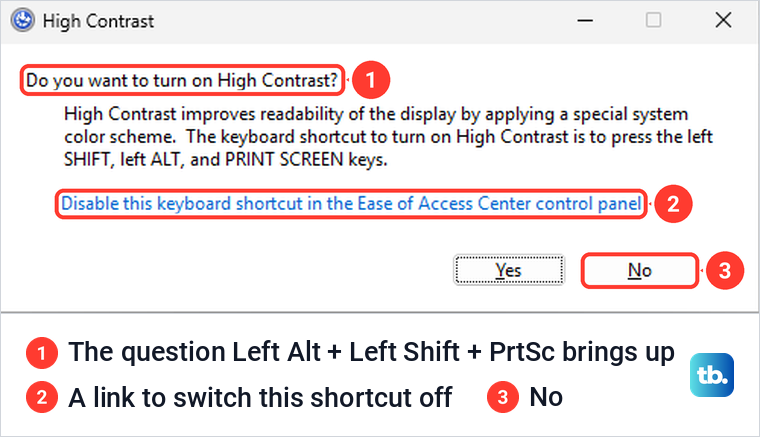
| Left Alt + Left Shift + PrtSc | Asks whether to turn on High Contrast. Nothing copied | The same |
Two rows surprised us. Shift + PrtSc and Ctrl + PrtSc never opened the bar, even with the switch on, and copied the whole screen instead. On our PC, either one gave the old full-screen copy without touching any setting.
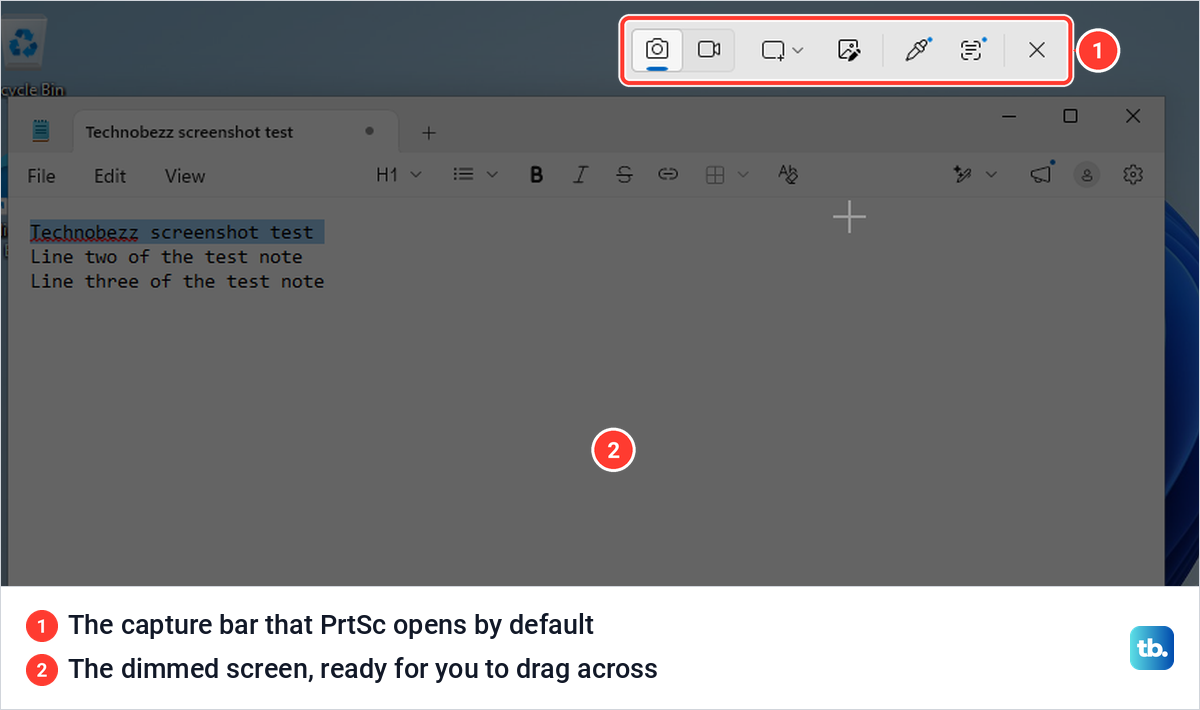
With the switch on, one press of PrtSc dims the screen and brings up the capture bar. Drag across what you want, or pick another shape from the bar. If that is what you see, the key is working, and our guide on how to take a screenshot on Windows explains the bar's buttons and every other capture method.
Find out which problem you have
Two quick checks narrow it down, and neither changes a setting. Start with the paste check, because a key that copies without telling you looks exactly like a dead one.
Press PrtSc once, open Paint from the Start menu and press Ctrl + V. If a picture of your whole screen appears, the key works and its switch is off, so it copies silently by design. Any app that accepts pictures will do, and our guide to the paste shortcut on Windows covers the other ways to paste.
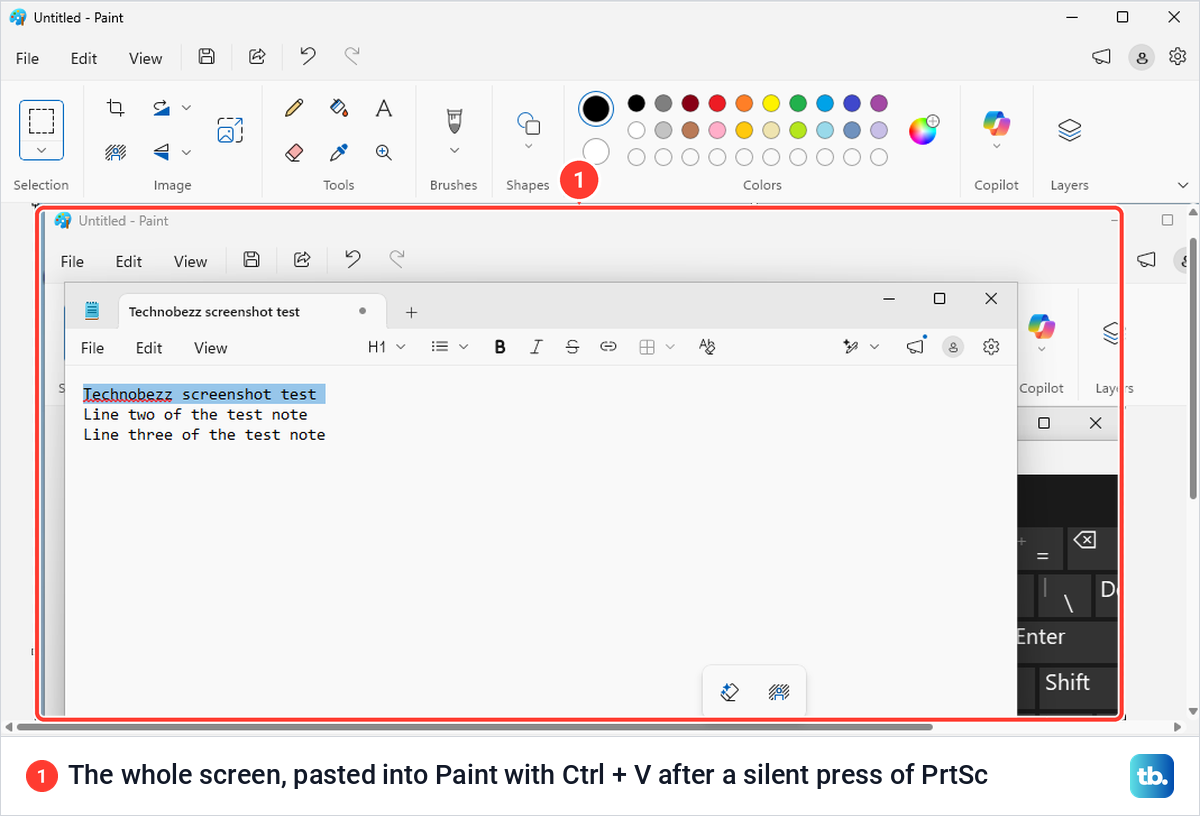
If nothing pastes, or Paint pastes something you copied earlier, the key press did not produce a capture. On a laptop, try once more with Fn held down, then run the second check.
Press Windows + Ctrl + O to open the On-Screen Keyboard, or turn on On-screen keyboard under Settings > Accessibility > Keyboard if the Windows key does not respond. Then click its PrtScn key. When we did, the capture bar opened exactly as it does for a real key. If no bar opens, press Ctrl + V in Paint before you decide it failed.
Clicking the Windows key first and then PrtScn saved a file in Pictures > Screenshots, and clicking Alt first copied just the active window. So all three main combinations can be tested this way.
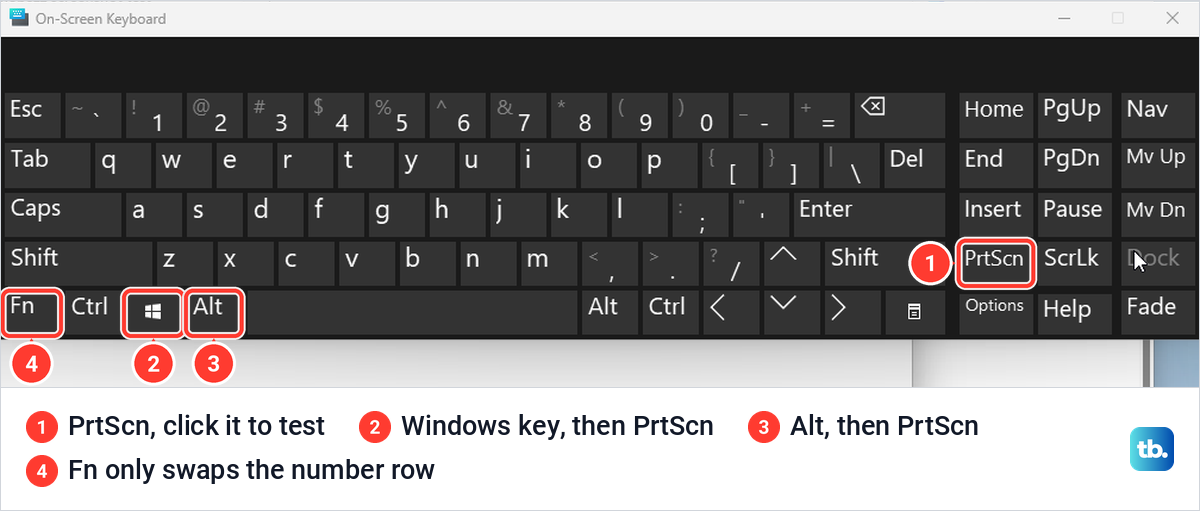
The Fn key on the On-Screen Keyboard is not your laptop's Fn key. On our PC it only turned the number row into F1 to F12 and left PrtScn where it was, so it cannot test a laptop's Fn layer.
If the on-screen key works and yours does not, the problem is between the key and Windows: the keyboard, its Fn layer, software that came with it, or a key remapping. Read the Fn section, then the remap and dead-key checks. If the on-screen key fails too, with no bar and nothing to paste, look at Windows instead: a program that has taken the key, or Snipping Tool itself.
Turn the Print screen switch on or off
One switch decides what plain PrtSc does on Windows 11. On, the key opens the capture bar. Off, it copies the whole screen to the clipboard without any sign and saves no file, but neither position turns the key off.
On Windows 11, version 25H2, the switch is named Use the Print screen key to open screen capture. It sits under Settings > Accessibility > Keyboard, in the section On-screen keyboard, access keys, and Print screen. The fastest route is to type print screen into the search box at the top of Settings, where it was the only suggestion on our PC.
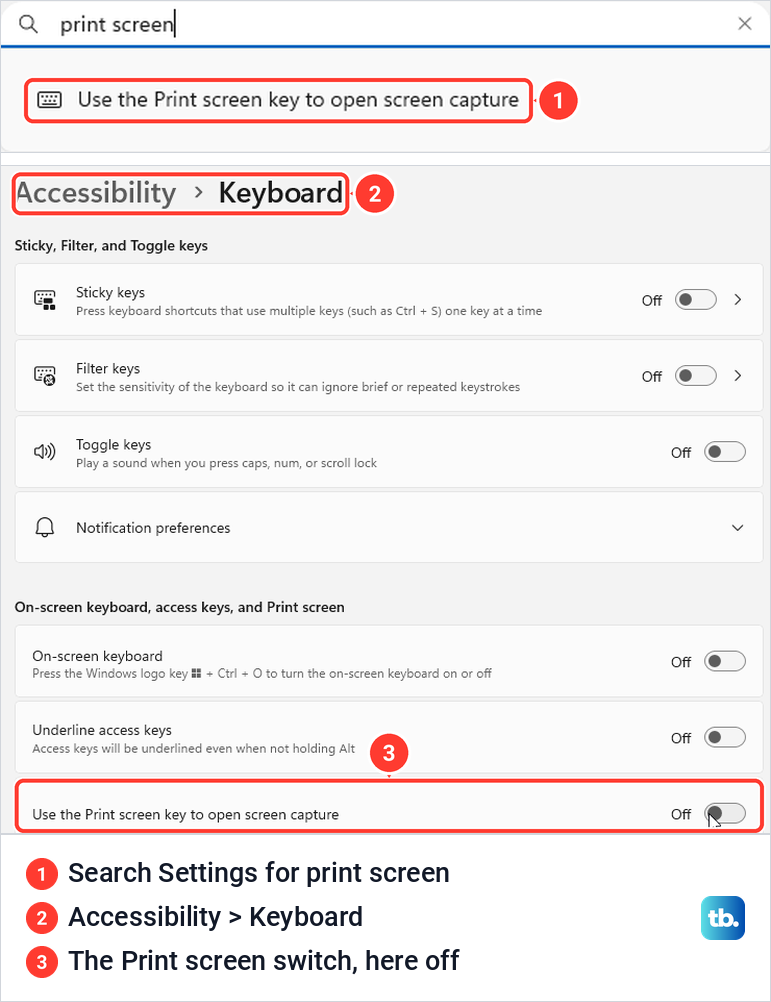
Snipping Tool has a shortcut to the same page. Open the app, choose Settings from its three-dot menu, scroll to Shortcuts and select Change in Windows settings. Microsoft's own help page still uses an older label, Use the Print Screen button to open screen snipping, so look for either wording.
If the switch is not under Accessibility on your PC, the search box and Snipping Tool's link will still find it. Microsoft's forum staff have also sent people to Settings > Bluetooth & devices > Keyboard on newer versions of Windows 11.
On our PC the switch changed nothing else. Alt + PrtSc, Windows + PrtSc and the Shift and Ctrl combinations behaved the same in both positions.
Hold Fn on a laptop or compact keyboard
On many laptops PrtSc is a second job printed on another key, so pressing that key alone does its first job instead. HP's advice is to try Fn + PrtSc when the key does nothing on its own, and Dell says laptops often need Fn + F10 or another function key. Lenovo names Fn + F10, Fn + F12 and Fn + Insert as common combinations.
Where the legend is printed varies by maker. Dell's drawing of a laptop keyboard puts prt sc on F10, while HP's newer ENVY, Spectre and OmniBook keyboards print prt sc on the right Shift key. HP's rule for any key with two legends is to press and hold fn, then press the key.
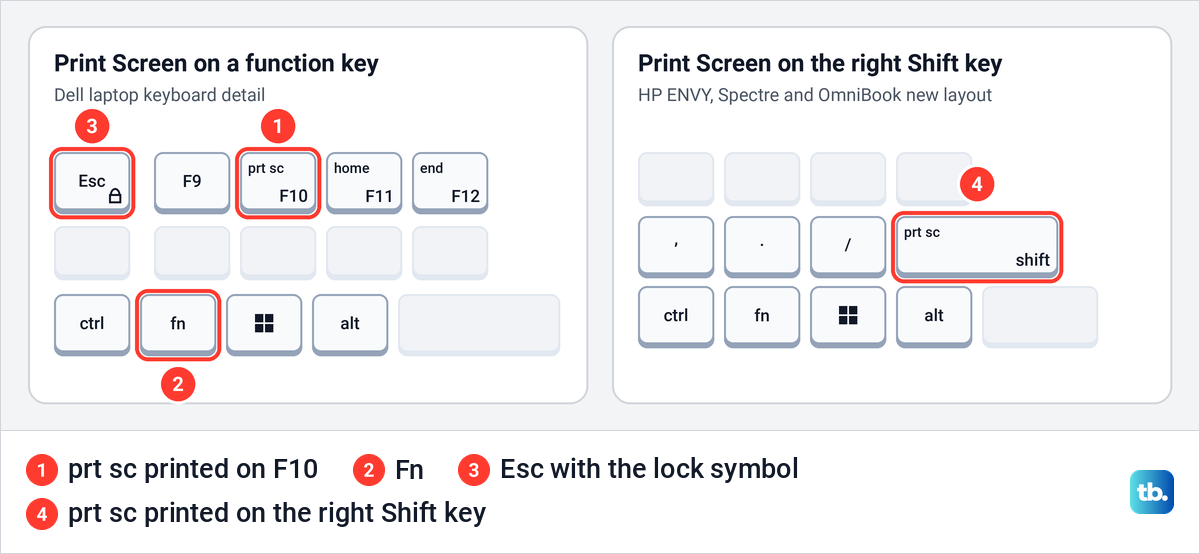
Fn Lock decides which of the two jobs a plain press does. Dell's manual for the Inspiron 14 5440 lists Fn + Esc to lock the Fn key on and off, and HP's guides for some ProBook and EliteBook models use Fn + left Shift, with a light on the EliteBook 840 G11 to show the state. Our guide on how to turn off Fn Lock covers other makers.
Some laptops keep the same choice in the BIOS instead, under names such as Action Keys Mode on HP and Function Key Behavior on Dell. Our guide to turning off the Fn key on a laptop keyboard shows where to find it.
Logitech says some of its keyboards have no Print Screen key at all and use a Screen Capture key instead, usually marked with a camera icon, often on F7 or F8 on compact models. If your keyboard has neither, you do not need one, and our guide to taking a screenshot on Windows without Print Screen has the other routes.
Quit programs that take over the key
Other programs can claim PrtSc for themselves. Microsoft's own advice for a shortcut that does nothing includes checking that another app is not overriding it, and the makers of screenshot and storage apps say the same about their products.
Dropbox's help page says it saves screenshots taken with print screen or control-print screen once Save screenshots to your Dropbox is on, under Preferences > Screenshots. It also asks Windows users to turn the Print screen switch off. Greenshot's FAQ blames other software reserving the key when its own hotkey stops working.
Keyboard software can remap the key too. Logitech says Logi Options+ can assign Screen Capture to any key, and a user in Microsoft's forums reports fixing a dead PrtSc by setting it back to plain Print Screen in that app.
To find the culprit, quit these programs one at a time from their icons next to the clock, pressing PrtSc after each. Quitting only lasts until the program starts again. When the key comes back, change that program's shortcut or screenshot setting rather than leaving it closed.
Fix Windows + PrtSc when no file appears
Windows + PrtSc should save the whole screen as a numbered file, Screenshot (1).png and so on, in Pictures > Screenshots. It did so on our PC with the switch in either position, and it also put the picture on the clipboard. The quickest way to find the newest one is File Explorer's Home page, whose Recent list showed each capture with its location.
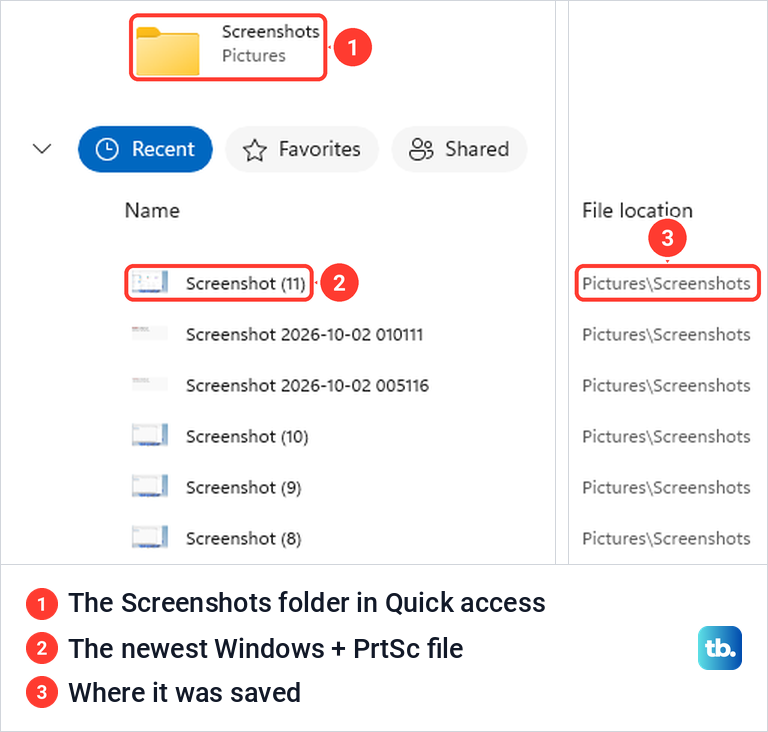
Do not judge success by the flash. With Animation effects on, the screen dimmed for about a third of a second after the keys, but with Settings > Accessibility > Visual effects > Animation effects off there was no dim at all. The file was saved every time.
If the Screenshots folder was moved from its Location tab, Windows + PrtSc followed it to the new place on our PC. Microsoft's advice for backing up screenshots is to include Pictures in OneDrive, so on a PC set up that way look in the Pictures folder inside OneDrive.
Our guide to where screenshots go on Windows covers every other location. On a laptop where PrtSc needs Fn, add Fn to the combination: HP's rule is to hold fn directly before the key it changes, so hold Windows, then Fn, then press PrtSc.
If Windows + PrtSc still does nothing, press Windows + R. When the Run box does not open either, the Windows key or its shortcuts are at fault, and our guide to the Windows logo key not working takes over.
Fix Alt + PrtSc and Ctrl + PrtSc
Alt + PrtSc copies only the active window and shows nothing while it does it, which makes it look broken. Click the window you want first, press the keys, then paste. On our PC the switch made no difference to it.
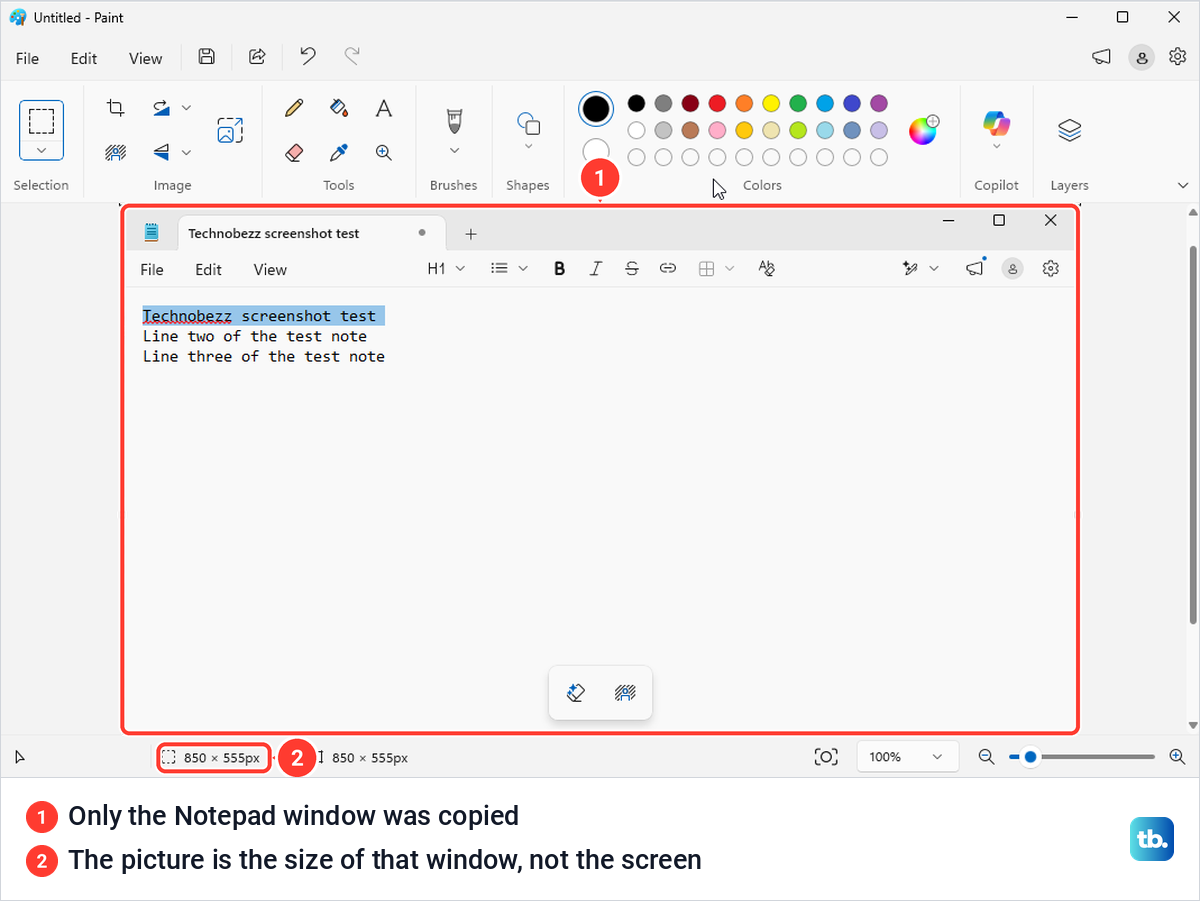
The picture is the window as it appears on screen, so anything lying over it comes along. When the On-Screen Keyboard covered part of our Notepad window, that part of the keyboard was in the pasted picture. After Ctrl + Alt + PrtSc, Notepad also showed small letters over its menus, which is Alt's normal menu hint and not part of the screenshot.
Ctrl + PrtSc is not in Microsoft's list of Windows shortcuts. On our PC it copied the whole screen silently, with the switch on or off, and so did Shift + PrtSc. Paste after pressing either, and remember that Dropbox listens for Ctrl + PrtSc too.
Ctrl + Alt + PrtSc behaved like Alt + PrtSc and copied the active window. One laptop maker's support page lists Shift + PrtSc for a single window, but on our PC it never copied anything smaller than the whole screen.
If a box asks Do you want to turn on High Contrast?, you pressed the left Alt, left Shift and PrtSc together, which is Windows' shortcut for High Contrast. Choose No to leave your display as it is. The box carries a link to switch the shortcut off if you keep hitting it.
Check for a remapped or disabled key
The Print screen switch is stored in the registry, which helps when Settings will not show it. The value is PrintScreenKeyForSnippingEnabled, under HKEY_CURRENT_USER\Control Panel\Keyboard. On our PC it did not exist until we first flipped the switch, then read 0 with the switch off and 1 with it on.
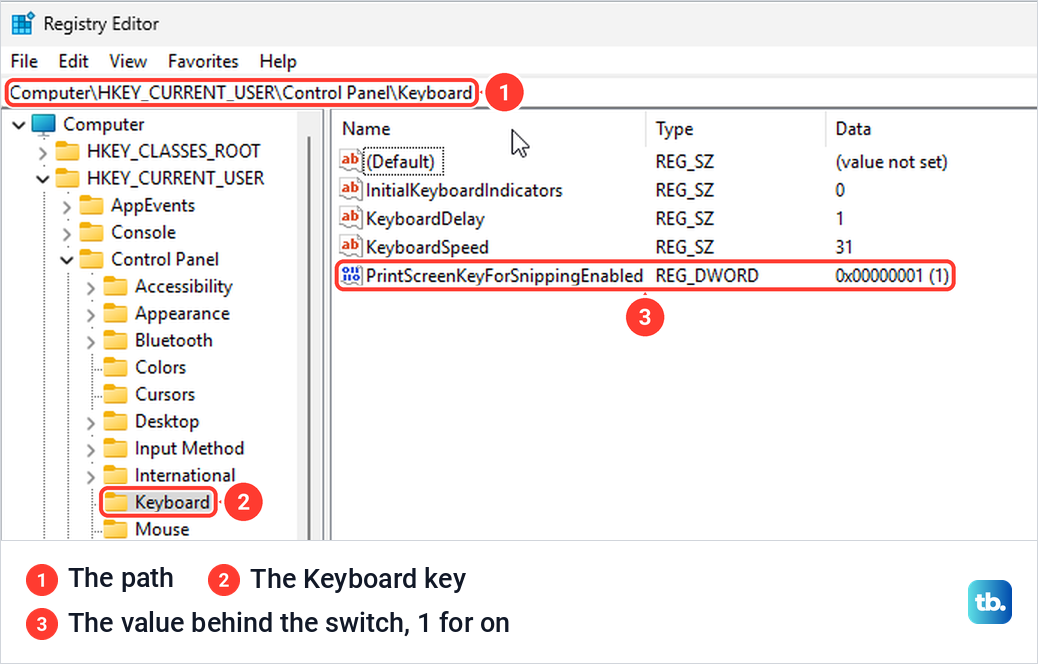
Registry Editor asks for permission when it opens, and a wrong edit can do harm, so treat it as a last resort. Microsoft's forum staff suggest creating that value as a DWORD set to 0 when the switch is missing, then signing out and back in. A 0 is what the switch writes when it is off, so PrtSc should then copy the whole screen.
A key can also be removed altogether by a Scancode Map, a value under HKEY_LOCAL_MACHINE\SYSTEM\CurrentControlSet\Control\Keyboard Layout. Microsoft's documentation says such a mapping can remove a key, and that deleting the Scancode Map value and restarting removes the mappings. It is worth a look if anyone has used a key remapping tool on this PC.
On a work PC, an administrator can switch off Windows key shortcuts with the policy Turn off Windows Key hotkeys, and one Microsoft forum answer blames it for a dead Print Screen key. When we turned that policy on, Windows + R, Windows + E, Windows + V and Windows + Shift + S stopped working. PrtSc, Windows + PrtSc and Alt + PrtSc all carried on as normal.
Rule out a dead key or a faulty keyboard
If the On-Screen Keyboard's PrtScn worked and your key still does not, run Microsoft's basic hardware checks. Unplug a USB keyboard, wait a moment and plug it into a different port, and if it goes through a USB hub, make sure the hub has power. For a wireless keyboard, check the batteries and unplug its receiver for about 10 seconds.
The decisive test is another keyboard, or your keyboard on another PC. If PrtSc works with another keyboard, your key or keyboard has failed; if your keyboard works on another PC, the fault is in this PC's settings or software. When more keys than PrtSc misbehave, start with our guide to keyboard not working on Windows, and if a Logitech wireless keyboard has stopped answering altogether, our guide to a Logitech wireless keyboard not responding covers it.
A browser keyboard tester we tried in Edge never registered PrtSc, with the switch on or off, although it picked up the Windows and Alt keys in the same presses. The page itself warns that browser and operating system shortcuts may be intercepted before it can detect them, so do not treat a browser tester as proof that the key is dead.
A driver update is the last thing to try, not the first. Microsoft's steps are Check for updates in Windows Update, then Device Manager, where you double-click the keyboard, open the Driver tab and click Update Driver. Microsoft adds that there might not be any driver updates available. Our guide on how to update or reinstall keyboard drivers walks through it.
When the capture bar opens but nothing else happens
If PrtSc brings up the bar but no notification, file or paste follows, the key is fine and the problem is in the capture itself. The same bar opens from Windows + Shift + S, so our guide to Windows + Shift + S not working applies from here. If Snipping Tool will not open at all, start with Snipping Tool not working in Windows 11.
One sign points straight at the app. When we uninstalled Snipping Tool, PrtSc opened a plainer screen instead, dimmed and headed Draw a shape to create a screen snip, and what we captured there went to the clipboard only. If you see that screen, repair or reinstall Snipping Tool.
Advice you can skip
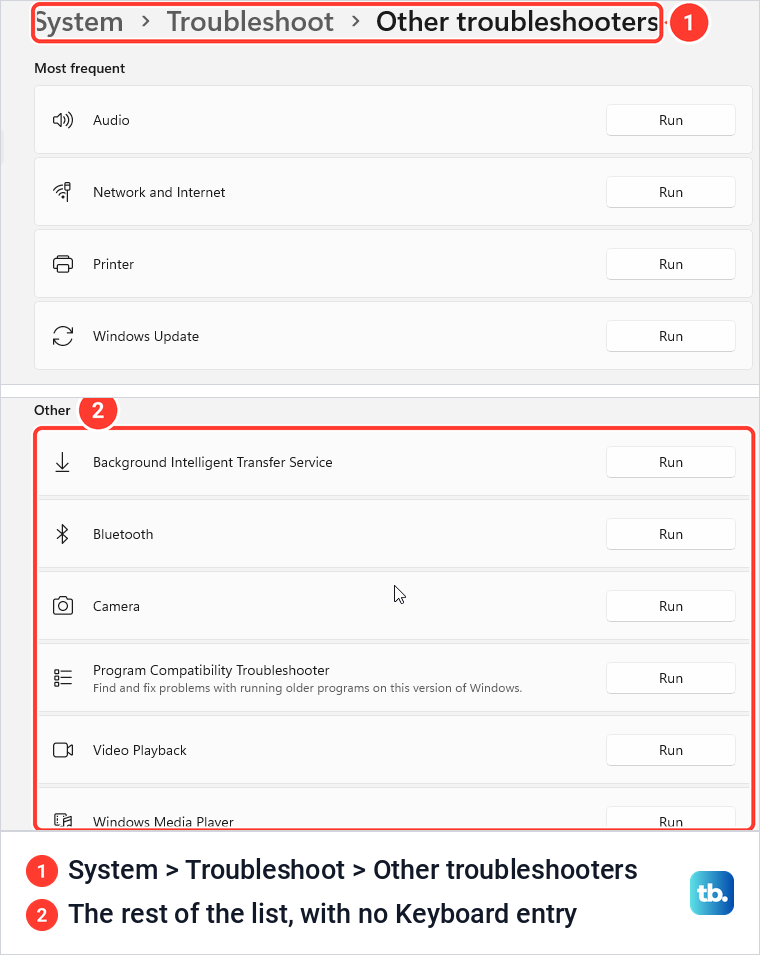
Several fixes that circulate for this problem do not hold up on Windows 11, version 25H2. The Keyboard troubleshooter is the first. Microsoft is retiring it with the other legacy troubleshooters, and on our PC the list under Settings > System > Troubleshoot > Other troubleshooters had no Keyboard entry at all.
Turning the Print screen switch on does not repair a key that is broken. With the switch off the key still works: on our PC it copied the whole screen without showing anything, and turning the switch on only made it open the capture bar instead.
Microsoft also says the OneDrive option to save screenshots automatically is no longer available in OneDrive's settings. If your OneDrive still shows a screenshot option, as one user in Microsoft's forums reported, turn it off and press PrtSc again.
A full clipboard is not a cause. On our PC each capture replaced what was on the clipboard before. If you want older copies back later, turn on clipboard history in Windows 11 first, because it only keeps what you copy after that.
Print Screen on Windows 10
Windows 10 works the other way round by default. Microsoft's instructions say PrtSc copies the whole screen to the clipboard, and that the switch to make it open the snipping bar is under Start > Settings > Ease of Access > Keyboard, labeled Print Screen shortcut. So the paste check comes first there too.
The Fn, program and hardware checks above apply to Windows 10 as well. Microsoft ended support for Windows 10 on October 14, 2025, but the PC keeps working.
How we tested this guide
We tested this on Windows 11, version 25H2, with the built-in Snipping Tool, pressing each Print Screen combination with the Print screen switch on and off.
Frequently Asked Questions
Why does Print Screen open Snipping Tool instead of copying the screen?
Microsoft made that the default on Windows 11 in July 2023. Turn off Use the Print screen key to open screen capture in Settings to get the full-screen copy back.
How do I enable Print Screen?
Windows has no Settings switch that turns the key off. The one switch only decides whether it opens the capture bar or copies the whole screen silently.
Why does Print Screen do nothing?
With its switch off it copies the whole screen without any sign, so open Paint and press Ctrl + V. If nothing pastes, hold Fn and try again, then test with the On-Screen Keyboard.
Is my Print Screen key broken?
Press Windows + Ctrl + O, click PrtScn on the On-Screen Keyboard and paste if no bar opens. If that works and your key does not, try the keyboard on another PC before you replace anything.
Why is Alt + Print Screen not working?
It copies only the active window and shows nothing, so it is easy to think it failed. Click the window first, press the keys, then paste with Ctrl + V.
Why does Ctrl + Print Screen do nothing?
It does something you cannot see. On our PC it copied the whole screen silently, like Shift + PrtSc, so paste to check. Dropbox also listens for it when its screenshot saving is on.
Where is the Print screen switch if it is not under Accessibility?
Type print screen into the search box at the top of Settings, or open Snipping Tool's Settings and select Change in Windows settings under Shortcuts. Microsoft's forum staff also point to Settings > Bluetooth & devices > Keyboard on newer versions of Windows 11.