

To change brightness on Windows 11, press Windows logo key + A to open Quick Settings and move the Brightness slider, or use your external monitor's own brightness controls. You can also adjust a built-in screen through Settings > System > Display.
The short version
- Use Quick Settings for a quick change on a built-in screen.
- Open Settings > System > Display for brightness and automatic display options.
- Use screen brightness keys when your keyboard has them.
- For an external monitor, use its physical controls if Windows has no slider.
- Check automatic brightness and power settings if the screen keeps dimming.
| Method | What it does | Time | Use it when |
|---|---|---|---|
| Quick Settings | Adjusts screen brightness | Under a minute | You want a quick change |
| Display settings | Sets built-in screen brightness | Under a minute | You want the full display page |
| Keyboard keys | Dims or brightens the screen | Under a minute | Your keyboard has brightness keys |
| Monitor controls | Adjusts an external screen | A few minutes | Windows has no monitor slider |
| Automatic brightness | Responds to room lighting | Under a minute | Your PC has a light sensor |
| Content brightness | Controls content-driven changes | Under a minute | Brightness shifts between scenes |
| Power and comfort options | Controls dimming and warmer colors | A few minutes | Dimming follows battery use or attention |
| HDR brightness balance | Balances SDR and HDR content | A few minutes | Apps look too dark with HDR |
Use the Quick Settings brightness slider
Press Windows logo key + A to open Quick Settings. You can also select the Network icon on the right side of the taskbar to open Quick Settings. Move the Brightness slider left to dim the screen or right to brighten it, stopping at a level that suits the room.
You can use the same panel without a mouse. Press Tab and the arrow keys to reach the brightness slider, then use Left arrow or Right arrow to change its value.
Change brightness from Settings
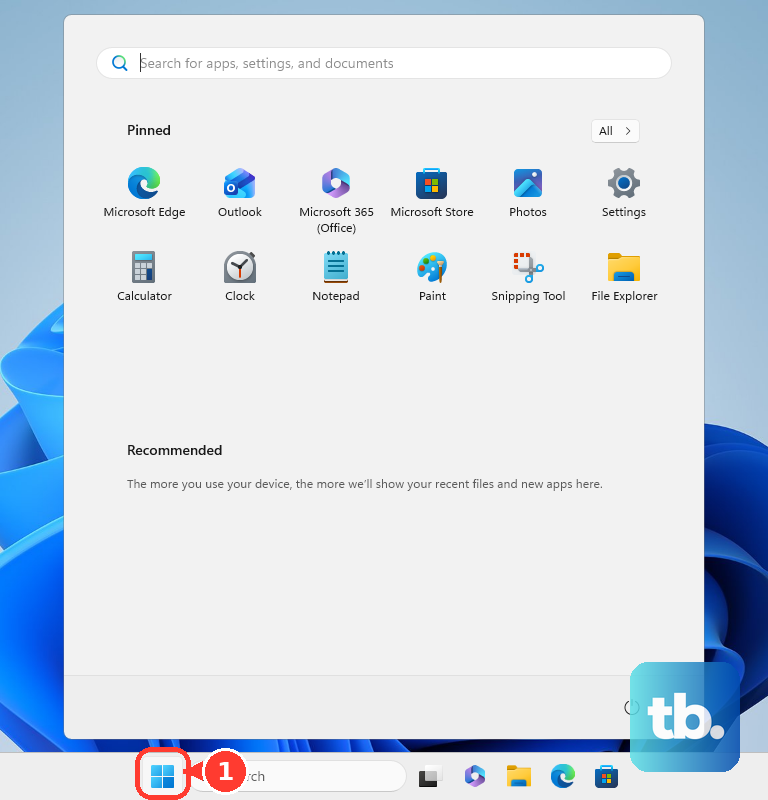
Select Start, choose Settings, then open System > Display. This takes you to the display page, where you can adjust brightness and check the automatic options covered below.
Move the Brightness slider to set the level for your built-in display. If you are adjusting an external monitor and no slider appears, move to the monitor controls section instead of looking for another Windows brightness menu.
Use the brightness keys on your keyboard
Look for keys marked with screen dimming and brightening icons. Their location depends on the keyboard model, so use the symbols on your keys rather than assuming a particular function key changes brightness.
On supported Surface keyboards and Type Covers, press the lower-brightness key to dim the screen or the brightness key to brighten it. By default, these special actions work with Fn disabled; if its LED is on, press Fn again to turn it off.
A keyboard backlight key adjusts the lighting under the keys, so check that you are pressing a screen brightness key. If your Surface layout is unclear, use Microsoft's Surface keyboard key descriptions to identify the right symbol.
Use monitor controls when the slider is missing
Windows may omit the brightness slider for an external monitor. Use the monitor's buttons or joystick to open its on-screen menu, find Brightness, and adjust it there.
The menu layout depends on the monitor, so consult its manual if the control is hard to find. Adjust the monitor you actually want to change, especially when your laptop screen and a separate display are both in use.
When a built-in screen will not respond
If the slider is missing or unresponsive on a built-in screen, try updating its display driver. Right-click Start, open Device Manager, expand Display adapters, then right-click the adapter and choose Update driver.
Follow the update prompts, or use the display adapter update steps for Windows Update and your PC maker's driver tools. A driver update is a troubleshooting step, so it does not guarantee that brightness control will return.
When work or school settings are unavailable
Administrators can hide Settings pages through management policies. If System > Display is unavailable on a managed PC, try Quick Settings and ask your IT administrator to check the restriction. An external monitor's physical controls are another route.
Let Windows respond to room lighting
On a PC with an ambient light sensor, open Settings > System > Display and expand Brightness. Enable Change brightness automatically when lighting changes if that option is available.
This setting reacts to lighting around the device. Turn it off if you prefer to set brightness yourself. If the option is absent, use the manual slider instead and check content brightness separately if the screen still changes.
Control brightness changes caused by content
Some PCs adjust built-in screen brightness and contrast as the displayed content changes. If the screen shifts when you move from a dark scene to a bright page, open Settings > System > Display > Brightness and find Change brightness based on content.
Choose Off to stop this adjustment, including on Surface devices with adaptive brightness and contrast. The other choices are Always and On Battery Only; turning content adaptation off can shorten battery life.
If your Display page instead shows the Help improve battery by optimizing the content shown and brightness checkbox, clear it to disable that optimization. Room-light adjustment is a separate control, so check both options if you want brightness to stay steady.
Check power and nighttime comfort options
Check saver dimming
On Windows 11 version 24H2 and later, open Settings > System > Power & battery > Energy saver. Turn on Lower screen brightness when using energy saver to allow dimming, or turn it off if that dimming is unwanted.
On Windows 11 versions before 24H2, the corresponding section is called Battery saver under Power & battery. Open it to check battery-saving behavior, rather than searching for an Energy saver label that your version does not have.
Review energy recommendations
For related controls, open Power & battery > Energy recommendations. Apply Set the screen brightness for best energy efficiency if offered; the available recommendations depend on your device's hardware and sensors.
Other recommendations include Change brightness automatically when lighting around me changes and Save power by screen contrast and brightness for the content shown. A device with a presence sensor may also offer a recommendation to dim the screen when you look away. Check that option if dimming follows your attention.
Adjust Night light
For warmer screen colors, open Settings > System > Display > Night light and adjust Strength or enable Schedule night light. Use the regular brightness slider for brightness changes, and see the Windows power and sleep settings when you also need to change screen-off behavior.
Adjust brightness balance on HDR displays
Open Settings > System > Display and select the HDR-capable screen if several displays are connected. Move the Settings window onto the HDR display you are adjusting, then open HDR.
On an external HDR display, adjust SDR content brightness to change the brightness of standard dynamic range content relative to HDR content. On a built-in HDR display, adjust HDR content brightness to change HDR brightness relative to SDR content, whose brightness is controlled separately.
Adjust the appropriate slider while looking at the affected app. These controls balance SDR and HDR content, so use the normal built-in display slider or the external monitor's own controls for overall screen brightness.
If an app does not respond to the balance change, close and reopen it before adjusting again. If you need help identifying the control for your display, follow Microsoft's HDR brightness balance instructions.
Frequently Asked Questions
Why can't I change brightness on my Windows 11 desktop?
Windows may have no brightness slider for an external monitor. Open the monitor's on-screen menu with its physical controls and adjust Brightness there.
Can I change Windows 11 brightness without a mouse?
Yes, press Windows logo key + A to open Quick Settings. Use Tab and the arrow keys to reach the brightness slider, then use Left arrow or Right arrow to adjust it.
Does Night light lower screen brightness?
Night light changes the screen's color temperature to show warmer colors. Use the brightness slider when you want to change the screen's brightness level.
Why does my Windows 11 screen keep changing brightness by itself?
Check room-light adjustment, content brightness, and Energy saver dimming. On supported devices, presence-sensor dimming can also change the screen when you look away.
Why do brightness keys light up my keyboard instead?
You may be pressing the keyboard backlight key. On Surface keyboards, that key adjusts keyboard lighting, while separate screen brightness keys dim or brighten the display.