
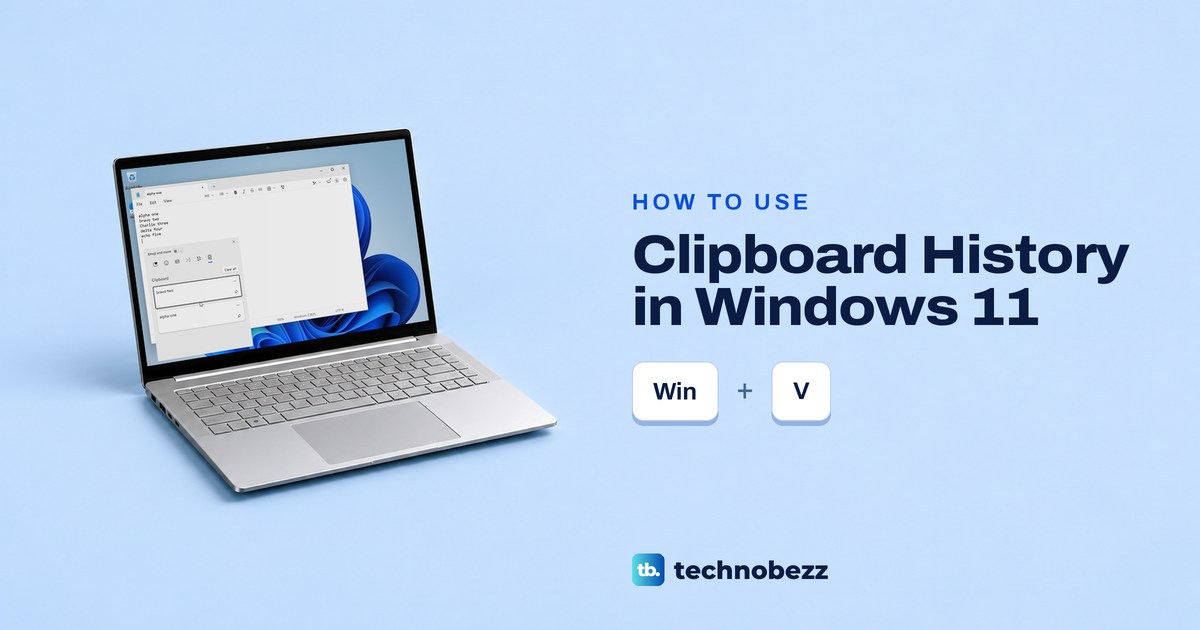
To see your clipboard history in Windows 11, press Windows + V, select Turn on if Windows asks, then click any copied item to paste it. The list holds the text and pictures you copy while history is on, but a restart wipes everything you have not pinned.
The short version
- Open the list: press Windows + V. Clipboard history is off by default.
- Paste an older item: click it, or move to it with the arrow keys and press Enter.
- Keep something: select its pin. Pinned items survive Clear all and a restart.
- The limits: Microsoft gives 25 copied entries and 4 MB per item. On our PC, pinned items did not count toward those 25.
- Clear with care: delete private items one at a time. Turning history off erased our pinned items too.
Clipboard history at a glance
| Control or shortcut | What to do | What happens |
|---|---|---|
| Windows + V | Select Turn on if asked | Opens your clipboard history |
| A copied item | Put the cursor where it should go, then click the item | Pastes that item and closes the panel |
| Ctrl + V | Press after copying or picking a history item | Pastes whatever is on the clipboard now |
| See more | Select an item's three dots | Shows Paste as Text on text items, and Delete |
| Pin item | Select the pin on an item | Keeps it through clearing and restarts |
| Clear all | Select it at the top of the list | Removes every unpinned entry |
| Settings > System > Clipboard | Open the clipboard settings | Holds the history switch, device sync and clearing |
Turn on clipboard history
Press Windows + V. If history is off, the panel opens on Let's get started, with one line saying history lets you copy and view multiple items. Select Turn on below it.
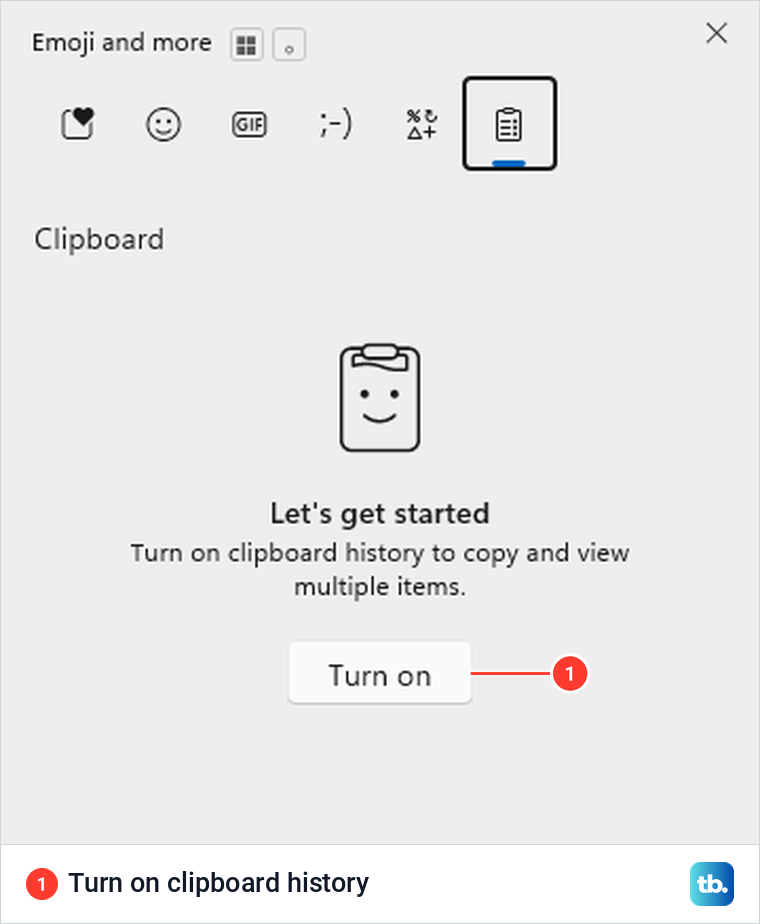
You can also flip the Clipboard history switch in Settings > System > Clipboard. If Settings is hard to find, our guide to opening Settings on your computer shows the ways to get there.
History can start with whatever is already on your clipboard. We copied “alpha one” before turning history on, and it was in the list as soon as we selected Turn on. That is only the current item. Nothing you copied while history was off comes back.
Open the list and paste an older item
Click where the text or picture should go, press Windows + V, then click the item you want. When we picked an older line in Notepad, Windows pasted it at the cursor and closed the panel.
The newest copy sits at the top. Scroll for older ones, or use the arrow keys and press Enter to paste the highlighted item. Esc closes the panel without pasting anything.
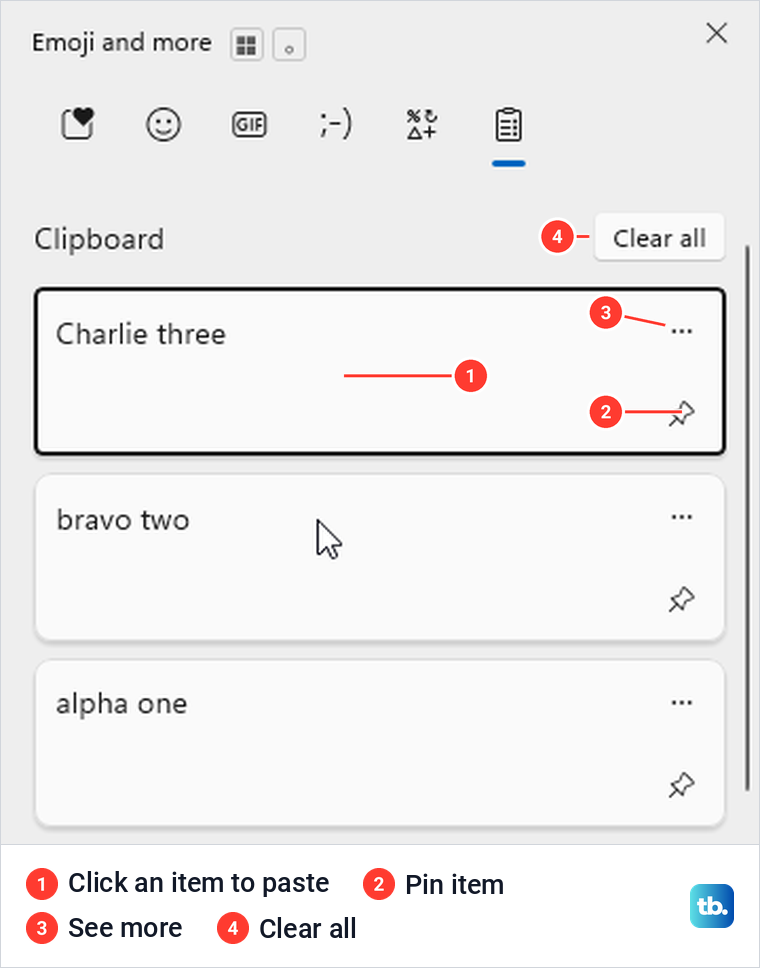
Picking an item also changes what Ctrl + V pastes. When we selected an older entry, it kept its place in the list, but pressing Ctrl + V afterwards pasted that older entry again. So the paste shortcut on Windows pastes whatever is on the clipboard right now, and that can be the item you just chose from history.
The panel is a window called Emoji and more, and the clipboard is its last tab. The other tabs hold the faces and symbols you pick from when you use emojis on Windows. Windows + V opens it on the clipboard tab.
Paste text without its formatting
Open history and select the three dots on a text entry. Their tooltip says See more, and clicking them slides the entry aside to show two buttons, Paste as Text and a trash can icon labeled Delete.
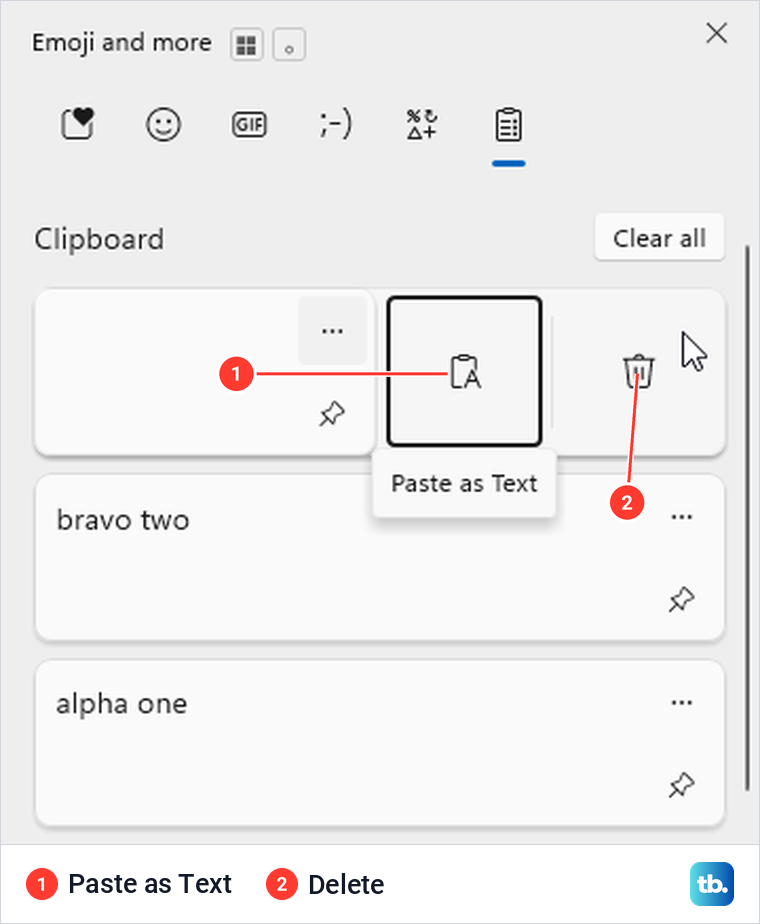
Microsoft says plain text paste drops the original font, color and size so the words match wherever you paste them. Use Paste as Text when you want the words without their styling. For the item already on the clipboard, Ctrl + Shift + V also pastes plain text in apps that support it. Pictures get only the Delete button behind their three dots.
Pin items you want to keep
Select the small pin on a copied item. The pin turns solid, its tooltip changes from Pin item to Unpin item, and the entry stays where it was instead of jumping to the top.
Pin anything you paste again and again, like a stock reply or your address. We pinned a line of text and a picture, then selected Clear all. Both pinned entries stayed and everything else went.
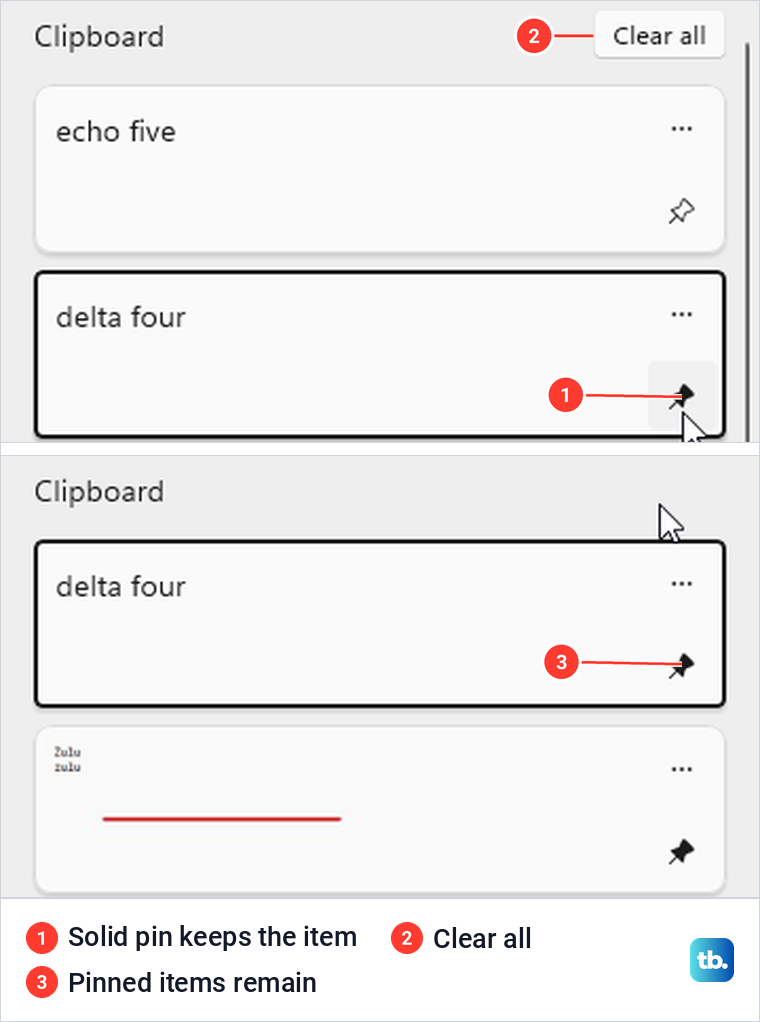
A pinned entry also survived a restart on our PC, while the two newer, unpinned entries were gone. Keep anything important in a document as well, because pins do not survive switching history off.
Delete an item or clear clipboard history
To clear clipboard history, select Clear all at the top of the panel. Pinned items stay. To get rid of those too, unpin each one by selecting its solid pin, then select Clear all again.
To remove a single entry, select its three dots, then the Delete trash can icon. When we did, only that entry went. Pressing the keyboard's Delete key instead closed the panel and left all three entries in place, so use the on-screen button.
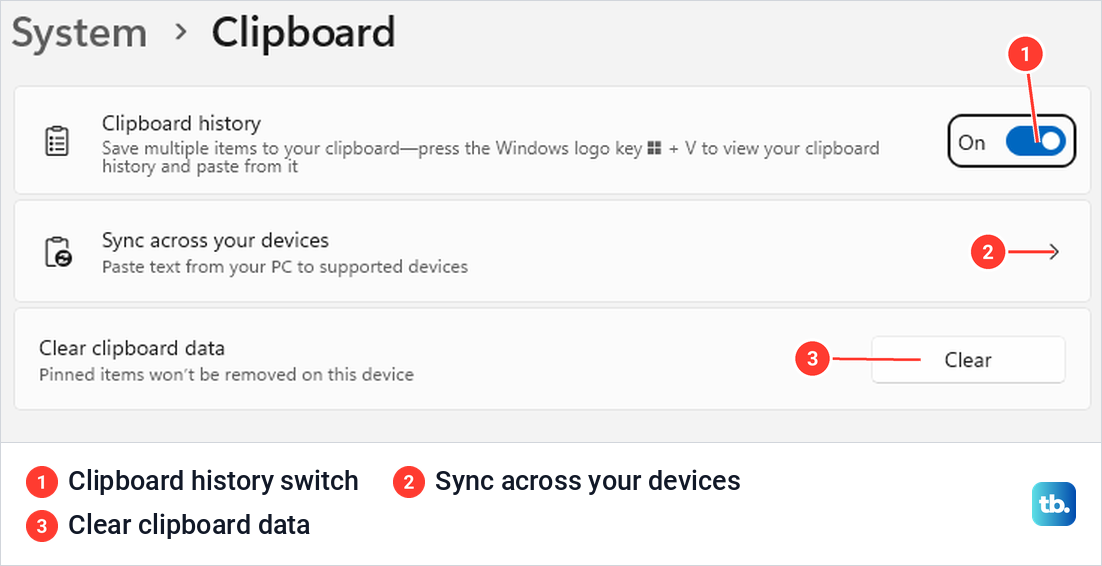
Settings has its own clear button, under Settings > System > Clipboard > Clear clipboard data > Clear. On our PC it removed the unpinned entries and emptied the current clipboard, but kept the pins. Microsoft says it also clears the cloud copy if you sync between devices.
Once we unpinned the last entries and cleared the list, the panel read Nothing here, with a note that copied items would show up there. Clearing does not turn history off, so the next thing you copy starts a new list.
What history keeps, and for how long
Microsoft says history takes text, HTML and bitmap pictures, up to 4 MB per item and 25 copied entries. Once it is full, the oldest unpinned entry drops off to make room. Treat it as a short working list and keep a separate copy of anything you need for good.
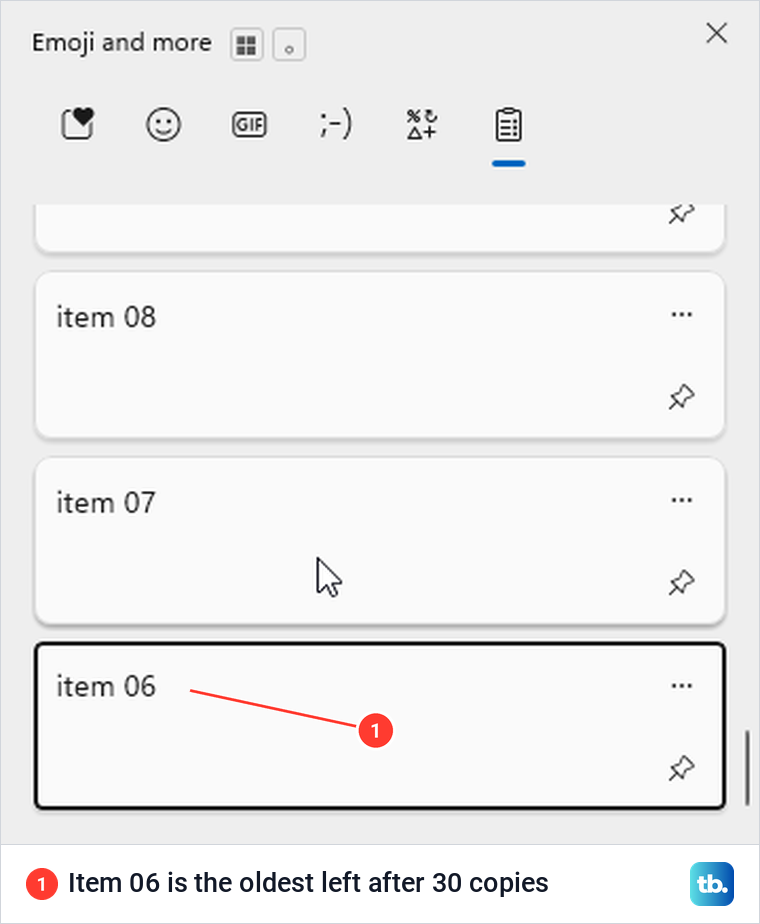
To check the limit, we copied 30 numbered lines. The top entry was “item 30” and the oldest one left was “item 06”, so exactly 25 stayed. In another run, three pinned entries sat alongside 25 unpinned ones, so on our PC the pins did not count toward the limit.
Copying a file is not the same as copying what is in it. When we copied a PNG file in File Explorer, it did not appear in history. A picture copied with Copy image in Edge did show up as a thumbnail, and a web address copied from Edge's address bar showed up as text.
A restart clears everything that is not pinned. Microsoft describes history as kept in memory, but a file for our pinned entry was still in the %LOCALAPPDATA%\Microsoft\Windows\Clipboard\Pinned folder after a restart. Our unpinned entries never showed up as files in the Clipboard folder, so manage your entries from the panel.
Find screenshots and edited pictures
Screenshots can go into clipboard history too. When you take a screenshot on Windows with Snipping Tool or Windows + PrtSc, the capture is copied to the clipboard as well. If history is on and the picture is within its limits, look for its thumbnail in the list.
A missing thumbnail does not always mean the copy failed. We put a large picture of random pixels on the clipboard and it never showed up in history, yet Ctrl + V still pasted it into Paint. If a picture is missing from the list, paste it straight away before you copy anything else.
Size in pixels did not tell us what would make it in. A large solid-color picture appeared in our list, but one of the same dimensions filled with random pixels did not. Microsoft's limit is 4 MB per item, so check a particular picture by looking for it in the list and pasting it.
Editing a snip has its own catch. When we drew a red line on one, the current clipboard updated on its own, but the history thumbnail still showed the original. Pressing Ctrl + C in the editor added a second entry with the line on it.
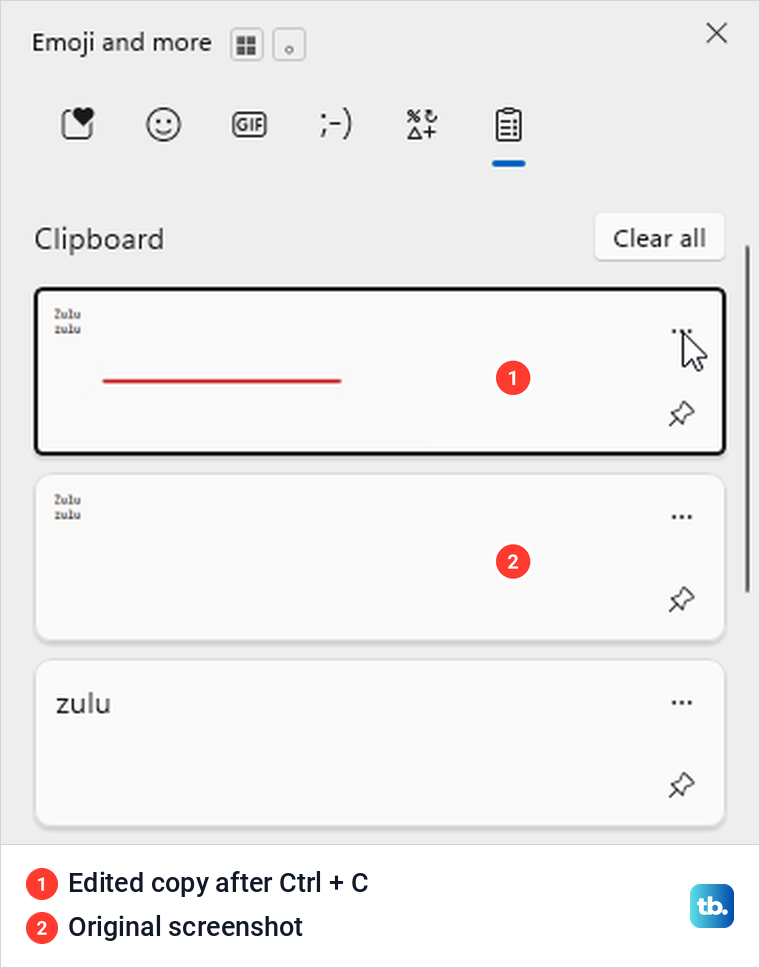
So after editing, press Ctrl + C yourself and check the thumbnail before you pick it from history. Our guide to snipping on Windows covers the capture and editing tools. Keep the saved picture as well if you will need it after clearing history.
Sync copied text between PCs
To sync between PCs, sign in with the same Microsoft or work account on each one, then open Settings > System > Clipboard and select Sync across your devices. Microsoft's support page calls the setting Clipboard history across your devices, and it is separate from clipboard history on a single PC.
If you sign in to Windows with a local account, selecting Sync across your devices opens Accounts > Your info and offers Sign in with a Microsoft account instead. Sign in first, then come back and turn syncing on.
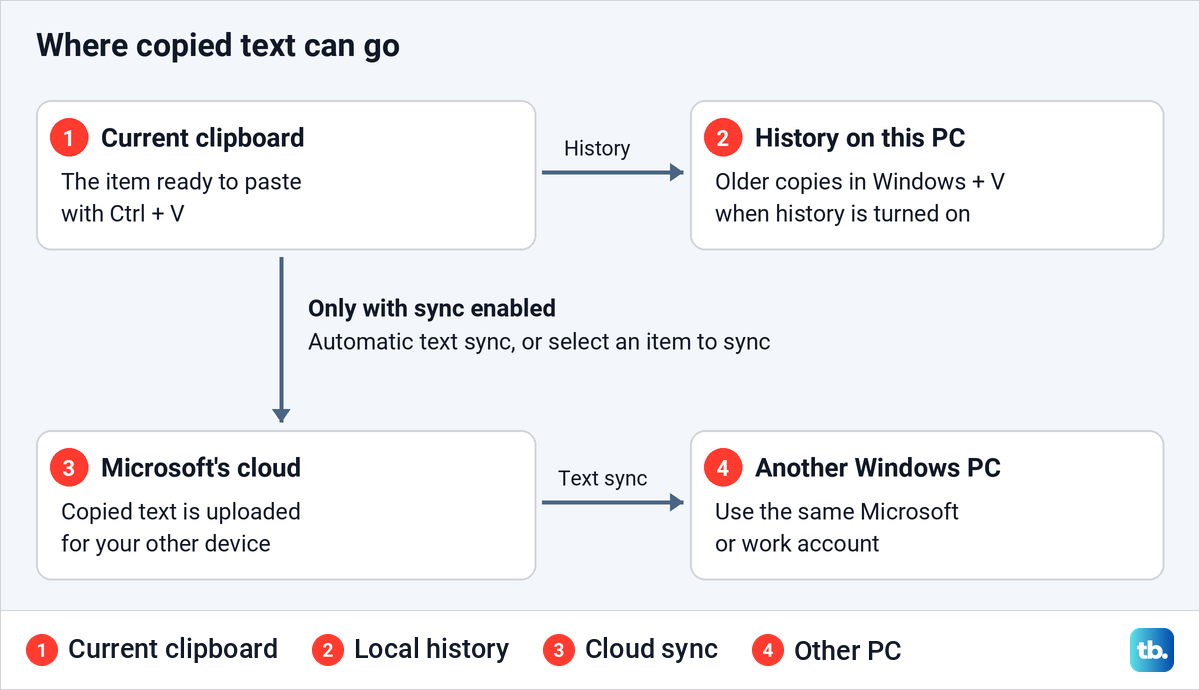
With automatic syncing, text you copy is sent without you selecting each entry. With the manual option, you open history and select an item's sync button to send just that text. Either way the text goes up to Microsoft's cloud for the other device to fetch, so pick manual if you want to decide what leaves your PC.
Copy between Windows and an Android phone
With a Surface Duo or a supported Samsung, HONOR, OPPO, ASUS, vivo or Xiaomi phone, Phone Link has Cross-device copy and paste under Settings > Features. It moves text and images, and each new copy replaces what is on the clipboard on both devices. If the phone and PC will not connect, start with our fixes for Phone Link not working on Windows.
Microsoft SwiftKey on Android is another way to move text, and it has to be set up at both ends. In the SwiftKey app, open Rich input > Clipboard and turn on Sync clipboard history to the cloud. On the PC, turn on Clipboard history and the sync setting under Settings > System > Clipboard. Both ask you to sign in, so use the same Microsoft account on each.
It has to be a personal Microsoft account, such as an Outlook.com or Hotmail.com address, not a work account. SwiftKey's cloud clipboard keeps only your last copied clip, for one hour, and it does not work with iOS.
Keep private information out of history
A password or anything else private that you copy can sit in history like any other entry. Delete it on its own when you are done, especially on a shared PC, and make sure it is not pinned before you count on Clear all. Windows lets apps keep what you copy out of history and sync, so an app may leave an item out on purpose.
History opens over password boxes too. We opened it over a password field and pasted an entry straight into it. Assume private text you copied may still be in the list after you finish the form.
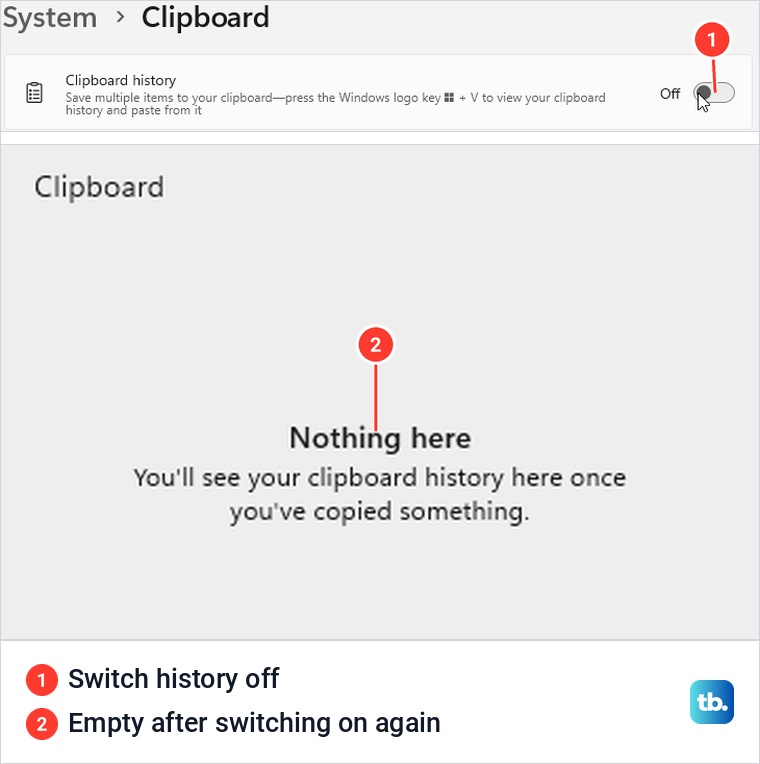
To stop Windows keeping history, open Settings > System > Clipboard and turn Clipboard history off. Save anything you need first. When we switched it off and on again, the list was empty and all three of our pinned entries were gone.
When Windows + V does nothing or shows nothing
If the panel asks you to turn history on, select Turn on. If it says Nothing here, copy a short line in Notepad and open the panel again. If older entries are missing, a restart or a cleared list may be why.
If new copies never show up, Microsoft suggests closing and reopening the app you copied from, then copying some plain text again. Then check for and install Windows updates. Microsoft fixed a bug in Windows 11, version 24H2 that left history empty even when it was on and you had copied text or images.
If nothing opens at all, press the Windows key on its own and see whether Start appears. If Start opens but Windows + V still does nothing, Microsoft's advice is to check that Clipboard history is on in Settings > System > Clipboard. If Start does not open either, work through our checks for the Windows logo key not working. If copying and pasting fail too, our fixes for copy and paste in Windows 11 deal with that bigger problem.
On a work or school PC, a grayed-out switch with a warning from your organization can mean a policy blocks history. Ask your IT administrator to check it before you change any system settings.
How we tested this guide
On Windows 11, version 25H2, we turned history on, pasted older entries, used the pin, See more and Delete buttons, pinned and cleared entries, and restarted. We also copied more than 25 items, compared pictures that made it into history with ones that did not, copied a file and an edited snip, and switched history off and on again. The sync, phone and policy details follow Microsoft's documentation.
Frequently Asked Questions
What is the shortcut for clipboard history?
Press Windows + V to open it. If history is off, select Turn on in the panel.
How many items does clipboard history keep?
Microsoft says 25 copied entries. Once the list is full, the oldest unpinned one drops off as each new one arrives. On our PC, three pinned entries stayed in addition to those 25.
Can I get clipboard history back after a restart?
No. Windows clears unpinned entries when it restarts, so pin what you need first or save it somewhere else. Our pinned entry survived a restart and the two unpinned ones did not.
Does clipboard history save screenshots?
Yes. While history is on, it keeps copied screenshots that fit its item limits. If one is missing from the list, it may still paste with Ctrl + V.
Is clipboard history safe for passwords?
Do not assume a copied password disappears once you paste it. Delete its entry when you are done, and remember that Clear all leaves pinned items behind.
Where is clipboard history stored?
Microsoft describes it as kept in memory, but our pinned entries also had files in the Pinned folder inside the Clipboard folder. To see and manage the list, press Windows + V.
How do I turn off clipboard history?
Open Settings > System > Clipboard and turn Clipboard history off. Save anything you need first, because switching it off erased our pinned entries too.