
On Windows 11, screenshots you take with Snipping Tool or Windows + PrtSc are saved in Pictures > Screenshots by default, while Alt + PrtSc only copies the picture to the clipboard. Game Bar screenshots are in Videos > Captures, and a screenshot you saved in Microsoft Edge is in Downloads.
The short version
- Saved screenshots: open File Explorer and go to Pictures > Screenshots.
- Copied, not saved: after Alt + PrtSc, open Paint and press Ctrl + V to get the picture back.
- Snips missing: in Snipping Tool's Settings, check that automatic saving is on, then select Open folder.
- Game Bar and Edge: Game Bar uses Videos > Captures, and Edge saved ours to Downloads.
- Changing the folder: Snipping Tool has its own save setting, separate from the Windows Screenshots folder.
Where each kind of screenshot goes
The keys you pressed tell you where to look. These are the Windows 11 defaults, so a changed save folder or OneDrive backup can put files somewhere else.
| How you took it | Where to look by default | What you get |
|---|---|---|
| Windows + Shift + S | Pictures > Screenshots | A dated PNG file and a clipboard copy, once you finish the snip |
| PrtSc with screen capture turned on | Pictures > Screenshots | The same, once you select an area on the capture bar |
| PrtSc with screen capture turned off | Clipboard only | The whole screen, ready to paste, with no file saved |
| Windows + PrtSc | Pictures > Screenshots | A numbered PNG file and a clipboard copy |
| Alt + PrtSc | Clipboard only | The active window, ready to paste, with no file saved |
| Snipping Tool app > New | Pictures > Screenshots | A dated PNG file and a clipboard copy, once you finish the snip |
| Windows + Alt + PrtSc | Videos > Captures | A Game Bar PNG named after the app, with the date and time |
| Microsoft Edge screenshot preview > Save | Downloads | A JPEG named with the date, time and website |
| Windows + Shift + R | Videos > Screen Recordings | An MP4 video from Snipping Tool |
A clipboard copy is ready to paste, but there is no file to browse to. If you want to change how you capture the screen, our guide to taking a screenshot on Windows covers the options.
Open the Screenshots folder
Open File Explorer, select Pictures in the left pane, then open Screenshots. On Windows 11, Pictures is pinned to the left pane and to Home by default, so you will not find it under This PC.
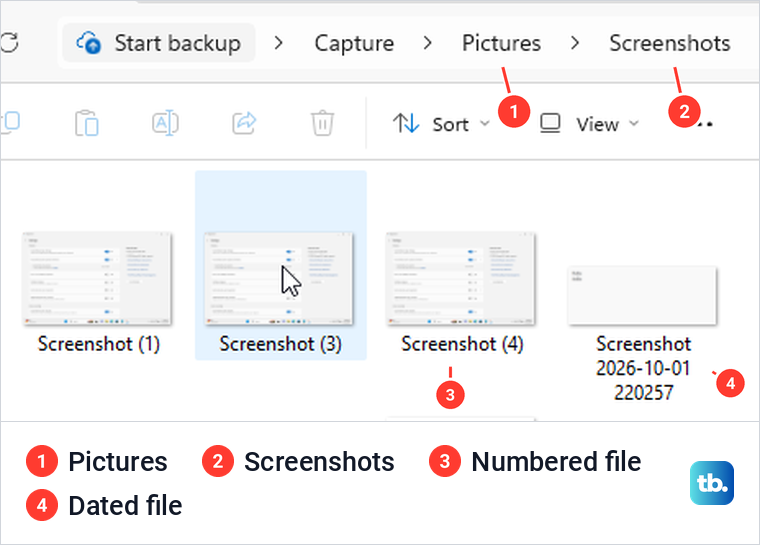
The default path is %USERPROFILE%\Pictures\Screenshots, where %USERPROFILE% stands for your Windows user folder. Paste it into File Explorer's address bar and press Enter to jump there, as long as the folder has not been moved or backed up to OneDrive.
Our folder held two kinds of names side by side, numbered ones from Windows + PrtSc and dated ones from Snipping Tool. If the folder opens but your picture is not there, work out which method you used before you change any settings.
Where Snipping Tool saves your snips
By default, Snipping Tool saves every snip you finish, including the ones you start with Windows + Shift + S. On our PC, the notification confirmed that the snip was copied to the clipboard and saved as a file.
To see where they go, open Snipping Tool, select the three-dot See more menu and choose Settings. Under Automatically save original screenshots, the Screenshots are saved to row shows the current path, and Open folder takes you straight there.
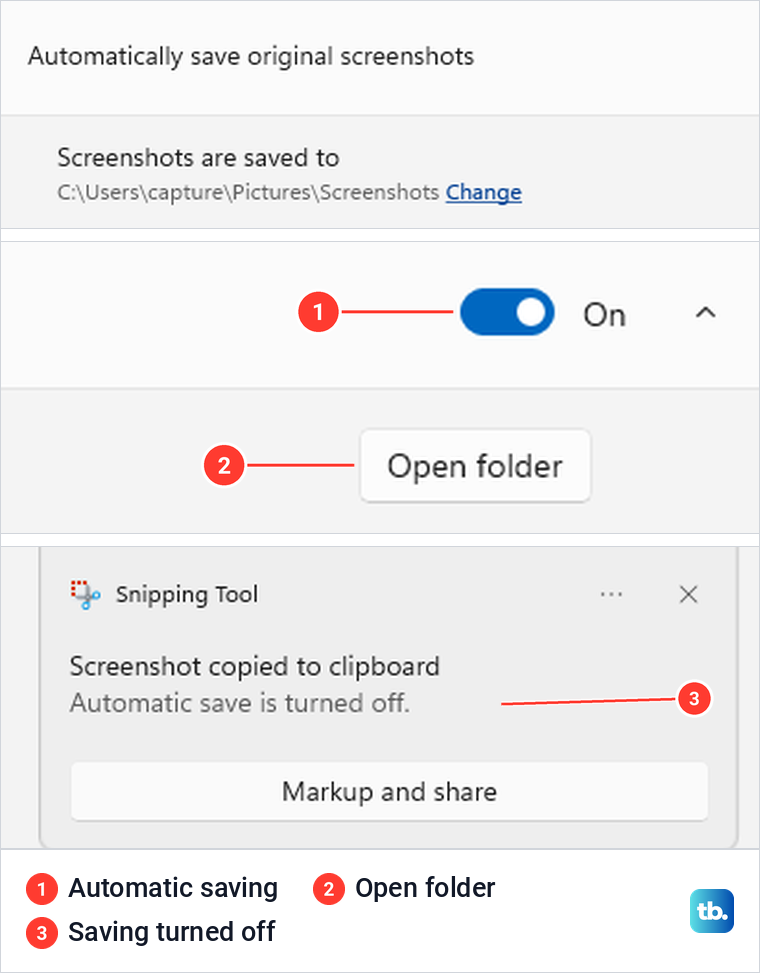
When we turned automatic saving off and took another snip, no file appeared. The Screenshots are saved to row and Open folder also disappeared from the settings. The notification still said Screenshot copied to clipboard, but the second line now read Automatic save is turned off. That line tells you the snip was never saved, so there is no lost file to look for.
The picture is still on the clipboard, so paste it into Paint and save it if you need a file, then turn automatic saving back on for future snips. Clicking a snip's notification opened it in Snipping Tool's editor when we tried it, and Save as there writes a copy too. Our guide to Snipping Tool's shortcuts and settings covers the rest of the app.
Where Print Screen captures go
On Windows 11, PrtSc opens the capture bar by default. The key alone takes nothing, so you still have to select what to capture. Once we finished the snip, it was saved in Pictures > Screenshots, just like one started with Windows + Shift + S.
Turning off Use the Print screen key to open screen capture in Settings > Accessibility > Keyboard changes that. With the switch off, PrtSc copied the whole screen to the clipboard on our PC and saved no file. Alt + PrtSc saved no file either, and copied only the active window.
In both cases, open Paint, press Ctrl + V and save the picture. If you want a file straight away, Windows + PrtSc writes a numbered PNG to the Screenshots folder. If the Print Screen key does nothing and there is nothing to paste, the problem is the capture itself, not where it went.
Where Game Bar and Edge save screenshots
Game Bar screenshots go to Videos > Captures by default, even though they are pictures, not videos. To see which folder Windows is using, open Settings > Gaming > Captures and select Open folder beside Captures location. On our PC, that button opened the Captures folder.
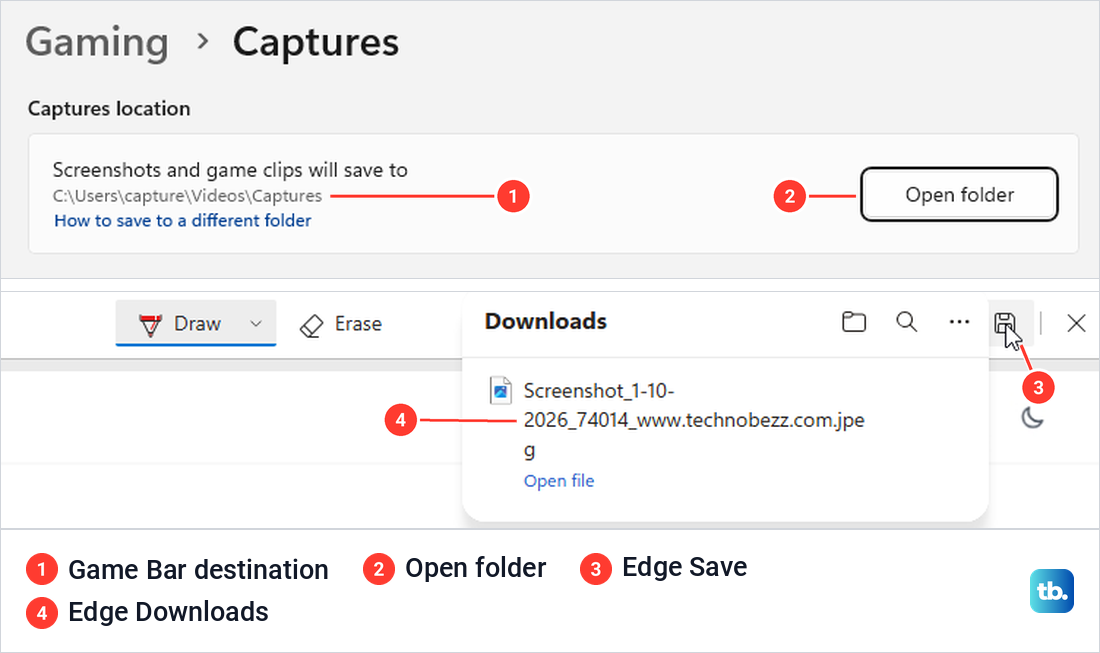
Our Game Bar screenshot was a PNG with the app's name, the date and the time in its filename. The first time we pressed the shortcut over Notepad, Game Bar showed Gaming features not available and saved nothing. After we ticked Enable gaming features for this app to record gameplay, the same shortcut saved to Captures. If Game Bar does not appear at all, start with how to open Xbox Game Bar.
Microsoft Edge has its own screenshot tool. When we selected Save in Edge's screenshot preview, a JPEG landed in Downloads. Edge's Downloads panel listed it with an Open file link, so check there first if you captured a web page.
Recordings are split too. Microsoft's instructions put Snipping Tool videos in Videos > Screen Recordings as MP4 files by default, while Game Bar videos go to Videos > Captures. Our guide to recording your screen in Windows 11 covers the steps.
Find a missing screenshot
Start with the clipboard, because the shortcut may have copied a picture without saving a file. Open Paint and press Ctrl + V. If your screenshot appears, save it before you copy anything else.
Copied something else since then? Press Windows + V to check the Windows clipboard history, which may still hold the capture if it was already turned on. If Windows offers Turn on instead, turn it on for next time and press Ctrl + V to get what is on the clipboard now.
Next, open Snipping Tool's settings and look at Automatically save original screenshots. If it is off, the snip was never saved, so use the clipboard checks above and turn it on for future snips. If it is on, select Open folder to see where it really saves.
If the picture still is not there, open Pictures in File Explorer and search for today's pictures. Type this into the search box at the top right.
kind:pics date:today
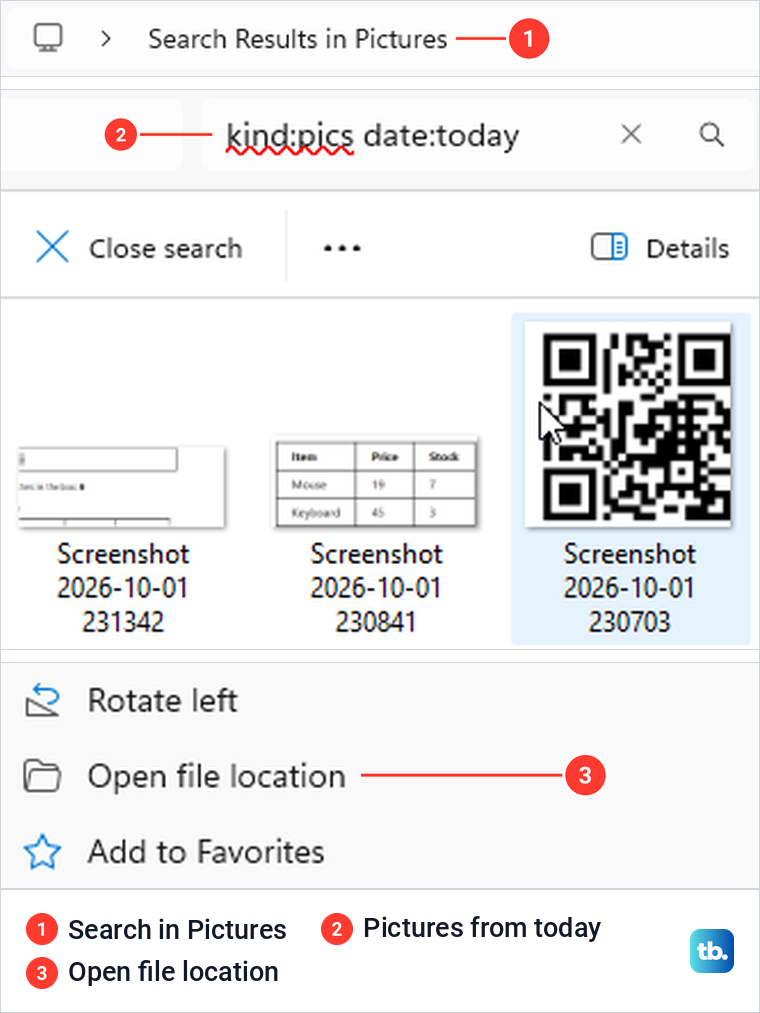
On our PC, that search found 15 captures within a few seconds. Searching Pictures for datemodified:today *.png found the same set. A browser capture is in Downloads, not Pictures, so for one of those, open Downloads and run the same search there.
Right-click a result and choose Open file location to see which folder it is in. For yesterday's pictures, change the date term to date:yesterday. You can also search Home for screenshot if the filename still has that word in it.
Search a likely folder rather than all of This PC. On our PC, the same search from This PC still said Working on it... about 80 seconds later, when Pictures had already returned its results. If File Explorer search is not working, use the folder buttons and the clipboard checks while you fix it.
Home > Recent can help, but it does not list every screenshot. Ours showed six captures, including snips we had opened, and left other snips out. So an empty Recent list does not mean nothing was saved.
Still nothing? Check Downloads for browser captures and Videos for Game Bar files. If you deleted the picture, check the Recycle Bin and follow the steps to recover deleted files on Windows. If Pictures is backed up to OneDrive, check that setting next.
If you use OneDrive
OneDrive's old Save screenshots to OneDrive switch is gone, so do not look for it. Microsoft's advice now is to back up screenshots by including the Pictures folder in OneDrive's folder backup. To see whether Pictures is included, open OneDrive's Settings > Sync and backup > Manage backup.
Go by the folder's real location rather than guessing a path with your account name in it. In Snipping Tool, Open folder takes you to wherever it is set to save. For Windows + PrtSc, the Location tab in the Screenshots folder's Properties shows the path it really uses. If a capture is on this PC but not on another device, work through the checks for OneDrive not syncing on Windows.
If you decide to turn off OneDrive's folder backup, read the question about where to keep your files before you confirm. Microsoft's Windows instructions offer to keep them only in OneDrive or only on the PC, and that choice decides where you will find older screenshots later.
Change where Snipping Tool saves
Open Snipping Tool's Settings and leave Automatically save original screenshots on. Under Screenshots are saved to, select Change, pick a folder and confirm with Select Folder.
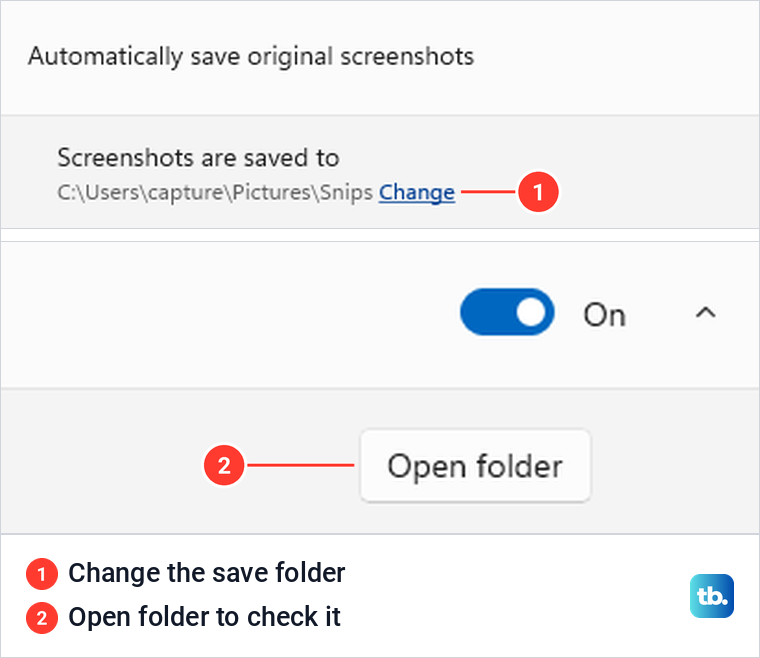
We picked a folder named Snips inside Pictures. The settings row switched to that path, our next snip landed there, and Open folder opened Snips with the new picture inside.
Windows + PrtSc ignored the change and kept saving to Pictures > Screenshots. This setting moves Snipping Tool's future snips and nothing else. To move where Windows + PrtSc saves, change the Screenshots folder's own properties instead.
Move the Windows Screenshots folder
First, make a separate folder for your screenshots. We used one called MyShots inside Pictures. A folder of their own is easy to pick and easy to check.
In File Explorer, right-click Screenshots, select Properties and open the Location tab. Select Move, pick the new folder, confirm with Select Folder, then select Apply. Check that the new path is the folder you meant.
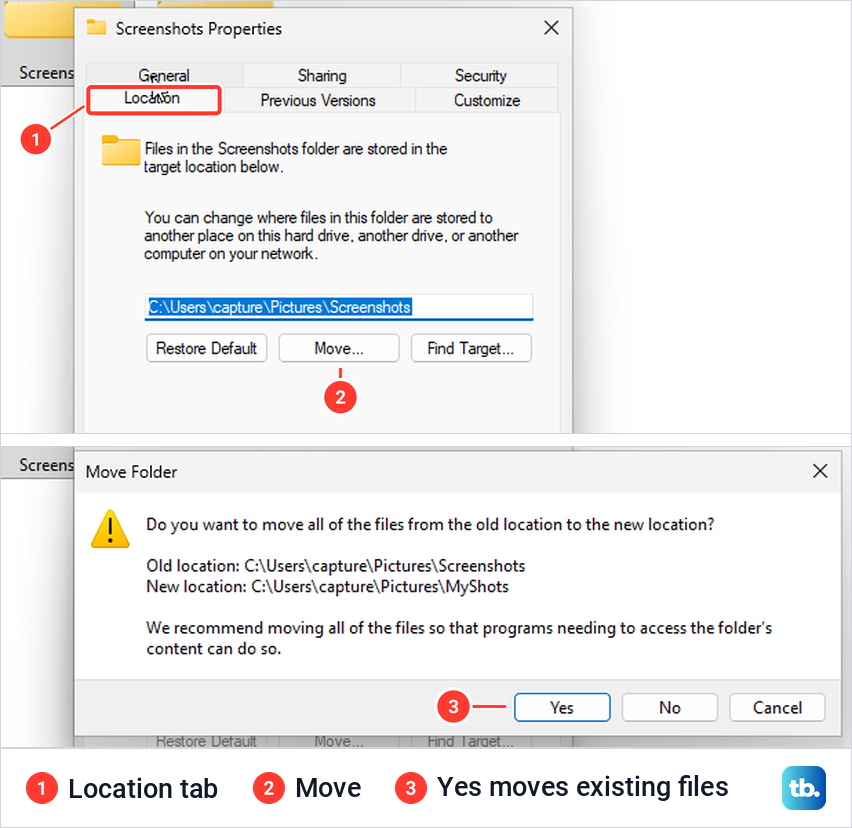
Windows then asked whether to move all the files from the old location to the new one. We selected Yes, and our existing pictures moved into MyShots. The next Windows + PrtSc capture was saved there too.
File Explorer still showed the folder with the name Screenshots, even though its path on disk now ended in MyShots. The old Pictures\Screenshots path no longer existed. So trust the path, not the name.
Snipping Tool did not follow the move. We had earlier picked Pictures\Screenshots with its own Change link, and after the move, two snips were copied but not saved anywhere. The notification read Screenshot wasn't automatically saved, and the line under it said Your screenshot was still copied to the clipboard.
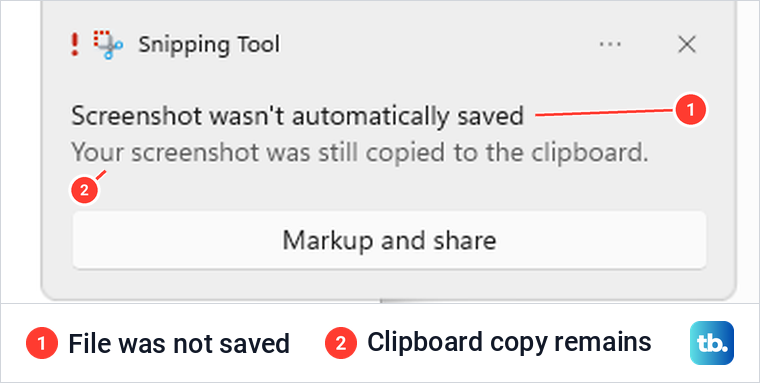
If you see that message, paste the capture into Paint and save it before you do anything else. Then open Snipping Tool's settings and pick the folder you want with Change. Take a fresh snip and use Open folder to make sure a file appears.
Filenames, file types and edited copies
In our tests, numbered names such as Screenshot (1).png came from Windows + PrtSc, and Snipping Tool used Screenshot followed by the date and time. That makes it easy to tell which tool made a picture when both kinds share a folder.
Windows did not reuse a deleted number on our PC. After we deleted Screenshot (2).png, the next capture was Screenshot (4).png, so the folder held 1, 3 and 4. A gap in the numbers does not by itself mean your latest capture failed.
To save a separate copy, press Ctrl + S in Snipping Tool's editor to open Save as. You can pick the name, the folder and the file type, and ours offered PNG, JPG and GIF.
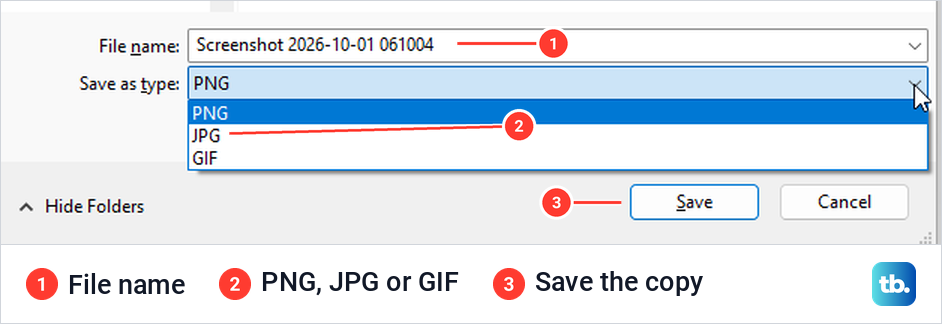
To see which format a file is in, show file extensions in Windows 11. File Explorer then shows the .png or .jpeg ending after the picture's name.
Saving an edited copy somewhere else does not remove the original that Snipping Tool saved automatically. We checked with a redacted screenshot, and the copy we saved had the black bar while the original still showed the text. So after you hide private details, make sure the file you share is the edited copy.
How we tested this guide
We tested this on Windows 11, version 25H2, with the built-in Snipping Tool, changing its save folder and moving the Screenshots folder.
Frequently Asked Questions
Where do screenshots go on Windows 11?
Snipping Tool and Windows + PrtSc save to Pictures > Screenshots by default. Game Bar uses Videos > Captures, and Edge saved our browser capture to Downloads. Alt + PrtSc only copies the active window to the clipboard.
Where do Windows + Shift + S screenshots go?
A finished snip goes to the clipboard and, by default, to Pictures > Screenshots. If you changed the folder or turned automatic saving off, Snipping Tool's Settings show whether saving is on and, when it is, where it saves.
Why can't I find my screenshots?
The shortcut you used may only copy to the clipboard, automatic saving may be off, or the save folder may have changed. Paste into Paint first, then check Snipping Tool's Settings, where Open folder appears once automatic saving is on. After that, check the other locations in the table and OneDrive's Pictures backup setting.
How do I change where screenshots are saved?
For Snipping Tool, select Change beside the save path in the app's Settings. For Windows + PrtSc, use Move on the Location tab of the Screenshots folder's properties. For Game Bar, Xbox Support says to move the Captures folder with File Explorer, and Windows keeps saving there. If you use more than one, check each folder.
Are Windows screenshots saved to OneDrive?
Microsoft's answer now is to include Pictures in OneDrive's folder backup, because the separate screenshot switch is gone. If you picked a different save folder in Snipping Tool, check that folder rather than assuming the Pictures backup covers it.
Why are my screenshots named Screenshot (1) and Screenshot (2)?
Those numbered files come from Windows + PrtSc, while Snipping Tool names its files with the date and time. When we deleted a numbered file, Windows did not reuse its number.
Where do screenshots go on Windows 10?
Microsoft's Windows 10 instructions put Windows + PrtSc files in Pictures > Screenshots. Windows + Shift + S sends the snip to the clipboard, so paste it into Paint and save it if you need an image file.