HP Support Assistant handles HP driver, firmware, BIOS, and software updates, but the app can be missing, outdated, noisy, or blocked by Windows. Start with HP’s official installer, then use the built-in update, repair, reinstall, or diagnostic paths that match the problem.
For Windows, use HP’s page at https://support.hp.com/us-en/help/hp-support-assistant and select Download HP Support Assistant 9. Run the installer, follow the on-screen prompts, and restart when prompted.
HP Support Assistant 9 requires Windows 10 RS4 or higher. HP says it is included on new HP desktop and notebook PCs, can be installed on PCs from other manufacturers for HP printer or PC support, and is not supported on ARM devices.
Skip third-party download sites, old direct installer links, and older Microsoft Store instructions for the Windows version. The current Windows path is HP’s official page and Download HP Support Assistant 9.
Open HP Support Assistant and run updates
Click the HP Support Assistant question-mark icon on the Windows taskbar when it is already pinned or running there. If the taskbar icon is missing, open Windows Search, type HP Support Assistant, and open the app from the results.
In the app, go to My Dashboard and find your computer. Open Updates, then select the listed driver, firmware, BIOS, or HP software updates. Choose Download and install, let the updates finish, and restart the PC when prompted.
Tip: open Settings and run the app’s own update check to install pending HP Support Assistant updates too. Builds that expose it label it Check for updates and then Check for updates now; others surface Check for updates and messages on My Dashboard instead.
Refresh HP Support Assistant itself
A common cause of missing tools or odd behavior in HP Support Assistant is an outdated app build. Open HP Support Assistant and select Settings. Choose Check for updates, then select Check for updates now.
Install pending updates, especially any update for HP Support Assistant. These labels vary by build, and HP’s own documentation sends you to its HP Support Assistant page for the newest version, so if the in-app check finds nothing, download HP Support Assistant 9 from HP and run it over the existing install.
Close the app and open HP Support Assistant again from Windows Search. Return to My Dashboard and check whether Updates or Fixes & Diagnostics loads normally.
Repair the app in Windows
This method applies when HP Support Assistant is installed but opens incorrectly, crashes, or behaves like its local app files are damaged. Windows shows repair and reset controls only for apps that support them.
Select Start.
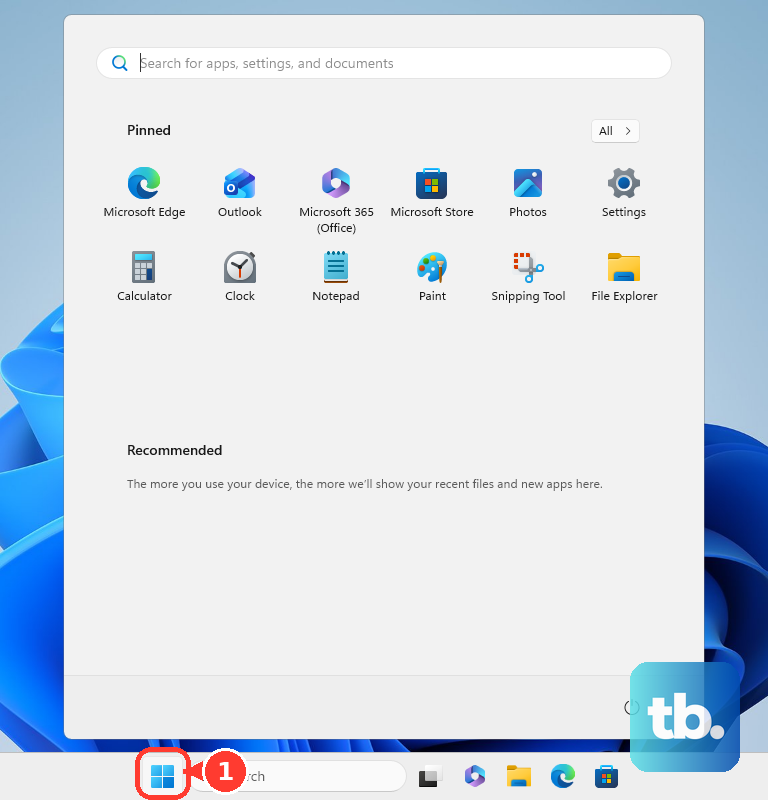
Open Settings, choose Apps, and open Installed apps. Select More next to HP Support Assistant, then open Advanced options.
Choose Repair, then try HP Support Assistant again. If the same problem continues, return to Advanced options and choose Reset.
Reinstall HP Support Assistant cleanly
A clean reinstall fits when HP Support Assistant will not open correctly, will not update itself, or still fails after Windows repair.
Select Start, open Settings, go to Apps, then open Installed apps. Find HP Support Assistant, choose More, and select Uninstall. Follow the uninstall prompts and restart the PC.
Return to https://support.hp.com/us-en/help/hp-support-assistant, select Download HP Support Assistant 9, run the installer, and follow the on-screen prompts.
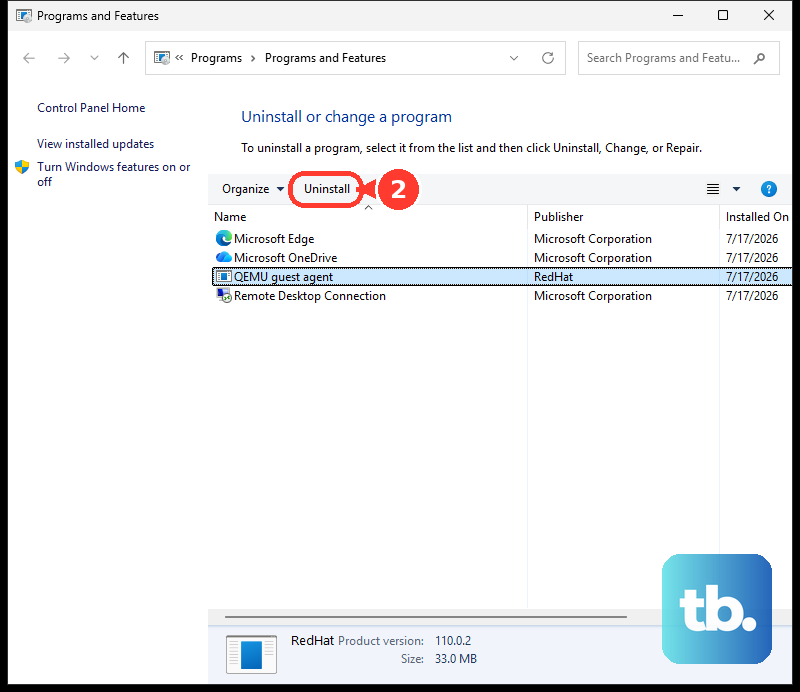
If HP Support Assistant does not appear in Installed apps, open Control Panel from taskbar Search, go to Programs, then Programs and Features, select HP Support Assistant, choose Uninstall, restart, and reinstall from HP.
If uninstalling or reinstalling fails on Windows 10, use Microsoft’s Program Install and Uninstall troubleshooter from its page for problems that block programs from being installed or removed. Microsoft now offers that download only for Windows 10. On Windows 11, restart the PC, use Repair or Reset when Windows offers them, uninstall from Installed apps, and run any troubleshooter Windows recommends.
Use Windows Update in S mode
The most common cause on Windows in S mode is that HP Support Assistant is not available there. Select Start, open Settings, and choose Windows Update. Select Check for updates. When updates are available, choose Download & install and restart when prompted.
HP says Windows in S mode does not support legacy Win32 apps, HP repair tools, or preinstalled HP apps such as HP Support Assistant.
For a specific HP driver, BIOS, firmware, or software package, use HP Customer Support Software and Driver Downloads at https://support.hp.com/us-en/drivers, enter or detect your HP product, choose the operating system when prompted, download the HP package, and run the installer.
Run HP diagnostics without the main app
HP Support Assistant includes troubleshooting tools, and the available tests vary by HP device and installed diagnostic components. In the app, open My Dashboard, choose Fixes & Diagnostics, and run the fix that matches the problem from the One click fixes section, such as Audio Check.
If the diagnostics you need are not available in HP Support Assistant, install HP PC Hardware Diagnostics Windows from Microsoft Store. Search for HP PC Hardware Diagnostics Windows, select the app by HP, choose Get or Install, open it, and run hardware tests.
When Windows will not boot or HP Support Assistant will not open, restart the HP PC and press f2 repeatedly, about once every second, until HP PC Hardware Diagnostics UEFI - BIOS appears. Run the relevant Basic, Fast, or Extensive test.
Stop HP Support Assistant popups
This fixes HP Support Assistant update and firmware notifications without removing the app. Open HP Support Assistant, select the Settings icon in the left toolbar, and open Notifications.
Turn off Firmware Update Notifications. HP documents the general route as the Settings icon in the left toolbar, then changing the settings in each section, so the exact toggle names here vary by HP Support Assistant build.
Turn off Show pop-up notifications when that control is available. Turn off Show tray icon alerts when that control is available. Open Messages and delete the firmware update message manually to clear an existing alert.
Pick the right HP support option
Use the HP support tool that matches the device and job. For Chrome OS, open Chrome and go to HP’s HP Support Assistant page. Use the Chrome Web Store link under HP Support Assistant for Chrome OS and download the extension.
Then return to HP’s page and choose Launch HP Support Assistant for Chrome OS. HP says this app can be installed on most devices running Chrome OS M99 or later, so older Chrome OS devices may not take it.
For Android, HP now points new users to the HP app by HP Inc., which combines the former HP Smart and myHP apps: the Google Play listing for HP Support Assistant opens with “Switch to the HP app today.”
HP’s HP Support Assistant page still offers the standalone mobile app, and HP still publishes it, so that route also works. Open Google Play, search HP Support Assistant, select HP Support Assistant by HP Inc., and tap Install. Google Play says the mobile app is not recommended for tablets.
For account features, sign in or create an HP ID in HP Support Assistant. Add your HP PC or printer, then review messages, updates, subscribed services, and device-specific support resources.
For guided support, use the HP Virtual Agent option inside HP Support Assistant. Describe the PC or printer problem and follow the prompts. HP says Virtual Agent availability varies by country.
For managed or business HP PCs, use HP Image Assistant to scan the computer. Install recommended BIOS updates, drivers, and HP software with HP Image Assistant. It is an IT tool, not the normal home-user replacement for HP Support Assistant.
Frequently Asked Questions
Is HP Support Assistant free to download?
Yes. Use HP’s official HP Support Assistant page and choose Download HP Support Assistant 9 for Windows.
Can I install HP Support Assistant on a non-HP computer?
HP says HP Support Assistant can be installed on PCs from other manufacturers for HP printer or PC support.
Why can’t I use HP Support Assistant in Windows S mode?
HP says HP Support Assistant is not available for Windows in S mode. Use Windows Update or HP’s Software and Driver Downloads page instead.
Is HP PC Hardware Diagnostics the same as HP Support Assistant?
No. HP PC Hardware Diagnostics is a companion hardware testing tool. It can help when diagnostics are missing or Windows will not boot, but it does not repair HP Support Assistant itself.