Pasting on Windows gets messy when Ctrl+V brings the wrong formatting, Clipboard history is off, or a web app blocks clipboard access. Start with the standard shortcut, then use the matching Windows 11 setting or app shortcut for plain text, older clipboard items, files, Office, Edge, Terminal, and voice paste. Windows 10 support ended on October 14, 2025.
Use Ctrl+V for a normal paste
Use this when you want the last copied or cut item to appear where the cursor is active. Ctrl+V is the standard Windows paste shortcut. Click or tap where the copied content should go.
Press Ctrl+V. Use Shift+Insert as the alternate paste shortcut in apps that use Windows editing shortcuts.
Strip formatting with Ctrl+Shift+V
Pasted text looks wrong because formatting from the original source comes along with the words. Click in the text field where the clean text should appear. Press Ctrl+Shift+V.
Ctrl+Shift+V is the default plain-text paste shortcut, and Microsoft notes that it may not work in all applications. Use the app's own paste options where it does not. In Microsoft Edge, press Ctrl+Shift+V when copied links or styled text need to land without formatting.
Recover something you copied earlier
Press Windows logo key+V. Select Turn on if Windows asks to enable Clipboard history. Select the clipboard item you want to paste. Use Clipboard history when a newer copy replaced the item you still need.
Enable Clipboard history in Settings
Windows logo key+V shows multiple copied items only after Clipboard history is enabled. Open Start, then select Settings.
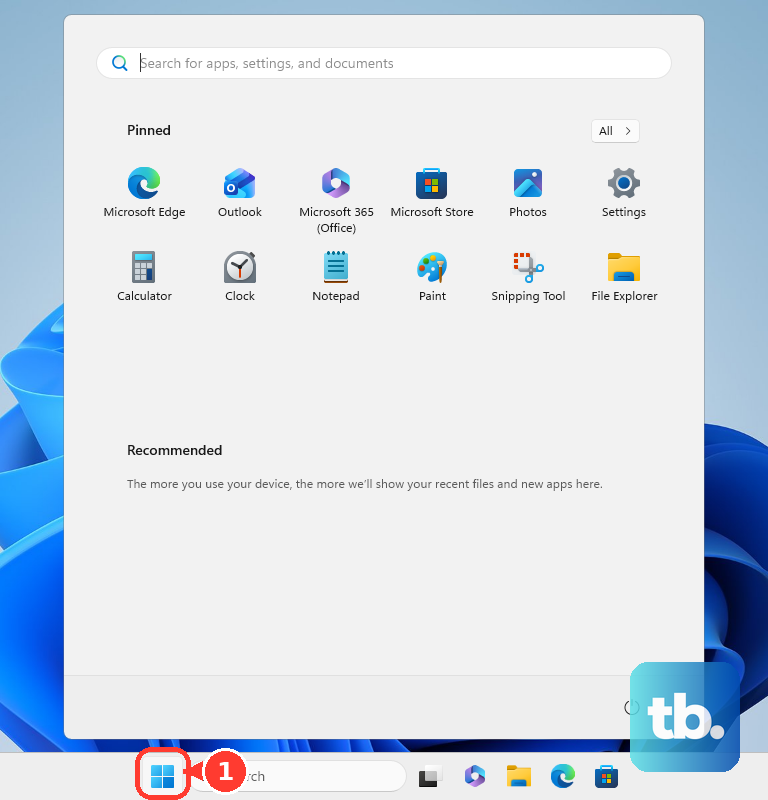
Select System. Select Clipboard. Set Clipboard history to On. If this method fails, press Windows logo key+V and select Turn on from the Clipboard history prompt.
Sync copied text across Windows PCs
Use this when you want copied text to move between Windows PCs signed in with a Microsoft account or work account. Clipboard sync uses Clipboard history, and each synced item is limited to 4 MB for text, HTML, and Bitmap formats. Open Start, then select Settings. Select System.
Select Clipboard. Turn on Clipboard history across your devices. Select Automatically sync text that I copy to sync copied text automatically.
Move files and folders in File Explorer
File Explorer paste moves or copies files and folders into a destination folder instead of inserting text into a field. Select the file or folder. Select Cut or Copy in File Explorer.
Open the destination folder. Select Paste in the toolbar. If this method fails, select the file or folder again, choose Cut or Copy, return to the destination folder, and select Paste.
Choose paste options in Microsoft Office
Click where the content should appear in Word, Excel, PowerPoint, Access, Publisher, or Outlook. Press Ctrl+V for the keyboard paste. In Word, Excel, PowerPoint, Access, or Publisher, select Home > Clipboard > Paste for the ribbon paste. In Outlook, open a message and use the Message tab instead.
Right-click where the content should go. Select Paste. In Word, open File > Options > Advanced. Under Cut, copy, and paste, choose Keep Source Formatting, Merge Formatting, or Keep Text Only.
Turn on Show Paste Options button when content is pasted to make Word show formatting choices after Ctrl+V. On the Home tab, select the Clipboard dialog box launcher to open the Office Clipboard task pane. In Outlook, open a message and select the Clipboard dialog box launcher on the Message tab. Double-click the text or image you want to paste.
Select Paste All when every collected Office Clipboard item belongs in the document. Use Paste All only when every collected Office Clipboard item belongs in the document.
Fix browser clipboard blocks in Office for the web
The common Office for the web paste block is a browser clipboard permission set to off. In Word for the web, PowerPoint for the web, OneNote for the web, or Excel for the web, switch to Editing or Reviewing mode. Click the destination. Press Ctrl+V.
In Chrome, select View site information in the address bar. Find Clipboard. Turn Clipboard on. In Microsoft Edge, select the Lock icon or View site information in the address bar.
Open Permission for this site. Set Clipboard to Allow.
Handle Edge, Terminal, voice access, and PowerToys
These shortcuts fix URL paste, terminal paste, hands-free paste, and advanced paste formats. In Microsoft Edge, press Ctrl+Shift+L to paste and search, or to paste and go when copied text is a URL.
After copying a URL from Edge's address bar, press Ctrl+V to paste the default rich link wherever the destination accepts Edge enhanced paste. Some apps override enhanced copy and paste and insert only the web address or their own formatting, and desktop apps such as Word paste in whatever format their own settings specify. Press Ctrl+Shift+V to paste that Edge URL as a plain web address.
In Windows Terminal, press Ctrl+V to paste. Right-click inside Windows Terminal to copy and paste text with the mouse. Open Start > Settings > Accessibility > Speech.
Turn on Voice access. Voice access is available in Windows 11, version 22H2 and later. Put the cursor in a text box. Say Paste, Paste here, or Paste that.
Install Microsoft PowerToys from the Microsoft Store, GitHub releases, or winget install --id Microsoft.PowerToys --source winget when PowerToys is not installed. Open PowerToys Settings. Select Advanced Paste. Turn on Advanced Paste.
Press Win+Shift+V to open the Advanced Paste window. Choose Plain text, Markdown, JSON, Image-to-text, or Paste as file. Turn on Paste with AI in the Advanced Paste settings, because this setting is off by default.
Under Model providers, select Add model to configure an online or local provider. Choose Paste with AI in the Advanced Paste window. Use Ctrl+Win+Alt+V for PowerToys direct plain-text paste. Keep Ctrl+V free for normal paste because Microsoft warns against assigning it as a PowerToys activation shortcut.
Frequently Asked Questions
How do I clear Clipboard history on Windows?
Open Start > Settings > System > Clipboard, then select Clear under Clear clipboard data. Pinned items stay in Clipboard history.
How do I delete one item from Clipboard history?
Press Windows logo key+V, select See more (...) or the ... icon next to the item, then select Delete.
Does Phone Link paste between Android and Windows?
Yes. In Phone Link, open Settings > Features > Cross-device copy and paste, then turn on Allow this app to access and transfer content I copy and paste between my phone and PC. Microsoft supports this with Surface Duo, Samsung One UI 2.1 or above, and select HONOR, OPPO, ASUS, vivo, and Xiaomi devices. It works with text and images, and images above 1 MB are resized.
Why is Clipboard history unavailable on a work or school PC?
Device policy controls Clipboard history on managed Windows editions. Administrators allow or block AllowClipboardHistory and AllowCrossDeviceClipboard policies.