No Print Screen key? You can still take screenshots on Windows, whether you need a small selection, one window, or the whole screen. Start with Windows+Shift+S on Windows 11 or Windows 10, or use Windows 11's Snipping Tool with your mouse or touch.
Press Windows+Shift+S for a quick screenshot
Press Windows+Shift+S to open the screen capture controls.
Choose Rectangle for a rectangular area, Window for one window, Full screen for the whole screen, or Freeform for a custom shape.
Select the content you want to capture using your chosen mode.
Tip: choose Window to capture one window without drawing a rectangle around it.
Open Snipping Tool with your mouse or touch
On Windows 11, start a capture directly from the app with your mouse or touch.
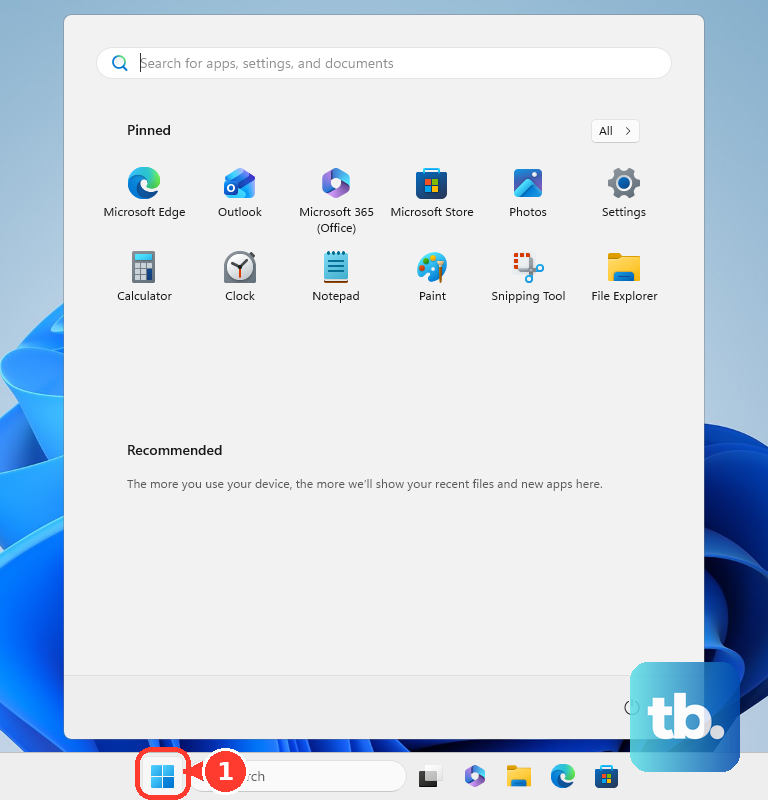
- 1.Open Start.
- 2.Search for Snipping Tool.
- 3.Select Snipping Tool to open it.
- 4.Choose Snipping Mode, then Rectangle, Window, Full screen, or Freeform.
- 5.Select New.
- 6.Select the content to capture.
Check where your screenshot gets saved
Snipping Tool's automatic saving settings determine whether a capture saves automatically and which folder it lands in.
In the current Windows 11 Snipping Tool, open See More > Settings.
Set automatic saving to your preference.
Check or change the Screenshots folder location.
Use Save as for an additional copy with a name you choose.
Give yourself time to open a menu
A menu or tooltip needs to be visible when the capture starts. Windows 11's Snipping Tool has a delay option that gives you time to get it onscreen.
In Snipping Tool, choose Delay > 5 seconds.
Set the capture type under Snipping Mode.
Select New to start the countdown.
Open the menu or display the tooltip before the countdown finishes.
Capture a full webpage in Edge or Firefox
Need the part of a webpage that's below the screen, too? Edge and Firefox have full-page capture options that include it. These tools capture browser content.
In Microsoft Edge, press Ctrl+Shift+S to open the screenshot controls. Choose Capture full page for the complete webpage, or select an area for a smaller capture. Use the resulting controls to copy or save the image.
In Firefox, right-click an empty page area and select Take Screenshot. Choose Save full page for the complete page or Save visible for the visible portion. Finish with Download or Copy.
Enter the shortcut without holding several keys
If holding several keys at once is difficult, use the On-Screen Keyboard's virtual keys. For physical keys, Sticky keys lets you enter the shortcut one key at a time.
On Windows 11, open Start > Settings > Accessibility > Keyboard > On-screen keyboard, or press Windows+Ctrl+O.
Use the virtual keys to enter Windows+Shift+S.
Choose Rectangle, Window, Full screen, or Freeform.
Select the content to capture.
For sequential physical key presses, enable Sticky keys under Start > Settings > Accessibility > Keyboard.
Press Windows, Shift, and S one at a time.
Select your capture area.
On Windows 10, open Settings > Ease of Access > Keyboard for these settings.
Enable Use the On-Screen Keyboard for virtual keys, or Sticky Keys for sequential presses.
Frequently Asked Questions
Can I use Fn+Windows+Space Bar instead of Print Screen?
Yes, on compatible Windows hardware without a Print Screen key. Press Fn+Windows+Space Bar, then look in File Explorer > Pictures > Screenshots. This shortcut depends on your hardware and does not work on every laptop.
How do I take a screenshot on a Surface without its keyboard?
On compatible Surface devices, hold Power and press Volume Up. Find the image in Pictures > Screenshots. This button method does not apply to Surface Laptop.
Can I take a game screenshot without Print Screen?
While playing a supported PC game, press Windows+G. In Game Bar's Capture widget, select Take screenshot, the camera icon. In Steam games that support the Steam Community Overlay, press F12, Steam's default screenshot keybinding, with the overlay enabled, or use your own key if you changed it.
How can I make Snipping Tool easier to open next time?
On Windows 11, search for Snipping Tool in Start. Select Pin to taskbar in its search results. Open it from the taskbar whenever you need a capture.