

If Snipping Tool will not open, closes on its own or stops capturing in Windows 11, open Settings > Apps > Installed apps, select the three dots next to Snipping Tool, choose Advanced options and select Repair. Repair keeps the app's settings. If nothing changes, Reset on the same page permanently deletes the app's data, such as its settings, and puts the app back to its defaults, and if the app has gone missing you can register it again or reinstall it, with or without Microsoft Store.
Take ten seconds first to check which part is failing, because a dead shortcut is a different problem from a broken app. We ran Terminate, Repair, Reset, Uninstall and the PowerShell fix below on Windows 11, version 25H2, and the pictures show what each screen looks like when the step has worked.
The short version
- Check first: press Windows + Shift + S. A small five-button bar with the words Draw a shape to create a screen snip usually means Windows could not use Snipping Tool.
- Repair it: after checking for updates, go to Settings > Apps > Installed apps > Snipping Tool > Advanced options > Repair. Your settings stay as they are.
- Reset next: it permanently deletes the app's data, such as its settings, and puts the app back to its defaults. In our test, screenshots we had already saved stayed where they were.
- App uninstalled? If Windows still holds its package, one PowerShell command can register it again. On our PC that took seconds, with no Store and no download.
Find out which part is failing
Press Windows + Shift + S and look at the top of the screen. Snipping Tool's own capture bar starts with a camera button and a video camera button. If you get a smaller bar with five buttons and the words Draw a shape to create a screen snip in the middle of the screen, Windows could not use Snipping Tool and opened its older Screen Snipping tool instead.
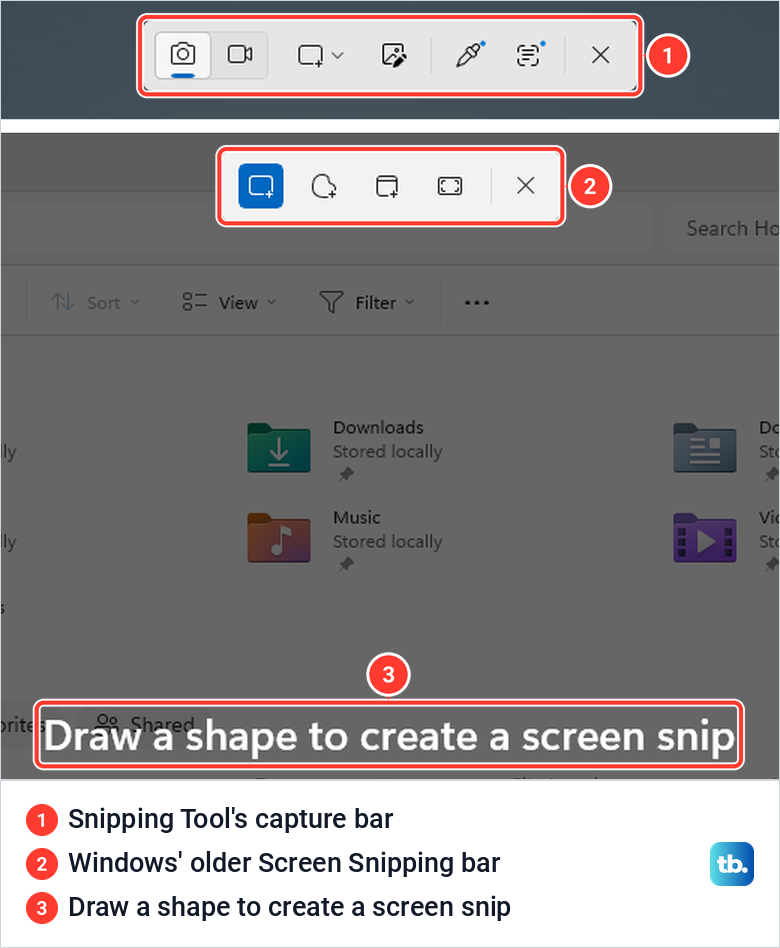
On our PC that older screen appeared in two situations: with Snipping Tool uninstalled, and while a reset of the app was still running. It still captures in a basic way. A rectangle we dragged on it went to the clipboard, but no file was saved in Pictures > Screenshots.
If the shortcut does nothing at all, open Start, type Snipping Tool and open the app. A working app shows a New button and the hint Press Windows + Shift + S to start a snip.
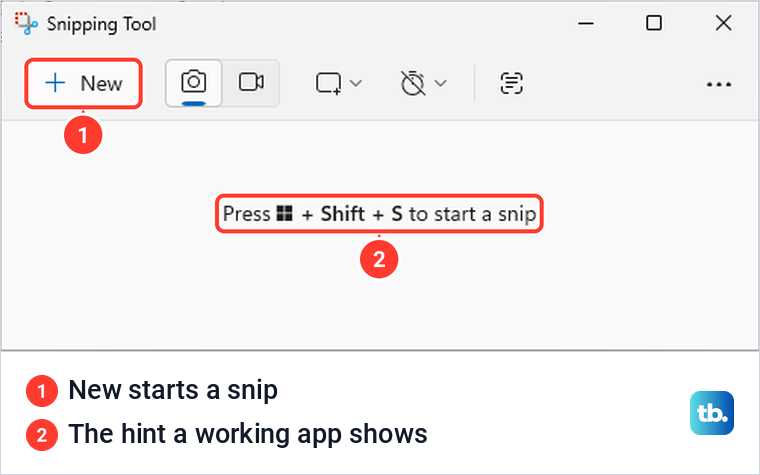
When the app opens and snips from New but the keys do nothing, the app itself is probably fine. Follow our guide to fixing Windows + Shift + S when it stops working for the shortcut, or the one for Print Screen not working in Windows if the PrtSc key is the problem.
The table matches what you see to the section that deals with it. The fixes below run from the quickest and least disruptive to the most drastic, so work down them in order.
| What you see | What it means | What to do |
|---|---|---|
| Snipping Tool will not open from Start, freezes or closes by itself | The app is stuck or damaged | Terminate, then update, then Repair, then Reset |
| Windows + Shift + S opens a five-button bar and Draw a shape to create a screen snip | Windows could not use Snipping Tool and fell back to its older tool | Check the MS-SCREENCLIP default, then Repair or Reset, then register the app again or reinstall it |
| A box naming ms-screenclip says no app is associated with it | Windows found no app for the link the shortcut uses | Check the MS-SCREENCLIP default, then register or reinstall |
| Snipping Tool is missing from Start and from Installed apps | It was uninstalled or removed | Register it again with PowerShell, or reinstall it |
| Screenshot wasn't automatically saved, or no file appears | Automatic saving is off or its folder has moved | Fix the save setting and folder |
| Couldn't save that image after Save as | It appeared on our PC when Snipping Tool had been started from a program running as administrator | Start the app normally and save to a local folder |
| Recording is missing or has no sound of your voice | A work policy or the microphone settings | Fix screen recording |
| The app works, but Windows + Shift + S or PrtSc does nothing | A keyboard or setting problem, not the app | Use the shortcut or Print Screen guide |
Close Snipping Tool completely and open it again
Microsoft's list for any misbehaving Store app starts with closing it and opening it again. Windows also has a button that ends Snipping Tool and its related processes in one go.
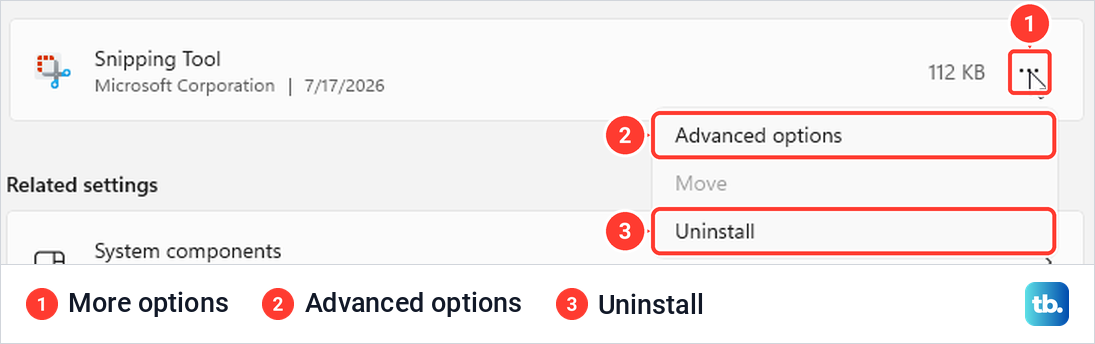
Open Settings > Apps > Installed apps and type snipping into the search box. Select the three dots next to Snipping Tool and choose Advanced options.
Scroll down past Defaults to the section named Terminate, which reads Immediately terminate this app and its related processes. Select Terminate.
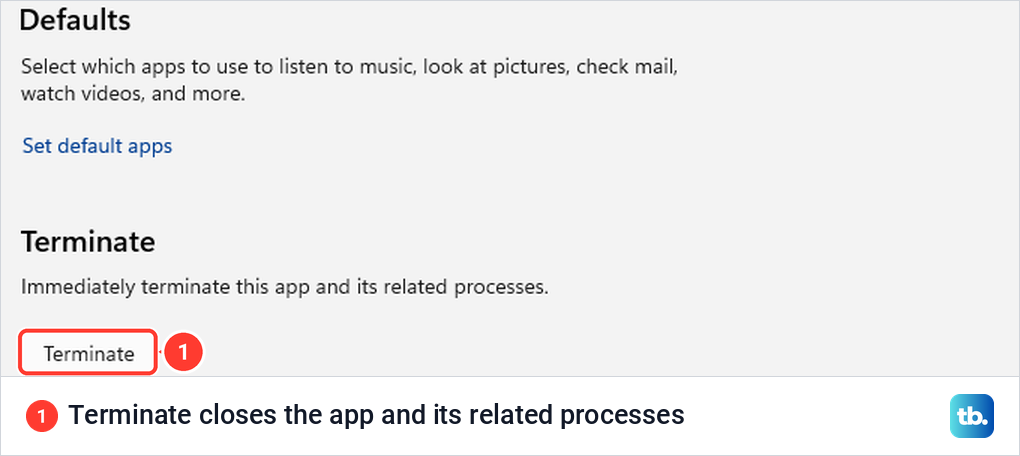
When we did this with a Snipping Tool window open, the window closed at once and no Snipping Tool process was left running. There is no message, so do not wait for one. Open the app again from Start and try a snip.
If Settings will not respond either, open Task Manager in Windows 11 and end Snipping Tool there. Then restart the PC once before you move on.
Update Snipping Tool and Windows
Snipping Tool gets its updates from Microsoft Store, separately from Windows. Its version number is listed in two places: under Specifications at the top of the Advanced options page, and under About this app in the app's own settings. The genuine app lists Microsoft Corporation as its publisher, there and under its name in Installed apps, which is also how to pick the right listing in Microsoft Store.
To update it, open Microsoft Store and go to the page that lists updates. Depending on your Store version it sits under Library or Downloads, and the button reads Get updates or Check for updates. Microsoft's list also has you check for and install Windows updates before you repair or reset an app.
Repair Snipping Tool in Settings
Repair is the safest real fix because it leaves the app's settings alone. On the same Advanced options page, scroll to the section named Reset. Its first line reads If this app isn't working right, we can try to repair it, and goes on to say the app's data won't be affected.
Close Snipping Tool, then select Repair. On our PC a small tick appeared next to the button about four seconds later, and that tick is the only sign it has finished.
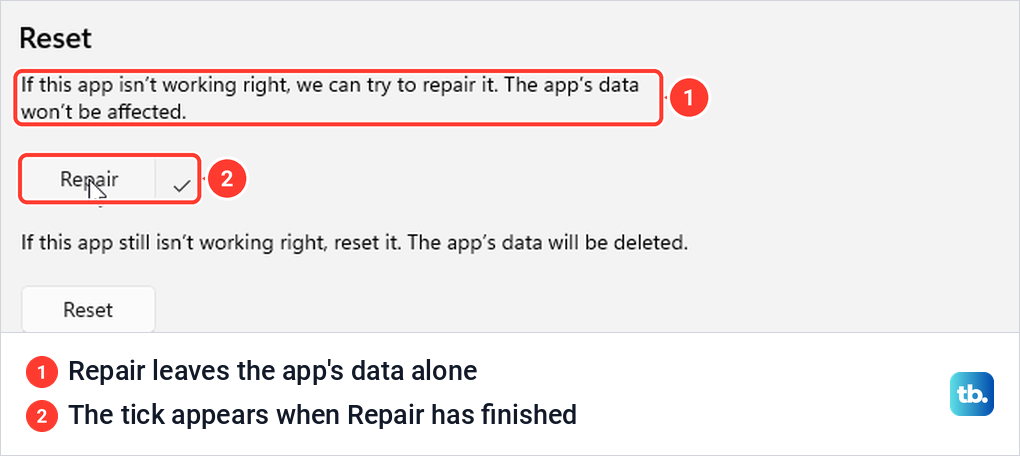
We had switched one Snipping Tool setting on beforehand, and it was still on after the repair. Windows + Shift + S opened the capture bar straight afterwards. Open the app again and repeat whatever failed before.
Reset Snipping Tool if Repair changes nothing
Reset goes further. The line above its button reads If this app still isn't working right, reset it, and warns that the app's data will be deleted. Close Snipping Tool, select Reset, then confirm in the small box that says it will delete the app's data, including your preferences and sign-in details.
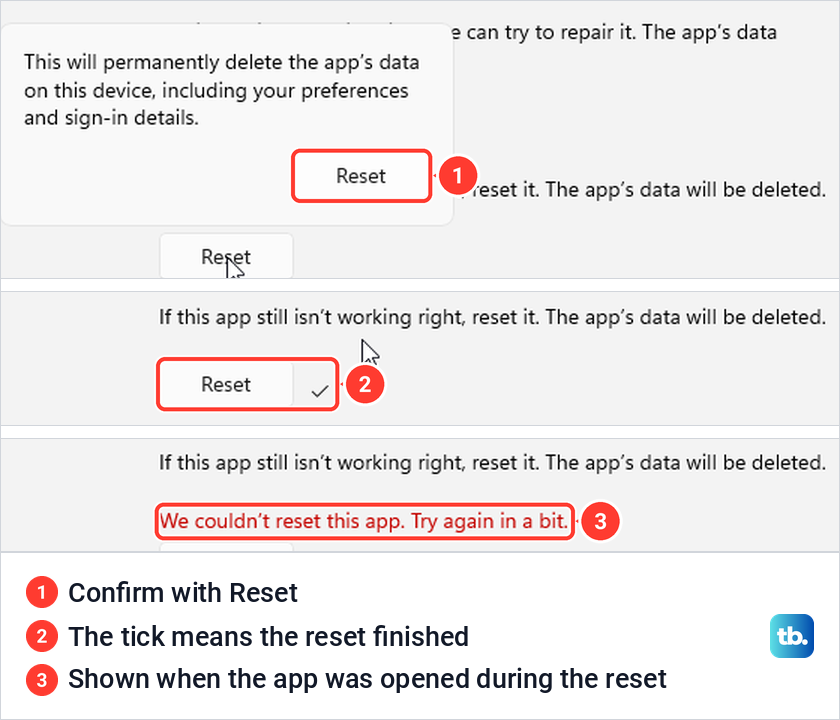
Left alone, our reset finished in under four seconds with a tick next to the button. Afterwards the app's settings were back at their defaults, and every screenshot already in Pictures > Screenshots was still there. The Windows switch that makes Print Screen open the capture bar was not touched either.
Wait for the tick before you open the app. When we started Snipping Tool while a reset was running, the page ended with We couldn't reset this app, and in the meantime the shortcut opened the older five-button screen. A second reset with the app closed finished normally.
The first capture bar after a reset shows a tip again, Annotate live on your screen. Select Got it and carry on, because the tip only means the app has started fresh.
Fix the error that names ms-screenclip
Some people get a box after pressing the shortcut that names ms-screenclip://?source=HotKey and says This file does not have an app associated with it for performing this action. MS-SCREENCLIP is the link type that opens Snipping Tool's capture bar. On our PC, pressing Windows + R, typing ms-screenclip: and pressing Enter opened the bar, which makes it a quick test of the link.
To see which app answers that link, open Settings > Apps > Default apps and type MS-SCREENCLIP into the box under Set a default for a file type or link type. Select the entry that appears. On our PC the chooser listed Snipping Tool as the default app and Screen Snipping under Suggested apps.
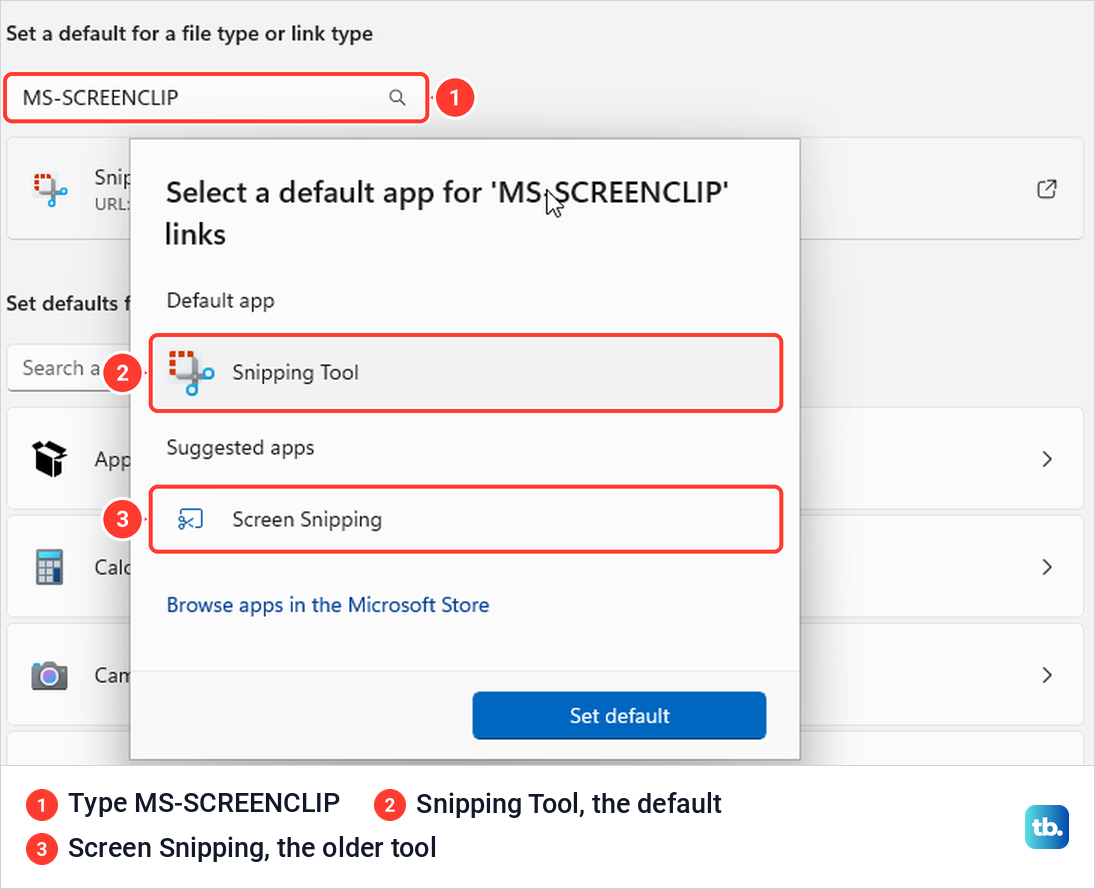
Screen Snipping is the older five-button tool from the check at the top. Keep Snipping Tool selected, and select Set default if it was not. If Snipping Tool is not offered at all, register it again or reinstall it as described next.
Register Snipping Tool again or reinstall it
If Snipping Tool is missing from Start, or Repair and Reset changed nothing, bring the app back or put a fresh copy in place. There are three ways to do it, and the first needs no download at all.
To remove a damaged copy first, select the three dots next to Snipping Tool in Installed apps, then Uninstall. Windows asks once, with the line This app and its related info will be uninstalled. It is the same routine you use to uninstall programs in Windows 11.
Register it again with PowerShell
After an uninstall from Settings, the app's package can stay on the PC. On ours, PowerShell still listed it, and one command put the app back for our account in under three seconds. The command uses Add-AppxPackage with -Register and -DisableDevelopmentMode, which Microsoft documents for registering an installed app that has been disabled or has become corrupted.
Right-click the Start button, choose Terminal (Admin) and select Yes when Windows asks. Paste this line and press Enter.
Get-AppXPackage *Microsoft.ScreenSketch* -AllUsers | Foreach {Add-AppxPackage -DisableDevelopmentMode -Register "$($_.InstallLocation)\AppXManifest.xml"}It printed nothing on our PC, which is normal. Snipping Tool was back, and Windows + Shift + S opened its own capture bar again. If the app is still missing afterwards, use one of the two routes below.
Reinstall it from Microsoft Store
In Microsoft Store, select Library, find Snipping Tool and select Install. If you search the Store instead, choose the listing published by Microsoft Corporation. If the Store shows the error Microsoft Store failed to initialize, see our fix for Microsoft Store failed to initialize, and if it will not load at all, use the installer below.
Reinstall it with Microsoft's installer
Microsoft's support page Uninstall and reinstall Paint and Snipping Tool links Snipping Tool installers that you download and run yourself, outside Microsoft Store. Download the 64-bit file, which Microsoft marks as the most common, or the ARM64 file if your PC has an Arm processor, then open it and follow the setup until it finishes.
Do not download Snipping Tool from any other site, because the genuine app is free from Microsoft. Once it opens again, our walkthrough of how to snip on Windows 11 covers its modes and tools.
Fix Snipping Tool not saving screenshots
If snips copy but never turn up as files, open Snipping Tool, select the three dots and choose Settings. Automatically save original screenshots was on by default on our PC, and the row under it, Screenshots are saved to, shows the folder in use.
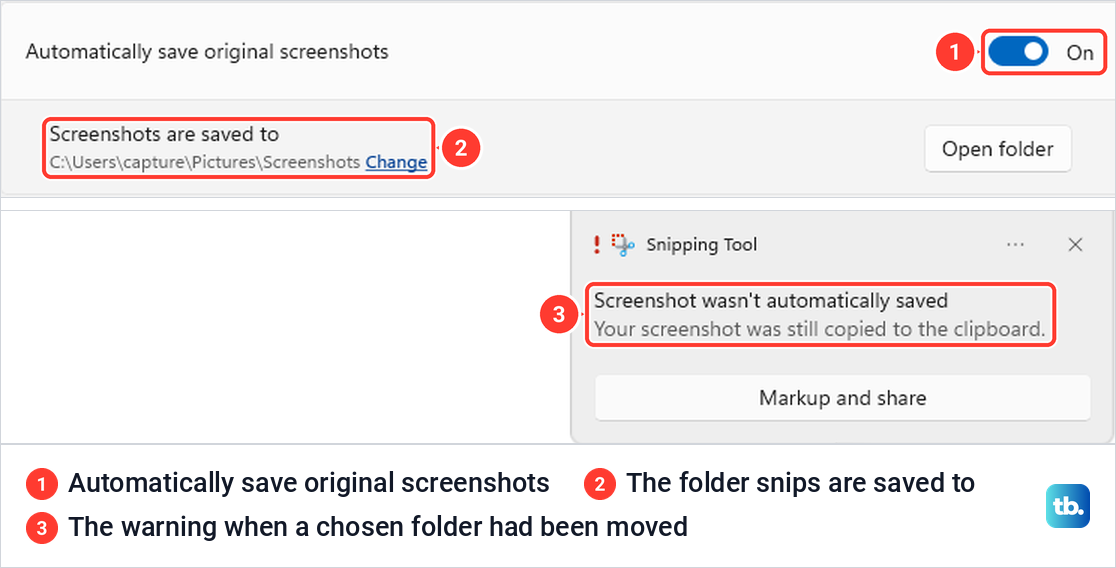
With automatic saving off, the notification after a snip reads Automatic save is turned off, and no file is written. If you once chose a folder there and it was later moved, the snip is not saved and the notification says Screenshot wasn't automatically saved. Select Change to pick the folder again, or Open folder to see where snips are going.
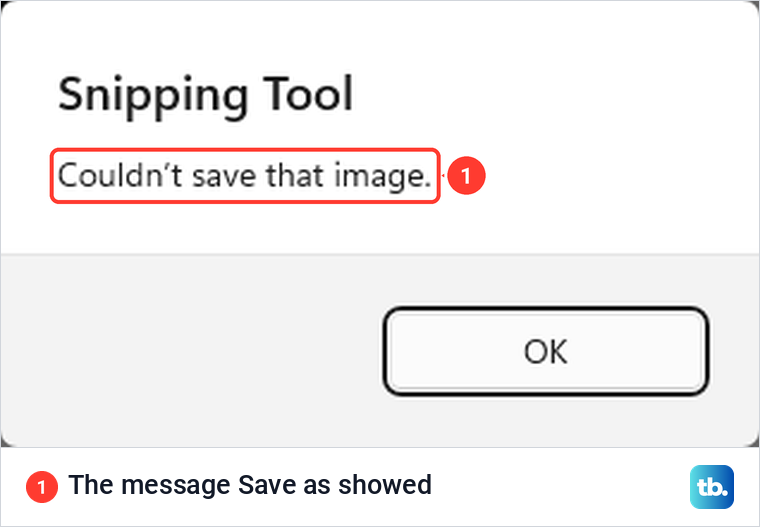
Save as can fail with a box that says Couldn't save that image. We saw it when Snipping Tool had been launched from a program running as administrator, and Save as worked normally once the app was started the usual way. Close the app, start it from Start, and save to a local folder such as Pictures.
If the folder shown in settings is inside OneDrive and saves keep failing, choose a local folder with Change, or stop OneDrive from backing up your folders. Save as, or Ctrl + S in the editor, stores a separate copy wherever you choose.
Fix screen recording that will not start or has no sound
Recording starts with Windows + Shift + R or the video camera button on the capture bar. On a work or school PC, an administrator can switch recording off with the policy named Allow Screen Recorder, and only they can turn it back on.
For your voice, Microsoft's instructions say you can toggle your microphone on while you record. To have it on every time, switch on Include microphone input by default when a screen recording starts in Snipping Tool's settings, and the Microphone permission on the app's Advanced options page, both of which were off on our PC. Then check that Settings > Privacy & security > Microphone lets apps and desktop apps use the microphone.
Recordings are saved as MP4 files in Videos > Screen Recordings by default. Our guide to the screen recorder in Windows 11 walks through a normal recording from start to finish.
Check for a work or school block
On a PC that an employer or school manages, Snipping Tool can be switched off on purpose. Microsoft's policy list includes Allow Screen Recorder, Remove Default Microsoft Store packages from the system, which uninstalls chosen apps and blocks them from being reinstalled while they stay on its list, and an older policy that Microsoft describes as stopping Snipping Tool from running.
None of these can be changed from your own account, and a reinstall will not stick while a removal policy is in force. Ask your IT department whether screen capture is allowed on that PC before you spend time on the fixes above.
Repair Windows as a last step
If Snipping Tool still fails after a reset and a reinstall, check Windows itself. Microsoft says to run DISM first and System File Checker second, both from an administrator window, so open Command Prompt in Windows as administrator and run these one at a time.
DISM.exe /Online /Cleanup-image /RestorehealthDISM uses Windows Update to fetch clean files, so stay online while it runs. When it finishes, run the file check below and do not close the window until it reaches 100 percent.
sfc /scannowWindows Resource Protection did not find any integrity violations is the message you want to see. Our guide on how to run SFC scannow on Windows 11 explains what the other messages mean.
The final step keeps your files. In Settings > System > Recovery, Reinstall now under Fix problems using Windows Update reinstalls your current version of Windows and keeps your apps, files and settings. The option might be missing on a PC managed by your work or school, or on a version earlier than Windows 11 with the 2022 annual update and the February 2024 optional update. It needs power and the internet throughout, and if the option is missing, see why Fix problems using Windows Update is unavailable.
Fixes you can skip
Do not set your clock back. That advice dates from a Microsoft certificate that expired on October 31, 2021 and stopped Snipping Tool opening for some people on the original release of Windows 11. Microsoft fixed it with update KB5008295 on November 5, 2021, which installed automatically.
Do not look for a Windows Store Apps troubleshooter either. Microsoft is removing the old built-in troubleshooters from releases after Windows 11, version 22H2, and on our PC the Other troubleshooters page listed ten, none of them for Store apps or for the keyboard.
Clipboard history does not need switching on. We took a snip, saw the notification and pasted it with clipboard history never switched on. Snipping Tool's Let this app run in background option was set to Power optimized (recommended) by default, and the shortcut kept working with that setting on our PC.
Take a screenshot while you fix it
Two keyboard shortcuts do not need Snipping Tool at all. With the app uninstalled, Windows + PrtSc still saved the whole screen as a numbered file in Pictures > Screenshots on our PC, and Alt + PrtSc still copied the active window for pasting.
The older five-button screen works for a quick grab too, as long as you paste the result before you copy anything else, because it saves no file. Our guide to how to take a screenshot on Windows covers every other method, including Edge's capture for long web pages.
How we tested this guide
We tested this on Windows 11, version 25H2, with the built-in Snipping Tool, running its Repair and Reset options and registering it again with PowerShell.
Frequently Asked Questions
Why is my Snipping Tool not working in Windows 11?
There is no single cause, so press Windows + Shift + S first. If Snipping Tool's bar does not appear, close it with Terminate, update it from Microsoft Store, then repair it in Settings > Apps > Installed apps, reset it, which permanently deletes the app's data such as its settings, and finally register it again or reinstall it. If the app opens fine from Start, the shortcut or the Print Screen key is the problem.
How do I reinstall Snipping Tool?
Uninstall it in Settings > Apps > Installed apps, then install it from Library in Microsoft Store or with the installer on Microsoft's support page. If it was uninstalled from Settings, the PowerShell command in this guide brought it back on our PC without a download.
Can I get Snipping Tool back without Microsoft Store?
Yes. Microsoft's page for uninstalling and reinstalling Paint and Snipping Tool links installers for 64-bit and ARM64 PCs that run without the Store, and the PowerShell register command needs no Store either.
Will resetting Snipping Tool delete my screenshots?
No. Reset deletes the app's own data, such as its settings. When we reset it, every screenshot already in Pictures > Screenshots was still there.
Why does Snipping Tool say it couldn't save that image?
We saw the message when the app had been launched from a program running as administrator. Start Snipping Tool normally from Start and save to a local folder.
Do I need to change my clock to fix Snipping Tool?
No. That workaround was for a certificate that expired on October 31, 2021, and Microsoft fixed it with an automatic update on November 5, 2021.