
If Windows + Shift + S brings up nothing at all, press Windows + R, and if the Run box does not open either, your Windows key is probably locked, remapped or switched off. If the screen dims and the bar appears but nothing follows, the snip has usually worked, so press Ctrl + V to paste it or look in Pictures > Screenshots.
In that second case the missing piece is usually the notification, which can be switched off for Snipping Tool or hidden by Do not disturb in full-screen apps. If your selection stays on screen with a Capture button instead, Quick markup is on, and the snip is not taken until you select Capture.
If Snipping Tool will not open from Start either, the shortcut is not your problem, so see our fixes for Snipping Tool not working in Windows 11. If it is the Print Screen key that misbehaves, our guide to Print Screen not working in Windows covers that key.
The short version
- Press Windows + R. If nothing opens, look for a Windows key lock on your keyboard, such as Fn + Windows on ASUS keyboards with a Win lock light.
- The bar opens but nothing follows? Press Ctrl + V. The snip is usually on the clipboard and, by default, in Pictures > Screenshots.
- No pop-up? Check Snipping Tool under Settings > System > Notifications, and remember that full-screen apps turn on Do not disturb by default.
- Selection stuck on screen with a Capture button? Quick markup is on. Press Ctrl + E while the bar is open to turn it off.
- You do not need clipboard history for this shortcut.
Work out which problem you have
Press Windows + Shift + S and watch the screen. When the keys reach Windows, the screen dims and a small bar appears at the top center. If you see that, the shortcut works and the problem is what happens after it.
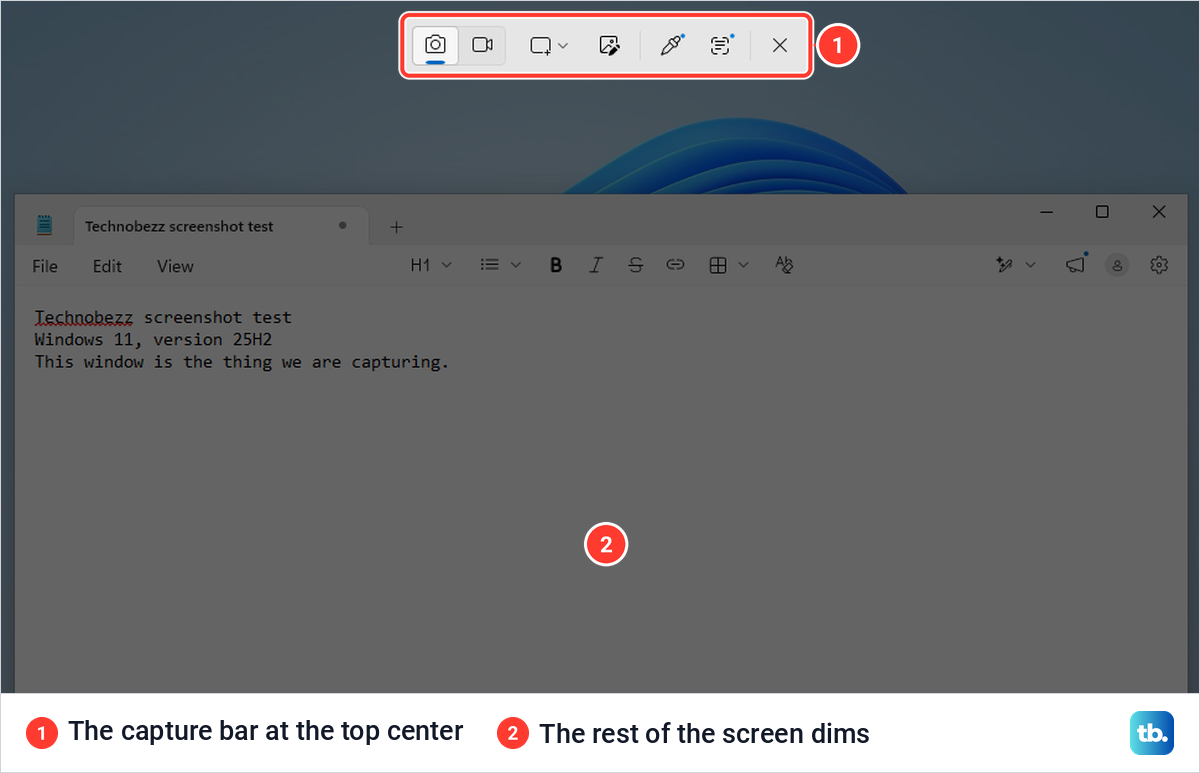
Find your case in the table, then go to that section. The fixes below run from the quickest checks to the ones that change the most.
| What happens | What it usually means | Check first |
|---|---|---|
| Nothing, and Windows + R does nothing either | The Windows key is locked or remapped, or a policy has turned off its shortcuts | Press the Windows key alone. If Start stays shut, find the lock on the keyboard |
| Nothing, but Windows + R opens Run | Something is catching the shortcut, or Snipping Tool is not answering | The On-Screen Keyboard test, then remapping tools, then the app |
| The screen dims, you drag, and no pop-up follows | The notification is off or hidden | Press Ctrl + V, then check Notifications in Settings |
| The selection stays on screen with a Capture button | Quick markup is on | Select Capture, then turn Quick markup off |
| A plainer screen says Draw a shape to create a screen snip | Snipping Tool is missing or busy | Repair Snipping Tool, or reinstall it if it is gone |
| It works once after a restart, then stops | Widely reported, with no official cause | End Snipping Tool, or restart Windows Explorer |
| It fails only in a full-screen app, a game or on a duplicated display | Do not disturb has switched itself on | The automatic rules for Do not disturb |
| It fails only inside a Remote Desktop window | The keys are going to the other computer | The connection's Windows key setting |
The first and third rows deserve the first look. A locked Windows key is the top-voted answer in two of Microsoft's own community threads about this shortcut, and a hidden notification makes a working shortcut look broken.
If nothing happens, test the Windows key
Press Windows + R. If the Run box opens, the Windows key works, so skip to the On-Screen Keyboard test below. If nothing opens, press the Windows key on its own and see whether Start opens.
When Start stays shut as well, the key itself is switched off. Some keyboards can lock the Windows key on purpose, so that it cannot pull you out of a game, and two makers describe the switch on their own help pages.
ASUS says that on its keyboards with a Win lock light, pressing Fn + Windows together turns the lock on and off, and that while the light is on the Windows key cannot open Start. Logitech says the Game/Windows key on its G213 turns on Game Mode, which switches off the Windows and Menu keys and lights the Game Mode light.
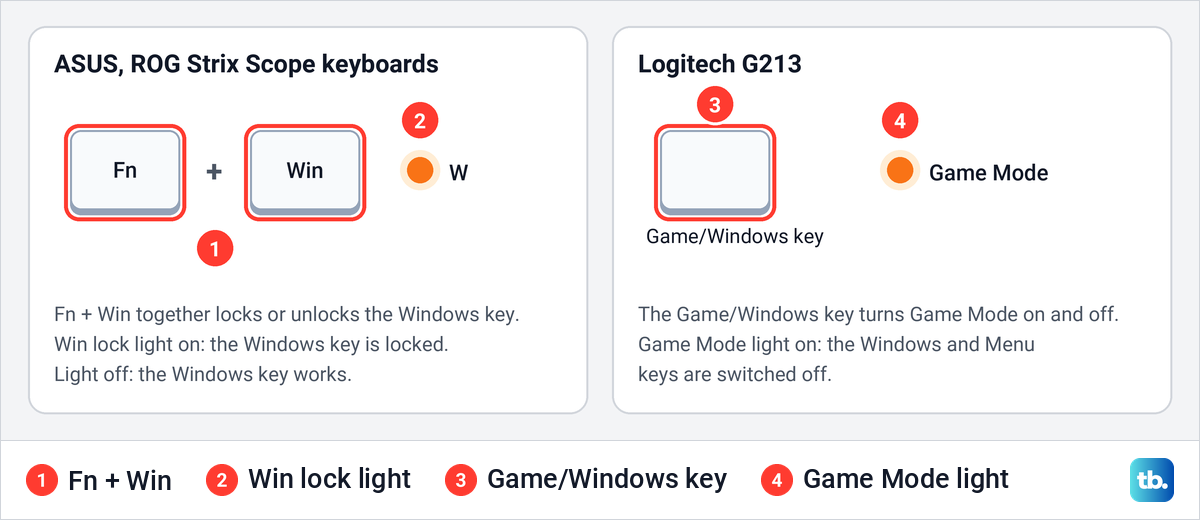
On other keyboards, look for a light or a key marked as a lock or game mode, and check the maker's keyboard software, since Logitech's can switch off more keys in Game Mode. If no lock turns up and other Windows key shortcuts fail too, work through our fixes for the Windows logo key not working.
If the Windows key alone opens Start but Windows + R still does nothing, the key is fine and something is switching off its shortcuts. On our PC a Windows policy did exactly that, as the policy section below shows. When several shortcuts fail at once, also see our fixes for keyboard shortcuts not working in Windows.
Try the shortcut from the On-Screen Keyboard
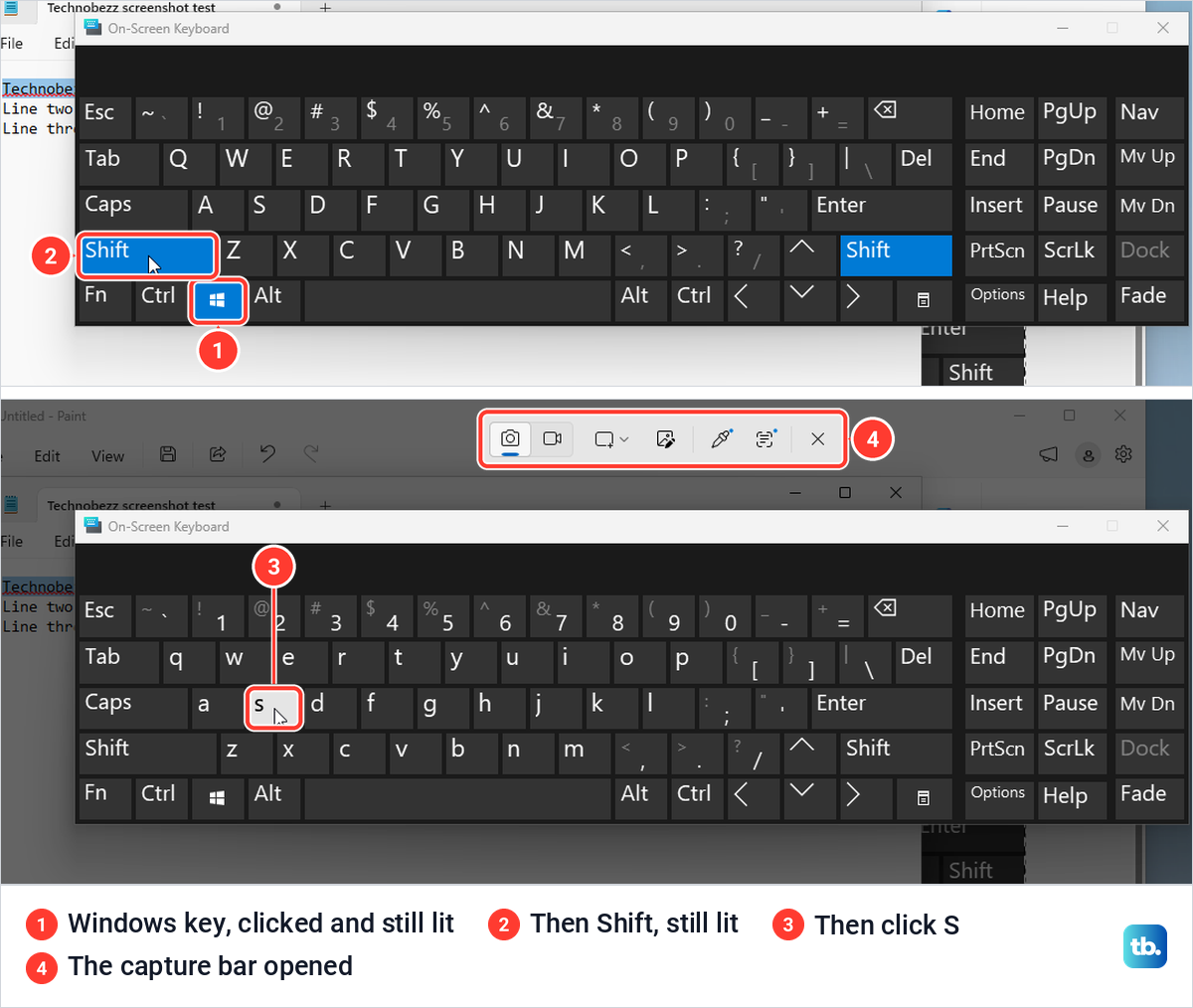
Windows has a keyboard of its own on screen, and it takes your physical keyboard out of the test. Press Windows + Ctrl + O to open it. If your Windows key is the problem that shortcut will fail too, so turn on On-screen keyboard under Settings > Accessibility > Keyboard instead.
Click the Windows key, then Shift, then S. When we did, the Windows key and Shift stayed lit after each click, and the click on S opened the capture bar. If the bar opens this way but not from your own keyboard, Windows and Snipping Tool are fine, and the fault is in the keyboard, its lock or its software.
Microsoft's own checklist for a keyboard that misbehaves is short. Unplug the keyboard and plug it back in, try another USB port, charge or replace the batteries of a wireless one, clean any dirt from the keys and try the keyboard on another PC.
Look for a program that changes your keys
Remapping tools can turn a shortcut into something else. In Microsoft's PowerToys, Keyboard Manager has Remap a key and Remap a shortcut, and Microsoft says a remap with no target app applies across all of Windows, but only while PowerToys is running. Open both lists and remove anything that uses the Windows key, Shift or S.
If you use a keyboard maker's app or a macro tool, check its key assignments the same way. A remap can also stay behind in the registry. Microsoft documents a value named Scancode Map under HKEY_LOCAL_MACHINE\SYSTEM\CurrentControlSet\Control\Keyboard Layout that can remove a key altogether, and its fix is to delete that value and restart the PC.
One old tip you can skip is closing OneNote. Microsoft says the Windows 10 Creators Update moved Windows + Shift + S to the clipboard capture you use today, and OneNote's own screen clipping shortcut is now Alt + N + R.
Two accessibility switches change how Windows reads key presses. Microsoft says Filter keys makes the keyboard ignore brief or repeated keystrokes, and that holding the right Shift key for eight seconds turns it on. Filter keys and Sticky keys both sit under Settings > Accessibility > Keyboard, and both were off by default on our PC. If Filter keys is on, turn it off and try the shortcut again.
Inside a Remote Desktop window, Windows key shortcuts may go to the other computer. In Remote Desktop Connection, select Show Options, open the Local Resources tab and find Apply Windows key combinations, which Microsoft lists with three choices: On this computer, On the remote computer, and Only when using the full screen. Choose On this computer when you want to snip your own screen.
Check for a policy that turns off Windows key shortcuts
Windows has a policy named Turn off Windows Key hotkeys, and it produces exactly the pattern above. We switched it on in the Local Group Policy Editor, signed out and back in, and Windows + R, Windows + E, Windows + V and Windows + Shift + S all stopped responding. The Windows key alone still opened Start, which is why that test on its own can mislead you.
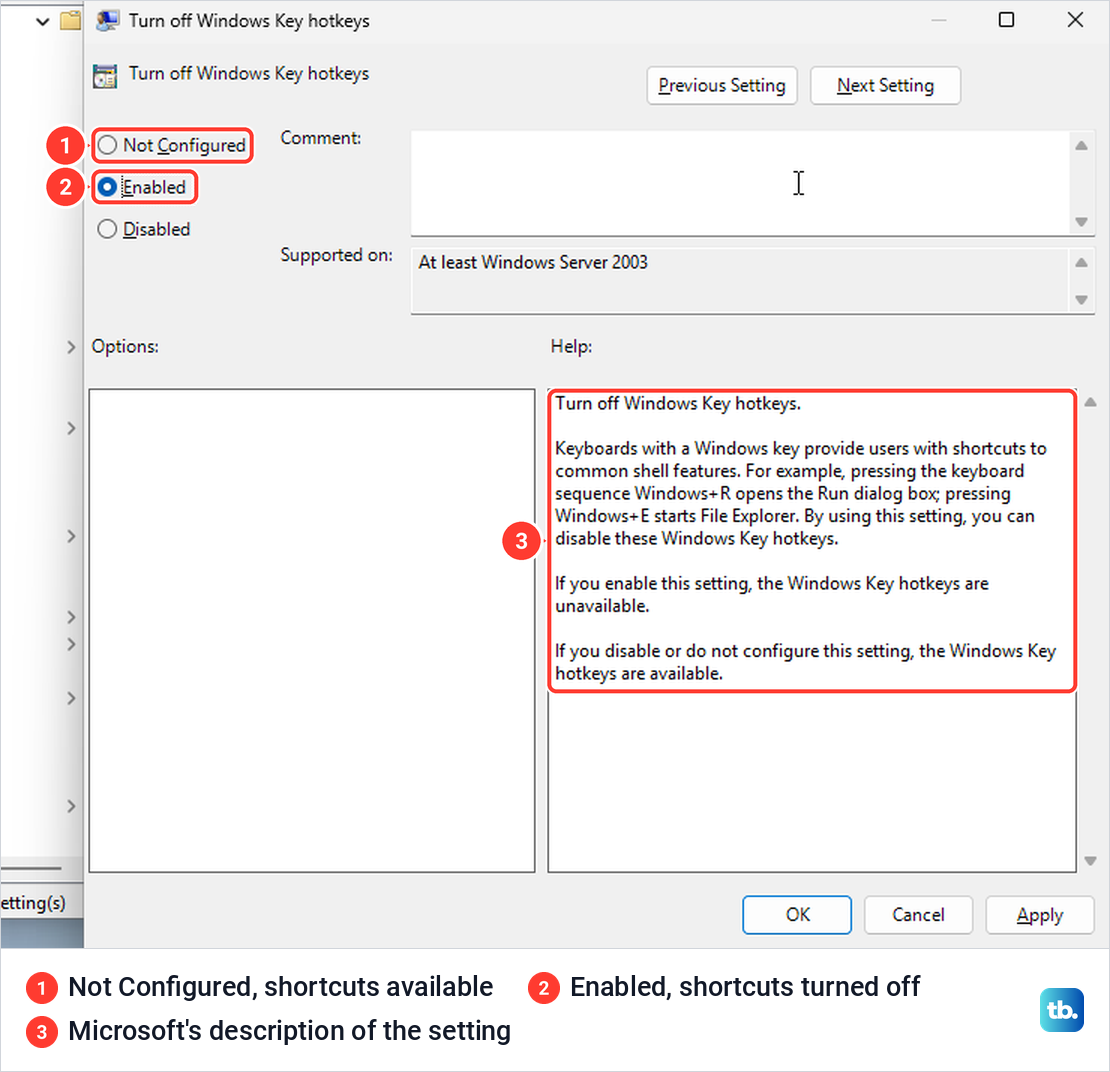
Some shortcuts kept working. PrtSc still opened the capture bar, even Windows + PrtSc still saved a screenshot file, and Alt + PrtSc still copied the active window. So if PrtSc works and Windows + Shift + S does not, check this policy.
Open Start, type gpedit.msc and open it. Go to User Configuration > Administrative Templates > Windows Components > File Explorer, open Turn off Windows Key hotkeys, choose Not Configured and select OK. Then sign out and back in, which brought every shortcut back on our PC.
The policy is stored as a value named NoWinKeys, set to 1, under HKEY_CURRENT_USER\Software\Microsoft\Windows\CurrentVersion\Policies\Explorer, and choosing Not Configured removed it on our PC. If gpedit.msc does not open on your PC, open Registry Editor from Start, go to that key, delete NoWinKeys, then sign out and back in. On a work or school PC the setting may come from your organization, and only its administrators can turn it off for good.
Check whether the snip was taken
Normally a pop-up at the lower right reads Screenshot copied to clipboard, with Automatically saved to screenshots folder under it. If the bar opens and you drag a box but that pop-up never comes, open any app that accepts pictures and use the paste shortcut on Windows, Ctrl + V.
Then open File Explorer and go to Pictures > Screenshots, where Snipping Tool saves each snip by default with the date and time in its name. If the picture is in either place, the shortcut works and only the notification is missing. If no file appears, open Snipping Tool, choose Settings from its three-dot menu and check that Automatically save original screenshots is on. The same page shows where Snipping Tool saves them, under Screenshots are saved to.
You may have read that this shortcut needs clipboard history. It does not. We checked that clipboard history was off, with Windows + V offering to turn it on, then took a snip and pasted it into Paint, and Windows + V still offered to turn clipboard history on afterwards.
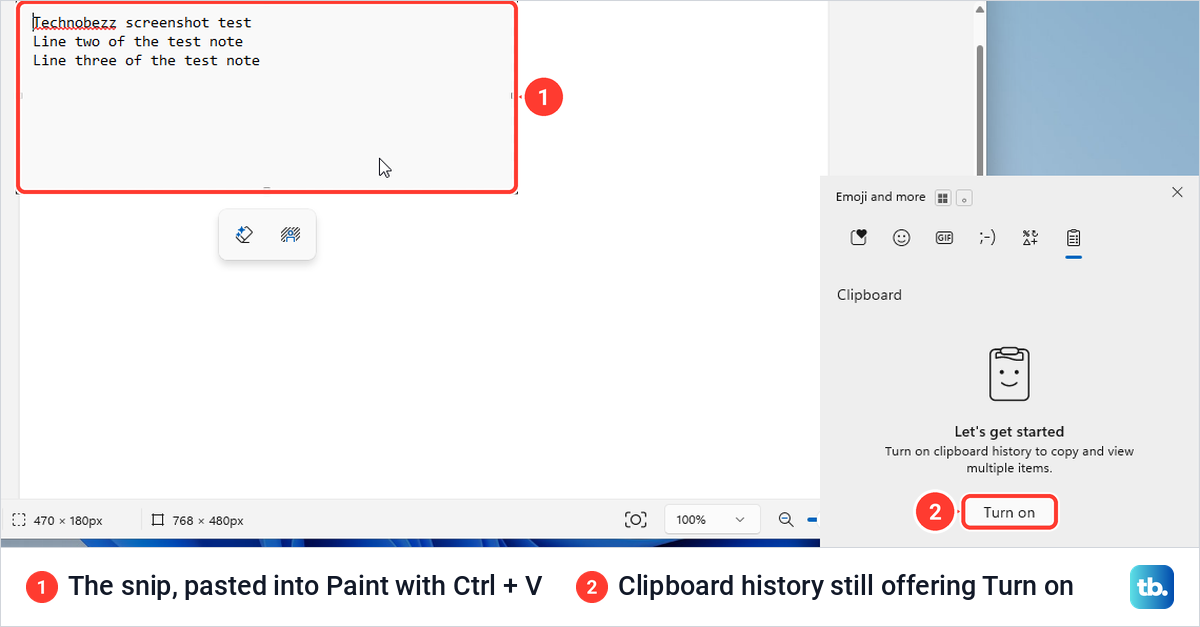
Clipboard history only adds a list of earlier copies, which helps when you copied something else after the snip. Our guide to clipboard history in Windows 11 shows how it works. If nothing pastes anywhere, not even text, the clipboard itself is the problem, and our fixes for copy and paste not working in Windows 11 cover that.
Bring back the screenshot notification
The notification is controlled in two places. Open Settings > System > Notifications, where the top Notifications switch covers every app and Snipping Tool has its own switch in the list below. With either one off, our snips showed no pop-up and left nothing in the notification center, but each one was still copied and saved.
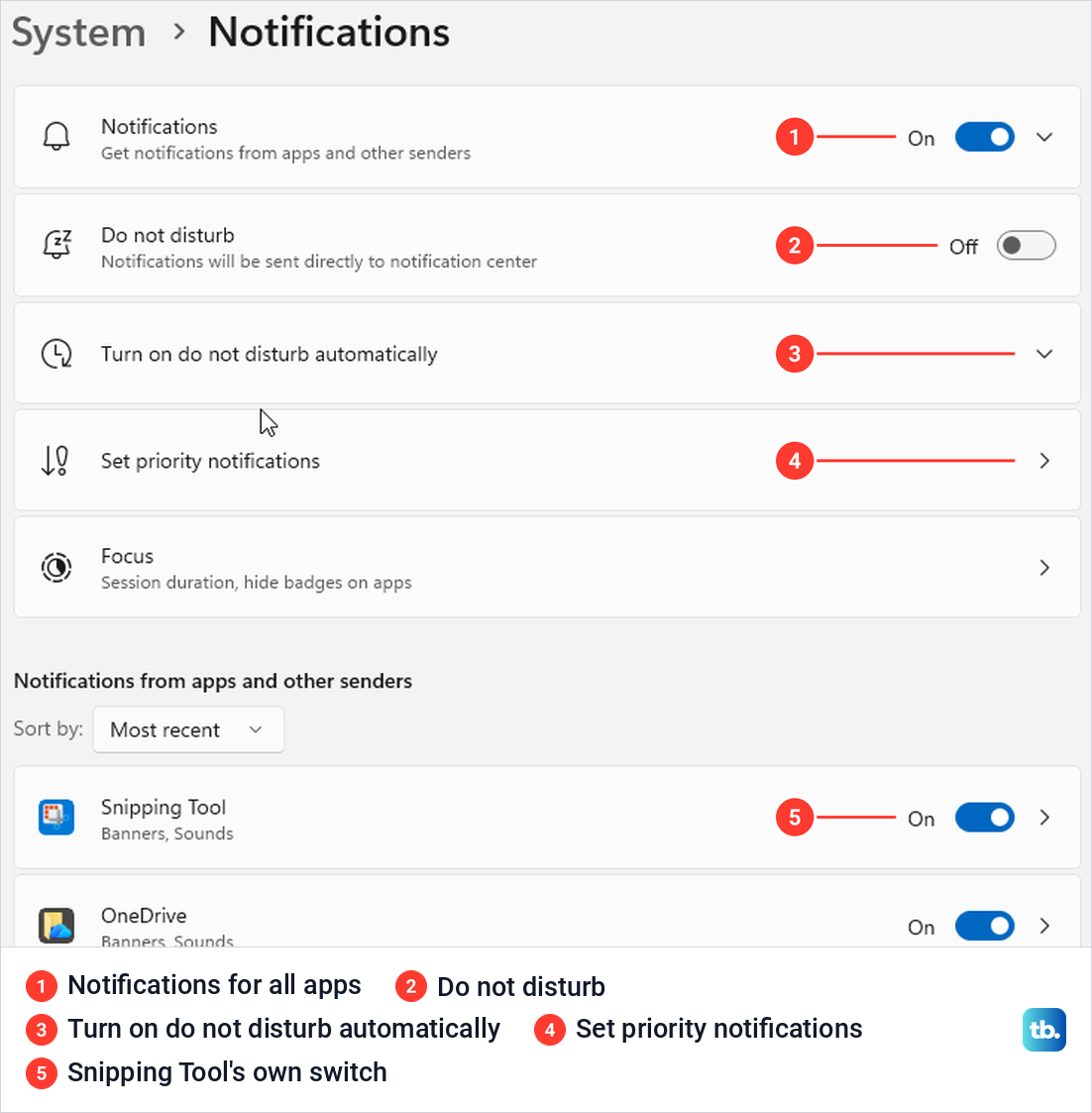
Snipping Tool only joined that list after its first snip on our PC, so take one snip if you cannot find it. Select its name to open its own page, where Show notification banners controls the pop-up and Show notifications in notification center keeps a copy you can open later. Both were ticked by default.
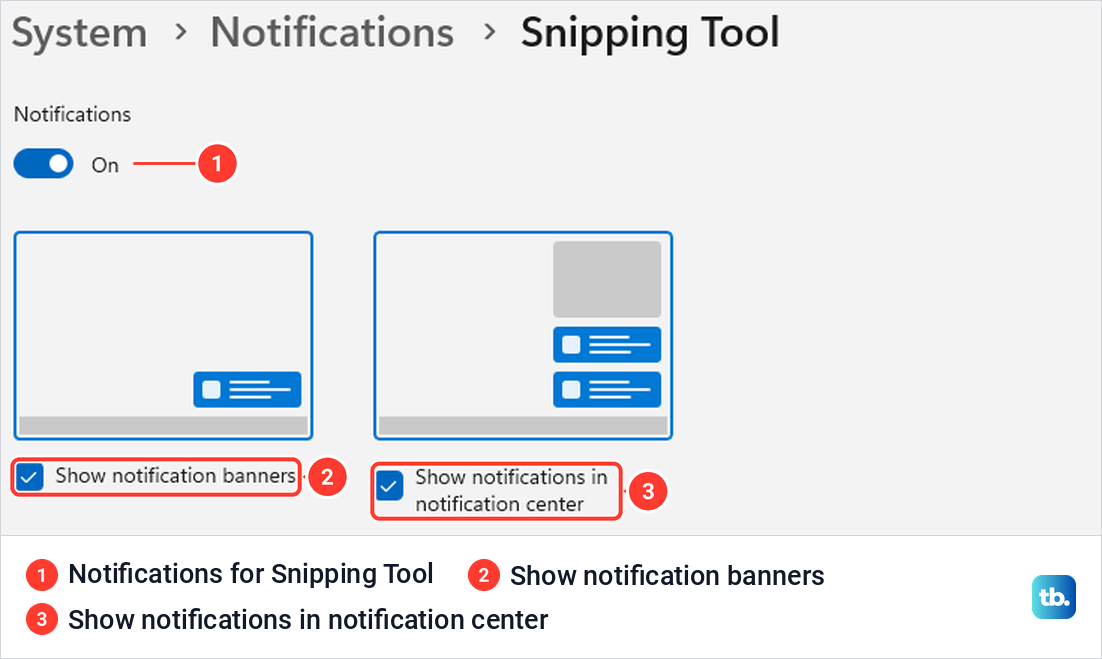
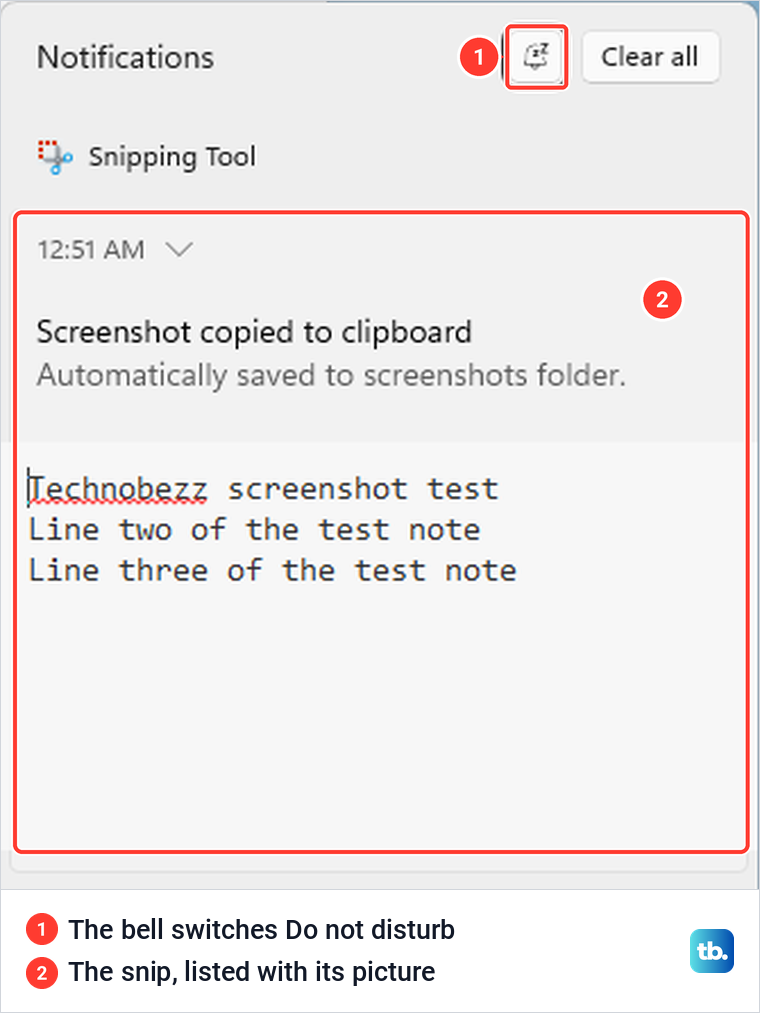
With banners off and the notification center on, the snip still lands in the notification center. Press Windows + N to open it, and ours listed the snip under Snipping Tool with those two lines and a small picture. Selecting it opened a Snipping Tool window behind our other windows, so look on the taskbar if nothing seems to happen.
Turn off Do not disturb and its automatic rules
Do not disturb is the bell button at the top of the notification center. Microsoft says it sends notifications straight to the notification center, except banners for alarms, reminders and apps you choose. On our PC, switching it on did not hide the snip's pop-up, because Snipping Tool was already one of the chosen apps.
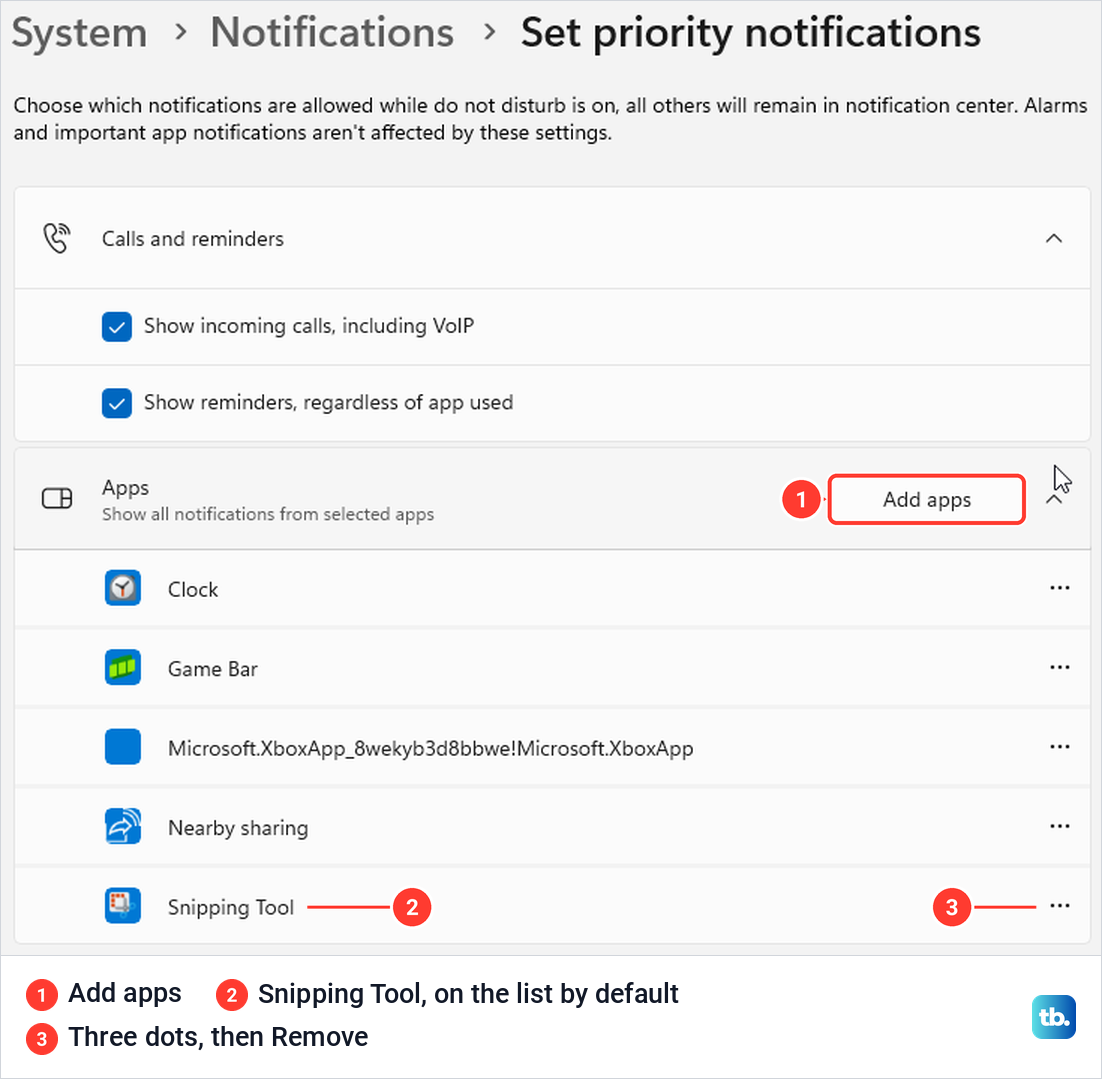
That list is under Settings > System > Notifications > Set priority notifications, in the Apps section. Ours held Clock, Game Bar, an Xbox entry, Nearby sharing and Snipping Tool before we changed anything. When we removed Snipping Tool with its three dots and Remove, a snip taken during Do not disturb showed no pop-up, and Add apps brought the pop-up back.
Do not disturb can also turn itself on. Under Turn on do not disturb automatically, four rules were ticked by default: when duplicating your display, when playing a game, when using an app in full-screen mode, and for the first hour after a Windows feature update. Only During these times was off. Microsoft adds that a focus session, started from Settings or the Clock app, also turns on Do not disturb by default.
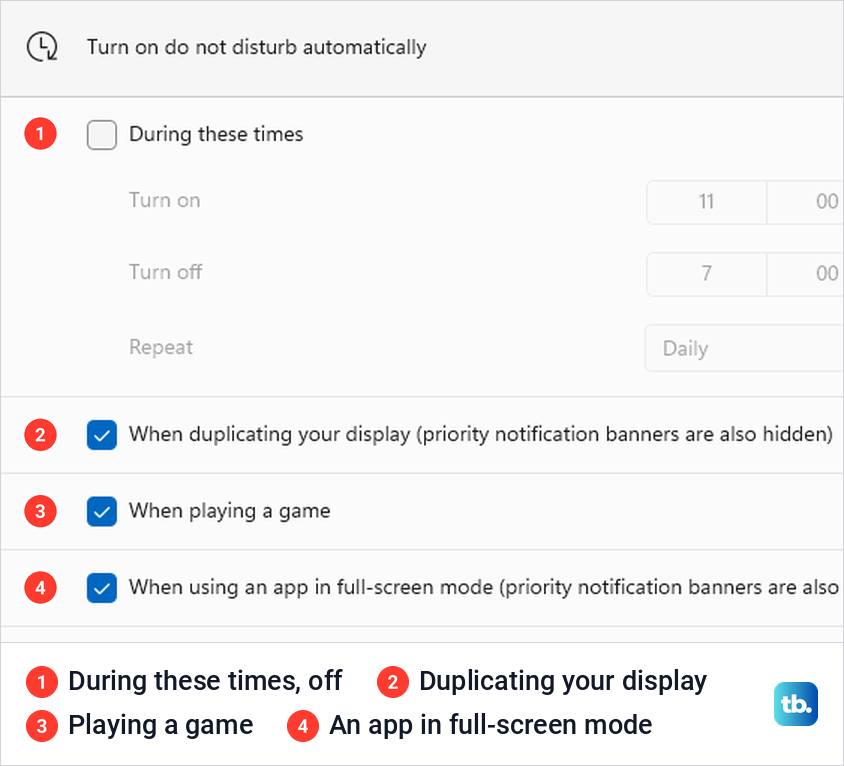
Two of those rules are stricter than the rest. The labels for duplicating your display and for an app in full-screen mode both say priority notification banners are also hidden. With Edge in full screen, our snip showed no pop-up even though Snipping Tool was a priority app, and the notification center said we would only see banners for alarms. The snip was still copied and saved.
So if the shortcut seems to fail only in a full-screen video, a game, or while you present on a duplicated display, untick the rule that matches, or paste the snip. In games, Xbox Game Bar has its own screenshot shortcut, Windows + Alt + PrtSc, and our guide on how to open Xbox Game Bar on Windows helps if it does not appear. On Windows 10 the same feature is called Focus assist.
Turn off Quick markup if the snip waits for Capture
If the box you drag stays on screen with a toolbar under it, Quick markup is on. The snip is not taken when you let go of the mouse but when you select Capture or press Ctrl + Enter, so you can draw on it first. When we pressed Esc at that point instead, nothing was copied and no file was saved.
It is easy to switch on by accident. Pressing Ctrl + E while the bar is open turns it on or off, and so does the Quick markup button, fourth from the left on the bar. The bar remembers the choice, so on our PC it was still on the next time we pressed the shortcut.
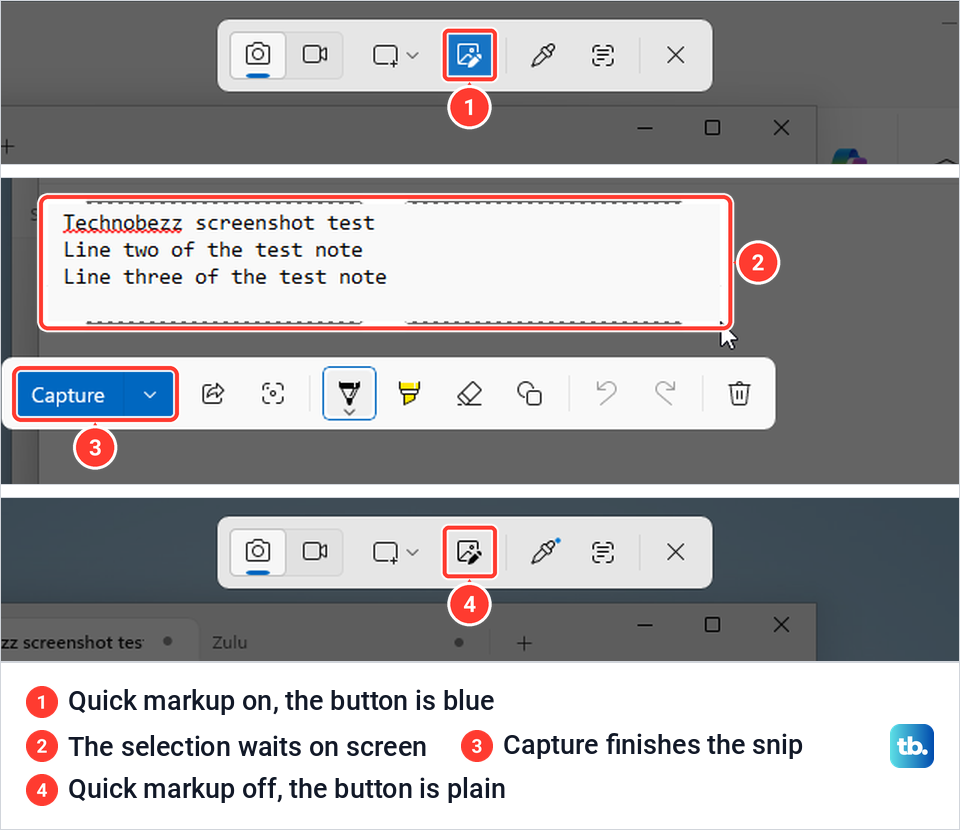
To get the usual behavior back, press Windows + Shift + S, then select the blue Quick markup button once or press Ctrl + E. It stayed off at the next opening when we did this. Microsoft also notes that Share and Visual Search on that toolbar do not copy or save the image, so use Capture when you want the file.
When it works once and then stops
Many people report that the shortcut works once after a restart and then does nothing until the next one. Microsoft has not documented a cause. The two steps people report helping for a while are ending Snipping Tool and restarting Windows Explorer.
To end Snipping Tool, open Settings > Apps > Installed apps, find Snipping Tool, open its three-dot menu, choose Advanced options and select Terminate. On our PC that closed the open Snipping Tool window and every Snipping Tool process without a message. Then try the shortcut again.
To restart Windows Explorer, open Task Manager in Windows 11 with Ctrl + Shift + Esc, right-click Windows Explorer on the Processes tab and choose Restart. If the fault keeps coming back, repair the app as described in the next section.
When Snipping Tool itself is the problem
If the shortcut opens a plainer screen with five small buttons and the words Draw a shape to create a screen snip, Snipping Tool is not answering and Windows has fallen back to an older capture screen. We saw it after uninstalling Snipping Tool, and once while a reset of the app was still running. A snip taken there went to the clipboard, but no file was saved.
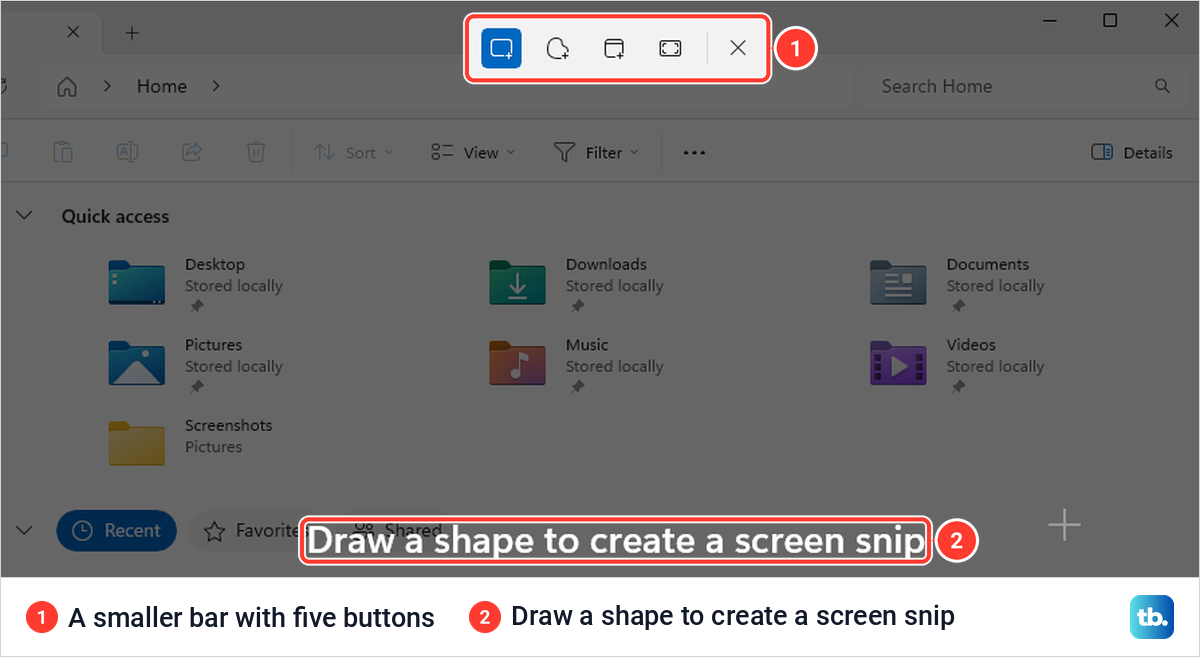
Open Settings > Apps > Installed apps and search for Snipping Tool. If it is not listed, it has been removed, and the Snipping Tool guide linked at the top of this page shows how to install it again. After we uninstalled it, that search found nothing.
If it is listed, repair it first. Choose Snipping Tool, then the three-dot menu and Advanced options, and select Repair. On our PC a tick appeared within four seconds and the app's settings were kept.
Reset on the same page goes further. It asks first, and on our PC it put Snipping Tool's settings back to their defaults while leaving the screenshots already saved. Close the app before you select it, because when we used Snipping Tool during a reset, the reset failed and asked us to try again later.
If Windows asks which app should open an ms-screenclip link, Microsoft's advice is to choose Snipping Tool. When none of this helps, the same Snipping Tool guide covers the remaining fixes.
Take the snip another way in the meantime
While you fix the shortcut, other routes give you the same capture. By default the PrtSc key opens the same bar, and it kept working on our PC even with the Windows key policy switched on. You can also open Snipping Tool from Start and select New, which needs no shortcut at all.
Windows + PrtSc saves the whole screen as a file in Pictures > Screenshots in one step. Our main guide on how to take a screenshot on Windows covers every method, and once the bar is back, how to snip on Windows explains each mode.
On a keyboard with no PrtSc key, the On-Screen Keyboard from earlier has one, labelled PrtScn. Our guide to taking a screenshot on Windows without Print Screen lists the other routes.
How we tested this guide
We ran these checks on Windows 11, version 25H2, with the built-in Snipping Tool and a single display. We switched these causes on and off ourselves: notifications, Do not disturb and its priority list, the full-screen rule, Quick markup, the Windows key policy and a missing Snipping Tool. We checked the clipboard and the Screenshots folder after each snip.
The keyboard lock details follow ASUS's and Logitech's own help pages, and the PowerToys, Remote Desktop and registry details follow Microsoft's documentation. The works-once fault is described as people report it.
Frequently Asked Questions
Does Windows + Shift + S need clipboard history turned on?
No. On our PC a snip pasted into Paint while clipboard history was still off. Clipboard history only adds a list of earlier copies that you open with Windows + V.
Where do Windows + Shift + S screenshots go?
To the clipboard, and by default to Pictures > Screenshots as a file named Screenshot with the date and time. If the folder was changed in Snipping Tool's settings, look there instead.
Why is there no pop-up after I take a snip?
Notifications may be off for Snipping Tool or for every app, or a full-screen app has turned on Do not disturb. Press Windows + N to see the notification center, then check Settings > System > Notifications.
Why does Windows + Shift + S only work once?
Many people report it, and Microsoft has not documented a cause. Ending Snipping Tool from its Advanced options, or restarting Windows Explorer in Task Manager, brings it back for some of them.
Why does Windows + Shift + S not work in games?
By default, Do not disturb turns itself on when you play a game, and if the game fills the screen, the full-screen rule hides even priority pop-ups. Game Bar's own shortcut, Windows + Alt + PrtSc, is made for games.
How do I stop the snip waiting for me to click Capture?
Turn off Quick markup. Press Windows + Shift + S and select the blue Quick markup button, or press Ctrl + E while the bar is open.
Why is Windows + Shift + R not working?
That shortcut starts a screen recording in Snipping Tool, so the same Windows key checks apply. If Windows + R fails too, start with the keyboard lock and the policy described above.