Your top-row keys are doing the opposite of what you expect: F1 opens help, brightness changes instead of an app shortcut, or media controls fire when you need F-keys. Fn Lock controls that behavior on many laptops and keyboards. Start with the physical shortcut, then use the device setting, brand app, or BIOS option that matches your model.
1. Start with the Fn Lock shortcut
- 1.Look at the Esc key for an Fn Lock, padlock, or LED marking.
- 2.Press Fn + Esc once.
- 3.Test a top-row key such as F1, F5, or a brightness key.
- 4.Press Fn + Esc again to turn Fn Lock off and return to the other F1-F12 behavior.
Use this first on Dell, Lenovo, Acer, ASUS, and Logitech keyboards that mark or support Fn + Esc.
2. Switch the Mac function key setting
On macOS Ventura or later, open Apple menu > System Settings > Keyboard > Keyboard Shortcuts > Function Keys, then turn Use F1, F2, etc. keys as standard function keys on or off.
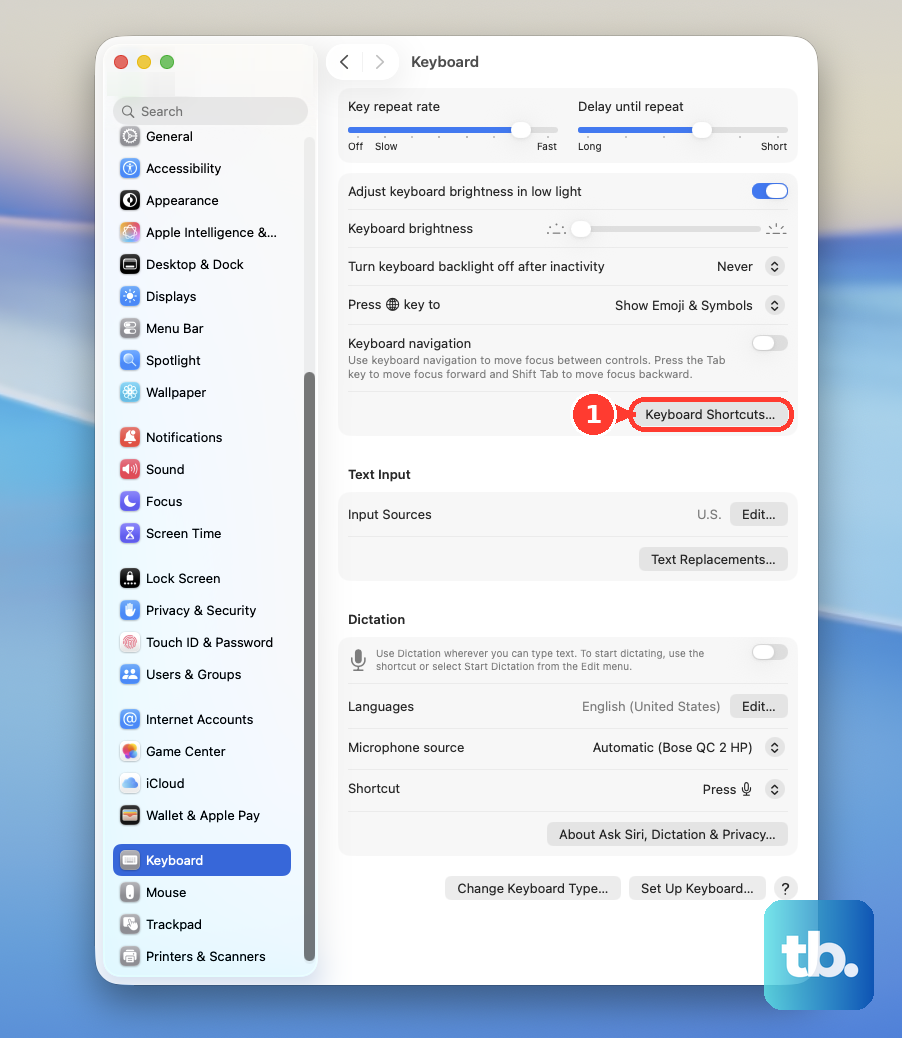
Turn it off when you want brightness, volume, and other Apple shortcut keys to work without holding Fn or Globe.
On earlier macOS versions, use Apple menu > System Preferences > Keyboard and adjust Use F1, F2, etc. keys as standard function keys.
3. Press the dedicated lock key
On Microsoft keyboards with an F Lock key, press F Lock to switch between standard commands and alternate commands.
On the Microsoft All-in-One Media Keyboard, press Fn + Caps Lock, then press Fn + Caps Lock again to disable FN Lock.
On Surface keyboards and Type Covers with an Fn LED, press Fn to lock the function keys, then press Fn again so the LED turns off.
On Samsung notebooks or Galaxy Books with a physical Fn Lock key, press Fn Lock once, then press Fn Lock again to turn it off.
4. Restore Chromebook shortcut keys
On ChromeOS, click the time in the bottom-right corner, then open Settings > Device > Keyboard and inputs, select Customize keyboard keys under Built-in Keyboard, and turn off Treat top-row keys as function keys.
That restores the Chromebook top row to shortcut-key behavior instead of F-key behavior.
Turn the same setting on when you want the top row to work as function keys.
5. Set the BIOS option on Windows laptops
On Dell laptops with the setting, restart into BIOS Setup, open Keyboard > Fn Lock Options, disable or enable Fn Lock, choose the preferred Lock Mode, then save and exit.
On many Latitude and Precision models, use POST Behavior > Fn Lock Options.
On Lenovo laptops with the setting, enter BIOS or UEFI Setup, open Configuration > Hotkey Mode, choose Disabled to use F1-F12 directly and require Fn for hotkeys, or choose Enabled for the opposite behavior, then save and exit.
On Acer notebooks with the setting, enter BIOS, open Main > Function Key Behavior, choose Function Keys, then save and exit.
On HP computers with Action Keys Mode, turn off the computer, turn it on, press F10 repeatedly, open System Configuration > Action Keys Mode, choose Disabled to require Fn for media or action icons, then press F10 to save and restart.
6. Use the brand app for supported keyboards
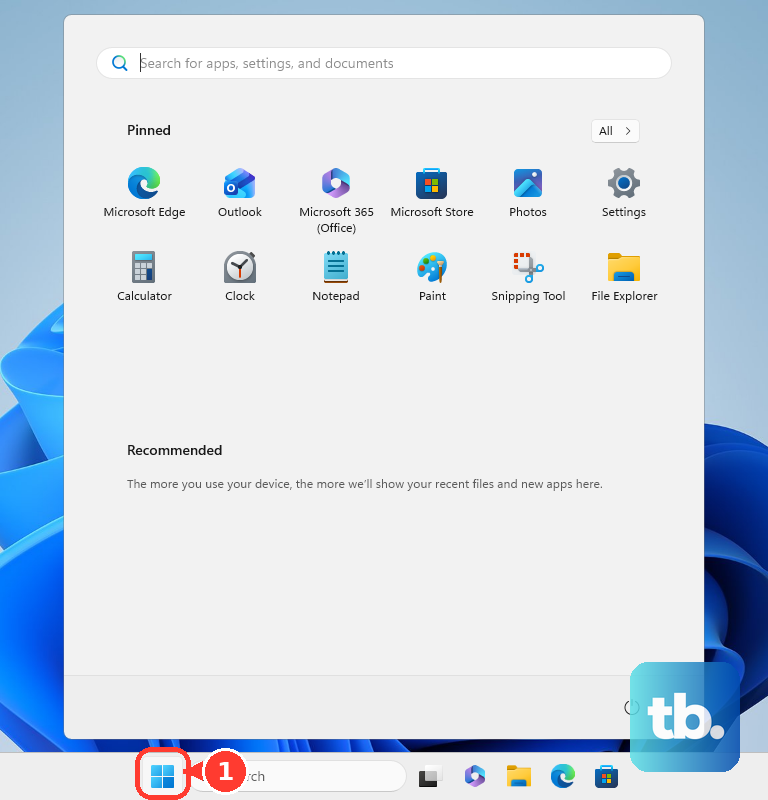
On supported Surface devices, open Start, type surface, open the Surface app, select the keyboard or Surface Laptop at the bottom, then open Customize keyboard and adjust the top-row key behavior.
On supported ASUS notebooks, open MyASUS > Device Settings > Input Device Settings > Function Key Lock, then choose Normal Fn key to use standard F1-F12 directly.
On ASUS commercial notebooks with ExpertWidget, open ASUS ExpertWidget > Settings > General, then choose Standard Fn Key.
On supported Logitech keyboards, open Logi Options+, select the keyboard image, open the keyboard settings menu, choose SETTINGS, then choose whether F-keys work as standard function keys without holding Fn.
Use the companion app when you want the function-key behavior to stay set after restarts.
7. Check HP and Samsung one-off behavior
This fixes models that use a special Fn switch or only need the opposite behavior once.
On select HP business notebooks, press fn + left Shift.
Watch the fn lock light to confirm the lock state.
Press fn + left Shift again to switch back.
On Samsung PCs, hold Fn while pressing the desired hotkey or function key when you only need the alternate behavior once.
8. Skip replaced Logitech tools and try Dell's Mobility Center route
Skip SetPoint, Logitech Control Center, Logitech Preference Manager, Unifying Software, and Firmware Update Tool for current Logitech Fn behavior.
Logitech’s current support notice says those tools are no longer supported or maintained and points supported devices to Logi Options+.
On Dell laptops, Windows Mobility Center is still a documented Dell route.
Press and hold Windows, press q, type mobility center, open it, then use the Function Key Row drop-down to pick the behavior you want.
Dell notes the Function Key Row option may not appear depending on your Windows version, so fall back to Fn + Esc, BIOS Fn Lock Options, or Dell Command | Configure for supported business systems.
9. Handle work or managed devices
Try the physical shortcut for your model, such as Fn + Esc, Fn + Caps Lock, F Lock, or a dedicated Fn Lock key.
Check whether BIOS, UEFI, or brand-app controls are locked by your organization.
Ask your IT team to set the function-key behavior through the approved BIOS, UEFI, OEM app, or Dell Command | Configure path for your device fleet.
Fn Lock is controlled by keyboard firmware, BIOS or UEFI, or OEM companion software, not a general Windows Settings switch.
Frequently Asked Questions
Why does Fn + Esc not turn off Fn Lock?
That shortcut works only on keyboards that support it. Use the lock key, OS setting, brand app, or BIOS option documented for your device.
Is there a normal Windows Settings switch for Fn Lock?
No. The verified Windows options are keyboard shortcuts, BIOS or UEFI settings, OEM companion apps, and supported administrative tools.
Can AutoHotkey or SharpKeys disable Fn Lock?
No verified current method supports that. Fn is commonly handled before the operating system receives the keypress.
How do I use the opposite function-key behavior once on a Mac?
Hold Fn or Globe while pressing a function key. If the keyboard has no Fn key, Apple says to try Control with the function key.
Which setting turns off action-key behavior on HP laptops?
In BIOS Setup, use System Configuration > Action Keys Mode and choose Disabled to require Fn for media or action icons.