

To factory reset an HP laptop that still starts, open Settings > System > Recovery, select Reset PC, choose Remove everything, pick Cloud download or Local reinstall, and select Reset. If the laptop is going to someone else, select Change settings on the way and turn Clean data on. This is how you reset an HP laptop to factory settings, and it erases your files, apps, settings and user accounts.
Locked out, or Windows will not start? HP has a route for each, covered below with HP Cloud Recovery for when nothing on the laptop works. We went through Reset this PC on Windows 11, version 25H2, with Clean data off and on. Two details are easy to miss: the Reset button appears exactly where Next was, and that last screen reads the same whether Clean data is on or not.
The short version
- HP that starts: Settings > System > Recovery > Reset PC > Remove everything.
- Selling it: select Change settings and turn Clean data on before you select Reset.
- Forgot the password: on the sign-in screen hold Shift, select Power > Restart, then Troubleshoot > Reset this PC.
- Will not start: press f11 again and again as the HP powers on.
- Nothing left to reset from: make a 64 GB HP Cloud Recovery USB drive on another PC and start the HP from it with f9.
Which HP reset should you use
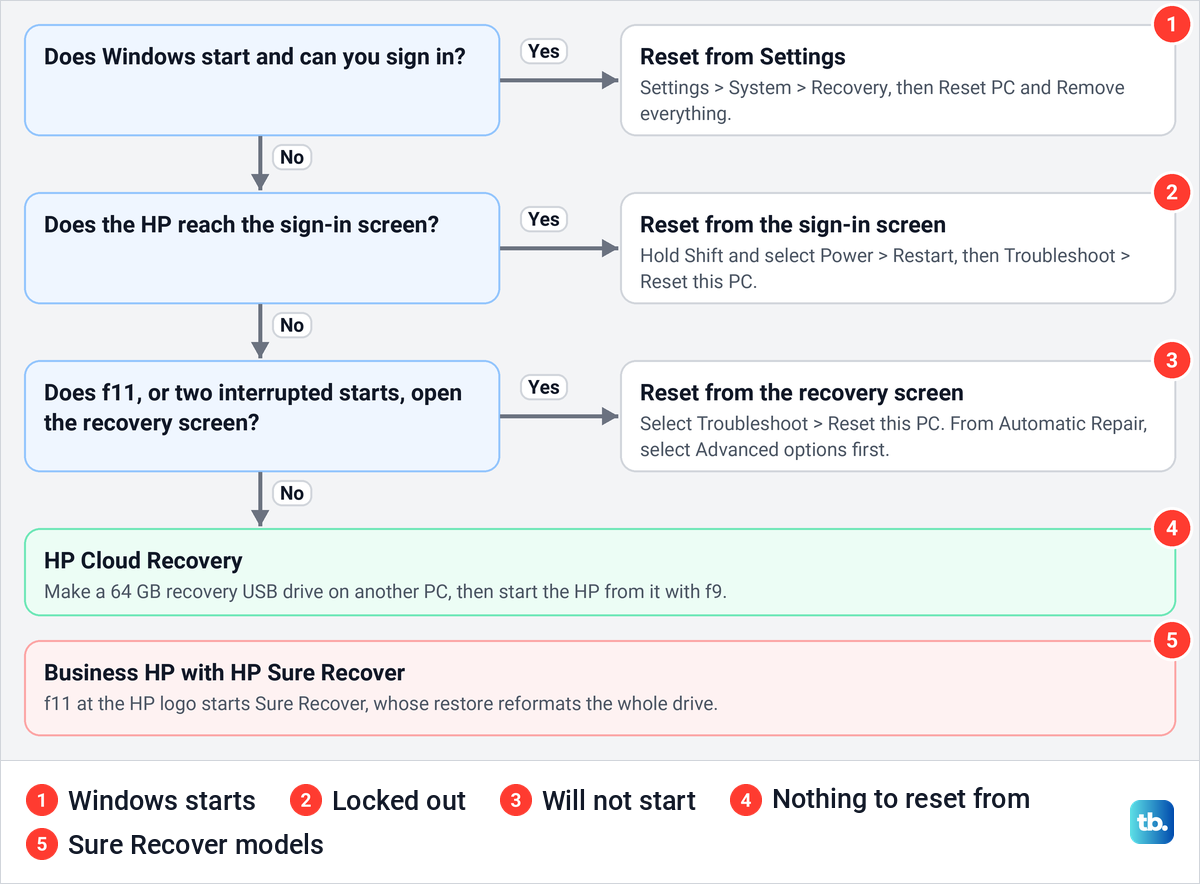
| Your situation | Where to start | What to press or select | What it removes |
|---|---|---|---|
| The HP starts and you can sign in | Settings > System > Recovery | Reset PC > Remove everything > Reset | Your files, apps, settings and user accounts |
| You are selling or giving it away | Settings > System > Recovery | The same, plus Change settings > Clean data on | The same, and removed files are harder to recover |
| You forgot the password | The sign-in screen | Hold Shift, Power > Restart > Troubleshoot > Reset this PC > Remove everything | All files and local passwords |
| Windows will not start | Power on | f11 repeatedly > Troubleshoot > Reset this PC | Your apps and settings, plus your files if you pick Remove everything |
| The recovery tools are gone or the drive was replaced | Another PC, then the HP | HP Cloud Recovery Tool, a 64 GB USB flash drive, then f9 on the HP | Everything on the HP and on the USB drive |
| An EliteBook, ProBook or ZBook | Another PC, then the HP | HP Cloud Recovery Client, a 64 GB USB flash drive, then f9 | Everything on the HP and on the USB drive |
| A business HP with HP Sure Recover | Power on | f11 at the HP logo > Restore from network or Restore from local drive | Everything, because the drive is reformatted |
A full reset is the heaviest fix on offer. Microsoft calls Reset this PC its most disruptive recovery option, and HP suggests running Windows Update first. If a recent change broke something, HP's advice is to try System Restore to go back to an earlier date, which HP says does not touch your documents or pictures. To repair Windows rather than wipe the HP, reinstall Windows 11 and keep your files instead.
Back up and prepare your HP first
HP puts it plainly: factory resetting your computer destroys all the files on the hard drive. HP recommends backing up to an external drive or to an online service such as OneDrive, and its backup page points to File History. Our guide shows how to set up File History on an external drive.
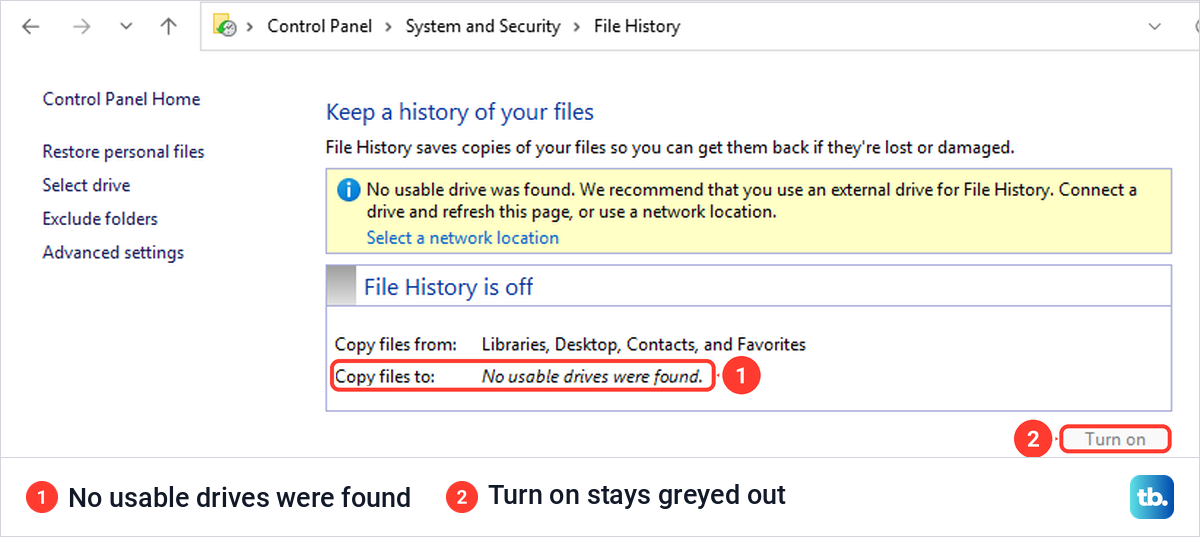
File History needs that drive before it does anything. When we opened it in Control Panel with no second drive connected, it reported "No usable drives were found" and its Turn on button was greyed out. Plug the drive in, turn File History on and let it finish a copy before you reset.
Next, check whether the drive is encrypted. Microsoft says you need your BitLocker recovery key to reset an encrypted PC from the recovery screen, and that device encryption turns on when a PC is set up with a Microsoft account, with the key attached to that account. Open Settings > Privacy & security > Device encryption to see its state.
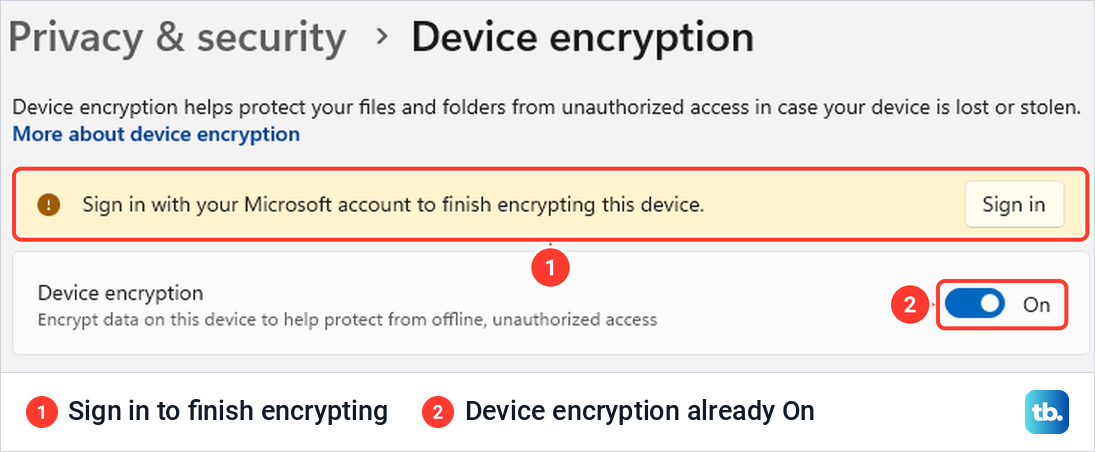
Do not assume it is off. On our PC the Device encryption switch was already On, under a yellow banner that read "Sign in with your Microsoft account to finish encrypting this device". To see the details, we opened Terminal (Admin) from the Windows + X menu and ran this command:
manage-bde -status C:It reported Conversion Status "Encryption in Progress", Protection Status "Protection Off" and Key Protectors "None Found". The drive was being encrypted, but no recovery key existed yet.
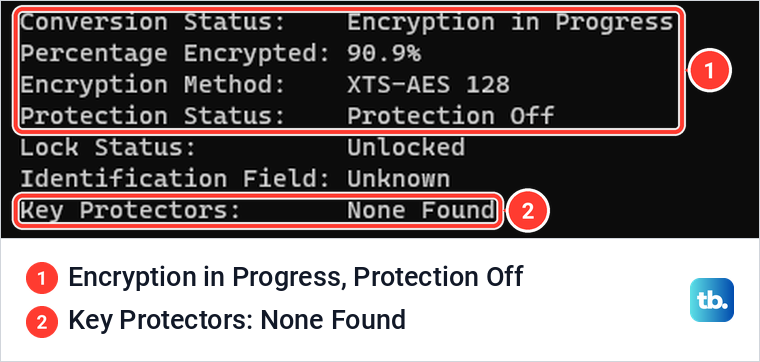
If the drive is encrypted, find the key before you start. Microsoft says it is a 48-digit number, and if it was backed up to the Microsoft account used on the laptop, you can look it up at aka.ms/myrecoverykey from another device.
If the laptop was ever signed into a work or school account, Microsoft says the key could be stored in that organization's account, or its IT support can help. Otherwise check a printout or a USB flash drive, because Microsoft Support cannot retrieve, provide or recreate a lost key.
While Windows still starts, also check that the Windows recovery environment is switched on. Open Terminal (Admin) from the Windows + X menu, accept the User Account Control prompt and run the command below.
reagentc /infoMicrosoft describes it as showing the current status of Windows RE and any available recovery image. On our PC it reported "Windows RE status: Enabled". If yours reads Disabled, Microsoft's documentation says reagentc /enable makes Windows attempt to enable it from its default recovery image.
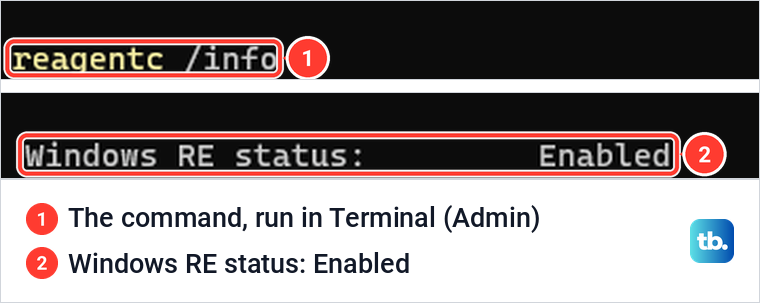
Check activation too. Microsoft says to make sure Windows 11 is activated before you reinstall it, under Settings > System > Activation, and that a PC with a digital license can reinstall the same edition without a product key.
Last, plug in the AC adapter and leave it connected. HP says the most common cause of recovery issues is interrupting the process or turning the computer off before recovery and setup are complete.
Factory reset an HP laptop from Settings
HP's instruction is to search for Recovery options in Windows, then select Reset PC under Reset this PC. When we typed Recovery options in Start, the best match was Recovery options, marked System settings, and opening it went straight to Settings > System > Recovery. You can also press Windows + I and select System, then Recovery.
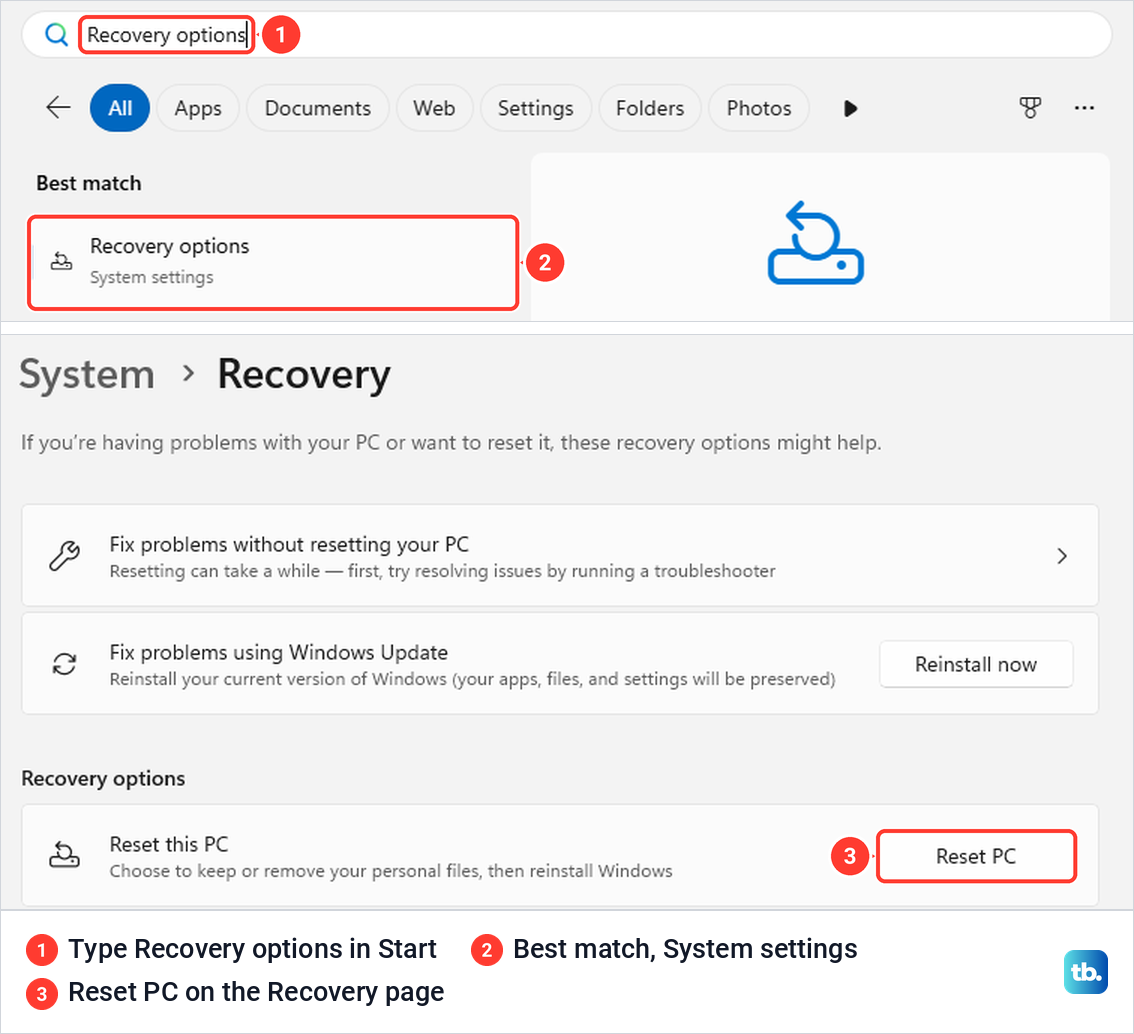
Select Reset PC. The first screen, Choose an option, offers Keep my files, which removes apps and settings but keeps your personal files, and Remove everything, which removes all of your personal files, apps and settings. For a factory reset, select Remove everything.
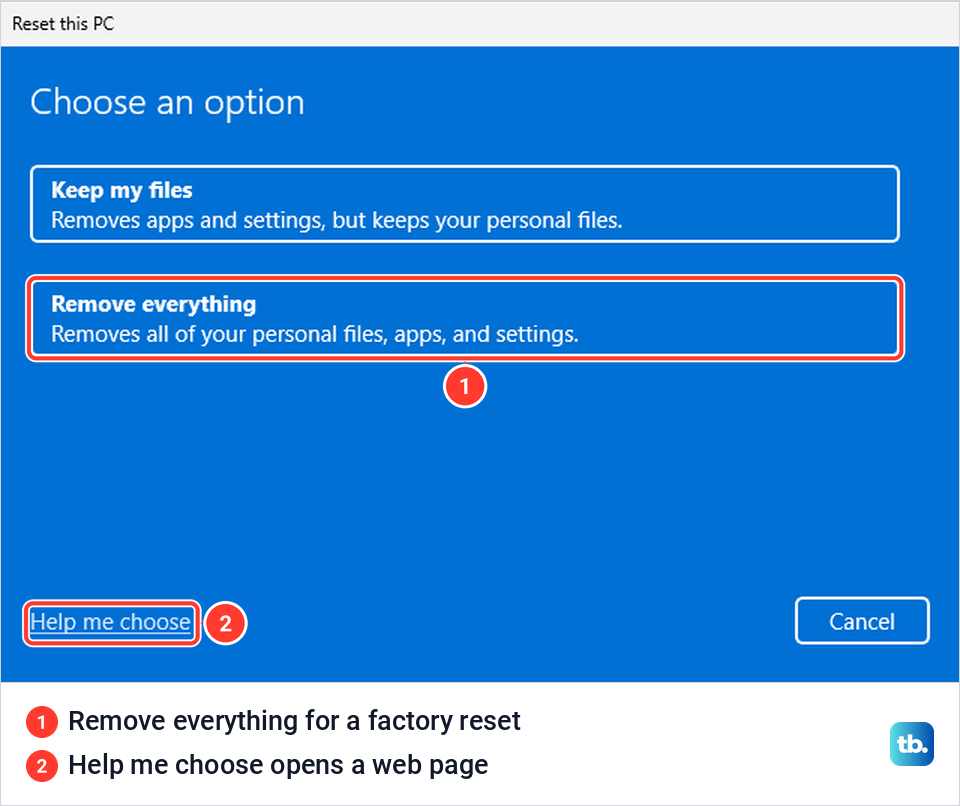
The Help me choose link does not explain anything inside the wizard. On our PC it opened Microsoft's Recovery options in Windows page in Microsoft Edge, with the reset window still waiting behind the browser.
After Remove everything, a Getting things ready screen appears. Across our runs it lasted anywhere from under half a minute to about three minutes, so leave the window alone until the next question shows.
That question is How would you like to reinstall Windows? Cloud download downloads a fresh copy, and the screen warned that it can use more than 4 GB of data. Local reinstall rebuilds Windows from files already on the laptop, which Microsoft says is faster on a slow connection but may not include the latest updates.
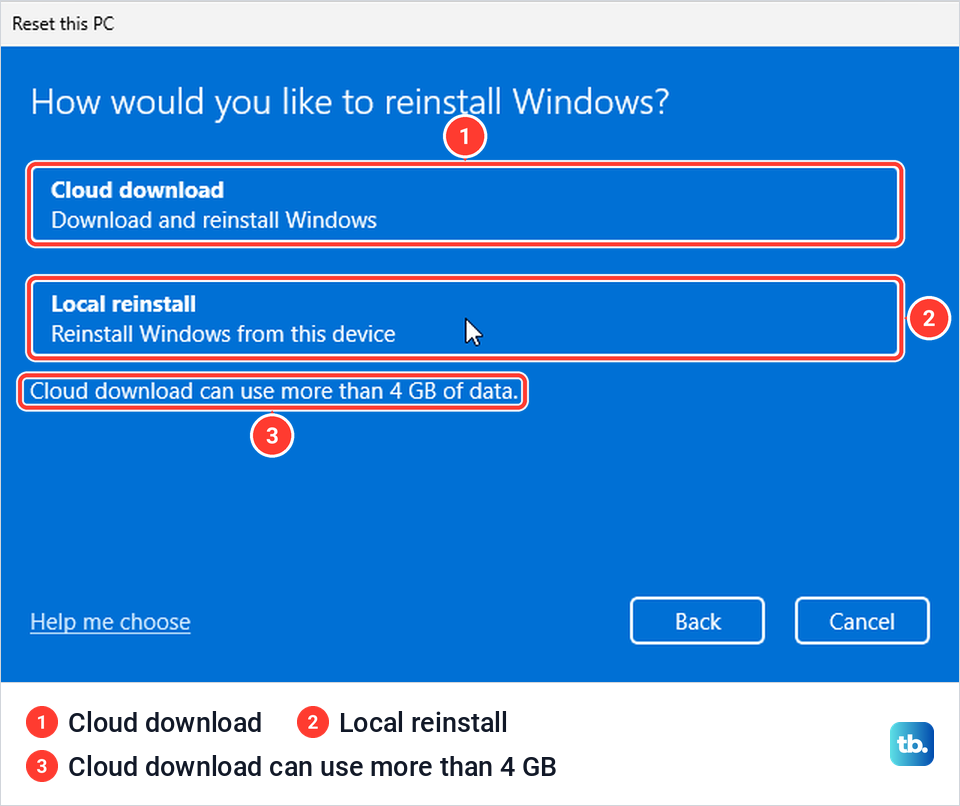
We chose Local reinstall. The Additional settings screen that followed listed "Remove apps and files. Do not clean the drive" and "Reinstall Windows from this device", with a Change settings link under them.
Turn on Clean data and finish the reset
Without this switch, Remove everything takes the quick path. Microsoft's technical documentation says a reset never formats the Windows volume; it deletes your files one by one, and Clean data adds data erasure on top. Turning Clean data on, Microsoft says, makes it harder for other people to recover the files you removed, so use it before you sell, donate or recycle the laptop.
On Additional settings, select Change settings. By default the Clean data switch was set to No and read "Just remove your files. This is quicker, but less secure".
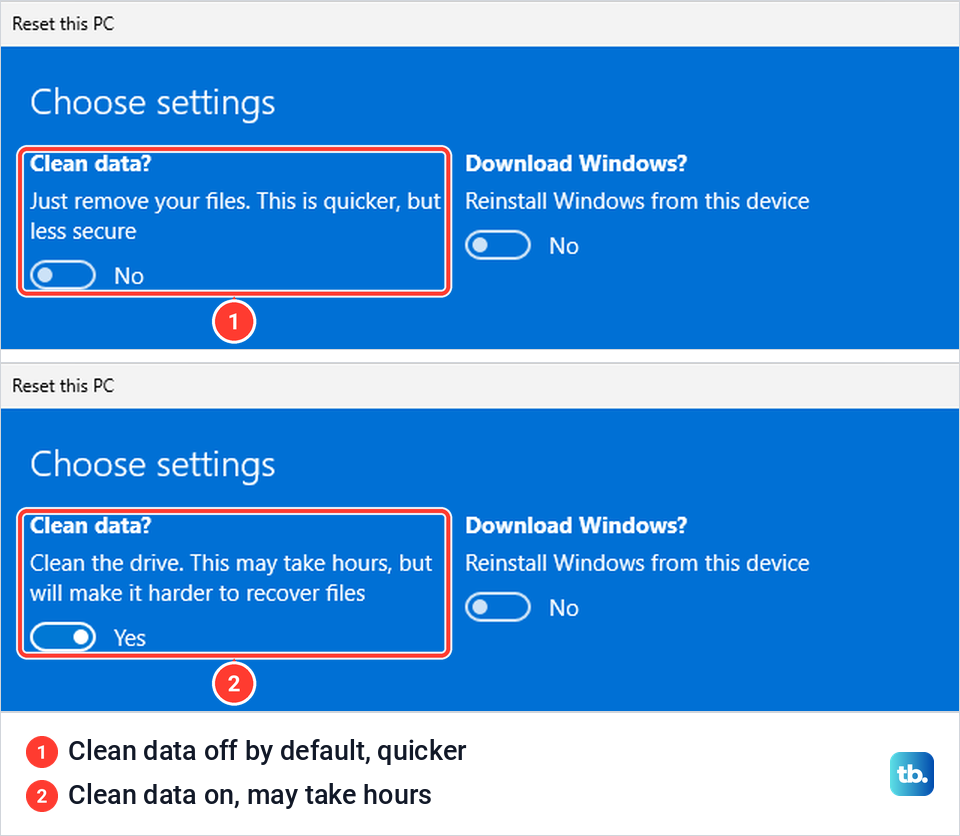
We switched it to Yes and the text changed to "Clean the drive. This may take hours, but will make it harder to recover files". After Confirm, Additional settings read "Remove apps and files. Clean the drive".
That line is the last place the choice shows. With Clean data on, the final Ready to reset this PC screen was word for word the same as with it off, with no line about cleaning and no longer time warning. When we started the wizard again, Additional settings was back at "Do not clean the drive", so set it every time.
Now select Next once and stop. On our PC the Reset button appeared exactly where Next had been on the screen before, so a quick second click would land on it. The summary said resetting will remove all the personal files and user accounts on this PC, remove any changes made to settings, remove all apps and programs, and reinstall Windows from this device.
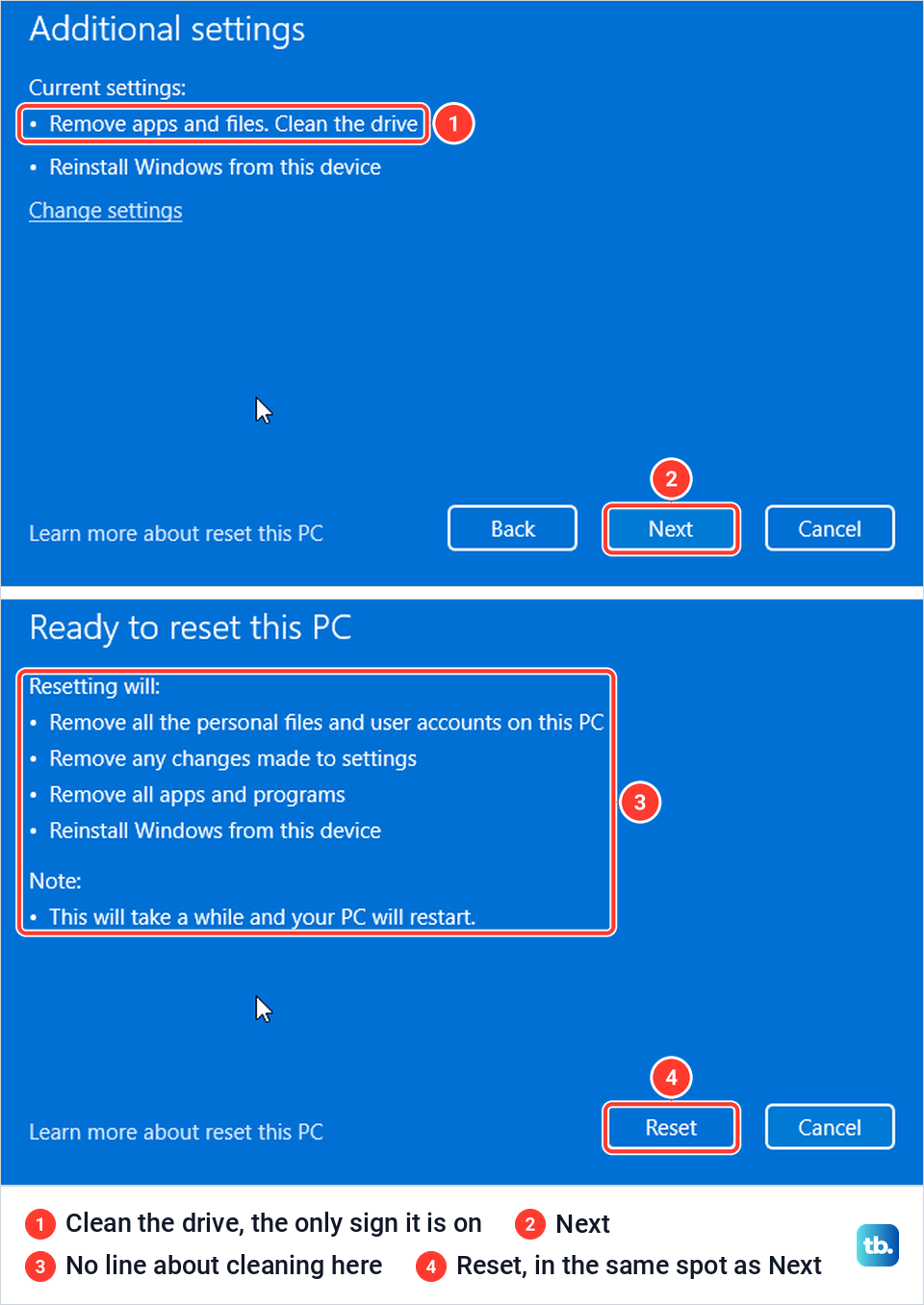
Select Reset when you are ready. When we selected Cancel instead, the wizard closed and returned to the Recovery page with nothing changed. Microsoft says its erasure is aimed at consumers and does not meet government and industry data erasure standards. Its documentation adds that a laptop with a second drive or volume can offer to remove data from all of them or only the Windows drive.
The steps after you select Reset follow HP's and Microsoft's instructions. HP says a reset typically takes 30 minutes to 2 hours, and Microsoft warns that the screen can go black for a long time, occasionally upwards of 15 minutes. Microsoft says the laptop may try to restart itself along the way, and that restarting it yourself could make the reset fail.
Factory reset an HP laptop without the password
HP's password page lists three things to try before a wipe. If you sign in with a Microsoft account, reset that password online from any browser. You can also change the password from another administrator account on the laptop, or use a password reset disk or USB drive made earlier.
When all of those fail, HP's route starts on the sign-in screen. Press and hold Shift, select the power icon, select Restart, and keep holding Shift until the Choose an option screen appears. Then select Troubleshoot, Reset this PC and Remove everything.
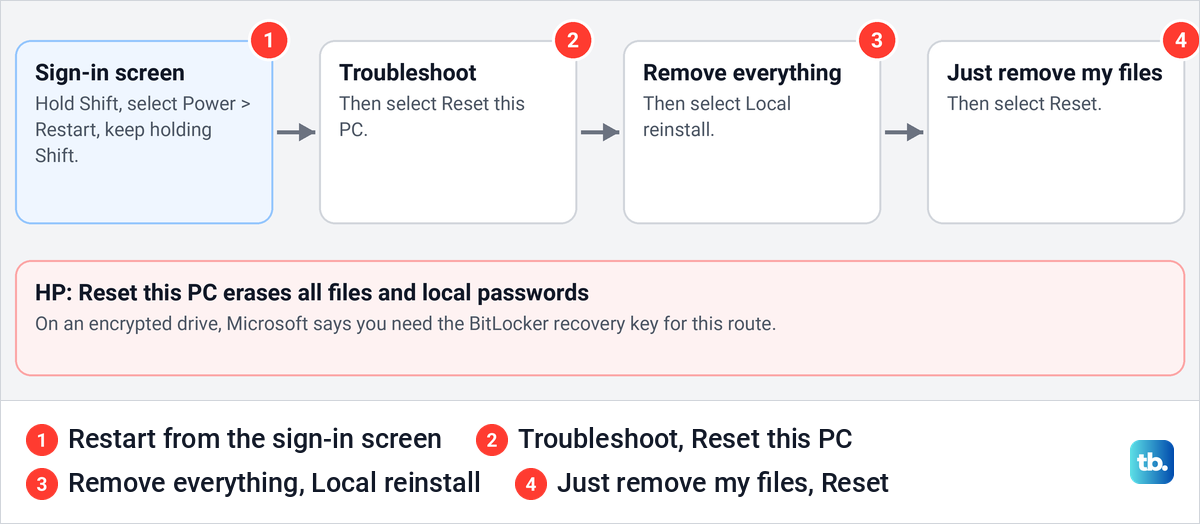
HP's steps continue with Local reinstall, then Just remove my files, then Reset. HP warns that Reset this PC erases all files and local passwords, and says the Windows welcome screen appears when it is done, so you set the laptop up again with a new password.
Encryption matters on this route too. Look up the BitLocker recovery key first, as described above, because Microsoft says you need it to reset an encrypted laptop from this screen. Only if the key cannot be found does Microsoft point to a Windows recovery option that removes all of your files.
Use f11 when your HP will not start
HP's checks come first. If the laptop does not turn on, HP says to wait at least 5 minutes, because it might be installing a Windows or BIOS update. Next comes a hard reset: with the AC adapter unplugged, hold the power button for about 20 seconds, which HP says does not affect your data.
HP also offers a hardware test before you wipe anything. Turn the laptop on and press esc repeatedly, about once a second, then press f2 when the menu appears and run the Fast Test, which HP says takes about 4 minutes. If the HP stops at a Boot Device Not Found error, follow our fix for Boot Device Not Found on an HP first.
Then the reset. HP's instruction is to restart the laptop and immediately press f11 repeatedly. On the Choose an option screen, select Troubleshoot, then Reset this PC, and pick Keep my files or Remove everything.
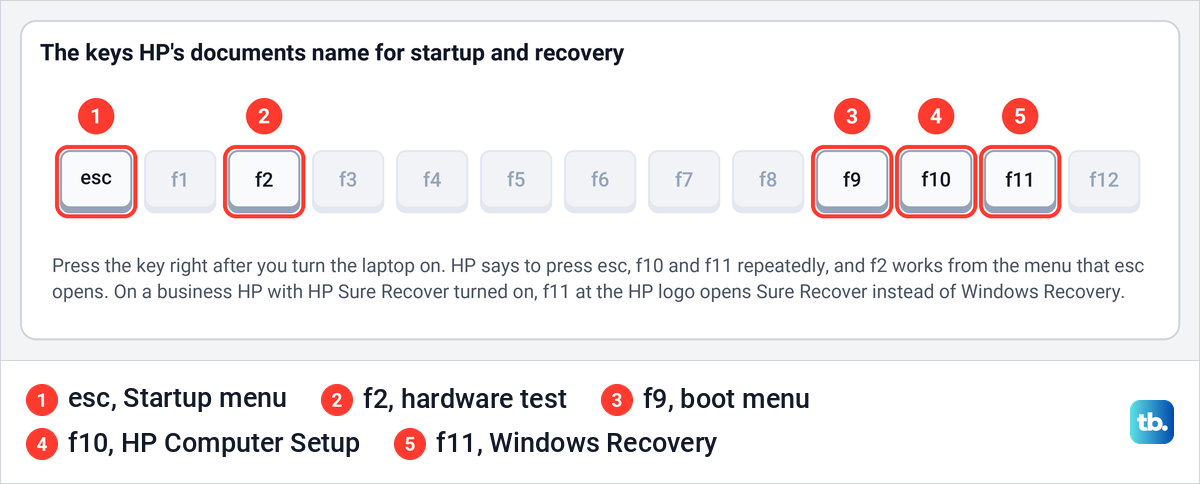
Except on business models with HP Sure Recover, f11 opens Windows' own recovery screen, not a separate HP program. HP's current factory reset page lists three recovery processes, Microsoft System Restore, Windows reset and HP Cloud Recovery, and no HP Recovery Manager, so if older instructions mention one, follow the steps here.
If f11 does nothing, Microsoft's fallback is to interrupt the start twice. As soon as the Windows logo appears, hold the power button until the laptop shuts down, do it again, and Windows should show the Automatic Repair screen on the third start. Select Advanced options, then Troubleshoot > Reset this PC, or try the other Windows recovery options on that screen first, which can keep your files.
Reinstall the HP image with HP Cloud Recovery
HP Cloud Recovery builds a USB flash drive that reinstalls the laptop from HP's own image, so it works even when nothing on the internal drive will start. HP says it restores the original operating system and the original drivers from HP. It is available for HP PCs made in 2016 and later, and HP keeps a list of supported models on its support site.
HP asks for a blank USB flash drive of at least 64 GB, not the 32 GB many older instructions mention, and says the tool does not work with an external hard drive. The PC that makes the drive needs 64-bit Windows, 20 GB of free space on the Windows partition and an internet connection, with Ethernet recommended. Set aside one to four hours, and keep the HP on AC power throughout.
Install the HP Cloud Recovery Tool from the Microsoft Store, insert the blank USB drive, then search for Cloud Recovery, right-click HP Cloud Recovery Tool and select Run as administrator. Run on the HP itself, the tool detects the laptop's details. On another PC, tick the check box for entering the Product ID of your HP system, then select the USB drive and confirm that everything on it will be deleted.
The product ID is on the label on the bottom of the laptop, or in the System Information window that fn + esc opens on the built-in keyboard. HP Support Assistant shows it too, and you can download or repair HP Support Assistant if it is missing. For an ID such as JGT75AV#123, HP's page says both to type the # part and to leave it out, so enter it as the label shows and drop the # part if the tool rejects it.
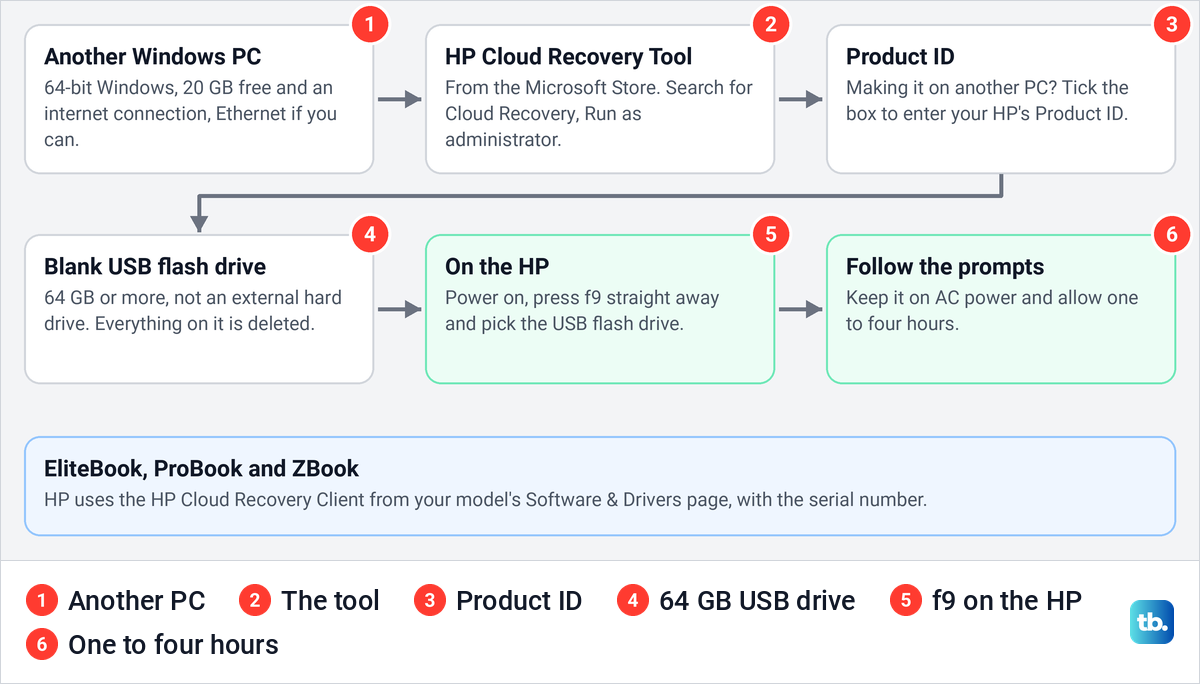
Then move to the HP. With the laptop on, insert the USB drive, turn the laptop off by holding the power button, and disconnect every peripheral except the keyboard, mouse and power cord. Turn it on, immediately press f9 for the boot menu, select the USB flash drive and follow the prompts. If the drive is missing from that menu, see how to start a computer from a USB drive.
For errors, HP says "Drive partitioning failed" can mean a faulty USB drive, "Disk not selectable" means the drive needs 64 GB free, and "Image extraction failed" calls for restarting the process. If the tool shows "Product ID is Not Match or Invalid", try the ID without the # part as above, then check the number again, because HP's FAQ answer for that error is to enter the correct serial number.
If it still fails, HP's main instructions say the tool is not yet available for your computer and point to HP's Software and Driver Downloads page for other recovery options. Running the tool on the HP itself, if it still starts, avoids typing an ID at all. As a last resort, create a Windows 11 bootable USB drive, keeping in mind Microsoft's note that generic media can lack the maker's drivers and factory apps.
EliteBook, ProBook and ZBook recovery
HP's business laptops use the HP Cloud Recovery Client instead. HP says to download it from the Software & Drivers page for your model, under Software-Security, and to tick the box for entering the serial number when you make the drive on another PC. It needs the same blank 64 GB USB flash drive and works for Windows 11 Professional (64-bit) and Windows 11 IoT Enterprise.
A few business rules matter. For an HP G2 laptop with an ARM processor, HP says the recovery media must be made on a computer with an x86 processor, and Secure Boot might need to be disabled in the BIOS to start from it. After the recovery, HP says to run Shortcut_to_HPSoftwareSetup.exe from the HP_RECOVERY drive, because without it you cannot install any drivers or applications.
Some business models also have HP Sure Recover, and on them f11 means something else. HP says you start Sure Recover by pressing f11 while the HP logo is displayed, then choose Restore from network or Restore from local drive, and that the imaging process reformats the drive and removes all data on it. Back up first, because nothing on the drive survives.
HP recommends Sure Recover on a PC that has it. To use the Windows reset instead, HP says you must disable it first: open HP Computer Setup with f10, go to the Advanced tab, select Sure Recover, clear the HP Sure Recover check box, then select Save Changes and Exit on the Main tab.
What your HP gets back after each reset
The two routes do not restore the same thing. HP's comparison says HP Cloud Recovery brings back the original operating system and drivers from HP. Microsoft, which makes Reset this PC, says a reset restores Windows to an updated state rather than the factory-preinstalled state, and keeps the updates that were installed. It also lists a Restore preinstalled apps switch under Keep my files, which applies the PC maker's customizations when it is on.
| What | Reset this PC | HP Cloud Recovery |
|---|---|---|
| Windows | Reinstalled from the files on the HP or by Cloud download, keeping installed updates (Microsoft) | HP's original operating system (HP) |
| Drivers | Only INF-based drivers are kept, and device applets installed outside them are dropped (HP) | HP's original drivers (HP) |
| HP's preinstalled desktop apps | Reverted to factory state (HP) | Reverted to factory state (HP) |
| Apps you installed | Removed | Removed |
| Your files | Kept with Keep my files, removed with Remove everything | Back them up to a separate disk first, or lose them (HP) |
After the reset finishes
HP recommends installing updates through Windows Update after any system recovery, so check for updates as soon as the desktop appears. Microsoft says Windows 11 activates online by itself after a reinstall on the same PC, and that you can skip a product key prompt with the option for not having one. Once you are online, check that Windows 11 is activated.
HP says to re-enable Secure Boot once the computer has been recovered, so if you turned it off to start from the recovery USB drive, turn Secure Boot back on once Windows is running. Before the laptop goes to someone else, Microsoft says to remove it from your Microsoft account. Sign in at account.microsoft.com/devices, find the laptop and select More actions > Remove.
If the reset fails or stops
If Windows reports There was a problem resetting your PC, work through that error before you try again. Do not force the laptop off while a reset runs, since HP names an interrupted process as the most common cause of recovery issues.
Reset this PC offers two sources, so a reset that fails with Local reinstall can be started again with Cloud download, which Microsoft says helps when local files are corrupted or missing. If Reset this PC keeps failing, HP Cloud Recovery replaces Windows from the USB drive instead of the files on the laptop.
HP Chromebooks reset differently
An HP Chromebook runs ChromeOS, so none of the Windows screens or HP startup keys above apply. For a Chromebook, a Mac or a laptop from another brand, our main guide to factory resetting a laptop is the place to start.
How we tested this guide
We tested this on Windows 11, version 25H2, running Reset this PC with Remove everything, up to the Reset button.
Frequently Asked Questions
How do I factory reset my HP laptop without the password?
On the sign-in screen, hold Shift and select Power > Restart. Then select Troubleshoot > Reset this PC > Remove everything > Local reinstall > Just remove my files > Reset, and HP says this erases all files and local passwords.
What key resets an HP laptop to factory settings?
Press f11 repeatedly right after the HP restarts to open the recovery screen, then select Troubleshoot > Reset this PC. On business HPs with HP Sure Recover, f11 at the HP logo opens Sure Recover instead, which reformats the drive.
How long does it take to factory reset an HP laptop?
HP puts a Windows reset at 30 minutes to 2 hours and HP Cloud Recovery at one to four hours. With Clean data on, the switch itself warns that it may take hours.
Does a factory reset wipe everything on an HP laptop?
Remove everything deletes your files, apps, settings and user accounts. Turn Clean data on before you sell it, so removed files are harder to recover, though Microsoft says even that is not a certified erasure.
My HP asks for a BitLocker recovery key. Can I still reset it?
Look up the 48-digit key first: at aka.ms/myrecoverykey with the Microsoft account used on the laptop, in a work or school account the laptop was signed into, or on a printout or USB flash drive. Microsoft Support cannot recover a lost key, and only if it cannot be found does Microsoft point to a reset that removes all of your files.
Do I need a Windows product key after resetting my HP?
Usually not. Microsoft says Windows 11 activates online by itself after a reinstall on the same PC, and a product key prompt can be skipped.
What size USB drive does HP Cloud Recovery need?
A blank USB flash drive of at least 64 GB. HP says an external hard drive will not work, and the PC that makes the drive needs 20 GB of free space.