If your HP keeps loading Windows when you want BIOS, the startup key timing is the first thing to check. The HP setup key is F10 on supported consumer notebooks and desktops, and you must press it before Windows loads. Start there, then use the Startup Menu or Windows 11 recovery settings to enter the firmware without catching that brief startup window.
Press F10 as your HP starts
Turn on or restart your computer.
Immediately press F10 repeatedly, before Windows loads, until BIOS Setup opens.
Tip: Depending on your model, the setup screen is named BIOS Setup Utility or Computer Setup.
Open the Startup Menu with Esc
This gives you a menu for selecting BIOS setup when the startup screen passes too quickly.
Shut down your computer.
On an HP desktop, wait five seconds.
Turn the computer on.
Immediately tap Esc repeatedly until the Startup Menu opens.
Press F10 for BIOS Setup.
Enter firmware through Windows 11 Settings
Windows 11 provides a route that avoids startup-key timing altogether. It works on HP UEFI computers that expose the UEFI Firmware Settings recovery option.
Save your work.
Open Settings > System > Recovery.
Under Advanced startup, select Restart now.
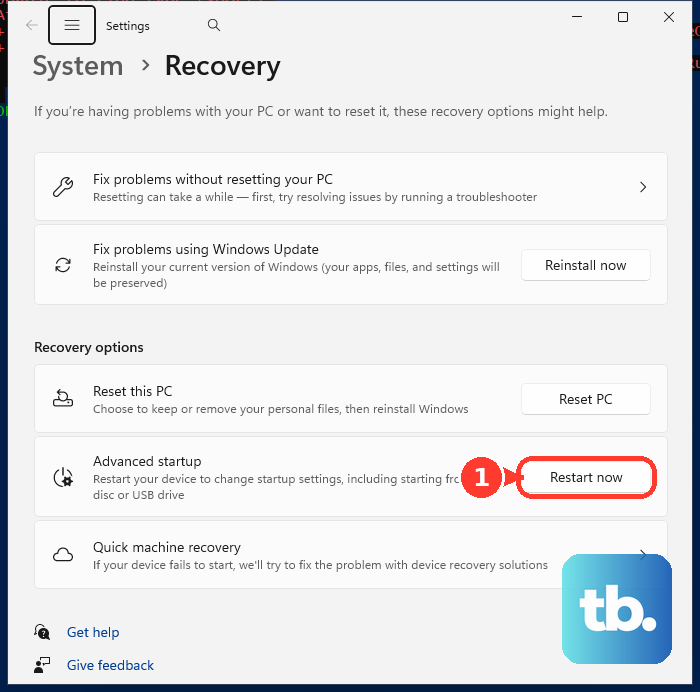
Confirm the restart if prompted.
On the recovery screen, select Troubleshoot.
Choose Advanced options.
Select UEFI Firmware Settings.
Choose Restart to enter the firmware interface.
If this route fails or UEFI Firmware Settings is missing, try F10 during startup or the Esc then F10 method above.
Use Shift and Restart from Windows
This shortcut opens recovery on compatible Windows 11 and Windows 10 HP PCs, including from the sign-in screen.
- 1.Save any open work before restarting.
- 2.Open Start, or stay at the Windows sign-in screen if you cannot sign in.
- 3.Hold Shift while selecting Power > Restart.
- 4.Select Troubleshoot > Advanced options.
- 5.Choose UEFI Firmware Settings > Restart.
Catch the startup window before Windows loads
Pressing F10 too late lets Windows load instead of opening BIOS.
Restart the computer.
Immediately begin pressing F10 repeatedly, before Windows loads.
If the startup screen still passes too quickly, use the Esc then F10 procedure above to select BIOS Setup from the Startup Menu.
If timing remains difficult, open Settings > System > Recovery and follow the Windows 11 procedure above.
That route requires UEFI Firmware Settings; if the option is missing, return to the startup-key method.
The F1 advice in older HP instructions applies to HP/Compaq desktops manufactured before 2006 with Windows XP or earlier. Current HP setup instructions specify F10.
Restart into BIOS with a command
On Windows 11 and Windows 10 HP PCs, this command requires firmware that supports direct setup entry and appropriate shutdown privileges.
- 1.Save your work, since the command restarts the computer immediately.
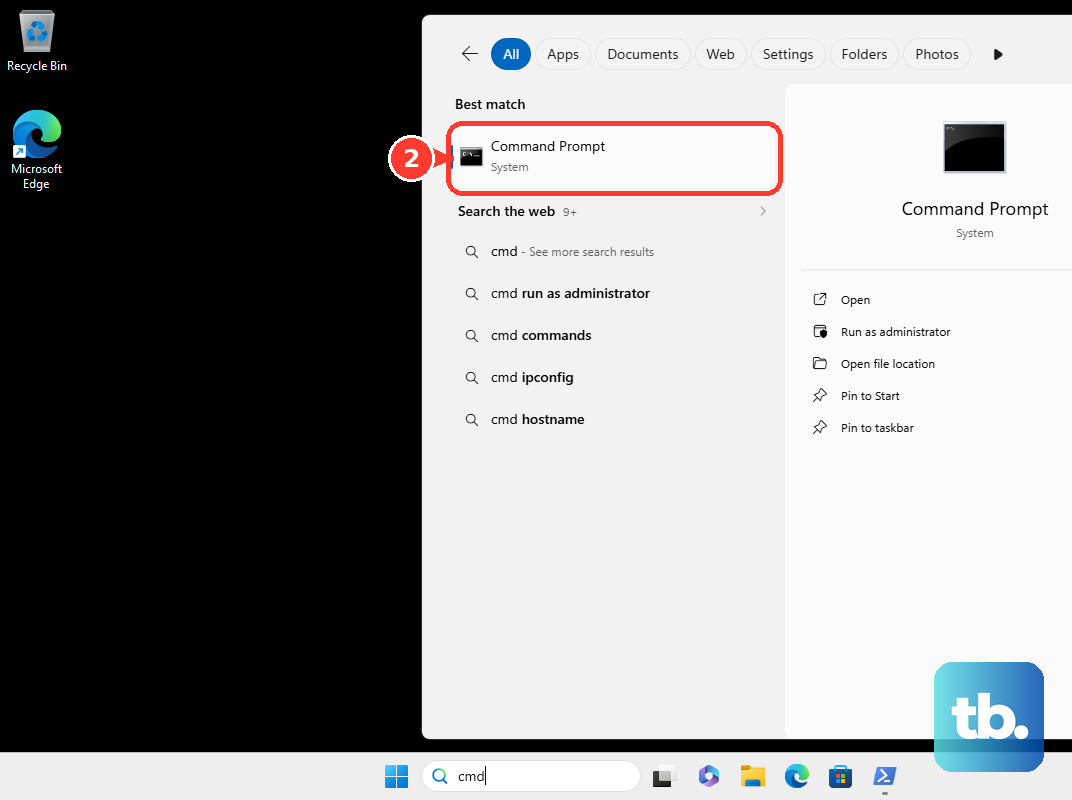
- 2.Open Command Prompt or Terminal as administrator.
- 3.Run
shutdown /r /fw /t 0. - 4.If the command fails, use the startup procedure above: press F10 immediately after power-on, or open the Startup Menu with Esc and press F10.
Reach BIOS when Windows will not start
Try F10 or Esc followed by F10 first. These startup methods work independently of whether Windows starts, so reaching the desktop is unnecessary.
On an HP computer with functioning F11 recovery, restart the computer. Immediately tap F11 repeatedly to open recovery, then select Troubleshoot > Advanced options > UEFI Firmware Settings > Restart. F11 opens recovery rather than BIOS directly.
If Automatic Repair is already showing, choose Advanced options. Follow Troubleshoot > Advanced options > UEFI Firmware Settings > Restart.
Both recovery routes require UEFI Firmware Settings to be present. If it is missing, use the startup keys instead.
Frequently Asked Questions
Does entering BIOS require Windows 11 Pro?
No. The Windows 11 recovery route has no Pro-only requirement. Your HP computer must expose the UEFI Firmware Settings option.
Do I need to download software to enter HP BIOS?
No download is needed for ordinary BIOS entry. Microsoft's Windows installation media provides an additional recovery route, but creating it is unnecessary just to use the setup key.
Is the BIOS setup key different on an HP OMEN?
HP’s OMEN instructions have you tap Esc immediately after power-on to open the Startup Menu, then press the appropriate function key for your model. HP’s own OMEN Setup Utility procedure names F10, pressed repeatedly right after you turn on or restart the computer. Available BIOS tabs and options vary by model.
Does the HP Sure Admin phone app replace the setup key?
No. On enrolled business PCs, HP Sure Admin authenticates access after you request BIOS setup. It does not replace the startup entry method.