


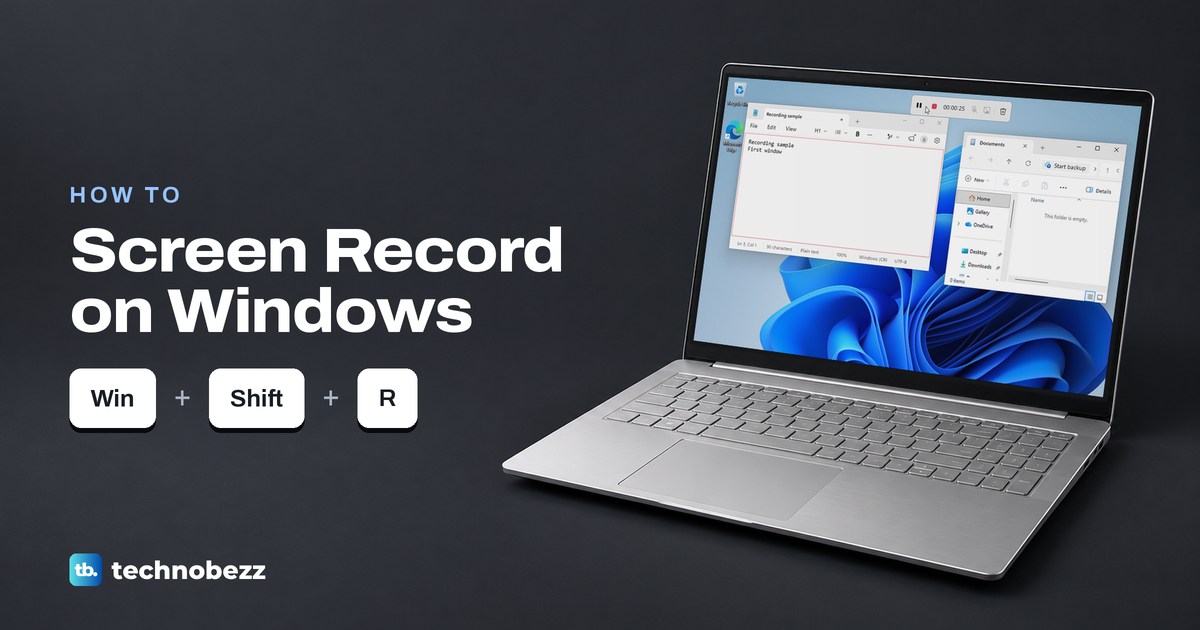
To screen record on Windows 11, press Windows + Shift + R, drag across the part of the screen you want, then select Start. Select the red Stop button when you are done, and Snipping Tool saves the video as an MP4 in Videos > Screen Recordings by default.
On Windows 10, use Xbox Game Bar instead. Turn it on in Settings, then click inside the app you want to record and press Windows + Alt + R to start and stop a recording.
Sound comes from two places. System audio is your PC's own sound, and the microphone is for your voice. Snipping Tool has a button for each on its recording bar, and when we first opened its settings, new recordings were set to include system audio but leave the microphone off.
We recorded, paused, saved and played back clips on Windows 11 to write this guide. Two results are worth knowing before you start: a paused stretch is cut out of the file completely, and Game Bar can refuse to record on a PC where Snipping Tool works fine.
The short version
- Any part of the screen on Windows 11: press Windows + Shift + R, drag, then select Start.
- One app or game on Windows 10 or 11: press Windows + Alt + R in that app, and the same keys again to stop.
- Sound: check the microphone and system audio buttons on the bar before you select Start.
- The saved file: Snipping Tool uses Videos > Screen Recordings and Game Bar uses Videos > Captures by default.
- Before anything important: record ten seconds and play the file back.
Windows screen recorders at a glance
| Method | What it records | Sound | Where the video goes by default |
|---|---|---|---|
| Windows + Shift + R (Snipping Tool) | Any rectangle you drag, up to the whole screen, on Windows 11 | System audio and microphone, each with its own button | An MP4 in Videos > Screen Recordings |
| Snipping Tool app, then New | The same recording, started from the app instead of the shortcut | Same two buttons | An MP4 in Videos > Screen Recordings |
| Windows + Alt + R (Xbox Game Bar) | The app or game in front, on Windows 10 and 11, but not the desktop or File Explorer | Game only unless you choose All; Windows + Alt + M switches the microphone | An MP4 in Videos > Captures |
| OBS Studio (free download) | The whole desktop or one window, on Windows 10 and 11 | Desktop audio and microphone by default | The Recording Path set in its Output settings |
| Clipchamp | A browser tab, a window or the entire screen, with your webcam if you like | Microphone; with a personal account, shared sound only from a browser tab | A WebM copy, then an MP4 when you export |
The first three rows describe Windows 11 as we found it on our PC, and Game Bar also follows Microsoft's instructions for Windows 10. If your menus look different from ours, check which Windows version you have first. When a still picture would explain the problem just as well, here is how to take a screenshot on Windows instead.
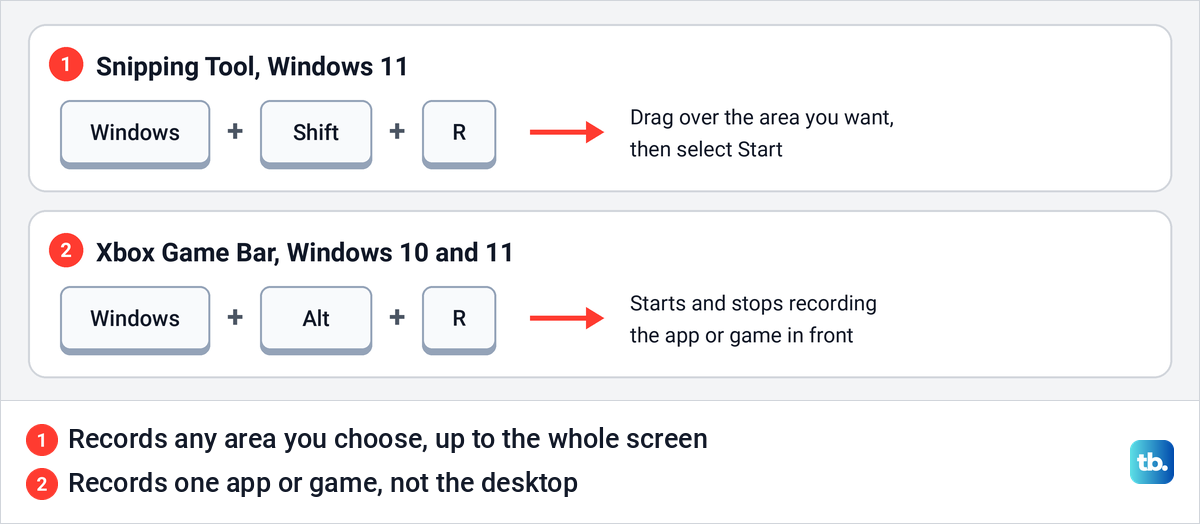
Record part of your screen with Windows + Shift + R
Press Windows + Shift + R. The screen dims, the Snipping Tool bar appears at the top with its video button selected, and the words Draw a shape to select recording area appear in the middle. Nothing is being recorded yet.
Drag from one corner of the area you want to the opposite corner. A dashed outline marks the area, and the bar changes to a blue Start button, a timer at 00:00:00, a microphone button, a system audio button and an X. Check both sound buttons now, before you start. How each one starts out is set in Snipping Tool's settings, covered in the sound section below.
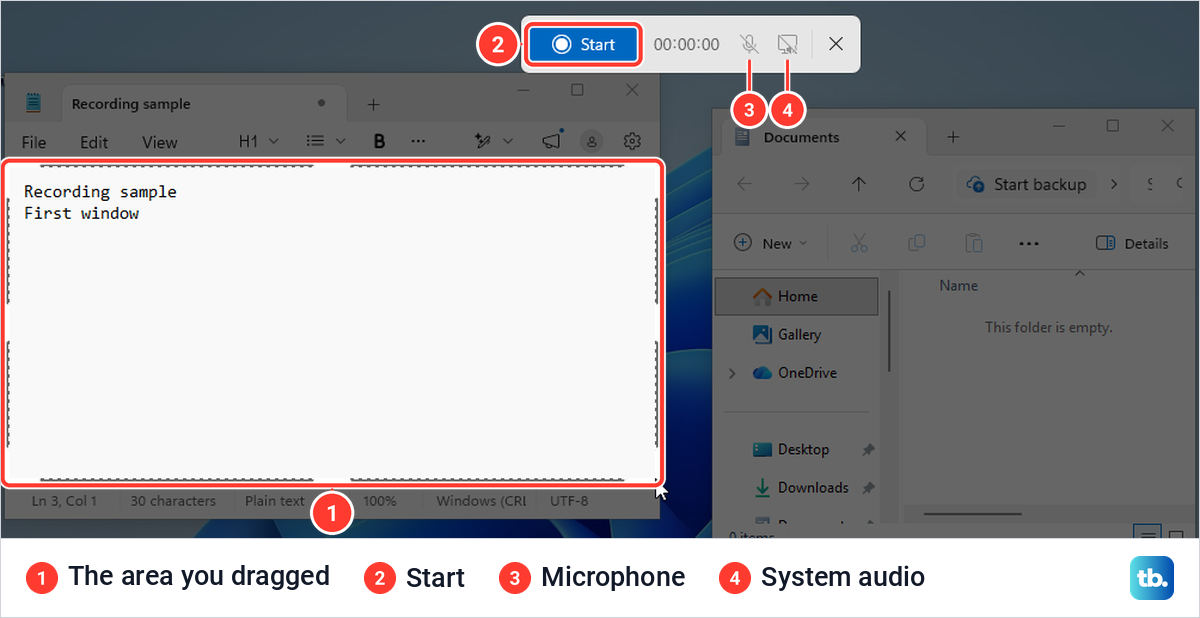
Close anything private inside the outline, and turn off unwanted notifications so a pop-up does not land in the middle of your video. Then select Start. On our PC a 3, 2, 1 countdown appeared inside the area, and recording began when it finished.
Click once inside the app you are recording before you type, so your keys go to the right window. Everything inside the outline is recorded, including windows you open or move into it later.
Pause or stop a recording
Once the countdown ends, a red dotted line marks the area being recorded and the bar shows its controls. From the left they are Pause recording, Stop recording (the red square), the timer, the two sound buttons and Discard recording (the bin). Those are the names Windows showed when we held the pointer over each one.
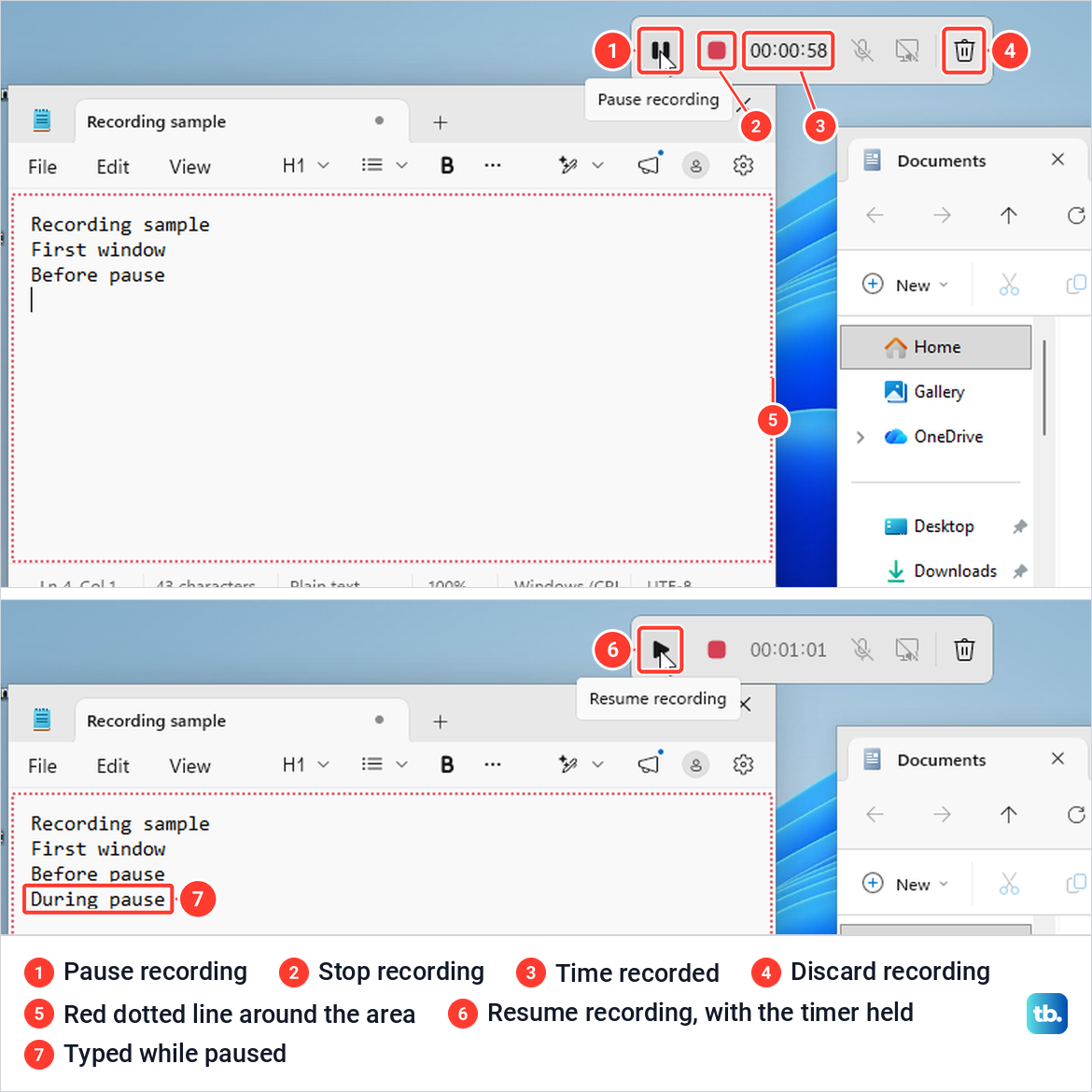
Select Pause and the button turns into Resume recording, while the timer stops. We paused for just over a minute and typed a line in Notepad while the recording was on hold. The timer still read 00:01:01 when we resumed.
The saved file shows what pausing really does. The paused minute is not in the video at all. At 0:54 the clip shows the line we typed before pausing, and ten seconds later the line typed during the pause is already there, as if by a jump cut.
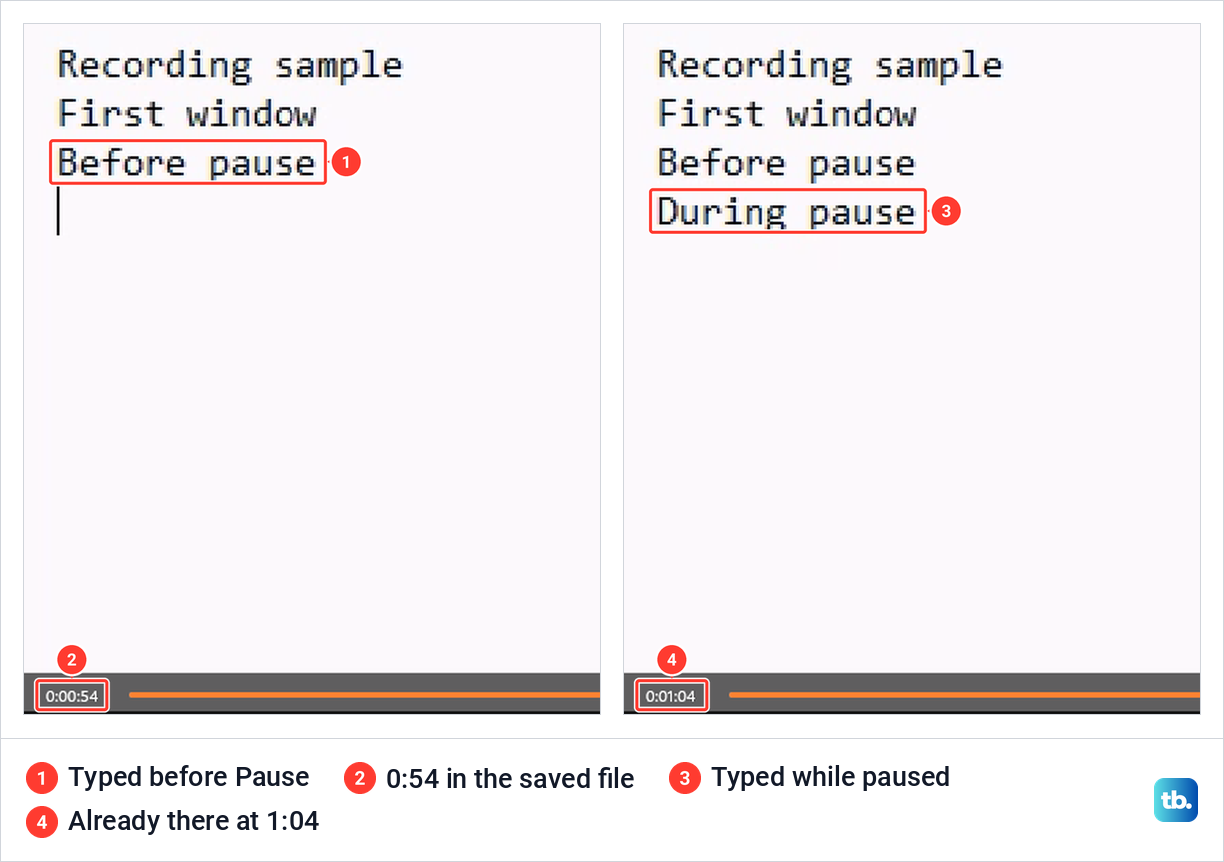
Our finished clip was 2 minutes 4 seconds long, about a minute shorter than the time between Start and Stop. So you can pause to find a file or close a message, and the viewer never sees the wait. Anything that changed while you were paused appears the moment you resume.
Select Stop recording when you are done. The clip opens in Snipping Tool, and the section on where screen recordings are saved, further down, shows where the file goes.
Record the whole screen or start from the app
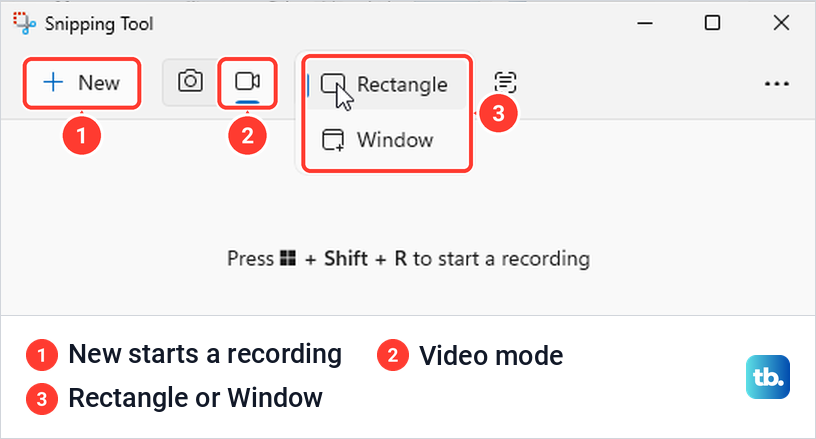
On our PC, Snipping Tool's recording area menu offered only Rectangle and Window, with no full screen option for video. To record everything, drag the rectangle from one corner of the screen to the other. The dashed outline then runs along the edges of the display.
To start without the shortcut, open Start, type Snipping Tool and open the app. Select the video camera half of the switch at the top, and the hint underneath changes from starting a snip to Press Windows + Shift + R to start a recording. Select New and you get the same bar and the same steps as with the shortcut.
A rectangle is a fixed part of the screen, not a window that it follows. We recorded the whole display, clicked over to File Explorer, then dragged Notepad across it while the timer ran. The saved video showed every step: both windows, the switch between them and Notepad sliding into its new spot.
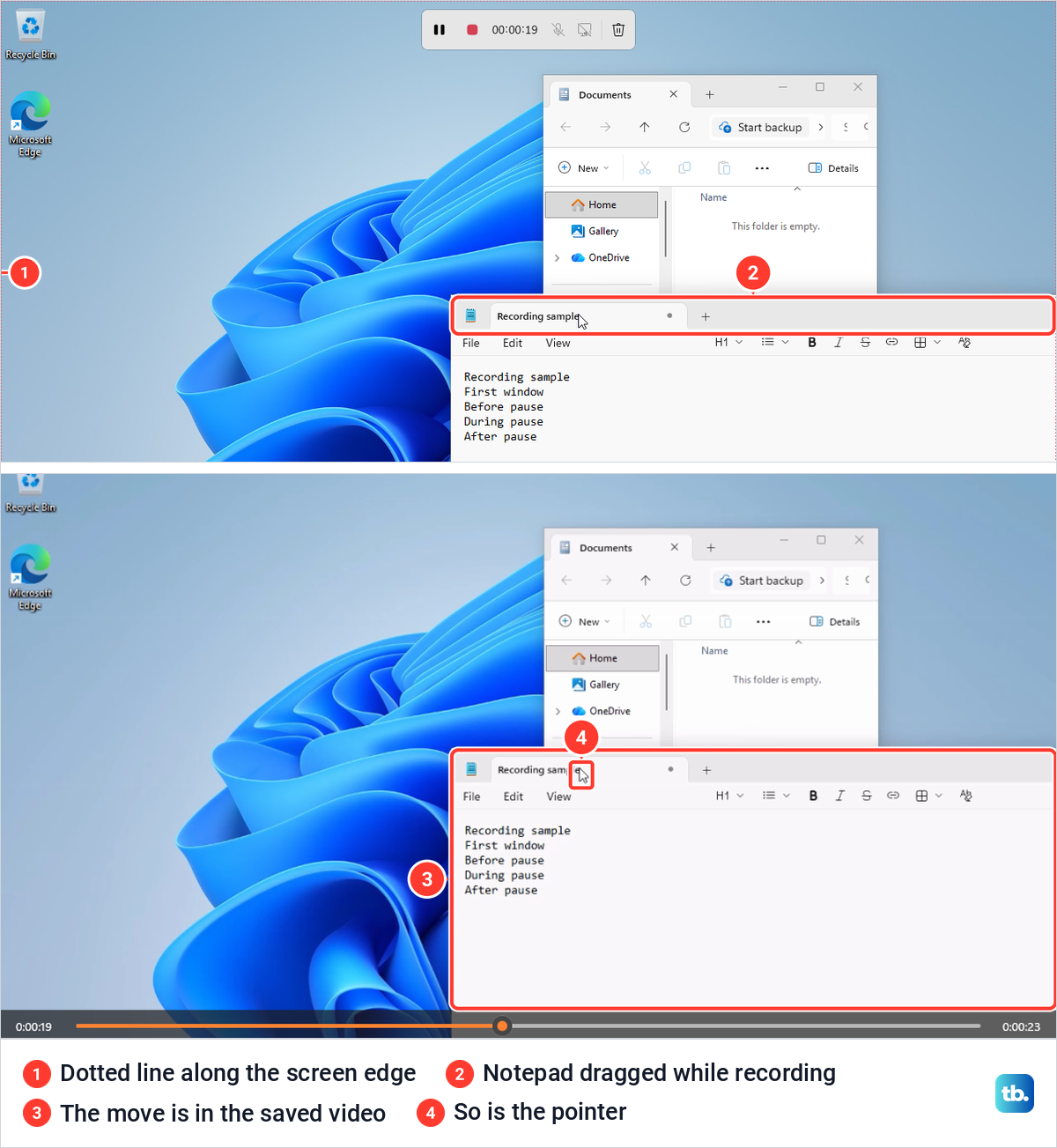
Two more details showed up in playback. The mouse pointer is recorded, so park it out of the way if it would distract. Snipping Tool's own bar sat inside the recorded area the whole time, yet it does not appear anywhere in the video.
Record your voice and computer sound
Microsoft added sound to Snipping Tool's recorder in 2023, with system audio for your PC's own sound and a microphone for voice-over. Microsoft's preview notes for the feature say that if you have several recording devices, you can pick your preferred one before you start; the microphone guide linked below shows how to choose the input microphone in Windows Settings. On the bar, these are the two buttons to the right of the timer.
How those buttons start out comes from the app's settings. Open Snipping Tool, select the three-dot menu, choose Settings and scroll to Screen recording. On our PC, Include microphone input by default when a screen recording starts was off, and Include system audio by default when a screen recording starts was on.
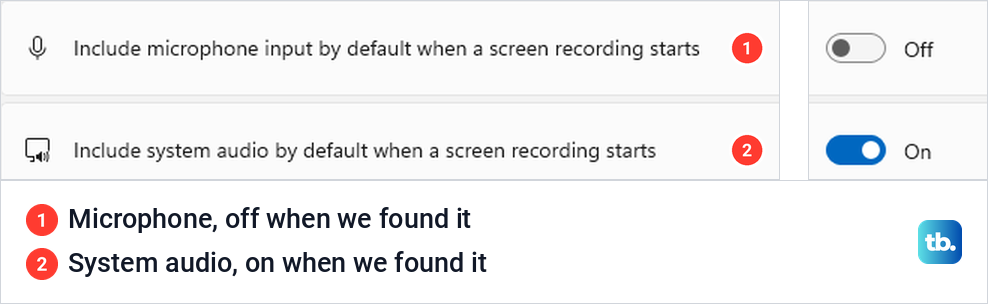
Left like that, the settings say new recordings include system audio but not the microphone. If you narrate tutorials, turn the microphone switch on here once, and still glance at the bar before each recording. Close music players and chat apps you do not want in the recording before you start.
If the recorder cannot hear you, open Settings > Privacy & security > Microphone. Microsoft says Let apps access your microphone needs to be on, with the recorder allowed in the list below it, and Let desktop apps access your microphone covers programs such as OBS Studio.
You can change microphone privacy settings on that page. Then test your microphone in Windows 11 before trying again.
Settings only decide how a recording starts. The real check is a short test: record ten seconds while something plays and you speak, then play the file with the volume up. Listen for both sources before you record anything long.
Where screen recordings are saved
When you select Stop, the recording opens in Snipping Tool with a player. On our PC a banner read Screen recordings are automatically saved to your Screen Recordings folder, with a note that you can turn this off in the app settings. The file was already on disk before we touched anything.
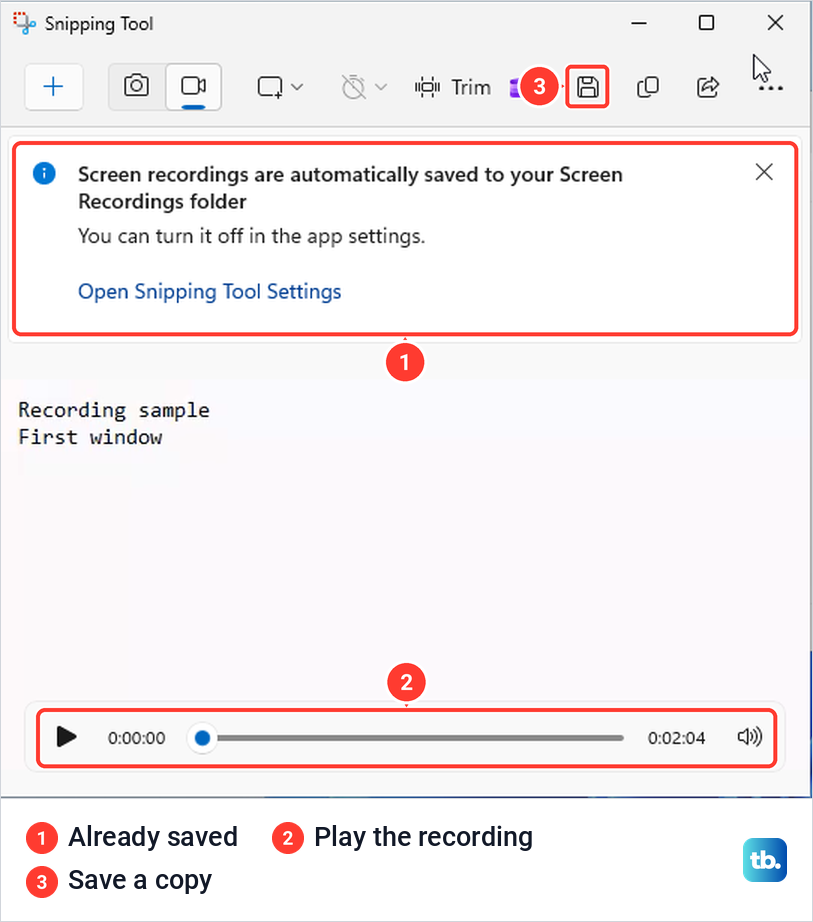
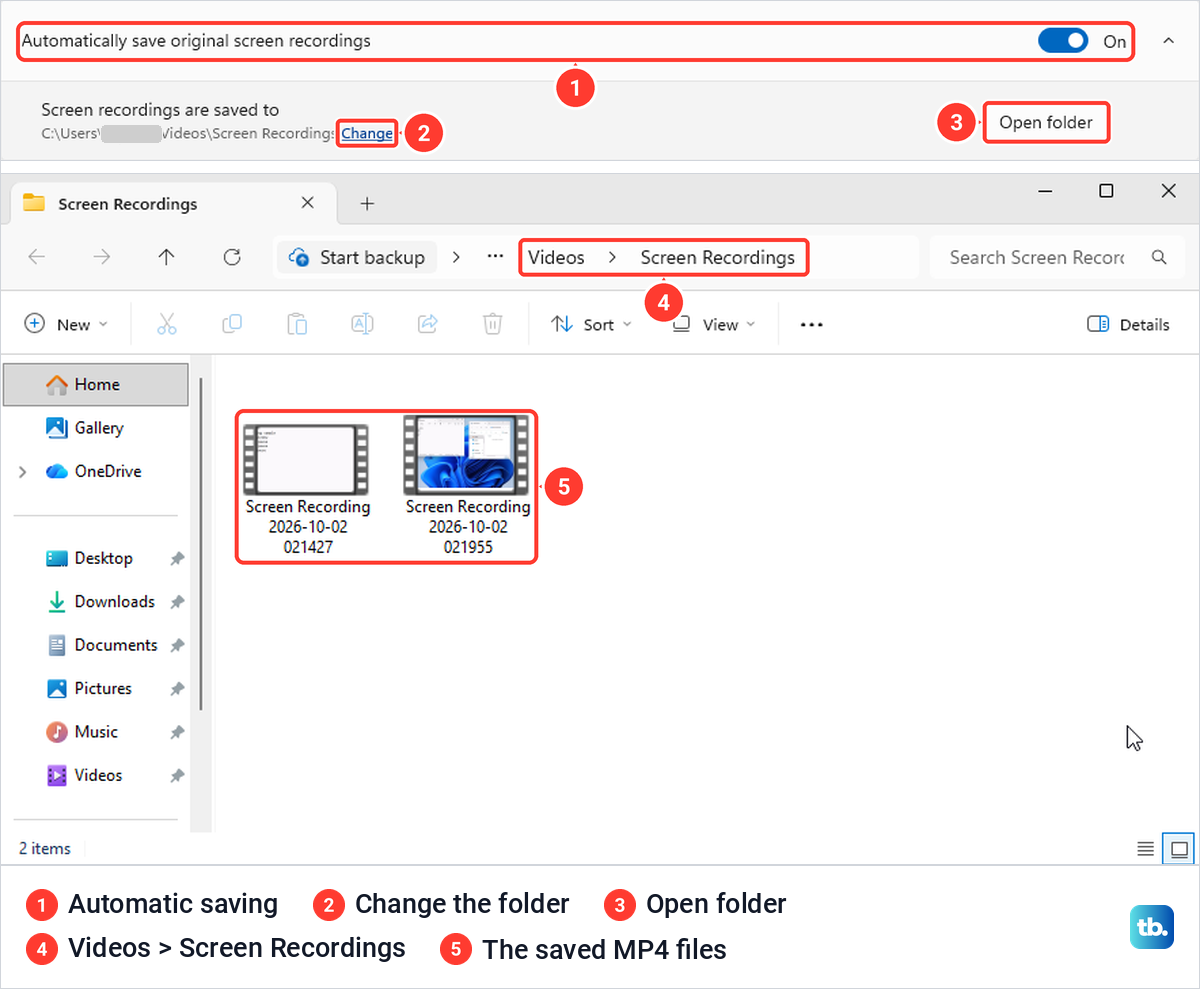
By default that folder is Videos > Screen Recordings, and Windows created it with our first recording. Files are named Screen Recording followed by the date and time, and ours played in Media Player. Our 42-second recording of the whole screen took 4.6 MB, so if your drive is nearly full, make more storage space available before a long session.
To find or change the folder, open Snipping Tool's three-dot menu, choose Settings and look under Screen recording. Automatically save original screen recordings was on, with the current folder underneath. Open folder took us straight there, and after we used Change to pick another folder, the next recording was saved in the new one.
If that switch is off, nothing is saved until you ask. We turned it off, recorded a short clip and stopped: the preview opened without the banner, and no file appeared in either folder. The disk icon in the preview's toolbar opened Save As with the type set to MP4.
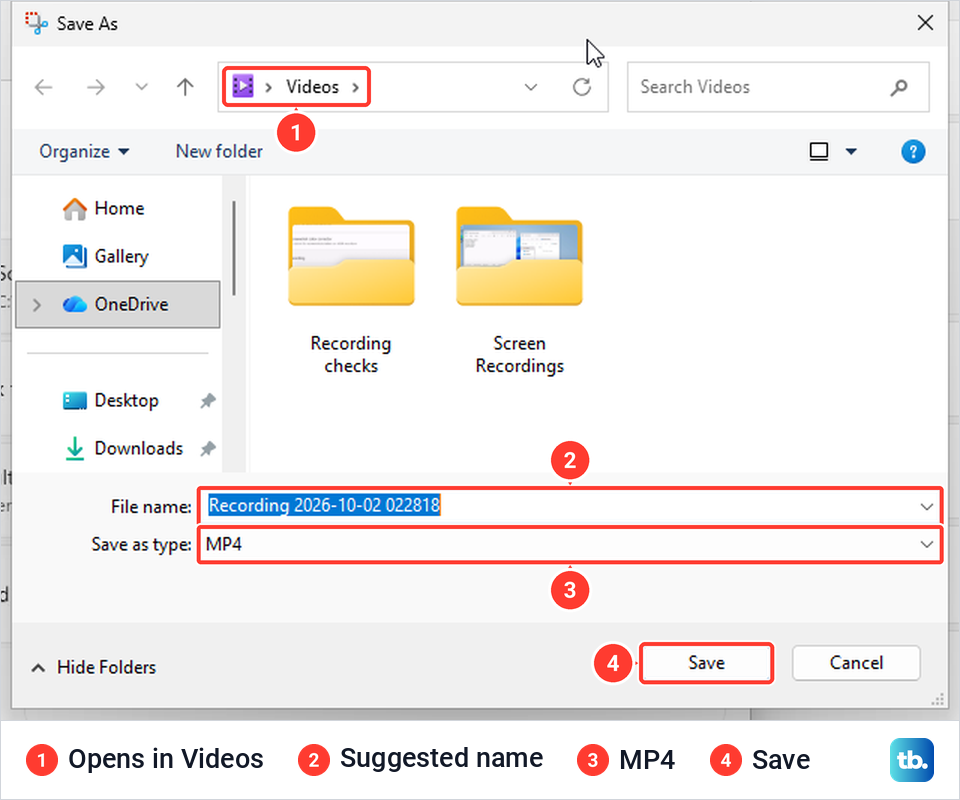
Two things in that dialog can catch you out. It opened in the Videos folder rather than the folder chosen in settings, and the suggested name started with Recording rather than Screen Recording. Check both before you select Save, and keep the preview open until the file is saved.
Record an app or game with Xbox Game Bar
Game Bar records the game or app in front of you, on Windows 10 as well as Windows 11. Microsoft's steps are short: go to the app, press Windows + Alt + R to start, and press the same keys to stop. Windows + Alt + M turns the microphone on and off while you record, and Windows + G shows the controls.
Microsoft says the video is saved as an MP4 in Videos > Captures, with the app's name and the date and time in the file name. On our PC, Settings > Gaming > Captures showed the same folder with an Open folder button. If the overlay does not appear at all, try the other ways to open Xbox Game Bar.
Over Notepad, Windows + G opened a Game capturing panel with four round buttons. Holding the pointer over them showed Start recording with Windows + Alt + R and Record last 30 sec with Windows + Alt + G, next to the screenshot and microphone buttons.
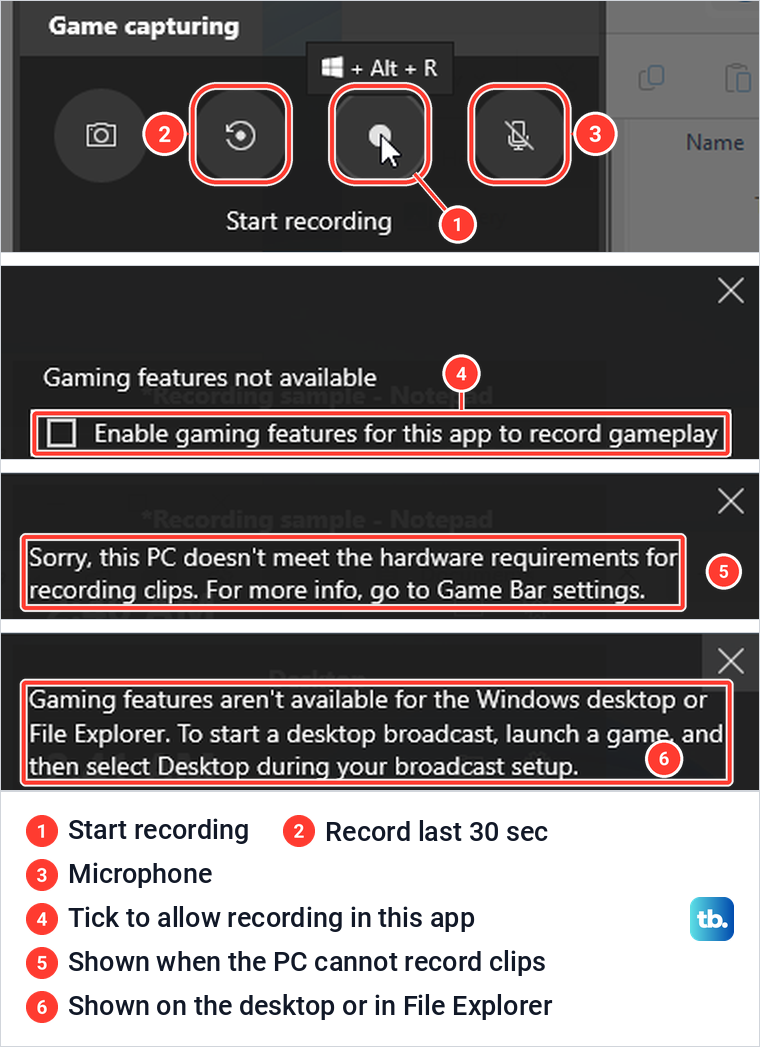
Our first Windows + Alt + R in Notepad recorded nothing. Game Bar showed Gaming features not available, with a box labeled Enable gaming features for this app to record gameplay. Tick it and start the recording again, and do the same if another app shows the box.
After that, Game Bar still refused on our PC: Sorry, this PC doesn't meet the hardware requirements for recording clips. Settings > Gaming > Captures showed a matching line and greyed out its options. Snipping Tool recorded the same PC without complaint, so if you see this message on Windows 11, use Windows + Shift + R instead. If you need Game Bar itself, our steps to fix Xbox Game Bar recording problems include updating the graphics driver.
The desktop is a separate case. With the desktop or File Explorer in front, Windows + Alt + R answered Gaming features aren't available for the Windows desktop or File Explorer. For anything that involves the desktop, use Snipping Tool on Windows 11 or a desktop recorder on Windows 10.
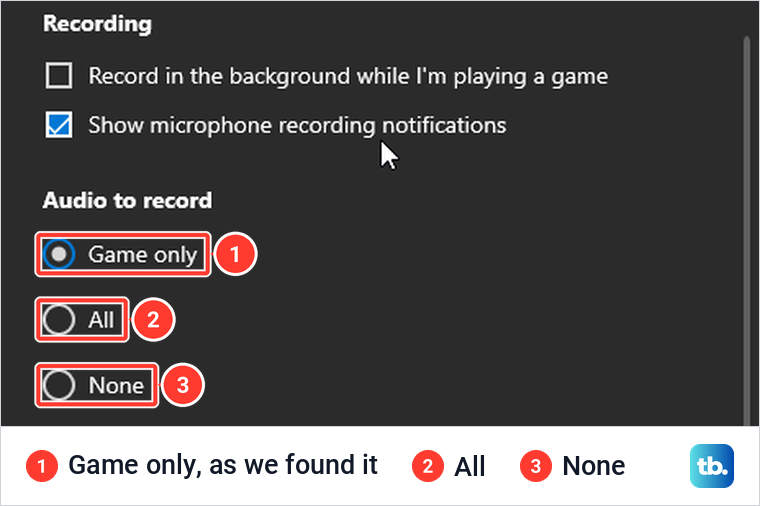
Game Bar's sound is set in its own settings, the gear at the top of the panel. On our PC, Audio to record offered Game only, All and None, with Game only selected. Microsoft's instructions say to choose All so every computer sound is included, and they call this section Capturing, a heading our panel did not have.
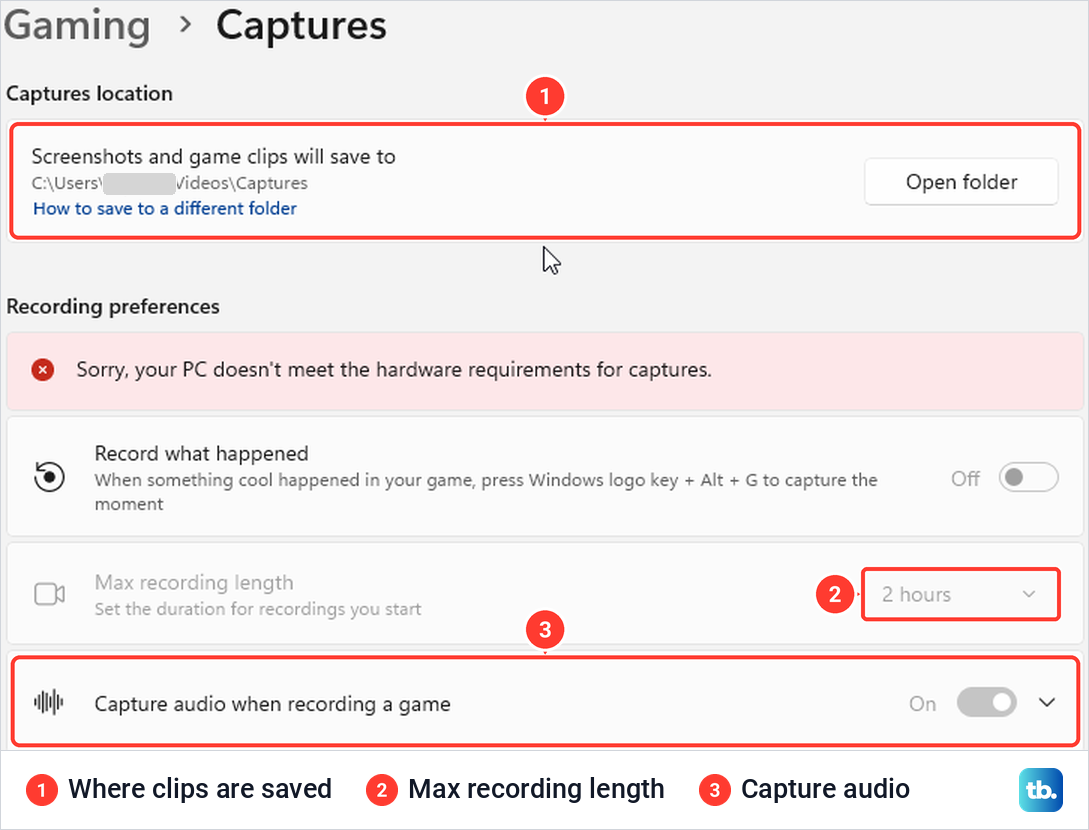
Two settings on the Settings > Gaming > Captures page are worth checking before a long recording. Max recording length read 2 hours on our PC, and Capture audio when recording a game was switched on.
Screen record on Windows 10
Windows 10 reached the end of support on October 14, 2025, and Microsoft says the PC still works. Microsoft's Snipping Tool recording steps are for Windows 11, and its Surface help page points Windows 10 users to Clipchamp for screen recording. Game Bar has its own Windows 10 instructions, which makes it the simplest built-in choice for one app.
Microsoft's Windows 10 steps start by switching Game Bar on. Press Windows + I, search for xbox, open Enable Xbox Game Bar and turn on its switch. Then open your app and press Windows + Alt + R, and the clip goes to Videos > Captures. For every computer sound, press Windows + G, open Settings, go to Capturing (on our Windows 11 PC the same choice sat under Audio to record) and select All.
For the desktop, File Explorer or several apps at once, a free desktop recorder such as OBS Studio fills the gap. The OBS Project lists Windows 10 and Windows 11 as supported, and the steps here follow its own quick start guide.
Download it from the official OBS Studio download page and run the Auto-Configuration Wizard, which opens the first time. Under Sources, select the plus sign and add Display Capture for the whole desktop or Window Capture for one window. OBS records desktop audio and the microphone by default, and the meters in its Audio Mixer show whether each one is picking up sound.
Under Settings > Output, set the Recording Path, the folder your videos go to, then select Start Recording in the Controls dock. The OBS Project strongly encourages a test of a few minutes before your first real recording. That is good advice for every recorder in this guide.
If you already use desktop PowerPoint, it has a recorder too. Microsoft's steps use Insert > Screen Recording to record an area into a slide, then a right-click on the video and Save Media as to keep it as a separate file.
Record your screen and webcam with Clipchamp
Clipchamp, Microsoft's video editor, can record your screen and webcam together. The personal version signs in with a Microsoft account, and on Windows 10 Microsoft says to install Clipchamp from the Microsoft Store. The steps below follow Microsoft's Clipchamp instructions.
Open the Record & create tab, choose Screen or Screen & camera, and allow camera and microphone access the first time. Choose your microphone, then select the red record button. Pick a browser tab, a window or the entire screen, select Share, and select Stop sharing when you are done. Choose Save and edit, and the webcam clip lands on the timeline separately so you can move and resize it.
Sound works differently here. Clipchamp records your voice through the microphone, but with a personal account Microsoft says shared audio only works when you record a browser tab with the audio sharing toggle on. The recorder shows its maximum time to the right of the elapsed time, and for anything longer Microsoft suggests several shorter recordings joined in the editor.
A raw copy downloads as a WebM file, and Export saves the edited project as an MP4. If the editor will not load, here is how to fix Clipchamp when it will not open.
When a screen recording fails or has no sound
If Windows + Shift + R does nothing, open Snipping Tool from Start and check that the camera and video switch is there. Updating the app comes first, and Microsoft's instructions are to open Microsoft Store and select Check for Updates. If it still misbehaves, open Settings > Apps > Installed apps, find Snipping Tool, open its three-dot menu and choose Advanced options.
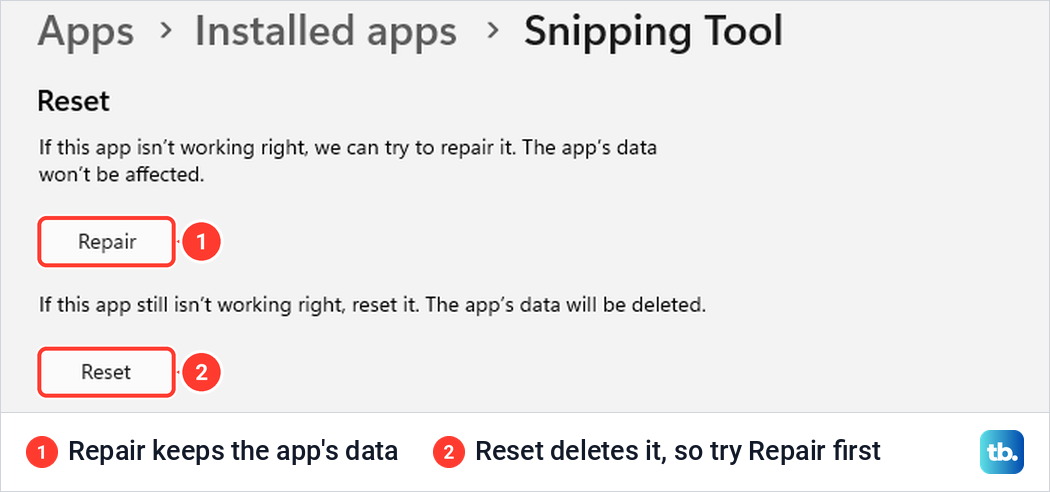
There, Repair keeps the app's data and Reset deletes it, so try Repair first and save any open recording before either. Our guide to fix Snipping Tool when it stops working goes further if neither helps.
For a recording with no sound, work through the chain in order. Check that the microphone or system audio button on the bar was on before you selected Start, then check the two defaults under Screen recording in Snipping Tool's settings. Also turn up the volume in the player you use for playback, and play the file on another device if you are unsure.
In Game Bar, check Audio to record and whether Windows + Alt + M switched the microphone off. Also check that Capture audio when recording a game is on under Settings > Gaming > Captures.
If one window is black or missing in the video, the app may have left itself out on purpose. Microsoft lets apps keep their own window out of screen captures, so that can be the app's choice rather than a fault.
How we tested this guide
We tested this on Windows 11, version 25H2, with the built-in Snipping Tool, recording the screen with the shortcut and from the app.
Frequently Asked Questions
How do I screen record on Windows without downloading an app?
On Windows 11, press Windows + Shift + R, drag across the area you want and select Start. Snipping Tool comes with Windows 11. For one app or game on Windows 10 or 11, press Windows + Alt + R to start and stop an Xbox Game Bar recording.
How do I screen record with sound on Windows?
Before you select Start, check the two buttons beside the timer on Snipping Tool's bar: the microphone for your voice and system audio for the PC's own sound. In Game Bar, Microsoft's instructions are to choose All for every computer sound, and Windows + Alt + M switches the microphone. Play back a short test clip first.
Where do screen recordings go on Windows 11?
Snipping Tool saves MP4 files in Videos > Screen Recordings by default, or in the folder chosen under Screen recording in its settings. Game Bar uses Videos > Captures. If automatic saving is off, nothing is saved until you select the disk icon in the preview.
Can I screen record on Windows 10 with Snipping Tool?
Microsoft's Snipping Tool recording steps are for Windows 11. On Windows 10, use Xbox Game Bar with Windows + Alt + R for one app or game, or OBS Studio for the whole screen. Clipchamp also records the entire screen once you sign in with a Microsoft account.
Why will Game Bar not record my desktop?
Game Bar records apps and games. On the desktop or in File Explorer, it showed us the message Gaming features aren't available for the Windows desktop or File Explorer. On Windows 11, use Windows + Shift + R and drag across the whole screen instead.
Is paused time included in a Snipping Tool recording?
No. In our test the paused minute was cut out of the file completely, and the video jumped straight from the moment we paused to the moment we resumed. Anything that changed on screen in between appears all at once.
How long can I screen record on Windows?
It depends on the recorder. Game Bar's Max recording length in Settings > Gaming > Captures read 2 hours on our PC, and Clipchamp shows its maximum next to the elapsed time. For a long Snipping Tool session, make a short test recording first and check that the file plays.
Does the mouse pointer show up in a screen recording?
Yes, with Snipping Tool. The pointer was visible in our whole-screen recording, while Snipping Tool's bar, which sat inside the recorded area, was not.