You do not need to guess whether your PC is running Windows 11, Windows 10, or a specific OS build. The fastest answer is in Settings, and winver, System Information, and PowerShell give you backup ways to check the same details. Start with the simplest method, then use the more detailed tools when you need build numbers, system type, or work-device inventory.
1. Start with Settings
This fixes the basic question of which Windows edition, version, and OS build is installed on your PC.
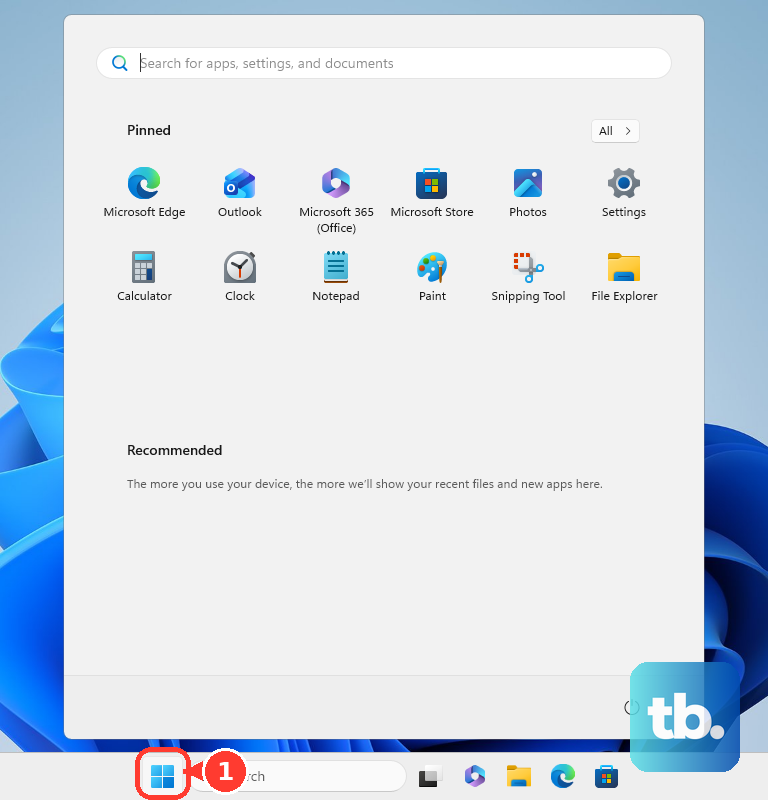
- 1.Select Start.
- 2.Open Settings.
- 3.Select System.
- 4.Select About.
- 5.Look under Windows specifications for Edition, Version, and OS Build.
2. Use winver for a quick version check
Select the taskbar Search box, then type winver. Press Enter or select winver from the results, and in About Windows, read the Windows version and OS build.
3. Jump to About from the Start button
This opens the same Windows specifications screen without browsing through the Settings home page. Right-click Start, choose Windows Settings, then select System and pick About.
Under Windows specifications, read Edition and Version.
4. Open winver from Run
Press Windows logo key + R, type winver, then press Enter. In About Windows, read the version and build number.
Use this route when Windows Search is unavailable.
5. Check System Information for more detail
This adds system type to the Windows name and version details. Select the taskbar Search box, then type msinfo or msinfo32 and open System Information.
In System Summary, read OS Name, Version, and System Type.
6. Check a work or school PC
Managed Windows devices show operating system details in Microsoft Intune. Sign in to the Microsoft Intune admin center and use Devices > All devices > select the Windows device > Hardware.
This path is for enrolled work devices, not a general personal Microsoft account check.
7. Use Command Prompt or PowerShell
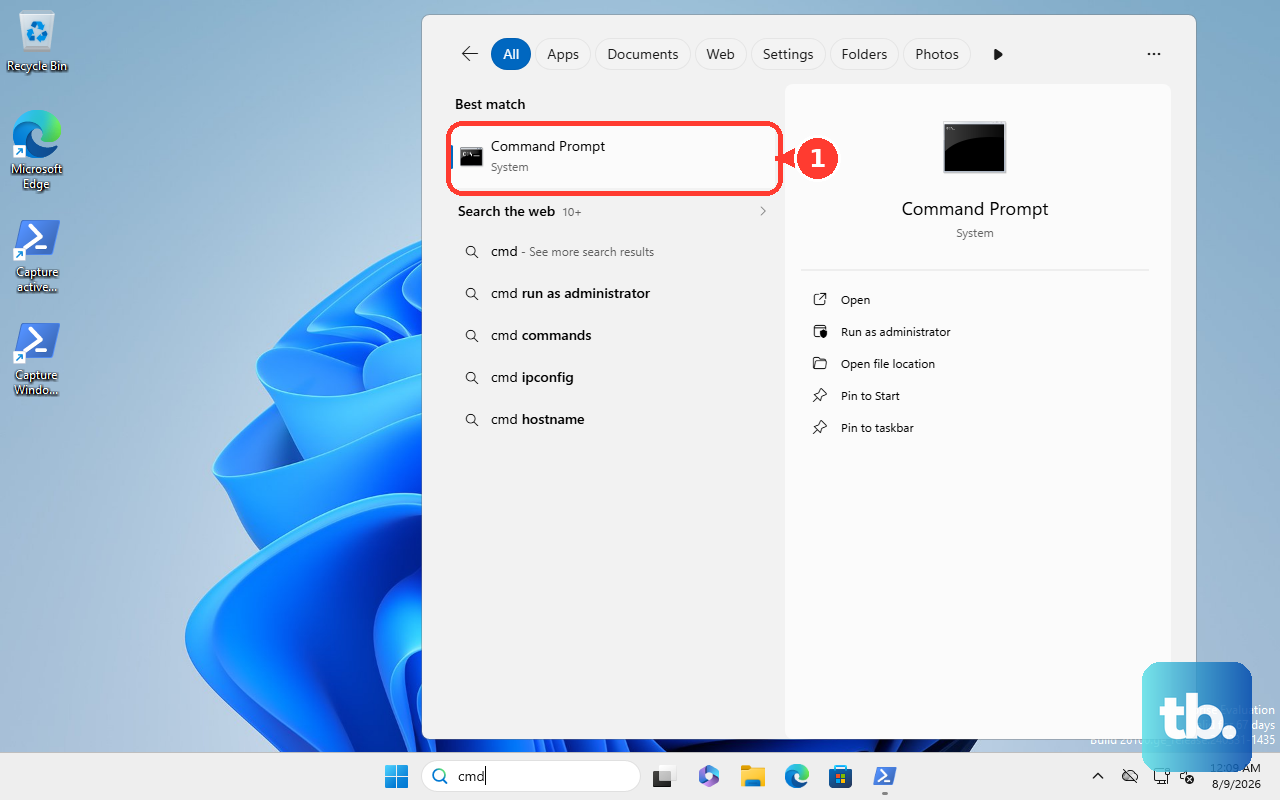
Open Command Prompt or PowerShell, then type systeminfo | findstr /B /C:"OS Name" /B /C:"OS Version". Press Enter, then read OS Name and OS Version.
Run plain systeminfo when you want the longer report, including system type and OS configuration fields.
8. Try the Windows key and Pause shortcut
Press Windows key + Pause. On Windows 11, Settings opens to System > About, where you can read Windows specifications.
9. Skip older WMIC and Control Panel advice
Ignore older tutorials that use wmic os get Caption,Version,BuildNumber. Use PowerShell with Get-CimInstance Win32_OperatingSystem instead, and replace older Control Panel > System instructions with Settings > System > About.
Windows 10 PCs still show these details, but Windows 10 support ended on October 14, 2025. Eligible Windows 10 version 22H2 devices can keep getting security updates through October 12, 2027 by enrolling in the consumer Extended Security Updates (ESU) program, which you can join at no additional cost by syncing your PC settings, for 1,000 Microsoft Rewards points, or with a one-time $30 purchase. Commercial ESU is paid, and LTSC editions follow their own lifecycles.
Frequently Asked Questions
Where do I find the Windows edition and OS build?
Open Start > Settings > System > About, then check Windows specifications for Edition, Version, and OS Build.
Is winver the fastest Windows version command?
Yes. Open Search or Run, type winver, and press Enter to see the Windows version and OS build in About Windows.
How do I check whether Windows is 32-bit or 64-bit?
Open System Information with msinfo32, then read System Type in System Summary.
What should I use instead of WMIC?
Use Settings, winver, System Information, systeminfo, or PowerShell with Get-CimInstance Win32_OperatingSystem. Microsoft lists WMIC as deprecated.











