
Windows 10 reached end of life on October 14, 2025, when Microsoft ended regular support, but a Windows 10 PC still works after that date. Eligible PCs enrolled in Extended Security Updates (ESU) keep getting critical and important security fixes through October 12, 2027. Before then, upgrade the PC if it qualifies for Windows 11, or plan a new PC or another operating system.
Consumer ESU first covered one year after support ended. On June 25, 2026, Microsoft added a second year, and it says existing enrollments continue automatically to October 12, 2027, so enrolled PCs need nothing new. The free ways to enroll differ between the United States and the European Economic Area, so read that part before you change an account or pay.
The short version
- Windows 10 still works, but regular support ended on October 14, 2025.
- Eligible PCs enrolled in ESU get security fixes through October 12, 2027.
- To see your version, press Windows + I and open System > About.
- Run PC Health Check before you replace a working PC.
- Back up your files to a separate drive before any upgrade or switch.
What ended and what still works
End of support is a date, not a switch. Microsoft says the software will continue to function, but technical assistance, feature updates and regular security updates for Windows 10 stopped on October 14, 2025. Nothing on the PC turns off, and your files and apps stay where they are.
The risk grows over time instead. Each new security hole found in Windows 10 stays open on a PC that gets no patches, and Microsoft warns that such a PC is at greater risk for viruses and malware. ESU is the exception, because it keeps critical and important fixes coming to enrolled PCs.
The date covers Windows 10 Home, Pro, Pro Education and Pro for Workstations, and Microsoft names version 22H2 as the final release. Long-Term Servicing Channel (LTSC) releases keep their own, later dates. Several other dates get mixed up with the main one because your apps run on schedules of their own.
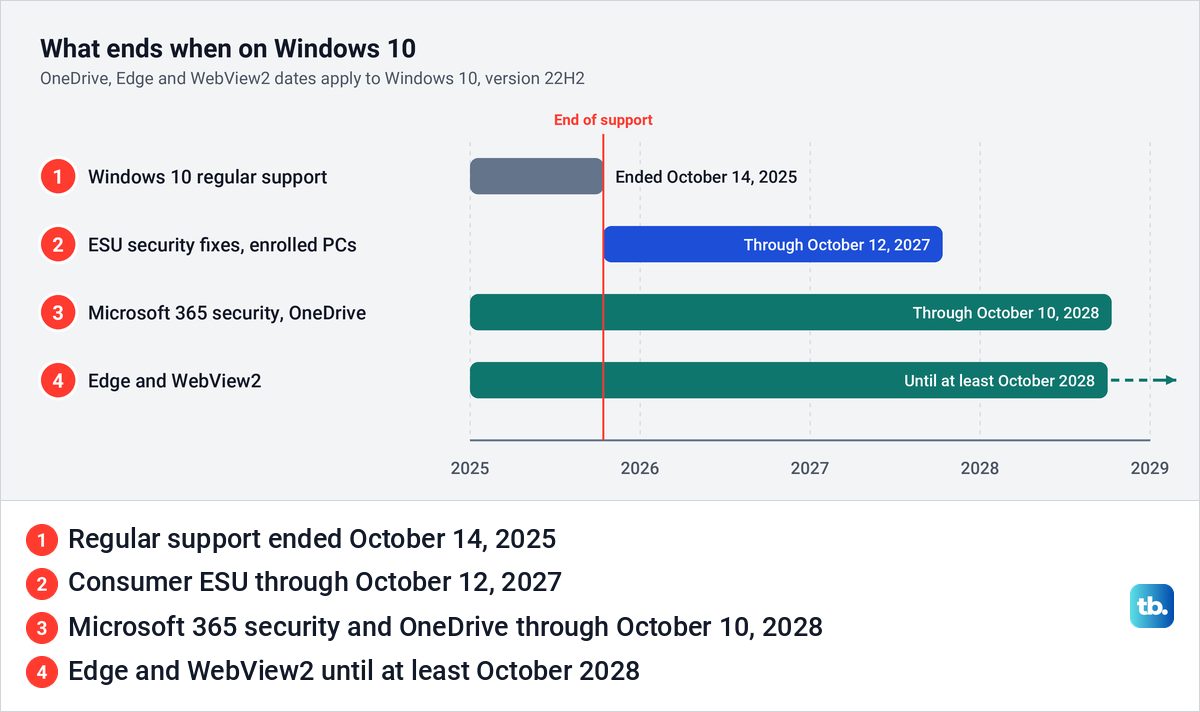
Those app updates do not patch Windows. An up-to-date browser protects you inside the browser, but it cannot fix a flaw in the operating system underneath it. That is why the ESU date is the one that matters for the PC as a whole.
Check which Windows version you have
First, check which Windows version you have so you know whether the deadline applies to this PC. Microsoft's route works on Windows 10 and Windows 11 alike: right-click Start, choose Settings, select System and then About.
On our PC, running Windows 11, version 25H2, pressing Windows + I opened Settings on its Home page rather than on System, so we selected System in the sidebar first. About was the last row of the System page, and in our Settings window we had to scroll down to reach it.
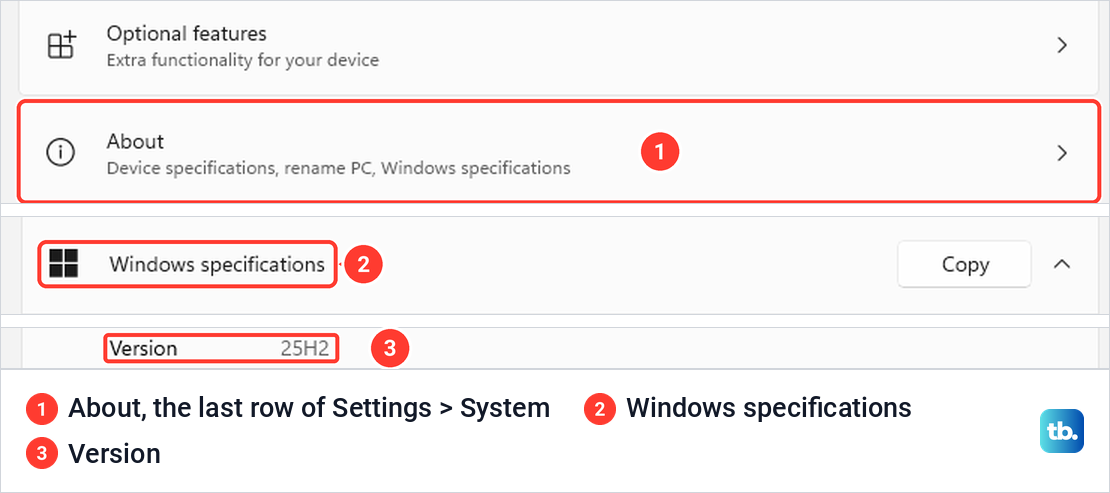
The Windows specifications card on that page starts with the Edition row, which names the product, and then the Version row. Ours read 25H2. A Windows 10 PC needs version 22H2 to qualify for ESU, the final release of Windows 10 and the only one the program covers.
There is a quicker check as well. Press Windows + R, type winver and press Enter to open the About Windows box. On our PC it showed the Windows 11 logo above the line Version 25H2.
On our Windows 11 PC, the registry's ProductName value still said Windows 10, while Settings and winver both said Windows 11. If an older tool or script reports Windows 10 on a PC that Settings calls Windows 11, trust Settings and winver.
Your options at a glance
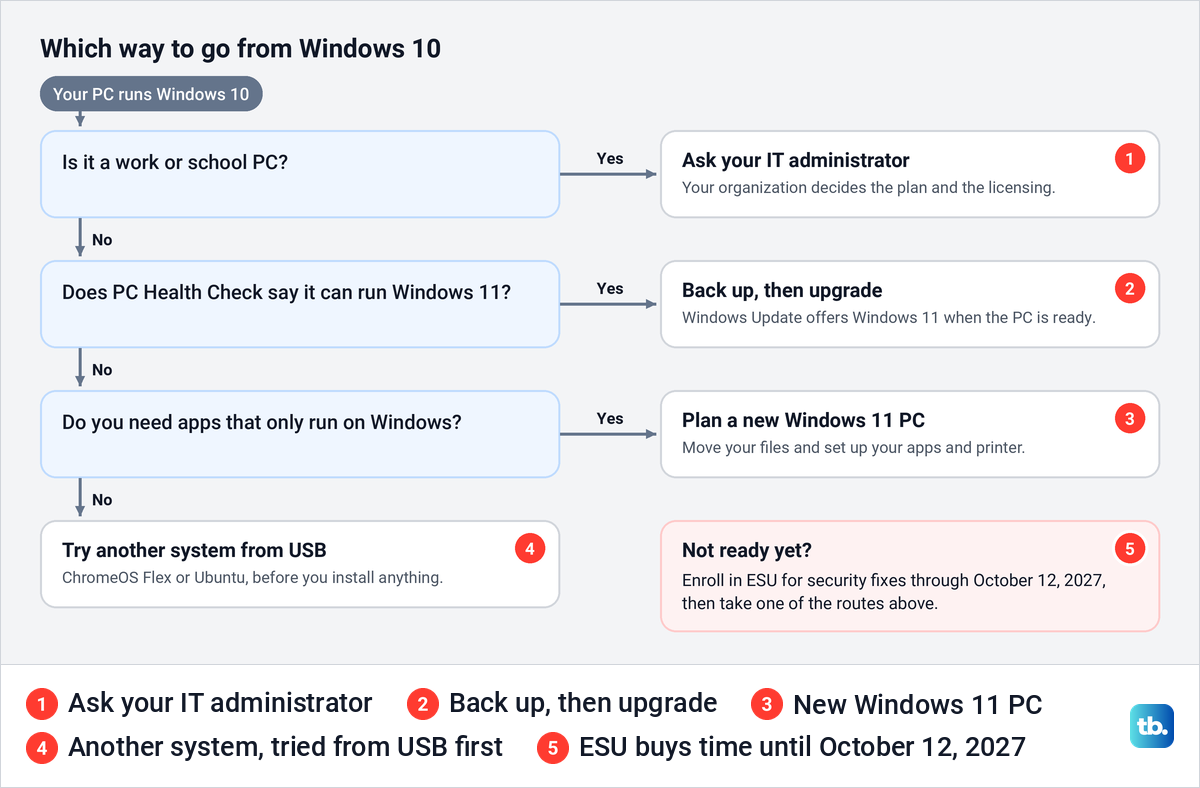
Three routes cover nearly every home PC: upgrade it, replace it, or move it to another system. The right one depends on whether the hardware meets the Windows 11 requirements and whether you rely on apps that only run on Windows. ESU is not a route of its own but a way to buy time on any of them, and work or school PCs follow their IT department's plan.
| Your situation | What to do next | What to expect |
|---|---|---|
| Your PC can run Windows 11 | Back up, then take the upgrade in Windows Update | A free upgrade on the same PC |
| You need more time on Windows 10 | Enroll in consumer ESU from Windows Update | Critical and important security fixes through October 12, 2027 |
| Your PC cannot run Windows 11 and you need Windows apps | Plan a move to a new Windows 11 PC | Files, apps and printers to move, so check your devices first |
| You mostly work in a web browser | Try ChromeOS Flex or Ubuntu from a USB drive | A different system with its own app and hardware support |
| It is a work or school PC | Ask your IT administrator | Your organization's licensing and rules apply |
Hardware decides the first branch. If PC Health Check says the PC qualifies, the upgrade costs nothing, so check before you replace a working PC. If it does not qualify, think about what you actually need Windows for: must-have Windows programs point to a new PC, while a routine that lives in a browser can move to another system.
Check if your PC can run Windows 11
Microsoft's checker is the PC Health Check app. Microsoft's instructions are to search for PC Health Check from the taskbar, open it and select Check now, and the app reports whether the PC meets the Windows 11 requirements and why if it does not. If the app is missing or a result is unclear, our walk-through shows how to use Microsoft's PC Health Check app step by step.
The headline numbers are modest: a 64-bit processor with two or more cores at 1 GHz or faster, 4 GB of RAM and 64 GB of storage. Three less obvious requirements matter more: the processor must be a compatible model, the firmware must be UEFI and Secure Boot capable, and the PC needs a Trusted Platform Module (TPM) version 2.0.
TPM is the requirement you can check yourself in seconds. Press Windows + R, type tpm.msc and select OK. On our PC the console opened with the status The TPM is ready for use, and the TPM Manufacturer Information section listed Specification Version 2.0.
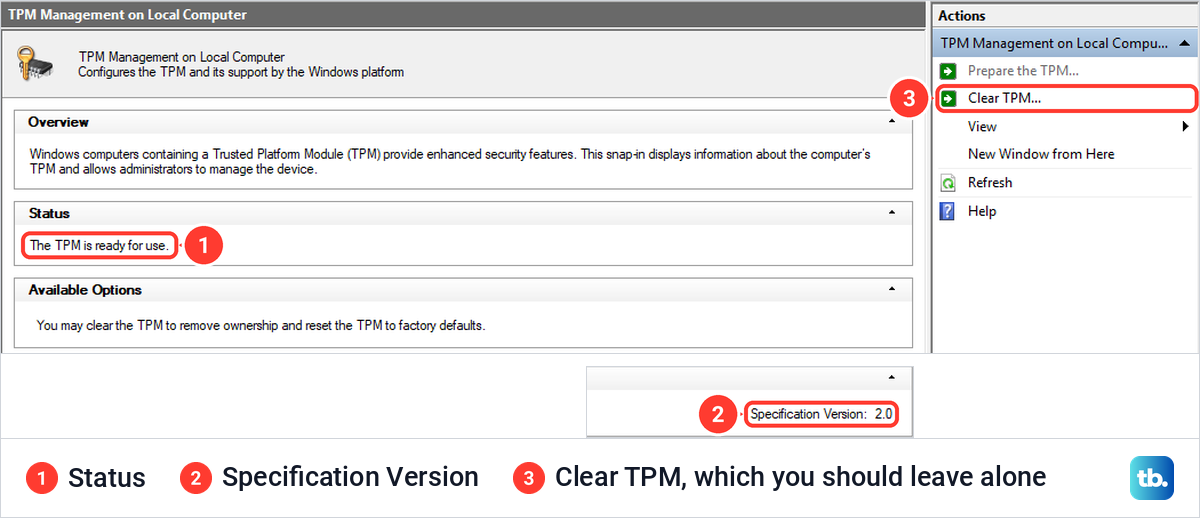
That field sits at the far right of its row, and when we opened the console in a narrower window it was cut off. Widen or maximize the window if you cannot see it. Microsoft says anything below 2.0 does not meet the Windows 11 requirement.
Leave Clear TPM and Prepare the TPM in the Actions pane alone. We closed the console without clicking either. If the console says Compatible TPM cannot be found instead, Microsoft says the TPM may be disabled, so check and enable TPM 2.0 in the firmware settings before you decide the hardware is too old.
If PC Health Check names Secure Boot as the problem, check your Secure Boot settings and the firmware's boot mode before you change anything. Those menus differ from one PC maker to the next.
Avoid tools that skip the hardware check. Microsoft says PCs that do not meet the requirements aren't guaranteed to receive updates, including security updates, which defeats the reason for leaving Windows 10.
Upgrade your PC to Windows 11
If the PC qualifies, the upgrade is free. Microsoft recommends waiting until Windows Update says Windows 11 is ready for the device, and on Windows 10 that means Start > Settings > Update & Security > Windows Update, then Check for updates. Back up your files before you start, using the File History steps further down this page.
Install every Windows 10 update on offer first and restart, since Microsoft says the Windows 11 offer may not appear until they are in place. When the offer shows up, select Download and install and follow the prompts. Our full guide explains how to upgrade from Windows 10 to Windows 11 for free, including what to do before you start.
Microsoft's own pages differ slightly on the starting point. One says the PC must run Windows 10 version 2004 or later, another says 22H2, so a fully updated PC meets both. If Windows Update never offers the upgrade on a PC that passes PC Health Check, our guide to using the Windows 11 installer and fixing install problems covers the other routes.
What Extended Security Updates cover
ESU is a narrow program. Microsoft describes it as critical and important security updates for Windows 10, version 22H2, delivered through Windows Update as they are released. It does not bring other kinds of fixes, new features or technical support.
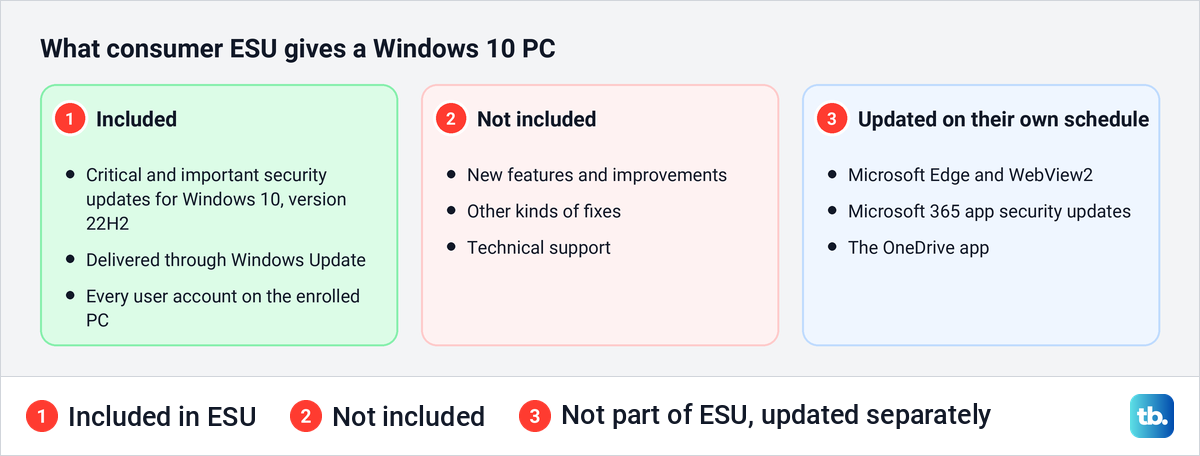
Coverage applies to the whole PC. Once any user on a Windows 10 PC enrolls, Microsoft says the other users on that PC are protected too. One ESU license can be used on up to 10 PCs, each added from its own Windows Update page.
Joining late does not reset the clock. You can enroll at any time until the program ends on October 12, 2027, and a newly enrolled PC receives the critical and important updates released since October 14, 2025. Coverage still stops on October 12, 2027 for every enrolled home PC.
Work and school PCs use a different program. Microsoft's commercial ESU costs $61 per device for the first year and doubles in price each following year, for a maximum of three years. A managed PC follows its IT department's plan, not the consumer options below.
ESU options in the United States and the European Economic Area
How you enroll depends on where you live, and Windows shows the choices for your region when you enroll. Microsoft's US page lists three ways, and its page for the European Economic Area lists two with a different account rule. Elsewhere, including the UK and Switzerland, go by the options Windows offers you.
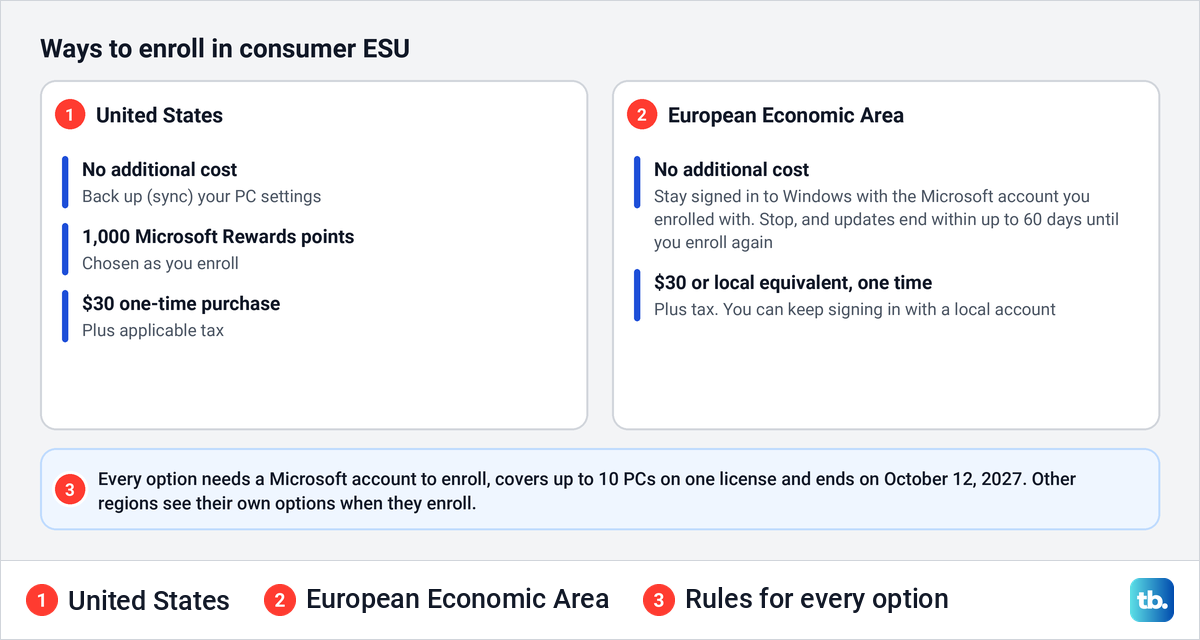
In the United States, enrollment costs nothing extra if you back up your PC settings, which Microsoft also calls syncing your PC settings. The alternatives are redeeming 1,000 Microsoft Rewards points or a one-time purchase of $30 plus applicable tax. Back up your files separately as well, using the steps further down.
In the European Economic Area, the free route needs you to keep signing in to Windows with the Microsoft account you enrolled with. Microsoft says that if you stop, ESU updates are discontinued after up to 60 days and you have to enroll again. The one-time purchase of $30, or the local currency equivalent, plus tax lets you keep using a local account afterward.
Every route needs a Microsoft account at the moment you enroll, even if you normally sign in to Windows with a local account. If this PC has never used one, create the account or find its password before you start.
How to enroll in ESU
The enrollment steps follow Microsoft's instructions for Windows 10. Sign in with an administrator account, then open Settings > Update & Security > Windows Update, where Microsoft says an eligible PC shows a link to enroll.
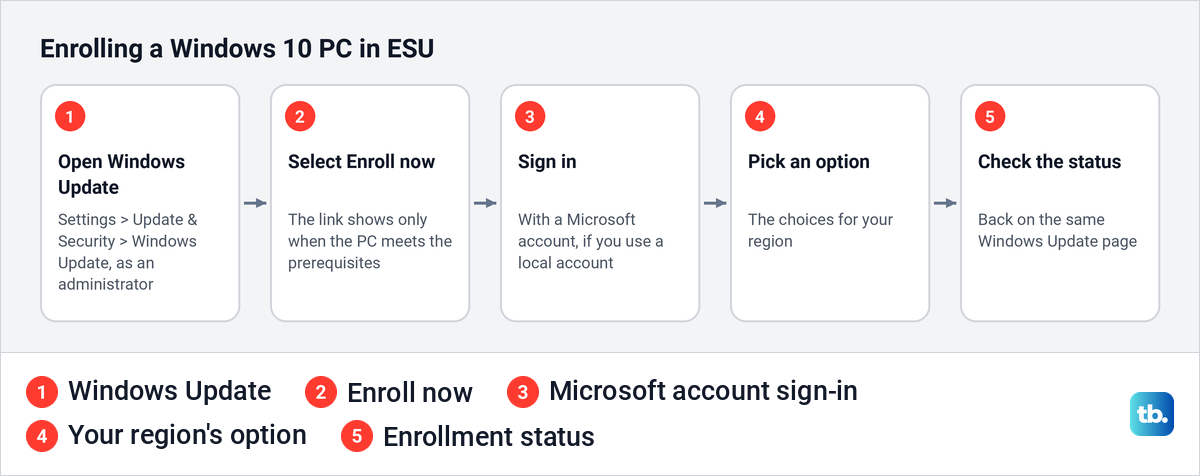
Select Enroll now. If you use a local account, Windows asks you to sign in with a Microsoft account and then offers the choices for your region. Pick one and follow the prompts, then return to the same Windows Update page, which Microsoft says is where your enrollment status appears.
To add another PC to the same license, open Windows Update on that PC and select Enroll now. Microsoft says to choose Add device if you are signed in with the account used for the first PC, or to sign in with that account when Windows asks.
A child's Microsoft account cannot enroll a PC. Microsoft's instructions are for a parent to switch to their own administrator account on the child's PC, adding it as a user first if needed, and to enroll from there.
Enrolling now still leaves the door open to Windows 11. Microsoft says ESU does not stop you from upgrading once the PC meets the hardware requirements.
If Enroll now does not appear
The link only appears when the PC meets Microsoft's prerequisites, so work through them in order. The PC must run Windows 10, version 22H2 in the Home, Professional, Pro Education or Workstations edition, with the latest updates installed.
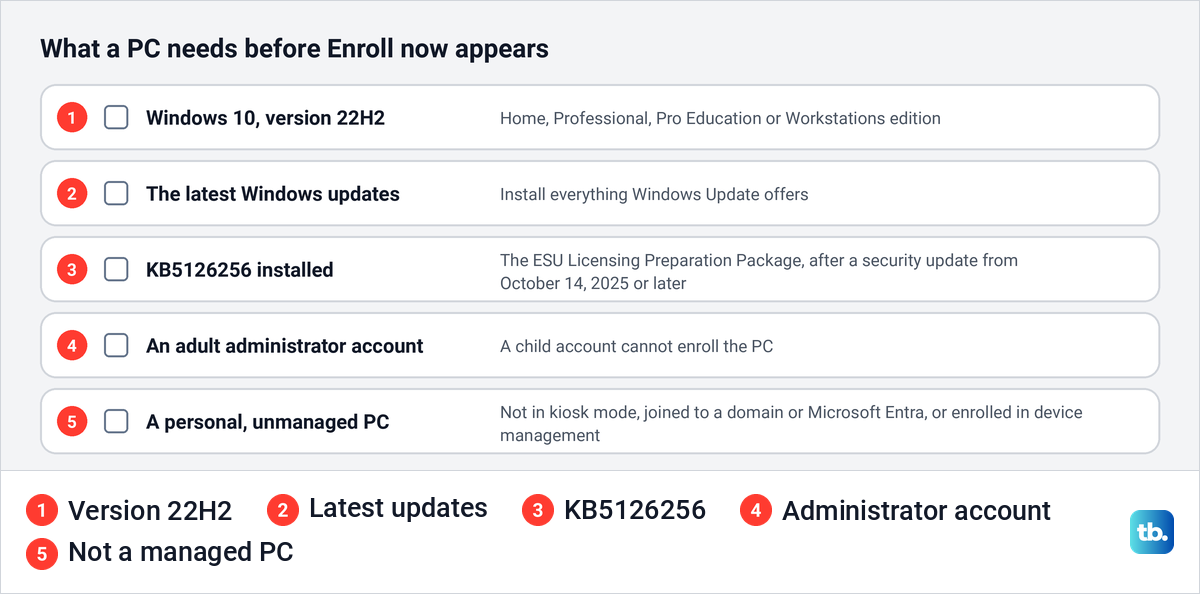
It also needs the Windows 10 ESU Licensing Preparation Package, KB5126256, which Microsoft published on September 8, 2026. Microsoft says it installs after a security update released on or after October 14, 2025 and prepares the PC for enrollment, but it does not enroll the PC on its own. Microsoft says Windows Update downloads and installs it automatically once such a security update is in place, so run Check for updates and restart until nothing is left to install.
Next, check the account and how the PC is managed. You need an administrator account that is not a child account, and Microsoft does not offer consumer enrollment on PCs in kiosk mode, joined to an Active Directory domain or Microsoft Entra, or enrolled in device management. A PC that is only registered with Microsoft Entra can still enroll.
If the link appears but sign-in fails, look at the account itself. If you have forgotten the password, reset your Microsoft account password and then return to Windows Update to try again.
Skip registry edits and scripts from forums that promise to force the link. The prerequisites above are the route Microsoft documents.
What happens to Office, Edge and your antivirus
Your apps keep working, and several keep getting updates after Windows 10 itself stopped. Microsoft says Edge and the WebView2 Runtime will get updates on Windows 10, version 22H2 until at least October 2028, and ESU is not required for them.
For home users, Microsoft 365 apps on Windows 10 now get security updates only, through October 10, 2028. The OneDrive app gets updates on version 22H2 through the same date, while older Windows 10 versions stopped getting OneDrive updates after August 15, 2026.
Office bought once, without a subscription, has its own rules. Support for Office 2016 and Office 2019 ended on October 14, 2025, on every version of Windows. Office 2021 and Office 2024 keep running on Windows 10, but Microsoft no longer treats that setup as fully supported and will not help with problems it traces to Windows 10. Microsoft's pages give October 2026 as the end of support for Office 2021 itself.
Antivirus does not fill the gap. Microsoft says antivirus can help but is not enough on its own, because without security updates the operating system itself stays exposed to new threats. Keep your antivirus and browser updated, and treat ESU or a supported system as the real fix.
Back up your files before you switch
Back up before an upgrade or a move to a new PC or system, and use a separate drive or a network location. File History is the tool built into Windows for this. On our PC it listed Libraries, Desktop, Contacts, and Favorites as the folders it copies by default.
Open Start, type control panel and open Control Panel. In Category view, the System and Security heading has a link named Save backup copies of your files with File History, which opens File History directly.
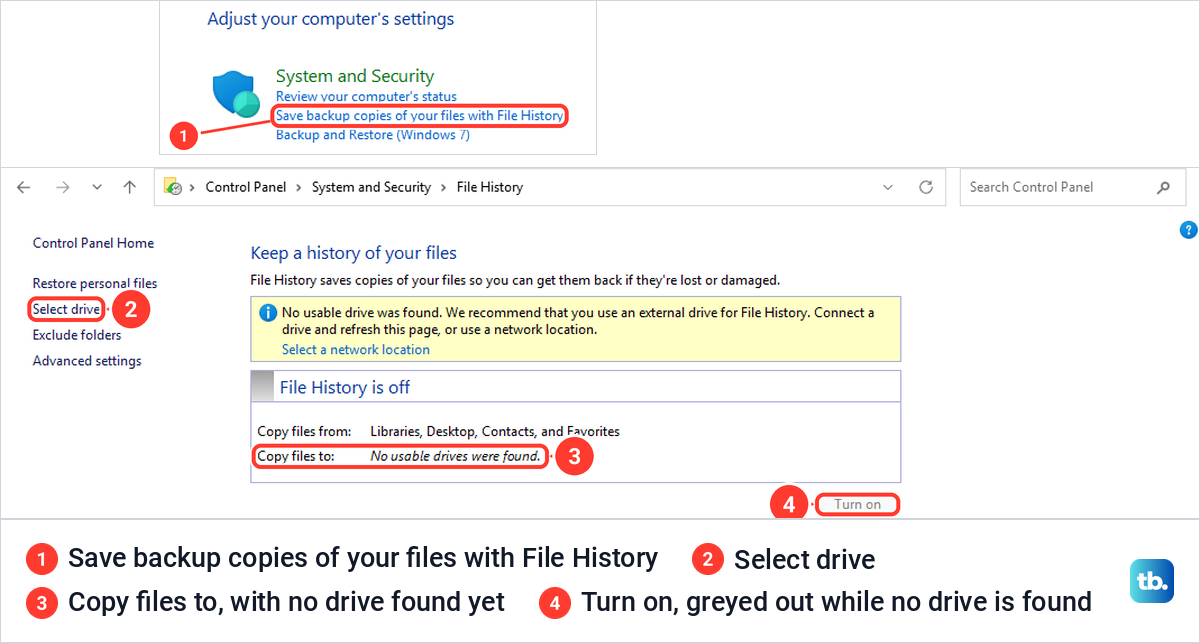
With no external drive connected, our File History page said File History is off and No usable drives were found, and the Turn on button was greyed out. A yellow note above it recommended an external drive or a network location.
Plug in an external drive, then select Select drive in the left pane. Microsoft's steps are to pick the drive or network location in the list, select OK, and then select Turn on.
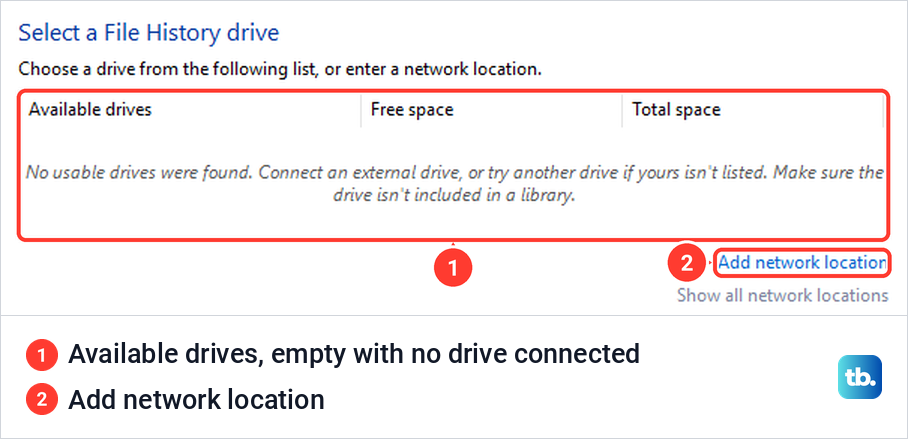
On our PC that list was empty, with an Add network location link under it, so we cancelled without changing anything. For the full routine, set up a File History backup with our guide, and when it has finished, safely eject the external drive before you unplug it.
Check the backup before you rely on it by opening a few files from the drive. Keep a list of the programs you need to reinstall, along with their license keys, since a file backup does not carry apps across.
Moving to a new Windows 11 PC has a tool of its own. Microsoft points to the Windows Backup app, which it says can save and transfer your files, photos, settings, apps and sign-in details to the new computer.
Buy a new PC or try another system
A new Windows 11 PC is the simple answer when the old one cannot qualify and you rely on Windows programs. Any PC that meets the Windows 11 requirements will do, so there is no need to pay for a premium model just to leave Windows 10.
Move your files across before you retire the old PC, and keep it until everything works on the new one. Once the new PC is set up, add your printer to Windows 11 and print a test page before you wipe or recycle the old machine.
If your days are mostly spent in a browser, another operating system can keep older hardware useful. Google's ChromeOS Flex and Canonical's Ubuntu can both run from a USB drive first, so you can see how the PC behaves before you change anything.
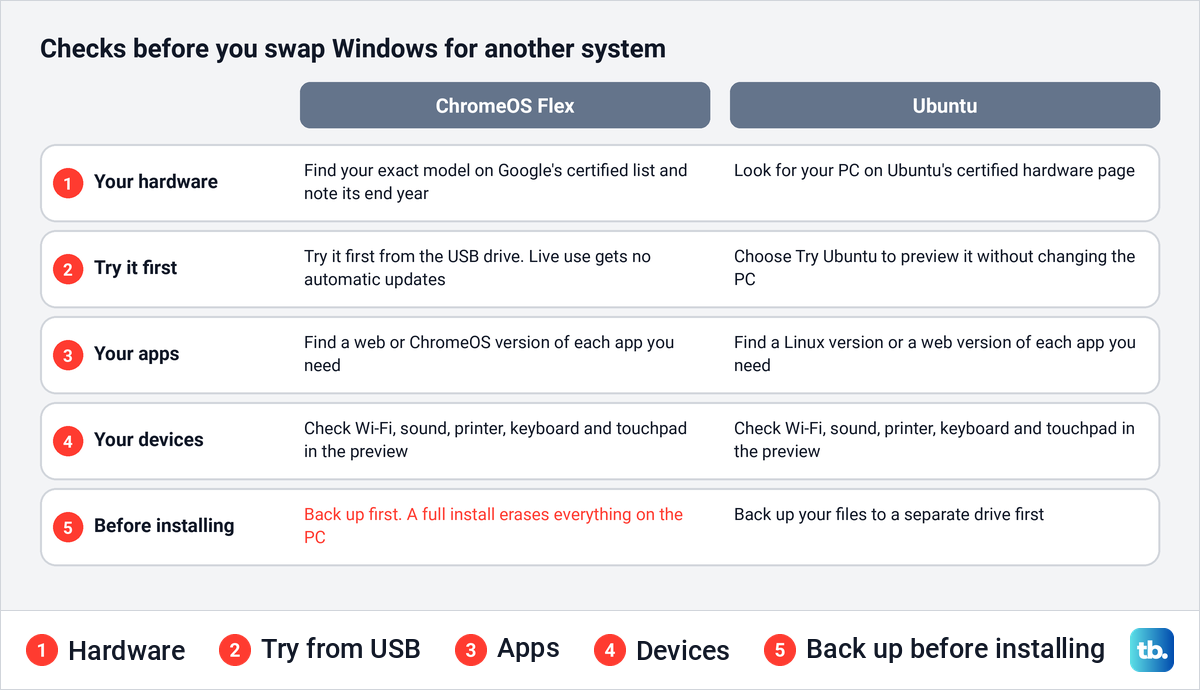
Google certifies ChromeOS Flex on specific models only, and a PC is certified only if its exact model name and number is on the list. Look up your PC on Google's list of certified ChromeOS Flex models first, where each entry carries a year and support ends on December 31 of that year. Google says a full installation erases all existing data, apps, settings and the operating system on the PC.
Ubuntu's preview works the same way. Canonical's steps to try Ubuntu from a USB drive end with a Try Ubuntu option that runs the system without making any changes to your PC. In either preview, test Wi-Fi, sound, the printer, the keyboard and the touchpad, and check that every app you need has a version that runs there.
How we tested this guide
We tested the Windows 11 side of this guide on Windows 11, version 25H2, checking the version in Settings and with winver.
Frequently Asked Questions
Will my Windows 10 PC stop working after end of life?
No. Microsoft says the software continues to function after October 14, 2025, but it no longer gets regular security updates, so enroll in ESU or move to a supported system.
When does Windows 10 ESU end for home users?
Consumer ESU ends on October 12, 2027. If you are already enrolled, Microsoft says your coverage continues automatically to that date.
Is Windows 10 ESU free?
It can be. In the United States you can enroll at no additional cost by syncing your PC settings, redeem 1,000 Microsoft Rewards points, or pay $30 plus tax. In the European Economic Area, the free route requires you to stay signed in to Windows with the Microsoft account you enrolled with.
Can I keep a local account and still get ESU?
You need a Microsoft account to enroll in every region. In the European Economic Area, the one-time $30 purchase lets you keep signing in to Windows with a local account afterward, while the free route requires the Microsoft account.
Is it too late to enroll in ESU?
No, enrollment stays open until October 12, 2027. A PC that joins late gets the critical and important updates released since October 14, 2025, but its coverage still ends on October 12, 2027, like every other enrolled home PC.
Can I upgrade to Windows 11 after enrolling in ESU?
Yes. Microsoft says enrolling in ESU does not stop you from upgrading once your PC meets the Windows 11 hardware requirements.
Does antivirus make Windows 10 safe without ESU?
No. Microsoft says antivirus helps but is not enough on its own, because the operating system stays exposed to new threats without security updates.
How do I know if my PC can run Windows 11?
Run Microsoft's PC Health Check app and select Check now. It tells you whether the PC meets the requirements and explains why if it does not, for example a missing TPM 2.0, Secure Boot or a compatible processor.