Constant pings make your phone, computer, watch, or browser harder to use. They usually come from one noisy app, a website permission you forgot about, or a connected device mirroring alerts somewhere else.
You can turn off notifications completely, pause them for a while, or silence only the apps and websites that keep interrupting you. Start with the device that is buzzing right now, then use the deeper controls if the alerts keep coming back.
1. Stop notifications from one phone app
This fixes alerts from one app without silencing the whole phone.
On iPhone or iPad: Open Settings, tap Notifications, choose the app, then turn off Allow Notifications.
On iPhone: Open Settings, tap Apps, choose the app, tap Notifications, then turn off Allow Notifications.
On Android: Open Settings, tap Notifications, tap App notifications, choose the app under Most recent or All apps, then turn that app's notifications off.
On Samsung Galaxy: Open Settings, tap Notifications, tap App notifications, then turn off the switch next to the app.
2. Pause everything with Do Not Disturb
For a fast quiet mode on iPhone or iPad, open Control Center, press and hold Focus, Do Not Disturb, or another Focus option, then tap Do Not Disturb.
On Android 14 and up, use Settings > Modes > Do Not Disturb to choose which people, apps, alarms, and other interruptions can still get through; on older Android versions the same controls sit under Sound & vibration > Do Not Disturb.
On any version, you can also swipe down from the top of the screen and tap Do Not Disturb.
On Pixel, swipe down from the top of the screen, tap Modes, tap Do Not Disturb, then tap Done.
3. Shut down an alert from the notification itself
On iPhone or iPad: Swipe left on the notification or notification group, tap Options, then tap Turn Off.
On iPhone or iPad for a short mute: Swipe left on the notification or group, tap Options, then choose the option to mute notifications for an hour or a day.
To undo that temporary iPhone or iPad mute: Open Notification Center, swipe left on the notification, tap Options, then tap Unmute.
On Android: Swipe down from the top of the screen, touch and hold the notification, tap Settings, then turn off All notifications or the notification categories you do not want.
4. Silence a Windows 11 PC or Mac
This fixes desktop popups from apps, websites, and system notifications while you work.
On Windows 11: Open Start, go to Settings, click System, click Notifications, then turn Notifications off.
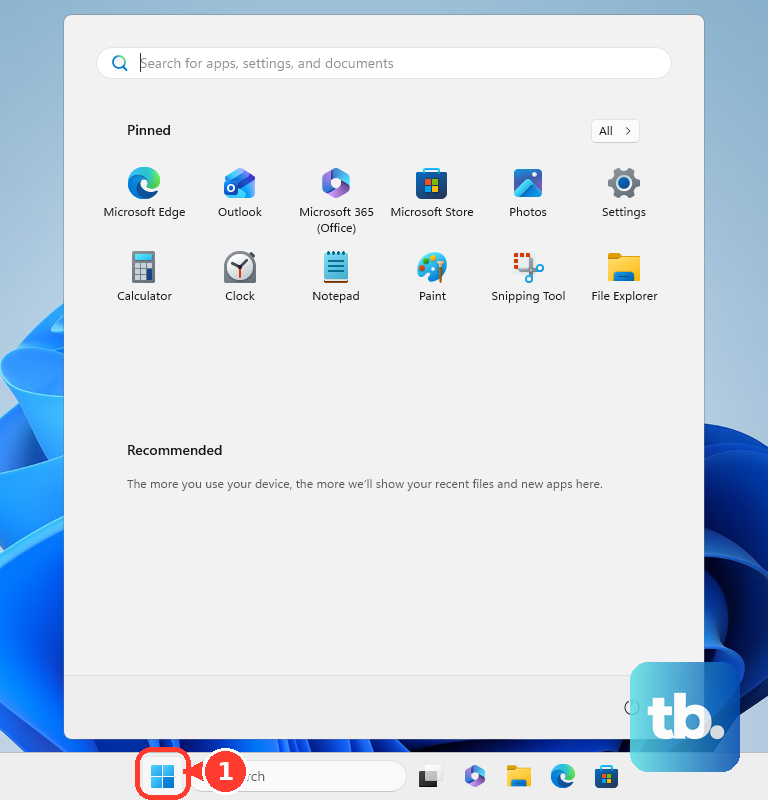
For one Windows 11 app: Open Start, go to Settings, click System, click Notifications, select the app under Notifications from apps and other senders, then turn its notifications off.
From Windows 11 Notification Center: Select the clock or notification bell on the taskbar, press Windows key + N, or swipe from the side of the screen, then select More on the app notification and choose Turn off all notifications.
To pause Windows 11 alerts: Open Notification Center and select the bell icon with zZ to turn on Do not disturb. Select it again to turn it off.
On Mac: Open System Settings, click Notifications, select an app or website below Application Notifications, then turn off Allow notifications.
To pause Mac alerts: Click Control Center in the menu bar, click anywhere in the Focus section, then click the Focus you want. Click the highlighted Focus again to turn it off.
5. Block website notifications in browsers
Chrome on desktop: Open Chrome, click More, go to Settings, click Privacy and security, click Site Settings, click Notifications, then choose the default notification setting you want.
To block one Chrome desktop site: Open the site, click View site information to the left of the address bar, then set Notifications to Block.
Chrome on Android: Open the site in Chrome, tap Page info to the left of the address bar, tap Permissions, tap Notifications, then turn notifications off or choose Block.
Chrome on iPhone or iPad: Open Settings, tap Notifications, tap Chrome, then turn Allow Notifications off.
Microsoft Edge: Open Settings and more, go to Settings, click Privacy, search, and services, click Site permissions, click All sites, select the website, click Notifications, then choose Block.
Firefox desktop: Open Settings or Preferences, click Privacy & Security, find Permissions, click Settings next to Notifications, set the website to Block, then click Save Changes.
Firefox for Android: Open the menu, tap Settings, tap Site permissions, tap Notification, then choose Blocked.
Safari on Mac: Open Safari, click Safari, click Settings, click Websites, click Notifications, then turn off Allow websites to ask for permission to send notifications.
Use notification controls, not pop-up settings, when website alerts are the problem.
6. Control watch and Chromebook notifications
Apple Watch: Press the side button to open Control Center, tap the Do Not Disturb button or Focus control, choose Do Not Disturb or another Focus, then tap On or choose an ending point such as On for 1 hour or On until I leave.
Apple Watch from iPhone: Open the Apple Watch app, tap My Watch, tap Notifications, choose the app, tap Custom, then tap Notifications Off.
Samsung Galaxy Watch: Swipe down from the top of the watch screen to open Quick settings, then tap the Do Not Disturb icon.
Samsung Galaxy Watch from the phone: Open the Galaxy Wearable app, tap Watch settings or the Home tab, tap Notifications, then use the main notification switch or per-app controls.
Wear OS watch: Wake the watch, swipe down from the top of the screen, then tap Do not disturb.
Chromebook apps: Select the time at the bottom right, open Settings, click Apps, click Notifications, then turn notifications for apps on or off.
Chromebook Focus: Select the time at the bottom right, click Focus, then turn Do Not Disturb while in Focus on or off.
7. Mute notification sounds without blocking alerts
This fixes the noise while notifications still arrive silently.
On iPhone models with an Action button: Open Settings, tap Sounds & Haptics, then use Silent mode. You can also configure the Action button for Silent Mode.
On other iPhone models: Flip the Ring/Silent switch toward the back of the iPhone to turn on Silent mode.
On Android: Press a volume button, tap Ring above the slider, then tap Vibrate or Mute.
On Apple Watch: Press the side button to open Control Center, then tap Silent Mode. For a dark screen plus muted sound, use Theater Mode.
8. Remove emergency alerts or noisy apps
On iPhone where allowed: Open Settings, tap Notifications, scroll to Government Alerts, then turn off the available alert types.
For iPhone Emergency Alerts: Tap Emergency Alerts, then adjust Emergency Alerts, Local Awareness, and Always Play Sound.
On Android where allowed: Open Settings, tap Notifications, tap Wireless emergency alerts, then choose which alert types or settings to turn on or off.
Delete an iPhone or iPad app: Touch and hold the app, tap Remove App, tap Delete App, then tap Delete to confirm.
Uninstall an Android app: Open Settings, tap Apps, choose the app, then tap Uninstall. Some apps can only be disabled.
Uninstall a Windows 11 app: Open Start, go to Settings, click Apps, click Installed apps, find the app, click More, then click Uninstall.
Uninstall a Mac app: Open Finder, click Applications, run the app's uninstaller when it has one, or drag the app to the Trash and then choose Empty Trash.
Some national or critical alerts cannot be disabled, and deleting the unused app stops its notifications at the source.
9. Check mirrored and managed notifications
When phone alerts also appear on a Windows PC, open Phone Link > Settings > Features > Notifications and adjust notification settings, including which apps can send mirrored notifications where that option appears.
On Samsung phones linked to Windows, Phone Link can set each app to a feed and banner, feed only, or Disabled.
For school or work-managed devices, the organization can control notification behavior, so personal settings are not the final authority.
On current Windows, use Start > Settings > System > Notifications and Do not disturb instead of older Windows 10 notification menus.
Frequently Asked Questions
Why can an app still send alerts after I turned off sound?
Silent mode and mute controls change sound behavior only. Turn off the app's notification permission or use Do Not Disturb to stop the interruption itself.
How do I stop website notifications without changing every site?
Use the browser's default notification setting. Chrome, Safari, Firefox, and Edge all have notification permission controls separate from pop-up settings.
What should I do if notifications show on my PC and phone at the same time?
Check Phone Link on Windows. Its notification settings control mirrored phone alerts, including per-app mirrored notifications where that option is available.
Can I turn off every emergency alert?
No. iPhone and Android let you manage some government or wireless emergency alert types where allowed, but some national or critical alerts cannot be disabled.











