

Xbox Game Bar can stop opening, record clips without audio, ignore your microphone, or vanish from Windows 11 after app changes. Start with the quick checks that fix the most common launch and capture problems, then move into repair, reinstall, driver, and Windows repair steps.
1. Try the shortcuts and switch Game Bar on
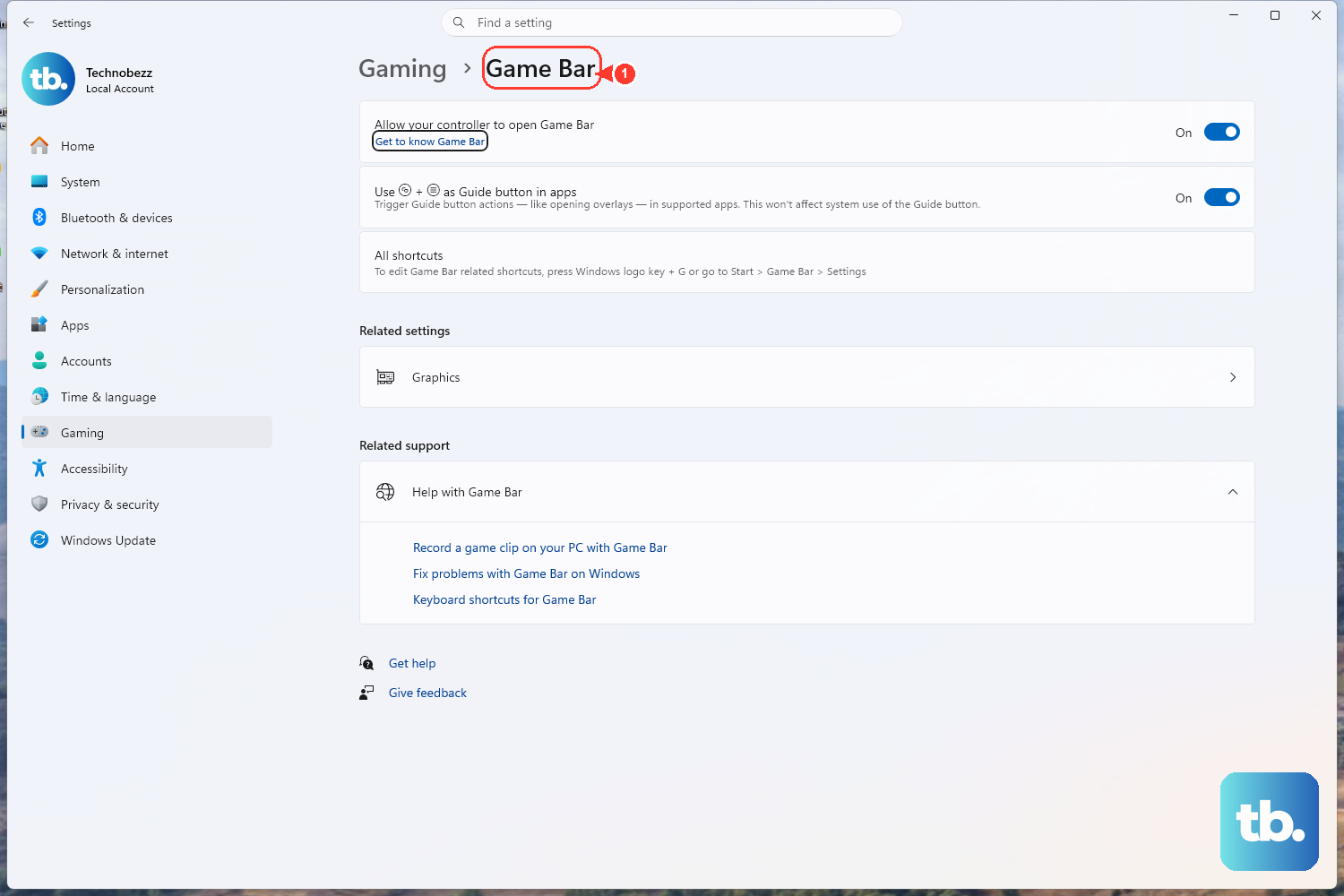
Press Windows logo key + G to open Game Bar.
Press Windows logo key + Alt + R to start or stop a recording.
Press Windows logo key + Alt + M to turn the microphone on or off during recording.
Press Windows logo key + Alt + Print Screen to take a screenshot.
These are the controls Windows actually supports.
If your controller's Xbox button does nothing, press Windows key + I, type xbox in the Settings search box, open Enable Xbox Game Bar, and turn on Open Xbox Game Bar using this button on a controller.
Keyboard users can focus that toggle and press Spacebar.
Game Bar works with most PC games and supported apps.
It does not capture every Windows surface, including some desktop and File Explorer scenarios.
2. Update Windows and Store apps
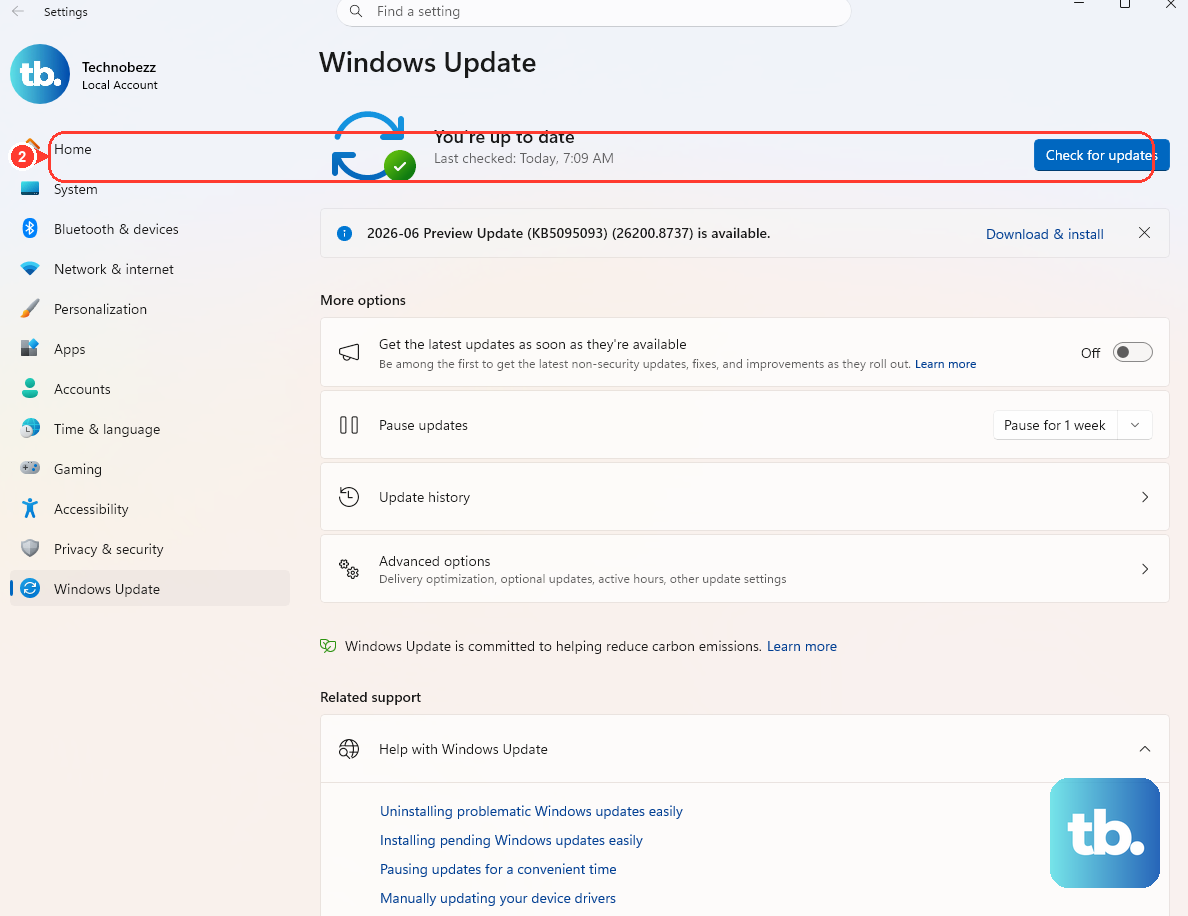
A stale Windows component or Store package is the cleanest fix when Game Bar opens but widgets, capture, Xbox social features, or Store-linked services act wrong.
Select Start > Settings > Windows Update > Check for updates.
If Windows finds an update, select Install now.
Restart the PC when Windows asks.
Open Microsoft Store > Library > Get updates.
Install available updates for Game Bar, Xbox, Microsoft Store, and Gaming Services.
3. Fix capture settings and missing audio
Check the capture controls before touching deeper settings when clips fail, replay capture is missing, or recordings come out silent.
Open Start > Settings > Gaming > Captures.
Turn on Record what happened if you use replay clips, then review the recording and audio options on that page.
For missing game or system audio, press Windows logo key + G, select Settings, open Capturing, and choose All under the audio-to-record options.
Close Game Bar with Windows logo key + G, then record a short test clip.
Ignore old Windows 10 wording such as Record in the background while I'm playing a game or Record game clips, screenshots, and broadcast using Game bar.
On Windows 11, use Record what happened and the current Game Bar capture controls.
4. Give Xbox microphone access
Party chat problems often come down to one Windows privacy switch: go to Start > Settings > Privacy & security > Microphone.
Under App permissions, turn on Xbox.
Reopen Game Bar with Windows logo key + G and test party chat again.
5. Repair Game Bar before resetting it
Repair is the first app-level fix.
It targets a broken installed app without clearing its data.
Select Start > Settings > System > System components.
Find Game Bar or Xbox Game Bar.
Select More > Advanced options > Repair.
Press Windows logo key + G and test Game Bar.
If Game Bar still opens incorrectly or widgets keep failing, return to Advanced options and select Reset.
Reset clears Game Bar app data and settings.
6. Reinstall Game Bar from Microsoft Store
When Game Bar is missing, reinstall it through the Store instead of using old PowerShell removal commands.
Open Microsoft Store > Library, find Game Bar, and select Install.
If you do not see it in Library, open the official Microsoft Store Game Bar page and choose Get, Install, or Open in Store app, depending on what appears.
For party chat, social, or Xbox app integration issues, update or reinstall the Xbox app from its Microsoft Store page.
The Game Bar Store listing supports Windows 10 version 19041.0 or higher, including Windows 11, on x86, x64, ARM, and ARM64 PCs.
To remove Game Bar where Windows offers removal, go to Start > Settings > System > System components, find Game Bar or Xbox Game Bar, select More > Uninstall, and confirm.
If Uninstall is absent, use Repair, Reset, or the Store reinstall path.
7. Refresh your graphics driver or media features
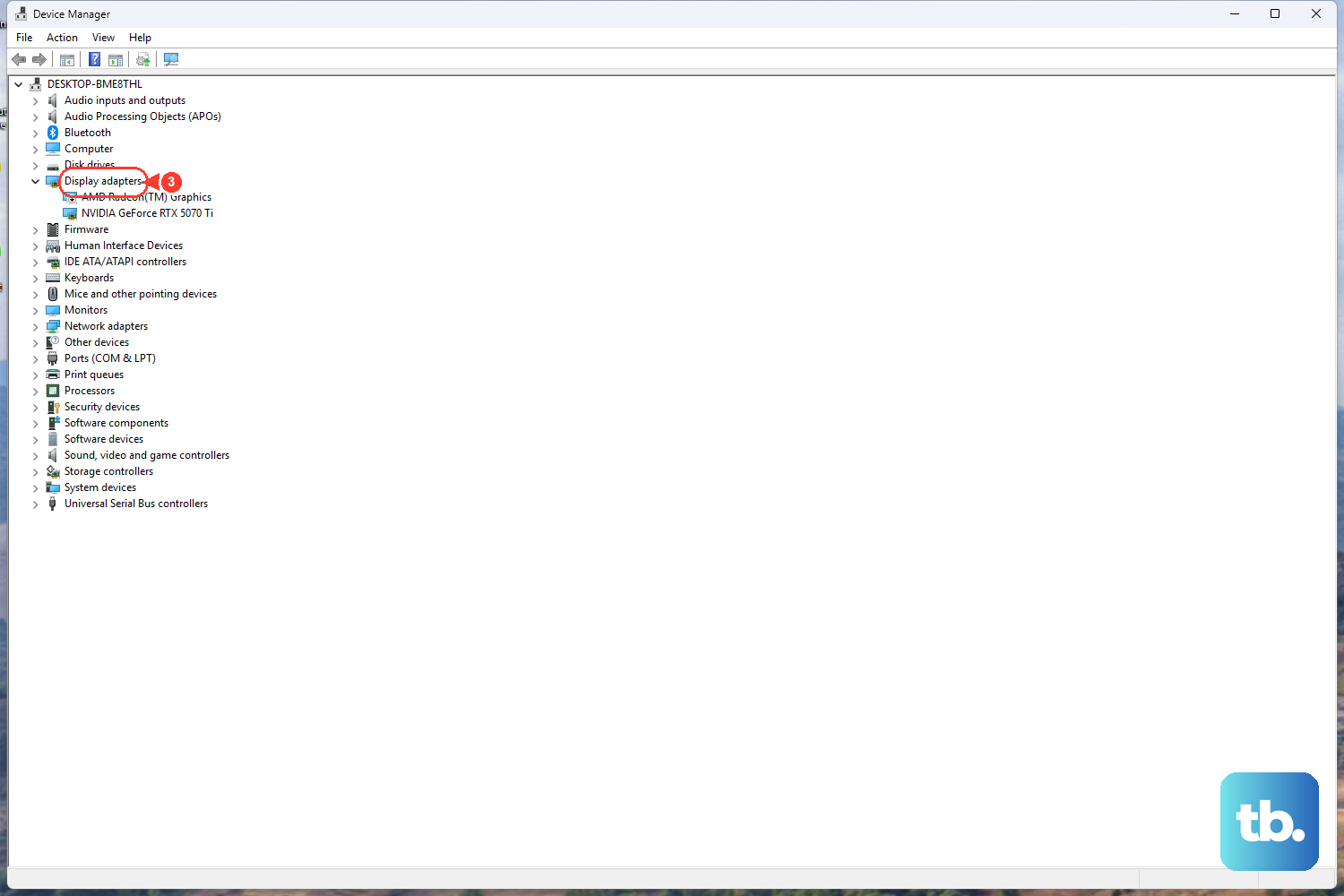
Use this section when the record button is disabled, capture fails right away, or the PC runs a Windows 11 N edition.
For capture failures: exit the game or app, select Start, type Device Manager, open Device Manager, expand Display adapters, right-click the video card, and select Update driver.
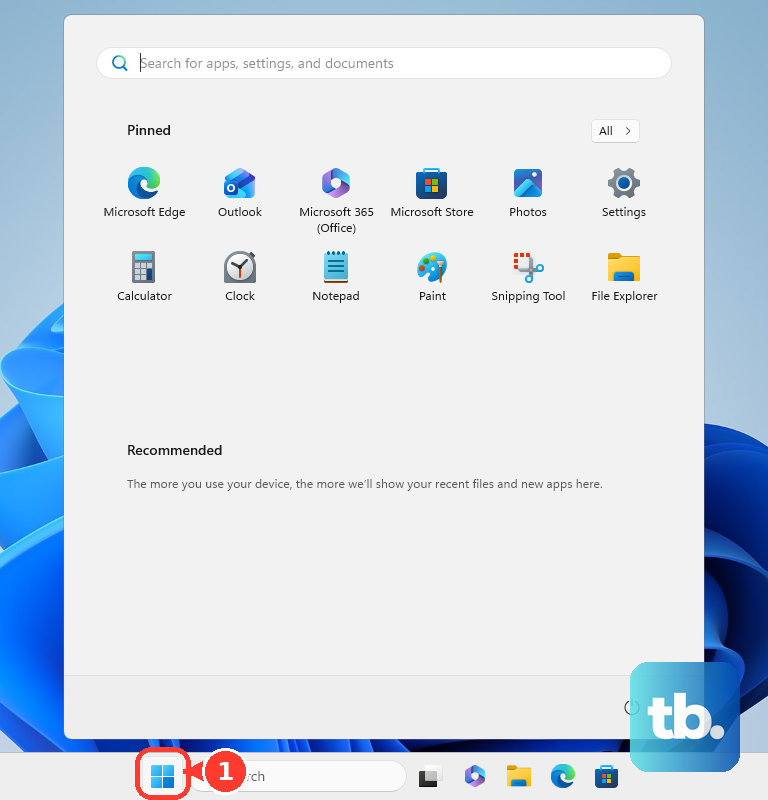
For Windows 11 N: select Start > Settings > Apps > Optional features.
Next to Add an optional feature, select View features, choose Media Feature Pack, install it, and restart the PC.
After that, install missing related apps from Microsoft Store, including Xbox Game Bar.
8. Separate Game Assist and managed PC issues
Game Assist is the Microsoft Edge widget inside Game Bar, not the same thing as core Game Bar launch or capture.
Press Windows key + G, open Game Assist, then use More options > Settings to manage Edge profile or browser settings.
For widget-specific problems, select More options > Send Feedback.
Game Assist applies to Microsoft Edge 137 or later on supported Windows 11 editions with recent Windows and Game Bar updates.
On a work or school PC, your organization can control Game Bar recording and preinstalled Store apps.
If Game Bar is missing, blocked, or unavailable in Microsoft Store, contact your IT admin instead of using registry edits or policy changes from older guides.
9. Repair Windows with Windows Update
Use this only after Windows updates, Store updates, Repair, Reset, reinstall, and the relevant driver or media-feature step.
Windows 11 can reinstall the current Windows version through Windows Update while preserving apps, files, and settings.
- 1.Select Start > Settings > System > Recovery.
- 2.Under Fix problems using Windows Update, select Reinstall now.
- 3.In the Fix problems using Windows Update window, choose the restart behavior.
- 4.Select OK.
- 5.Wait for Windows Update to install the repair version, then restart when Windows asks.
This option requires Windows 11 version 22H2 with the February 2024 optional update or later.
Managed work and school PCs can hide it.
Frequently Asked Questions
Why does Windows logo key + G do nothing on Windows 11?
Game Bar is disabled, missing, out of date, or broken as an app component. Enable it in Windows Settings, update Windows and Microsoft Store apps, then use Repair or Reset from Installed apps.
Why is there no sound in my Xbox Game Bar recording?
Open Game Bar with Windows logo key + G, go to Settings > Capturing, and choose All under the audio-to-record options. Also check Settings > Gaming > Captures for Windows capture options.
Can Xbox Game Bar record the Windows desktop or File Explorer?
No in some scenarios. Game Bar works with most PC games and supported apps, but it does not capture every Windows surface, including some desktop and File Explorer uses.
Should I use registry edits or old GameDVR tweaks to fix Game Bar?
No for normal consumer troubleshooting. Microsoft documents those controls as administrative or legacy policy surfaces, so use Windows Settings, Microsoft Store updates, app Repair or Reset, and Windows Update repair.