Microsoft Clipchamp refuses to launch, freezes on its loading screen, or opens without loading your project. Start with a fresh launch, then follow the fixes for the Windows app, browser editor, or account access problem you're facing. Before resetting the app or clearing stored data, keep your original media files and confirm that your cloud backups have finished.
Give Clipchamp a fresh start
Close Clipchamp using the window’s Close (X) button. Search for Microsoft Clipchamp in Start and reopen it.
If the app stays unresponsive, press Ctrl+Shift+Esc to open Task Manager. Forcing it to close puts unsaved work at risk. Under Processes, select Microsoft Clipchamp and choose End task. Reopen Clipchamp from Start.
If it still will not open, select Start > Power > Restart.
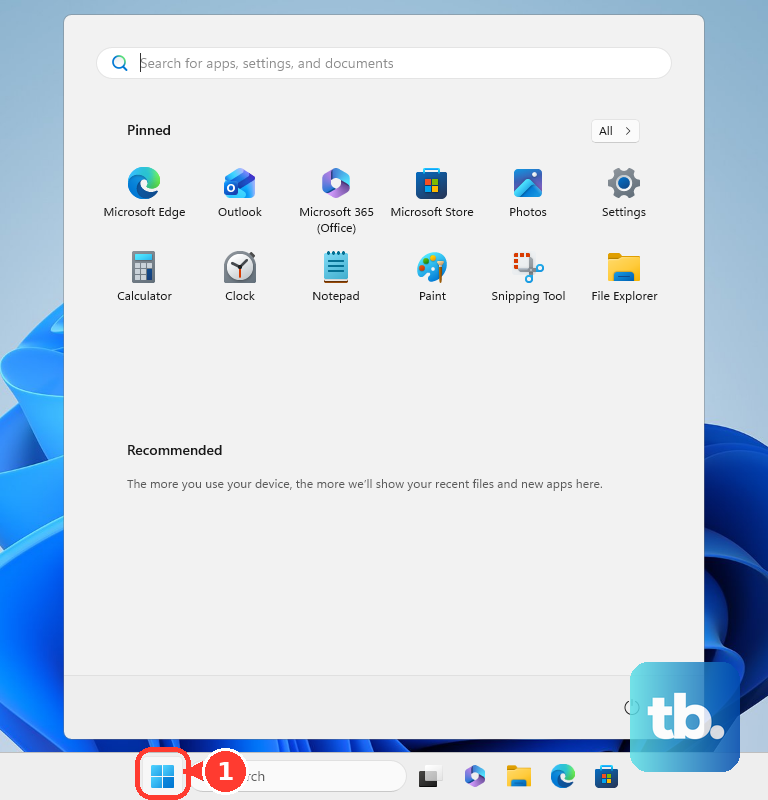
Try opening Clipchamp after Windows restarts. If it still fails, check for updates next.
Install the available updates
Open Microsoft Store. Select Check for Updates, or Library > Get updates in the older Store layout. Install any available Microsoft Clipchamp update.
On Windows 11, open Start > Settings > Windows Update. On Windows 10, open Settings > Update & Security > Windows Update. Available Windows 10 updates depend on your servicing eligibility. Select Check for updates (Check for Updates on Windows 10).
Select Install now if offered. If Clipchamp opens far enough to display an Update notification, follow that notification to update the app.
Repair the Windows app before resetting it
Try Windows’ repair control before moving on to a reset.
- 1.On Windows 11, open Start > Settings > Apps > Installed apps; on Windows 10, open Start > Settings > Apps > Apps & features.
- 2.Find Microsoft Clipchamp. On Windows 11, select More (…) > Advanced options; on Windows 10, select the app and open Advanced options.
- 3.Select Repair, then try opening Clipchamp again. If the control is missing, continue with the browser option below.
- 4.If repair fails, preserve your original media and confirm that your cloud backups are complete. Resetting puts local app data at risk.
- 5.Return to the same Advanced options page and select Reset if available, then reopen Clipchamp.
Check browser compatibility and extensions
An unsupported browser or a blocking extension prevents the Clipchamp editor from loading.
For personal accounts, open app.clipchamp.com in current Microsoft Edge or Google Chrome on a desktop or laptop. This also provides an alternative when the Windows app will not launch. Safari and Firefox are unsupported editor browsers, and the desktop editor does not support phones or tablets.
Sign in with the account associated with your projects. To update Edge, open Settings and more > Help and feedback > About Microsoft Edge. Apply any offered update. Restart Edge.
For Chrome, open More > Help > About Google Chrome. Select Relaunch when offered. On Linux, update Chrome through your package manager instead. On a Chromebook, update ChromeOS.
If loading still fails, enter edge://extensions or chrome://extensions in the address bar. Turn off a suspect privacy, ad-blocking, translation, or script-blocking extension. Reload Clipchamp to test the change. If that resolves the problem, allow app.clipchamp.com through the extension as an alternative to leaving it disabled.
Clear cached browser files
This targets browser loading problems that persist after updates and extension checks. Keep your original media files in case Clipchamp asks you to relink them after clearing the cache.
In Edge, open Settings and more > Settings > Privacy, search, and services > Clear browsing data > Choose what to clear. Set Time range to All time. Select Cached images and files. Deselect every other data category.
Choose Clear now. Enter edge://restart in the address bar to restart Edge.
In Chrome, open More > Delete browsing data. Choose All time. Select Cached images and files. Deselect every other data category.
Select Delete data. Enter chrome://restart in the address bar to restart Chrome.
Reload a project that stays stuck
Press Ctrl+F5 in Clipchamp to reload the stalled editor. This shortcut works in both the Windows app and browser editor.
If the project still hangs, return to the project overview. Reload the overview. Open the affected project again.
Close other apps to free memory and processing capacity. Close unnecessary browser tabs. Keep a single Clipchamp tab in the foreground when using the browser editor.
Free enough internal-drive space to exceed the total size of the project’s media. If Clipchamp asks for missing media, select Relink entire folder or locate the original files individually. For a project that depends on local media, try opening it on the original computer and browser.
Resolve account and OneDrive access problems
A sign-in failure needs a different fix from an app that never launches. From the Clipchamp homepage, open the user icon and select Sign out. Sign back in with the account that created the project; personal and work or school projects belong to separate versions.
The Windows app requires Microsoft sign-in for personal accounts. To connect an older personal account, open browser Clipchamp and go to Settings > profile > Sign-in options > Connect personal Microsoft account. Complete sign-in, then retry the Windows app with that Microsoft account.
For a browser sign-in loop, sign out of Clipchamp and Microsoft 365. Close the browser windows, then try signing in again. If the loop continues, test an InPrivate or Incognito window.
If a personal project reports an access problem after moving to OneDrive or after OneDrive inactivity, sign in to OneDrive with the Microsoft account linked to Clipchamp. Complete any reactivation prompts. Reload Clipchamp afterward.
Reinstall if the Windows app still will not launch
Reinstallation is the next option when updates, repair, and reset have not resolved the Windows app problem. Preserve your original media before removing the app. Confirm that your cloud backups have finished.
Open Start > All apps. Right-click Microsoft Clipchamp. Select Uninstall. Reinstall Microsoft Clipchamp using the installation control on its official Microsoft Store listing.
If Microsoft Store itself will not open, press Windows+R. Enter wsreset.exe. This resets the Microsoft Store cache. Select OK.
Wait for Microsoft Store to reopen. Retry the Clipchamp installation.
If Clipchamp still fails but the browser editor works, select the editor’s help icon. Start a support chat. If the chat widget is missing, allow clipchamp.com and app.clipchamp.com through your privacy extensions.
Check work or school access with your IT team
This targets organizational access failures involving accounts, app versions, licenses, or network restrictions.
Open the Microsoft 365 Clipchamp launch page in Edge or Chrome. Sign in with your work or school account. Update the Windows app through Microsoft Store if you need organizational sign-in there. Work or school sign-in requires version 3.0.10020 or newer.
Ask your IT team to check your Clipchamp license if access remains blocked. Ask IT to review app access and network restrictions. If the problem remains unresolved, ask IT to contact Microsoft business support.
Frequently Asked Questions
What hardware does Clipchamp need?
Use a 64-bit computer, operating system, and browser. Microsoft recommends at least 8 GB of RAM, preferably 16 GB or more, and a recent graphics card.
What should I do if one video file stops loading?
Convert the affected video to a new MP4 with an external converter, even if the original is already an MP4. Import the converted copy into Clipchamp.
How do I retry a failed move to OneDrive?
On the Clipchamp dashboard, open the gear icon, then Settings > OneDrive > Retry setup. Alternatively, select Choose folder and follow the instructions to download your projects and upload them to OneDrive manually.
Will reinstalling the Clipchamp iPhone app fix it?
The Clipchamp iOS app stopped being supported on June 9, 2026. Reinstalling it is no longer a supported remedy. Use the web editor on a desktop computer or the Windows app.











