Your microphone can appear in Windows 11 and still stay silent in calls, recordings, or browser apps. Start with the built-in Windows test, then confirm the result with a recording or the app where you actually need the mic. Here are the current checks that matter.
Test the microphone in Windows Settings
Start here because Windows can tell you right away whether it is receiving microphone input.
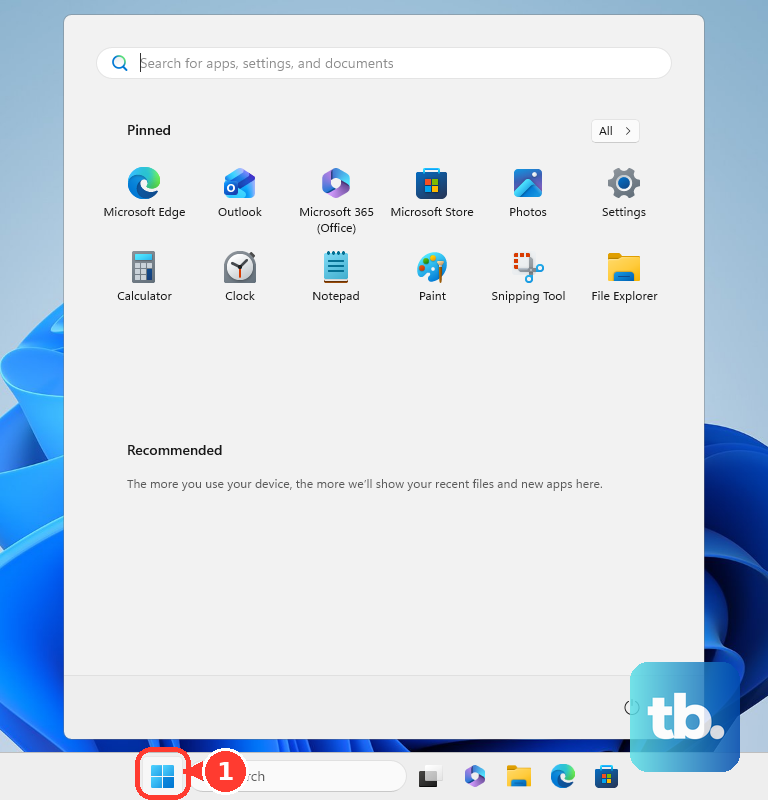
- 1.Open Start, then go to Settings, System, and Sound.
- 2.Under Input, select the microphone you want to test and open its properties.
- 3.In Input settings, select Start test.
- 4.Speak normally, then select Stop test.
- 5.Select Play to hear the result, then adjust Input volume if the recording is too quiet.
Turn on microphone access
This fixes apps that cannot hear you even when Windows detects the microphone.
Open Start, then go to Settings, Privacy & security, and Microphone.
Turn on Microphone access.
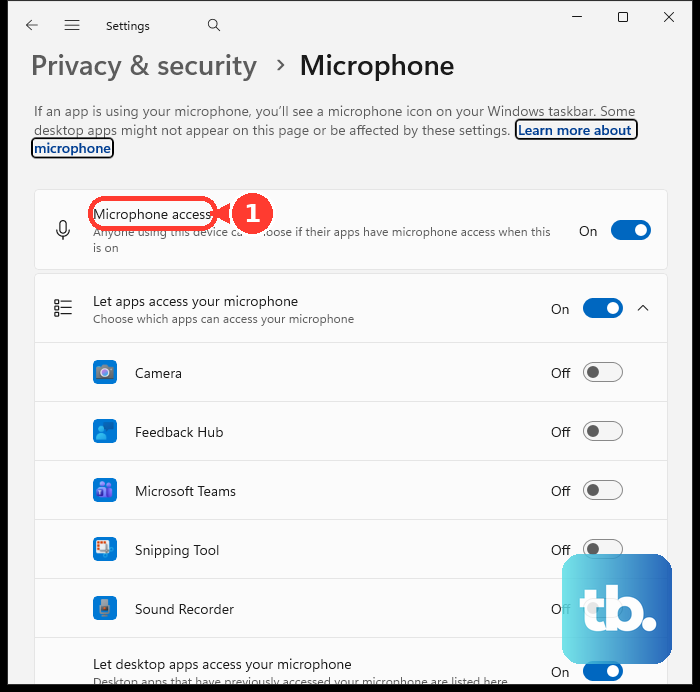
Turn on Let apps access your microphone, then enable the toggle for the Microsoft Store app you want to use.
Turn on Let desktop apps access your microphone for traditional desktop programs.
Desktop apps do not appear as separate per-app toggles in that list.
Record your voice in Sound Recorder
Use Sound Recorder when you want to hear the microphone, not just see an input meter move. It is the clearest check for muffled, distorted, or quiet audio.
Open Start, search for Sound Recorder, and open the app.
Select Start recording, or press Ctrl+R.
Speak for a few seconds.
Select Stop recording, or press Esc.
Select the recording and play it back.
If Windows asks for permission, allow microphone access. To grant it manually, go to Start, Settings, Privacy & security, Microphone, Let apps access your microphone, and turn on Sound Recorder.
Check the mic inside Teams Meet or Zoom
Open Microsoft Teams, select Settings and more, then open Settings, Devices, and Audio settings.
Choose the correct device from the Microphone dropdown.
In the Teams desktop app for Windows or Mac, select Make a test call and follow the Test Call Bot prompts to record and hear a short message. The test call feature is not available in Teams for web, so use the in-meeting check below instead.
In a Teams meeting, select the dropdown arrow next to Mic, open More audio settings, and confirm the correct Microphone.
Use Mic in the meeting controls, or press Ctrl+Shift+M in the Teams desktop app, to mute or unmute.
In Google Meet on a computer, open the meeting preview, use the mic dropdown to choose the device, select Microphone, and speak.
The microphone works in Google Meet when the mic bar moves.
In the Zoom desktop app, sign in, open your profile picture menu, then go to Settings, Audio, and Microphone.
Use Test your microphone, pick the correct microphone from the dropdown, and adjust Input Volume if needed.
When the mic works in Windows but fails in one meeting app, keep the next check inside that app.
Allow microphone use in your browser
Browser meeting apps and web-based mic tests need browser permission as well as Windows permission.
In Chrome, enter chrome://settings/content/microphone in the address bar.
Set Default behavior to Sites can ask to use your microphone.
For one site in Chrome, open it, select View site information in the address bar, and turn on Microphone.
In Microsoft Edge, open Settings and more, Settings, Cookies and site permissions, and Microphone.
Turn on Ask before accessing (recommended).
For one site in Microsoft Edge, go to Settings and more, Settings, Privacy, search, and services, Site Permissions, and All sites.
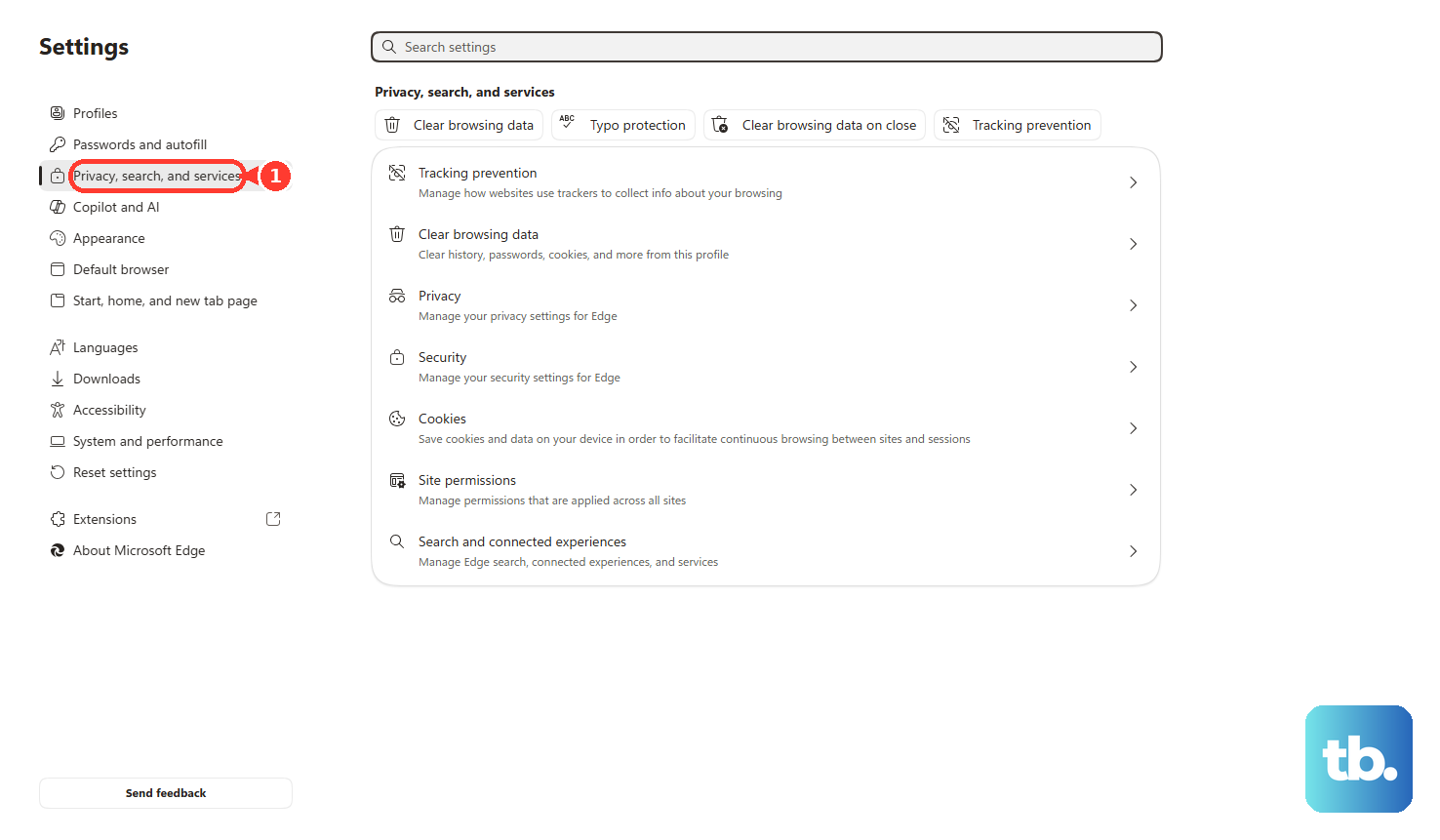
Choose the website and set Microphone to Allow.
In Firefox, open the site and select Allow when Firefox asks for microphone permission.
To change saved permissions in Firefox, open the menu button, then Settings, Privacy & Security, Permissions, Microphone, and Settings....
Choose Allow or Block, and select Save Changes.
Try voice typing for a fast input check
Place your cursor in a text box, such as a search field or blank document.
Press Windows key+H, or press the Microphone button on the touch keyboard.
Wait for Listening....
Speak and confirm that words appear on screen.
Press the Microphone button again, or say Stop listening, to stop dictation.
Voice typing needs an internet connection, so use Sound Recorder when you want an offline playback check.
Rule out mutes and managed PC limits
A physical mute switch can override software settings. Check the headset, USB microphone, webcam microphone, laptop controls, and keyboard mute key, then repeat the Settings, Sound Recorder, Teams, Meet, or Zoom test.
Windows key+Alt+K can mute or unmute the microphone in supported apps, but it is not a universal microphone test. Confirm the microphone is unmuted inside the calling or recording app after using it.
For current Windows 11 voice setup, use Start, Settings, Accessibility, and Speech, then turn on Voice access. On first run, choose a language, select Agree and continue, and use Setup microphone to choose or confirm the microphone.
On a work or school PC, microphone access may be controlled by your organization. If permission toggles are unavailable or every app test fails after the mic works elsewhere, ask your administrator to check microphone privacy policy or browser audio-capture policy.
Frequently Asked Questions
Why can Windows 11 detect my microphone but apps still cannot hear me?
The usual cause is permission. Turn on Microphone access, Let apps access your microphone, and Let desktop apps access your microphone under Settings > Privacy & security > Microphone.
What is the best way to hear how my microphone sounds?
Use Sound Recorder. It records your voice and lets you play it back, which is more useful than only checking whether the input level moves.
Can I test my microphone before joining a meeting?
Yes. In the Teams desktop app for Windows or Mac, Make a test call is in Settings > Devices > Audio settings, Google Meet shows a mic bar in the preview screen, and Zoom has Test your microphone under Settings > Audio.
Why is my browser microphone test not working?
Your browser may be blocking microphone access. Check the microphone permission in Chrome, Microsoft Edge, or Firefox, then allow the specific site to use the microphone.