


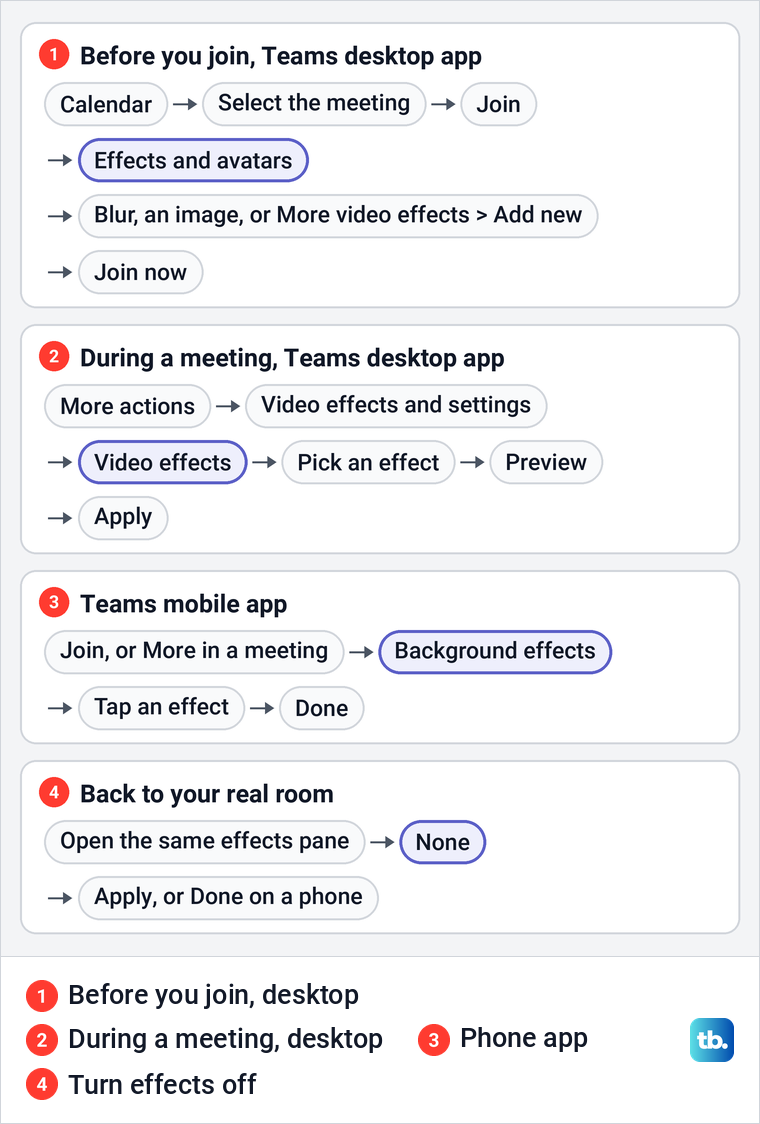
To change your background in Teams, select Join on a meeting and, on the pre-join screen, select Effects and avatars, then pick Blur, a Teams image or your own picture. If the meeting has already started, open More actions > Video effects and settings > Video effects, choose a background, select Preview and then Apply. Select None whenever you want your real room back.
Those are Microsoft's steps for the Teams desktop app for work or school. In Teams for the web in Microsoft Edge on Windows 11, version 25H2, we found the same choices behind a button called More, with None, Blur, Add new and dozens of Teams images. Picking a tile only selects it, though, and the pane's Preview and Apply and turn on video buttons need a camera that Teams can use.
Microsoft also warns that blurring or replacing your background may not prevent sensitive information from being visible to other people in the call or meeting. Check your preview before you join, and move anything private out of the camera's view rather than trusting the effect to hide it.
The short version
- Before you join: select Join, then Effects and avatars on the pre-join screen.
- During a meeting: More actions > Video effects and settings > Video effects, then Preview and Apply.
- Your own picture: Add new, then a .JPG, .PNG or .BMP file.
- Back to your room: select None. In Teams for the web, Remove on an uploaded picture deletes the picture instead.
- Nothing to click? Teams needs a camera it is allowed to use before it can preview or apply an effect.
Teams background options at a glance
| What you want | What to select | What it does |
|---|---|---|
| Soften the room behind you | Blur, or Standard blur or Portrait blur from its arrow in the desktop app | Blurs your surroundings instead of replacing them |
| Replace the room with a picture | Any Teams background image in the gallery | Puts that image behind you |
| Use your own photo or logo | Add new, under More video effects before you join | Uploads a .JPG, .PNG or .BMP file from your computer |
| Show your real room again | None, then Apply in a meeting | Turns background effects off |
| Delete a picture you uploaded | The ... button on its tile, then Remove, in Teams for the web | Takes the picture out of your gallery |
The map below shows the same routes in the desktop app and the Teams mobile app. The labels are not identical everywhere, since the web toolbar button reads More where Microsoft's desktop steps call it More actions, so match the words on your screen rather than the position of a button.
Change the background before you join
Microsoft's route in the Teams desktop app starts in your calendar. Select the meeting, select Join, and on the pre-join screen select Effects and avatars. Pick a Teams background to see it in your video preview, or open the arrow beside Blur for Standard blur or Portrait blur, then select Join now.
To use your own image at this point, select More video effects > Add new and choose a .JPG, .PNG or .BMP file. Microsoft adds that if you do not see this option, the feature might not be available on your device. If there is no meeting on your calendar yet, set up a Microsoft Teams meeting first and stop at its join screen.
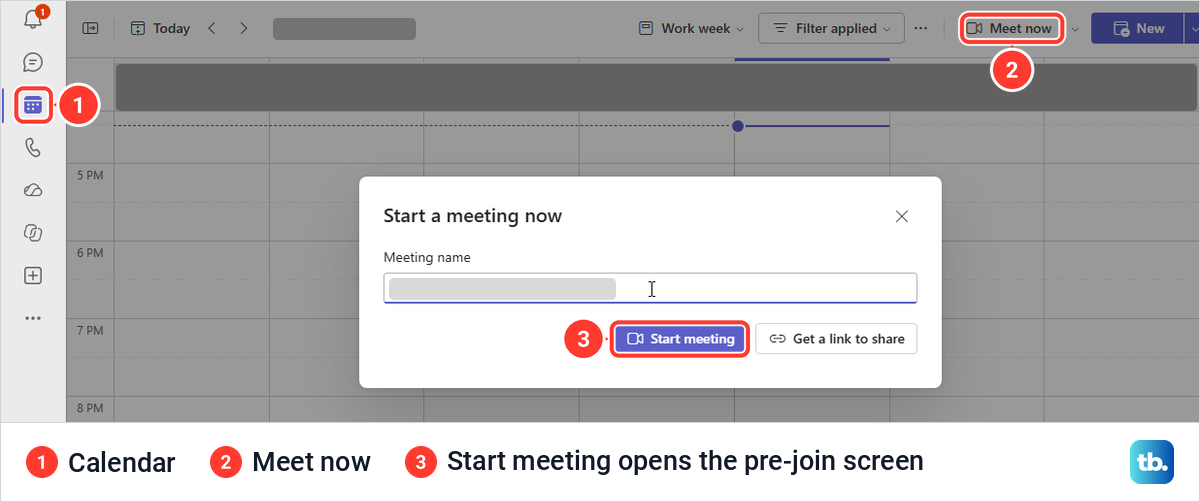
You can also start a meeting of your own to try backgrounds in. In Teams for the web we selected Calendar, then Meet now, typed a name in the Start a meeting now box and selected Start meeting, which went straight to the pre-join screen. The small arrow beside Meet now held only Join with an ID, so the main button is the one you want.
Change the background during a meeting
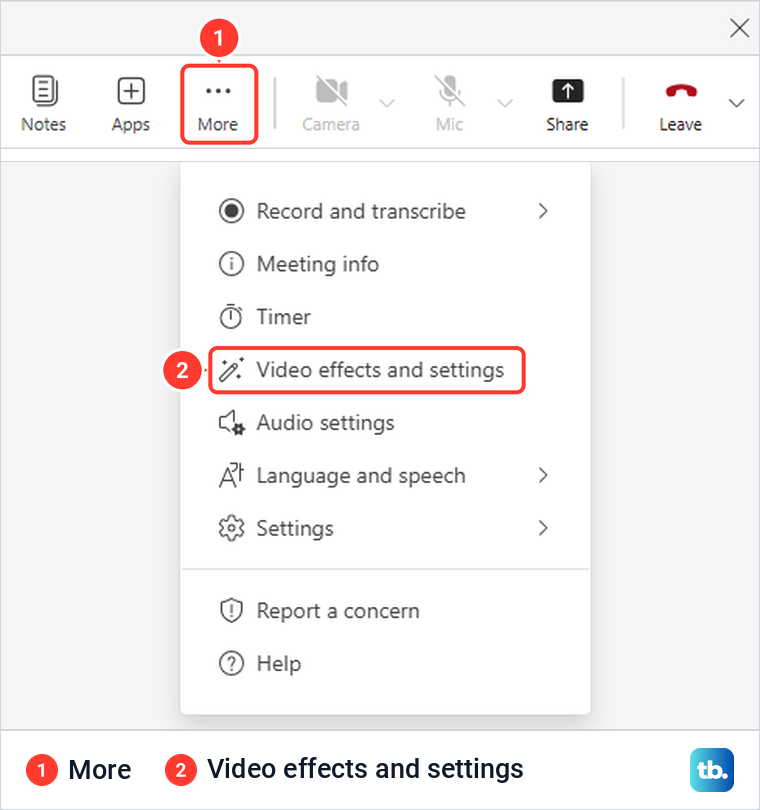
In the desktop app, Microsoft's steps are More actions > Video effects and settings, then the Video effects tab. Choose blur, a Teams image or Add new, select Preview to check it on your own video, then select Apply. While you preview, others won't see your video, as the web pane notes, so pick your background before you need to be on camera.
In Teams for the web the toolbar button is labelled More, and its menu listed Video effects and settings between Timer and Audio settings. Selecting it opens the effects pane.
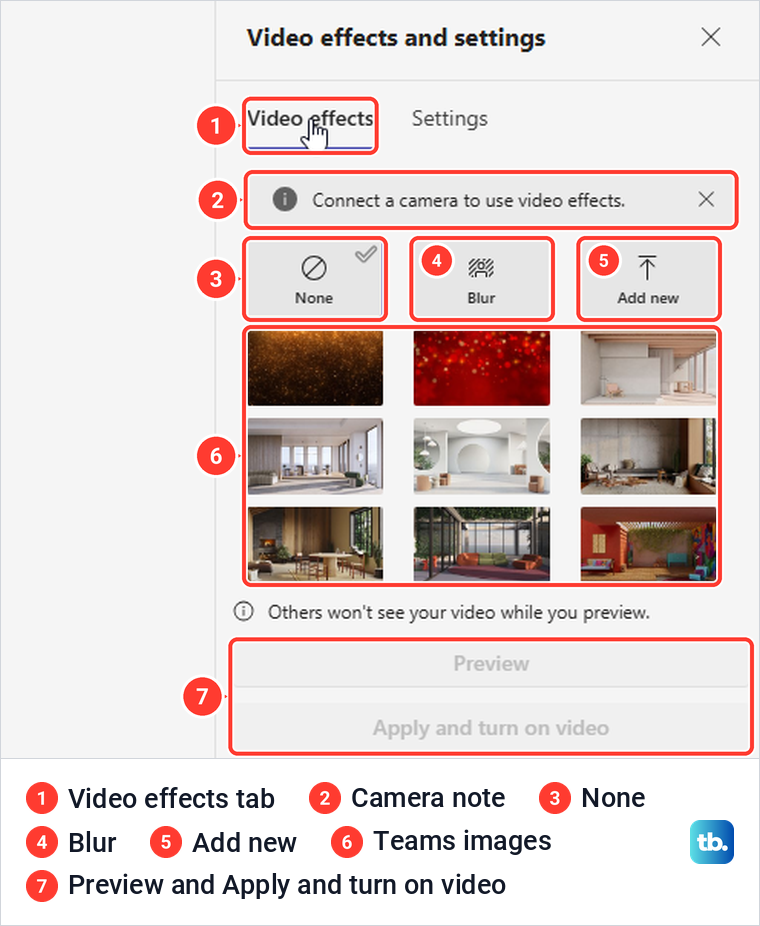
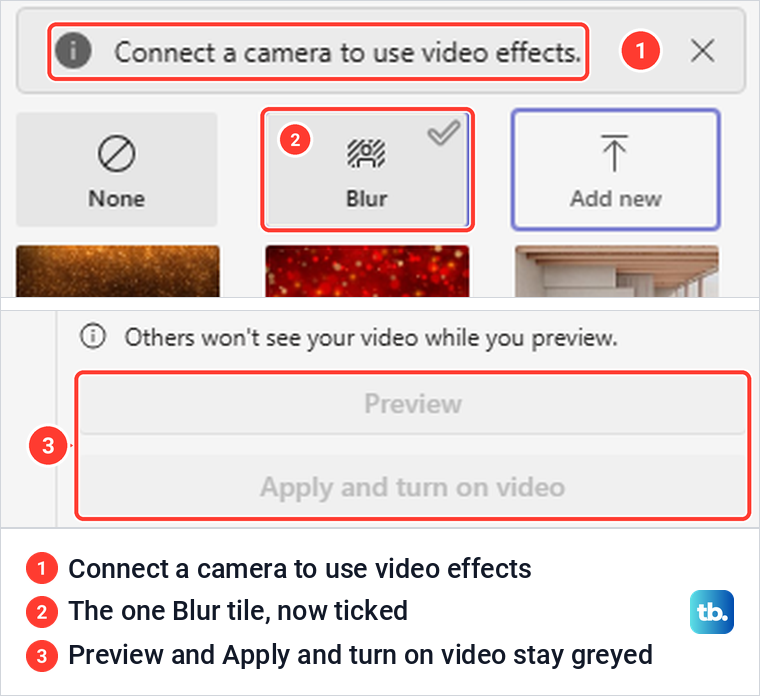
The pane opens on the right with two tabs, Video effects and Settings. On the Video effects tab, None was selected by default, followed by Blur, Add new and the Teams images. Its buttons are Preview and Apply and turn on video, and both stayed greyed under the note Connect a camera to use video effects.
The Settings tab is where the camera is chosen, and ours listed Camera as None. If Teams opens the wrong camera on your PC, choose the right Teams camera before judging how an effect looks.
Blur the room behind you
Blur softens your surroundings instead of replacing them, which suits a real office better than a fake beach. In the desktop app, Microsoft puts an arrow beside Blur with two choices, Standard blur and Portrait blur.
Teams for the web offered a single Blur tile, with no arrow and no Standard or Portrait choice. Selecting it moved the check mark from None to Blur, but Preview and Apply and turn on video stayed greyed, as in the pane above.
Treat blur as a softener, not a privacy screen. Turn a whiteboard, a second monitor or a family photo away from the camera before the call rather than counting on the effect to hide it.
Pick one of the Teams background images
The Teams images sit under the None, Blur and Add new tiles. Microsoft's instruction is to select a Teams background to apply it to your video feed, before you join or during the meeting, followed by Preview and Apply in a meeting.
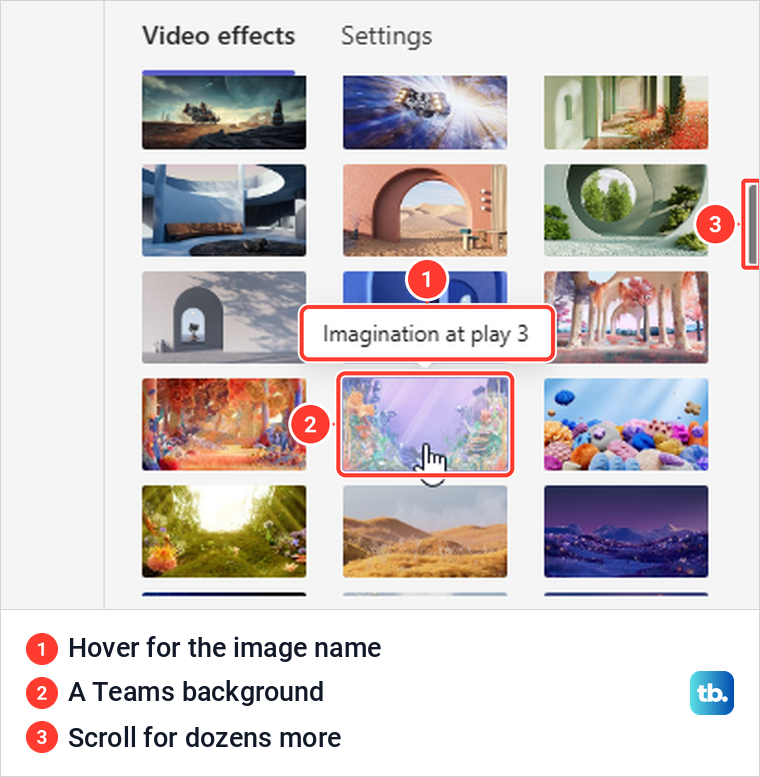
Our web gallery held dozens of images, from plain offices and living rooms to landscapes, a space scene and game worlds, and scrolling the pane kept revealing more. Hovering a tile shows its name, such as Imagination at play 3.
Some organizations also add their own branded backgrounds. Microsoft says only Teams Premium licensed users who are assigned the custom background policy by an admin can use those backgrounds, and that people can still upload their own backgrounds whether or not they have a Teams Premium license.
Add your own background picture in Teams
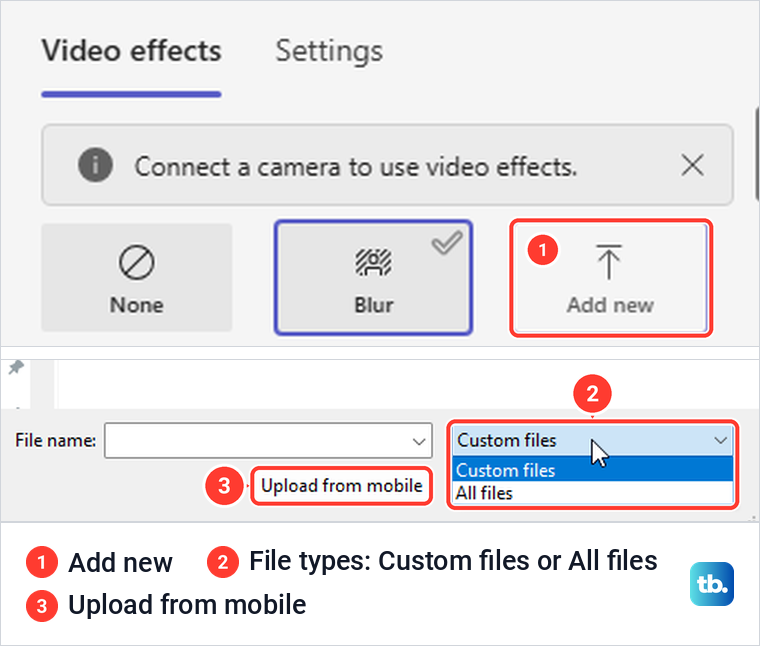
To add a custom background in Teams, select Add new, which sits under More video effects on the pre-join screen and on the Video effects tab in a meeting. Microsoft says to make sure the file is a .JPG, .PNG or .BMP, so save a photo or a slide in one of those formats first.
In Teams for the web, Add new opened the Windows Open dialog. Its file type list held only Custom files and All files, so it did not spell out which formats it takes, and an Upload from mobile button sat beside Open.
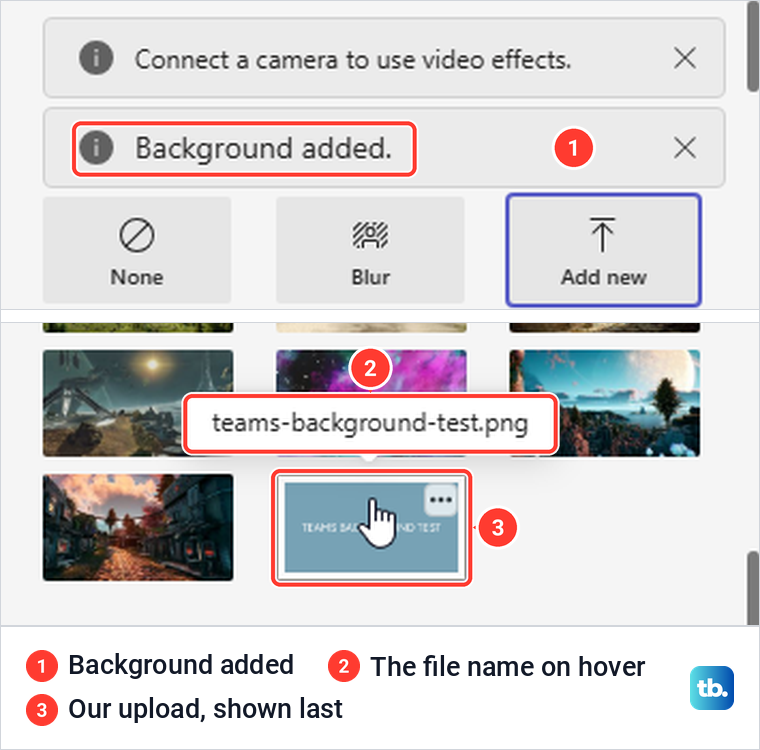
We opened a PNG of our own from the Documents folder. Teams showed Background added straight away and put the picture at the very end of the gallery, after every built-in image, with its file name on hover. If you cannot see your upload, try the bottom of the pane, where ours was.
If there is no Add new tile at all, your organization's video effects setting may not allow uploads, or, as Microsoft notes, the feature might not be available on your device. The section on a missing background option below explains the levels an admin can choose.
Turn off or remove a background
To go back to your real room, open the same effects pane and select None, then Apply if you are in a meeting. Microsoft says your background will persist in all your meetings and calls until you change it again, so None is also how you stop it following you into the next call.
Deleting a picture you uploaded is a separate job. In Teams for the web, our uploaded tile had a ... button with one command, Remove, and the picture disappeared from the gallery at once, with no confirmation.
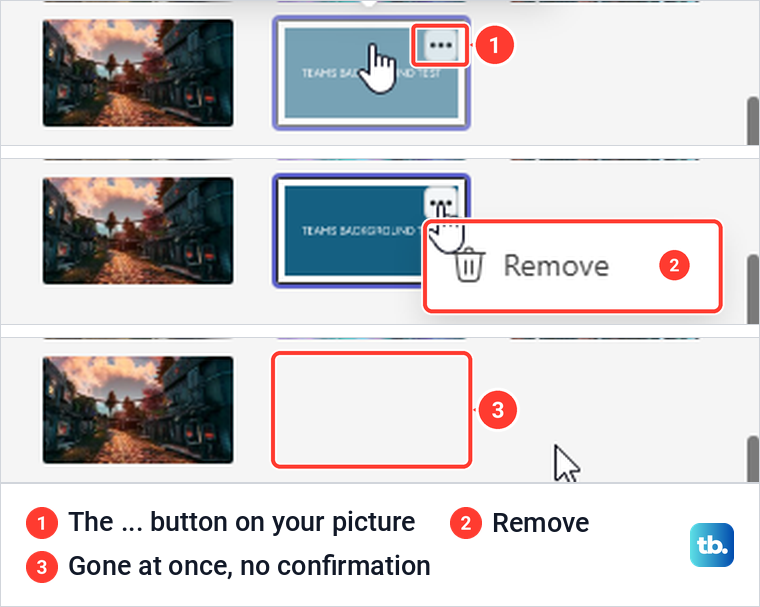
So pick None when you only want the effect off and may use the picture again. Pick Remove when you want the picture gone from your choices, and upload it again with Add new if you change your mind.
Change your background in Teams on the web
Teams for the web now opens at teams.cloud.microsoft, and Microsoft lists Edge, Chrome, Firefox and Safari as supported browsers. Once you are in a meeting, its background controls are under More > Video effects and settings, as shown above.
Microsoft's own pages disagree about what the browser can do. Its Teams for the web page lists avatars and video background effects, except for background blur, among the features not available in the browser, while its screen reader guide for Teams on the web walks through Add new and the Windows Open dialog to add your own image.
Our Edge pane matched the second page, offering far more than blur, with dozens of Teams images and an Add new tile that accepted our picture. A tile in the pane does not prove the effect reaches your video, though, so check the preview before you rely on an image background in a browser.
Without a working camera, the web pre-join screen offers no way to pick a background. Ours said No camera is connected and had no effects or background button at all, and the arrow beside the camera icon opened a message instead of a menu, Teams doesn't have access to your camera.
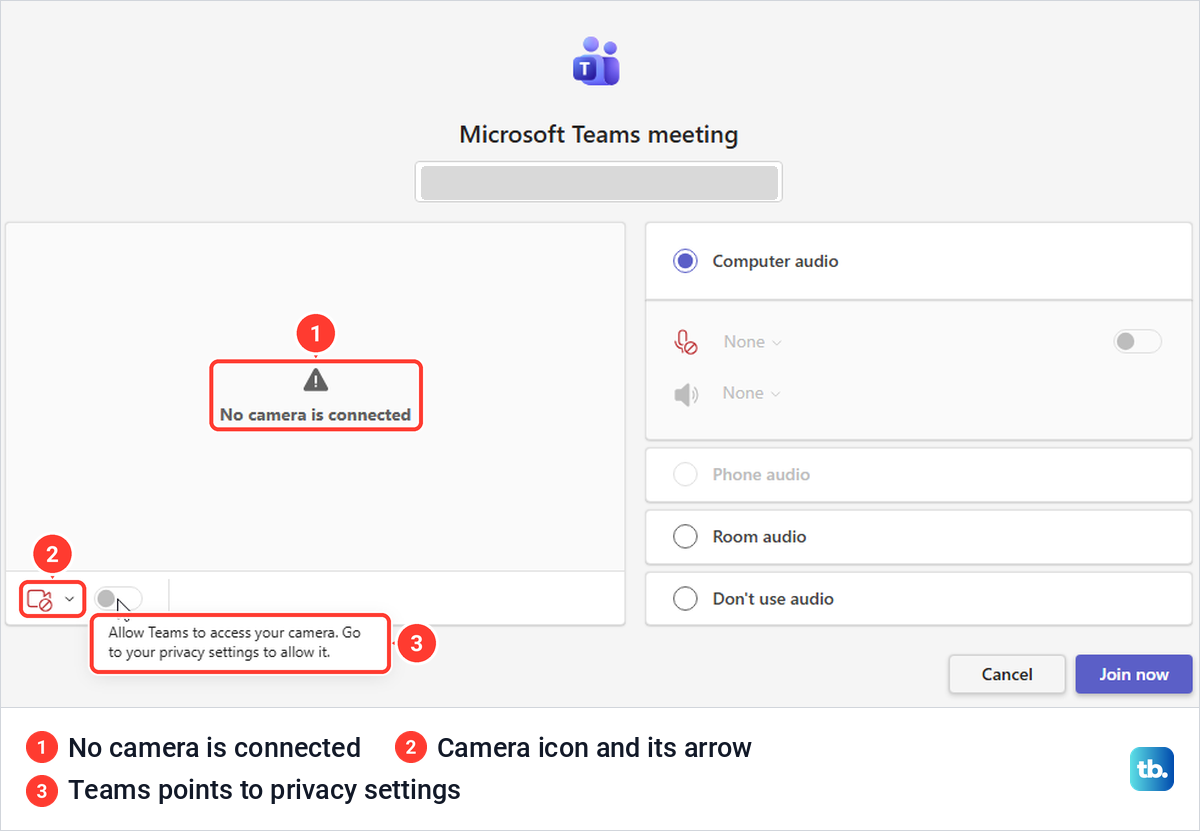
The camera switch would not turn on either, and its tooltip told us to go to our privacy settings to allow it. So on the web, get the camera working first, using the Windows and Edge camera steps below, before you look for background choices.
Change the background on iPhone or Android
In the Teams mobile app, Microsoft's steps are to tap the meeting, tap Join, then tap Background effects on the pre-join screen. Tap an effect to preview it, Add new to add your own picture or None to remove effects, then tap Done to apply it. During a meeting the same choices are under More > Background effects.
On Android, Microsoft lists Android version 10 or later, a recent Teams app and a graphics chip of at least Qualcomm Adreno 610, Arm Mali-G71 or Arm Mali-T720. If Background effects never appears on an older Android phone, check that list first.
Teams for personal use has its own labels. Microsoft's guide for it names the desktop pre-join button Video effects and the mobile one Change background, and it says filters are only available on desktop.
Fix a missing background option in Teams
Start with the camera. Microsoft's guide for Teams for personal use says that if the Video effects button is greyed out on the pre-join screen, you should make sure your camera is turned on. If the preview stays black, test your webcam before a call to see whether it works outside Teams.
On Windows, Microsoft points to Settings > Privacy & security > Camera, where Let apps access your camera and the Microsoft Teams (work or school) switch should both be on. If you use Teams in a browser, also turn on Let desktop apps access your camera on that page, since Microsoft says an app missing from the list is likely a desktop app, which that one switch controls.
Our guide to manage camera permissions in Windows walks through those switches. Microsoft also suggests closing other apps that might be using your camera.
If the camera works in other apps but stays blank here, fix a camera that works elsewhere but not in Teams. If no app detects the camera at all, the next check is to fix a Windows camera driver.
When the camera works but some choices are missing, your organization's settings may be limiting them. Microsoft's Teams admin setting for video effects has four levels, Off, Only background blur, Only background blur and default backgrounds, and All video effects, and only the last lets people upload custom images. If you see Blur and the Teams images but no Add new, ask your Teams admin to check that setting, which is managed in the Teams admin center rather than in your app.
A few setups have no background effects at all. Microsoft says Linux users aren't able to use the feature, and that background effects aren't available when Teams runs through optimized virtual desktop infrastructure.
Let Teams use your camera in Microsoft Edge
Edge asks each website for camera access separately. Microsoft says that even when your camera is enabled for Edge, you still need to give individual websites permission, and the Teams message on our pre-join screen pointed to the lock icon in the address bar.
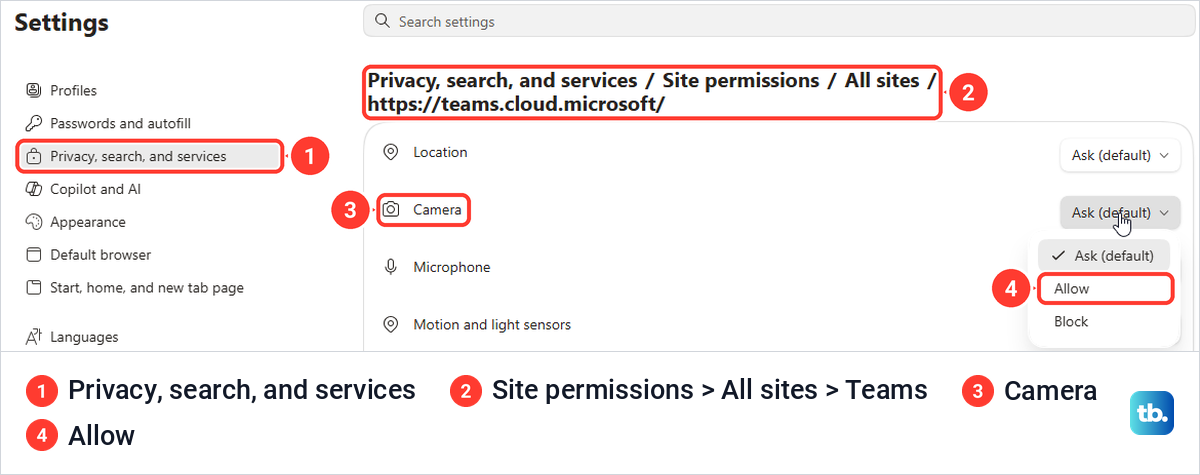
That lock icon showed no Camera entry for us at first, so Edge's settings are the more reliable place. Open Settings > Privacy, search, and services > Site permissions > All sites, select https://teams.cloud.microsoft/ and set Camera to Allow. Ours started at Ask (default), with Block as the third choice.
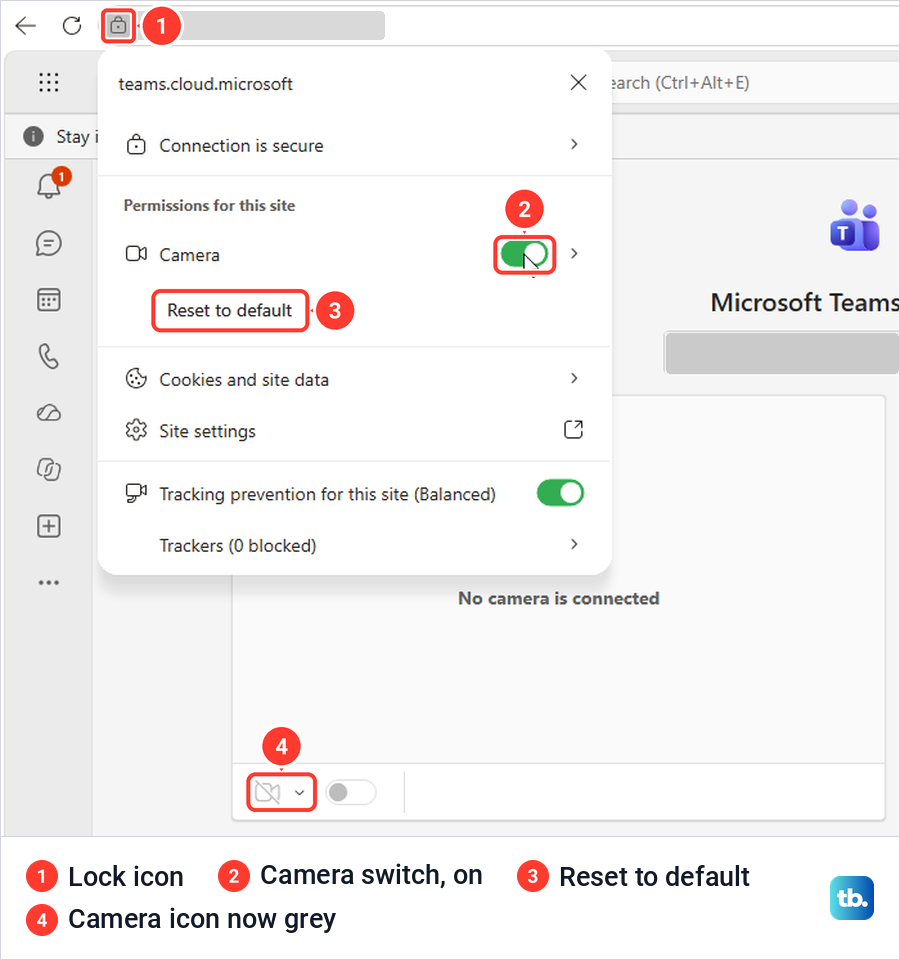
After we set Camera to Block, the lock panel added a Camera switch under Permissions for this site, with a Reset to default button. Turning the switch back on stopped the message saying Teams doesn't have access to your camera, and the red camera icon on the pre-join screen turned grey.
Edge's site permissions page lists Microphone right under Camera. If people cannot hear you either, start on that same page, and our guide to fix a Teams microphone that is not working covers the rest.
How we tested this guide
We tested this in Teams for the web in Microsoft Edge on Windows 11, version 25H2, uploading our own background picture in a meeting.
Frequently Asked Questions
Can I change my Teams background before joining a meeting?
Yes. In the desktop app, select Join and then Effects and avatars on the pre-join screen. In Teams for the web, our pre-join screen showed no effects button while no camera was connected, so get the camera working first.
How do I add my own picture as a Teams background?
Select Add new, from More video effects before you join or from the Video effects tab in a meeting, and choose a .JPG, .PNG or .BMP file. Our PNG appeared as the last tile in the gallery.
Why can I blur my background but not upload a picture?
Your organization's video effects setting may allow blur and the default images only. Uploads need the All video effects level, which your Teams admin controls.
How do I remove a background in Teams?
Select None to turn the effect off, then Apply if you are in a meeting. To delete a picture you uploaded in Teams for the web, use the ... button on its tile and select Remove, which deleted ours at once.
Will my background stay for the next meeting?
Microsoft says it persists in all your meetings and calls until you change it again. Select None before you join if you want your real room back.
Can I use an image background in Teams on the web?
Our Edge pane offered blur, Teams images and Add new, as Microsoft's screen reader guide for the web describes, even though its web feature list names blur as the only background effect there. Check what your own pane offers and look at the preview before you rely on it.
Why are Preview and Apply greyed out?
Teams needs a camera it is allowed to use. Ours showed Connect a camera to use video effects with both buttons greyed, so check the camera, the Windows camera switches and Edge's site permission.