Microsoft Teams notification sounds can stop even when banners and activity alerts still appear. The problem sits in Teams, the operating system, the browser, or a mobile quiet rule. Start with the Teams test alert, then move outward until the alert sound comes back.
Turn on Teams notification sounds first
Use this first when Teams shows notifications but stays silent. Teams has its own sound switches, and those controls decide whether alerts make noise.
Open Teams and select Settings and more, then Settings, Notifications and activity, and General.
Turn off Mute all notifications (except for calls and meetings) if it is enabled. That setting appears on Windows.
Turn on Play sounds with notifications.
Turn on Play sounds with urgent and priority contact notifications when urgent or priority alerts should make noise.
Turn on Play sound with incoming calls, requests to join, and meeting start notifications when calls and meeting alerts should ring.
Select Test notification. If Teams plays the test sound, the core Teams sound setting is working.
Make chats and channels noisy again
Teams cannot play a sound for a notification type that is turned off. When only chats, channels, mentions, or replies are silent, fix the category instead of changing the whole device.
In Teams, go to Settings and more, Settings, Notifications and activity, then Chats and channels. For each notification type you care about, use the dropdown menu and choose Activity and banner instead of Off.
For one channel, hover over the channel name, choose More options, then Channel notifications. Turn on notifications for new messages or posts, choose Activity and banner or Activity feed, and turn on Include thread replies when the channel uses the Threads layout so replies to a post notify you. Follow all new threads is a convenience view that gathers new replies under Followed threads at the top of your chats and channels list, and it does not send an Activity notification on its own.
If this method fails, select Test notification in Teams again, then check your computer or phone notification sound settings.
Set the sound you want in Teams
Open Teams and go to Settings and more, Settings, and Notifications and activity.
Open Sound.
Select the notification type you want to hear.
Choose a sound from its dropdown menu.
Select Play to preview it.
Repeat the same change for each notification type that needs its own alert sound.
Custom Teams sounds work in Teams for Windows and Teams on the web.
Check calls and meetings
The most common cause is Teams suppressing most notifications while you are already in a call or meeting.
Open Settings and more, then Settings, Notifications and activity, and Meetings.
Turn on Meeting start notifications.
Turn on Meet now start notifications if those alerts should make sound too.
Go back to Notifications and activity and find Display.
Enable Show notifications during calls and meetings when Teams alerts should appear while you are already on a call.
When that setting is off, Teams suppresses most notifications during calls and meetings. Calls, urgent and priority notifications, and meeting start notifications can still come through.
Fix Windows sound and notification settings
Use this when the Teams test alert is silent on a Windows 11 PC or when other apps make sound but Teams does not. Windows has separate controls for notifications, app volume, output devices, and Do not disturb.
Open Start, Settings, System, then Notifications. Turn Notifications on, select Microsoft Teams under Notifications from apps and other senders, then enable notifications and Play a sound.
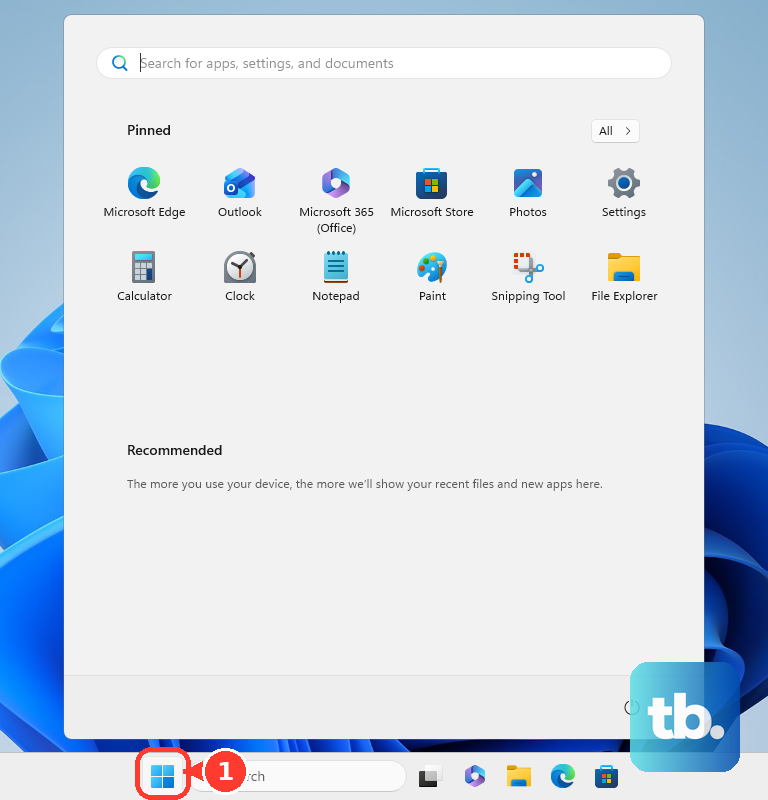
Open notification center and select the bell icon with zZ to turn Do not disturb off.
Open Start, Settings, System, Notifications, then Turn on do not disturb automatically and adjust any automatic rules that silence alerts.
Open Start, Settings, System, Sound, then Volume mixer. Under Apps, make sure Microsoft Teams is not muted, its volume slider is up, and the correct Output device is selected.
Select the Speakers icon on the taskbar, choose the arrow next to the volume slider, and pick the output device you use. Confirm speakers, headphones, docks, or monitor audio controls are powered on, unmuted, and turned up.
If Teams alerts are silent or distorted while other sound works, open Settings, Sound, select your output device, and set Audio enhancements to Off.
Repair notification sound on Mac
This fixes silent Teams alerts on Mac when macOS is blocking notification sound or sending alerts to the wrong output.
Open the Apple menu, then System Settings, Notifications, Application Notifications, and Microsoft Teams.
Turn on Allow notifications.
Turn on Play sound for notification.
Open the Apple menu, then System Settings, Focus, choose the active Focus, open the allowed apps control, and add Teams.
Open System Settings, then Sound. Raise Alert volume, choose the intended device in Play sound effects through, select the preferred device under Output, raise Output volume, and make sure Mute is not selected.
In Teams, open Settings and more, Settings, Notifications and activity, and select Use Teams sound for notifications if you want Teams sounds instead of the macOS alert sound.
Restore Teams sounds on iPhone or Android
Mobile Teams goes silent when the app, the phone, or Teams quiet rules block alerts.
- 1.In Teams mobile, tap your profile picture and open Notifications. On Android, turn on the Show notifications toggle. On iPhone, tap All activity to turn on every Teams notification. Then open the notification item you want and choose how you get notified.
- 2.Tap Open settings from Teams notifications and allow Teams notifications in the device Settings app. On iPhone, go to Settings, Notifications, Teams, turn on Allow Notifications, and turn on Sounds.
- 3.On iPhone, check Settings, Focus. Allow Teams through the active Focus or turn off Do Not Disturb from Control Center.
- 4.On iPhone, turn off Silent Mode and raise alert volume in Settings, Sounds & Haptics. On models with a Ring/Silent switch, orange means silent.
- 5.On Android, open Settings, then Notifications or Apps, Teams, Notifications. Turn Teams notifications on, then open any shown Teams category and make sure it is not set to Silent and has a sound assigned.
- 6.In Teams mobile, open Notifications, then Block notifications. Turn off blocking for When active on other devices, check When in meetings and In-app notifications, and adjust Block during quiet hours if Quiet time is muting Teams.
Allow Teams web notifications in your browser
Teams on the web needs browser notification permission before it can act like a desktop app. Edge and Chrome both let you allow notifications for teams.microsoft.com.
In Microsoft Edge, open Settings and more, Settings, Privacy, search, and services, Site permissions, then All sites. Select teams.microsoft.com, find Notifications, and choose Allow.
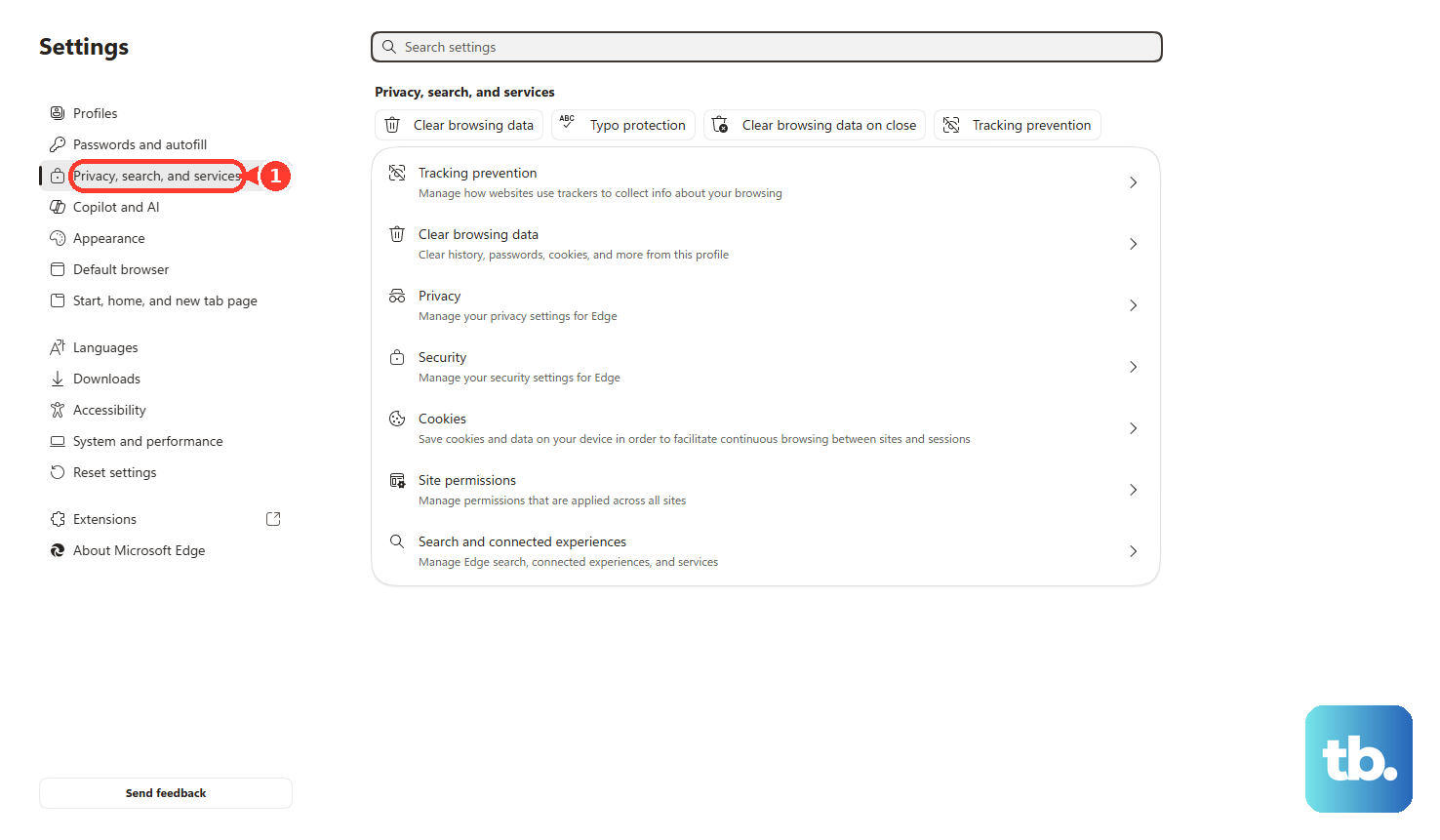
Also make sure Windows notification settings allow Microsoft Edge notifications and sound when you use Edge on Windows.
In Chrome, open More, Settings, Privacy and security, Site Settings, then Notifications. Under Allowed to send notifications, add teams.microsoft.com.
You can also open Teams on the web, select View site information in the address bar, and turn on Notifications.
If this method fails, update Teams or reinstall the current app from Microsoft instead of using a third-party download site.
Update or reinstall the current Teams app
Use this after the notification, Focus, Do not disturb, and volume settings are correct. A repair, reset, update, or clean reinstall can clear a broken Teams install without reworking every notification setting.
When Teams shows an update at the top of the app, select Update, then Update and restart Teams.
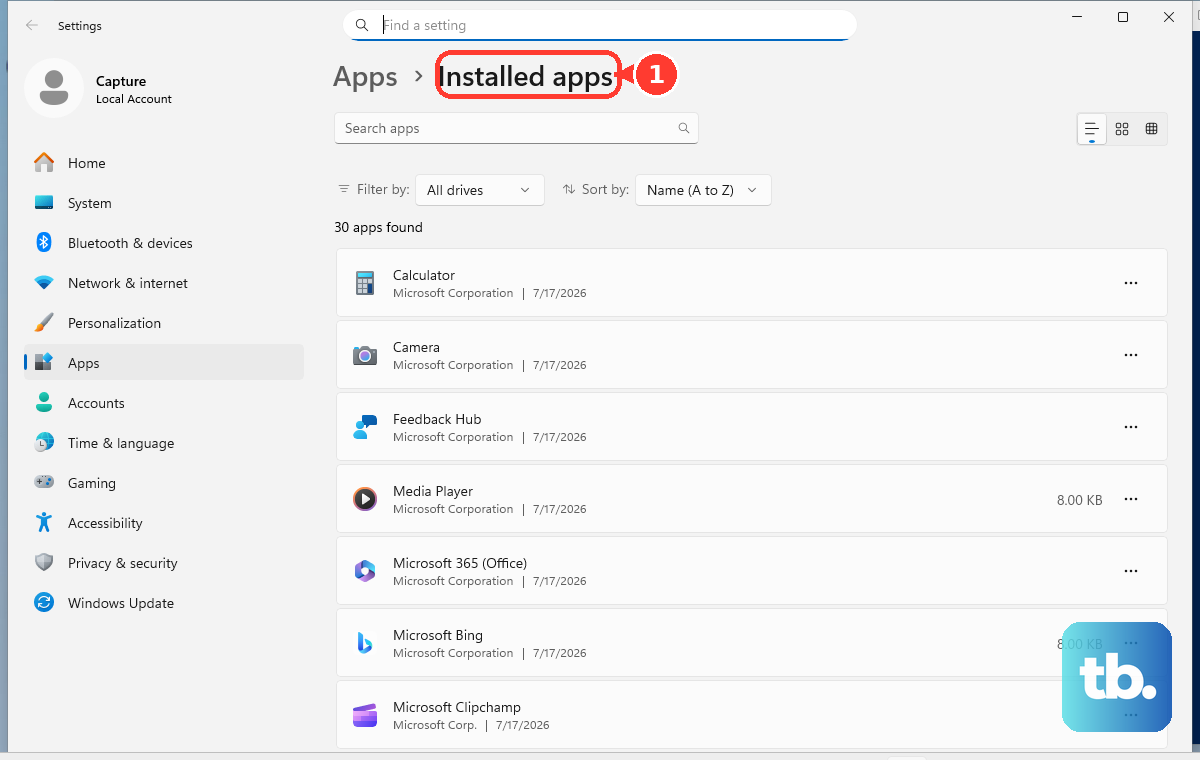
For Windows 11, open Start, Settings, Apps, Installed apps, Microsoft Teams, then Advanced options. Choose Repair first, then use Reset if repair does not help.
To uninstall on Windows 11, go to Start, Settings, Apps, Installed apps, Microsoft Teams, More, then Uninstall. Reinstall Teams from Microsoft's official Teams download page.
If Teams is missing from Settings, Notifications on iPhone, uninstall and reinstall Teams, then open it and allow notifications when prompted.
Classic Teams support ended on July 1, 2024. Use the current Teams app and the newer Notifications and activity sound controls, not the old Play sound for incoming calls and notifications path.
For a work or school account on a managed phone, your organization can apply Quiet Time or tenant notification settings that mute Teams. Ask your workplace or school admin to review the assigned Teams notification and Quiet Time settings for your account.
Frequently Asked Questions
Why do Teams banners show up but no sound plays?
Teams sound can be off, the operating system can block notification sounds, or Teams can be muted in the Windows Volume mixer. Start in Teams Settings > Notifications and activity > General, then check the device sound controls.
Why are Teams sounds missing only during meetings?
Teams suppresses most notifications during calls and meetings when Show notifications during calls and meetings is off. Turn that setting on, then enable Meeting start notifications and Meet now start notifications.
Can I change the Teams notification sound?
Yes. In Teams for Windows or Teams on the web, go to Settings and more > Settings > Notifications and activity > Sound, choose a notification type, pick a sound, and select Play.
Why is Teams silent on my phone but working on desktop?
Teams mobile can block alerts when you are active on another device, during meetings, or during Quiet time. Open Teams mobile > profile picture > Notifications and review Show notifications plus Block notifications.