

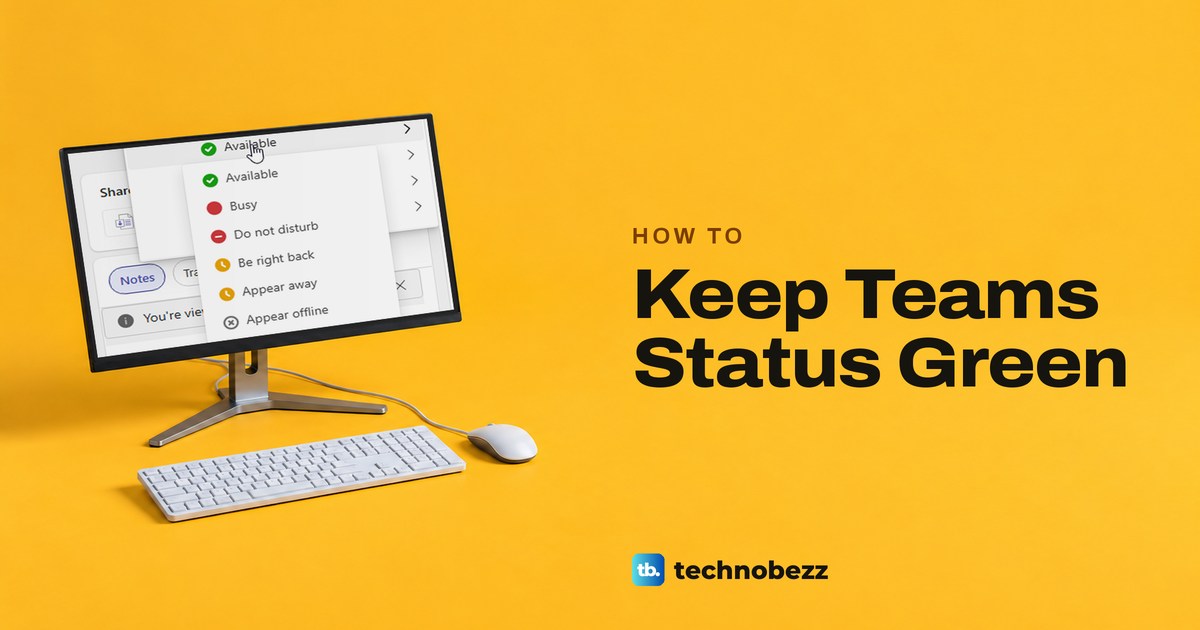
To keep your Teams status green, select your profile picture at the top right of Teams, select your current status and choose Available. Teams can mark you Away after a few idle minutes or when the PC locks or sleeps, and calls or meetings turn it red. In Teams for the web, turn on Keep my current status in Settings and select Allow when the browser asks, so work in other tabs and apps counts too.
No setting keeps Available on while you are away from your desk, and Duration is not one either. What you can do is stop Teams from showing Away while you really are working, clear an old Busy with Reset status, and give Windows screen and sleep timers that suit your day. That is also the only reliable way to keep Teams active, because Teams reads your activity, your calls and meetings, and your Outlook calendar.
One screen in Teams for the web did not match Microsoft's help pages when we opened it: the Duration panel. Its section below explains what that means for a green dot.
The short version
- Set it: select your profile picture, then your current status, then Available.
- Teams for the web: turn on Keep my current status under Settings > Notifications and activity, then select Allow in the browser prompt.
- Stuck on Busy: open the same status list and select Reset status.
- Turns yellow: Teams marks you Away when the PC is idle, locked or asleep, so check the Windows screen and sleep timers.
- Desktop app shortcut: type
/availablein the search box at the top of Teams. - Status message: it tells people when you will reply, but it never changes the dot.
What each Teams status color means and what to do
| What you see | Why Teams shows it | What to do |
|---|---|---|
| Yellow Away while you work in another browser tab | Teams for the web cannot see activity outside its own tab until you turn on its activity setting and allow it | Turn on Keep my current status and select Allow |
| Yellow Away after a few minutes without input | The PC is idle or locked | Use the PC again, and check that Windows does not lock or sleep sooner than you expect |
| No green after the PC goes to sleep | Microsoft's pages say sleep sets Away or Offline | Wake the PC, and lengthen the sleep timer if it sleeps too soon |
| Red In a call, In a meeting or Busy | A call, a meeting or a Busy event in your Outlook calendar | Wait for it to end, or correct the calendar entry |
| Red Busy hours after you chose it | A Busy you pick by hand lasts one day by default | Select Reset status |
| Purple circle with an arrow (Out of office) | Automatic replies are on, or an event is set to show as Out of Office | Turn off automatic replies, or change the Out of Office calendar event, when you are back |
| Grey Offline | You are not signed in on any device, or you chose Appear offline | Sign in to Teams, or select Reset status |
How Teams decides your status
The dot is not a switch you flip once. Microsoft says a user's status is normally based on user activity, on the state of the Teams app, such as being in a call or presenting, and on the Outlook calendar, such as being in a meeting. Teams works the status out again whenever one of those changes.
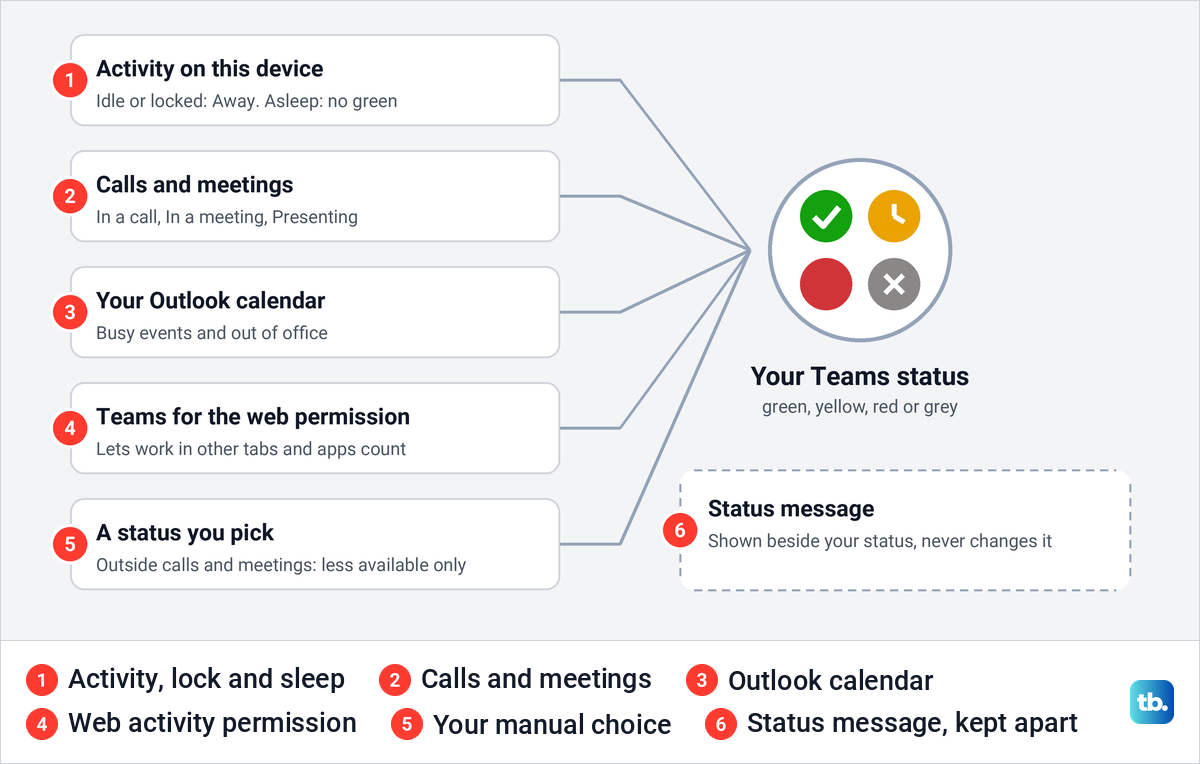
Yellow means Away. Microsoft's admin documentation says a computer's status becomes Away if you are inactive for a few minutes or if the computer is locked, and it gives no fixed number of minutes. Its help pages disagree about sleep: one says sleep turns Available into Away and another says the status becomes Offline, so expect to lose the green dot either way.
Red covers Busy, In a call and In a meeting, which Teams sets from calls and your calendar, and Do not disturb, which you can pick yourself and which Teams also sets while you present. Grey with a cross means Offline, which Microsoft says is what people see when you are not signed in to Teams on any device for a few minutes.
Set your Teams status to Available
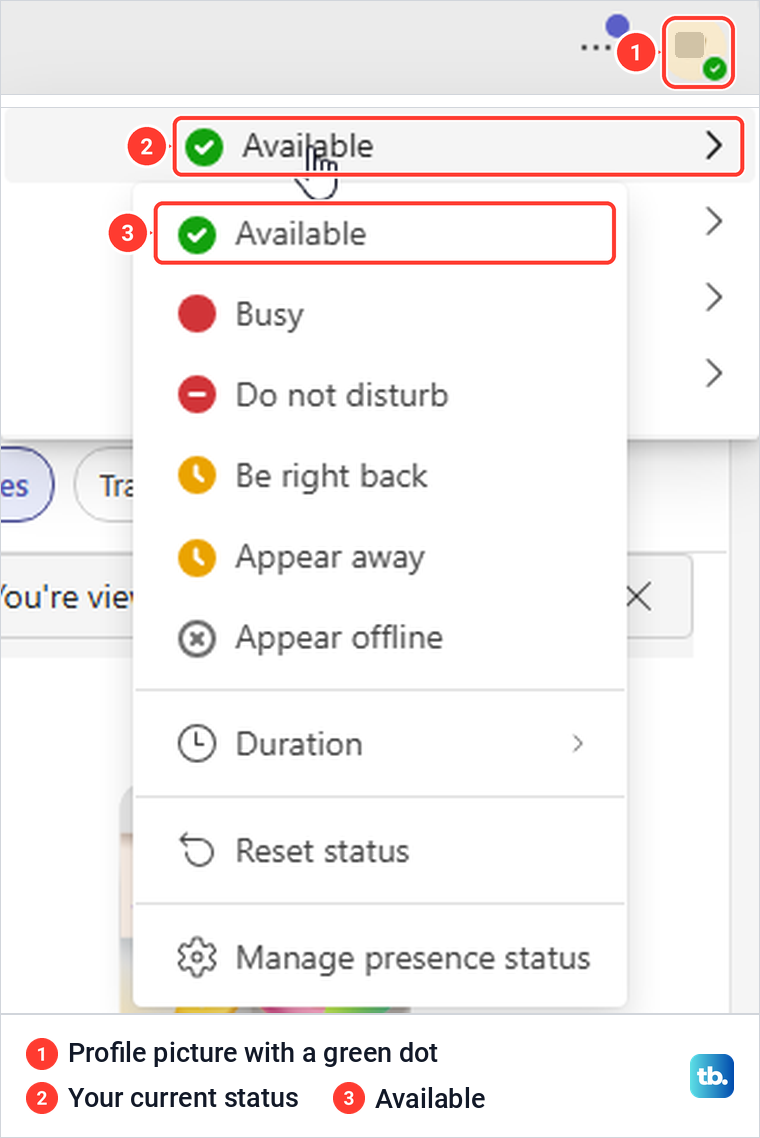
Select your profile picture at the top right of Teams, then select your current status, the line just under your name. A list opens with Available, Busy, Do not disturb, Be right back, Appear away and Appear offline, followed by Duration, Reset status and Manage presence status. Select Available.
In Teams for the web on our PC, the profile picture then showed a green circle with a check mark, the sign Microsoft describes for someone who is available. The same profile menu is where you pause notifications and set a status message.
In the Teams desktop app, Microsoft lists slash commands that do the same from the search box at the top. Type /available and press Enter, or use /busy, /away, /brb, /dnd or /offline for the other states. Microsoft says these built-in commands work only in the desktop app.
Choosing Available is a starting point, not a lock. Outside a call or meeting, Microsoft says you can only pick a status that is less available than the one Teams has worked out, so picking Available does not cover for time when the PC is idle. Once you are active again, Teams turns the dot green by itself.
Stop Teams for the web from showing Away in other tabs
Teams for the web has its own setting for the most common complaint, a dot that turns yellow while you work in a different tab. Select Settings and more, the three dots beside your profile picture, then Settings and Notifications and activity. Scroll to the end of that page, where the Presence section sits just above Calendar.
Turn on the switch labelled Keep my current status, whose full label ends with active outside of Teams on the web. Its description says that when you work in a different tab or app outside of Teams, your Teams presence will remain accurate. For us the switch was off, with a note that the browser would ask for permission.
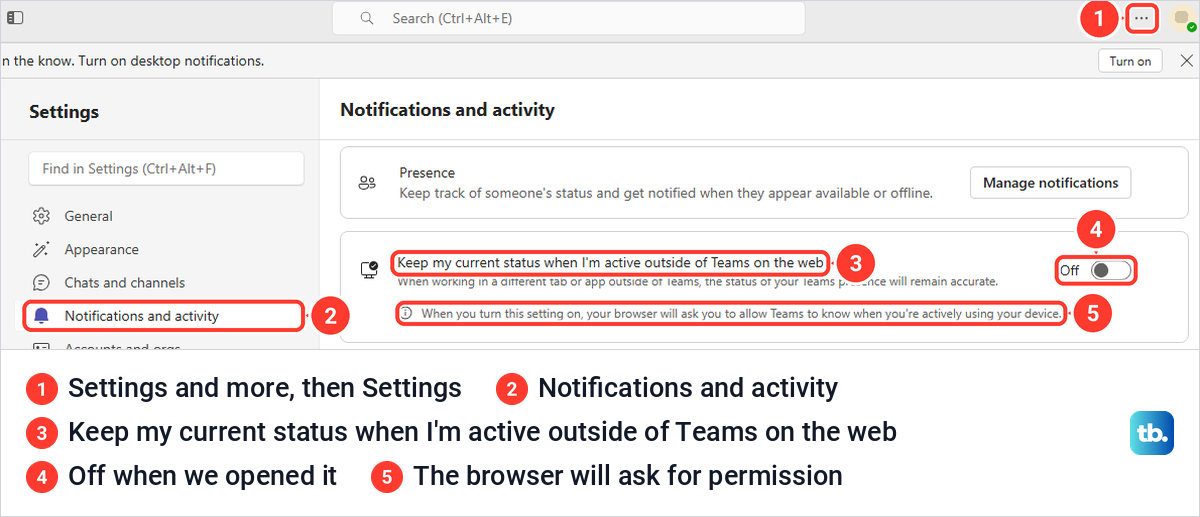
The switch did not turn on straight away. Microsoft Edge first showed a prompt reading teams.cloud.microsoft wants to Know when you're actively using this device, with Block and Allow buttons, and the switch stayed off until we selected Allow.
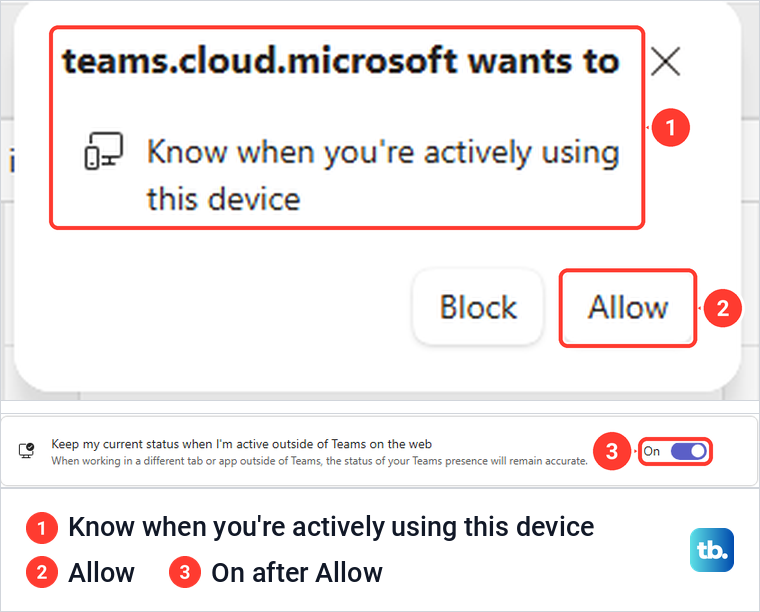
After Allow, the switch read On, and the dot was still green when we came back from about three minutes in an Outlook on the web tab. If you choose Block, Microsoft says Teams will not detect activity outside the app, and your status may change to Away even while you work elsewhere. The setting reports real activity in other tabs and apps, so it is not a way to stay green while you are away from the PC.
Clear a Busy status you set earlier
A status you choose by hand can outlast the reason you chose it. Microsoft says that without a duration, a manual Busy or Do not disturb lasts one day, Appear offline lasts until you change it, and other statuses last seven days. So a Busy chosen for a deadline can still be red hours later.
To hand control back to Teams, select your profile picture, select your current status and choose Reset status. On our PC, choosing Busy put a red dot on the profile picture, and Reset status turned it back to the green check while we were working in Teams.
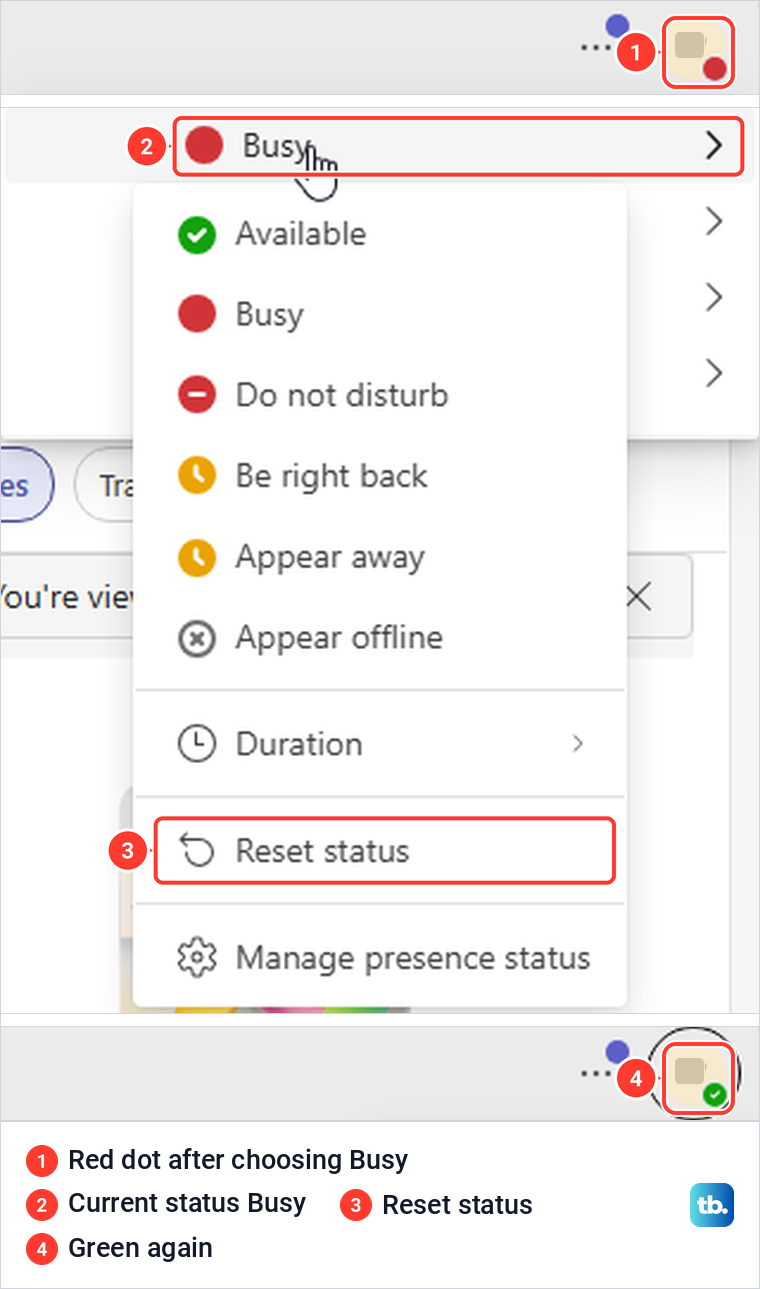
In the desktop app, Microsoft also lists /reset for the compose box, where you type a chat message. Microsoft adds that selecting a new status ends a timed one.
Why Duration will not keep you Available
Duration sets how long a status lasts before Teams goes back to working it out for you. Select your profile picture, your current status and Duration, pick a status, choose a time under Reset status after and select Done. Microsoft says you can set durations for any status except Available.
Teams for the web did not present it that way on our PC. Its Duration panel had Available preselected and listed it first, above Busy, Do not disturb, Be right back, Appear away and Appear offline. Reset status after was set to Today by default, with 30 minutes, 1 hour, 2 hours, This week and Custom as the other choices.
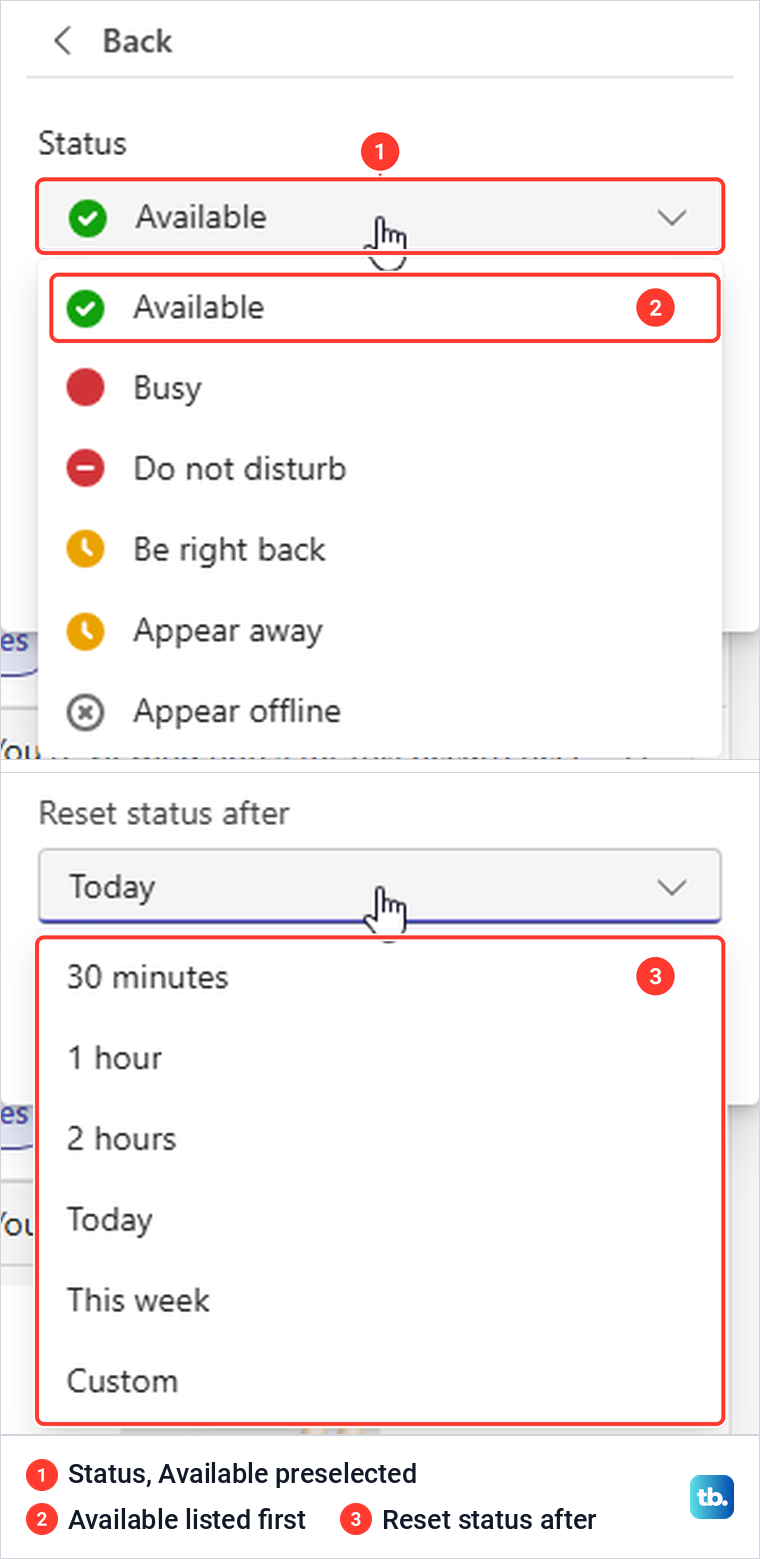
Whatever the panel lists, Microsoft's rules still apply. A more available status does not override a less available one even with a duration set, and when the time runs out Teams resets your status from your activity, your calendar and the state of your computer. Use Duration for Busy, Do not disturb or Be right back, and do not count on a timed Available to keep you green.
Check the Windows screen and sleep settings
Microsoft's own advice for an early switch to Away is to change your device's sleep or idle settings to require more time. On Windows 11, Microsoft's path is Settings > System > Power & battery > Screen, sleep & hibernate timeouts, with Turn my screen off after and Make my device sleep after.
On our PC, the labels were different. Pressing Windows + I, selecting System and then Power opened a page called Power, where a section called Screen timeout held a Plugged in control, Turn my screen off after, set to Never. Look for Screen timeout or Screen, sleep & hibernate timeouts, whichever your PC shows, and for Make my device sleep after where Microsoft's page lists it.
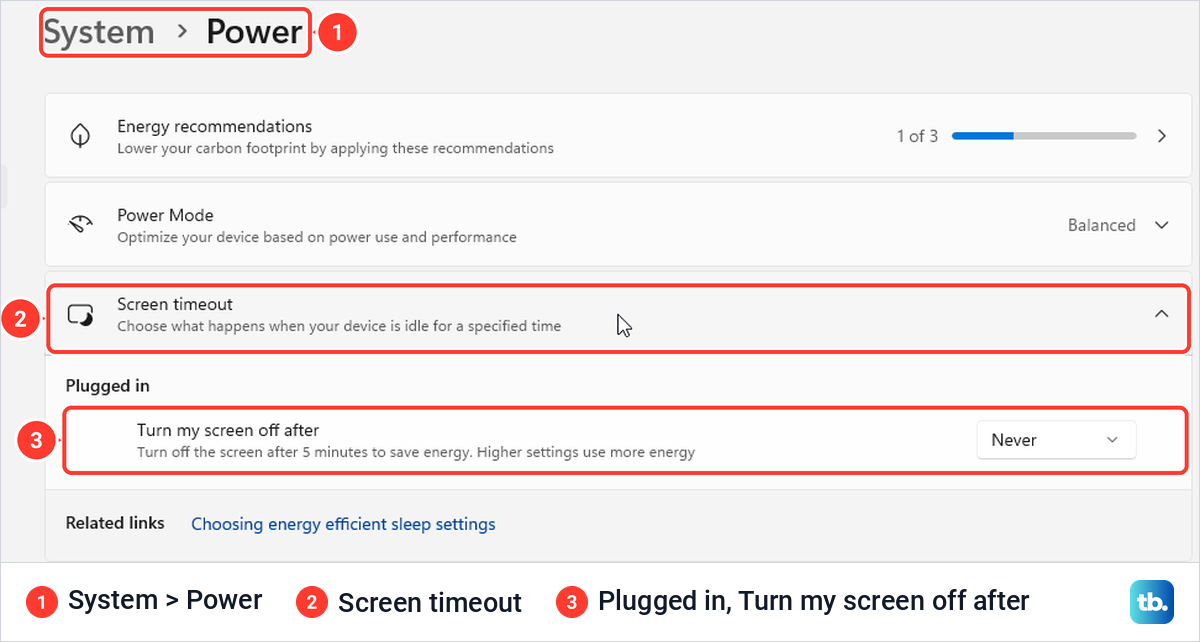
A longer screen timeout keeps the display on, while the sleep timer, where your PC has one, decides when Windows sleeps. Microsoft lists a few minutes of inactivity as its own reason for Away, separate from a locked or sleeping PC, so keeping the screen on is not the same as being active. Our guides show how to change the screen timeout in Windows 11 and how to adjust power and sleep settings in Windows 11.
A work PC may have its lock and sleep times set by your organization, and those rules come first. Your organization's admins also control how presence is shared, for example whether people outside the company can see it, so follow your workplace's rules on status.
Calls, meetings and your calendar turn the dot red
Microsoft says Teams changes your status to In a meeting or In a call while you are in one, unless you have set Do not disturb. Busy events in your Outlook calendar count too: Microsoft says calendar items marked Busy show you as busy in Teams when you have meetings or appointments scheduled.
So when the dot is red for no clear reason, open your calendar first and correct the entry that is marking you busy. If you then need the meeting at another time, our guide to set up a Microsoft Teams meeting shows how to schedule a new one.
An automatic reply, or a calendar event set to show as Out of Office, brings up Microsoft's Out of Office indicator, a purple circle with an arrow. If you use Teams during that time, Microsoft says your status is shown alongside it. For a real day away, set up out of office in Outlook so people get a reply as well as the indicator.
In our check, a second account that was not signed in to Teams read Offline, not Busy, on its Teams card during a Busy appointment in its Outlook calendar. That matches Microsoft's rule that someone who is not signed in on any device appears offline.
Presenting has its own rule. Microsoft says Teams sets Do not disturb by default while you share your screen, and you can turn that off under Settings and more > Settings > Privacy with the option that sets Do not disturb when you share your screen. If sharing itself fails, fix Teams screen sharing first.
Do not disturb also silences notifications, so if the dot looks right but alerts stay quiet, fix Teams notification sounds as a separate problem. And if Teams shows In a call but nobody can hear you, fix a Teams microphone that is not working rather than changing your status.
Use a status message when replies may be slow
A status message cannot hold the dot green, but it can tell people what the dot cannot. Select your profile picture, select Set status message, type your note, choose how long it stays under Clear status message after and select Done. Tick Show when people message me if you want the note to appear when someone messages or @mentions you.
In Teams for the web the box holds up to 280 characters, and Clear status message after was set to Never by default, with Today, 1 hour, 4 hours, This week and Custom as the other choices. We typed Working in Word; replies may take a few minutes, chose 1 hour and selected Done.
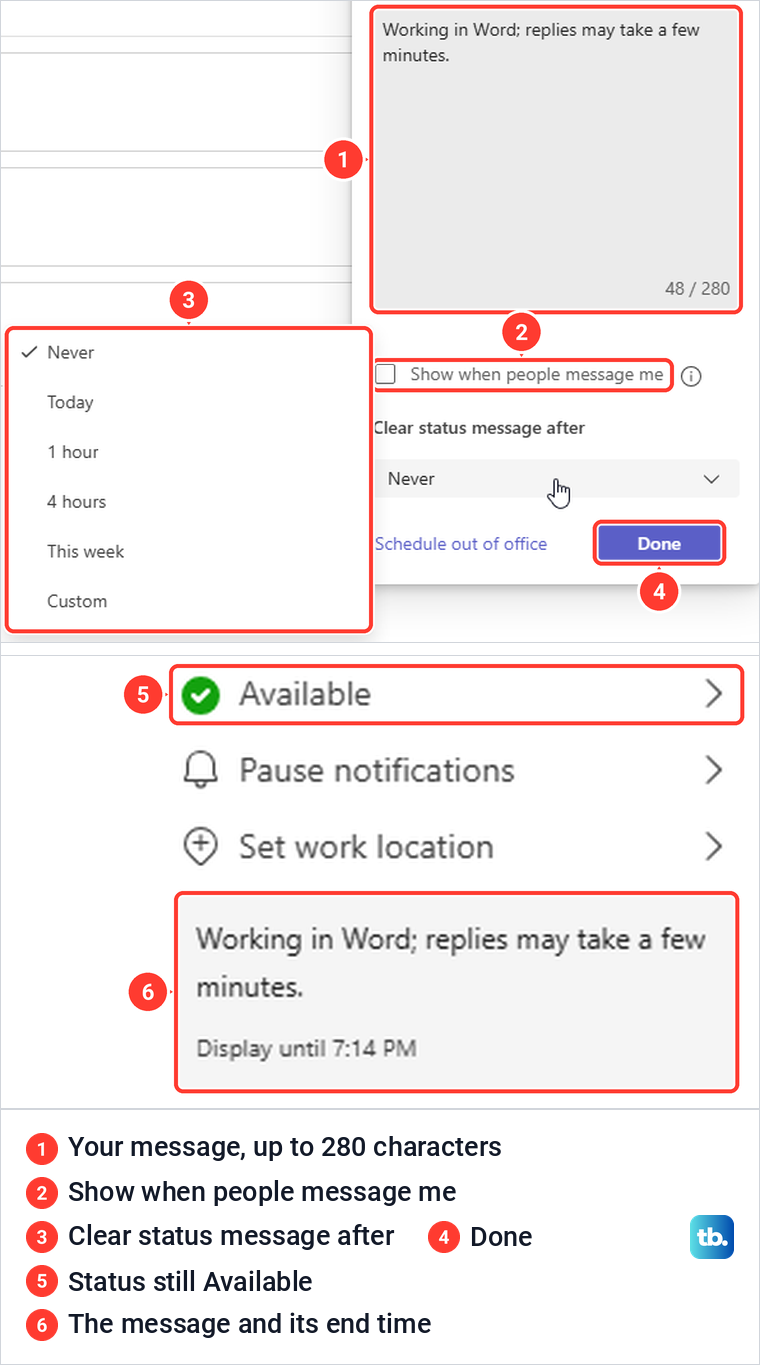
The profile menu then showed the note with Display until and its end time, while our status still read Available with a green dot. Hovering over the note shows a pencil to edit it and a bin to delete it, and the bin removed ours at once.
Why Outlook can show a different status
Outlook plays two parts. Your Outlook calendar and automatic replies feed into the status Teams works out, as covered above, and Outlook on the web then displays that Teams status next to names. Microsoft says the status shown in Outlook on the web is driven by Teams information, and that the feature needs a work or school account with a qualifying Microsoft 365 subscription.
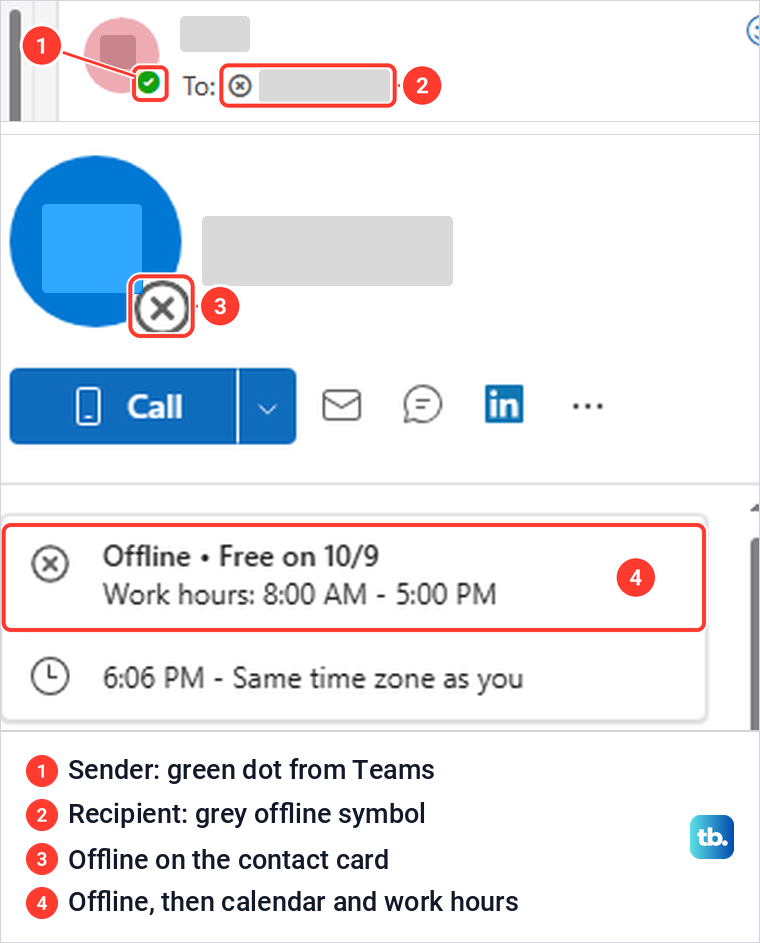
In Outlook on the web, a message we had sent showed a green dot on our own picture, since we were Available in Teams at the time, and a grey offline symbol before the name of the account it went to. Hovering over that name opened a card that read Offline, followed by the account's next free time and work hours.
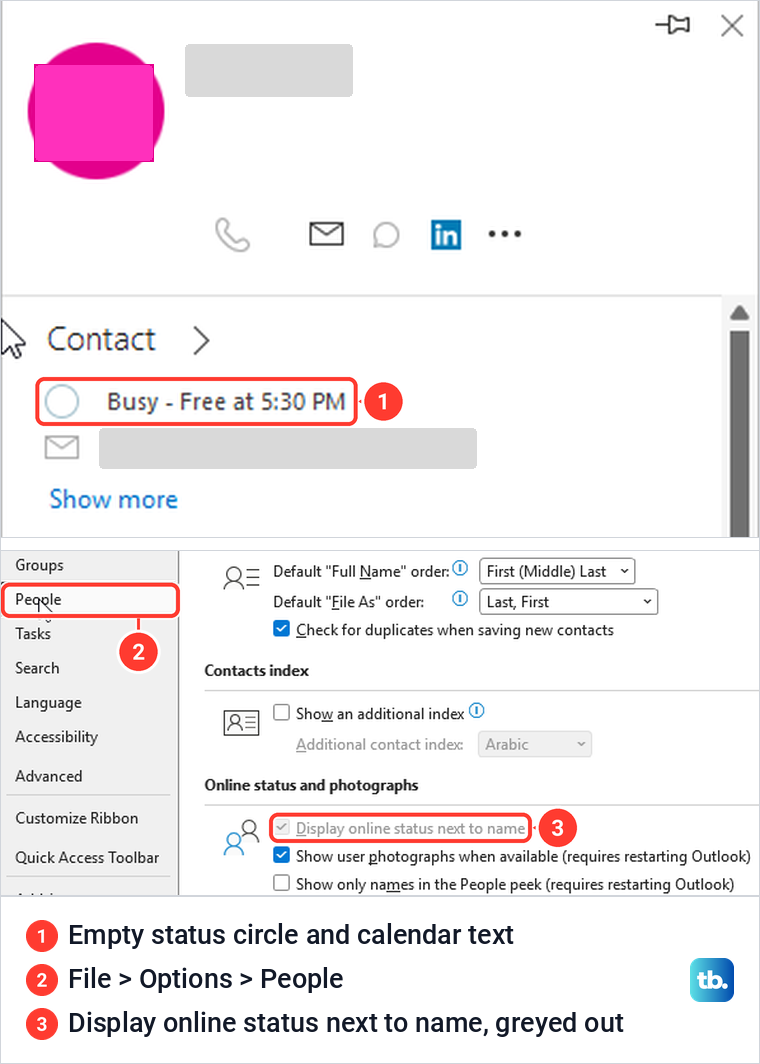
Classic Outlook behaved differently on our PC. The same message showed no status ring on the sender's picture, although the sender was signed in to Teams for the web at that moment. Hovering over the sender opened a card with an empty circle and Busy - Free at 5:30 PM, the free/busy text from a meeting on the sender's calendar. Microsoft says classic Outlook gets online status by working with the Teams instant messaging service.
Microsoft's switch for this in classic Outlook is File > Options > People, then Display online status next to name under Online status and photographs. On our PC that box was ticked but greyed out, so it could not be changed there. Either way it is a display option, deciding whether Outlook shows a status, not what Teams shows.
Teams on your phone and a second device
Microsoft says that when you are signed in on two or more devices, the one where you were active most recently decides your status. On a phone, your status becomes Away whenever the Teams app is in the background, and Offline after 24 hours without activity.
Microsoft's example is someone working on a computer with a phone signed in as well. Their status comes from the computer until they disconnect there, and then it comes from the phone, so a phone with Teams in the background can show you as Away.
When the dot stays yellow after you come back
Normally the dot turns green again once you are active. Microsoft's troubleshooting page covers the case where it does not, for example a status that went to Away after more than five minutes and stayed there after you started working again.
Microsoft lists two checks for this: a connectivity test for presence based on calendar events, and a Teams Presence diagnostic in the Microsoft 365 admin center that only an administrator can run. If your dot keeps staying yellow while you work, your IT team is the place to start, since the diagnostic needs their access.
No Microsoft setting keeps you Available while you are away from the PC, and faking activity is not something we recommend. The settings above are about showing your real status accurately, which is what colleagues rely on when they decide whether to message you.
How we tested this guide
We tested this in Teams for the web in Microsoft Edge on Windows 11, version 25H2, setting our own status from the profile menu and watching the dot change.
Frequently Asked Questions
Can I keep my Teams status green all day?
Not reliably. Teams can switch to Away after a few minutes without activity or when the PC locks or sleeps, and to Busy for calls, meetings and Busy calendar events. Set Available, and in Teams for the web turn on Keep my current status and allow the browser prompt.
Why does Teams show Away when I work in another browser tab?
Teams for the web needs permission to see activity outside its own tab. Turn on Keep my current status under Settings > Notifications and activity, then select Allow when the browser asks. If you chose Block, Microsoft says your status may change to Away even while you work elsewhere.
Can I use Duration to stay Available for a set time?
Microsoft says durations work for every status except Available. Teams for the web listed Available in its Duration panel on our PC, but Microsoft says a more available status does not override Away even with a duration set, so use Duration for Busy, Do not disturb or Be right back instead.
Why does my Teams status turn yellow after a few minutes?
Microsoft says Teams marks you Away after a few minutes without activity, when the PC locks and when it goes to sleep. Check the Windows screen and sleep timers, and on a work PC keep to the lock settings your organization sets.
Why is my Teams status still Busy?
A call, a meeting or a Busy event in your Outlook calendar sets Busy or In a meeting by itself. A Busy you chose yourself also lasts one day by default, so select your profile picture, your current status and Reset status once the reason has passed.
Does a Teams status message keep me Available?
No. A status message is a note shown beside your status with its own Clear status message after timer, and it does not change the dot. On our PC the note appeared next to a green Available status, and we set and removed it separately.
Why does Outlook show a different status from Teams?
Your Outlook calendar and automatic replies feed into the status Teams works out, and Outlook then displays that Teams status, which Microsoft says needs a work or school account with a qualifying Microsoft 365 subscription. On our PC, Outlook on the web matched Teams, while classic Outlook, which Microsoft says works with the Teams instant messaging service for online status, showed no Teams status for the sender.