
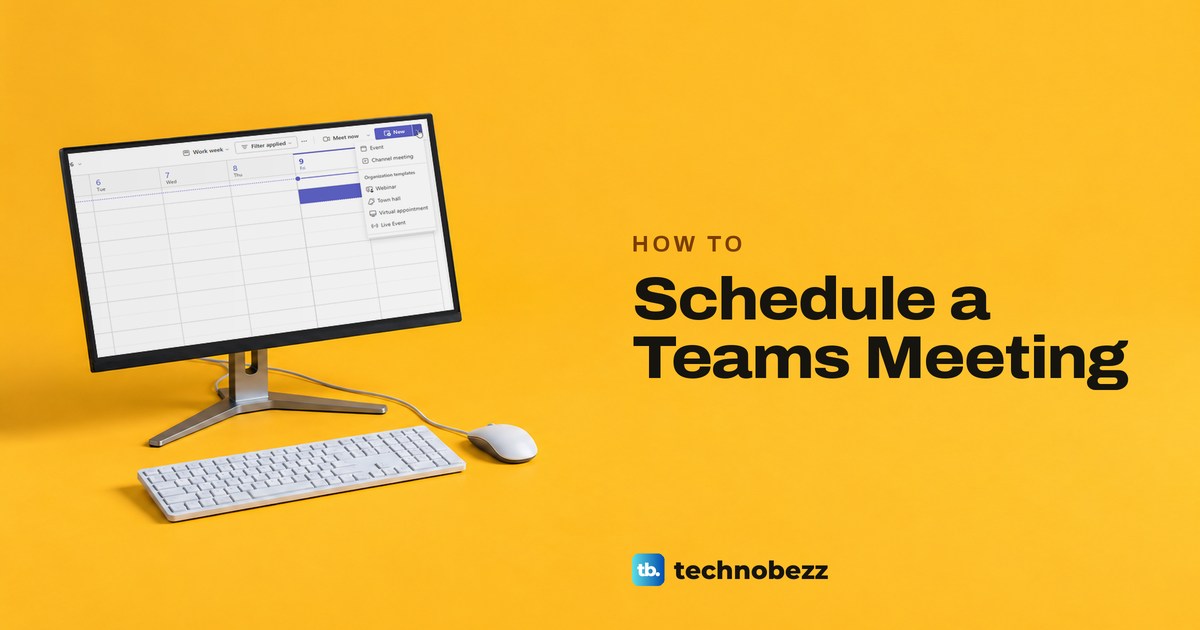
To schedule a Teams meeting, open Calendar in Teams, select New, add a title, the people to invite and a time, check that the Teams meeting toggle is on, then select Send (Save in Microsoft's desktop app steps). Everyone you added gets an invitation with a Join link. Outlook on the web and new Outlook use the same steps through New event, so this is also how to set up a Teams meeting and send a Teams meeting invite without opening Teams.
Classic Outlook works differently: you open New Meeting and add Teams Meeting from the ribbon. Two things can catch you out. The Teams meeting toggle switched itself on the moment we added a person, and a meeting saved as a draft had no join link at all until we sent it.
The short version
- In Teams: open Calendar, select New, add a title, people and a time, check that Teams meeting is on, then select Send (Save in Microsoft's desktop app steps).
- In Outlook on the web or new Outlook: open Calendar, select New event and fill in the same fields. The Teams meeting toggle sat under the location box in our Outlook on the web form, although Microsoft's steps for new Outlook and the web put it next to the title.
- In classic Outlook: open a meeting request with Ctrl + Shift + Q or New Meeting, then add Teams Meeting from the ribbon before you send.
- The link comes with Send: in Teams, Outlook on the web and new Outlook, join details are added when the invitation goes out, and a saved draft has none. Classic Outlook shows them as soon as you add Teams Meeting.
- No Teams button in classic Outlook? Check File > Options > Add-ins for the Teams Meeting add-in, and schedule from Teams or Outlook on the web meanwhile.
Ways to schedule a Teams meeting at a glance
| Where you start | What makes it a Teams meeting | How the invitation goes out | Best for |
|---|---|---|---|
| Teams Calendar, then New | The Teams meeting toggle in the New event form | Send once someone is invited on the web; Save in Microsoft's desktop app steps | Most work meetings |
| Outlook on the web or new Outlook, then New event | The same toggle, which can switch on by itself | Send, or Save as draft to finish later | Booking from your mailbox |
| Classic Outlook, New Meeting or Ctrl + Shift + Q | Teams Meeting on the Meeting tab, from the Teams Meeting add-in | Send, once the Teams block is in the body | People who live in the older Outlook |
| A Teams channel, Meet now arrow | Schedule a meeting creates a channel meeting | A post in the channel, plus personal invites if you turn them on | Team meetings everyone can see |
| A Teams chat, More chat options | Schedule a meeting from the chat | Send, to the people in that chat | Turning a conversation into a call |
| Teams on a phone | Calendar, then New event | Done | Booking on the go |
| Google Calendar | Microsoft's Teams meeting add-on | Google Calendar's own invitation | Teams users who plan in Google Calendar |
| Teams for personal use | Meet, then Schedule a meeting | Save, then share the invite or link | Friends, family and clubs |
The first two rows share one form. Classic Outlook is the odd one out because Teams arrives through an add-in, so its button can be missing even when the other routes work. Meet now is left out because it starts a meeting at once.
Schedule a meeting in the Teams calendar
Select Calendar on the left side of Teams. You can start in two ways: select New at the top right, or pick an empty time slot in the calendar. In Teams for the web, the arrow beside New listed Event and Channel meeting, plus organization templates for a webinar, a town hall, a virtual appointment and a live event.
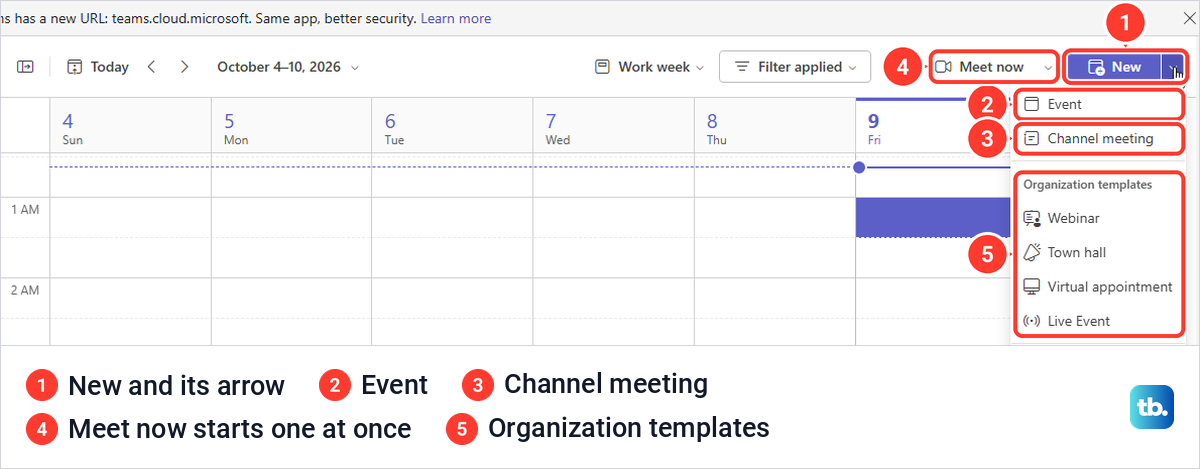
For an ordinary meeting, New on its own opens the New event form. Type a title, then type a name in the attendee box and pick the person from the suggestions. To invite someone outside your organization, Microsoft says to type their full email address. Set the date and the start and end times on the line below.
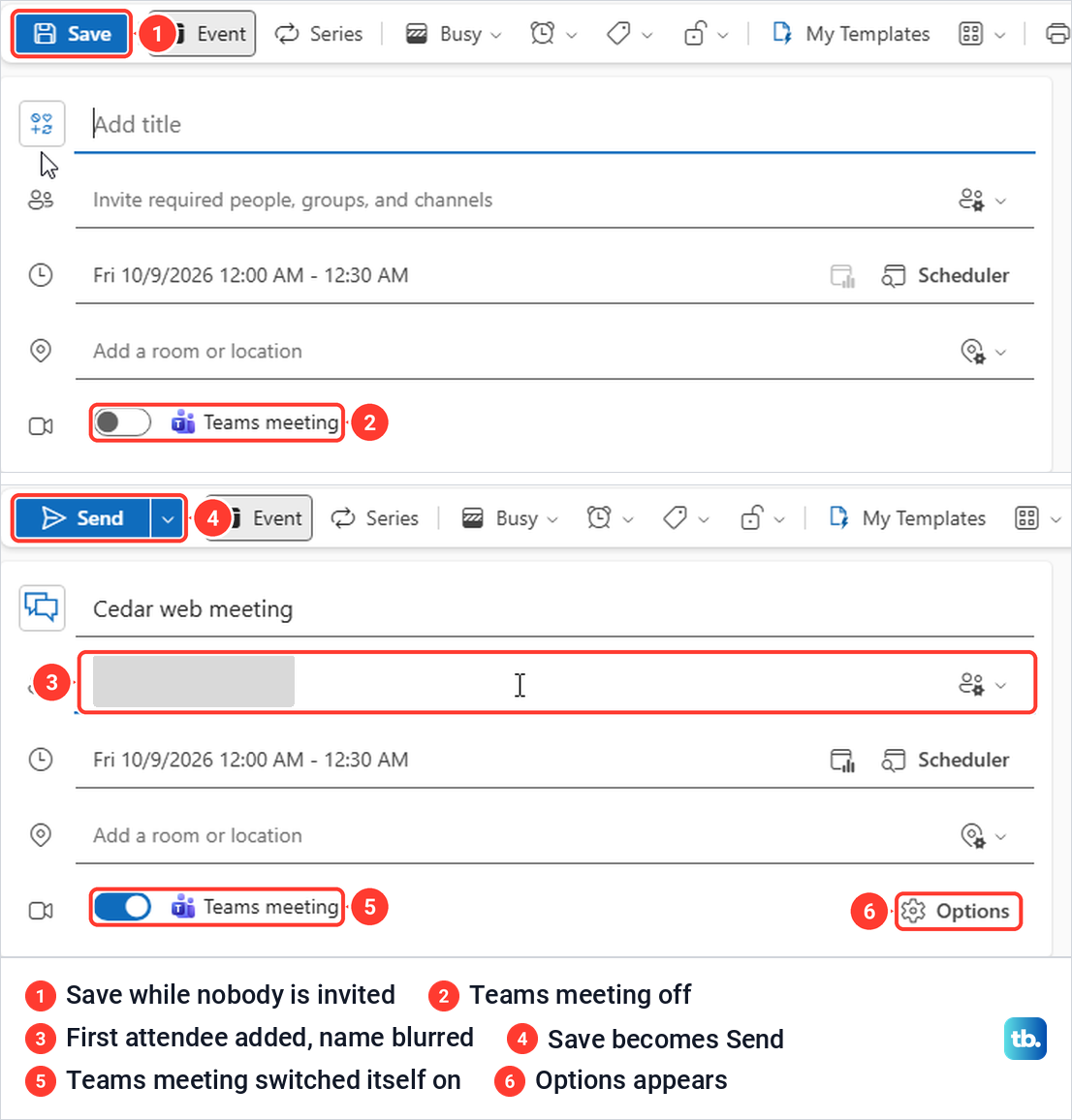
Now look at the Teams meeting toggle under the location box. Microsoft's instruction is to turn it on. For us it was off when the form opened and switched on by itself as soon as we added the first attendee, because the account's Add online meeting to all meetings setting was on. At the same moment the Save button became Send, and an Options button appeared beside the toggle.
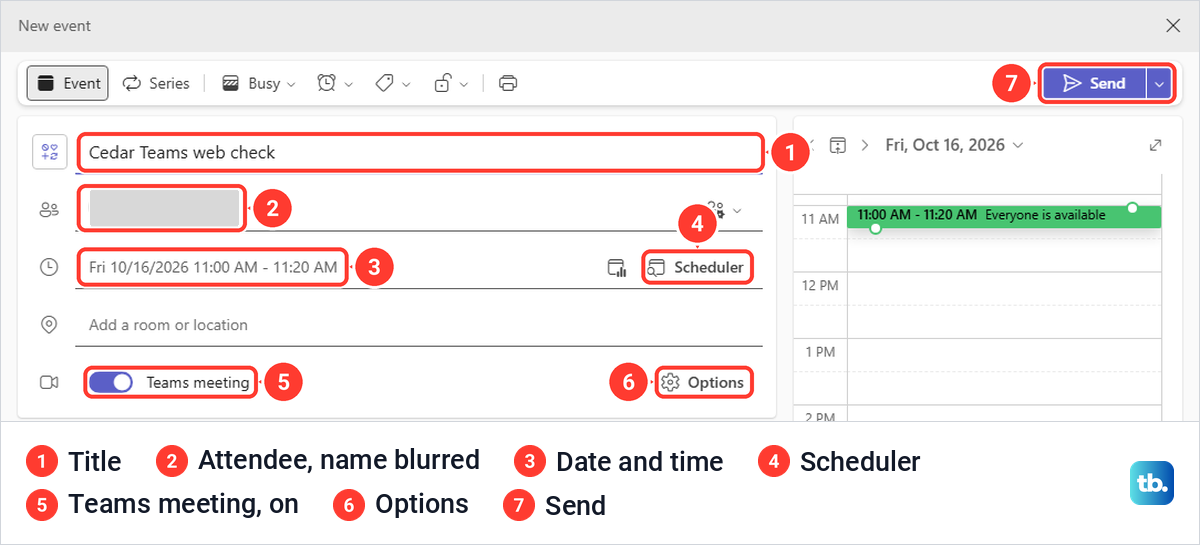
Select Send. Our meeting showed in the Teams calendar next to the ones we had made in Outlook and, after a refresh, in the Outlook on the web calendar too. Microsoft says Teams meetings appear in your Outlook calendar automatically, and vice versa. Our attendee received it in classic Outlook with a Join link, a meeting ID and a passcode.
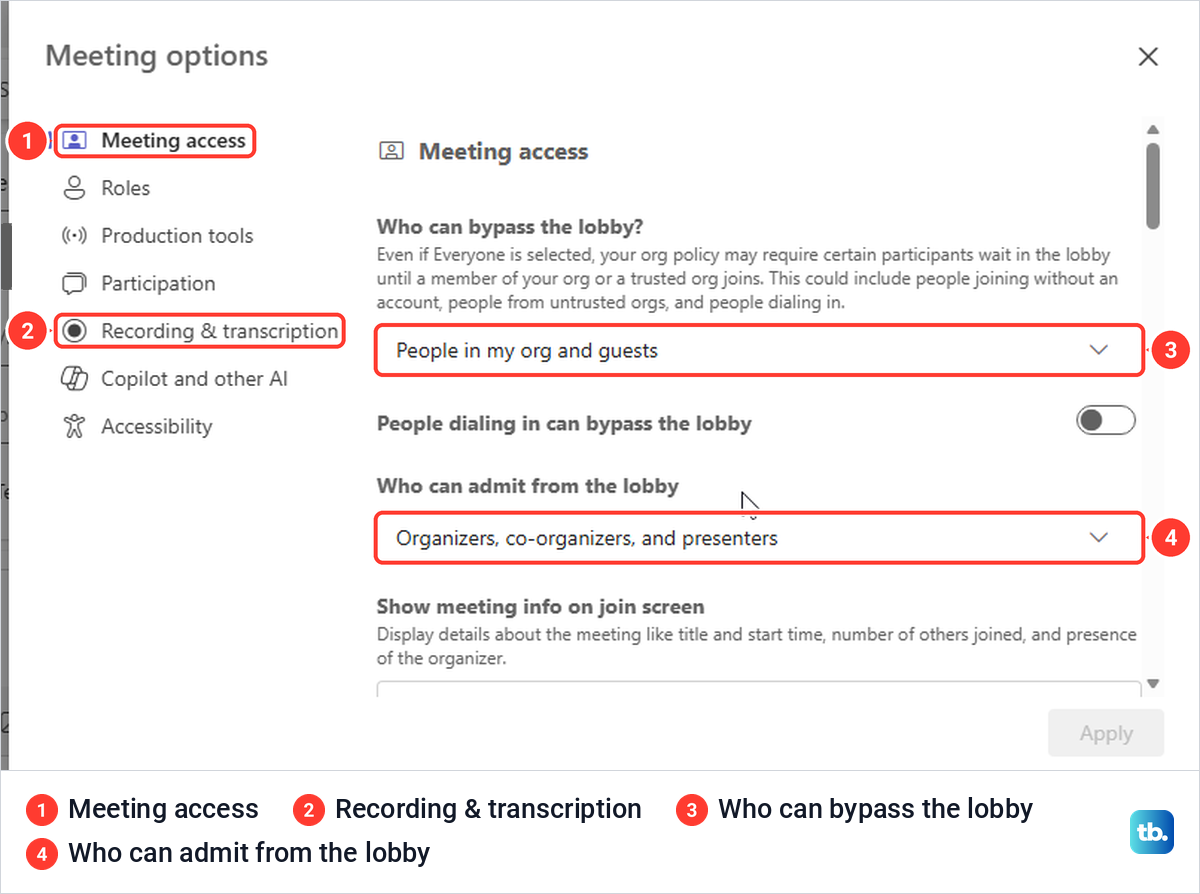
Options opens Meeting options before you send anything. Ours had seven pages, from Meeting access and Roles to Recording & transcription and Accessibility. Meeting access shows who can bypass and admit from the lobby, though the screen warns that organization policy can still make some people wait. For a replay, you can record a Teams meeting once it starts.
In the Teams desktop app, Microsoft's steps are the same: Calendar, a time slot or New, the details and attendees, the Teams meeting toggle, then Save. On a phone, open the Teams app, tap Calendar, tap New event, add a title, tap Add participants to invite people, and tap Done.
The attendee box in Outlook on the web reads Invite required people, groups, and channels, so a group works as well as a single name. If you invite the same team every week, create a group in Outlook once and type its name instead. For a plain list of contacts, you can also create a distribution list in Outlook and invite that.
Schedule a Teams meeting from Outlook on the web
Outlook on the web uses the same form. Open Outlook in your browser, select Calendar on the left, and select New event. The arrow beside it offered Mail, Event and Bookable time, but the button on its own goes straight to a new event.
You can also start from the calendar grid, where a single click on an empty slot only selected that half hour. A double-click opened the full form with the date and time already filled in.
Fill in the title, attendees and time as before. With nobody invited, our form had a Save button and the Teams meeting toggle was off. Adding one attendee turned the toggle on, replaced Save with Send and added Options, without our touching the toggle.
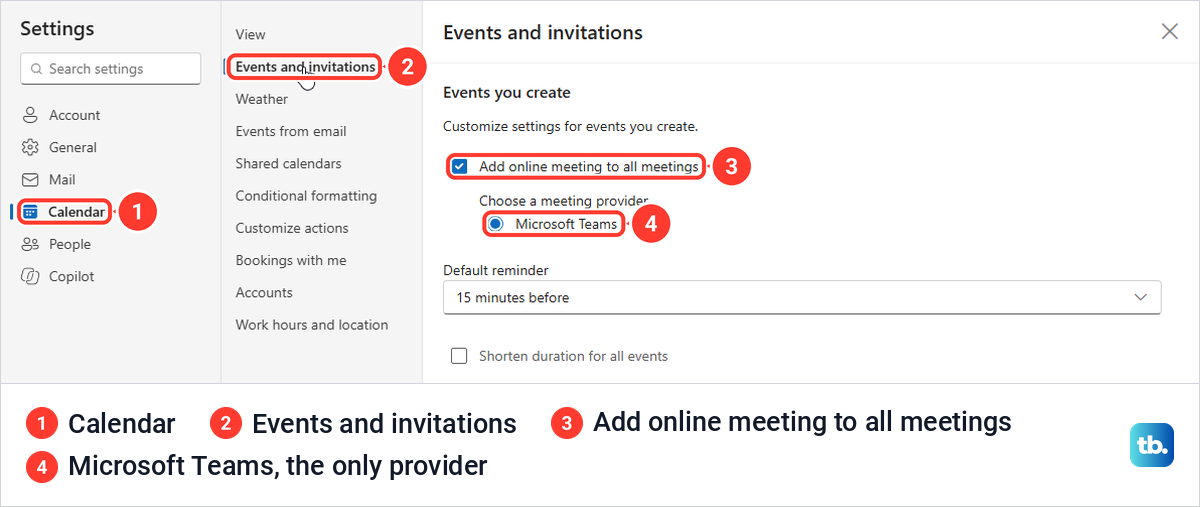
That automatic switch comes from one setting. Open Settings (the gear at the top right), choose Calendar, then Events and invitations. Under Events you create, Add online meeting to all meetings was ticked for us, and Microsoft Teams was the only meeting provider listed. Microsoft says to make sure Microsoft Teams is selected there and to save.
For an in-person meeting, switch the toggle off by hand after adding people, because adding them is what turns it on. When we did, Options disappeared and the form held no Teams details. Do it before you send: Microsoft says Teams can be removed while you create a meeting, but not after the invitation goes out.
Schedule a Teams meeting in new Outlook
Microsoft says Teams is built into the new Outlook for Windows, so there is no add-in to install. Select Calendar, select New event, turn on the Teams meeting toggle next to the title, add the details and attendees, and select Send. Microsoft's steps, which cover new Outlook and the web together, put the toggle next to the title, but our Outlook on the web form had it under the location box, so look there too.
If the toggle is missing, Microsoft lists two requirements: you must be signed in to Outlook and Teams with the same work or school account, and you must use the new Teams app. Its fix is to close Outlook, right-click the Teams icon and choose Quit Teams, start Teams and sign in, then start Outlook again.
Microsoft also limits who can do this from Outlook. It needs a Microsoft 365 business account on Exchange, and Gmail, Yahoo, iCloud and other POP or IMAP accounts are not supported.
Check that your invitation has a join link
In Teams, Outlook on the web and new Outlook, the join details are not in the form while you fill it in. Before we selected Send, the body of our meeting was empty, with no link anywhere, even with the toggle on. Microsoft says the join details are added automatically after you select Send, while in classic Outlook they appear in the body as soon as Teams Meeting is added.
After sending, opening the meeting in our calendar showed Join and Chat buttons. The attendee's copy, opened in classic Outlook, had Microsoft Teams Meeting as its location and a block in the body headed Microsoft Teams meeting, with a Join link, a Meeting ID and a Passcode.
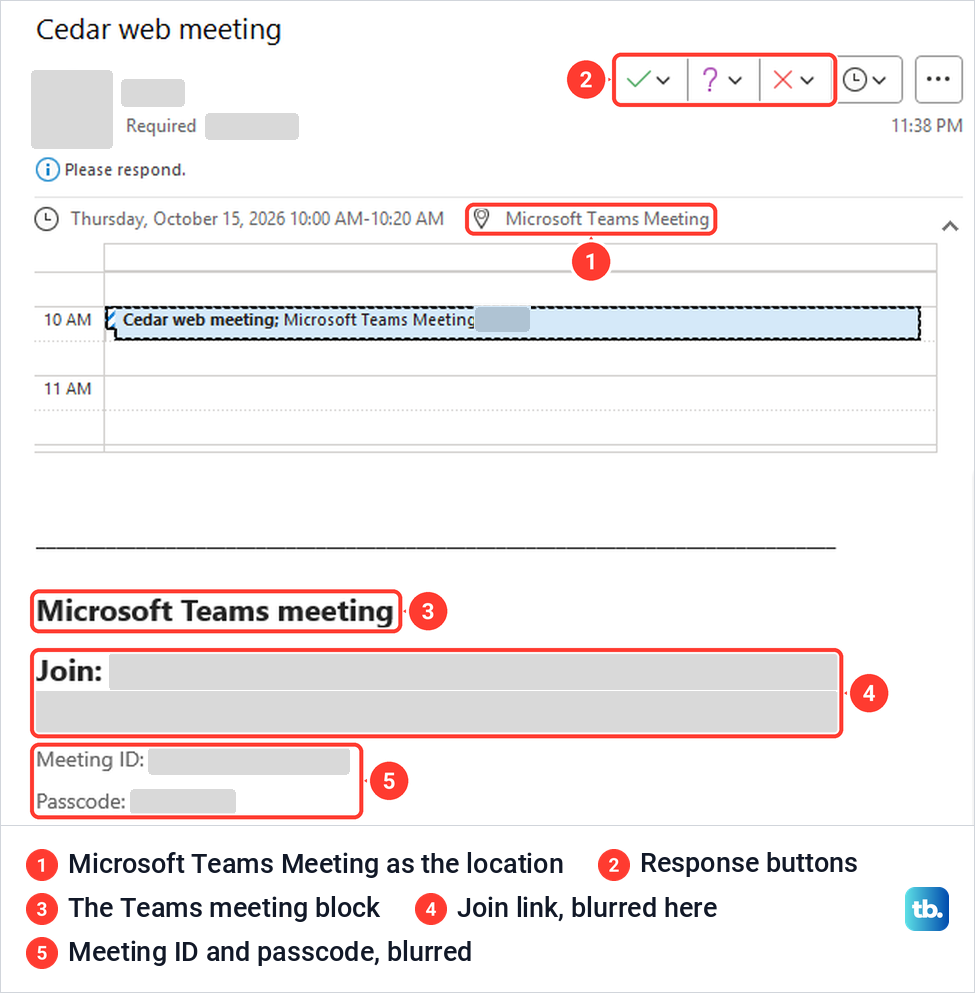
Our invitation had no phone number to dial in. Microsoft says that may mean your IT admin has not set the feature up or the licences are missing, and our invitation still carried its Join link.
You can also share the link on its own. In the Teams calendar, Microsoft's route is to open the meeting and select Share, then Copy join link. A pasted link lets someone join, but it puts nothing in their calendar, so add people as attendees when they should get a proper invitation.
Save a meeting as a draft and send it later
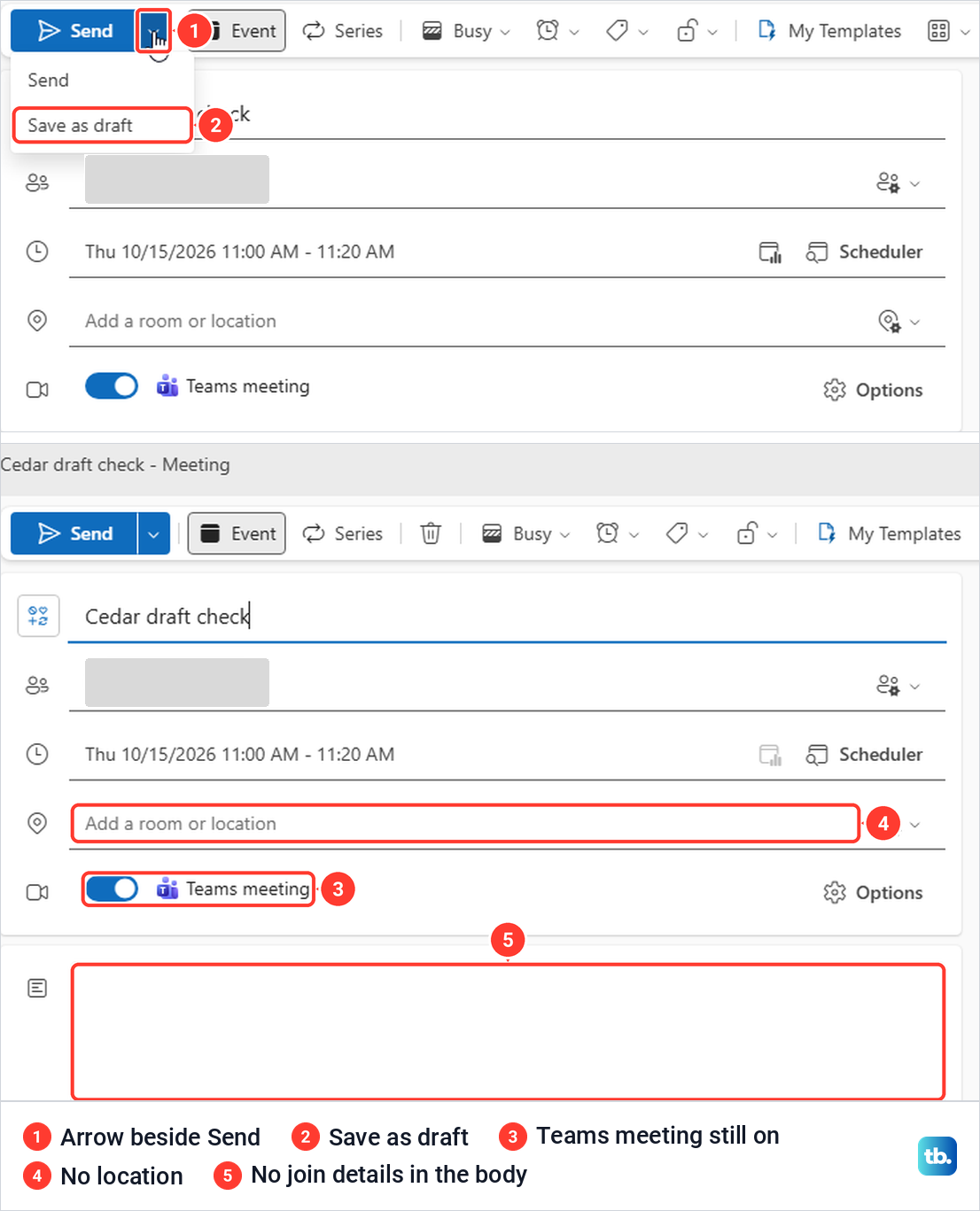
In Outlook on the web, the arrow beside Send offers two choices, Send and Save as draft. A draft sits in your calendar marked [Draft] and goes to nobody.
When we reopened our draft, the Teams meeting toggle was still on, but the location and body were empty, with no link, meeting ID or passcode. We selected Send from the reopened draft, and the attendee's invitation arrived with all three. Microsoft describes the same behavior: a draft is created without the Teams join details.
Find a time that suits everyone
Select Scheduler on the time line of the form to see everyone side by side. In our form it opened an availability grid with each required attendee and their status, rows for optional attendees and rooms, and Time suggestions at the bottom, with a legend for busy, tentative and other states.
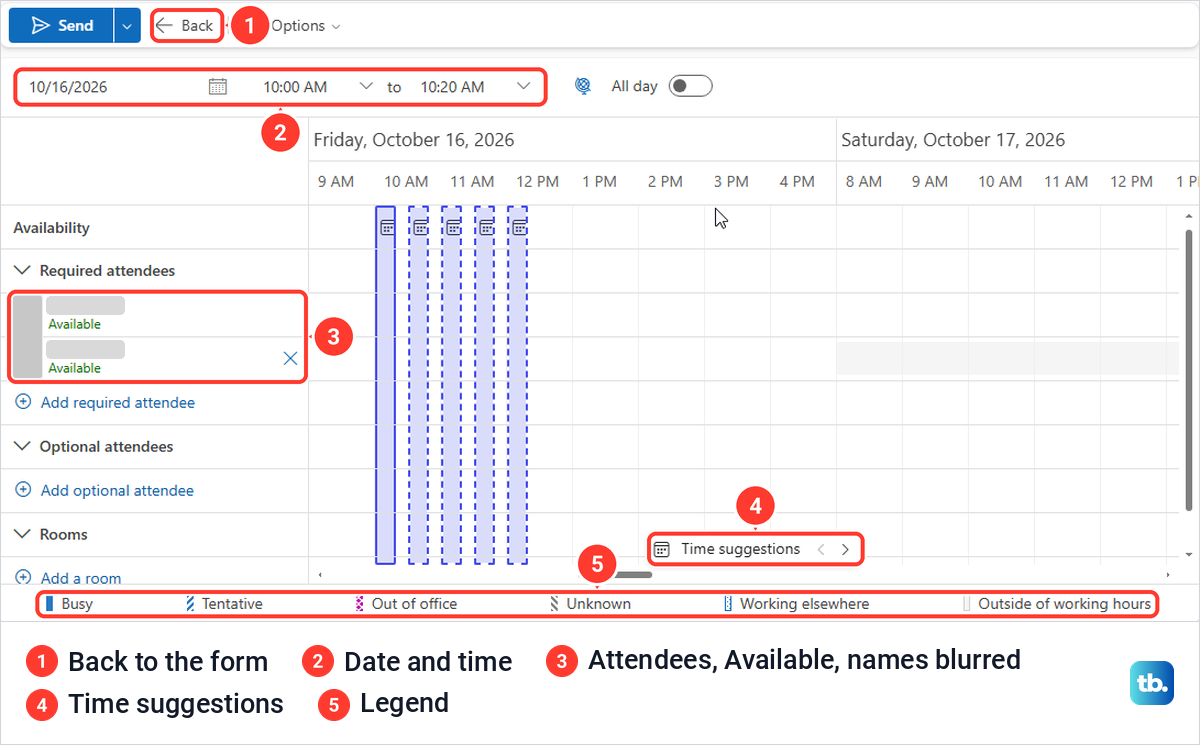
Select Back to return to the form. Microsoft's general Outlook help still calls this tool Scheduling Assistant, but the New event form in Teams and Outlook on the web said Scheduler, and only the channel form kept a Scheduling Assistant tab. Classic Outlook keeps the older version as a Scheduling Assistant tab in the meeting window, and with our attendee added it showed their tentative block at 10 AM next to our own busy one.
For more than free and busy times, you can view someone else's Outlook calendar when they have shared it with you. It works the other way too: share your Outlook calendar so colleagues can see when you are free before they invite you.
Make a Teams meeting repeat
Open the date and time line and select Recurring. In Outlook on the web, the same form Teams for the web uses, it switches from Event to Series, and the repeat controls appear right there: Repeat every 1 week, a row of weekday buttons and an Until date.
Until was set six months ahead when we first opened it, so change it if the series should end sooner. There was no separate Repeat dialog and no extra Save button, which is what Microsoft's general Outlook help still describes. A summary line above the controls spells out the pattern in words.
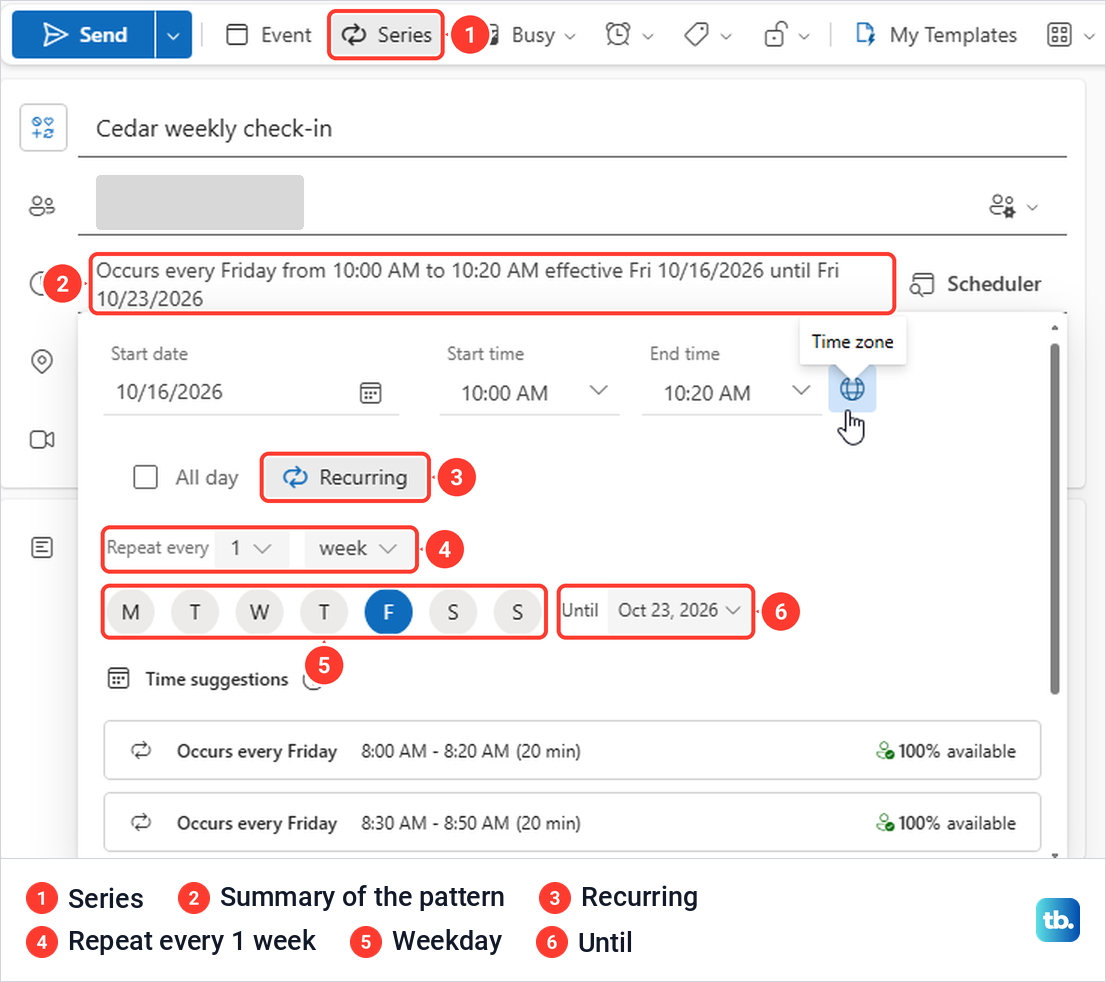
After Send, the series showed in our calendar with a repeat icon. The attendee's invitation spelled out the same pattern and carried the usual Join link, meeting ID and passcode. In classic Outlook, the same job is done by Make Recurring, next to the end time in the meeting form.
Schedule a Teams meeting in classic Outlook
Classic Outlook, the older Outlook for Windows, adds Teams through the Teams Meeting add-in instead of a toggle. Microsoft's steps are to select the arrow next to New Email on the Home tab and choose Meeting. On the Meeting tab, select the arrow next to Teams Meeting and choose Schedule meeting, then add the details and attendees and select Send.
The join information appears in the body as soon as Teams Meeting is added, and Microsoft says Set up opens the meeting options. To take Teams back out before sending, Microsoft's route is More commands, then Don't Host Online.
There are other ways into the same form. In the calendar, New Meeting on the Home tab opens it, and pressing Ctrl + Shift + Q in the Inbox opened a new meeting request on our PC. On the Simplified ribbon, the menu Microsoft calls New Items is the arrow beside New Email, or beside New Meeting in the calendar.
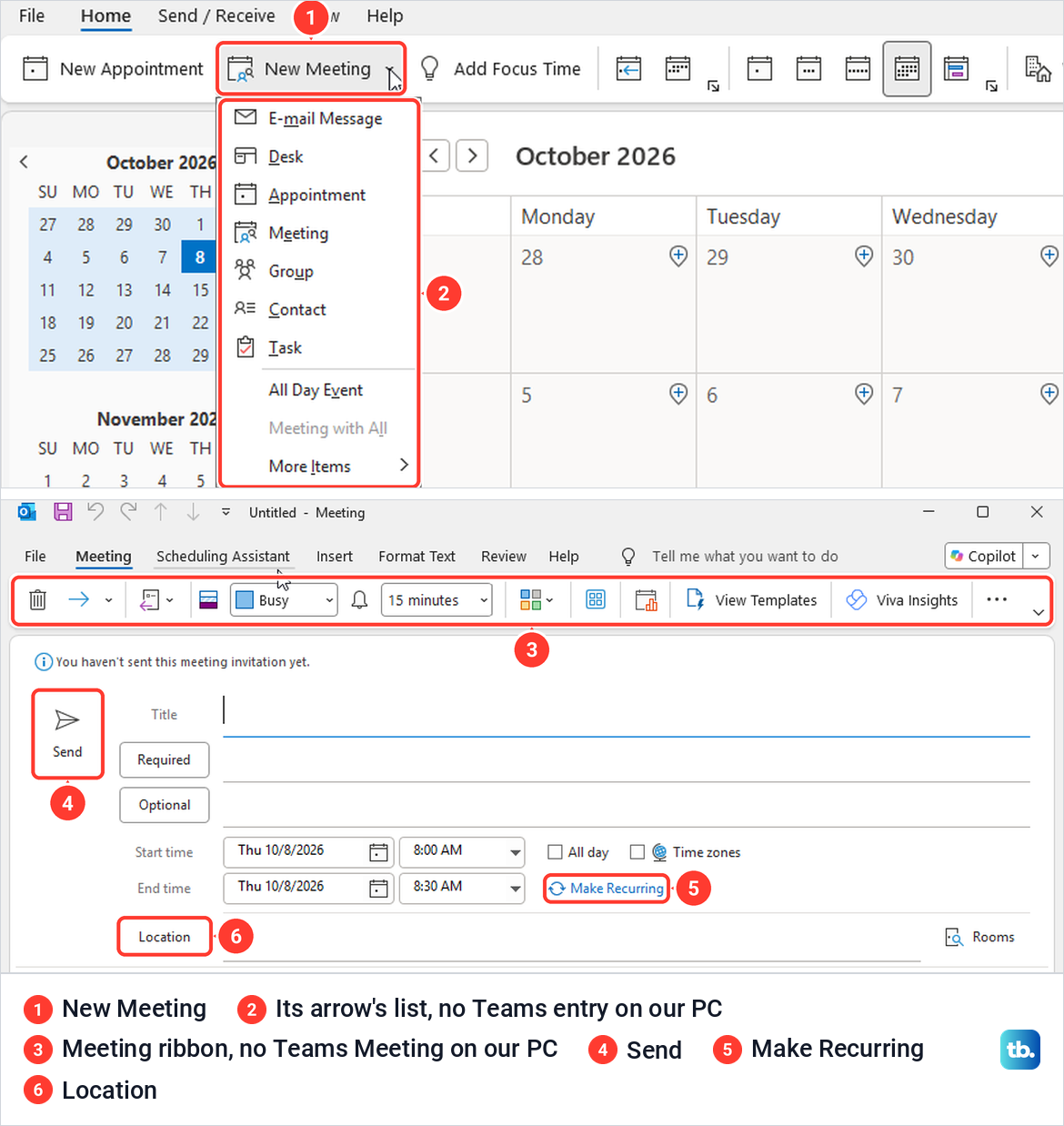
Our classic Outlook had no Teams Meeting control anywhere. It was not on the calendar ribbon, in the New Meeting list, on the meeting form or in the form's three-dot menu, and the Teams Meeting add-in did not appear in Outlook's add-in lists. The form still worked as a normal meeting request, with Title, Required, Optional, start and end times, Make Recurring and Location.
We sent one anyway. Outlook first asked whether to send the meeting request without a location, and the invitation that arrived had no Join button and no Teams link at all. It was an ordinary calendar meeting, so check for the Microsoft Teams meeting block in the body before you select Send.
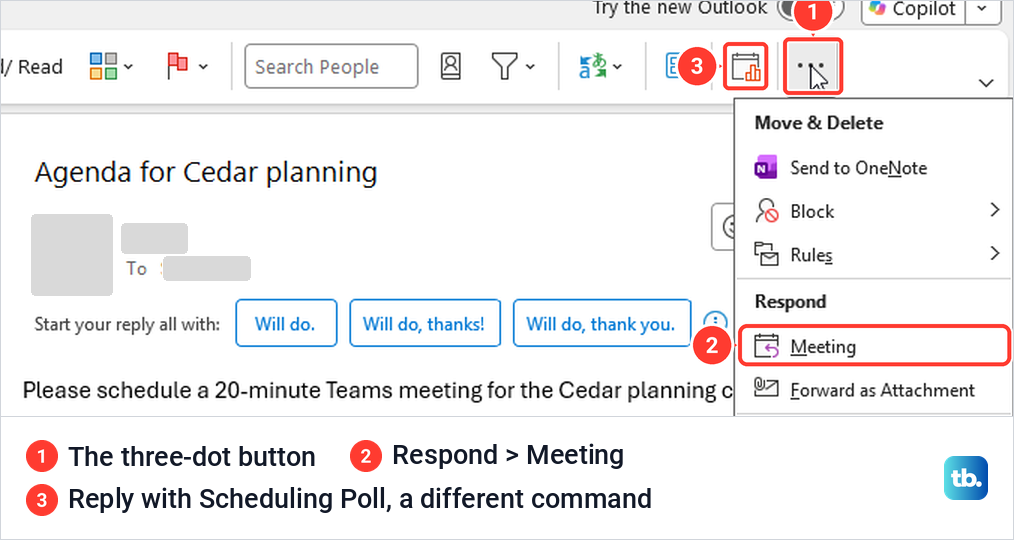
To turn an email into a meeting, Microsoft points to Reply with Meeting. On our Simplified ribbon it sat under the three-dot button at the end of the Home tab, as Meeting under Respond. The calendar icon on the ribbon is a different command, Reply with Scheduling Poll. Ours opened a meeting with the email's subject and sender filled in, so add Teams Meeting before you send it.
Fix a missing Teams Meeting button or join link
In new Outlook, check both requirements described above, the same work or school account in Outlook and Teams and the new Teams app, then follow Microsoft's restart steps. In classic Outlook, Teams depends on the Teams Meeting add-in, which Microsoft says should install automatically when Teams and Office are both on the PC. Its first fixes are to sign out of Teams and restart it, then close Outlook and start it again.
If the button is still missing, select File > Options > Add-ins and look for Microsoft Teams Meeting Add-in for Microsoft Office under Active Application Add-ins. If it is listed under Disabled Application Add-ins, set Manage to COM Add-ins, select Go, tick the Teams Meeting add-in and select OK. Then restart Outlook after enabling the add-in and look for the Teams Meeting button again.
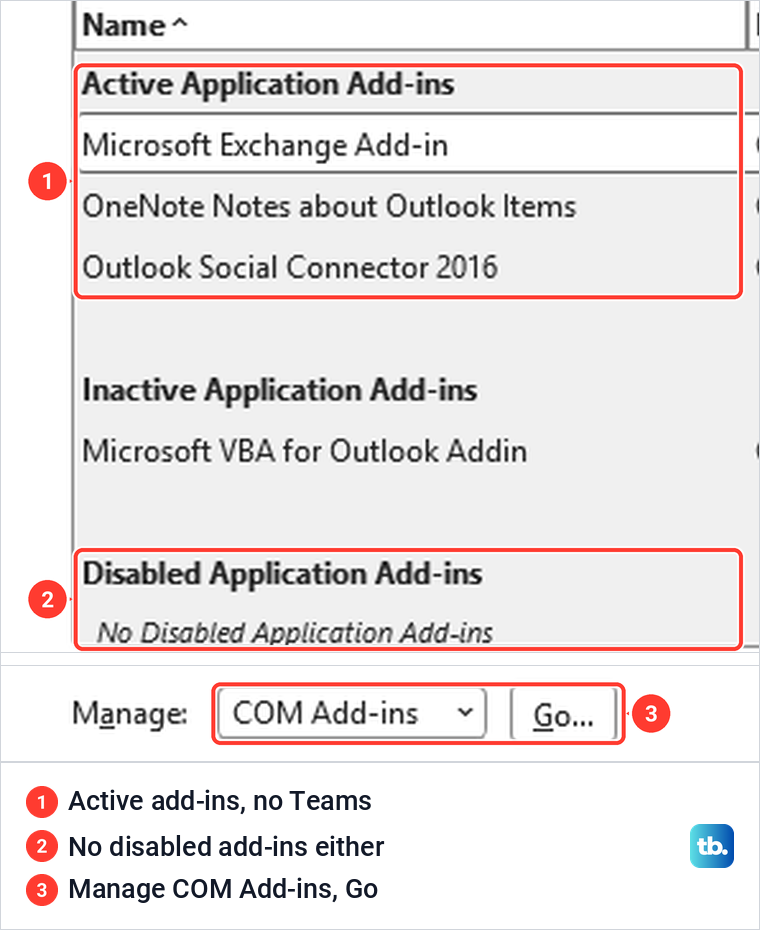
On our PC the add-in was in none of the lists, and the COM Add-ins box had no Teams entry to tick, so there was nothing to switch back on. A ticked box was no proof either. Under File > Options > Calendar, Add online meeting to all meetings was already ticked, yet Meeting Providers said No available online meeting providers, and our meeting went out with no Teams link and no warning that Teams was missing.
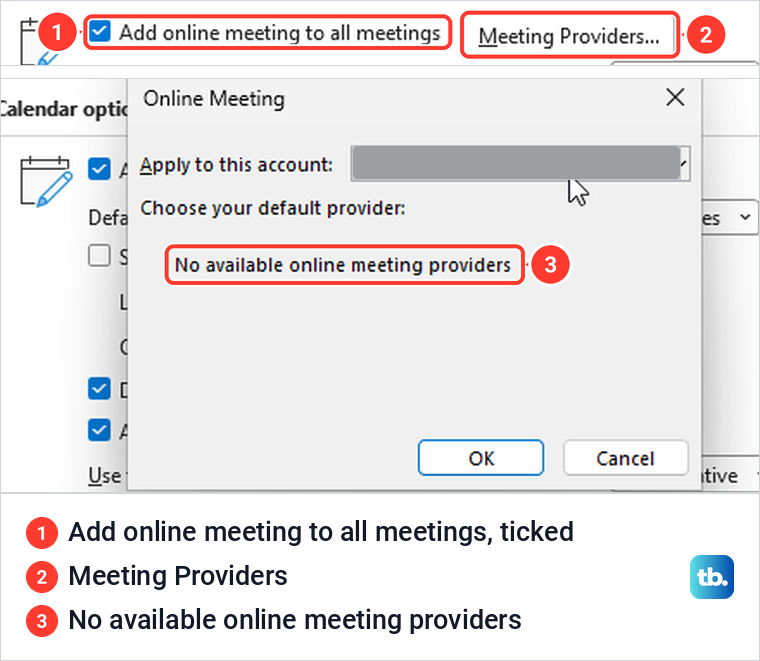
Microsoft's instruction for that setting is to pick Microsoft Teams as the default provider under Meeting Providers, which needs the add-in to be there. If it stays missing, update Outlook on Windows and ask your IT admin. Teams and Outlook on the web do not need the add-in, so you can keep scheduling there in the meantime.
Schedule from a Teams channel or a chat
A channel meeting shows up in the channel, where everyone in the team can see it and join. Open the channel, select the arrow next to Meet now and choose Schedule a meeting. In our standard channel this opened a New meeting form with Details and Scheduling Assistant tabs, a row naming the channel and an Options pane.
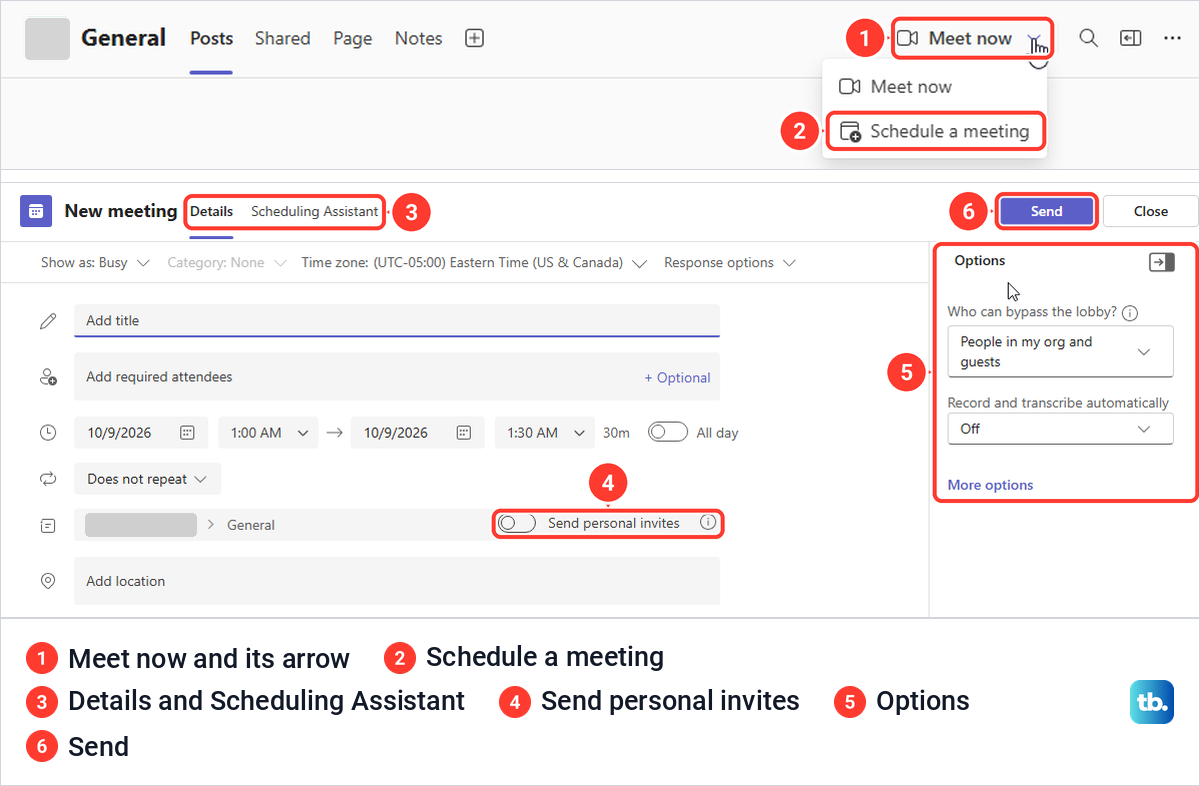
That channel row carries a Send personal invites switch. Microsoft says to turn it on, or add people as required attendees, if members should get the meeting in their own calendars. People outside your organization cannot open the channel calendar, so invite them by their full email address.
Microsoft notes that channel meetings cannot be scheduled in private channels, so you may not see the option there. From a chat, Microsoft's route is to select More chat options at the top of the chat, choose Schedule a meeting, add the details and select Send.
Use Google Calendar or a personal Teams account
If you plan your week in Google Calendar, add Microsoft's Teams meeting add-on. Microsoft's steps are to install the Microsoft Teams Meeting add-on from Get Add-ons in the calendar's side panel, then sign in with the work or school account you use for Teams and select Authorize Access.
Microsoft adds one catch. Meetings made with the add-on only appear in your Google calendar and do not sync with other Microsoft calendars, so they will not show in Teams or Outlook.
Teams for personal use, the free version for a Microsoft account, has its own controls. Microsoft's steps are to select Meet, choose Schedule a Meeting, add a title and participants by name, email or phone number, set the times and select Save. Participants get an invitation with a link to join, and because the Outlook add-in does not support personal accounts, schedule these in Teams itself.
Start a Teams meeting right now instead
To start a Teams meeting immediately, use Meet now instead of New. In the Teams calendar it sits next to New at the top right. Microsoft's steps are to name the meeting, select Get a link to share if you want to send the link first, then select Start meeting and Join now.
Microsoft says Meet now in the calendar needs an Exchange Online mailbox, so it may be missing on some accounts. A scheduled meeting is different: it reserves a future time and sends everyone a calendar invitation with the link inside.
How we tested this guide
We tested this in Teams and Outlook on the web in Microsoft Edge and classic Outlook on Windows 11, version 25H2, sending Teams invitations and opening them as the attendee.
Frequently Asked Questions
Can I schedule a Teams meeting without Outlook?
Yes. Open Calendar in Teams and select New, or schedule from a channel or a chat. Microsoft says a meeting scheduled in Teams also appears in your Outlook calendar, and ours did.
How do I send a Teams meeting invite?
Add the people in the attendee box of the meeting form, check that the Teams meeting toggle is on, and select Send. Each attendee receives an email invitation with a Join link, and in our tests it also carried a meeting ID and a passcode.
Why is there no join link in my draft?
In Teams, Outlook on the web and new Outlook, join details are only added when the invitation is sent. Our draft had the Teams meeting toggle on but no link, meeting ID or passcode, and the invitation we sent from it had all three.
Why is Teams Meeting missing in classic Outlook?
Classic Outlook needs the Teams Meeting add-in. Check File > Options > Add-ins, and enable it under COM Add-ins if it is disabled. If it is not listed at all, schedule from Teams or Outlook on the web and ask your IT admin to install it.
Can I invite someone outside my organization?
Yes. Type their full email address in the attendee box and send the invitation. Whether they wait in the lobby depends on Meeting options and your organization's policy, so check Who can bypass the lobby if guests are coming.
Can I schedule a meeting in a private channel?
No. Microsoft says scheduling channel meetings is not supported in private channels. Use a standard channel or send a regular meeting invitation to the people you need.
Is Meet now the same as scheduling a meeting?
No. Meet now starts a meeting straight away and gives you a link to share. Scheduling reserves a future time and sends a calendar invitation with the join details.