

To set out of office in Teams, select your profile picture, choose Set status message and then Schedule out of office, turn on Turn on automatic replies, check the message in the box, tick Send replies only during a time period to pick your dates, and select Save. That one setting is also your Outlook automatic reply for the same work account.
When we saved it in Teams for the web, Outlook on the web showed automatic replies turned on with our message and dates, and a coworker who emailed us got the reply. A normal Teams status message does none of that, so keep it for short notes.
Read the box before you save. When we turned the switch on, Teams filled it with an older reply saved on the account earlier, and Save was ready to go, so an old return date could have gone out to everyone who wrote to us.
The short version
- Select your profile picture, then Set status message and Schedule out of office.
- Turn on Turn on automatic replies and replace any older message Teams fills in.
- Tick Send replies only during a time period and set both the start and the end yourself.
- Outside replies went to All external senders by default for us; pick Only to my contacts for a smaller audience.
- Select Save. If you set no end, turn the switch off and save again when you are back.
Set out of office from your Teams profile
Select your profile picture at the top right of Teams. The menu shows your status, Pause notifications, Set work location and Set status message. Select Set status message, and at the bottom of the panel that opens, select Schedule out of office.
The large box in that panel is for an ordinary status message with its own Done button, and it is easy to type an absence note there by mistake. A note typed there sends nobody an email, so use the Schedule out of office link instead.
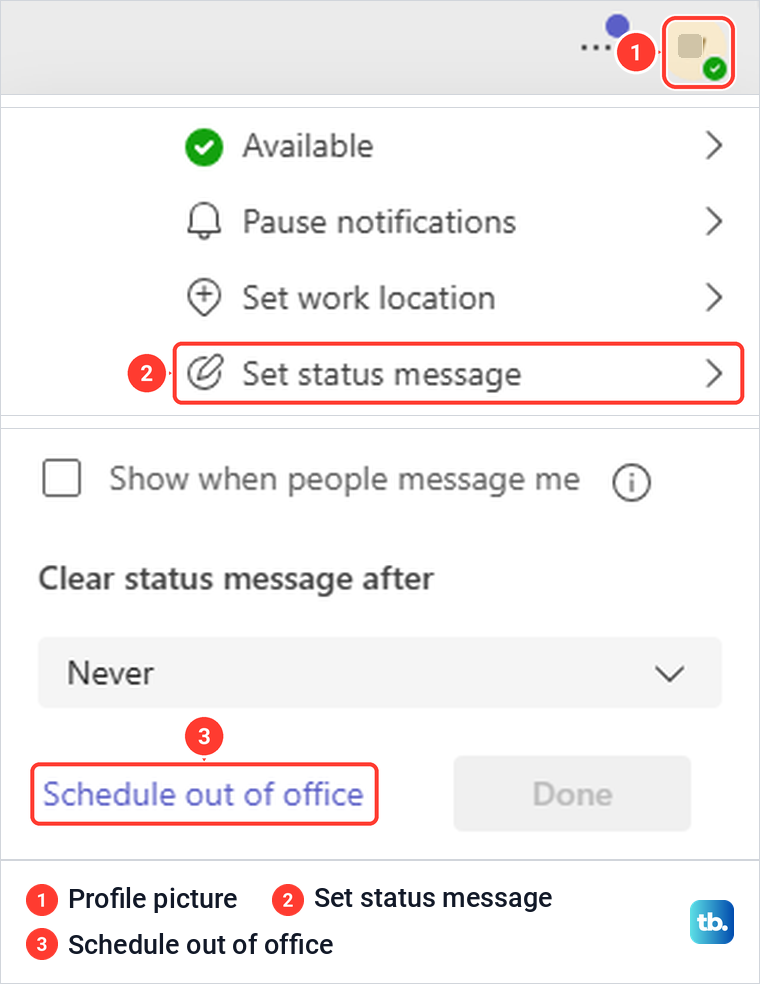
In Teams for the web, Schedule out of office opened a full settings page, General > Out of office, rather than a small window. The page holds one switch, Turn on automatic replies, with a note that your out of office status will also sync with your Outlook calendar, then the message box, two check boxes, Cancel and Save.
Microsoft gives the same route for the Teams desktop app: profile picture, Set status message, Schedule out of office, then the switch. Microsoft calls the page that opens the out of office screen, and the controls it lists match the ones below. If you are newer to Teams, our guide on how to use Microsoft Teams covers chats, channels and meetings.
Replace the message Teams fills in
Turn on the switch next to Turn on automatic replies. For us the message box did not stay empty: Teams loaded the reply that had last been saved for the mailbox, and Save turned blue straight away. Selecting the text showed it was a real saved message, not grey sample text.
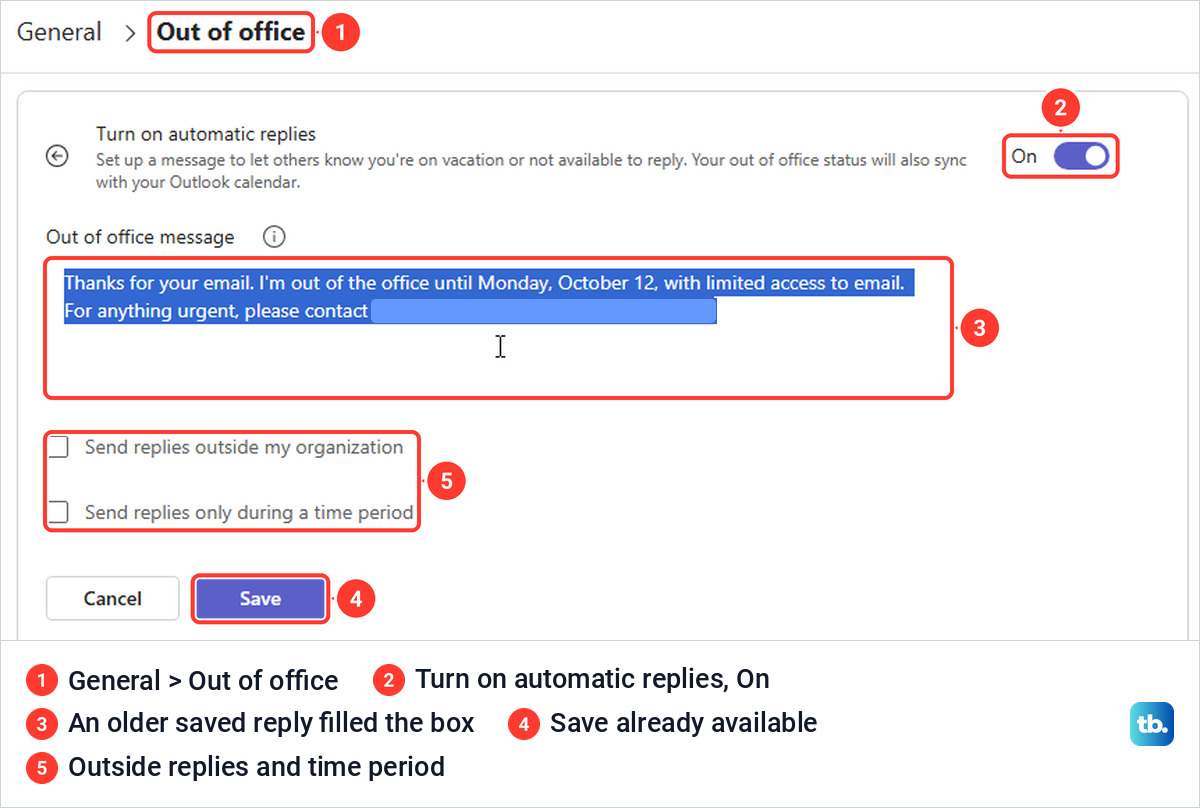
That matters because an old reply can carry the wrong return date or a colleague who is no longer covering for you. If you only flip the switch and save, that old message goes out again. Select all the text in the box, delete it and type the reply for this absence.
Microsoft says the message will appear when people contact you in Teams or open your profile, and that it is also sent as an automatic reply in Outlook. Keep it short: when you are back, whether you are reading messages, and who to contact meanwhile. For example, say you are out until Monday, October 19, and not reading email, and that Alex Rivera on the support team can help with anything urgent.
Before you name a backup person, view a coworker's Outlook calendar to check they are around while you are away. Then tell that person before you leave, so they expect the messages.
Choose the dates and times
Tick Send replies only during a time period to give the reply an end. Microsoft says these are the dates and times your out of office message and status will start and stop displaying. Without a time period, Microsoft says an automatic reply stays on until you turn it off.
When we ticked the box, Teams filled in a Start of today at the last full hour and an End of the same time tomorrow, which would switch the reply off after one day. Set both dates and times yourself. Past days are greyed out in the date picker, and the time lists run in 30-minute steps.
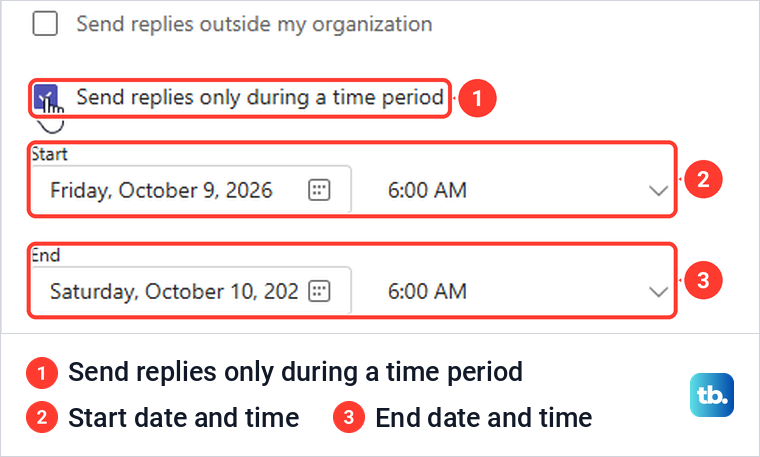
The form does not show a time zone. In Teams for the web, Settings > General has a Time zone section showing the current time zone, which is worth a look if you set the reply while travelling.
Decide who outside your organization gets a reply
Tick Send replies outside my organization if customers or suppliers should get the reply too. Two choices appear, Only to my contacts and All external senders, with a second message box for the outside reply. Microsoft says you can tailor that message to this audience or paste in the same one.
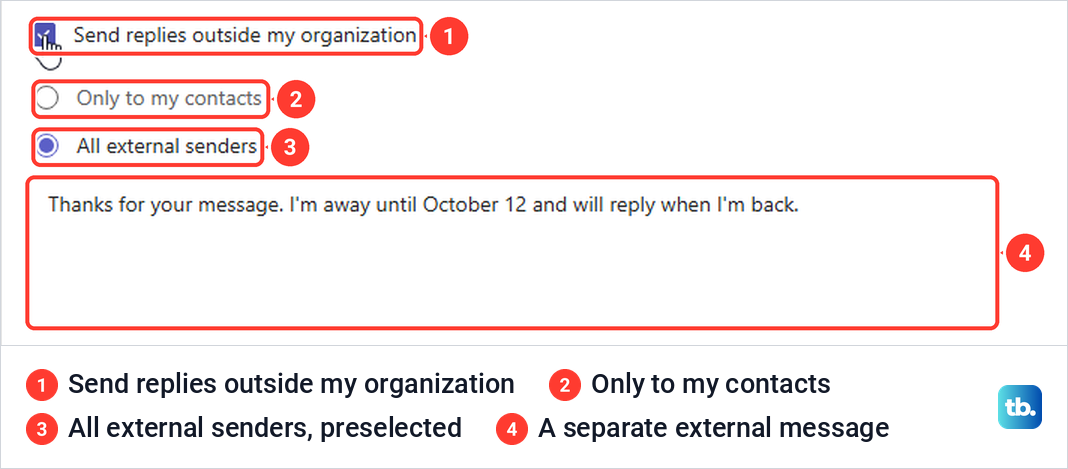
In Teams for the web, All external senders was already selected, and the outside box held an older saved message as well, so replace that text before you save and check its return date and contact details. Microsoft warns that replies outside your organization go to every email you receive, including newsletters, advertisements and potentially junk email, and recommends replying only to contacts. Pick Only to my contacts unless every outside sender needs to know.
When Save stays grey or shows an error
Microsoft says an out of office message is required to set your status and sync it with Outlook. In Teams for the web, clearing the box turned Save grey, and clicking it did nothing, with no warning to say why. Type a message and the button works again.
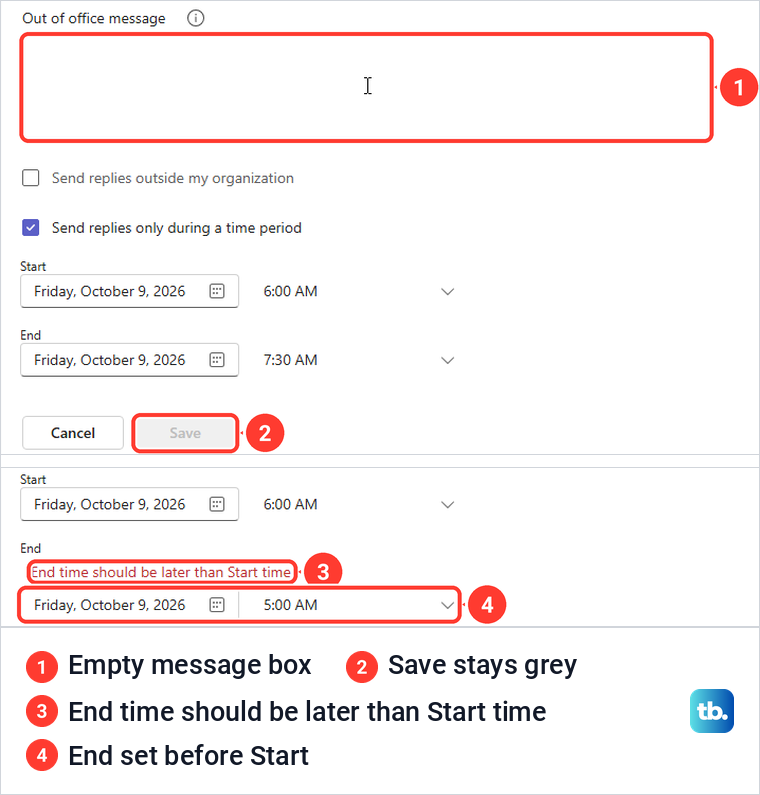
Dates are checked later. Teams let us pick an end time earlier than the start in the boxes and only refused when we selected Save, with the red line End time should be later than Start time above the End box. Move the end after the start and save again.
Check what your profile and Outlook show
Teams gives no confirmation after Save. It returned us to Settings > General, so open your profile picture to check. Ours then read Available, Out of office with a green check, and an Out of office card below it held the reply.
Two other changes showed up. Set work location disappeared from the profile menu while the reply was on, and the status list offered no Out of office choice, only Available, Busy, Do not disturb, Be right back, Appear away and Appear offline. Microsoft says Out of Office is used when an automatic reply is set or your calendar has an event set to show as Out of Office.
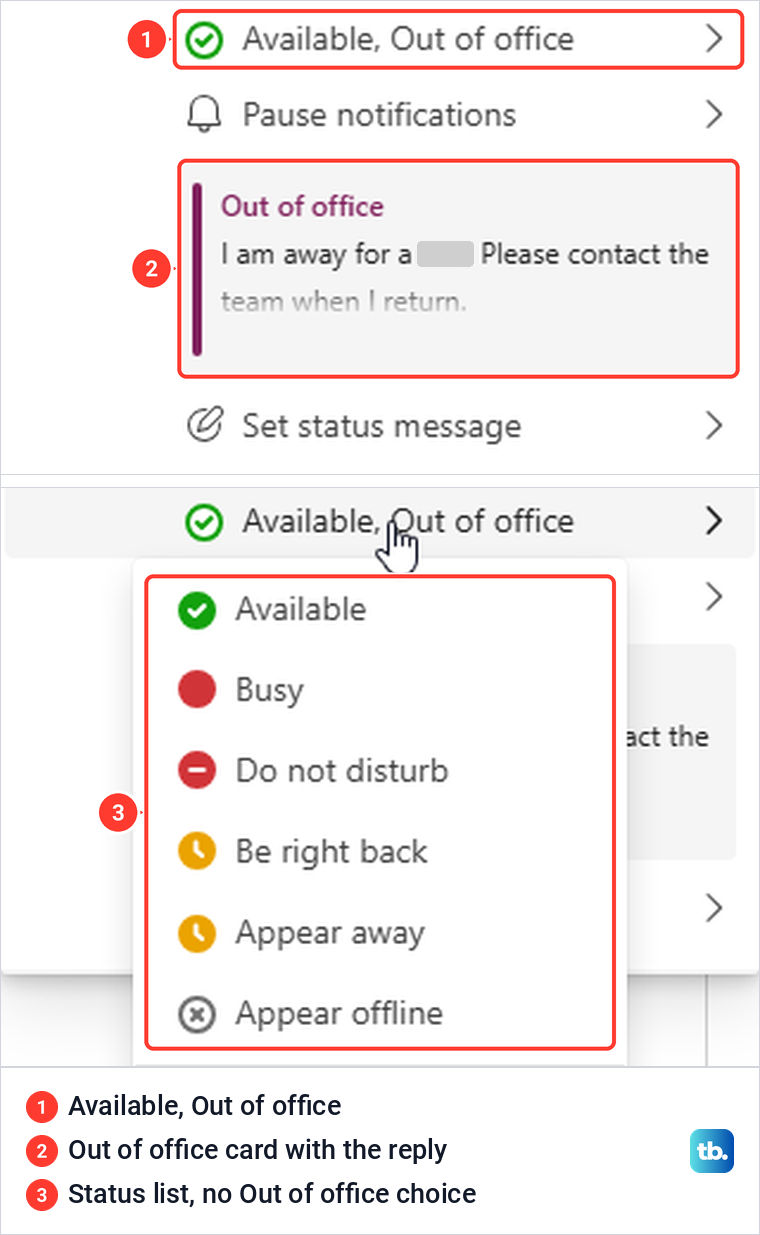
A green check next to Out of office is not a fault. Microsoft says that if you use Teams while automatic replies are on, your presence is shown alongside the Out of Office indicator, and our guide on how to keep your Teams status green explains how that presence is worked out.
Then check Outlook. In Outlook on the web for the same account, Settings > Account > Automatic replies was on when we looked about a minute and a half after the Teams save, with the same message, the same start and end, and a banner reading Automatic replies are currently turned on.
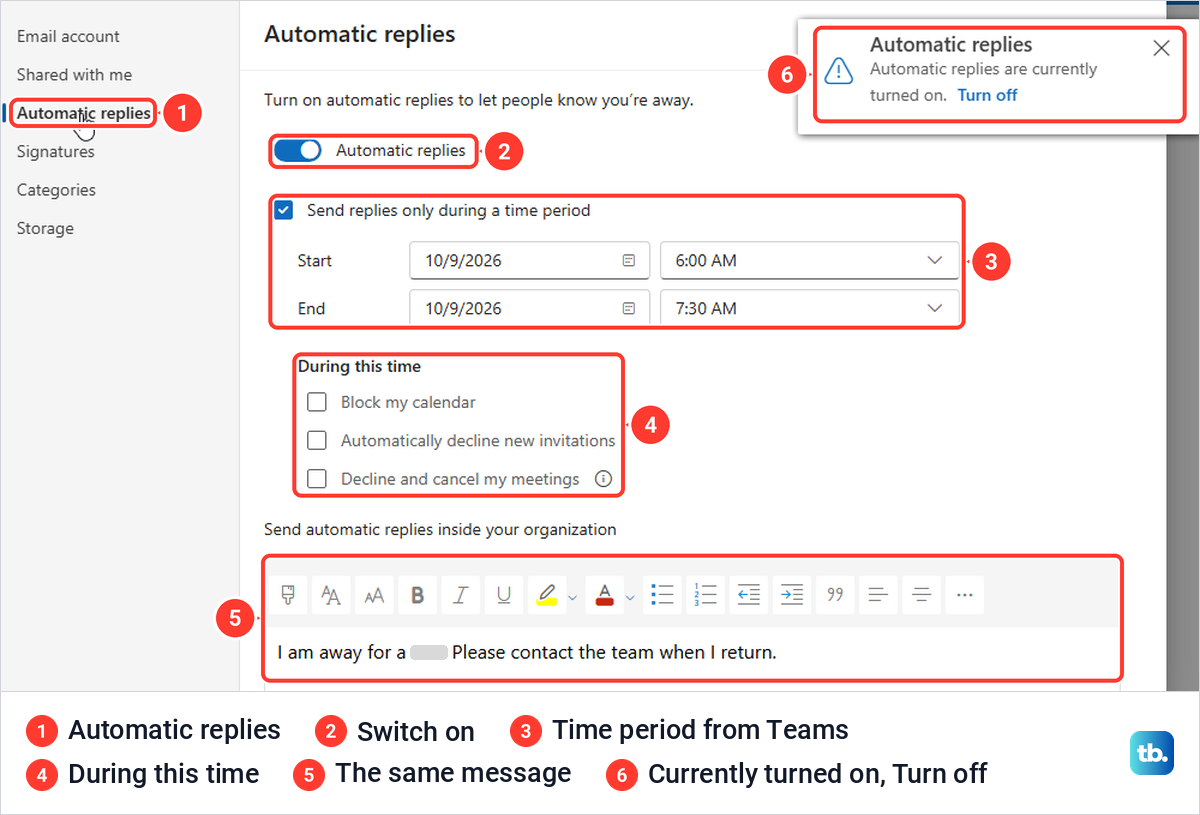
Outlook on the web also has three options the Teams page does not: Block my calendar, Automatically decline new invitations and Decline and cancel my meetings, under During this time. Set those in Outlook if you want it to block the time or deal with invitations while you are away.
Last, the people who write to you. A coworker who started a new email to us in classic Outlook saw a MailTip above the To line reading Automatic reply, followed by our message, before sending anything. After sending, they received one automatic reply with the same text.
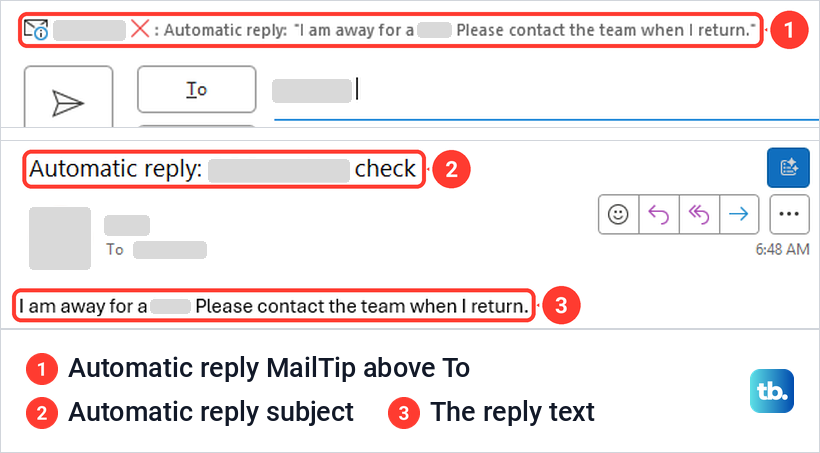
Set out of office from Teams settings
The second route skips the status panel. Select Settings and more, the three dots beside your profile picture, then Settings, which the menu in Teams for the web lists with the shortcut Ctrl + Shift + ,. On the General page, scroll to the Out of office card near the bottom.
Microsoft's instructions name a Schedule button on that card. Once our reply was saved, the card read Out of office has been scheduled and the button said View instead, and View opened the same page with the saved reply. Both routes lead to one reply, so there is only one place to edit it in Teams.
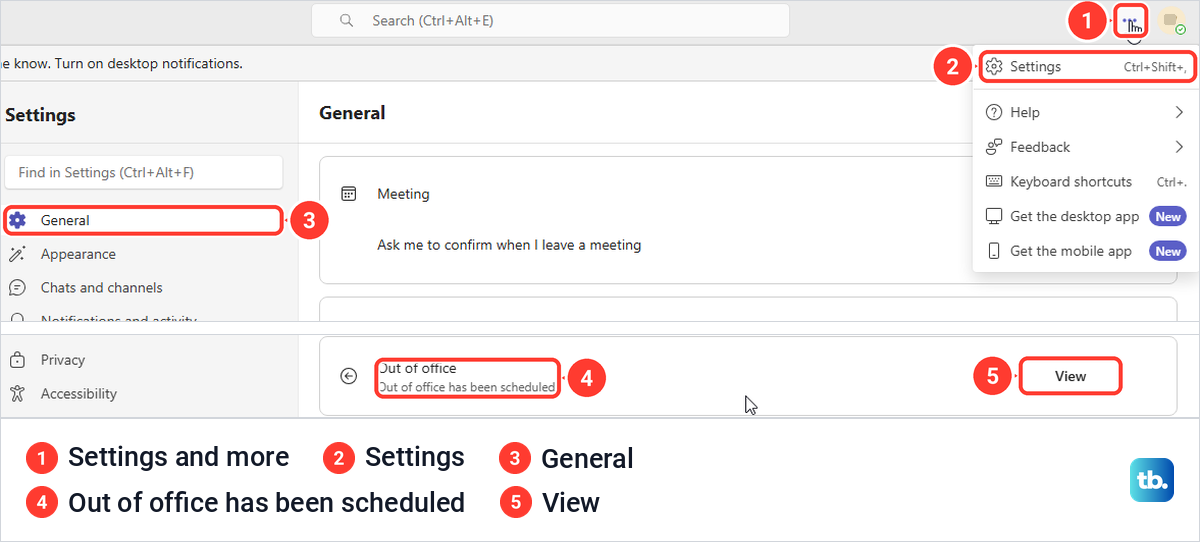
Out of office, status message or calendar event
Teams and Outlook have several controls that sound alike, and only some of them email anyone. This table sorts them by what they actually change.
| What you want | Use this | Does it send email replies? | What else changes |
|---|---|---|---|
| Schedule an absence with a reply | Profile picture > Set status message > Schedule out of office | Yes, as your Outlook automatic reply | Your profile shows Available, Out of office and the reply card |
| The same, from settings | Settings and more > Settings > General > Out of office | Yes, it is the same setting | The card's button reads View once a reply is saved |
| A short note while you work | Profile picture > Set status message > Done | No | A note on your profile until its clear time; Microsoft says it stops Teams showing your Outlook reply |
| Start from your mailbox | Automatic replies in Outlook, same work account | Yes | Microsoft says the change is reflected in Teams |
| Block the time in your calendar | An Outlook event with Show As set to Out of Office | No, not by itself | Microsoft lists it as a trigger for the Out of Office status |
A calendar event is a separate thing from the reply. In classic Outlook, the Show As list on a new appointment offers Free, Working Elsewhere, Tentative, Busy and Out of Office, and Microsoft says an event set to show as Out of Office also gives you the Out of Office status in Teams. The event sends no email replies by itself, so turn on automatic replies as well.
You can use both, automatic replies for email and an Out of Office event so the time shows as away to anyone booking a meeting. If a backup colleague needs to see your plans, share your Outlook calendar with them, and if a handover call is needed on your return, set up a Microsoft Teams meeting before you go.
Use a status message for a short note
A status message suits a short note while you are still working, such as being away from your desk until noon. Select your profile picture and Set status message, type up to 280 characters, tick Show when people message me if the note should show in chats, pick a time under Clear status message after and select Done.
Clear status message after was set to Never when we opened it, so pick a time or the note stays until you delete it. After Done, Teams for the web showed a bar saying our status message was showing in chat and channels when people message or @mention us.
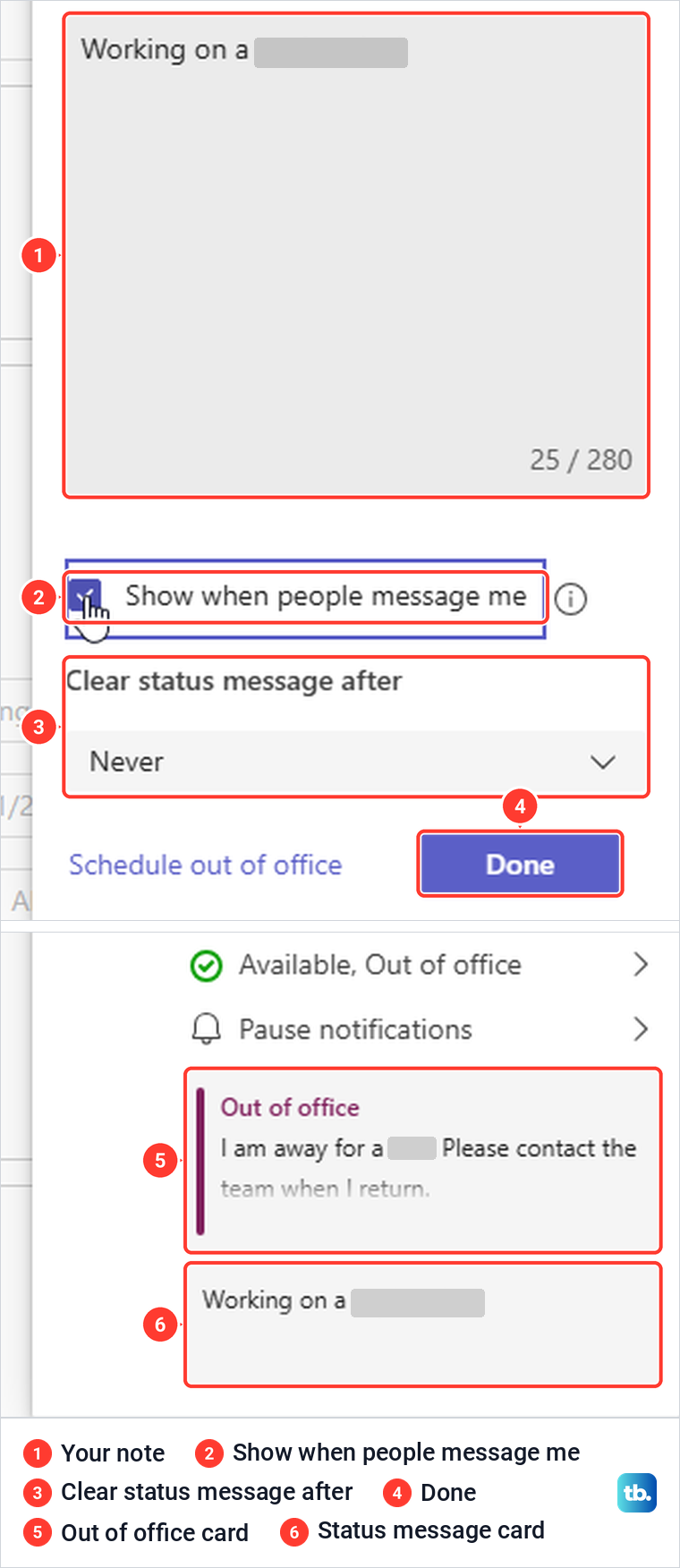
In our own profile menu, the note appeared as a second card under the Out of office card. Microsoft says that if you have a status message set in Teams, it will not show your automatic out-of-office reply from Outlook, so colleagues may see the note and not the reply. Before you leave, hover over the note's card and select the bin, which removed ours and left the out of office card in place.
Change the same reply from Outlook
Teams and Outlook share one automatic reply for a work account. Microsoft says that once you schedule out of office in Teams, you will see automatic replies turned on in Outlook with the same time range and message, and that changes you make in Outlook are reflected in Teams.
After we changed the reply text in Outlook on the web and saved it, our Teams profile card showed the new text about half a minute later. When we reopened the out of office page in Teams about a minute after that, though, its message box still showed the older text. If you change the reply in Outlook, check the box in Teams and replace the text before you select Save there.
In Outlook on the web, open Settings > Account > Automatic replies. In classic Outlook, select File > Automatic Replies, choose Send automatic replies, tick Only send during this time range and set the start and end, type the message on the Inside My Organization tab and select OK. A yellow bar then says automatic replies are being sent for the account, and our guide on how to set up out of office in Outlook covers new Outlook, Mac and phones as well.
Set out of office from the Teams mobile app
Microsoft's steps for the Teams app on a phone use the status menu rather than a status message. Tap your profile picture in the upper left corner, tap your current status and select Out of office. Turn on Set auto reply and type your message, which Microsoft says appears when people contact you in Teams and is sent as an automatic reply in Outlook.
To give it an end, turn on Select your start and end dates and choose the date and time range. Microsoft adds that you can also reach the out of office settings from Set status message in your profile, and that the reply syncs across your other apps.
Turn off out of office in Teams
If you set a time period, the reply stops at the end time. To turn it off early, or if you set no end, select your profile picture, Set status message and Schedule out of office, or open Settings > General and select View. Turn the Turn on automatic replies switch off and select Save.
Turning the switch off greys out the message and dates but keeps them for next time. After Save, the profile menu was back to plain Available, with Set work location back in the list and no out of office card.
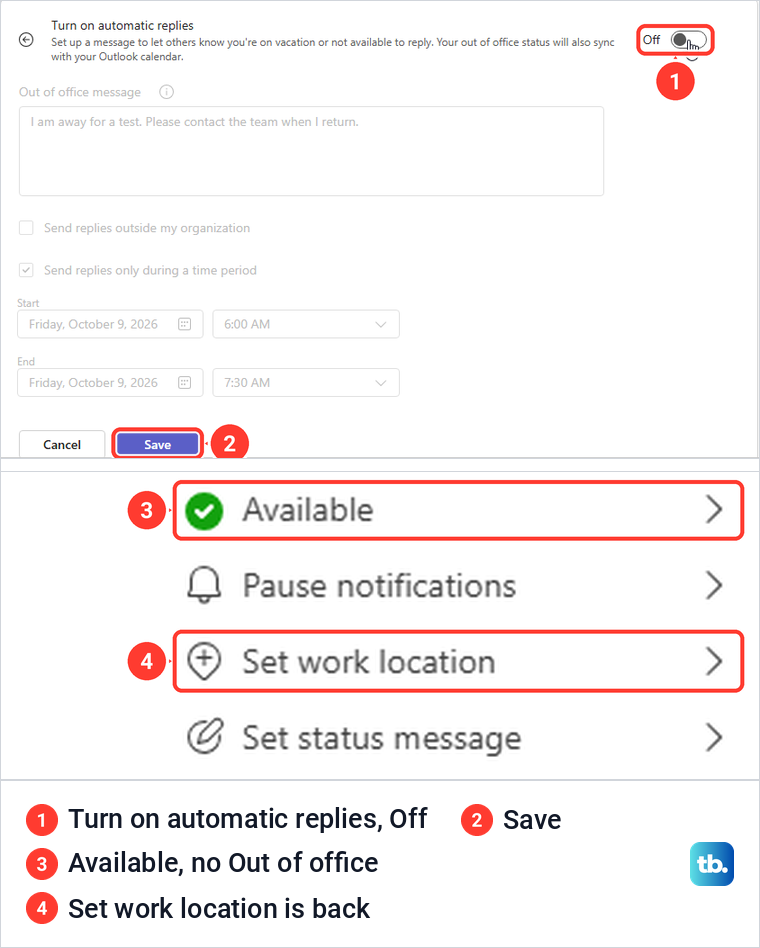
Outlook follows. Outlook on the web showed automatic replies off after we reloaded the page, but a tab that was already open kept its old Automatic replies are currently turned on banner until we pressed F5. In classic Outlook, the Turn off button on the yellow bar turns automatic replies off from the Outlook side.
Fix an out of office status that will not clear
Work through these in order. First, open the out of office page in Teams and confirm the switch is off and saved. Then check automatic replies in Outlook for the same account and reload the page, since an open page can show an old state.
If the reply is off but Teams still shows Out of office, look for a calendar event set to show as Out of Office over the current time. Microsoft lists it as the other trigger for the status, so change the event's Show As value or delete it if your plans changed.
A status message can muddy things too, since it sits on your profile with its own timer, so delete it from its card. Microsoft notes that for mailboxes hosted on an on-premises Exchange server, presence changes can take up to an hour, so give it time on that kind of setup.
If Teams shows the right status but people still get no reply email, the problem is on the mail side. Confirm you are signed in to the same work account in both apps, then fix Outlook automatic replies that are not working with the checks in that guide.
How we tested this guide
We tested this in Teams for the web in Microsoft Edge on Windows 11, version 25H2, scheduling an out of office reply from the profile menu.
Frequently Asked Questions
Why does Teams say Available, Out of office?
Teams shows your ordinary presence alongside the Out of Office indicator while you use it. Microsoft says the indicator comes from automatic replies or a calendar event set to show as Out of Office, so check both if you did not expect it.
Does a Teams status message send automatic replies?
No. A status message is a note in Teams with its own Clear status message after timer. To email people automatically, use Schedule out of office and turn on automatic replies, which Microsoft says also sends your message as an Outlook automatic reply.
Can I set out of office in Teams without an end date?
Yes. Leave Send replies only during a time period unticked and the reply stays on until you turn the switch off and save. An end date is safer, because the reply stops on its own if you forget.
Why can I not select Save?
Microsoft says a message is required, and in Teams for the web Save stays grey while the message box is empty. If Save shows End time should be later than Start time, move the end date or time after the start.
Will an Out of Office calendar event send replies?
No, not by itself. Microsoft says an event set to show as Out of Office gives you the Out of Office status in Teams, but people who email you only get a reply when automatic replies are on.
How do I remove an out of office status that stays on?
Turn off automatic replies in Teams and select Save, then check the same account in Outlook and reload the page. If the status remains, look for a calendar event set to show as Out of Office over the current time and change or delete it.