
To create a poll in Teams, open the chat or channel (in a Posts layout channel, select Post in channel first), select Actions and apps at the end of the message box, choose Polls, type a question and at least two answers, then select Preview and Send. If Polls is not in that menu, search for it there and select Add on Microsoft's app first. For a meeting, add a Polls tab to its chat, save a draft and select Launch when you want votes.
You may need that extra step the first time you do a poll in Teams. In our Teams for the web, Polls was not in the chat's menu at all, and it showed up only when we searched for it, as an app to add, with a line about its privacy policy and terms. Teams showed no block or approval message; the app had not been added yet.
The short version
- Chat or channel: in a Posts layout channel, select Post in channel first, then select Actions and apps (+) and Polls, write the question and choices, and select Preview and Send.
- Polls missing: type Polls in that menu's search box and select Add on the app from Microsoft Corporation.
- Meeting: open the meeting's Chat from Calendar, add a Polls tab, save a draft, then Launch it.
- Before you publish: decide on Record names of respondents and Share aggregated results with respondents.
- Results: select More on a chat poll card, or open the meeting's Polls tab.
Where you can make a Teams poll
| Where | Open Polls from | How it goes live | Where the votes show |
|---|---|---|---|
| One-to-one or group chat | Actions and apps (+) at the end of the message box | Preview, then Send | On the poll card, with More for the details |
| Channel post | Post in channel (Posts layout) or the message box (Threads layout), then Actions and apps (+) | Preview, then Send | On the poll card in the post |
| Scheduled meeting | Calendar, the meeting, Chat, then Add a tab and Polls | Save as draft, then Launch | The Polls tab, or the Polls pane during the meeting |
| Teams on a phone | The Menu button below the message box, then the Poll app | Next to preview, then Send | View Result on the poll card |
Chat and channel polls are quick cards in the conversation, and their detailed results open in Microsoft Forms. Meeting polls live in a separate Polls tab with draft, live and closed states, more poll types and their own limits. Pick the row that matches where your audience already is.
Create a poll in a Teams chat
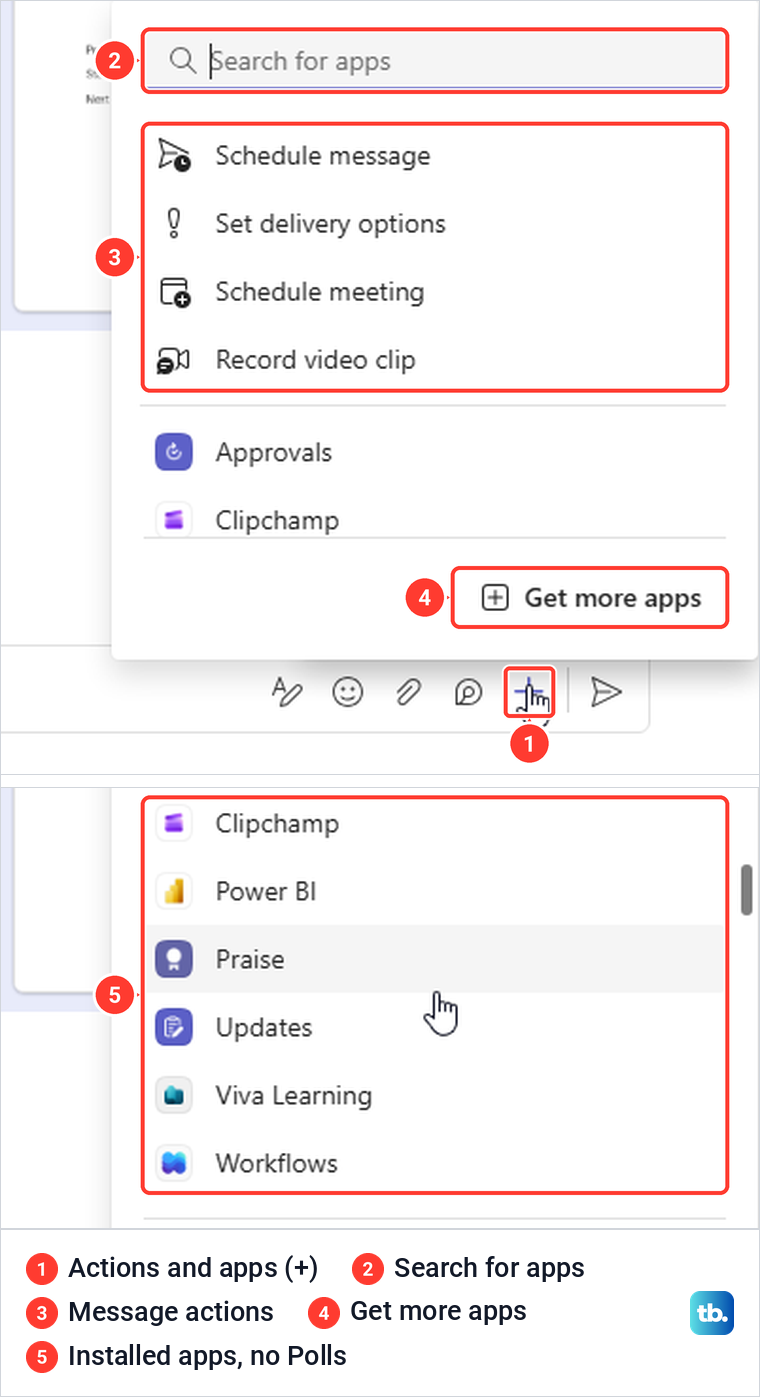
Open the one-to-one or group chat where people should vote. At the end of the box where you type, select the plus sign, which Teams labels Actions and apps when you point at it, and choose Polls. If you have not started that chat yet, our guide on how to use Microsoft Teams covers starting a new chat with the people you want.
On our chat, the menu opened with a Search for apps box, then Schedule message, Set delivery options, Schedule meeting and Record video clip. Below those sat the installed apps, Approvals, Clipchamp, Power BI, Praise, Updates, Viva Learning and Workflows, with Get more apps at the bottom, and Polls was not among them. If yours looks the same, add the app as shown in the next section, then come back here.
Once Polls is in the menu and you choose it, Microsoft's steps have you enter your question, followed by at least two choices for answers in the Option boxes. Polls suggests some answers you can pick, or you can type your own and add more with Options. Turn on Multiple selections if people may choose more than one answer, for example when you ask which days suit a review.
Microsoft then lists two settings, covered in the section on who sees names and results below. Select Preview to read the poll as people will see it, then Edit to fix anything or Send to post it in the chat. Read the question carefully in the preview, because that is where Microsoft's instructions put the Edit button.
Add the Polls app when it is not in the menu
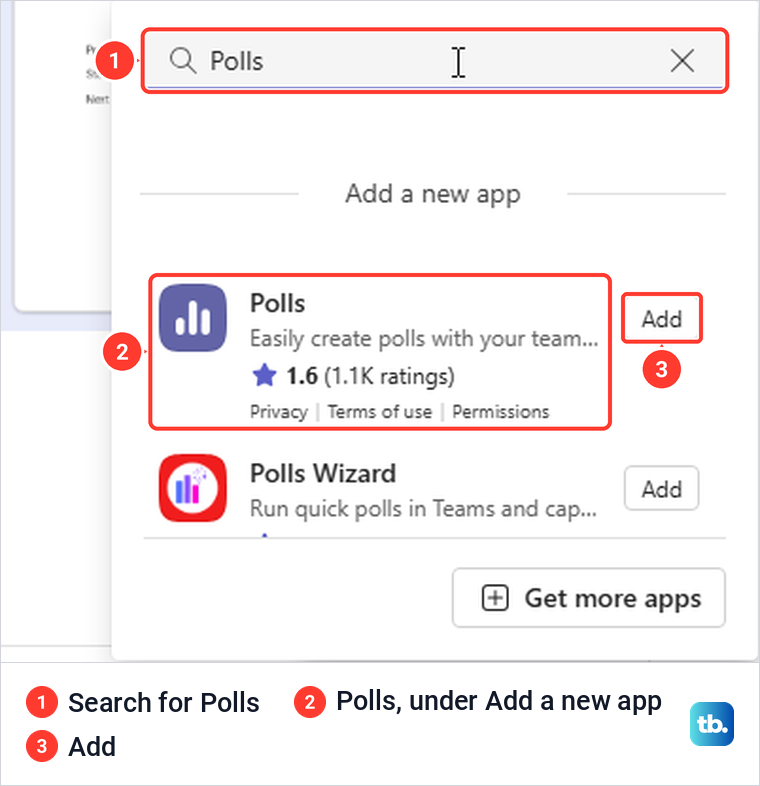
In the Actions and apps menu, click Search for apps and type Polls. Ours showed Polls under Add a new app with an Add button beside it, and a different poll app from another company right below it. The one you want has a purple bar chart icon and the line Easily create polls with your team in Microsoft Teams.
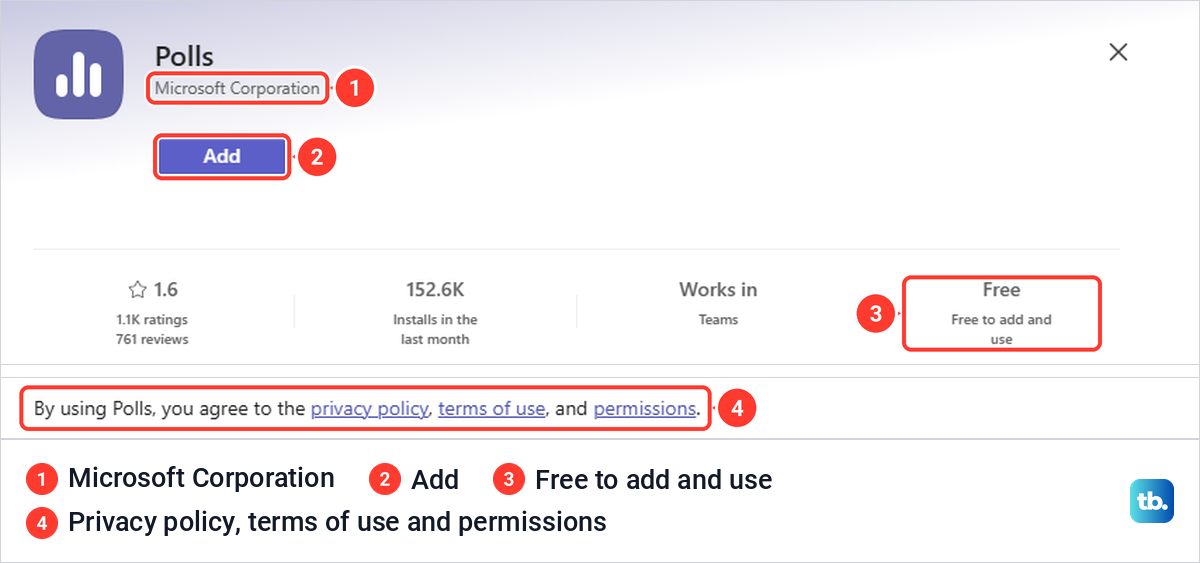
Select the Polls name to open its card before you add it. Ours read Polls, Microsoft Corporation, Free to add and use, and along the bottom, By using Polls, you agree to the privacy policy, terms of use, and permissions. Read those three links if your workplace has rules about apps, then select Add, and if the poll editor does not open, choose Polls from the chat's Actions and apps menu.
You can also search from Apps on the bar at the far left of Teams. Our search there for Polls returned 58 apps, with Microsoft's Polls first and others such as Polls Wizard, Poll Everywhere and Virto Polls around it. Check that the card says Microsoft Corporation before you add anything, because the steps on this page, the results in Microsoft Forms and the meeting Polls tab all belong to Microsoft's app.
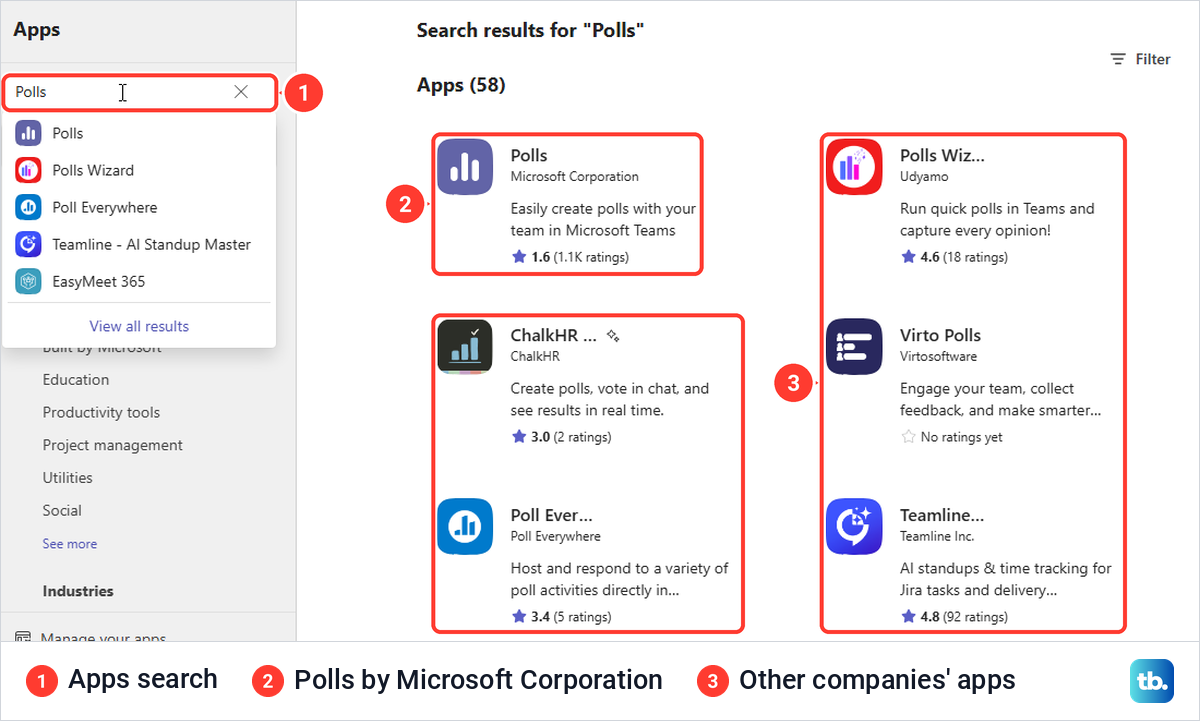
If Teams says the app is blocked or needs approval, ask your IT admin, because Microsoft says admins can allow or block apps for their users. If Polls does not show up in either search, that alone does not tell you why, so check the spelling and search from both places before you go to IT.
Put a poll in a channel post
A channel with the Posts layout does not start with a message box at the bottom. Select Post in channel first; on ours that opened a larger composer with Add a subject above the message, a formatting bar and a Post button. Its plus sign opens the Actions and apps menu, where Change permissions and Post in other channels took the place of Schedule meeting.
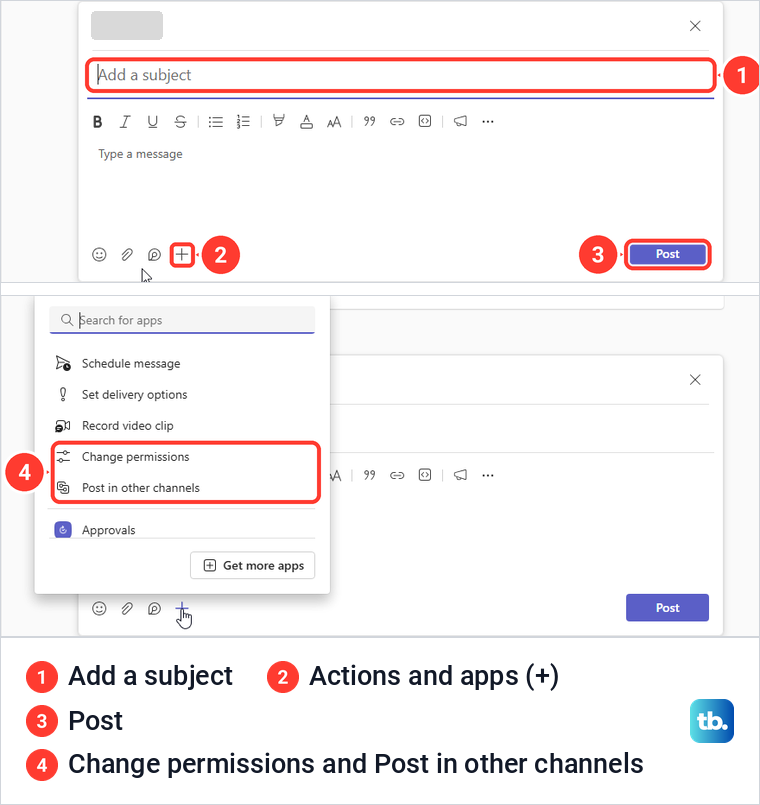
In a channel with the Threads layout, Microsoft says you start a new conversation by typing in the message box, so open Actions and apps there directly. Either way, Microsoft's steps match the chat: choose Polls, enter the question and choices, pick the settings, then Preview and Send. Anyone who can open the channel can see the post and its poll, so think about that whole audience before you share aggregated results.
If you see the old Forms app instead
Searching for Polls from that channel menu showed two results on ours: Forms for Microsoft Teams under Search results, and Polls under Add a new app. Opening Forms showed only a notice that the polling experience for the Forms app will soon be deprecated and that you can install the Polls app instead for the same experience. It pointed to forms.office.com for polls made with Forms before.
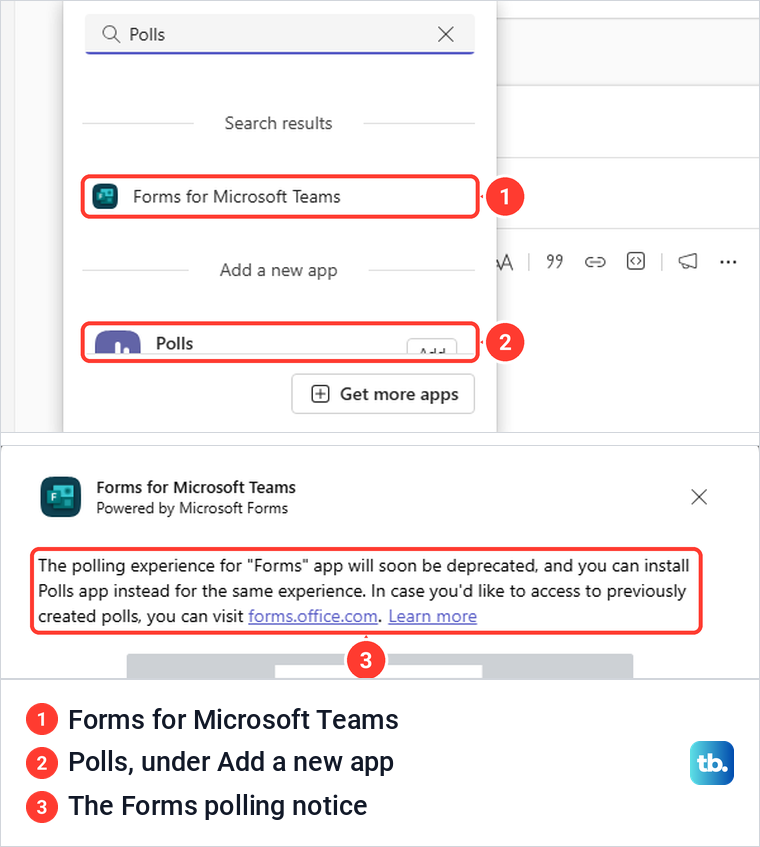
Older instructions, including Microsoft's own screen reader steps, still describe a Messaging extensions button and the Forms app. Our Teams had no Messaging extensions label, the plus button's tooltip read Actions and apps, and the Forms app showed only the notice above. Those steps also start by pressing Ctrl + F6 to reach the compose area, but in our browser that shortcut moved focus from an open channel post to the Search box at the top of Teams.
Prepare a poll before a Teams meeting
A meeting poll lives in a Polls tab on the meeting, and Microsoft says you can create it before the meeting starts. The meeting has to exist first, so if it is not on your calendar yet, schedule a Teams meeting and send invites before going further. On the New event form, the Teams meeting switch turned on by itself once we added an attendee, and Save changed to Send.
Select Calendar, then select the meeting. Our meeting card had Join, Chat, Edit and Cancel, and Chat opened the meeting's chat with tabs for Chat, Shared, Recap and Attendance, a +3 entry for Breakout Rooms, Q&A and Meeting Whiteboard, and a plus sign for adding a tab. Microsoft's help calls the card button Chat with participants, so look for either name.
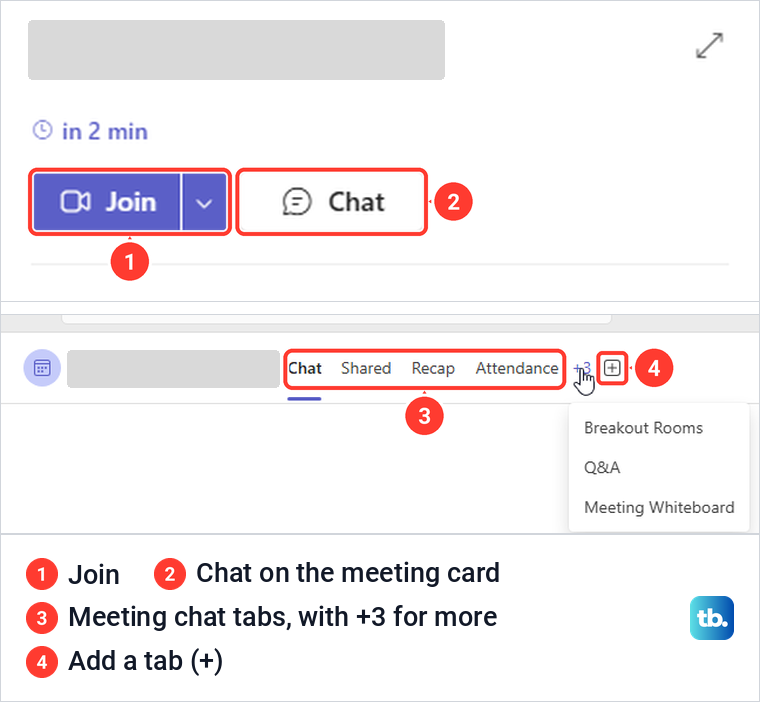
Select the plus sign to add a tab. Ours opened a picker with a Search for apps box, Whiteboard, Word, Excel, PowerPoint and See all, and below Add a new app, a Popular on Teams list with Polls at the top. Selecting Polls opened the same Microsoft Corporation card with Add and the terms line that the chat search showed.
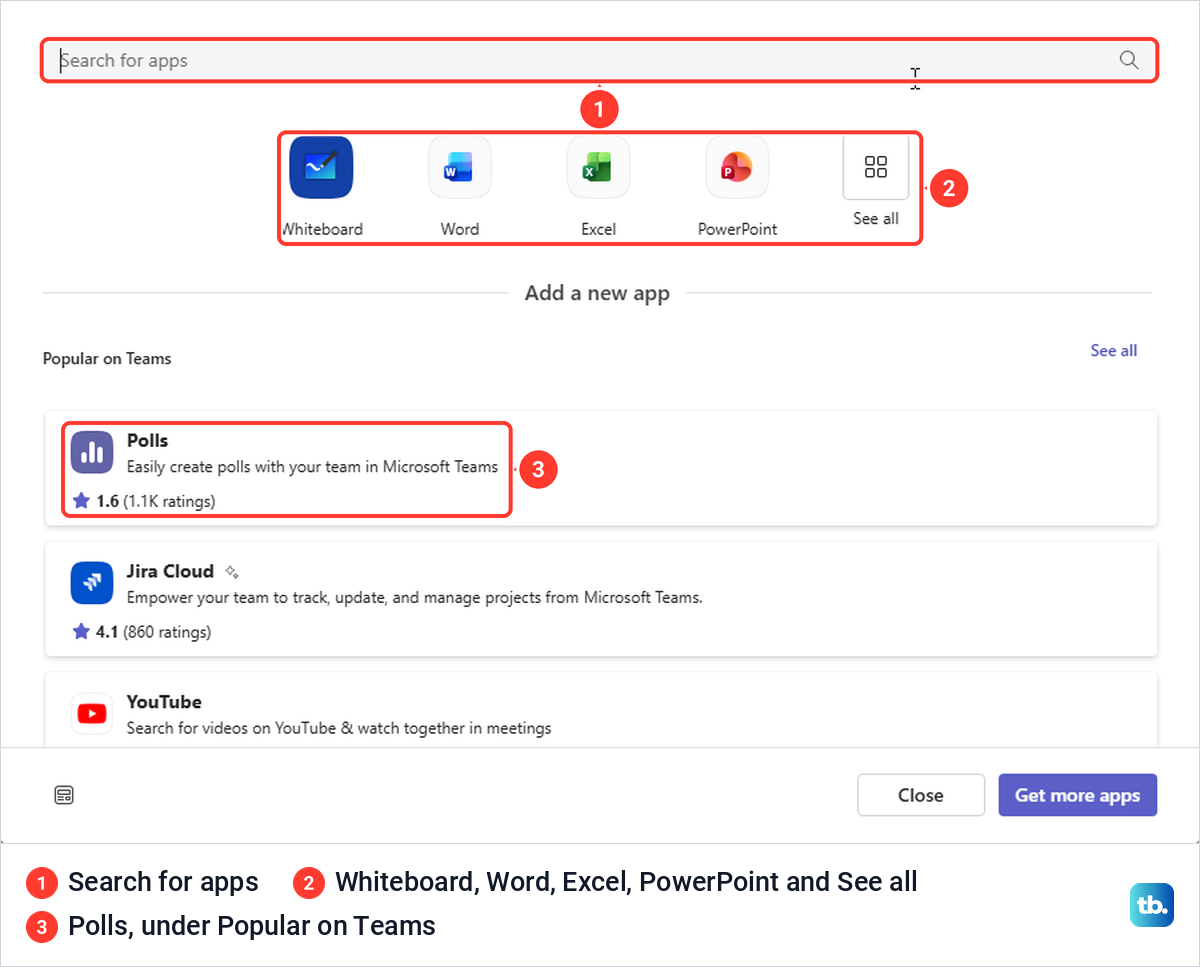
Microsoft's steps continue with Add, then Save, after which a new Polls tab sits on the meeting. In that tab, select Create New Poll and choose a poll type.
Pick a meeting poll type
Microsoft lists five types in the Polls tab for Teams on the desktop and the web. A Multiple Choice Poll takes a question or statement and up to 12 answer options. A Multiple Choice Quiz marks one correct answer, or several if you select Multiple answers. A Word Cloud Poll asks an open question and shows the answers as a word cloud, though Microsoft says that type is still rolling out.
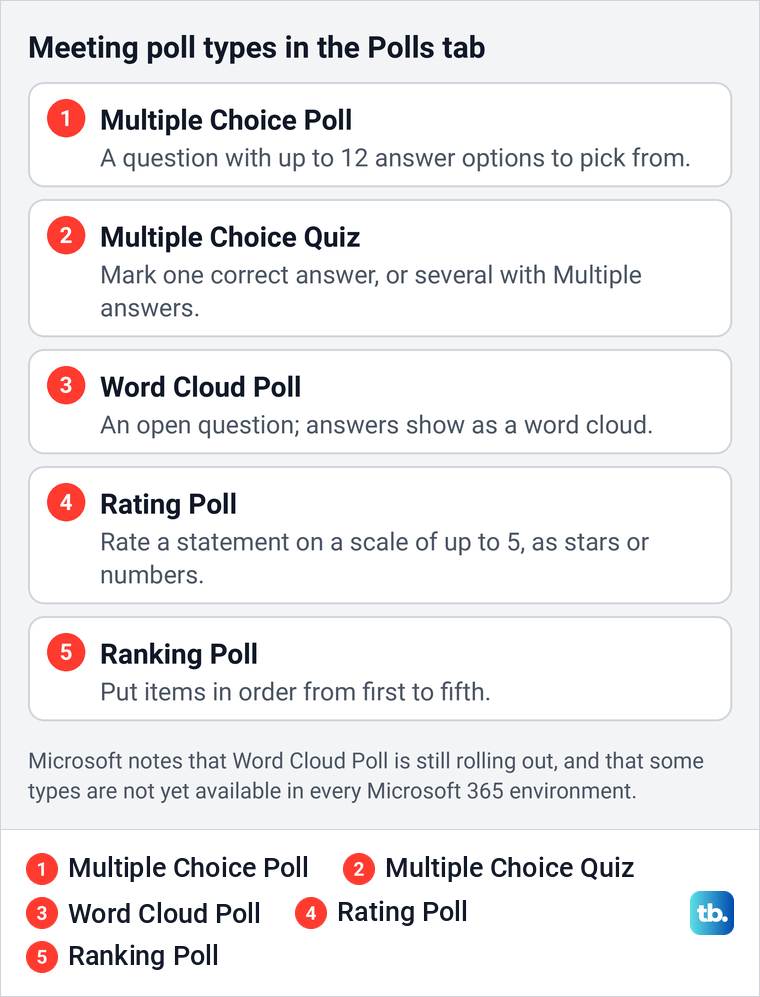
A Rating Poll lets people rate a statement on a scale of up to 5, shown as stars or numbers, and a Ranking Poll has them put items in order from first to fifth. Microsoft adds a Shuffle Options setting that randomizes the order in which people first see the options. It also notes that some types are not yet available in the GCC High and DoD government environments.
The 12-option limit belongs to the meeting Multiple Choice Poll. Microsoft's chat steps for the desktop and the web give no limit, while its phone steps mention as many as 10 choices, so do not assume the meeting limit carries over to a chat poll.
Decide who sees names and results
Polls on the desktop and the web offer two privacy choices, and Microsoft words them differently for chats and meetings. In a chat or channel poll, Record names of respondents is optional, and Microsoft says only you see the responses. Share aggregated results with respondents lets the people who vote see the combined results.
In a meeting poll, the same two settings are offered before the meeting starts, and Microsoft says recorded names are only visible to the meeting organizer and presenters in the app. A third setting lets co-presenters edit your poll while it is a draft. Decide before you publish, and tell people when their names will be recorded.
Launch the poll during the meeting
Select Save as draft when the poll is ready, and it waits in the Polls tab with DRAFT marked in green in its top left corner. Microsoft says a draft stays saved until you are ready to launch it, so attendees see nothing yet. Select Launch now instead if you want answers before the meeting starts.
When it is time, select Launch on the poll in the Polls tab, or select the Polls icon in your meeting window and select Launch in the Polls pane. Microsoft says only meeting owners and presenters can create, manage and launch polls, while attendees can answer them but not edit them. A launched poll is marked LIVE in red.
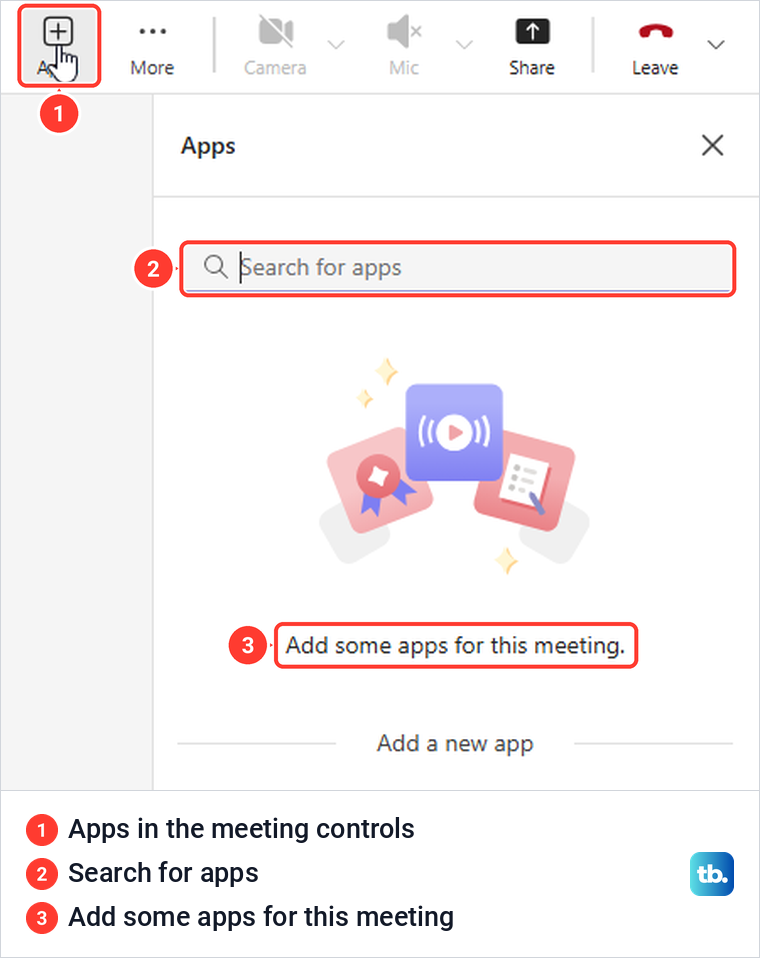
Set the tab up before the meeting rather than during it. In our meeting, Apps in the meeting controls opened an Apps pane that said Add some apps for this meeting, with a search box and no Polls in it. Microsoft says you can add an app from that pane during a meeting by searching for it, but doing it beforehand saves you from adding an app with everyone waiting.
Microsoft says the launched poll pops up in the middle of each attendee's meeting screen and also appears in the meeting chat, where people pick an answer and select Submit. The pop-up is still rolling out for meeting guests, so tell everyone to look in the meeting chat if nothing appears.
Guest voting has limits. Microsoft says someone outside your organization who was forwarded the invite and is signed in to Teams on the web can vote, but members of a multi-tenant organization from other organizations cannot see or answer live polls. If you will also present slides or a document in the same meeting, see how to share screen on Teams and choose what shows.
If you also want a video of the discussion, follow our steps to record a Teams meeting and find the video. Follow your organization's policy and tell people before you record, and use the Polls tab for the vote counts.
See, export and close the results
As people vote on a chat or channel poll, the response summary on the card updates. If you created the poll, select More on the card to open the Responses Overview in Microsoft Forms, which Microsoft says shows whether the poll is active, the number of responses, the average time spent and the count for each answer. If you recorded names, More details shows each person's name and answer.
From that page, Open results in Excel puts the answers in a spreadsheet and Check individual results steps through each response. With the votes in Excel, you can make a graph in Excel for a slide or report, and for a long export with many rows, create a pivot table in Excel to sum it up. To show each answer's share of the vote, calculate a percentage in Excel from the counts.
For a meeting poll, open the Polls tab or the Polls pane to watch the results in real time. To stop collecting answers, export them or remove the poll, Microsoft says to open the drop-down list next to View results and choose Close poll, Export results or Delete poll. A closed poll is marked CLOSED in dark gray, and the drop-down next to Export results then offers Reopen poll.
Choose Close poll when you only want to stop the voting, since Reopen poll can bring it back. Keep Delete poll for a poll you are sure you no longer need.
Create a poll from your phone
In the Teams mobile app, Microsoft says to tap the Menu button below the box where you type and select the Poll app. If the app is not in the list, add it from Teams on a computer or in a browser first. Enter the question and at least two choices, set a due date and who can see the results in Settings, then tap Next to preview and Send to publish.
Meeting polls work differently on a phone. Microsoft says the Polls tab must first be added from the Teams desktop app or Teams on the web, after which the phone shows it under the meeting's More tab, where you can create polls and launch them.
When Polls is missing or nobody can vote
If Polls is not in Actions and apps, search for it in that menu or in Apps and add the one from Microsoft Corporation. If Teams shows a block or approval message, only your IT admin can allow the app. If you added a meeting poll but attendees see nothing, check that it is not still marked DRAFT, since only a launched poll collects answers.
If a guest sees no pop-up, ask them to open the meeting chat, where Microsoft says polls can always be reached during a meeting. If someone cannot create or launch a meeting poll, the organizer can make them a presenter, since Microsoft limits those actions to owners and presenters. If the Polls tab is missing on a phone, open the meeting once in Teams on a computer or the web and add the tab there.
How we tested this guide
We tested this in Teams for the web in Microsoft Edge on Windows 11, version 25H2, finding Microsoft's Polls app from a chat, a channel post and a scheduled meeting.
Frequently Asked Questions
Can I make a poll before the Teams meeting starts?
Yes. Open the meeting from Calendar, select Chat, add a Polls tab and create the poll, then select Save as draft. It stays marked DRAFT until you select Launch, which Microsoft says you can do before, during or after the meeting.
Why is Polls missing from my Teams chat?
For us, Polls was absent from the menu but appeared in search with an Add button. Search there or in Apps and add the one from Microsoft Corporation, and ask your IT admin only if Teams says the app is blocked.
Can a Teams poll show who voted?
Only if Record names of respondents was selected before you published the poll. Microsoft says the creator sees those names on a chat or channel poll, while the organizer and presenters see them on a meeting poll.
Can guests answer a Teams meeting poll?
Microsoft says someone outside your organization who was forwarded the invite and is signed in to Teams on the web can vote. Point guests to the meeting chat if no pop-up appears, and note that members of a multi-tenant organization from other organizations cannot see live polls.
How do I export Teams poll results?
For a chat or channel poll, select More on the poll card, then Open results in Excel. For a meeting poll, open the drop-down next to View results in the Polls tab and choose Export results.
Can I ask an open question in a Teams poll?
In a meeting, Microsoft lists a Word Cloud Poll for open questions, though it is still rolling out. Its chat poll steps for the desktop and the web ask for answer choices, so use a meeting poll or a full form in Microsoft Forms for open answers.