


To join a Microsoft Teams meeting, open your invitation and select the link after Join, or select Join on the meeting in your Outlook or Teams calendar. Choose the Teams app or Continue on this browser, set your audio and camera, then select Join now. If you only have a meeting ID and passcode, type both into Teams or Microsoft's join page.
You can also join a Teams meeting without an account from a desktop browser, as long as the organizer's settings let guests in. You may wait in a lobby until someone admits you, and check the name on the join screen before you enter, because the Join button in Outlook on the web showed us a guest name box, while the meeting ID route showed a signed-in account.
The short version
- From an invitation: select the link after Join (older invitations may show Join meeting now or Join the meeting now instead), then Join now.
- From Outlook: select Join on the Teams event in your calendar, or Join Online in classic Outlook's reminder.
- No Teams app: choose Continue on this browser in Edge or Chrome, type your name and select Join now.
- Only an ID: enter the meeting ID and passcode in Teams under Join with an ID, or on Microsoft's join page.
- No Join button: look in the invitation for a Teams link, and if there is none, ask the organizer whether it was set up as an online meeting.
Ways to join a Teams meeting
On a computer, these routes usually lead to a join screen where you pick audio and camera and select Join now, though some meetings first ask you to sign in or verify your email. A phone uses the Teams mobile app and its own steps, covered further down.
| What you have | Where to start | What to select |
|---|---|---|
| An email invitation | The Microsoft Teams meeting block in the message | The link after Join, or a Join meeting now or Join the meeting now link in older invitations |
| An event in classic Outlook | Calendar, or the reminder window | Join on the event, or Join Online in the reminder |
| An event in Outlook on the web | Calendar | Join on the event, or Join in its details |
| A meeting in Teams | Teams Calendar, the meeting chat or the channel | Join on the meeting |
| A meeting ID and passcode | Teams Calendar, or Microsoft's Join a Teams meeting page | Join with an ID, or Join a meeting |
| A phone | The invitation, opened on the phone | The link after Join, which opens the Teams mobile app |
Join from the link in your invitation
Open the invitation email or calendar item and scroll to the Microsoft Teams meeting block near the bottom. The invitation we opened in classic Outlook had Microsoft Teams Meeting as its location, and the block showed Join: followed by the full meeting link, then a Meeting ID and a Passcode. It had no phone number, so dialing in was not offered for that meeting.
Microsoft says newer invitations show the full meeting link, while older ones may show a Join meeting now link instead, and its guest and phone steps call it Join the meeting now, so look for any of these. If your invitation also lists a phone number and conference ID, Microsoft says you can dial in by phone.
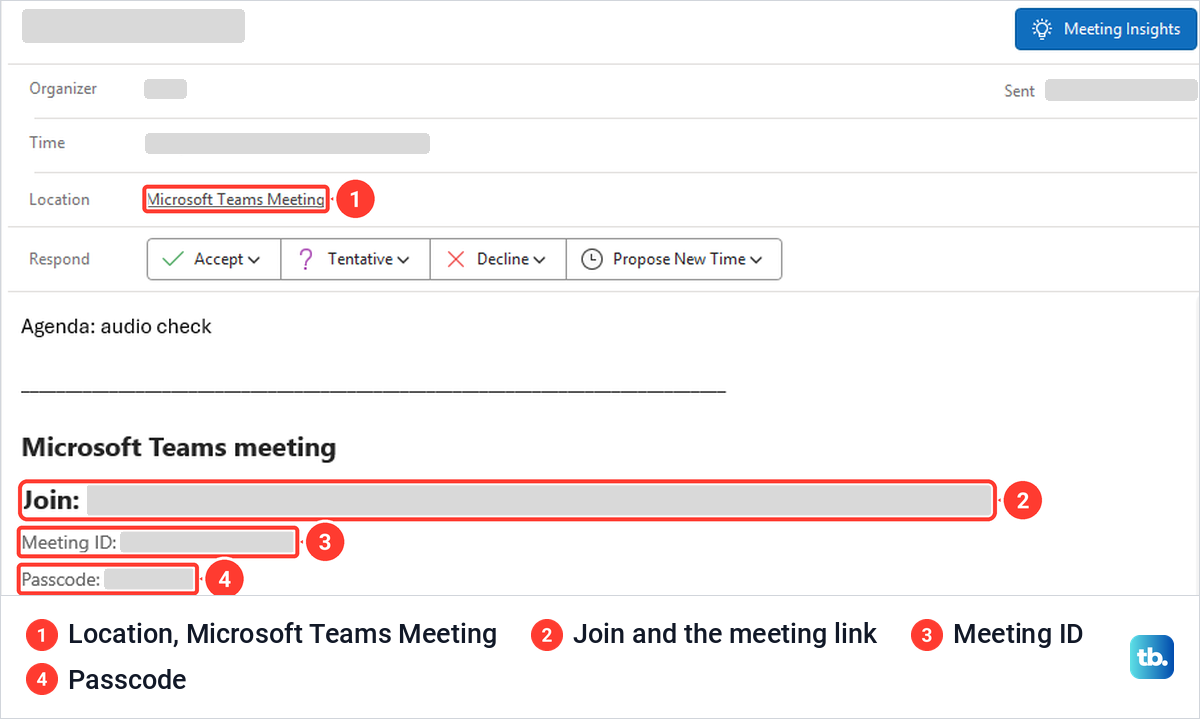
Select the link. Microsoft says that if you already have the Teams app, the meeting opens there automatically, and on our PC that is what happened: the link in classic Outlook opened the Teams app straight away, with no browser step in between. Nobody was signed in to that copy of the app, so it opened on a guest join screen with a Type your name box and a Sign in link under it.
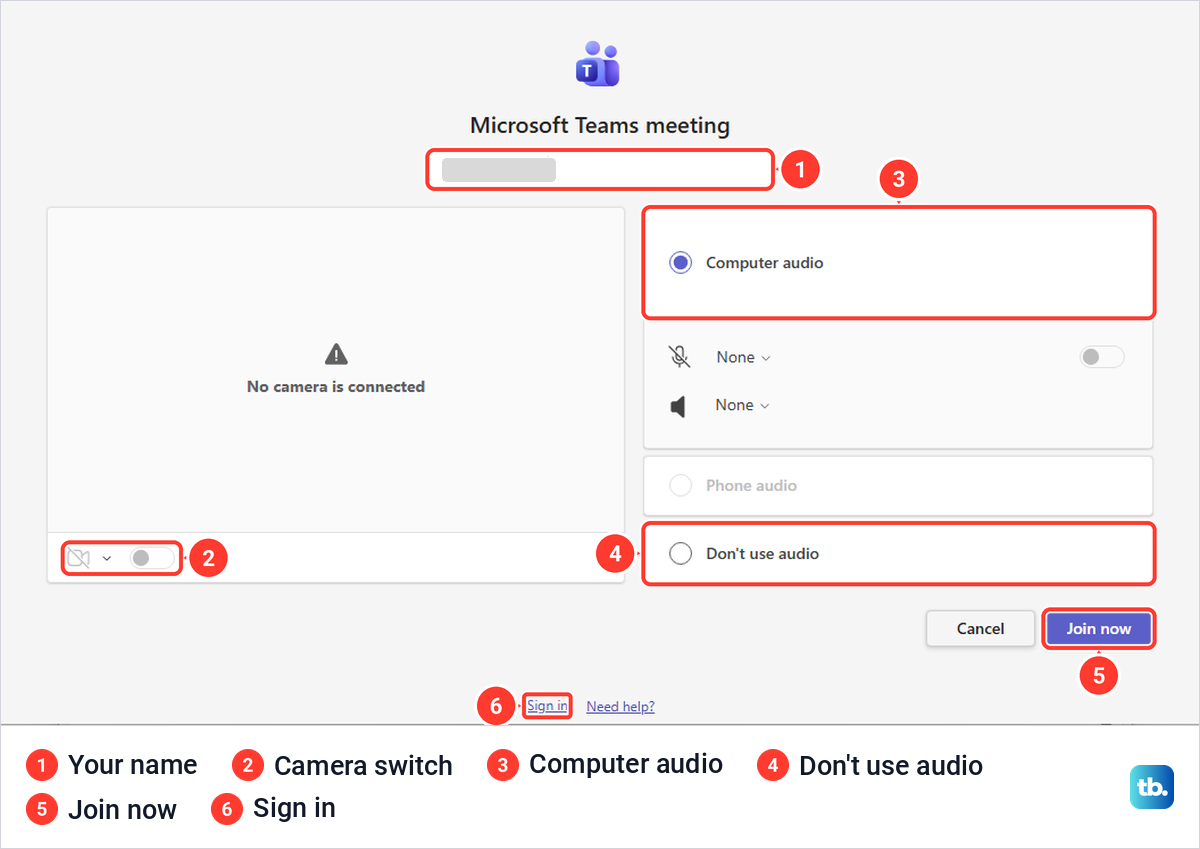
Type the name people should see, choose your audio and camera, and select Join now. On ours, Join now stayed grey until we typed a name. If you have a work or school account, sign in first so you join as yourself. If Teams itself is new to you, our guide to using Microsoft Teams explains the controls you get once the meeting opens.
Join from your Outlook calendar
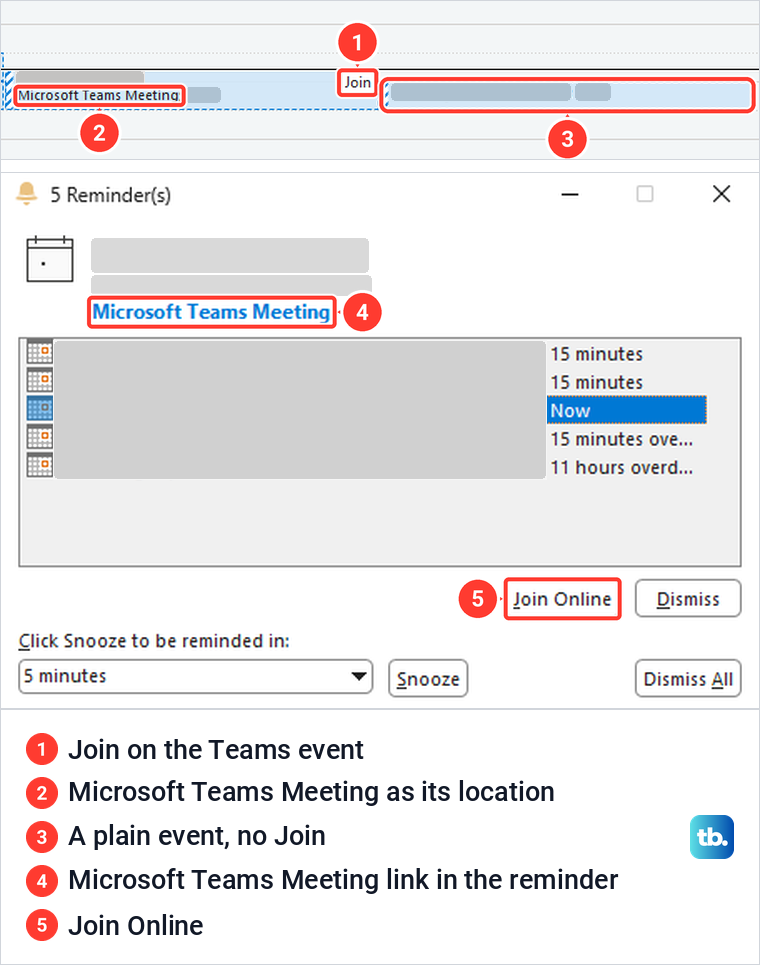
You do not need to dig out the email. In classic Outlook, open Calendar and find the meeting: once our Teams meeting was in progress, the event in the day view carried its own Join button, while a plain event beside it had none. Classic Outlook's reminder window also offered Join Online for the Teams meeting, under a Microsoft Teams Meeting link.
Either button opens the meeting's link, so you land on the same join screen as from the invitation. If the reminder shows only Dismiss and Snooze, open the event and look for a Teams link, because the plain event we opened had none.
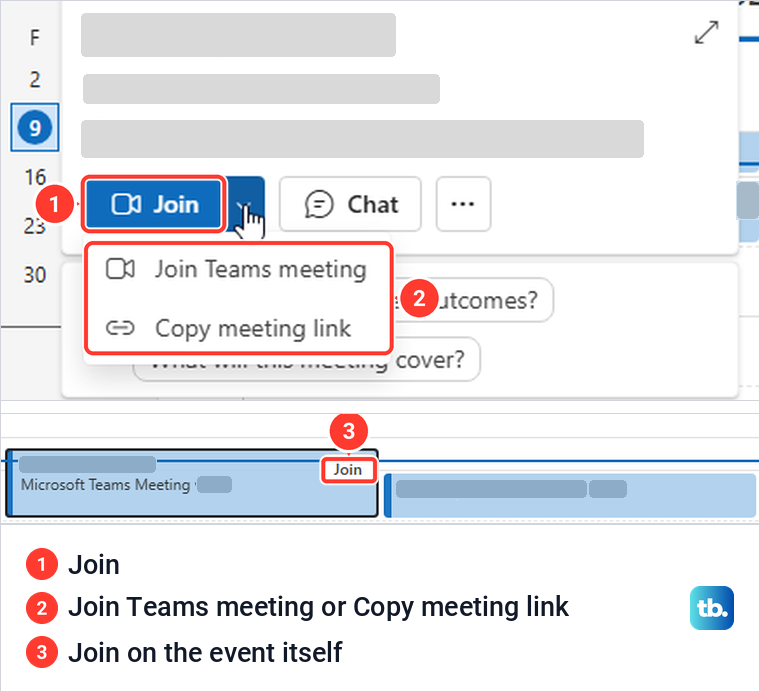
In Outlook on the web, open Calendar and select the meeting. The details that popped up on ours had a Join button with an arrow beside it, and the arrow offered Join Teams meeting and Copy meeting link. The event itself also showed a small Join button in the calendar grid. Copy meeting link is handy when you want to open the meeting in a different browser.
Join in a browser without the Teams app
Microsoft says you don't need to install the Teams app to join, and that Teams for the web works in Microsoft Edge or Google Chrome. When we selected Join in Outlook on the web, on a PC with the Teams app installed, Edge opened a new tab and asked whether to open Microsoft Teams, with Open and Cancel. Behind that prompt was a page titled "Join your Teams meeting" with two choices.
To stay in the browser, select Cancel if Edge asks to open Microsoft Teams, then select Continue on this browser. Join on the Teams app hands the meeting to the installed app instead. That page also links to a download for anyone who wants the app later.
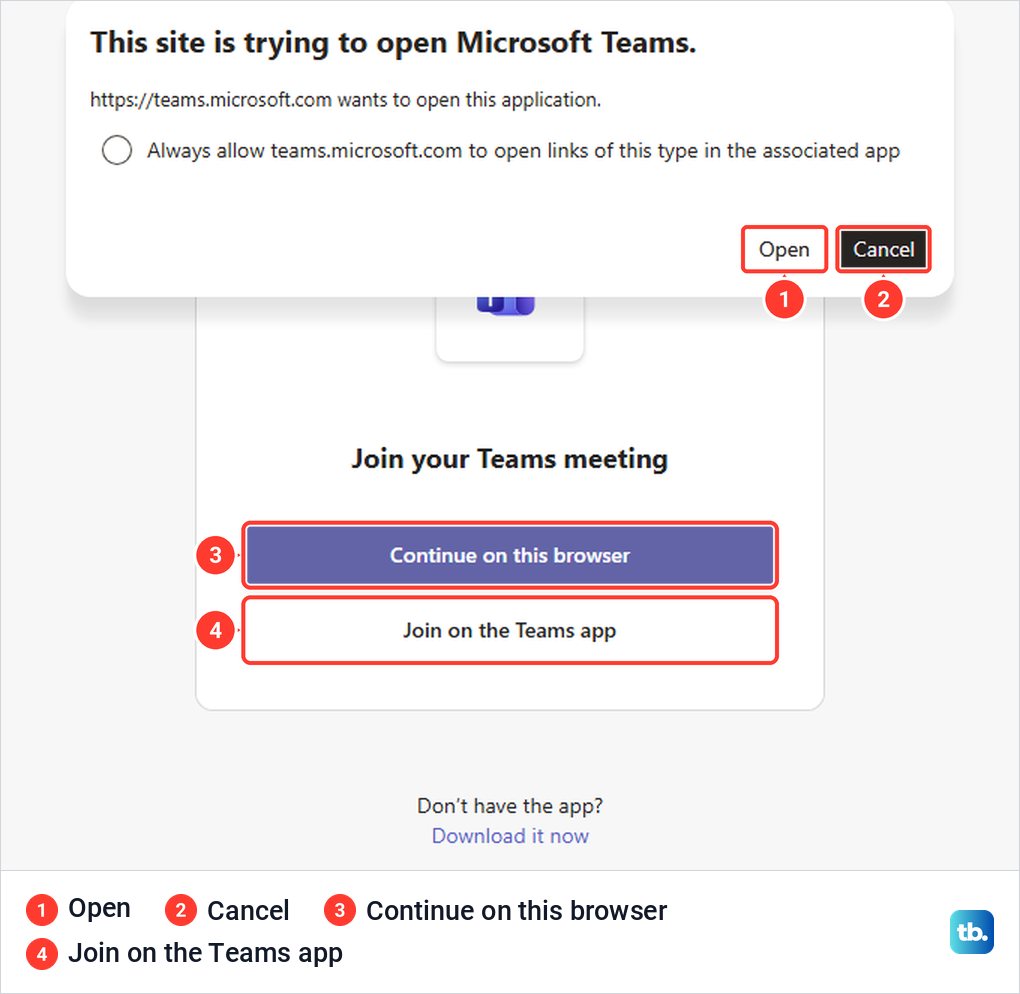
Teams then asked "Are you sure you don't want audio or video?" with a Continue without audio or video button. Select that only if you mean to join without a mic and camera. Microsoft says you may be prompted to give Teams access to your mic and camera, and that you can still turn both off once you join, so allow them if you want to talk or be seen.
Our browser join screen asked for a name, showed the camera switch with Background filters beside it, and listed Computer audio and Don't use audio, with Phone audio greyed out. One thing surprised us: this Edge window was already signed in to Teams for the web, yet the Join button in Outlook on the web still opened the guest screen. Check the join screen before you select Join now, and use its Sign in link if you should join with your work account.
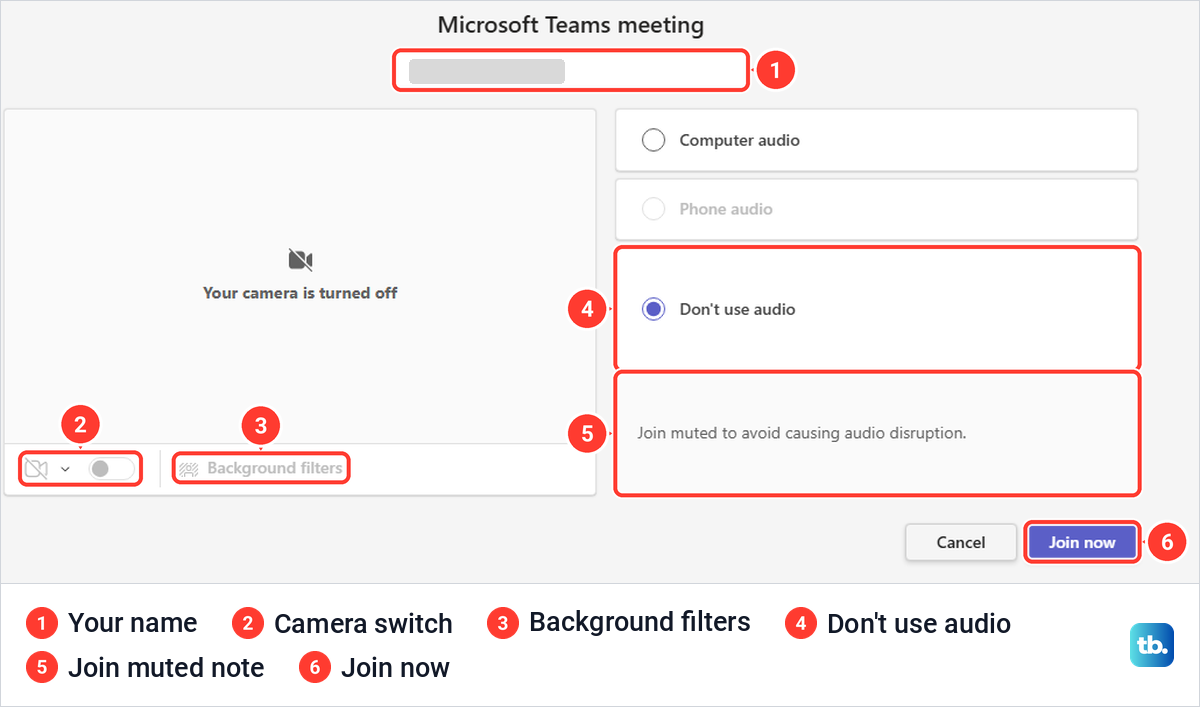
Choose audio and camera on the join screen
The join screen is where you decide how you arrive. Microsoft says Computer audio uses your computer's default speaker and mic, and Don't use audio means you'll join the meeting muted. When we picked Don't use audio, Teams added the note "Join muted to avoid causing audio disruption." Our guest screens listed Computer audio and Don't use audio, with Phone audio greyed out, while the signed-in screen added Room audio.
Turn the camera switch on or off before anyone sees you. If Teams picked the wrong webcam, change your Teams camera settings first, and if you would rather hide the room behind you, change your background in Teams from the same area.
If the mic shows no device, test your microphone in Windows 11 to see whether it works outside Teams. If it does but stays silent in Teams, fix a Teams microphone that is not working, then come back to the join screen.
Join with a meeting ID and passcode
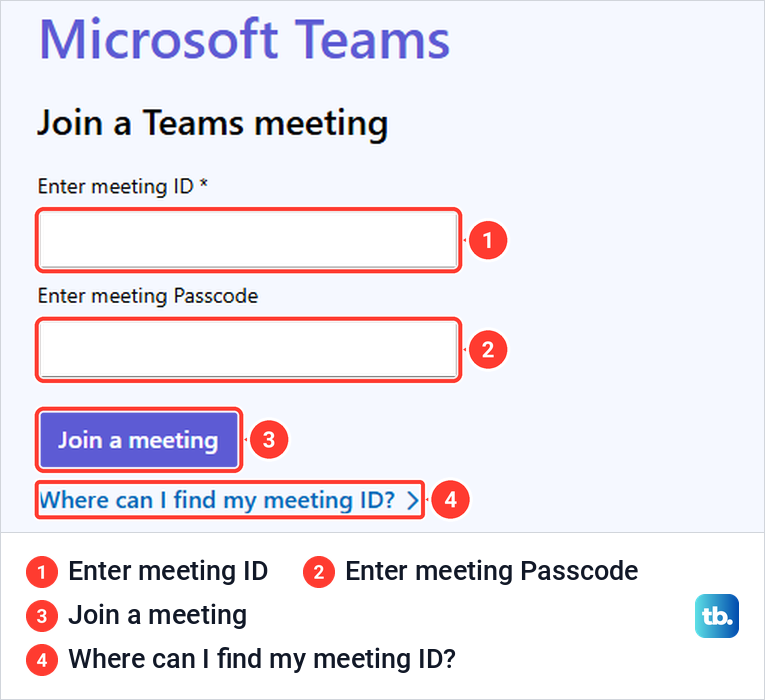
Find the Meeting ID and Passcode in the invitation, under the Join link. In a browser, open Microsoft's Join a Teams meeting page, type the ID into Enter meeting ID and the passcode into Enter meeting Passcode, then select Join a meeting. Ours led to the same Open Microsoft Teams prompt and Continue on this browser page as an invitation link, and then to the meeting's join screen.
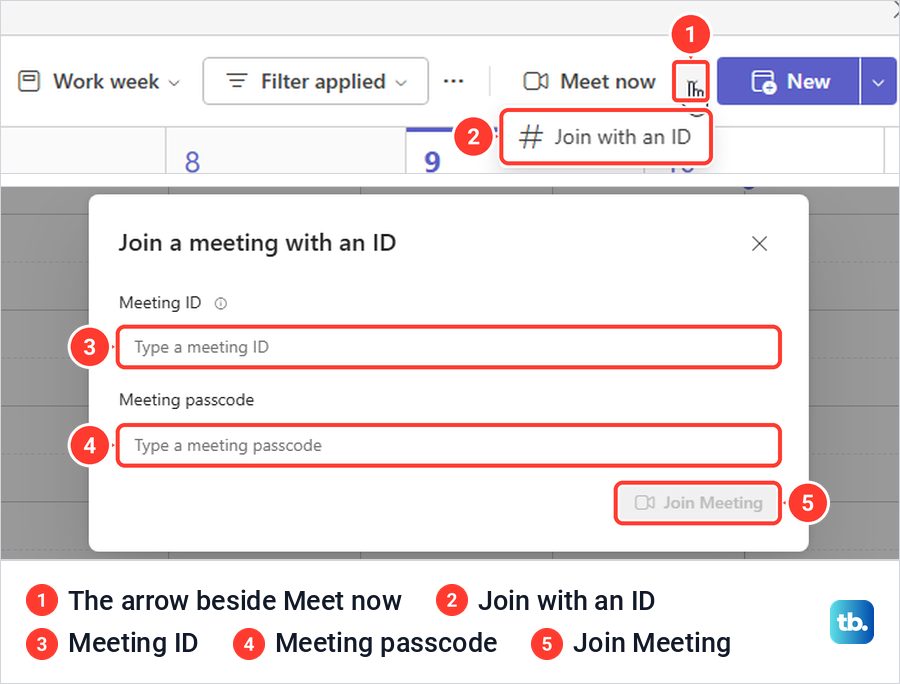
Inside Teams, open Calendar, select the small arrow beside Meet now and choose Join with an ID. In Teams for the web this opened a Join a meeting with an ID box with fields for Meeting ID and Meeting passcode, and its Join Meeting button was grey while both fields were empty.
Microsoft says this option needs an Exchange Online mailbox, and without one you won't see it. If Join with an ID is missing from your calendar, use the browser page instead. A team code is not a meeting ID, so if someone sent you only a code for joining a team, ask for the meeting invitation.
Join from Teams calendar, chat or a channel
If the meeting is already in your Teams calendar, Microsoft's steps are to select Calendar, select the meeting and select Join. For a meeting that has already started, Microsoft says to open its chat and select Join at the top.
A meeting held in a channel shows an invitation to join right in the channel, with Join on it. When several meetings are running at once, Microsoft says View meetings lists them so you can pick the right one.
Wait in the lobby until someone lets you in
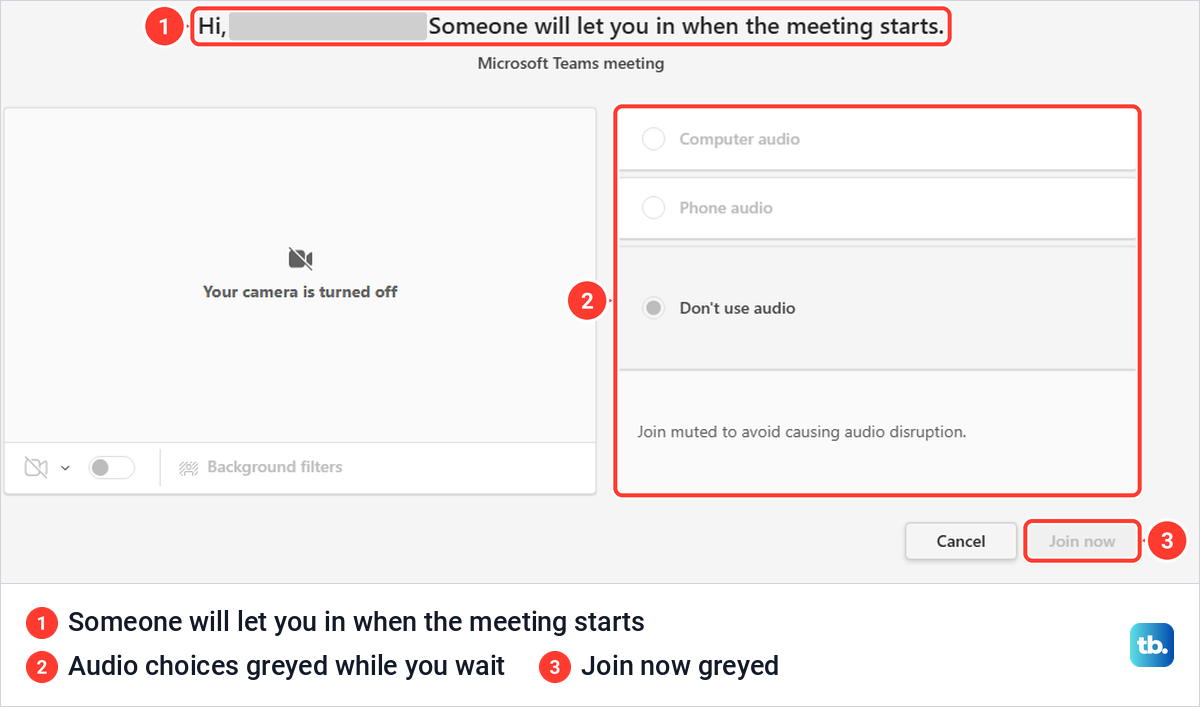
After Join now, you may not go straight in. Both of our guests, in the Teams app and in Edge, got a greeting with the name they typed and the line "Someone will let you in when the meeting starts." Microsoft says some organizers place attendees in a lobby before admitting them, so this is normal.
Microsoft also says that if no one admits you within 30 minutes, you'll be removed from the lobby and can try rejoining. If you are still waiting near the start time, message or call the organizer, because they may not have noticed you.
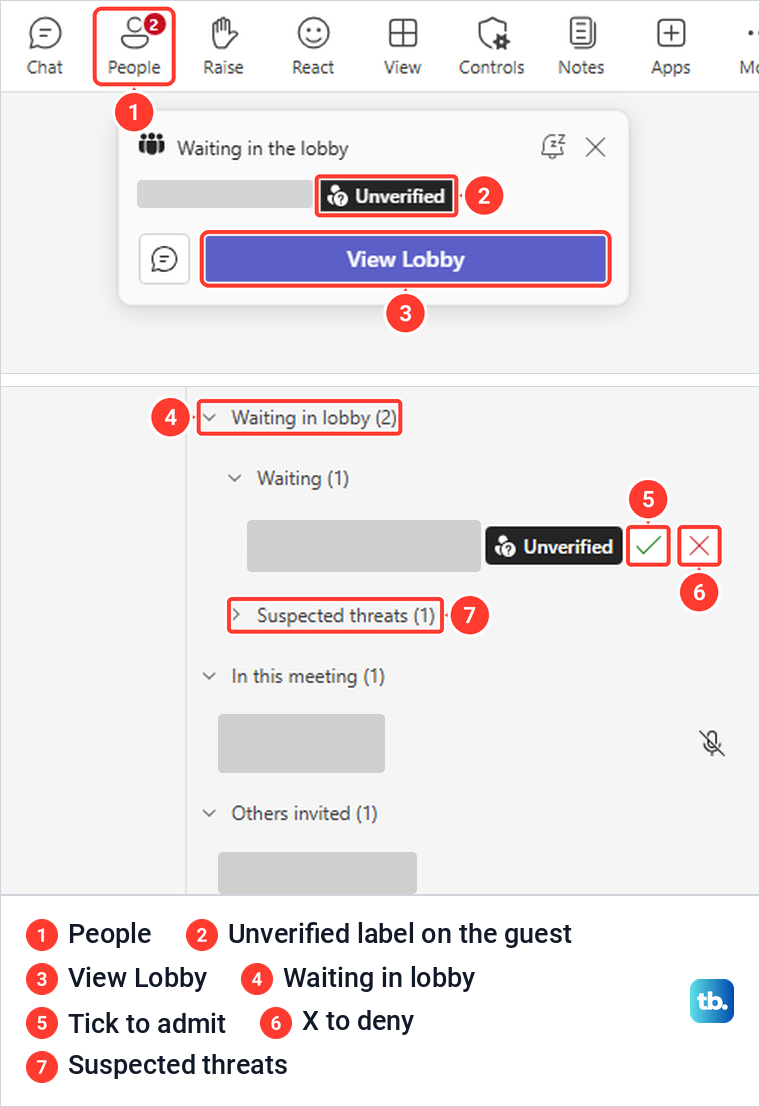
On the organizer's side, our meeting showed a "Waiting in the lobby" notice with the guest's name, an Unverified label and a View Lobby button. Microsoft says a guest who joined without entering an email address is labelled Unverified, one verified with a one-time code is Email verified, and someone who used a Microsoft account is External.
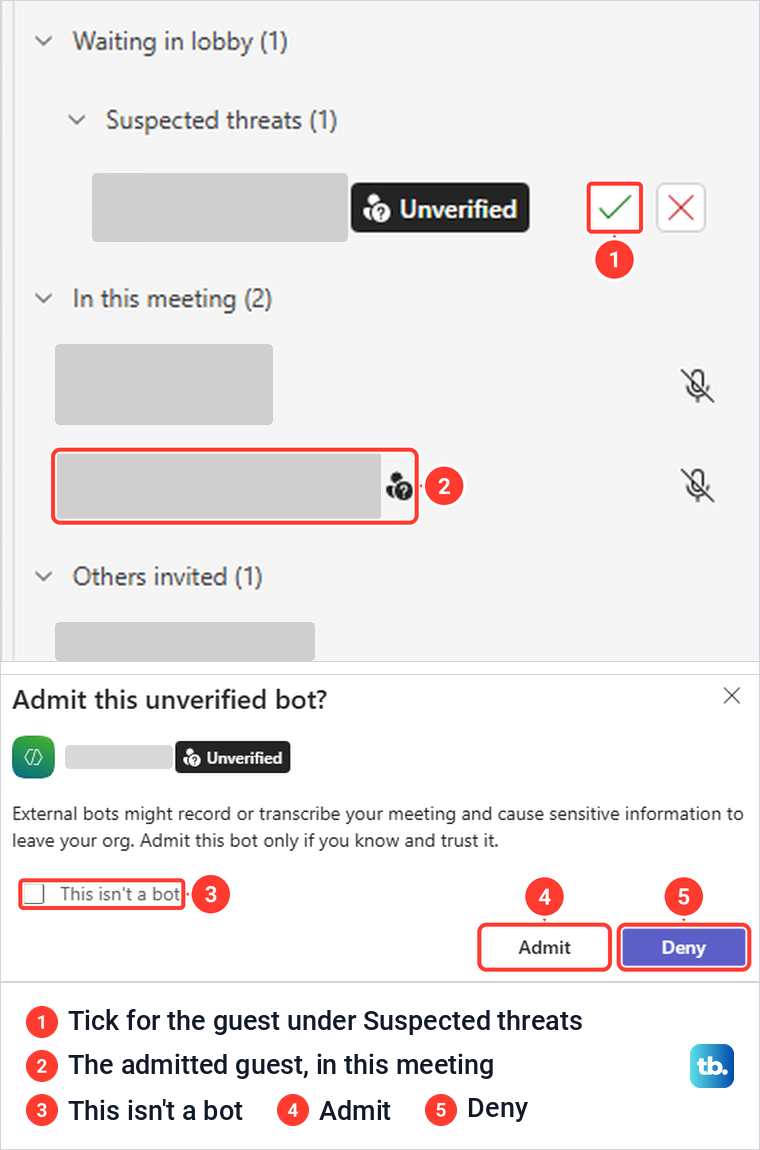
View Lobby opened the People pane, where Waiting in lobby was split into Waiting and Suspected threats, with a tick to admit and an X to deny beside each person. Selecting the tick moved our browser guest into In this meeting, and their screen switched to the meeting itself.
The guest who joined from the Teams app without signing in was listed under Suspected threats. Its tick opened Admit this unverified bot?, warning that external bots might record or transcribe the meeting, with a This isn't a bot box, Admit and Deny. Once admitted, that guest also reached the meeting with its controls. If you join from the app without signing in, the organizer may see that warning before letting you in, so tell them in advance who you are.
Once you are in, use the meeting controls along the top. To present, share your screen in a Teams meeting from the Share button.
Join a Teams meeting on a phone
On a phone or tablet, use the Teams mobile app. Microsoft says Teams meetings aren't currently supported in mobile web browsers, so the browser route above is for computers. In the invitation on your phone, tap the link next to Join, and if the app is missing, Microsoft says it takes you to the app store, after which you tap the link again.
Microsoft's steps without signing in are to allow the mic, tap Join as a guest, type your name and tap Join meeting. It adds that, depending on the organizer's policies, you may be asked to sign in with an authorized account or enter a one-time passcode sent to your email.
Fix an invitation with no Join button
A Join button in the calendar is not the only place to look. Open the invitation and check for a Microsoft Teams meeting block or a Teams link. Our plain event had an empty Location, no Teams block in the body and no Join Online in its reminder, and changing your own calendar view will not add a link.
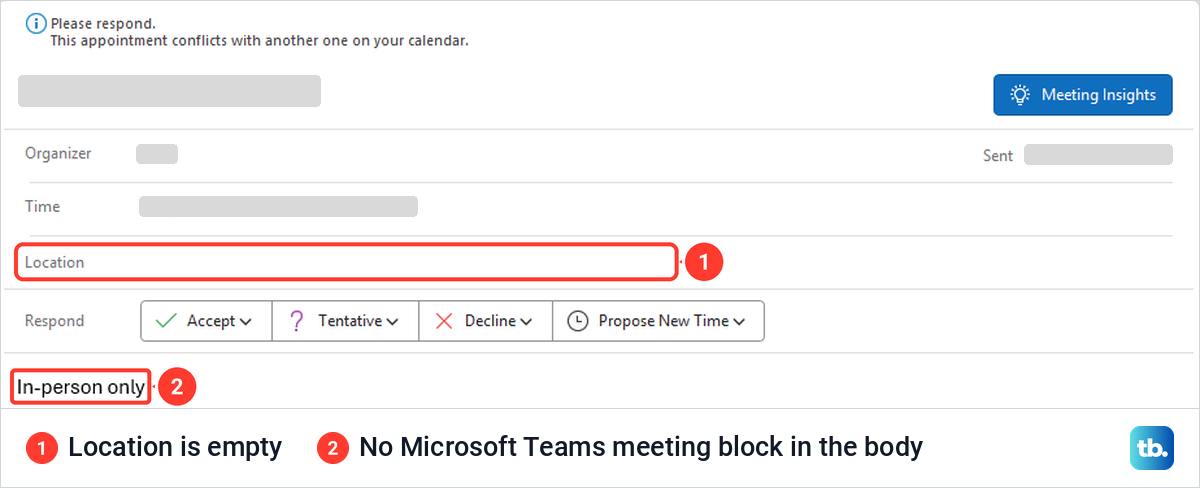
If there is no Teams link anywhere, Microsoft says the meeting might not have been organized as an online meeting, and an attendee should contact the organizer. If you organized it yourself, the steps to schedule a Teams meeting and send invites show where the Teams meeting switch is.
Fix a meeting ID or link that does not work
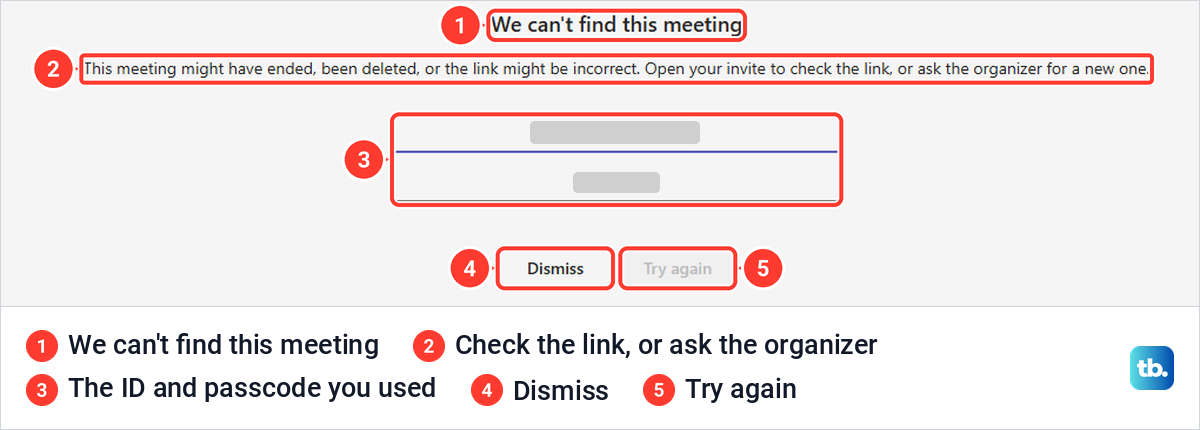
In our attempt, a wrong passcode did not fail where we typed it. We entered the right meeting ID with a wrong passcode on Microsoft's page, and the form accepted it without an error. The signed-in join screen showed only "Microsoft Teams meeting", with no meeting title or time, and Join now then gave "We can't find this meeting".
The message said the meeting might have ended, been deleted, or the link might be incorrect, and to open your invite to check the link or ask the organizer for a new one. Below it were the ID and passcode we had used, with Dismiss and Try again. If Join now gives "We can't find this meeting", recopy both values from the invitation or ask the organizer for a new link.
Microsoft explains the other messages you may see. If Teams says "This meeting is locked", the organizer locked it after it started, so ask them to unlock it. If it says "The meeting lobby is full right now", wait a few minutes and try again, and if it says "Sorry, no one has responded to your request to join", your 30 minutes ran out, so check the link and contact the organizer.
Fix a sign in message or a blocked camera
Some meetings do not take guests. If Teams says "Sign in to join this meeting", Microsoft explains that the meeting only allows people signed in with a Teams work or school account. If it says "Sign in with a different account to join this meeting", sign in with the account the invite was sent to. Other meetings ask for your email address and a one-time code before you can join.
In a browser, a blocked camera shows up on the join screen. When we turned on the camera switch with the camera blocked for Teams, a box said "Teams doesn't have access to your camera" and told us to select the lock icon in the address bar and turn it on. Edge's lock panel then listed Camera under Permissions for this site, with a switch and Reset to default. Turn that Camera switch on, or select Reset to default, then refresh the join page.
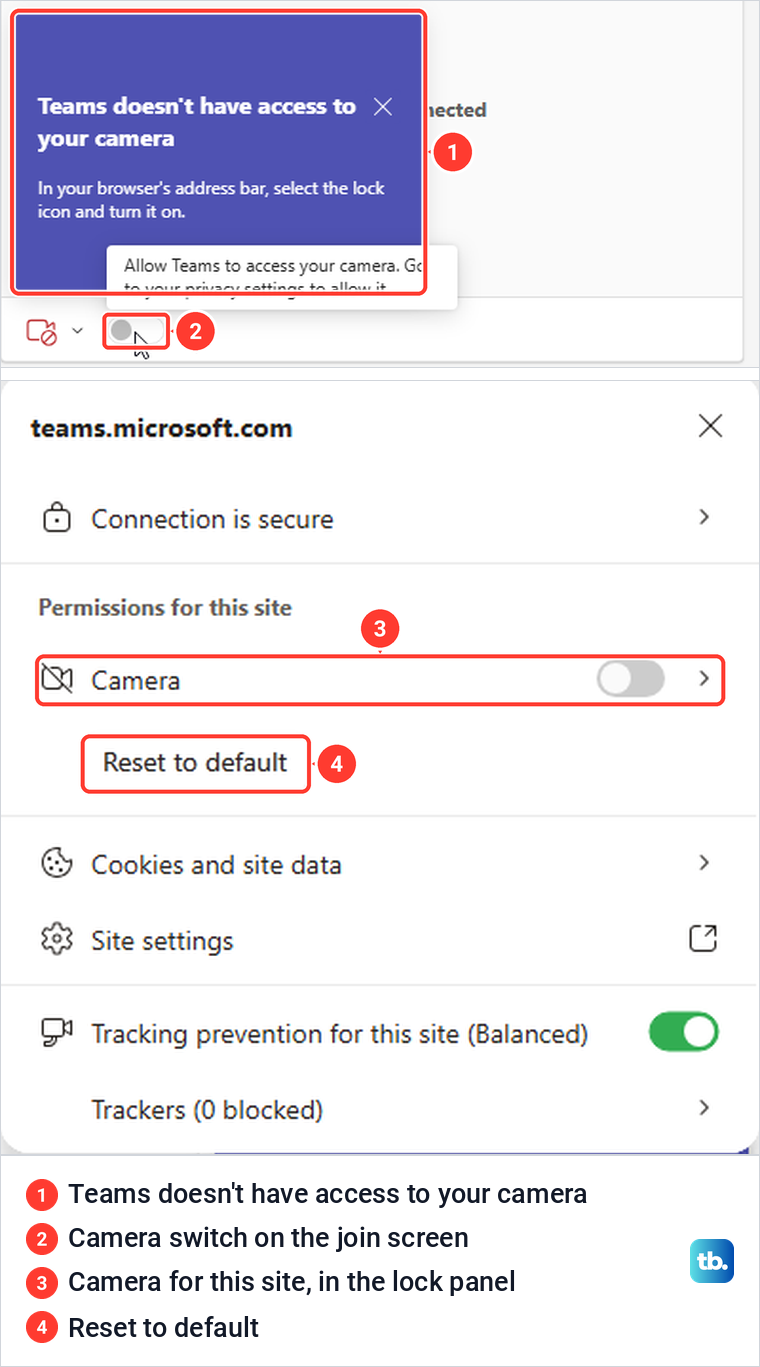
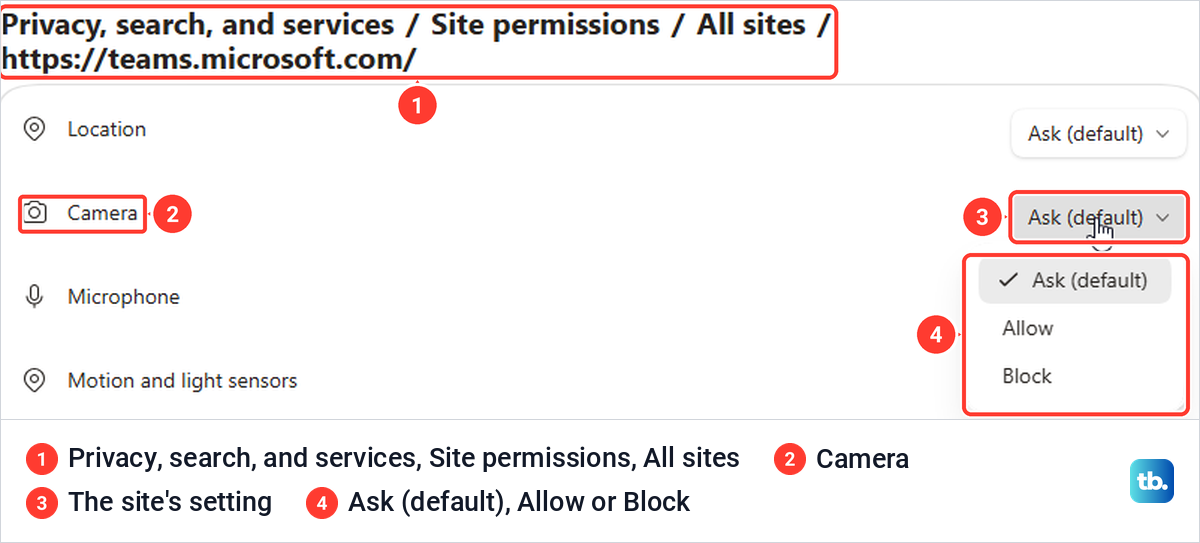
Before any camera setting existed for the site, our lock panel had no Camera entry to turn on. In that case, open Edge's Settings > Privacy, search, and services > Site permissions.
Under All permissions > Camera, ours had Ask before accessing (recommended) turned on, so turn it on if yours is off. Under All sites, open the Teams site and set Camera to Allow, and do the same for Microphone, which sits just below it, if Teams cannot hear you. Microsoft says to refresh Teams in the browser afterwards.
If the browser blocks your voice instead, allow microphone access on your device, then reload the join page. If Edge allows the camera and Teams still shows no picture, fix a camera that works elsewhere but not in Teams.
How we tested this guide
We tested this in classic Outlook, Outlook on the web and Teams on Windows 11, version 25H2, joining a meeting as a guest in the Teams app and Microsoft Edge.
Frequently Asked Questions
Can I join a Teams meeting without installing the app?
Yes, on a computer. Open the invitation link, choose Continue on this browser in Edge or Chrome, type your name and select Join now, as long as the organizer's settings let guests in.
Can I join a Teams meeting without a Microsoft account?
Often, yes, by typing a name on the join screen. Some meetings ask for your email and a one-time code, and some only allow a signed-in work or school account.
Where do I find the Teams meeting ID and passcode?
They are in the invitation, under the Join link in the Microsoft Teams meeting block. Enter both on Microsoft's Join a Teams meeting page or under Join with an ID in Teams Calendar.
Why am I stuck in the lobby?
The organizer or someone they allow has to admit you. Microsoft says you are removed after 30 minutes without being admitted, so contact the organizer if nobody lets you in.
Why does my Outlook event have no Join button?
Open the invitation and look for a Teams link or a Microsoft Teams meeting block. If there is none, ask the organizer whether it was set up as an online meeting, because nothing on your side can add the link.
Can I join a Teams meeting from my phone's browser?
No. Microsoft says mobile web browsers aren't supported for Teams meetings, so install the Teams mobile app and tap the link in your invitation.
How do I get back in if I leave by mistake?
Open the same link or Join button again. When our browser guest left, Teams showed a page with a Rejoin button.