Your Microsoft Teams microphone stops working when Teams is muted, the wrong device is selected, permissions are blocked, or the meeting itself does not allow your mic. Start with the fast checks, then move through Teams, Windows, Mac, browser, mobile, and meeting controls until your voice is back in the call.
1. Check the mute switch and reconnect the mic
Start with the hardware: Teams never gets clean audio from a headset or external microphone that is muted, disconnected, unpaired, out of battery, or still connected to another device. Check the headset boom, external mic mute button, or webcam mic control, then reconnect a wired microphone firmly. For Bluetooth, make sure the mic is charged, paired, connected, and disconnected from other devices.
In the meeting, select Mic in the Teams meeting controls. Press Ctrl + Shift + M to mute or unmute during a Teams meeting. Before joining, use the pre-join Microphone toggle, then select Join now. Teams remembers that choice for future meetings.
2. Pick the correct microphone in Teams
- 1.Open Settings and more.
- 2.Select Settings.
- 3.Choose Devices.
- 4.Under Audio and Audio settings, open the Microphone dropdown.
- 5.Select the connected microphone.
- 6.In the Teams desktop app for Windows or Mac, select Make a test call. On Teams for web or mobile, this option is not available, so use the browser or operating system microphone test instead.
Teams has its own device picker, so the mic selected in Windows or macOS is not enough. Already in the meeting? Select the dropdown arrow next to Mic, choose More audio settings, then select the right device under Microphone.
For Teams Free on desktop, open More options next to your profile picture, then choose Settings, Devices, and Audio Settings.
3. Improve low or uneven audio
If people hear you faintly or your volume jumps around, fix the Teams audio behavior before reinstalling anything. Open Settings and more, then go to Settings, Devices, Audio, and Audio settings. Turn on Automatically adjust mic sensitivity.
Turn on Sync device buttons when you use a supported Teams headset or audio device. For push-to-talk, open Settings and more, Settings, and Privacy, then turn on Keyboard shortcut to unmute.
In a meeting, hold Ctrl + Spacebar on Windows or Option + Spacebar on Mac while muted. Release the keys to mute again. These shortcuts do not work while the chat box has focus or when apps like PowerPoint Live or Whiteboard are shared on the meeting stage.
4. Allow Teams microphone access on Windows or Mac
Teams needs permission from the operating system. If that access is off, changing microphones inside Teams will not fix the call.
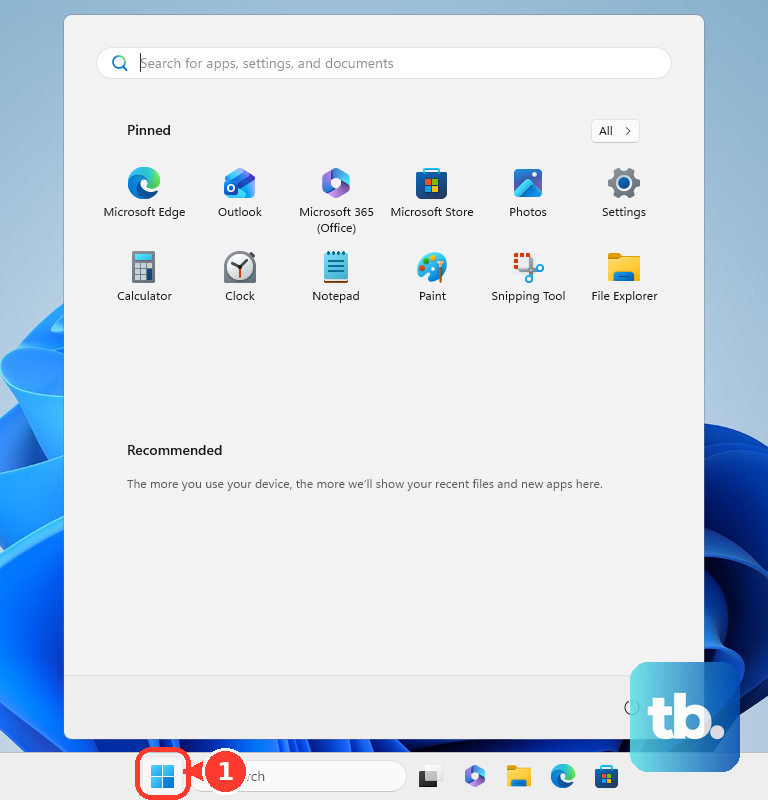
On Windows 11, open Start, Settings, Privacy & security, and Microphone. Turn on Microphone access, Let apps access your microphone, Microsoft Teams if it appears in the app list, and Let desktop apps access your microphone. Restart Teams.
Then check the Windows input device at Start, Settings, System, Sound, and Input. Select your mic under Choose a device for speaking or recording, open the device details, choose Start test, speak, choose Stop test, then select Play under Recorded sample. Raise the Input volume slider if the level is muted or too low.
On Mac, open the Apple menu, System Settings, Privacy & Security, and Microphone. Turn on access for Microsoft Teams or for the browser you use with Teams web, then quit and reopen the app when prompted.
5. Repair Windows sound input
Open Start, Settings, System, and Sound. Scroll to Advanced, then under Troubleshoot common sound problems, choose Input devices.
Follow the troubleshooter prompts. If Teams has permission and still hears nothing, make Windows test the recording path.
For driver repair, right-click Start, open Device Manager, expand Sound, video and game controllers, right-click the audio device, choose Uninstall device, check Attempt to remove the driver for this device, choose Uninstall, then restart. After restart, open Device Manager, choose Scan for hardware changes, then right-click the audio driver and choose Update driver.
6. Fix Teams web and mobile permissions
Teams for Web works on desktop in Microsoft Edge, Chrome, Firefox, and Safari. Teams for Web is not supported on mobile browsers, so use the Teams mobile app on phones and tablets.
Edge: Open Settings and more, Settings, Cookies and site permissions, and Microphone. Turn on Ask before accessing, allow the Teams site entry, then refresh Teams.
Chrome: Open More, Settings, Privacy and security, Site settings, Permissions, and Microphone. Select the correct default microphone, set Default behavior to Sites can ask to use your microphone, and set Teams to Allow if it is blocked.
Firefox: Open Settings, Privacy & Security, Permissions, Microphone, and Settings.... Find the Teams site, set it to Allow, choose Save Changes, then refresh Teams.
Safari: Open Safari, Settings, Websites, and Microphone. Select the Teams website and choose Allow or Ask. Also allow Safari under macOS System Settings, Privacy & Security, and Microphone.
On iPhone or iPad, go to Settings, Privacy & Security, and Microphone, then turn on Microsoft Teams. If Teams is not listed, open Teams and start a call or meeting so iOS or iPadOS shows the permission request.
On Android, open Settings, Apps, Microsoft Teams, Permissions, and Microphone, then choose an allowed option such as Allow only while using the app. You can also use Settings, Security & Privacy, Privacy, Permission manager, Microphone, Microsoft Teams, and Allow. When the Android mic indicator appears, swipe down, tap the indicator, then manage the app permission from there.
7. Reset and update new Teams
When Teams device settings look broken, reset the current Teams cache and update the app. On Windows new Teams, open the Windows Settings app, then go to Apps and Installed apps.
Search for Microsoft Teams, then choose New Microsoft Teams. Select More options and open Advanced options.
Choose Reset. This resets the app and deletes local app data, including any personalization settings you configured; use the LocalCache path below if you only want to clear the cache. Restart Teams. You can also quit Teams, press Windows + R, enter %userprofile%\appdata\local\Packages\MSTeams_8wekyb3d8bbwe\LocalCache\Microsoft\MSTeams, delete the files and folders there, then restart Teams.
On macOS new Teams, quit Teams, open Terminal, run rm -rf ~/Library/Group\ Containers/UBF8T346G9.com.microsoft.teams, run rm -rf ~/Library/Containers/com.microsoft.teams2, then restart Teams.
Update Teams when Update appears at the top of the app, then choose Update and Update and restart Teams. On mobile, update Teams from the iOS App Store or Google Play Store.
8. Switch audio options or contact the organizer
On the pre-join screen, choose Computer audio, Phone audio, Room audio, or Don't use audio, depending on what the meeting offers. On mobile, select More join options, then choose Call me, Dial in, or Join a meeting room when those options are enabled.
If the Mic button is disabled or dimmed, ask the organizer to turn on Allow mic for attendees. For work or school accounts, contact IT when Teams says settings are managed or microphone use is disabled by policy. If the computer microphone is the only part failing, use another Teams audio option and keep the meeting moving.
Frequently Asked Questions
Why is my Teams mic button grayed out?
The meeting organizer has disabled attendee microphones, or your work or school account is controlled by policy. Ask the organizer to turn on attendee microphones, or contact IT for managed accounts.
Why does my microphone work elsewhere but not in Teams?
Teams is using a different microphone, or Teams lacks operating system or browser microphone permission. Select the mic in Teams device settings, then check Windows, macOS, or browser mic access.
Can I use Teams without my computer microphone?
Yes. On the pre-join screen, use phone audio, dial-in, call-me, or room audio when those options are offered for that meeting.
Should I use Internet Explorer or classic Teams for microphone problems?
No. Current Teams for Web supports Edge, Chrome, Firefox, and Safari on desktop, and classic Teams is no longer available as of July 1, 2025.