
To use Copilot in Outlook, open an email and select Summarize to get the key points of the thread, or select the Copilot button at the top right of Outlook to ask about your inbox and calendar and have Copilot draft an email for you. Before you send anything Copilot wrote, open the draft itself and check the words and the recipients, because in our tests Copilot saved its drafts as separate messages in Drafts instead of writing into the message we had open.
Microsoft says all Microsoft 365 subscribers have access to Copilot in Outlook, though for a personal account that means a qualifying plan such as Personal, Family or Premium, and chatting with Copilot needs a work or school account. The buttons differ between classic Outlook, new Outlook, the web and the phone apps, so the steps below show where each one sat in classic Outlook and Outlook on the web, and what to do when yours is missing.
The short version
- Open a message and select Summarize in classic Outlook, or Summarize this email on the web.
- Select the Copilot button at the top right to ask about your mail and calendar or to ask for a draft.
- In a new message in classic Outlook, the ribbon's Copilot menu holds the compose tools (Ctrl + F10, then C, P); on the web, select the round Copilot button and choose Help me write an email.
- A draft written in the Copilot pane can land in Drafts as a separate message, sometimes with an empty To line.
- Open the source messages, and the item behind any flag Copilot reports, before you rely on it.
Where to find Copilot in Outlook
In classic Outlook for Microsoft 365, the Copilot button sits at the right end of the tab row, just after the Try the new Outlook switch. Its arrow opens a short menu, which on our PC offered Summarize, Summarize and Reply and List email takeaways. A second Copilot icon sits in the app bar on the left, between Calendar and People, and Microsoft names that icon as the way into Copilot Chat in classic Outlook.
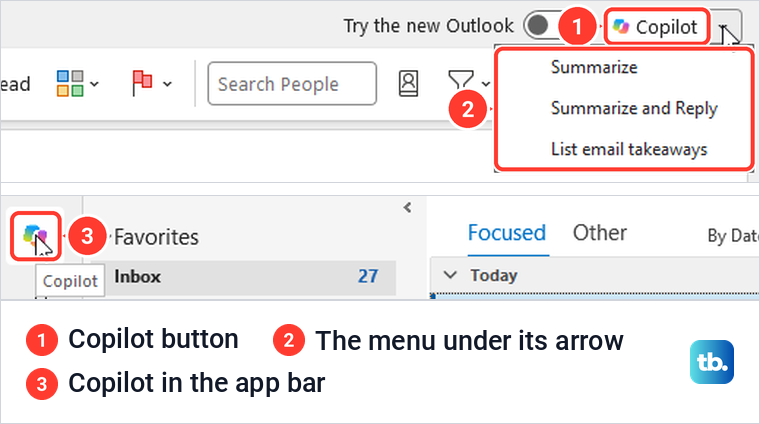
Give it a minute after Outlook starts. When we opened classic Outlook, neither the button nor the app bar icon was there for the first half minute, and both appeared about a minute later without us doing anything.
In Outlook on the web, a round Copilot button sits at the right end of the ribbon row, with another Copilot icon in the left app bar. Microsoft's drafting steps treat new Outlook for Windows and the web as one, so the web parts of this guide are the closest match if you use new Outlook.
Which Copilot control to use
Copilot turns up in several places in Outlook, and each one does a different job. The table lists each job, the control to start from and what to look at before you rely on the result.
| What you want | Where to start | What to look at |
|---|---|---|
| Catch up on one thread | Summarize in the reading pane, or Summarize this email on the web | The source chips behind each point |
| Write a new email | The Copilot menu in a new classic message (Ctrl + F10, then C, P), or Help me write an email in the web pane | Drafts, where Copilot may save its own copy |
| Reply to a thread | Summarize and Reply in classic Outlook, or Help me reply in the web pane | The To line of the saved reply |
| Improve the tone of a message | Coaching by Copilot, where your account has it | That the feedback is about your draft |
| Ask about your inbox | The Copilot button, then one narrow question | Which messages and drafts the answer used |
| Prepare for a meeting | The meeting's card in the web calendar | Which parts are Copilot's own suggestions |
| Flag mail or manage rules | A plain request in the Copilot pane | The message or rule itself, afterwards |
Check that your account includes Copilot in Outlook
Microsoft's license page says all subscribers have access to Copilot in Outlook, while Copilot in Word, Excel and PowerPoint depends on the plan. For a work or school account, Microsoft says Copilot Chat in Outlook can answer about your inbox, calendar, meetings and other limited data without the Microsoft Copilot add-on license, and can also work with chats and enterprise data with it.
To see which you have, Microsoft says to sign in to Microsoft 365 with that account and scroll to the bottom of the home page, where Copilot Chat (Basic), M365 Copilot (Basic) or M365 Copilot (Premium) appears under your name. Only Premium is the add-on license. Look under the name at the bottom left, because the profile menu behind your initials did not show the label.
Microsoft adds that chatting with Copilot in Outlook needs a work or school account, while personal accounts get Copilot with a Personal, Family or Premium subscription. On a Family plan, Microsoft says Copilot is only available to the person who sets up the subscription, so family members who share it will not see it. For the account side beyond Outlook, see how to use Microsoft 365 Copilot across apps.
Summarize an email thread in classic Outlook
Open the conversation and select the blue Summarize icon at the top right of the reading pane. Microsoft's page describes a Summary by Copilot bar at the top of the email, but on our PC the icon was the only control, and its summary opened in the Copilot pane on the right.
Our summary of a made-up demo thread caught both the request for the sample chart and the open question of whether the review started at 2:00 or 2:15 PM. Its points carried small source chips named after the message they came from, rather than the numbered citations Microsoft's page shows.
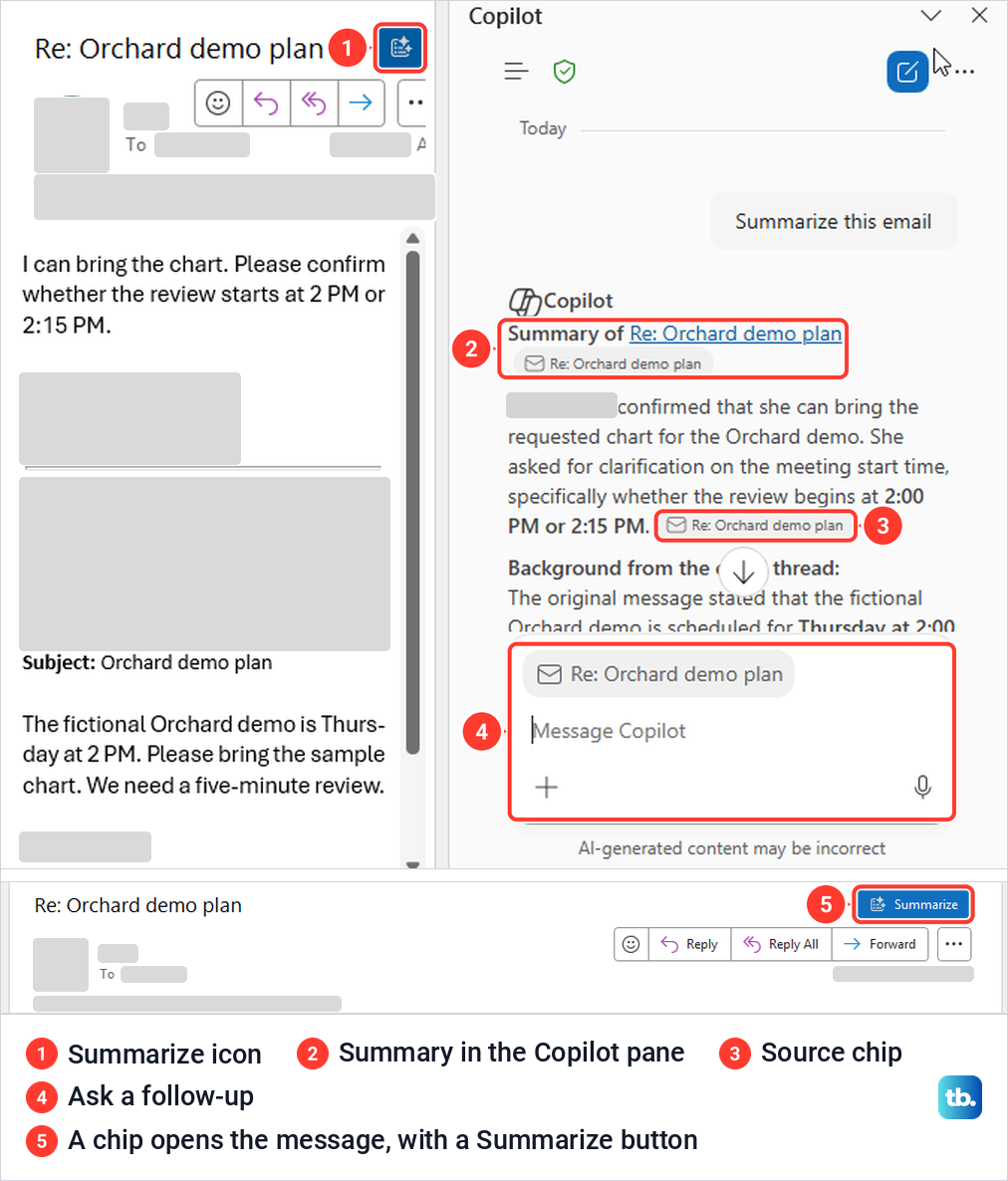
Select a chip to check a point against the original. In classic Outlook the chip opened the cited message in its own window, where the same control appeared as a labelled Summarize button. A question typed in the box at the bottom of the pane came back with the thread's meeting time and the chart, again with source chips.
Summarize emails with Copilot in Outlook on the web
Open the message and select Summarize this email beside the subject. The summary opened in a Copilot pane on the right, with the key points as bullets and suggestions such as List my action items from this email under it.
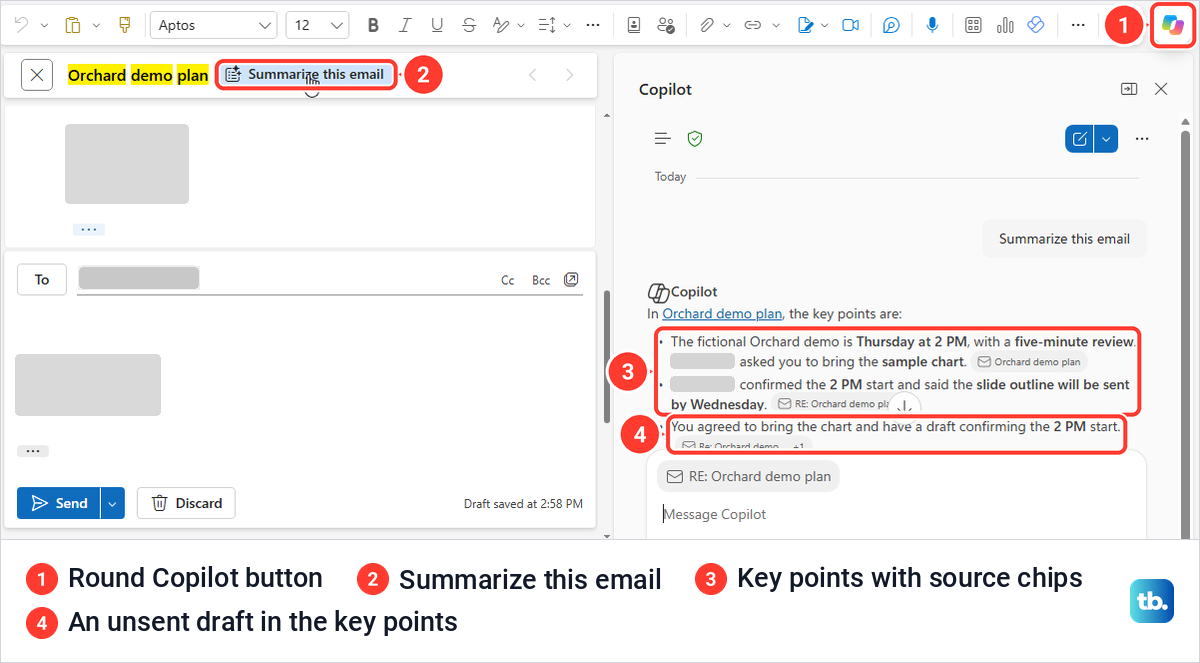
Read the summary with your Drafts folder in mind. Once Copilot had saved a reply draft for us, the summary of the same thread said we had a draft confirming the 2 PM start, mixing a message nobody had sent into the key points. Selecting a source chip opened the cited message in a separate browser window.
Very short mail gets little out of it, and a one-word thanks got a summary saying it held no request or action item. If a summary repeats a request that looks wrong, such as a payment change or a password prompt, open the original and report a phishing email in Outlook instead of acting on the summary.
Draft a new email with Copilot in classic Outlook
Microsoft's steps are to select Home > New Email, open the Copilot menu on the message ribbon and choose Draft with Copilot. You type a prompt, select Generate, use Adjust to change the tone or length, and select Keep to put the draft in the message.
The menu can look different. On the account we used, it held Help write an email, Find recipients and Support my statement, with no Draft with Copilot or Coaching by Copilot item. Each opened the Copilot pane and asked a question back, and Help write an email wanted to know who the email was for, its purpose, the key points and the tone.
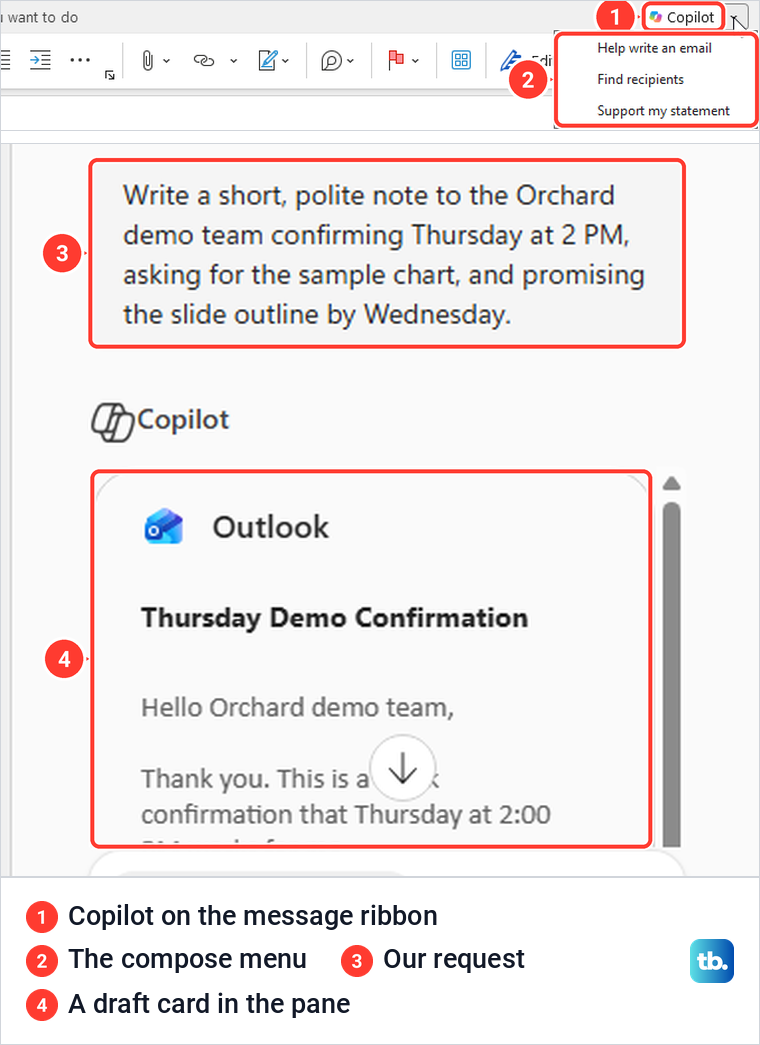
We asked for a short, polite note to the Orchard demo team confirming Thursday at 2 PM, asking for the sample chart and promising the slide outline by Wednesday. Copilot answered with an Outlook card holding a draft titled Thursday Demo Confirmation, while the message we had open stayed exactly as it was. The draft was not lost, because Copilot had saved it on its own in Drafts.
Find recipients asked what we wanted recipients for and left the To line alone. Support my statement asked us to paste the statement and ignored the sentence in the message, even when we selected it first.
From the keyboard, Microsoft gives Ctrl + N, then Ctrl + F10 for the ribbon shortcuts, C, P for the Copilot menu and D for Draft with Copilot. On our PC, C, P opened the menu, but with no Draft item in it, D did nothing, and neither did Microsoft's other shortcut, Alt + I.
Reply to an email with Copilot in classic Outlook
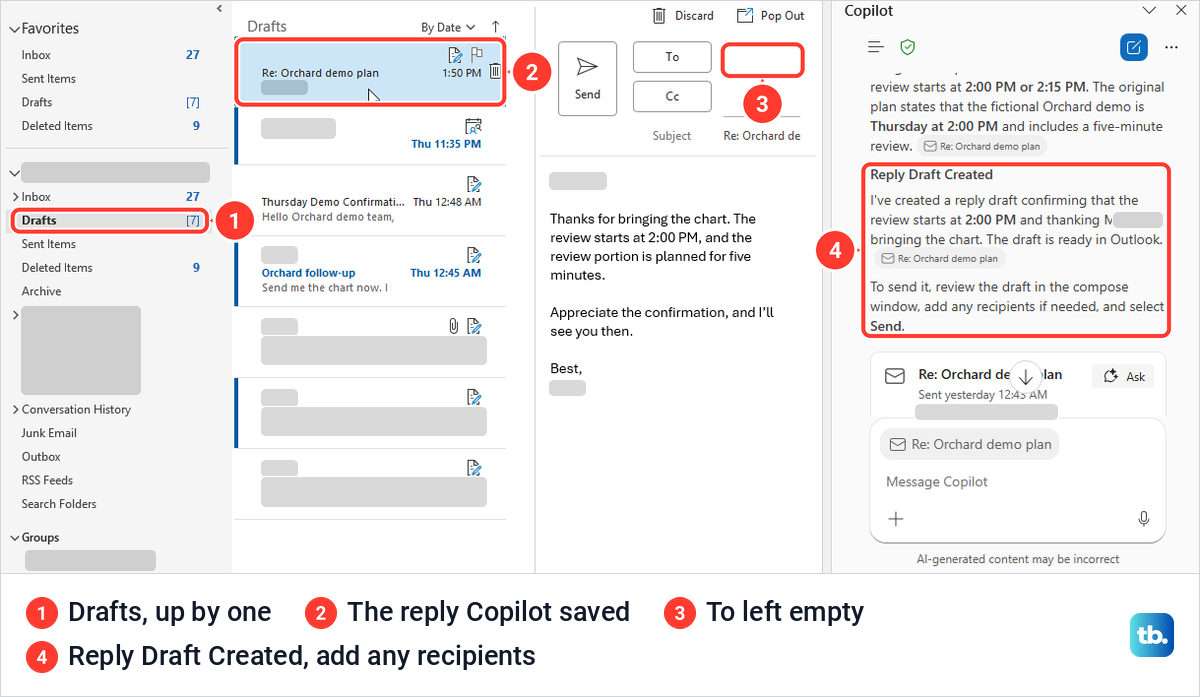
To answer a thread in one step, open the message, select the arrow beside the Copilot button and choose Summarize and Reply. Our pane showed a summary, then Reply Draft Created, with an instruction to review the draft in the compose window, add any recipients if needed and select Send.
That instruction matters. The reply sat in Drafts, which went from 6 items to 7, and its To line was empty, so it could not go anywhere until we added the recipient. The answer had no Insert or Keep button, so open Drafts to finish and send it.
Draft a reply with Copilot in Outlook on the web
Microsoft says to open a reply and select Help me reply in the message area, which opens Chat and adds a draft to the message. Our web reply had no Copilot control in its message area or in the ribbon's More menu, so we started from the round Copilot button, which offered Help me reply with the reply open.
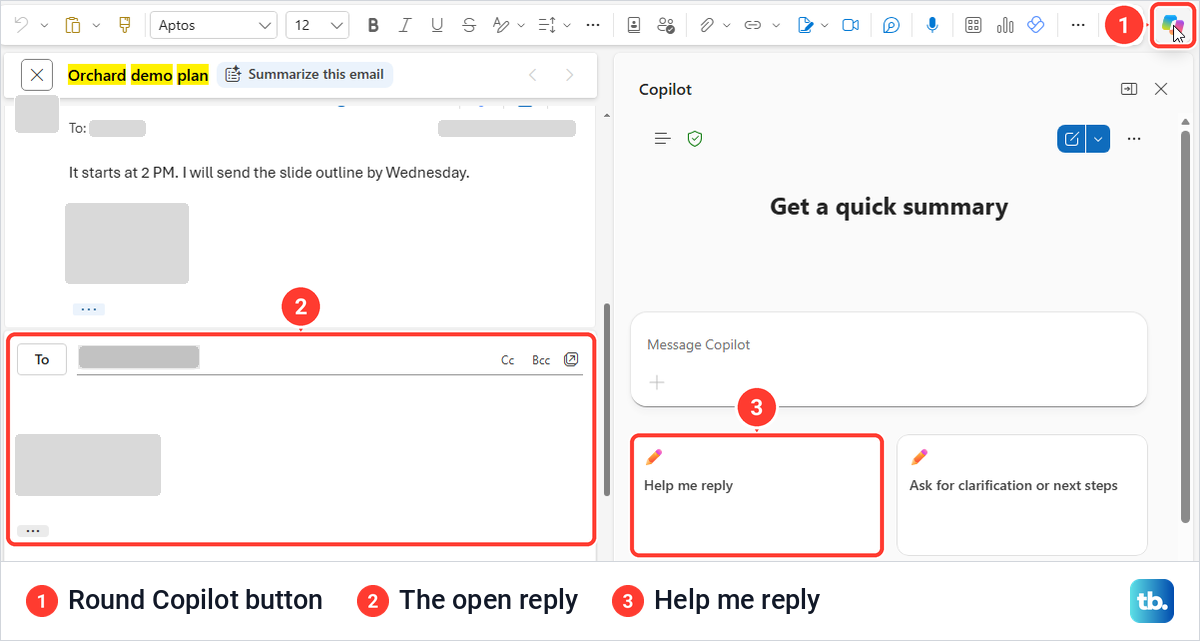
Help me reply put Help me reply with in the box and attached the thread. We finished it with a one-sentence confirmation that the review starts at 2 PM, and Copilot returned an Outlook card with that sentence and an Edit button.
Edit did not fill the reply we had open, which stayed empty. It opened a separate reply that Copilot had already saved, in its own tab at the bottom of the window, with the To line filled and the original quoted underneath.
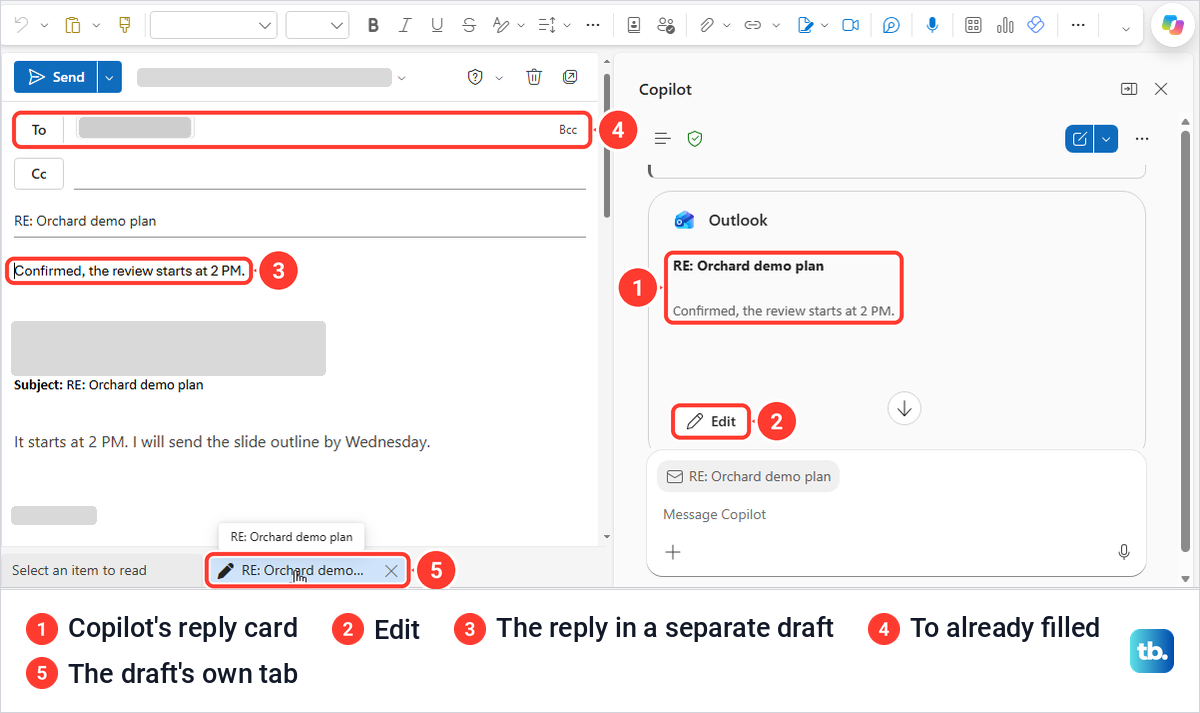
That saved reply had no signature, so add yours or change your Outlook email signature settings before you send it. Discard the empty reply you started with so it does not linger in Drafts.
A new message works the same way. The pane offered Help me write an email, and Edit on the result opened a saved draft with the To line, subject and body filled, while the blank message stayed blank.
Improve the tone of an email with Coaching by Copilot
Microsoft's steps are to type your email, open the Copilot menu on the compose toolbar and choose Coaching by Copilot. Copilot then suggests improvements to tone, clarity and reader sentiment, and Apply all suggestions rewrites the email with all of them.
Neither our classic nor our web compose menu had Coaching by Copilot, so we asked the Copilot pane for coaching on the tone and clarity of the email we were drafting, a deliberately curt request for a chart. Copilot coached the wrong email. It found several Outlook drafts, picked the most recent, a polite note it had written earlier, and ignored the message on screen.
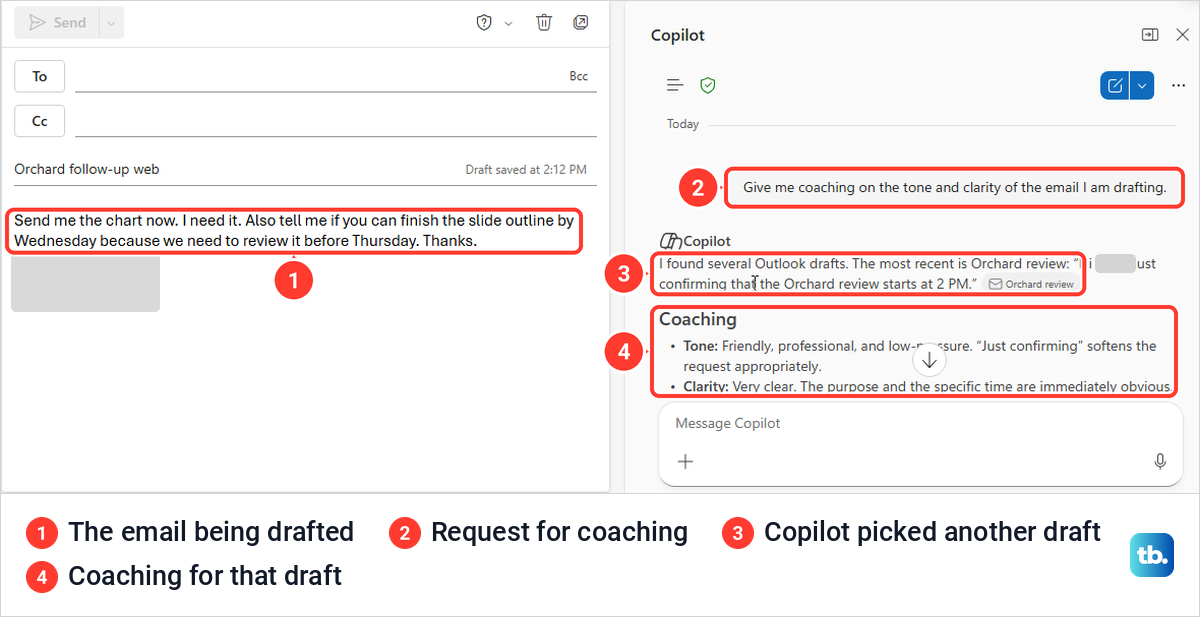
If you use the pane for feedback, paste the text into your request and make sure the answer quotes your own words. Its answer had no Apply all suggestions button either, so copy any change you like into the message yourself.
Ask Copilot about your inbox and calendar
Select the Copilot button with your inbox open and type a question. Microsoft's examples include a summary of last week's emails about a project, the time of your next one-on-one and flagging unread emails from your manager, and our web pane suggested What matters most in my inbox today as a starting point.
Narrow questions are easier to check. We asked Copilot to summarize the Orchard demo plan emails and identify the unresolved question before the final reply. It listed the meeting day, the chart and the five-minute review with source chips, then named the 2:00 or 2:15 PM question.
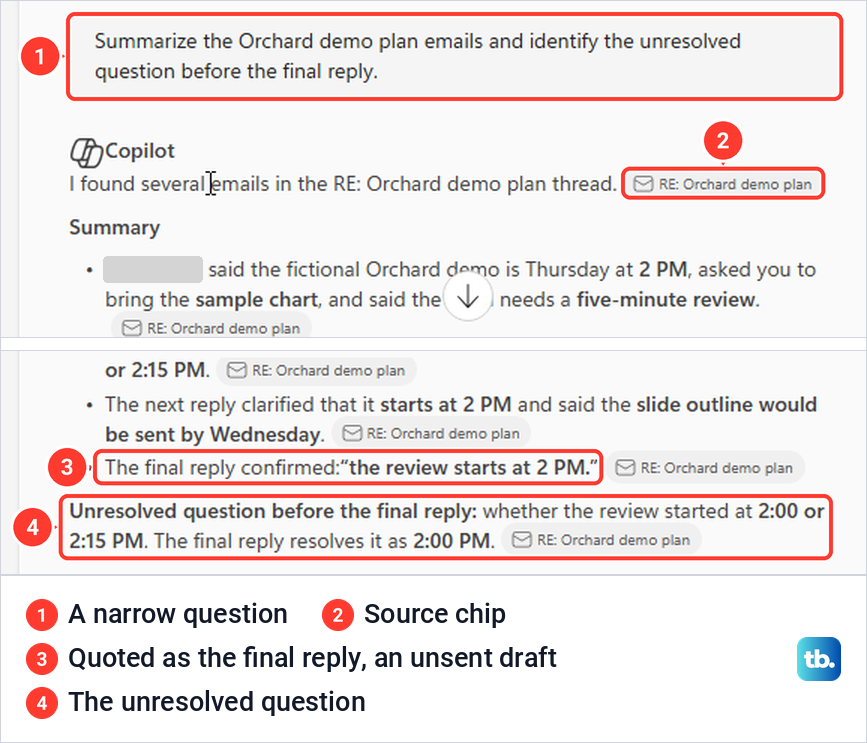
One line was wrong in a way that is easy to miss. The answer said the final reply confirmed the review starts at 2 PM, but that reply was Copilot's own unsent draft. Open the chips behind any point you will act on, and do not rely on a point you cannot trace to a message. If Outlook's own search will not find a message you know is there, fix Outlook search results first.
Microsoft also lists setting up an automatic reply among the things Copilot can do from the pane. Outlook's own settings remain the clearest way to set up an out of office reply, because you see exactly what it will say.
Prepare for a meeting
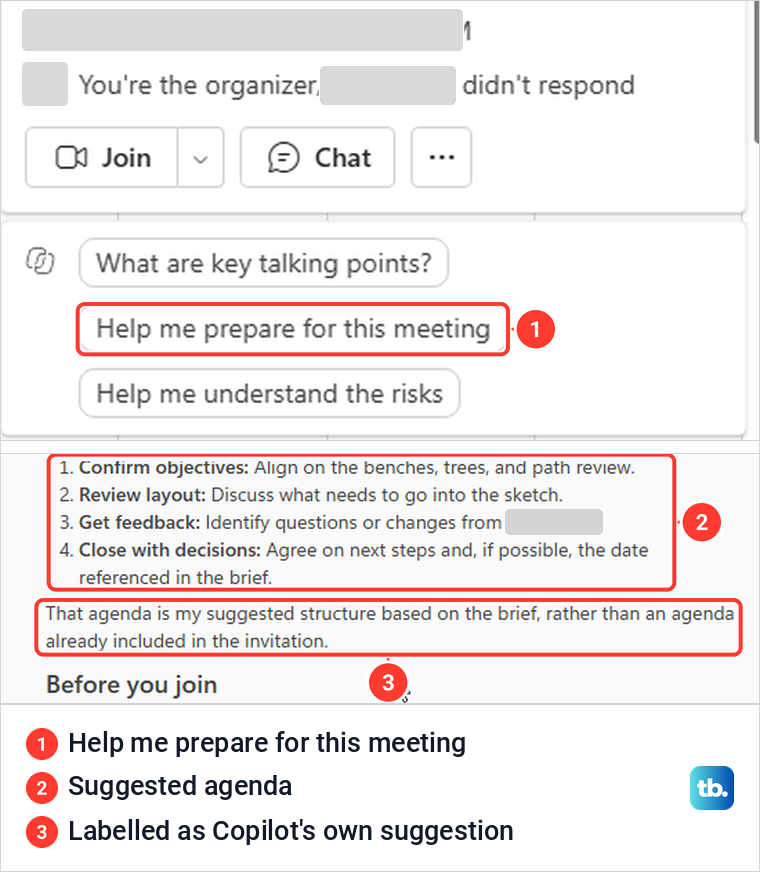
In the web calendar, select a meeting to open its card, which listed Copilot suggestions such as Help me prepare for this meeting. That one returned a short brief with what to focus on, a suggested agenda and what to do before you join.
Copilot said plainly that the agenda was its own suggested structure, rather than one included in the invitation, so treat it as a draft and not as the organizer's plan. Microsoft says the suggested prompts vary for each meeting, and that a meeting with no shared documents, emails or chats may get a generic answer.
Check what Copilot did after it acts
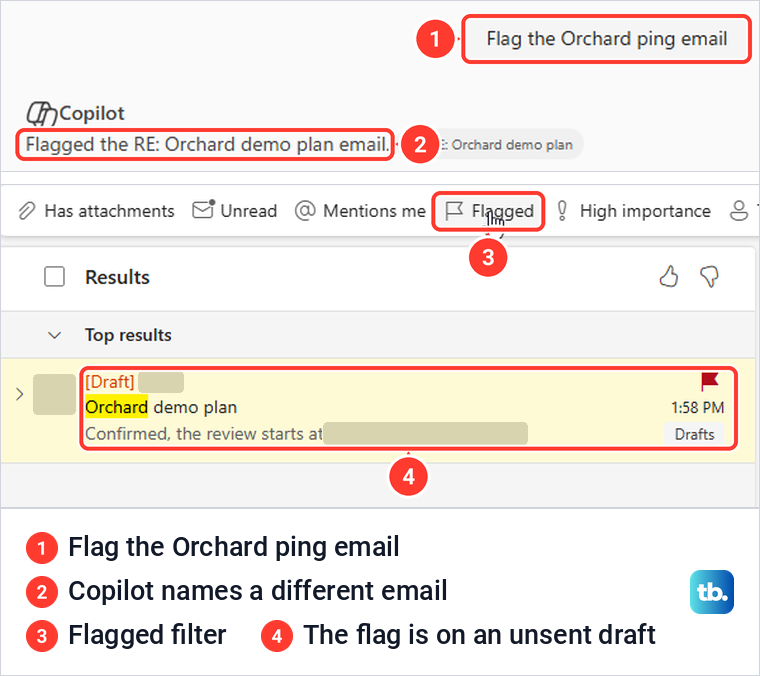
Microsoft lists pin, flag, archive and delete among the actions Copilot can take on mail, and its rules page says Copilot shows a summary and asks for confirmation before it creates, changes or deletes a rule. Simpler actions may not wait for you. When we asked Copilot to flag the Orchard ping email, it replied at once, with no preview, that it had flagged the RE: Orchard demo plan email instead.
The Flagged filter showed where the flag went. It sat on Copilot's own unsent reply draft, and the message we had named had no flag at all. After any action, open the folder or filter it touched and look at the item itself.
Rules went only partly to plan. Copilot listed our inbox rule with its conditions, exceptions and actions, but a request to create a rule that flags future emails with Orchard in the subject got a reply that it couldn't help with that request. If that happens, create a rule in Outlook yourself, and create a new Outlook folder first if the rule needs somewhere to put mail.
Copilot in Outlook on a Mac, iPhone or Android phone
In Outlook for Mac, Microsoft says to select Summarize in the Summary by Copilot box at the top of a thread. For a new email, select the Copilot icon in the toolbar, choose Draft with Copilot, type your prompt and select Generate, then Insert, and Microsoft notes that legacy Outlook for Mac isn't supported.
On an iPhone or Android phone, tap the Copilot icon in the toolbar of an open conversation and the summary appears under the email. In a new message the same icon offers Draft with Copilot or Coaching by Copilot, and Microsoft says coaching needs at least 100 characters of your own text.
Turn Copilot off or on in Outlook
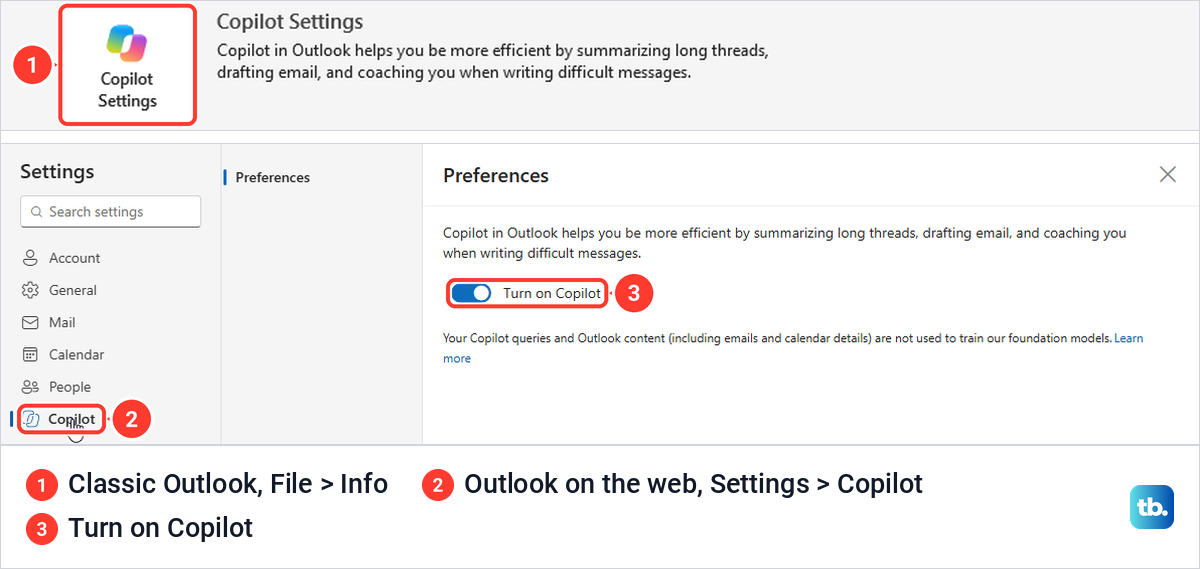
Microsoft's Copilot switch hides Copilot entry points such as Summarize this email. Open Settings, go to the Copilot tab and change the switch, and Microsoft says the choice is set account by account and roams across all Outlook clients.
In Outlook on the web it sat under Settings > Copilot > Preferences as a Turn on Copilot switch, which was on. Classic Outlook had a Copilot Settings button under File > Info. Because Microsoft says the choice roams across all Outlook clients, classic Outlook users can also change it in Outlook on the web.
Fix a missing Copilot button or menu item
Give classic Outlook a minute after it opens, then check both the top right of the window and the app bar. Microsoft's Outlook FAQ says Copilot is not available on archive or group mailboxes or on mailboxes not hosted on Exchange Online.
Shared and delegated mailboxes are a partial case, and Microsoft's pages disagree. Its shared-mailbox page says Copilot Chat, Summarize and Draft now work in them, based on the folders you can view, but not flagging, pinning, deleting, categorizing, mailbox rules, sending or scheduling, while its Outlook FAQ still lists them as unsupported. So after you add a shared mailbox in Outlook, expect at most summaries and drafts, not actions.
Some messages are off limits too. Microsoft says the features are not supported on signed or encrypted emails, emails with IRM or some MIP labeled emails, which can include mail protected the way our guide to encrypt email in Outlook describes.
If the whole button is missing, Microsoft's steps are to update Outlook on your device, select Update License under File > Account, which Outlook labels Office Account, and restart the apps. Business users also need Current Channel or Monthly Enterprise Channel, and Experiences that analyze your content and All connected experiences must be on under Account Privacy. If your organization manages those settings, Microsoft says to ask your IT admin.
In Outlook on the web, Microsoft's first step is to refresh the page, and it notes that blocked third-party cookies can stop Copilot from validating your license. Also check that the switch under Settings > Copilot is on, because Microsoft says turning it off hides Copilot entry points.
If you have Copilot but no Draft with Copilot in new Outlook or on the web, check the message format. Microsoft says Draft doesn't support plain text and points to Settings > Mail > Compose and reply, a page our web Outlook labelled just Compose, where you pick HTML. In plain text, our pane's Help me write still returned a draft, so the limit is on the Draft control in the message.
Some controls arrive later than others. Microsoft says Prioritize, which marks important mail as it arrives, is rolled out gradually and sits under the arrow beside the Copilot button. Neither client we used had it, and the diamond icon beside Forward on the web was Viva Insights, not Copilot. If everything checks out and Copilot still fails, work through the steps to fix Copilot when it will not work.
How we tested this guide
We tested this in Outlook for Microsoft 365 on Windows 11, version 25H2, and Outlook on the web in Microsoft Edge, summarizing and drafting replies on a made-up thread.
Frequently Asked Questions
Do I need a Copilot license to use Copilot in Outlook?
Microsoft says all Microsoft 365 subscribers have access to Copilot in Outlook, though for a personal account that means a qualifying plan such as Personal, Family or Premium, and chatting with Copilot needs a work or school account. With a work or school account, the Microsoft Copilot add-on license adds chats and enterprise data to what Copilot Chat in Outlook can use.
Why do I see Copilot but not Draft with Copilot?
The compose menu differs between accounts and Outlook apps, and ours offered Help write an email instead. Use that or the Copilot pane, then open Drafts for the copy Copilot saved.
Where did the email Copilot wrote go?
Look in Drafts, or select Edit on the Outlook card in the Copilot pane. In our tests Copilot saved each draft as its own message, and one reply had an empty To line.
Can Copilot summarize a shared mailbox?
Microsoft's shared-mailbox page says Copilot Chat, Summarize and Draft work in shared and delegated mailboxes you have access to, while flagging, deleting and mailbox rules do not yet. Its Outlook FAQ still lists those mailboxes as unsupported.
Can Copilot act on the wrong email?
It can. Asked to flag one message, Copilot flagged an unsent draft instead and reported it as done, so open the folder or filter afterwards and check the item itself.
How do I turn Copilot off in Outlook?
Open Settings in Outlook on the web, go to Copilot and turn off the Copilot switch. Microsoft says it hides Copilot entry points such as Summarize this email and that the choice roams across all Outlook clients, so it also applies to classic Outlook.