


To add or change your signature in Outlook, open File > Options > Mail > Signatures in classic Outlook for Windows, or Settings > Account > Signatures in Outlook on the web. Microsoft writes Settings > Accounts > Signatures for the new Outlook. Save your signature, then set it for new messages and for replies, which get none until you pick one.
We set up, changed, inserted and deleted signatures in classic Outlook for Microsoft 365 and in Outlook on the web on Windows 11, version 25H2. Two results surprised us: classic Outlook made our first signature the default for new messages without asking, and a draft saved before an edit kept the old signature.
The short version
- Classic Outlook: File > Options > Mail > Signatures, or press Alt + F, T, M, then Alt + N and Enter.
- Outlook on the web: the Settings gear at the top right, then Account and Signatures. Microsoft's steps for the new Outlook say Accounts.
- Replies need their own choice: set Replies/forwards, or Default for replies and forwards on the web, or replies go out without a signature.
- Mac and phones: Outlook > Settings > Signatures on a Mac, Settings > Mail > Signature in the phone app.
- Missing on another device? Set the signature in each app you send from. The phone app has its own setting.
Which Outlook do you have
The steps depend on which Outlook is in front of you, and the quickest test is the top right corner. Outlook on the web and the new Outlook for Windows have a Settings gear there. Classic Outlook has none, and on our PC it showed a Try the new Outlook switch in that spot instead.
Do not go by the File tab. Classic Outlook has one, but so did Outlook on the web when we opened it in Microsoft Edge. Microsoft's own test is the gear: if the Settings button is missing, you are using classic Outlook.
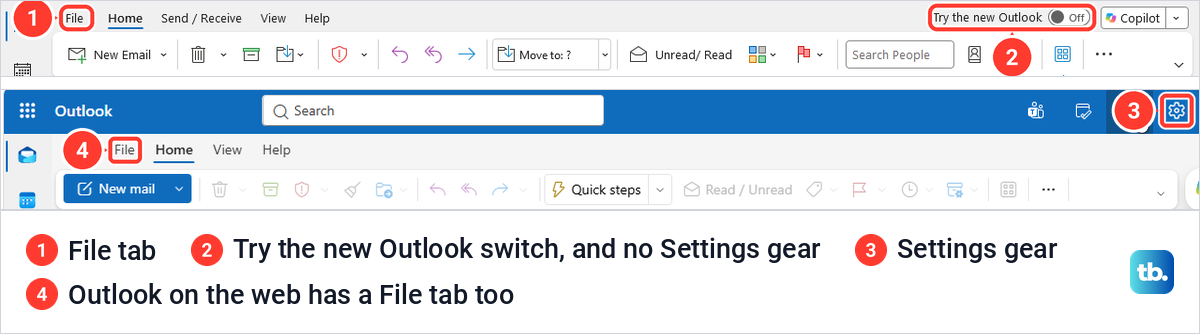
If you use the new Outlook for Windows and the classic signature window is the one you know, you can switch back to classic Outlook and follow the classic steps below. The table sums up where each version keeps its signatures.
| Your Outlook | How to tell | Where signatures are | New messages and replies |
|---|---|---|---|
| Classic Outlook for Windows | No Settings gear, and a Try the new Outlook switch at the top right | File > Options > Mail > Signatures, or Signature > Signatures... in a new message | New messages and Replies/forwards lists for each email account |
| Outlook on the web and Outlook.com | Outlook in a browser tab, with a Settings gear at the top right | Settings > Account > Signatures on our screen, Accounts in Microsoft's steps | Default for new messages and Default for replies and forwards |
| New Outlook for Windows | A Settings gear at the top right | Settings > Accounts > Signatures | The same two defaults as Outlook on the web, for each account |
| Outlook for Mac | The Outlook menu in the Mac menu bar | Outlook > Settings > Signatures | For new messages and For replies or forwards, for each account |
| Outlook for iPhone and Android | The Outlook phone app | Settings > Mail > Signature | One signature for every account, or one each with Per Account Signature |
Add a signature in classic Outlook for Windows
In classic Outlook, select File, then Options. In the Outlook Options window, select Mail and look for Create or modify signatures for messages under Compose messages. Select Signatures... next to it.
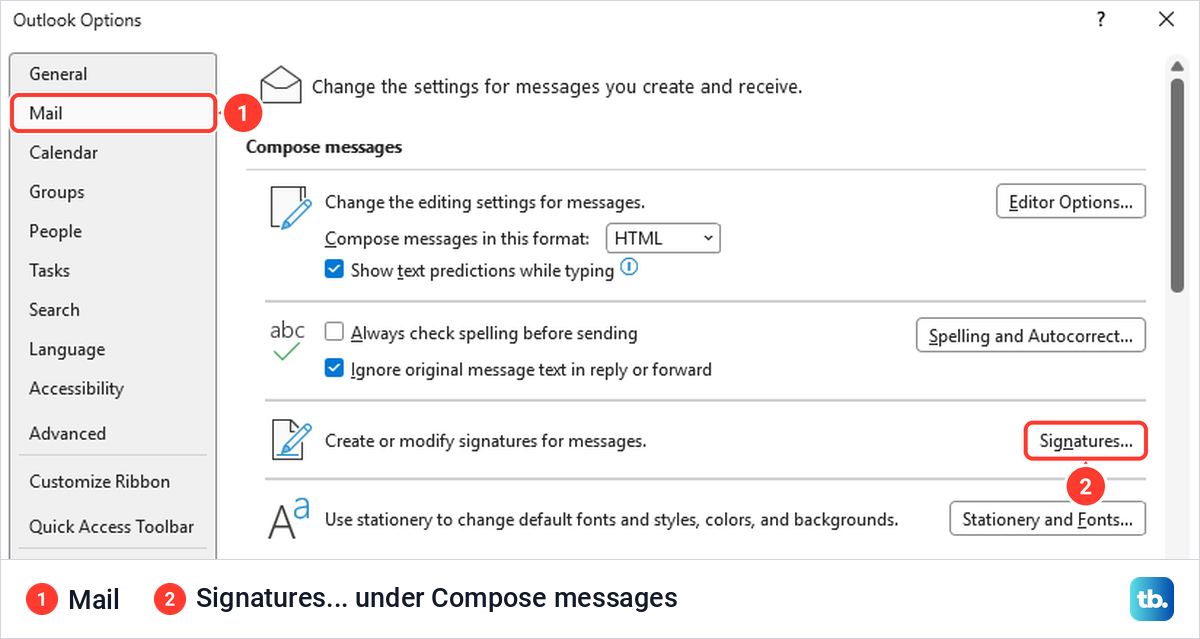
The keyboard route Microsoft gives works too. Press Alt + F to open the File menu with its key letters, then T for Options and M for Mail. Alt + N jumps to the Signatures button and Enter opens it.
You can also start from a new message. On its Message tab, open the signature button and choose Signatures..., which opened the same window for us. This route has a catch: the message we started from stayed blank after we selected OK, although the new signature was set for new messages. To sign that one message, open the same signature button and pick the signature.
In the Signatures and Stationery window, if Outlook has more than one account, first choose the account in the E-mail account list. Select New, type a name such as Full or Work, and select OK. Then click in the Edit signature box and type your signature.
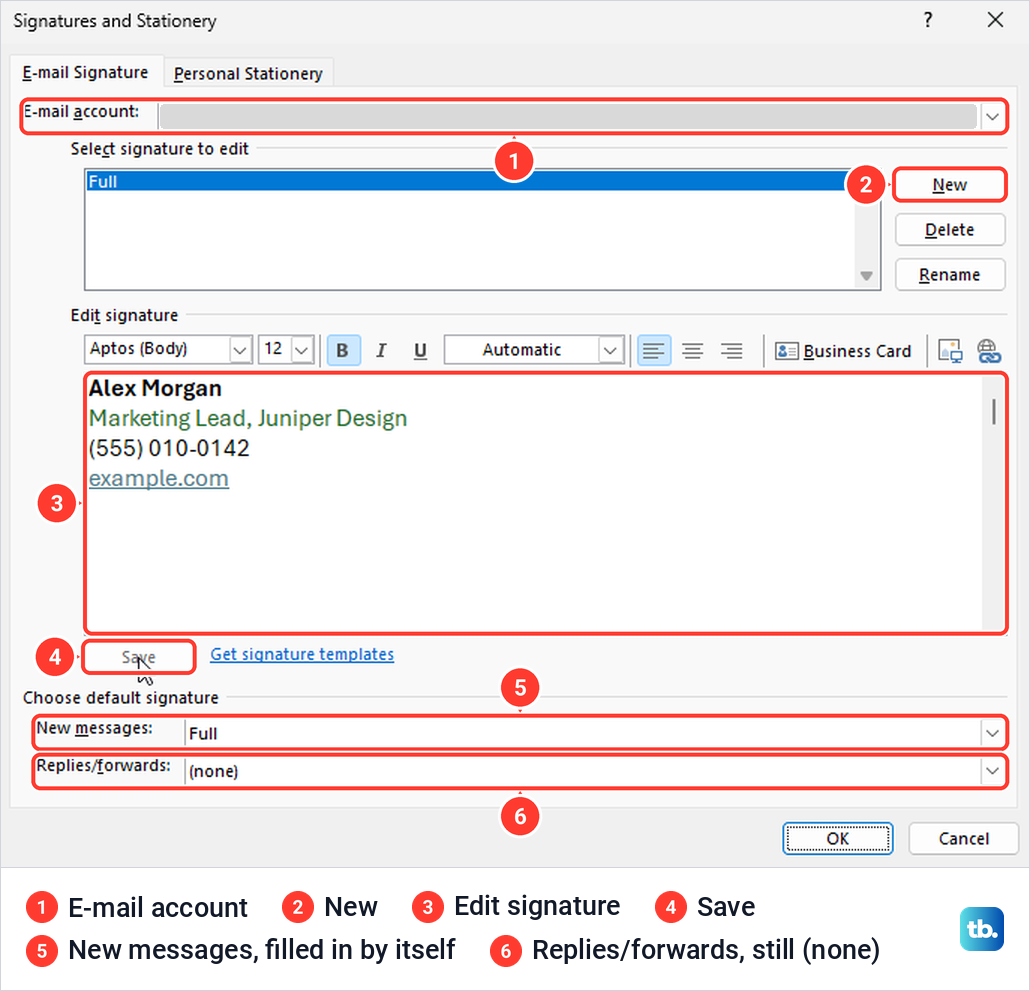
The toolbar above the box sets the font, size, bold, colour and alignment. To make a line a link, select its text, choose the link button at the right end of the toolbar, type the web address in Address and select OK. Select Save when you are done.
Watch for one small trap. When we typed our web address on its own line, the editor capitalised it to Example.com, and it only stayed lower case after we typed it again over the selected text.
Microsoft suggests building anything with bullets, tables or borders in Word, for example from a template found with File > New and a search for Email signature. Copy the result and paste it with Ctrl + V into the Edit signature box.
Choose the signature for new messages and replies
The bottom of the same window, Choose default signature, decides when Outlook adds a signature on its own. New messages covers emails you start, and Replies/forwards covers the rest. Both read (none) before you make your first signature.
Our first saved signature went straight into New messages without us choosing it. Replies/forwards stayed at (none), which matches Microsoft's description, so replies would have gone out with no signature. Open the Replies/forwards list, pick a signature, and select OK to close the window.
Many people use a shorter signature for replies. We made a second one with just a name and company, set it for Replies/forwards and kept the full one for new messages.
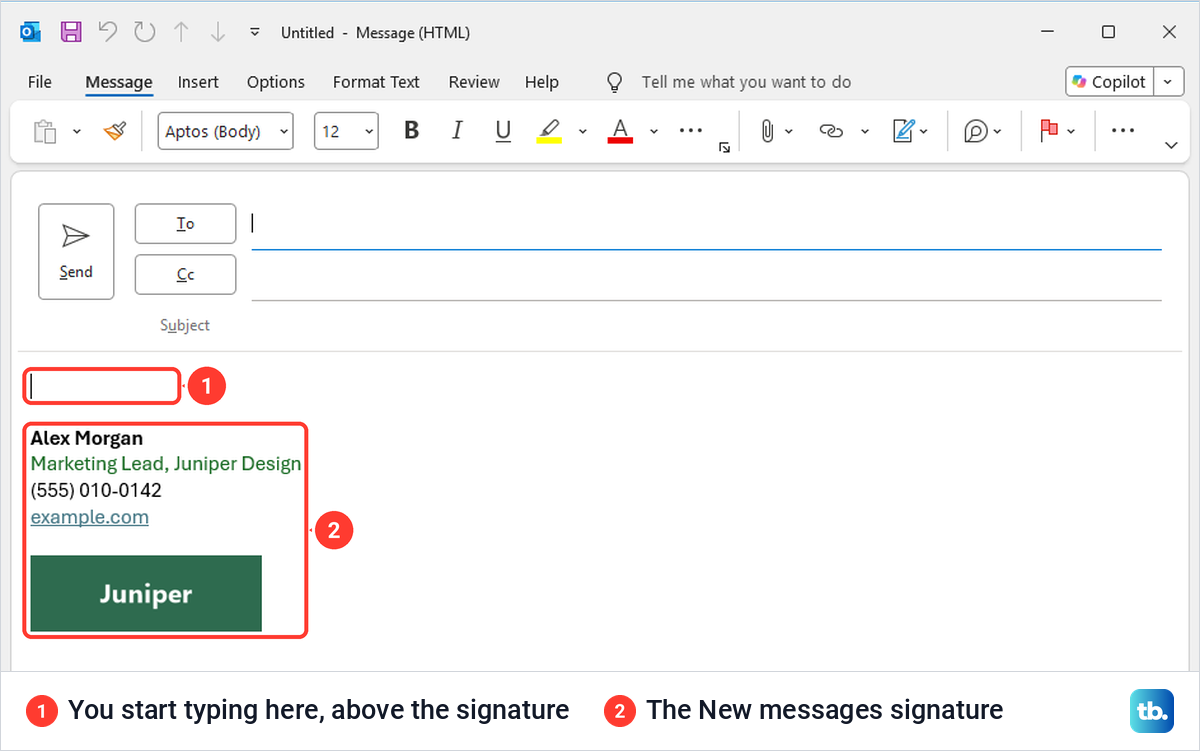
Then we pressed Ctrl + N for a new message. The full signature was already in the body below one empty line, with the cursor waiting above it.
A reply picked up the short one. We selected a message, pressed Ctrl + R, and the reply opened in the reading pane with the short signature above the quoted email.
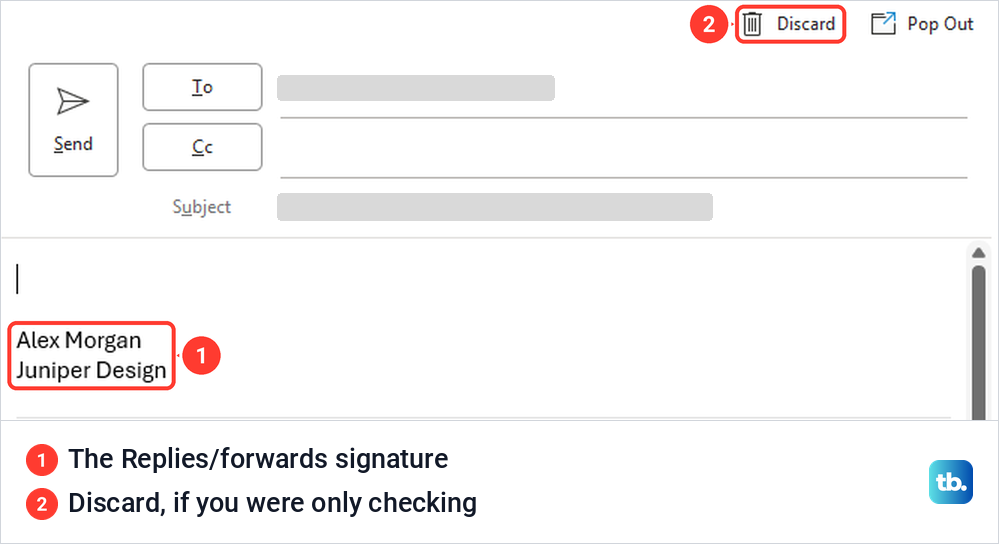
If you do not want a signature added automatically, set both lists back to (none). You can still add one by hand, as described below.
Add a logo or picture to your signature
In Signatures and Stationery, select the signature, click where the logo should go, and select the picture button, the second icon from the right end of the toolbar. It opens an Insert Picture window at your Pictures folder. Pick the file and select Insert.
Our 300 by 100 pixel logo went in at full size, which looked too big under four short lines. To shrink it, right-click the picture and choose Picture..., then open the Size tab of the Format Picture window.
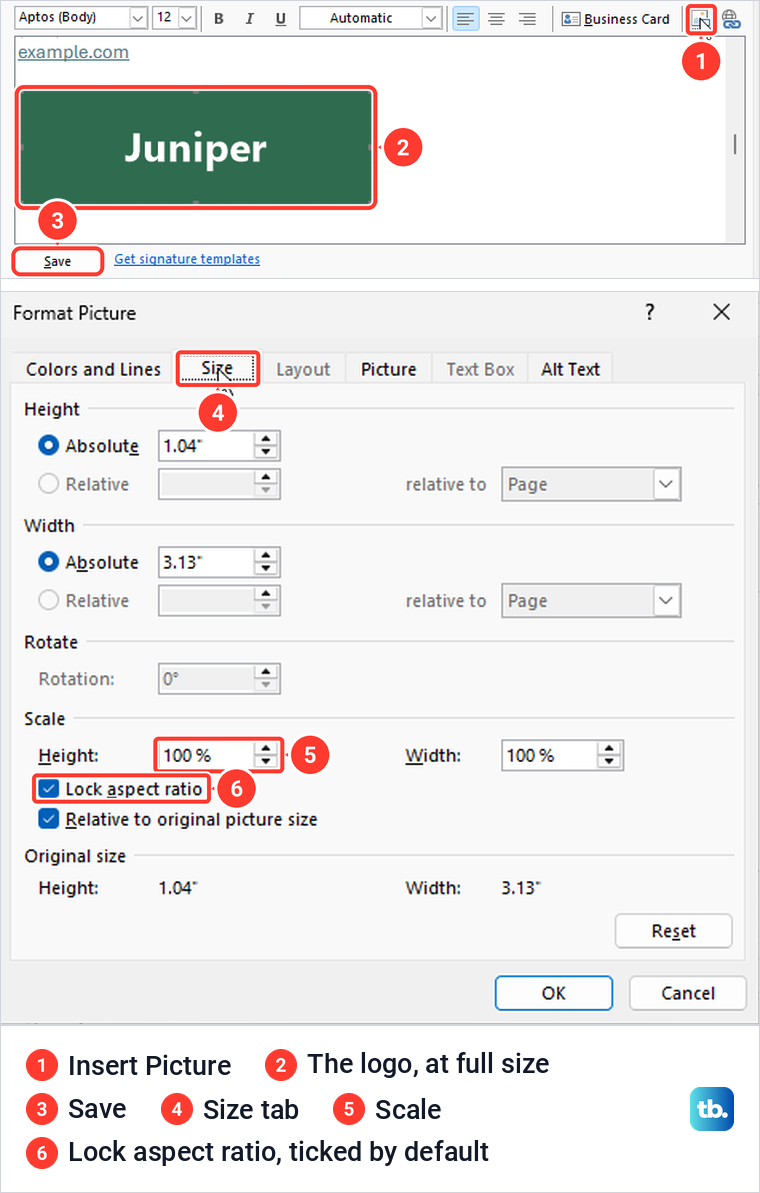
Lock aspect ratio was ticked by default, so when we typed 60 % into Height under Scale, the width followed and the logo kept its shape. Select OK, then Save. Format Picture also has an Alt Text tab, worth filling in for people whose email app hides pictures.
Microsoft recommends inserting pictures with that button. It warns that some signature code, Vector Markup Language (VML) tags, can make pictures arrive as attachments instead of inside the message, so use the button rather than other routes.
One display quirk caught us out. When we reopened the window later, the saved logo showed in the editor as a dark grey box with a broken picture icon, yet new messages still showed it correctly. Check a new message before you redo the logo.
Insert or switch a signature while you write
You can add any saved signature to a message by hand, which helps when you keep several or have no default set. In a classic Outlook message, open the Insert tab, select Signature, and pick one from the list. The Signatures entry at the bottom opens the settings window.
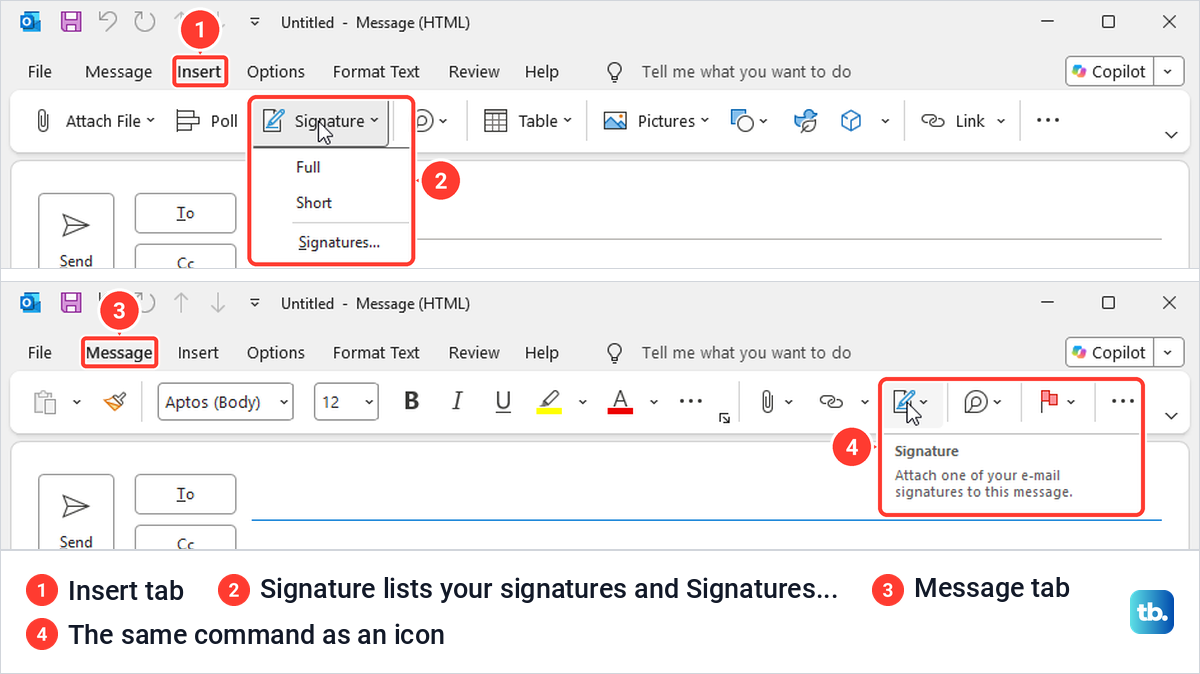
The Message tab has the same command. In our message window it showed only as a pen icon, and hovering over it brought up the tooltip Attach one of your e-mail signatures to this message.
You can open the same list from the keyboard. In a message open in its own window, press Alt, then N for the Insert tab, then A and S. The list opened with the first signature selected, and Down and Enter added the second one to our reply.
Choosing a signature from the list swaps the whole thing. When we picked the short one in a message that already had the full signature, the full one disappeared, logo and all, instead of a second signature appearing below it.
Change or delete a signature
To change a signature in classic Outlook, go back to File > Options > Mail > Signatures and select it under Select signature to edit. Make your changes in the Edit signature box, then select Save and OK. When we reopened the window, our signature still had its bold name, coloured line and link.
To delete one, select it in the list and select Delete. Classic Outlook asks you to confirm and warns that all e-mail accounts using the signature will no longer have a signature.
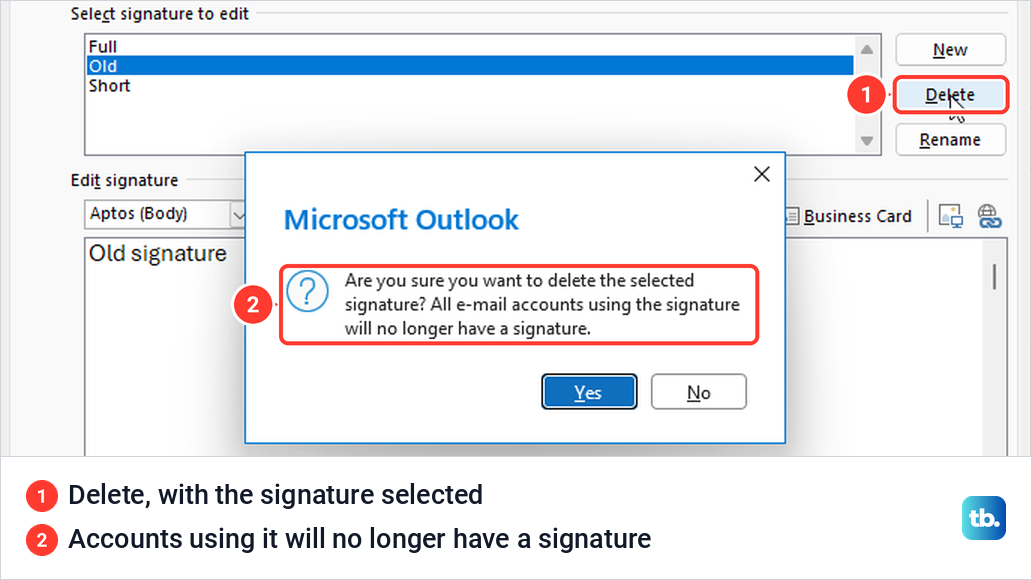
That warning is literal. When we deleted signatures that were set as defaults, New messages and Replies/forwards went back to (none) on their own, so pick a new default afterwards if you still want one.
Add or change a signature in the new Outlook and Outlook on the web
In Outlook on the web, select the Settings gear at the top right, then Account and Signatures. Microsoft's page says Accounts, but on our screen the item read Account, and the same list holds Automatic replies, where you set up an out of office reply. Older instructions that send you to Mail > Compose and reply describe an earlier layout, and on our screen the Mail list showed Compose, not Compose and reply.
Microsoft says the new Outlook for Windows uses the same steps, and that with more than one account you select the one you want first. For a personal address, open Outlook.com and sign in to your Hotmail or Outlook.com account before you start.
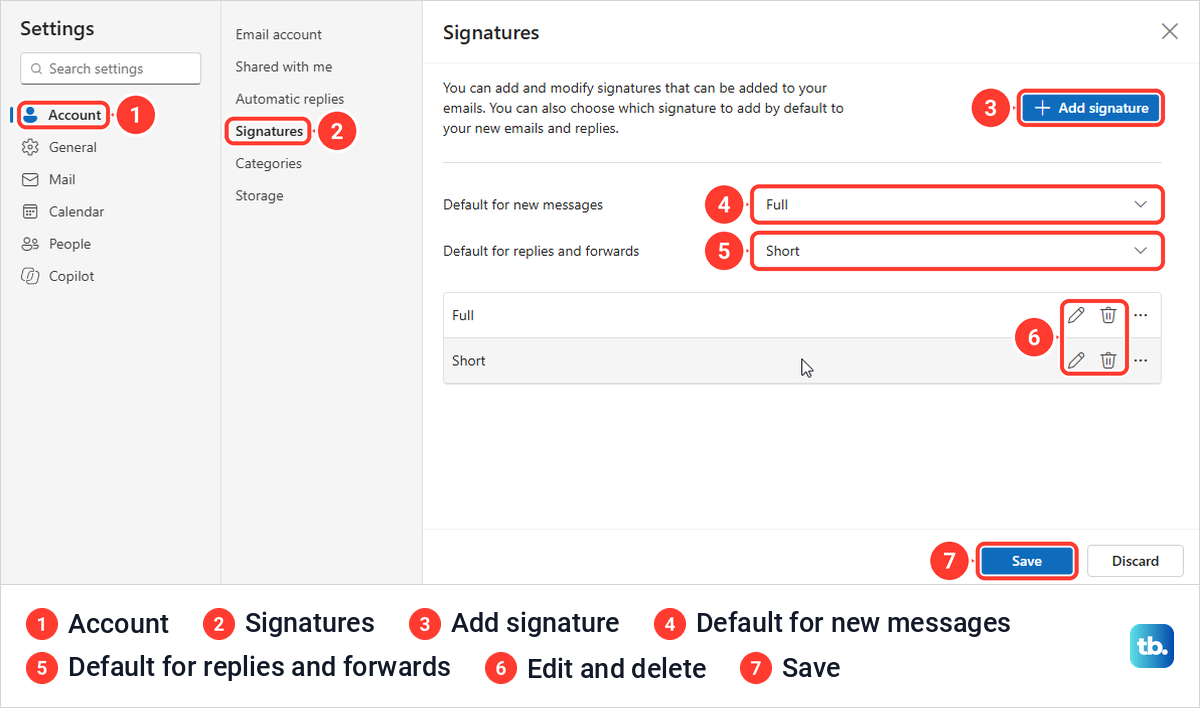
Select + Add signature. An Edit signature window opens with a box for the name, the editor, and two checkboxes, Set default for new messages and Set default for replies and forwards. Save stays greyed out until you type something.
Bold, font colour and links work from the toolbar. Ctrl + K did not, because Microsoft Edge took it and opened its address bar, so use the link button. Keep your clicks inside the window, too: one click outside it closed the editor and lost our unsaved signature without a warning.
For a logo, open the editor's Insert tab and select Pictures, which opens the Windows Open window. Our logo went in at full size, and dragging a corner handle shrank it while keeping its shape. Right-clicking the picture brought up no picture menu, only a browser prompt asking to see the clipboard, and we found no alt text option in this editor.
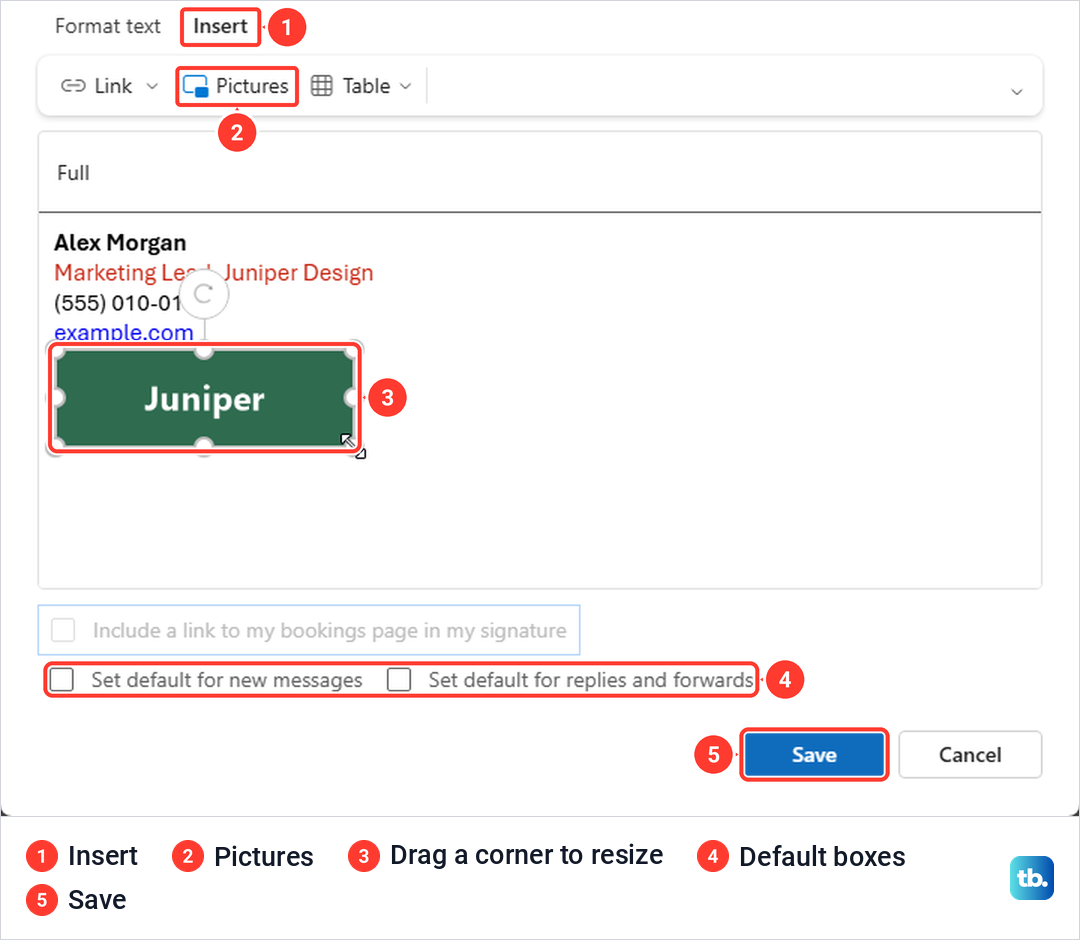
The defaults work in two places. Tick the boxes in the editor before you select Save, or use the Default for new messages and Default for replies and forwards lists on the Signatures page. A change in those lists only sticks after you select Save at the bottom of the page. Both lists read No signature yet until you save a signature, and (No signature) after that.
With the defaults set, a new message got the full signature with the logo, and a reply got the short one. While writing, the same Signature list sits on the Insert tab and behind a pen icon on the Message tab. To change a signature, select the pencil next to it and then Save, and the bin deletes it after asking you to confirm.
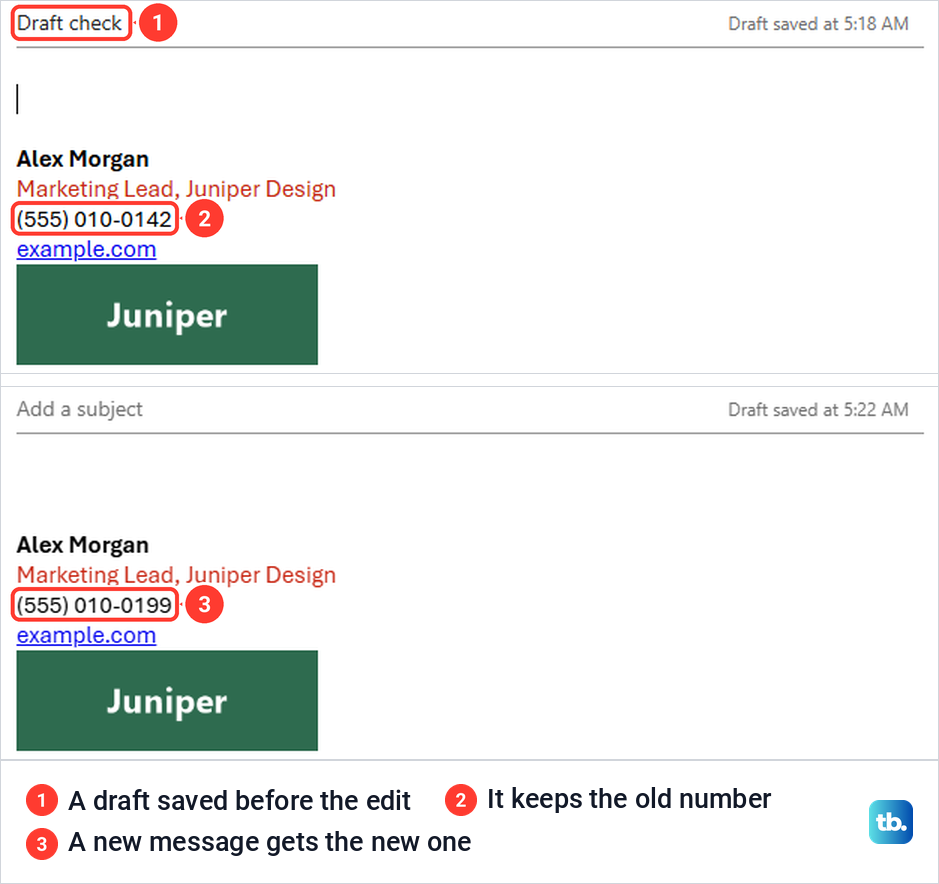
Editing a signature does not reach back into messages that already have it. We saved a draft, then changed the phone number in the signature, and the draft kept the old number while a new message got the new one.
Set up a signature in Outlook for Mac
On the Outlook menu, select Settings, then under Mail select Signatures. Select Standard and rename it, or select the add button for a new signature, give it a name and type it in the Signature editor.
Microsoft puts pictures, links and tables under See more items in the editor, and Microsoft's steps end by closing the Signatures window. To change one later, select it under Signature name, select Edit, update it and close the window again.
Defaults are set per account. Under Choose which signature appears, pick the account, then set For new messages and For replies or forwards, and repeat that for each account. While writing, select Signature on the ribbon to add one by hand.
Older instructions mention Email and Choose default signature, which is the wording of legacy Outlook for Mac. Microsoft's end of support page says that starting in October 2026 the legacy app no longer works with Exchange Online mailboxes, while Exchange on-premises mailboxes keep working until October 9, 2029.
Change your signature on iPhone and Android
In the Outlook phone app, Microsoft's steps are to open the navigation pane from your Inbox (the navigation drawer on Android), choose Settings, tap Signature under Mail, and type your signature. By default it reads Get Outlook for iOS or Get Outlook for Android, so replace that text, or delete it if you want no signature at all. To reuse your PC signature, email the text to yourself and copy and paste on your phone into the Signature box.
One signature covers every account until you switch on Per Account Signature, which gives each account its own box. The phone app has its own signature setting, so keep the signature there short and plain. If your Settings screen looks different, update Outlook on your phone first.
Use a different signature for each email account
Every version lets each account have its own signature. In classic Outlook, choose the account in the E-mail account list at the top of Signatures and Stationery, then set New messages and Replies/forwards for it. If you added a Gmail account to Outlook, it appears in that list too. Microsoft says the new Outlook asks you to select the account first, a Mac uses Choose which signature appears, and phones use Per Account Signature.
Why your signature looks different on another device
Where a signature is stored decides whether it follows you. Microsoft's documentation treats the Outlook on the web signature as a setting of your mailbox, so it is there in any browser you sign in to.
From version 2303, Microsoft says classic Outlook stores signatures for Microsoft 365 and Outlook.com mailboxes in the mailbox, so they are available wherever that account is set up. When the feature switched on, Outlook copied only the signatures that were defaults at that moment, and older ones that were not stay under Signatures on this device. Exchange on-premises, POP and IMAP accounts do not roam at all. If your Outlook is older than version 2303, update Microsoft Office.
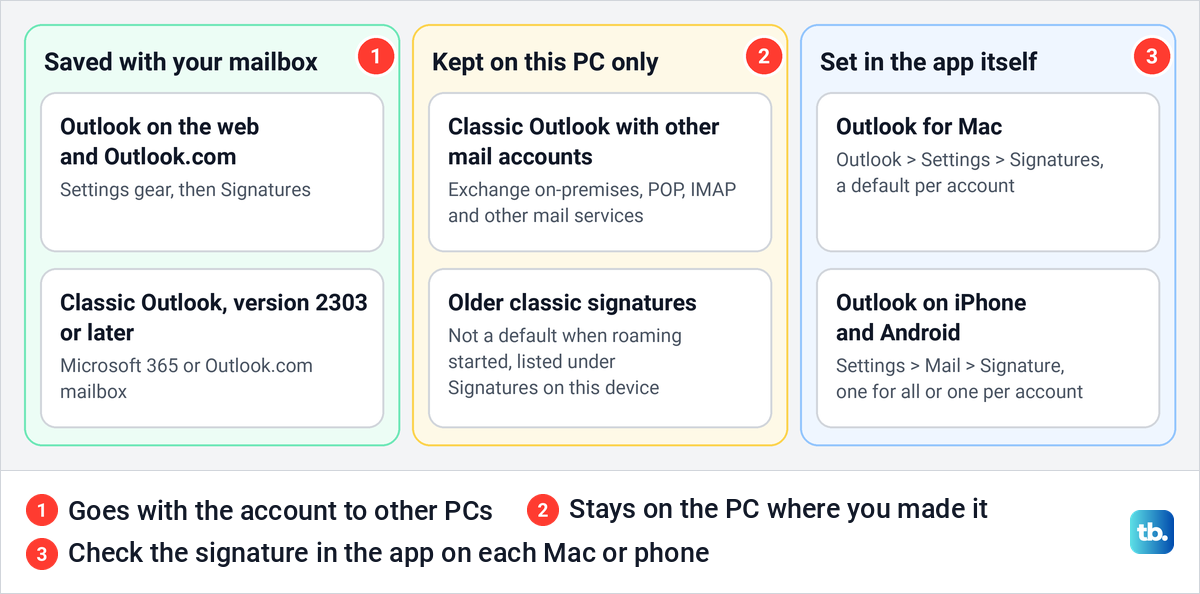
Microsoft's main signature page still tells Microsoft account users to create the signature in both Outlook and Outlook on the web. That is the safe advice: if a signature is missing in another app, set it up there. Outlook for Mac and the phone app each have their own signature setting, so check the signature there too.
Bring your signatures into the new Outlook
Microsoft says the new Outlook offers to import your classic settings, signatures included, the first time it starts, with the choices Import Settings and Skip. The import only works if Store my Outlook settings in the cloud was ticked in classic Outlook. We found that box under File > Options > General, in the Cloud storage options section, and its label says it needs a restart of Outlook.
To run the import again, Microsoft's steps are Settings > Accounts > Your accounts, then Manage next to your main account and Get Started. If a signature still does not appear, open it in classic Outlook, copy the text and logo, and paste it into a new signature in the new Outlook.
When your signature does not show or keeps changing back
A common cause is the reply setting. If new messages get a signature but replies do not, Replies/forwards or Default for replies and forwards is still empty, so pick a signature there.
One cause of a missing logo is plain text. In classic Outlook we switched a message through Format Text, the three dots, Message Format and Plain Text. The Compatibility Checker warned that formatted text will become plain text, and after Continue the logo, colour and link were gone.
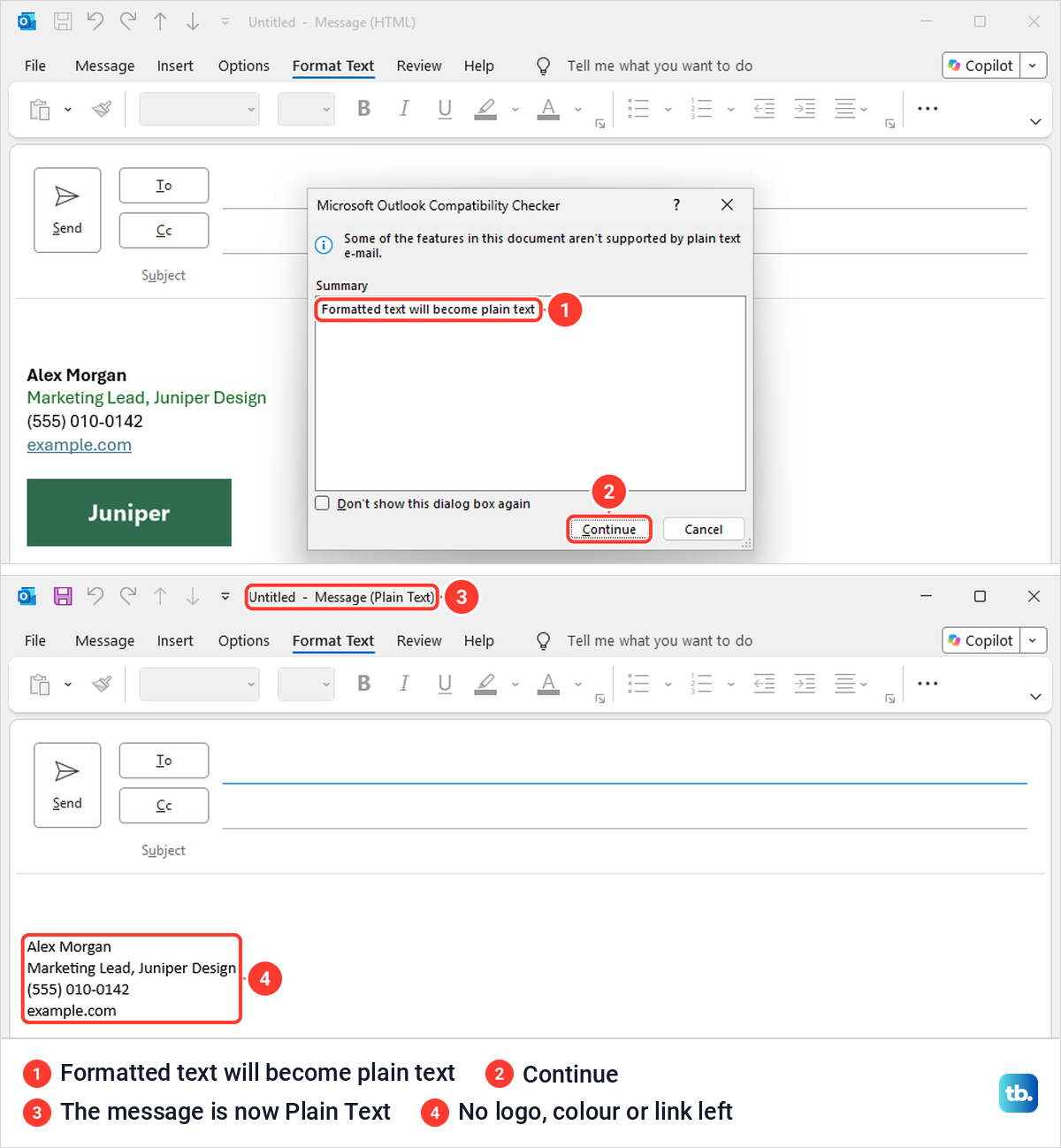
Outlook on the web did the same. Its plain text button on the Options tab, a T icon on our screen, asked us to Switch to plain text and warned that all formatting and inline images in this message will be removed. Microsoft says plain text cannot show pictures inside a message at all.
In classic Outlook, switching back did not undo it for us. When we set the same message to HTML again, the title bar read Message (HTML) but the link stayed plain text, and only a new message had the formatted signature again. If every new message opens in plain text, go to File > Options > Mail and set Compose messages in this format to HTML.
If an old signature keeps coming back, check every place it lives. Change it in Outlook on the web as well as in classic Outlook, then restart Outlook on your PC and open a new message to check.
Work accounts can have one more layer. Microsoft lets administrators add a signature or disclaimer to messages with a mail flow rule as they leave the organization. To check, set your defaults to (none) in classic Outlook or (No signature) on the web and send a test message to another address you can open, such as a personal one. If the received copy still has a signature, your organization most likely adds it, and only your IT team can change that.
How we tested this guide
We tested this on Windows 11, version 25H2, with classic Outlook for Microsoft 365 and Outlook on the web, creating signatures and setting defaults for new messages.
Frequently Asked Questions
Why does my Outlook signature not show up when I reply?
Replies have their own setting. In classic Outlook, Replies/forwards stays at (none) until you choose a signature, even after your first signature became the default for new messages. In Outlook on the web, set Default for replies and forwards and select Save.
Where is the signature setting in the new Outlook?
Microsoft's steps are the Settings gear at the top right, then Accounts and Signatures. It is not under Mail, and in Outlook on the web the same item read Account on our screen.
Why does my old Outlook signature keep coming back?
An older copy is usually still saved somewhere else, such as Outlook on the web, so change it there too. If a signature still appears on the received copy with no default chosen, your organization most likely adds it, and only an administrator can change that.
How do I change the signature in the Outlook app on my phone?
Open Settings, tap Signature under Mail, and replace the Get Outlook for iOS or Get Outlook for Android text. Turn on Per Account Signature if each account needs its own.
My signatures disappeared after I moved to the new Outlook. How do I get them back?
Microsoft says the new Outlook imports them only if Store my Outlook settings in the cloud was ticked in classic Outlook. Tick it, restart classic Outlook, then run Get Started again from Settings > Accounts > Your accounts > Manage, or copy each signature from classic Outlook and paste it in.
Does changing my signature change emails I already sent?
No. Outlook puts the signature into each message as you write it, and when we edited ours, even a saved draft kept the old version. If an email just went out with the wrong details, you may be able to recall an email in Outlook.
Is an email signature the same as a digital signature?
No. An email signature is the text and logo at the end of a message, while a digital signature proves a message came from you and needs a digital ID. Microsoft notes that anyone can copy an email signature, but only the owner of the digital ID can send a digitally signed message.