

Copilot stops in different places: the app will not open, the web version asks for the wrong account, the Microsoft 365 button disappears, voice stays silent, or a license check blocks the feature.
Start by separating the consumer Copilot app from Microsoft 365 Copilot, then use the matching fix below.
The steps use Microsoft’s current support paths from July 2026 material.
1. Separate the app from the account
First, test Copilot on the web.
This tells you whether the installed app is the problem or the same account is blocked everywhere.
Open copilot.microsoft.com in a modern browser.
Select Sign in when prompted.
Enter the same prompt or request that failed in the app.
If Copilot works in the browser, repair or reinstall the installed app.
If the browser version fails too, fix the account, region, license, cookies, or organization controls before spending time on the app.
2. Match Copilot to the right sign-in
The sign-in has to match the Copilot product.
For the standalone Copilot app on Windows, sign in with a personal Microsoft account.
For Copilot inside Word, Excel, PowerPoint, Outlook, or OneNote, the right sign-in depends on your plan: an eligible Microsoft 365 Personal, Family, or Premium subscription uses your personal Microsoft account (on Family and Premium, only the subscription owner gets it), while business Microsoft 365 Copilot uses a work or school account that has the Copilot license.
Business Copilot Chat also uses that work or school account.
Also confirm that Copilot is supported where you are using it.
Microsoft lists Copilot availability in more than 170 markets, with exceptions that include China except Hong Kong and embargoed markets.
When the wrong account is active, sign out cleanly instead of mixing account types in the same session.
Select the profile or account menu in the app, choose Sign out, close the app, reopen it, and select Sign in with the account tied to that Copilot product.
3. Repair the Windows app before reinstalling
- 1.Select the Close button in the upper-right corner of the Copilot app, then reopen Copilot.
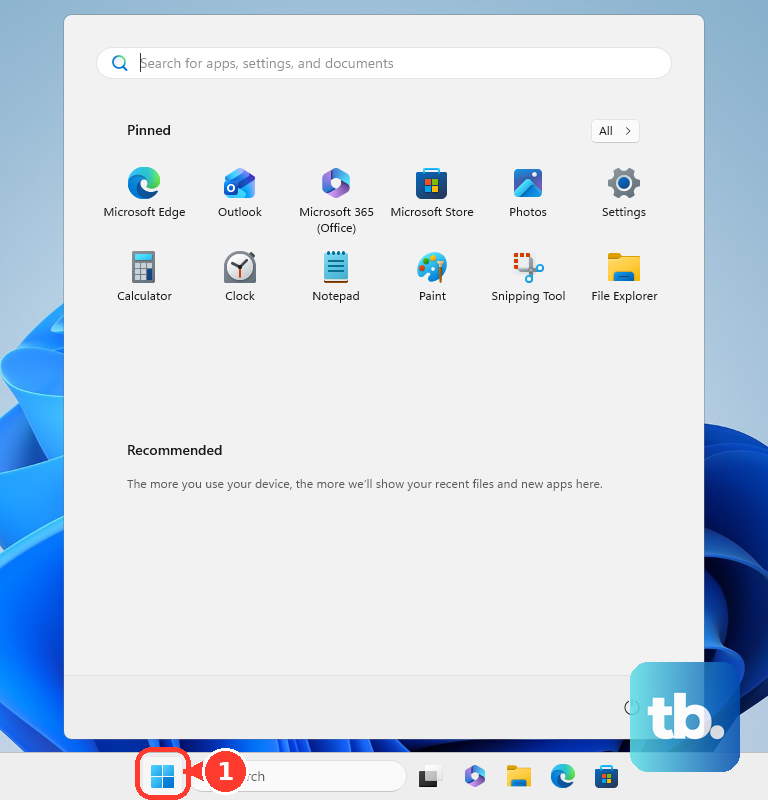
- 2.Select Start > Microsoft Store > Library > Get updates.
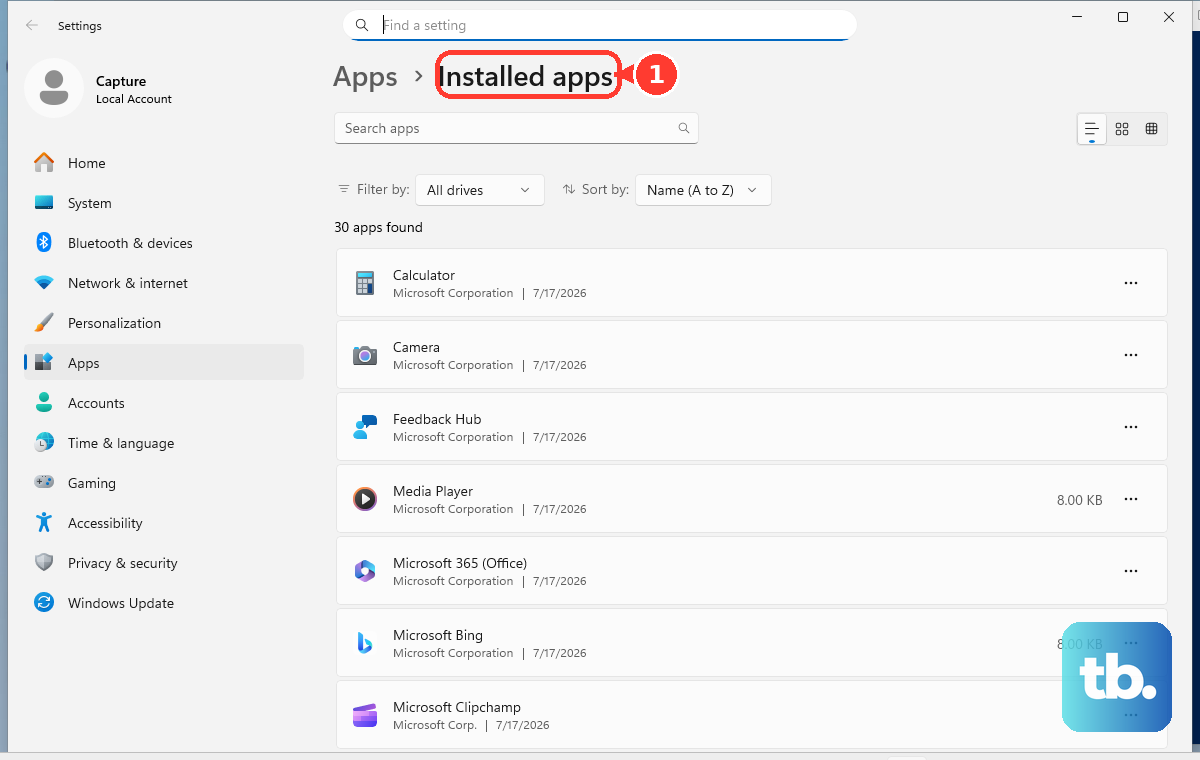
- 3.Select Start > Settings > Apps > Installed apps.
- 4.Find Copilot, select the More icon, then select Advanced options.
- 5.Select Repair, reopen Copilot, and test it again.
- 6.If the same problem returns, go back to Advanced options and select Reset.
Microsoft notes that not every app shows Advanced options, Repair, or Reset.
When those controls are absent, reinstall Copilot from the official store listing for your device.
4. Reinstall Copilot from the official store
Use the official app store for the device.
Avoid registry edits, package-removal scripts, and old Windows Copilot policy fixes for the current Copilot app.
For Windows, open the Microsoft Store listing for Copilot and select Get or Install.
For iPhone or iPad, open the App Store listing for Microsoft Copilot and select Get.
The iPhone app requires iOS 16.0 or later, and the iPad app requires iPadOS 16.0 or later.
For Mac, open the App Store listing for Microsoft Copilot and select Get.
Microsoft lists the Mac app for macOS 14.0 or later with Apple M1 or later, currently in the US, UK, and Canada.
For Android phones, tablets, and Chromebooks, open the Google Play listing for Microsoft Copilot and select Install.
To remove Copilot first on Windows 11, select Settings > Apps > Installed apps, search for Copilot, select the More options menu, and select Uninstall.
You can also select Start > All apps, right-click Copilot, and select Uninstall.
5. Find the Microsoft 365 Copilot button again
In Word, Excel, or PowerPoint, the Copilot button is not always on the ribbon.
Microsoft’s July 2026 guidance says to look for the Copilot Dynamic Action Button in the lower-right corner of the document, workbook, or presentation.
The button can also sit next to the ribbon.
Next, update Microsoft 365 and confirm the update channel.
In a Microsoft 365 app for Windows, select File > Account and check Product Information.
Microsoft historically blocked Microsoft 365 Copilot on Semi-Annual Enterprise Channel, but beginning with Microsoft 365 Apps Version 2606 in July 2026 those devices receive the Monthly Enterprise Channel experience and show as Monthly Enterprise Channel in File > Account.
Once on Version 2606 or later a device can become Copilot-eligible without a channel migration if it meets the other requirements, so ask IT to confirm the installed version.
Devices still held on Version 2508 stay without Copilot until they update or IT moves them to Current Channel or Monthly Enterprise Channel.
Then refresh the license.
On Windows, open any Microsoft 365 app, select File > Account > Update License, then close and restart every open Microsoft 365 app.
On Mac, select the app name menu such as Word or PowerPoint, then select About Word or About PowerPoint > More Info... > Refresh License, close open documents, and restart the Microsoft 365 apps.
6. Clear Microsoft 365 license and file blocks
Some Microsoft 365 Copilot errors come from privacy settings, browser cookies, or unsupported file storage rather than the Copilot button itself.
On Windows, open Word, Excel, or PowerPoint, then select File > Account.
Under Account Privacy, select Manage Settings.
Turn on Experiences that analyze your content, then turn on All connected experiences.
On Mac, open Word, then select Word > Preferences > Privacy.
Turn on Experiences that analyze your content and All connected experiences.
In Microsoft Edge, select Settings and More > Settings > Cookies and site permissions > Manage and delete cookies and site data, then set Block third-party cookies to Off.
In Google Chrome, select Customize and control Google Chrome > Settings > Privacy and security > Third-party cookies, then select Allow third-party cookies.
If the file is stored outside Microsoft-supported locations, move or copy it to OneDrive or SharePoint, then retry Copilot with that file.
Microsoft ties third-party cookie blocking to Microsoft 365 Copilot license validation errors in web apps.
Microsoft also directs users to move files from unsupported third-party storage into OneDrive or SharePoint before trying Copilot again.
7. Restore Edge, voice, and the Copilot key
For Copilot in Edge, open Settings > Appearance > Copilot and Sidebar > Copilot.
Turn on Show Copilot button on the toolbar.
When Copilot needs the page or PDF context, turn on Allow Microsoft to access page content.
For Copilot Voice on Windows 11, select Start > Settings > Privacy & security > Microphone.
Turn on Microphone access, turn on Let apps access your microphone, and allow the Copilot app or browser you are using.
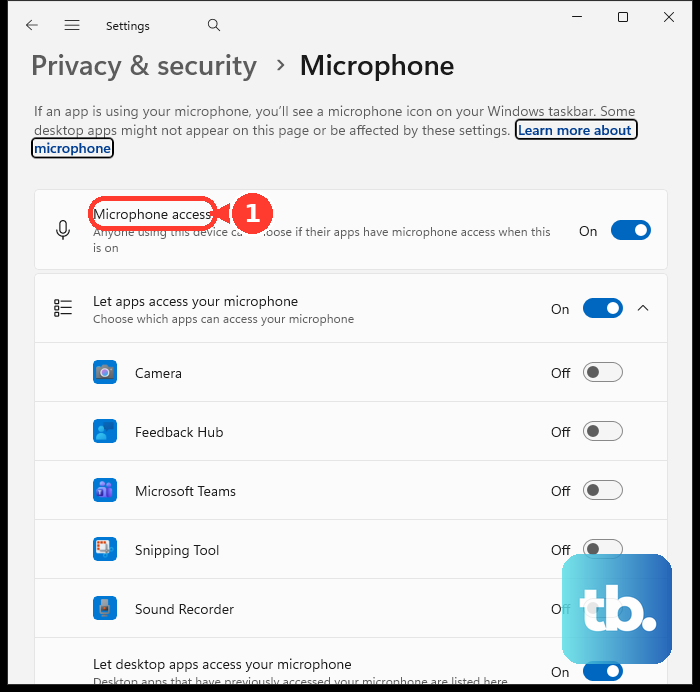
For desktop apps, turn on Let desktop apps access your microphone.
Inside the Copilot app, select the Microphone icon in the composer and grant microphone access when prompted.
For the consumer Hey Copilot wake word, open Copilot settings and select Account > Settings > Listen for ‘Hey, Copilot’ to start a conversation, then turn the switch on.
The Windows PC must be on, unlocked, connected to the internet, and running the Copilot app.
On Windows 11 devices with a Copilot key, a short press of the Copilot key (or Win+C) opens the consumer Microsoft Copilot app; for work or school (Microsoft Entra) sign-ins, it opens a lightweight Microsoft 365 Copilot prompt box that you can expand into the full app.
To remap the hardware key, select Settings > Personalization > Text input, use Customize Copilot key on keyboard, and choose Search, Custom, or a mapped app.
8. Escalate work account issues to IT
On managed work or school devices, Copilot access is controlled by licensing, Microsoft 365 app channels, connected experiences, Edge policy, web search, image generation, and Copilot Chat pinning.
Ask your IT admin to check those controls in the Microsoft 365 admin center before you keep reinstalling apps.
For licensing, the admin path is Billing > Licenses > Microsoft 365 Copilot.
Admins can assign licenses, verify users under Users > Active Users, open Errors & Issues for assignment problems, and select Reprocess after fixing the underlying issue.
Do not use old tutorials that rely on the legacy Turn off Windows Copilot policy for the new Copilot experience; Microsoft describes it as subject to near-term deprecation and says it does not control the installed Microsoft 365 Copilot app.
Do not use old Office Intelligent services or old Trust Center privacy toggles either; Microsoft replaced those with File > Account > Account Privacy > Manage Settings and current policy controls.
Frequently Asked Questions
Why is Copilot not working even though the app opens?
The open app only proves the local app launched. Copilot still depends on the right Microsoft account, a supported region, Microsoft 365 licensing, connected experiences, browser cookies, microphone permission, and supported file storage.
Why did the Copilot button disappear from Word or Excel?
Microsoft’s July 2026 guidance says the Copilot Dynamic Action Button appears in the lower-right corner of the document, workbook, or presentation, and it can also sit next to the ribbon.
Can I use a personal Microsoft account for Microsoft 365 Copilot?
It depends on the product. With an eligible Microsoft 365 Personal, Family, or Premium subscription, Copilot in the desktop apps runs on your personal Microsoft account, though on Family and Premium only the subscription owner gets it. Business Microsoft 365 Copilot and Copilot Chat use the work or school account that has the Copilot license, and the standalone Copilot app on Windows uses a personal Microsoft account.
What should IT check when Microsoft 365 Copilot is missing?
IT should check the Microsoft 365 Copilot license, the Microsoft 365 app update channel, connected experiences policy, Edge access, Copilot Chat access, web search settings, and any license assignment errors in the Microsoft 365 admin center.