
To encrypt an email in Outlook, open a new message, select Options > Encrypt, pick Encrypt or Do Not Forward, then select Send. That is also how you send a secure email in Outlook with a work or school account, as long as your organization has Microsoft Purview Message Encryption set up for you. Without that button, your choices are S/MIME certificates, an encryption label from your organization, or a request to your IT team.
The Encrypt button only appears when your account qualifies, so plenty of people never see it. On our PC, classic Outlook and Outlook on the web both opened new messages with no Encrypt button, while the certificate-based S/MIME settings were still in place. Choosing Confidential from the ordinary Sensitivity list does not fill that gap, because Microsoft says the Sensitivity level doesn't stop recipients from taking any actions on a message.
The short version
- One message: Options > Encrypt > Encrypt, then Send.
- Stop forwarding: choose Do Not Forward, which Microsoft says also blocks printing and copying.
- No Encrypt button: ask your IT team to check your license and the Purview setup.
- S/MIME: needs your own digital ID and a certificate for every recipient.
- Confidential is not encryption: it only marks the message.
Which Outlook encryption to choose
Outlook has two separate kinds of encryption, and they behave differently for the person you are writing to. Microsoft Purview Message Encryption is the Encrypt button, with Encrypt and Do Not Forward as its usual choices. S/MIME uses digital certificates instead, so you and every recipient need them before a message can be read.
| Option | Where to find it | What you need | What the recipient gets |
|---|---|---|---|
| Encrypt | Options > Encrypt > Encrypt | A work or school account with Purview Message Encryption, or a Microsoft 365 Personal or Family subscription | Reads it in Outlook, or in a browser after signing in or using a one-time passcode |
| Do Not Forward | Options > Encrypt > Do Not Forward | The same as Encrypt | Can read it, but Microsoft says they can't forward, print or copy it |
| S/MIME | Message options (web and new Outlook) or Security Settings (classic) | Your digital ID and each recipient's certificate | Needs the matching private key on their device |
| Encryption label | Message > Sensitivity | A label your organization published with encryption turned on | Whatever access the label's settings allow |
| Confidential marking | Properties > Sensitivity | Nothing | A line reading Please treat this as Confidential, with no restriction |
The two kinds do not mix on one message. Microsoft says IRM protection, which is what Encrypt and Do Not Forward apply, should not be added to a message that is already signed or encrypted with S/MIME, and the reverse holds too. Remove one before you apply the other.
Encrypt one message in classic Outlook
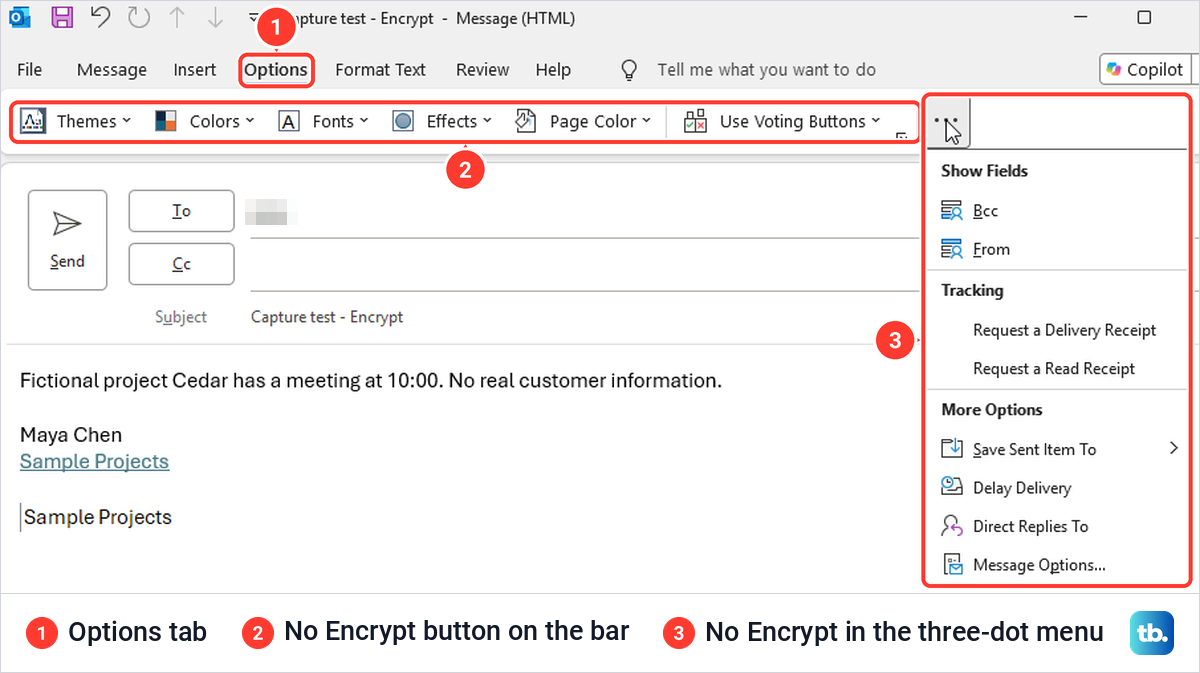
In classic Outlook for Windows, open a new message and add your recipients. Select the Options tab, then Encrypt, and choose Encrypt or Do Not Forward from the list. Finish the message and select Send. Use the Options tab, which is the route Microsoft's instructions give, rather than File > Encrypt.
On our classic Outlook, the Options tab held Themes, Colors, Fonts, Effects, Page Color and Use Voting Buttons, and nothing else. The three-dot menu at the end of the bar offered Show Fields, Tracking and More Options, and the message's File > Info screen showed only Move to Folder and Properties. If yours looks the same, the Encrypt button is not available to your account, and the section on a missing button below explains who can change that.
Choose between Encrypt and Do Not Forward
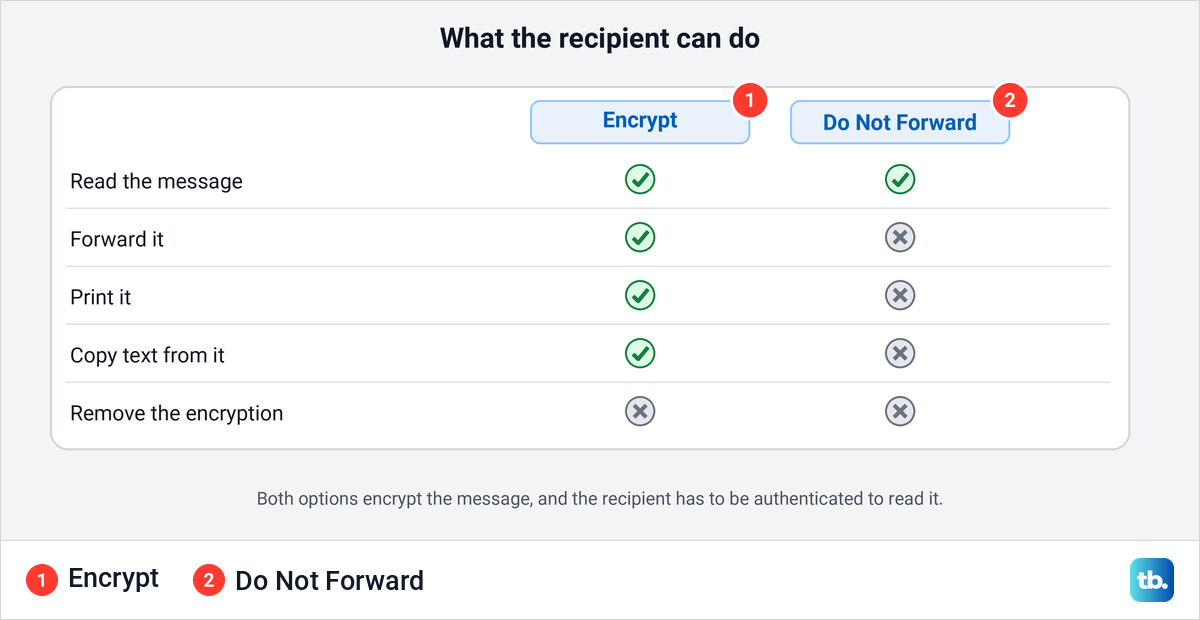
Both options encrypt the message and make the recipient sign in or otherwise prove who they are before reading it. The difference is what they can do next. Microsoft says that with Encrypt, recipients can still copy from the email, print it and forward it, but they can't remove the encryption, and Save As and Export are among the rights they don't get.
Do Not Forward goes further. In Microsoft's words, recipients can't forward it, print it, or copy from it, and in the Outlook app the Forward button isn't available and Save As and Print are missing. Microsoft adds that only the original recipients and the sender can view it, which suits messages meant only for the people you addressed.
Attachments do not always keep that protection. With Do Not Forward, Microsoft says Word, Excel and PowerPoint files stay protected even after the recipient downloads them, though not the older .doc, .xls and .ppt formats. With Encrypt, Microsoft's Outlook.com page says recipients with Outlook.com and Microsoft 365 accounts can download attachments without encryption. PDFs stay protected only if your organization has turned on PDF encryption, and the same Outlook.com page says images can be downloaded without encryption.
Encrypt email in Outlook on the web and new Outlook
New Outlook for Windows and Outlook on the web use the same steps. Open a new message, select Options > Encrypt, pick Encrypt or Do Not Forward, and select Send. Microsoft's help page for new Outlook says it supports this when your email server has an Office 365 Enterprise E3 license, while its licensing FAQ lists more plans, covered in the next section.
Outlook on the web has one extra switch. Microsoft's admin documentation lets administrators choose whether the Encrypt button appears in Outlook on the web at all, so the button can be missing in the browser even when it shows up in the desktop app.
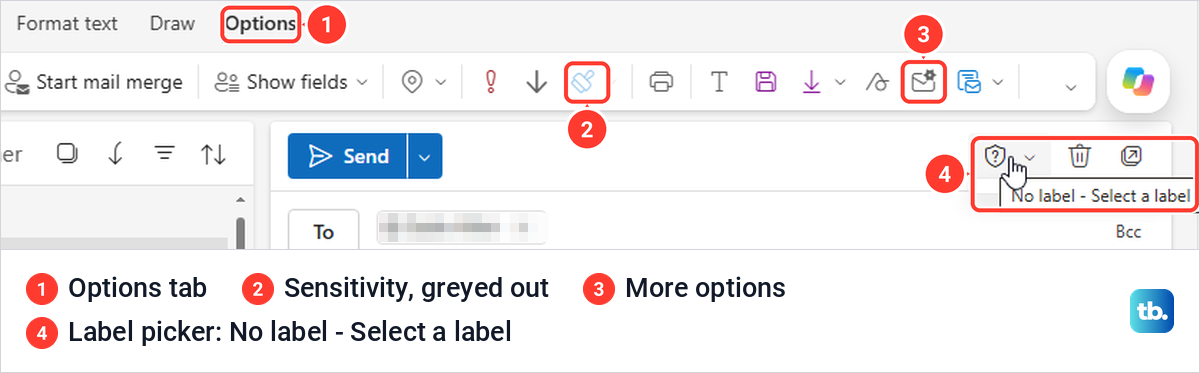
Our Outlook on the web Options tab had no Encrypt button either. Its icon bar ran from Editor to Mail template with Sensitivity greyed out, and the label picker at the top of the message read No label and showed no labels to choose from. The More options icon near the end of the bar still opened Message options, which is where the S/MIME boxes live.
Why the Encrypt button is missing
A missing Encrypt button is an account or setup matter, not a setting you can switch on in Outlook. Microsoft's troubleshooting page lists three causes when Encrypt is missing in both Outlook and Outlook on the web. Your organization's subscription doesn't support Microsoft Purview Message Encryption, the tenant is misconfigured, or your own account isn't assigned a license for it.
The license comes from the plan, not from the Outlook app you installed. Microsoft lists Purview Message Encryption in Microsoft 365 Business Premium, Office 365 and Microsoft 365 Enterprise E3 and E5, and several education and government plans. Business Basic, Business Standard, Exchange Plan 1 and Plan 2, Office 365 F3 and E1 need the Azure Information Protection Plan 1 add-on, and Microsoft says each user who benefits needs a license.
Send those points to your IT team rather than guessing. Ask them to confirm that your account has a qualifying license, that Purview Message Encryption is configured for your organization, and, if the button is only missing in the browser, that it is turned on for Outlook on the web. Microsoft also says the Encrypt choices in Outlook on the web aren't available when the label already on the message applies encryption.
If the button is missing in every Outlook app you use, switching apps will not bring it back, which is why the license and setup checks above come first. If you moved to new Outlook and want the classic Trust Center for the S/MIME steps below, our guide to switch back to classic Outlook covers the toggle.
Set up S/MIME encryption in classic Outlook
S/MIME works without Purview, but it needs certificates on both ends. You need a digital ID, which Microsoft says comes from your IT administrator or helpdesk at work, or from an independent certification authority. Each recipient needs their own certificate as well, and Microsoft says that for people outside your organization, their certificate has to be installed on your computer before you can encrypt to them.
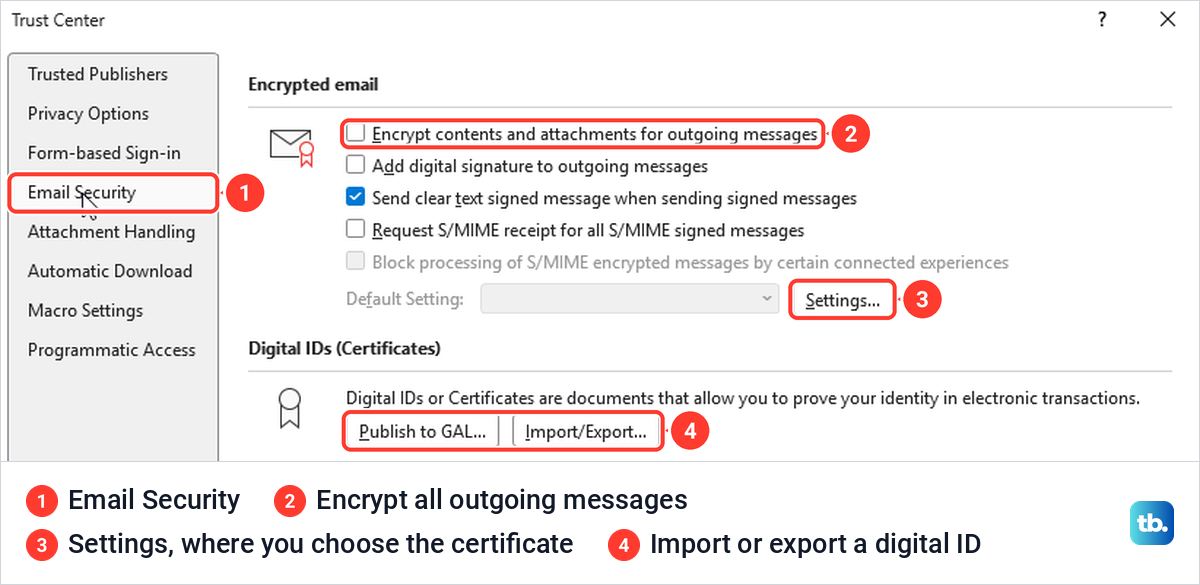
In classic Outlook, select File > Options > Trust Center > Trust Center Settings, then Email Security. Select Settings next to Default Setting and, under Certificates and Algorithms, choose your S/MIME certificate, as Microsoft's setup page describes. Microsoft's digital ID instructions use the Import/Export button under Digital IDs to bring in a certificate file.
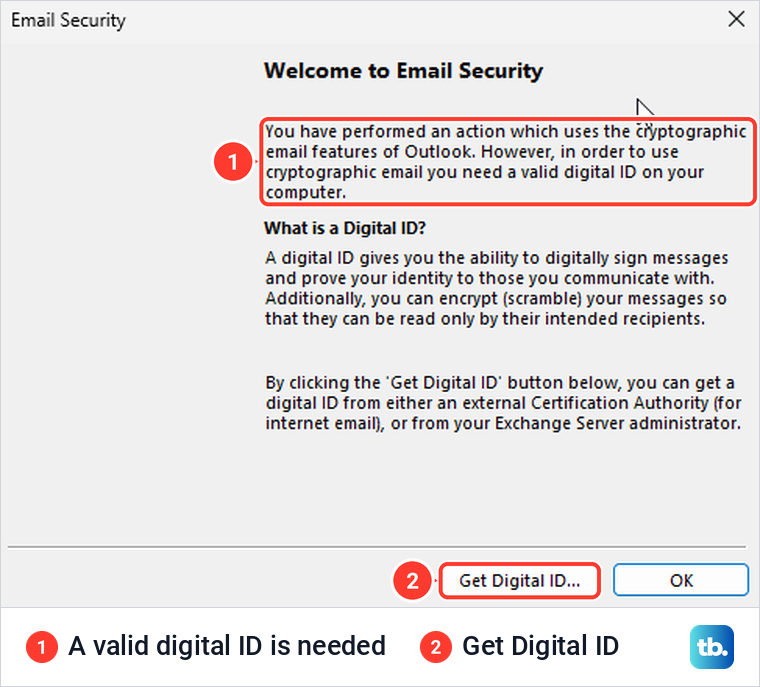
On our PC, Email Security showed Encrypt contents and attachments for outgoing messages unticked, Send clear text signed message when sending signed messages ticked, and an empty, greyed-out Default Setting box. With no certificate on the PC, Settings opened a box titled Welcome to Email Security instead of the certificate choices.
That box is the clearest sign S/MIME is not ready yet. It says that to use cryptographic email you need a valid digital ID on your computer, and its Get Digital ID button points to an external Certification Authority for internet email or to your Exchange Server administrator. Microsoft adds that your organization may have its own procedure, so at work start with IT.
Once a certificate is chosen, Encrypt contents and attachments for outgoing messages on the same tab encrypts every message you send, and Microsoft says that includes new messages, replies and forwards. Tick it only when everyone you write to can read S/MIME mail, because Microsoft says a recipient without the matching private key sees indecipherable text. Select OK to save the change.
Encrypt a single message with S/MIME
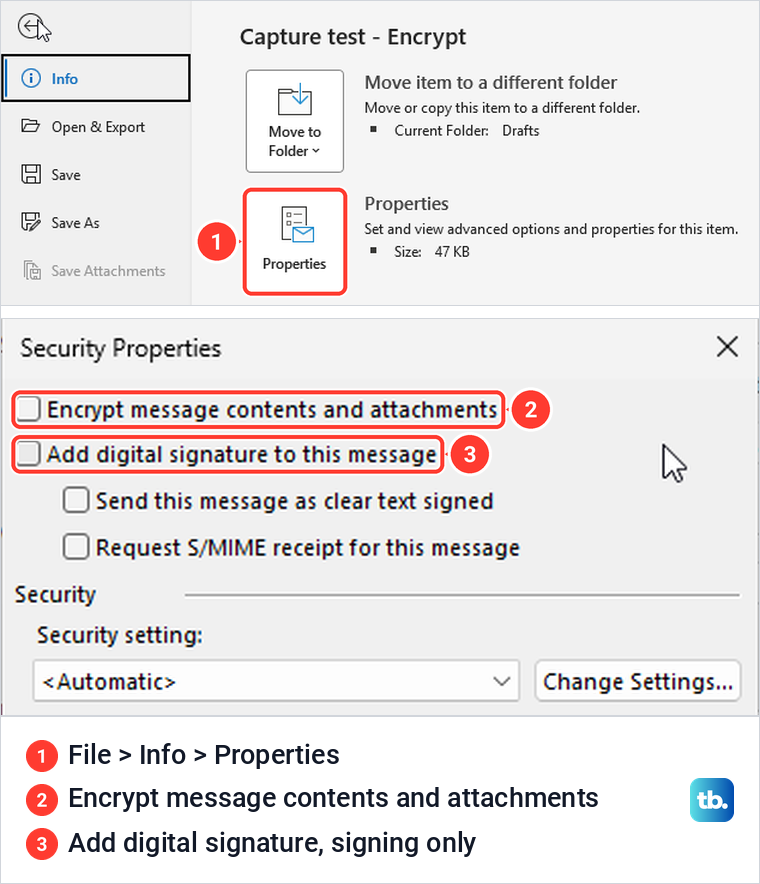
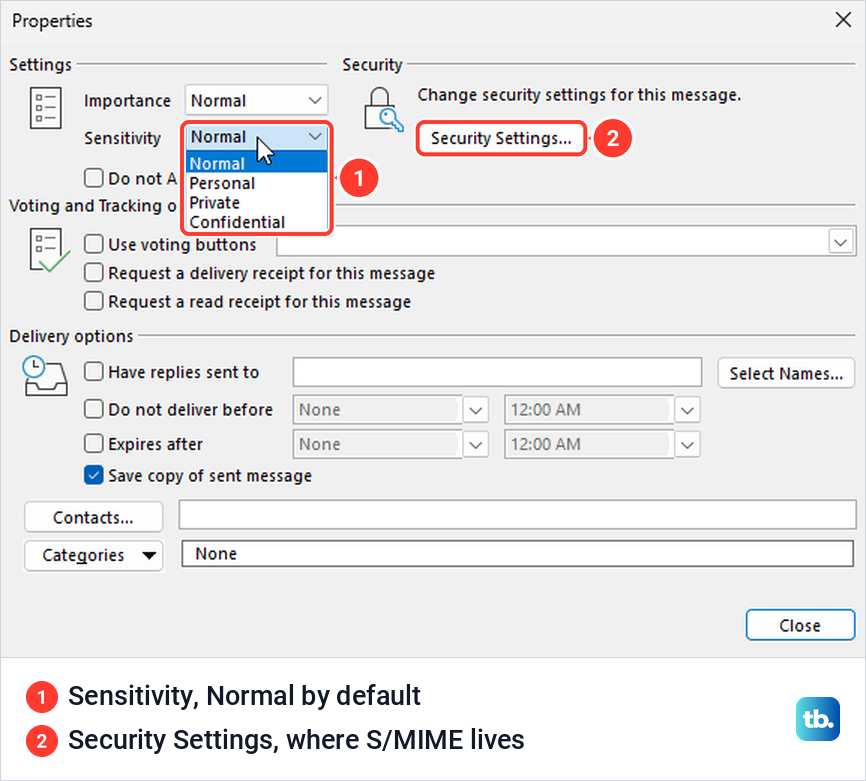
For one message, Microsoft's route is Options > the Message Options dialog box launcher > Security Settings. On the Simplified Ribbon, Message Options sat in the Options tab's three-dot menu, and in our message window File > Info > Properties opened the Properties dialog that holds the same Security Settings button.
In Security Properties, tick Encrypt message contents and attachments, select OK and Close, then send. The box under it, Add digital signature to this message, signs the message rather than encrypting it. A signature shows the recipient who sent it, but it does not hide what the message says.
Use S/MIME in Outlook on the web and new Outlook
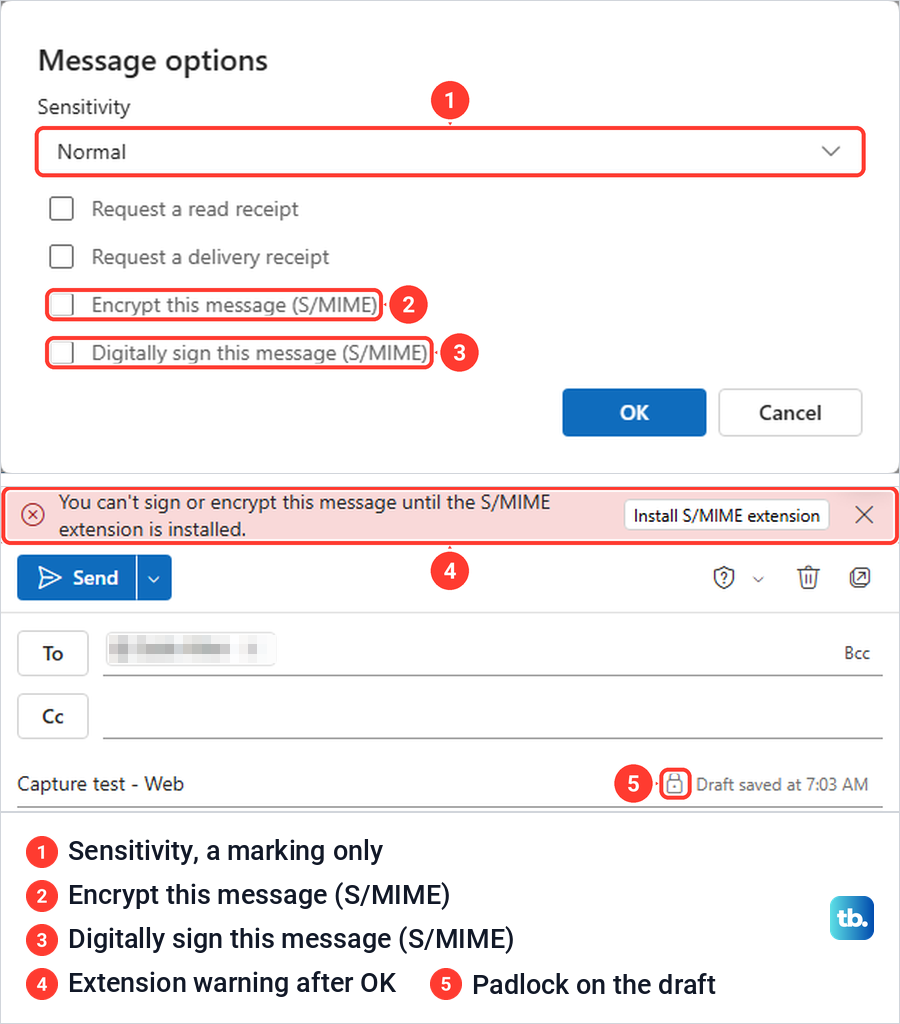
In Outlook on the web, open a new message and select Options > More options. Message options holds a Sensitivity list, read and delivery receipts, Encrypt this message (S/MIME) and Digitally sign this message (S/MIME). Microsoft puts the same dialog in new Outlook for Windows under Options > More Options.
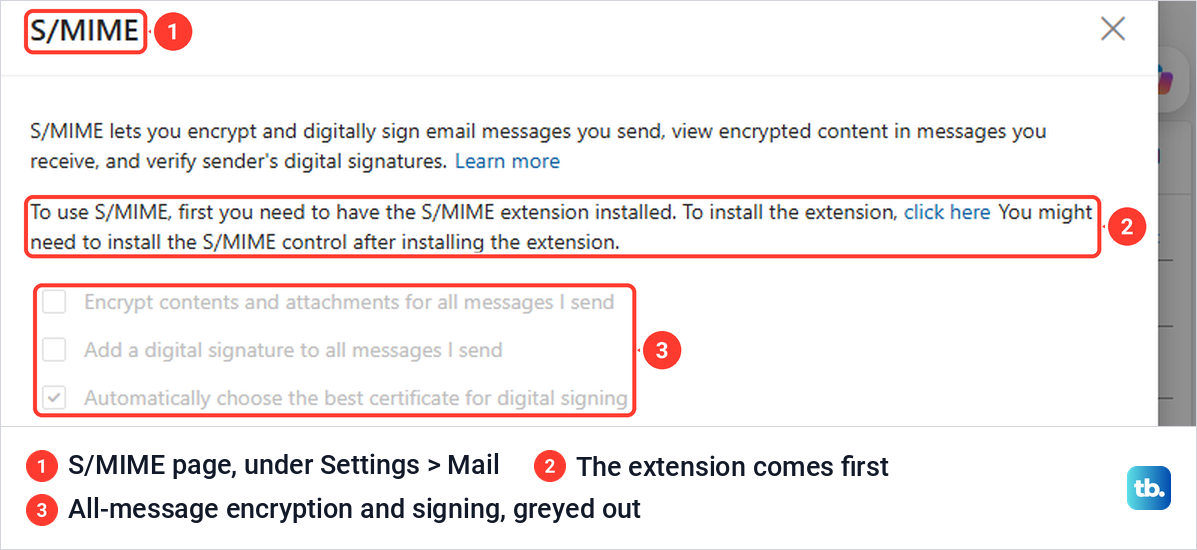
When we ticked Encrypt this message (S/MIME) and selected OK, a red banner appeared above Send reading You can't sign or encrypt this message until the S/MIME extension is installed, with an Install S/MIME extension button. A padlock also appeared on the subject line of the draft, and unticking the box removed both. In a browser, the checkbox alone is not enough.
Start with the S/MIME extension, which Outlook offers through the Install S/MIME extension button on that banner or the click here link in S/MIME settings. Microsoft's remaining steps are to get a certificate from your IT administrator or helpdesk, install the S/MIME control, allow your work or school domain in the extension's options, then close and reopen Outlook on the web. In Chrome, Microsoft says the computer must also be joined to a Microsoft Active Directory domain with a policy that includes the extension.
To encrypt everything you send, go to Settings > Mail > S/MIME and tick the first box, which encrypts contents and attachments for all the messages you send. On the account we used, that page said the S/MIME extension had to be installed first and that the S/MIME control might be needed after it, and all three of its checkboxes were greyed out. Typing S/MIME into the settings search box is the quickest way to reach the page.
If Outlook cannot confirm that every recipient can decrypt the message, Microsoft says you'll see a warning naming them, and you can send the message anyway, remove those recipients or retry. Remove them or retry, because sending anyway can leave those people with a message they cannot read. Microsoft also notes that new Outlook doesn't automatically import digital certificates, so install yours or ask your administrator to set that up.
Encrypt with your organization's sensitivity label
Some organizations publish sensitivity labels that apply encryption for you. In classic Outlook, new Outlook and Outlook on the web, Microsoft puts them under Message > Sensitivity, and it says administrators must have previously configured sensitivity labels and published them to you. A label only encrypts if your organization set it up to, so read its description before you rely on it. In our Outlook on the web, a Sensitivity button also sat on the Options tab, greyed out.
In classic Outlook a chosen label shows at the end of the subject line while you write, and under the address block when the message is read. You can't remove a label if your organization requires one on every message. Our classic Message tab had no Sensitivity button, its three-dot menu listed only High Importance and Low Importance under Tags, and the web label picker showed no labels.
Why Confidential does not encrypt an email
The message Properties dialog in classic Outlook has a Sensitivity list with Normal, Personal, Private and Confidential, and Normal is selected by default. These are markings, not protection. Microsoft says the Sensitivity level doesn't stop recipients from taking any actions on a message, and Confidential only shows the recipient a line reading Please treat this as Confidential.
We found the same four choices in the Message options dialog of Outlook on the web, right above the S/MIME boxes, which makes them easy to mix up. Microsoft notes one real effect for Private, which is that Inbox rules on the recipient's side won't forward or redirect it. The same Properties dialog also holds Do not deliver before, the classic way to schedule an email in Outlook.
A digital signature is not encryption either. It proves the message came from the owner of the digital ID and was not changed on the way, but anyone who receives it can still read it. It is also different from the name and title block you set up when you change your signature in Outlook, which Microsoft points out anyone can copy.
What the recipient sees
Microsoft says a Purview-encrypted message arrives like any other email. In Outlook, the Reading pane shows an alert about restricted permissions near the header, and opening the message in a new window shows it normally. Microsoft adds that conversation view does not support encrypted messages, so a recipient who sees only the notice should double-click the message.
Recipients on other services get a message with a link instead. Microsoft says Gmail and Yahoo users can sign in with their Google or Yahoo account, and anyone else can ask for a one-time passcode by email, which expires after 15 minutes. A Gmail recipient then reads the message in a new browser tab, not inside Gmail.
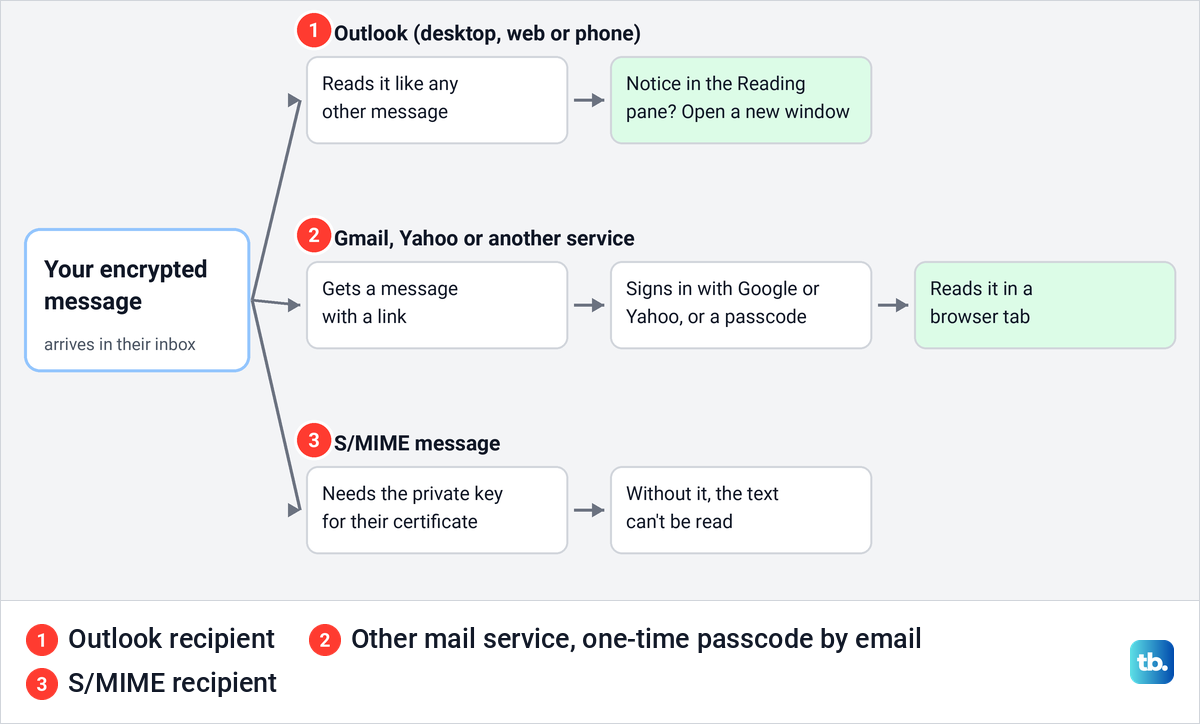
S/MIME works differently. The recipient's mail app needs the private key that matches the certificate you encrypted to, and without it Microsoft says they see indecipherable text. For Purview, Microsoft also caps an encrypted message at 25 MB, including attachments.
If a recipient who reads mail in Outlook cannot sign in to their own account, help them fix Outlook sign-in problems before you resend. If the message opens but a file inside it fails, work through the steps for Outlook attachments that will not open.
Encrypt email with a personal Outlook account
Encrypt is not only for work accounts. Microsoft says Microsoft 365 Personal and Family subscribers get the same Options > Encrypt menu, with Encrypt, Do Not Forward and No permission set, which is the default and removes encryption. Gmail and Yahoo recipients can sign in with those accounts to read the message.
With No permission set, or without a Personal or Family subscription, Outlook.com relies only on opportunistic Transport Layer Security (TLS). Microsoft is plain about the limit, saying TLS encrypts the connection, not the message, and the message might not stay encrypted once it reaches the recipient's email provider.
What encryption does not fix
Encryption controls who can open a message, but it cannot take back one you sent to the wrong person. Recall only works in some cases, and encrypted mail has extra limits, which our guide to recall an email in Outlook explains. If sensitive mail went to the wrong person at work, tell your IT or security team straight away. A padlock is no proof that a sender is safe either, so it still pays to spot a phishing email before you click.
If someone else has access to your mailbox, encryption does not keep them out, because they can read what you send. In that case, secure a hacked Outlook account first, then change your Outlook password.
How we tested this guide
We tested this in classic Outlook for Microsoft 365 and Outlook on the web in Microsoft Edge on Windows 11, version 25H2, checking the encryption options on a new message.
Frequently Asked Questions
How do I encrypt one email in Outlook?
Open a new message, select Options > Encrypt, choose Encrypt or Do Not Forward, then send. If there is no Encrypt button, use S/MIME from Message options or Security Settings, which needs certificates.
Why is the Encrypt button missing in Outlook?
Microsoft lists three causes: a subscription without Purview Message Encryption, a misconfigured tenant, or an account without a license. Only an administrator can fix those, and in Outlook on the web an administrator can also hide the button.
Does marking an email Confidential encrypt it?
No. Normal, Personal, Private and Confidential only mark the message, and Microsoft says they don't stop recipients from taking any action on it. An organization sensitivity label can encrypt, but only if it was set up to.
Can a Gmail user open an encrypted Outlook email?
Yes, for Purview encryption. Microsoft says a Gmail recipient can sign in with Google or use a one-time passcode, then reads the message in a browser tab. S/MIME mail needs a matching certificate on the recipient's side.
What is the difference between Encrypt and Do Not Forward?
Both encrypt the message. Microsoft says Encrypt leaves recipients free to copy, print and forward it, while Do Not Forward stops them forwarding, printing or copying it.
Can Outlook encrypt every email automatically?
Yes, with S/MIME once your certificate is set up. In classic Outlook tick Encrypt contents and attachments for outgoing messages under Trust Center > Email Security, and on the web tick the matching box for all the messages you send under Settings > Mail > S/MIME. Every recipient then needs a certificate to read your mail. At work, your organization can also require a sensitivity label on every message, and a label can apply encryption if your IT team set it up to.
Why does Outlook on the web say I need the S/MIME extension?
Outlook on the web cannot sign or encrypt with S/MIME until the browser extension is installed, which is the banner we saw after ticking the S/MIME box. Microsoft's setup also needs a certificate from your IT team and your work domain allowed in the extension's options.