
To add a shared mailbox in Outlook, your Microsoft 365 admin gives your work account Full Access, plus Send As or Send on Behalf for sending, and then you close and reopen Outlook. By default, classic and new Outlook then add it to the folder pane by themselves. If not, add it by hand from File > Account Settings in classic Outlook, or in new Outlook and on the web, right-click your account name and choose Add shared folder or mailbox.
What many teams call a shared inbox is a shared mailbox in Microsoft 365, and Microsoft says it isn't designed for anyone sharing it to sign in to it directly. You open it through your own account, so there is no separate password to ask for.
We opened a shared mailbox called Support Desk in classic Outlook and in Outlook on the web, and two things surprised us. It appeared in the folder pane before it would open, and adding it by hand while Outlook had already added it put it there twice.
The short version
- Access first: your admin creates the mailbox and adds you as a member with Full Access.
- Classic or new Outlook: close and reopen Outlook. Classic Outlook lists the mailbox at the bottom of the folder pane, and new Outlook under Shared with me.
- Listed but will not open: close and reopen Outlook again later, and if it still fails, ask your admin to check your Full Access.
- Still missing in classic Outlook: File > Account Settings > Account Settings > Change > More Settings > Advanced > Add.
- On the web: right-click your account name and choose Add shared folder or mailbox, or use Open another mailbox.
- Sending: show the From field and pick the shared address, which needs Send As or Send on Behalf.
Where a shared mailbox appears in each version of Outlook
| Outlook version | Where to look first | How to add it by hand | What you get |
|---|---|---|---|
| Classic Outlook for Windows | Bottom of the folder pane, after a restart | File > Account Settings > Account Settings > Change > More Settings > Advanced > Add | The mailbox and its folders below your own |
| New Outlook for Windows | Shared with me in the folder pane, after a restart | Right-click your account name > Add shared folder or mailbox | The mailbox under Shared with me |
| Outlook on the web | Your folder list, once you add it | Right-click your account name > Add shared folder or mailbox | Its folders below your own, listed by address |
| Outlook on the web, own tab | Your account picture menu | Open another mailbox | The shared mailbox alone in a new tab |
| Outlook for Mac | Your account settings | Tools > Accounts > Delegation and Sharing > Shared With Me > + | The mailbox in the folder list |
| Outlook for iPhone and Android | Your account list | Add Account > Add a Shared Mailbox | The mailbox as an extra entry in the account list |
Only classic Outlook and new Outlook for Windows add a shared mailbox for you, which Microsoft calls automapping. Microsoft says Outlook for Mac does not support it, so on a Mac you add the mailbox yourself, and Microsoft's phone steps also have you add it by hand.
What your admin has to set up first
Microsoft says the Microsoft 365 admin for your organization has to create the shared mailbox and add you as a member before you can use it. In the Exchange admin center that is two steps: Recipients > Mailboxes > Add a shared mailbox, which asks for a display name and an email address, and then Add users to this mailbox, which the admin center offers as soon as the mailbox is created.
When we added two members that way, the admin center asked Add delegate permissions? before saving, then warned that it might take up to 60 minutes for the change to be effective in Outlook and OWA. The mailbox's Delegation tab then listed both members under Send as and under Read and manage (Full Access), so that one step gave them both permissions.
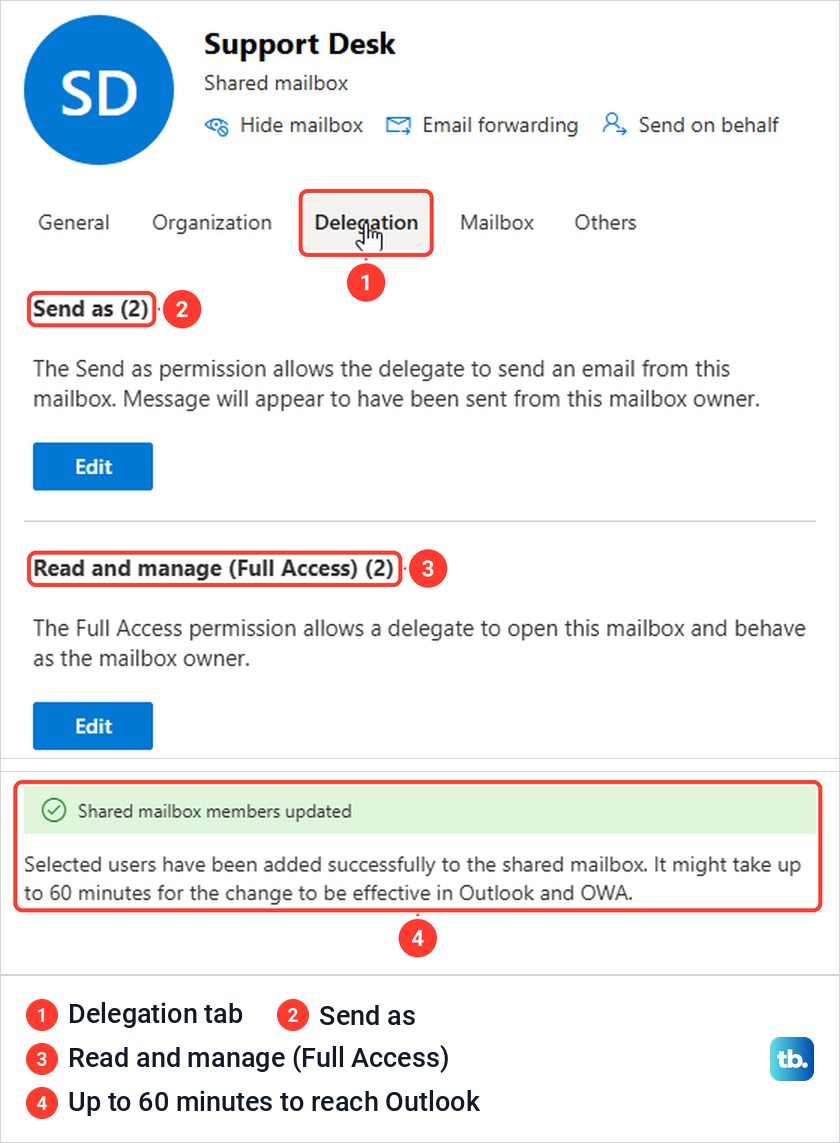
Microsoft describes the permissions separately. Full Access lets a user open the shared mailbox and act as its owner, Send As makes mail look as if the shared mailbox sent it, and Send on Behalf shows it as sent by the user on behalf of the mailbox. With Full Access alone you can read the mail but not send from the shared address, and only an admin can add the missing permission.
Microsoft also says that when Full Access is given through a security group, Outlook does not add the mailbox by itself. For automapping, the admin has to give Full Access to each person directly.
A shared mailbox is not a Microsoft 365 group or a contact list. For a group with its own conversations and files, see how to create a group in Outlook, and for one name that emails several people, create a distribution list in Outlook instead. A calendar a coworker shares from their own mailbox is different again, and our guide shows how to view someone else's calendar in Outlook.
Let Outlook add the shared mailbox for you
After your admin adds you, close Outlook completely and open it again. Microsoft says the shared mailbox should then appear in the folder pane by itself, and new Outlook places it under Shared with me. In classic Outlook, look at the very bottom of the folder pane, below your own folders and Groups.
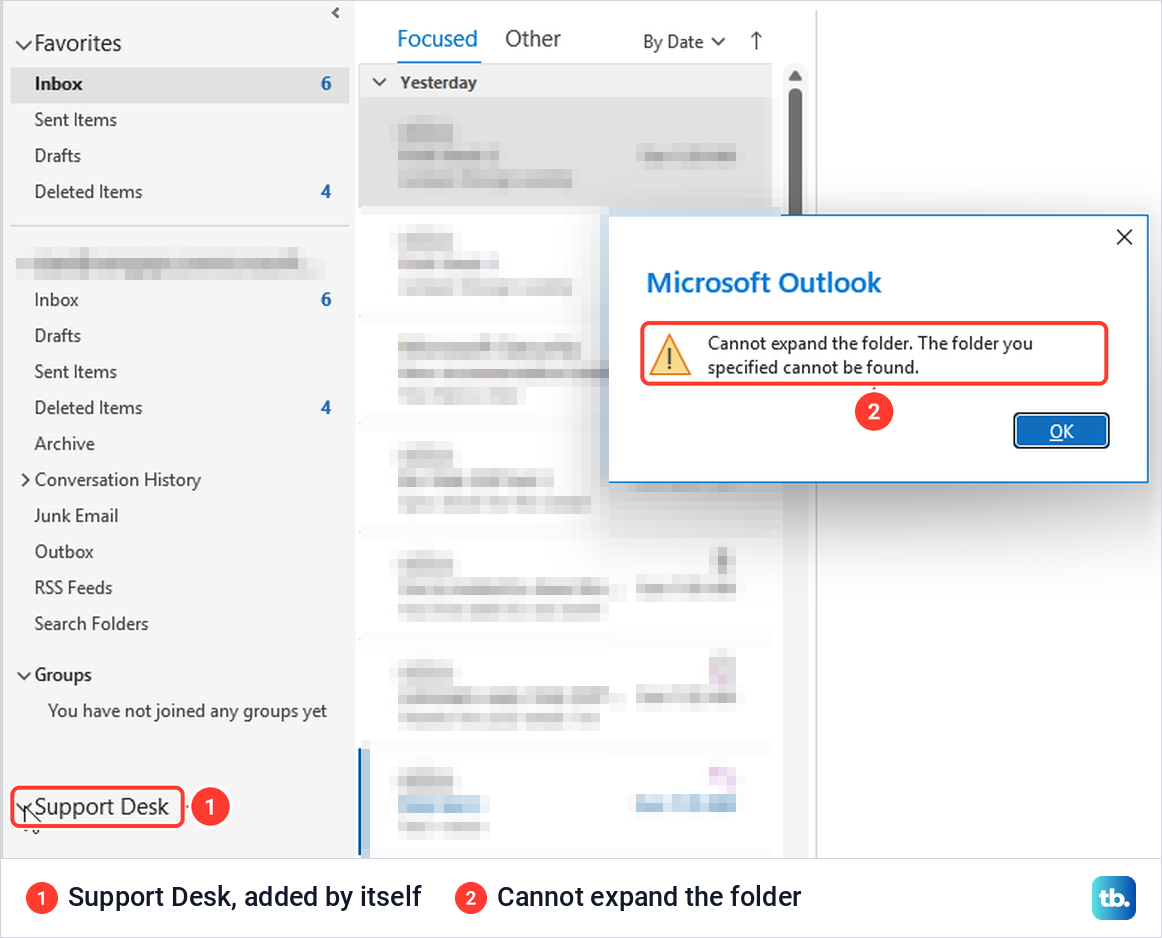
On our PC, Support Desk appeared there at the first start after access was granted, about four and a half minutes after the mailbox was created. Clicking the arrow beside it gave the message Cannot expand the folder. The folder you specified cannot be found. Eight minutes later we got the same message again.
It opened after a later restart. When we closed and reopened Outlook about 40 minutes after the mailbox was created, Support Desk opened to Inbox, Drafts, Sent Items, Deleted Items, Archive, Conversation History, Junk Email and Outbox, with our test message waiting in its Inbox.
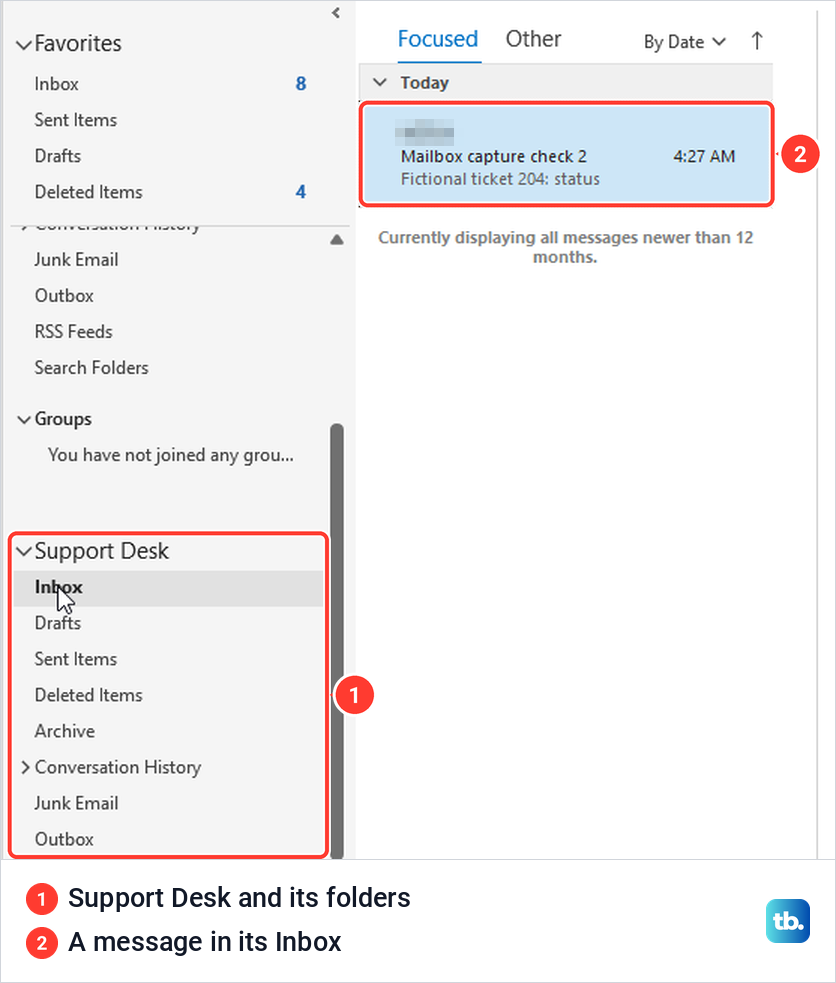
In our test, the listed mailbox opened after more time and another restart, with no other change. If yours still will not open, ask your admin to confirm your Full Access. Outlook on the web could already open the same mailbox 11 minutes after it was created, so the web is a quick way in while the desktop app catches up.
Once it opens, Full Access lets you work in the mailbox as its owner, so you can create a new folder in Outlook inside it to sort team mail. Microsoft says the mailbox's calendar is added to your Calendars list as well. If a team calendar is the real goal, our guide on how to create a shared calendar in Outlook covers the sharing side.
Add a shared mailbox manually in classic Outlook
Check the bottom of the folder pane first. If the mailbox is already there, even if it will not open yet, adding it again gives you a second copy. Use this route when Outlook has not added the mailbox after a restart, for example because your access came through a security group.
Select File, then on the Info page select Account Settings and choose Account Settings again at the top of the menu that opens. It is the item described as Add and remove accounts or change existing connection settings, not Account Name and Sync Settings or Delegate Access below it.
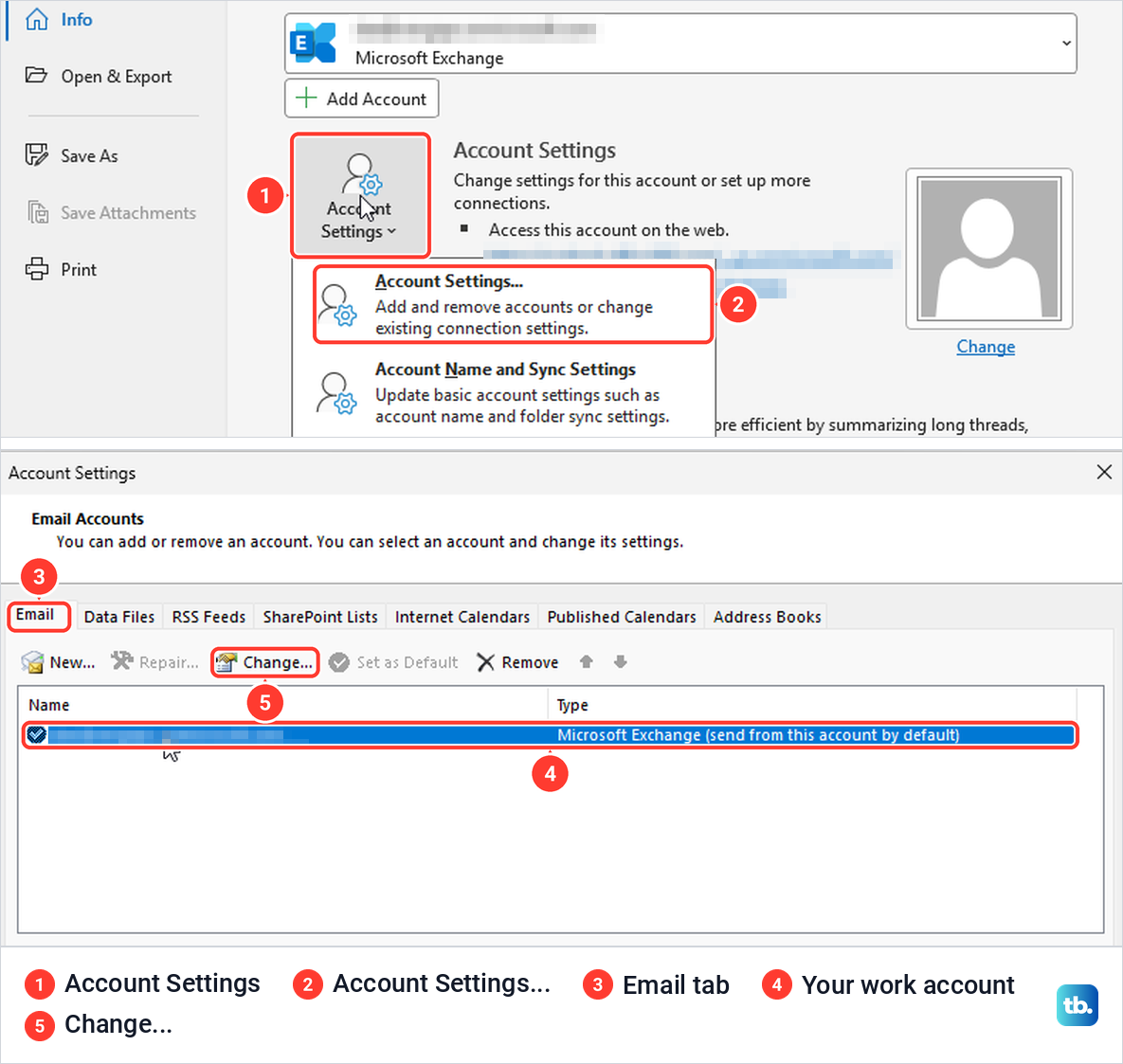
On the Email tab, select your work account and choose Change. Microsoft's instructions say to make sure the correct account is highlighted, which matters when Outlook holds more than one. Our list had a single Microsoft Exchange account, marked send from this account by default.
In the Exchange Account Settings window, select More Settings, then the Advanced tab of the Microsoft Exchange window that opens. Under Mailboxes is a box headed Open these additional mailboxes, with Add and Remove buttons beside it.
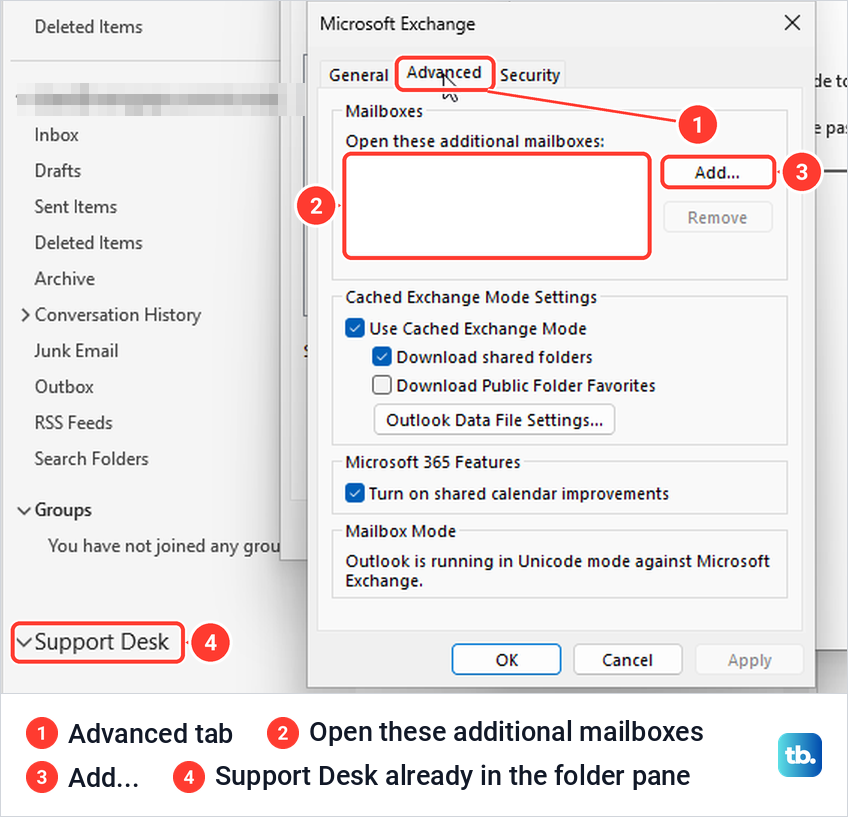
That box was empty on our PC, even though Outlook had already added Support Desk to the folder pane at the bottom of the window. A mailbox that Outlook adds by itself is not listed here, so an empty box does not prove the mailbox is missing. The folder pane is the place to check.
Select Add, type the shared mailbox's full email address in the Add mailbox box and select OK. The address turned into the name Support Desk in the list. Select OK again to close the Microsoft Exchange window, then select Next.
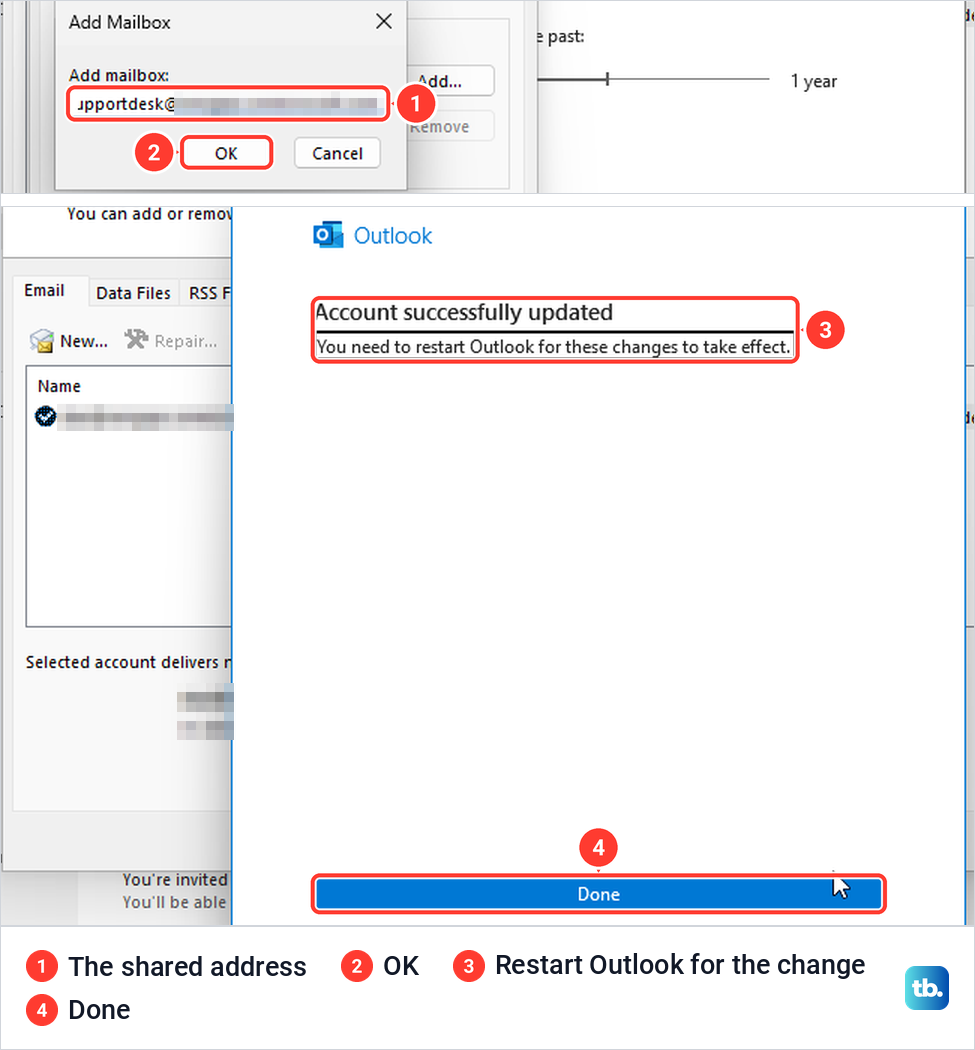
The last screen read Account successfully updated, with the note You need to restart Outlook for these changes to take effect, and a single Done button. Microsoft's help page still ends with Next, Finish and Close, so do not wait for a Finish button. Select Done and close the Account Settings window.
The copy we added this way opened at once, before any restart, with Inbox, Drafts, Sent Items and the other folders. Because Outlook had already added Support Desk automatically, though, the folder pane now listed it twice.
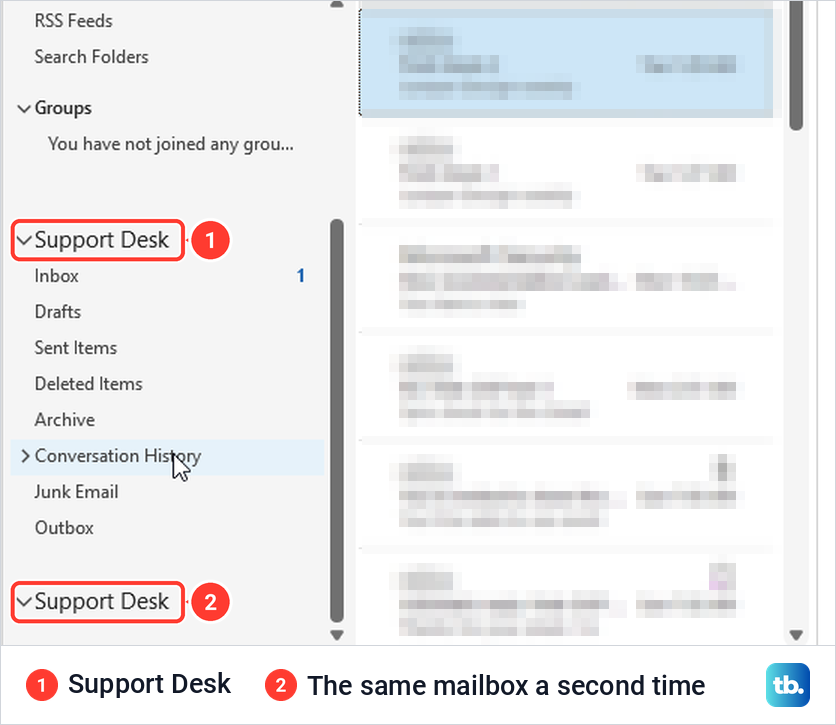
A copy you added yourself is easy to take out. Go back to Advanced, select the mailbox, select Remove and answer Yes to Are you sure you want to remove this mailbox? Then select OK, Next and Done, and that copy leaves the folder pane.
Add it as a separate account for reminders
Classic Outlook has a third way to hold a shared mailbox, as an additional account added through File > Add Account. Microsoft says Outlook only shows event reminders for a shared mailbox set up this way. When you are asked to sign in, Microsoft says to enter your own email address, not the shared mailbox's. It also says to remove any automapped copy first to avoid a second instance, and only an Exchange admin can turn automapping off.
Add a shared mailbox in new Outlook
New Outlook for Windows uses a different route. Microsoft says to close and restart new Outlook first, then look in the folder pane for Shared with me, where the shared mailbox expands to Inbox, Drafts and Sent Items. If it is not there, select Mail, right-click your account name in the folder pane, choose Add shared folder or mailbox and type the shared address.
New Outlook can also add the mailbox as a full account, which Microsoft says lets you manage its Categories, Notifications, Rules and Automatic Replies. Open Settings > Accounts > Shared with me and select Convert for a mailbox that was added for you, or + Add for one that is not listed. Microsoft notes this may not be available in your version yet and needs Full Access from your IT admin.
If none of this matches your screen, Microsoft says you may still be in classic Outlook. In classic Outlook we saw a Try the new Outlook switch at the top right, set to Off. Once rules are available for the shared account, our guide to fix Outlook rules that are not working covers the usual causes.
Open a shared mailbox in Outlook on the web
In Outlook on the web we added Support Desk beside our own folders. Microsoft's help page says to right-click Folders, but our folder list had no Folders heading. Right-clicking our own account name, the address at the top of our mail folders, opened a menu with Create new folder, Go to folder, Add shared folder or mailbox and Sharing and permissions.
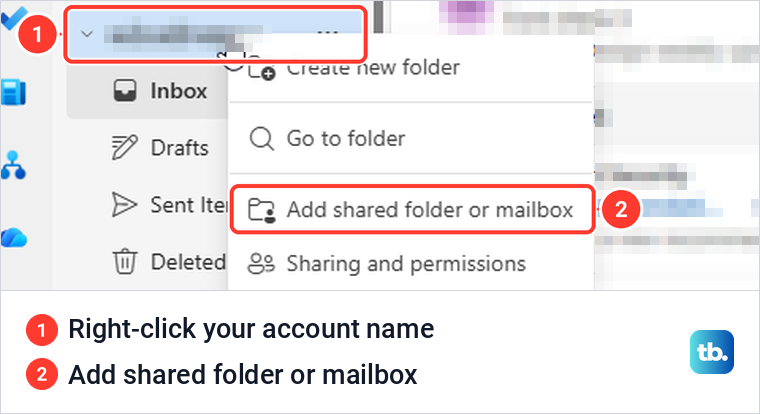
Add shared folder or mailbox opened Settings > Account > Shared with me with a box titled Add a shared email account. Type the shared address, pick it from the list and select Continue. Outlook confirmed with Shared email account added.
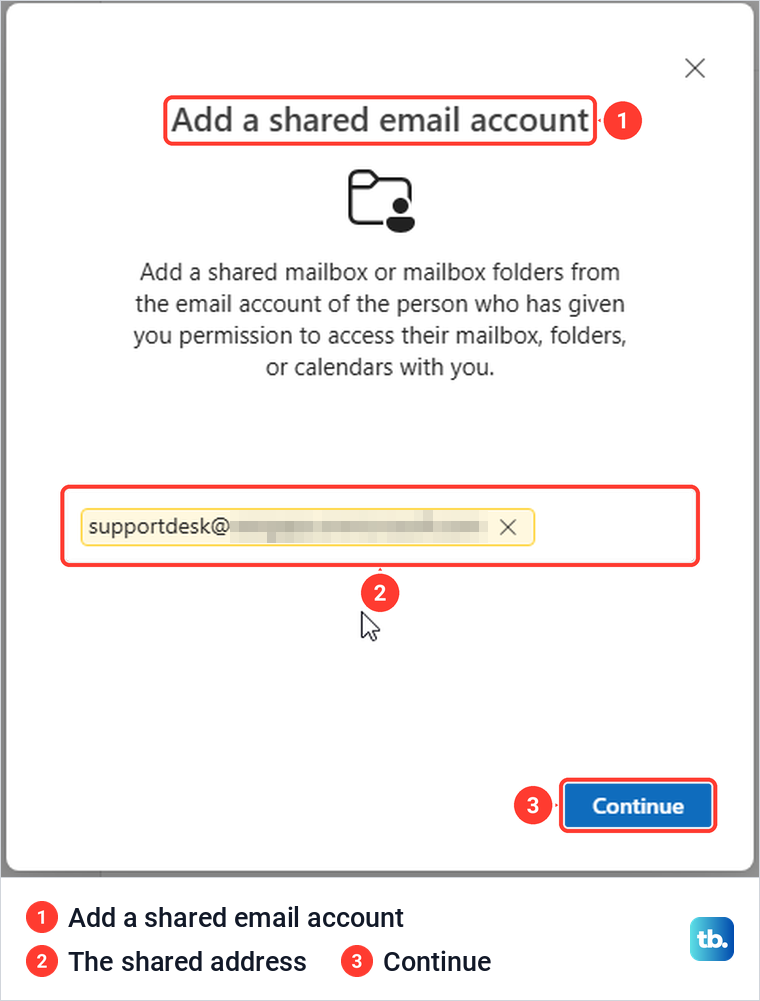
The mailbox then appeared in the folder list under its email address rather than its name, and expanded to Inbox, Drafts, Sent Items, Deleted Items, Junk Email, Archive, Notes and Conversation History. Back in Shared with me, its card read Can send email as this account and Can read and manage all folders, a quick way to check what your admin granted.
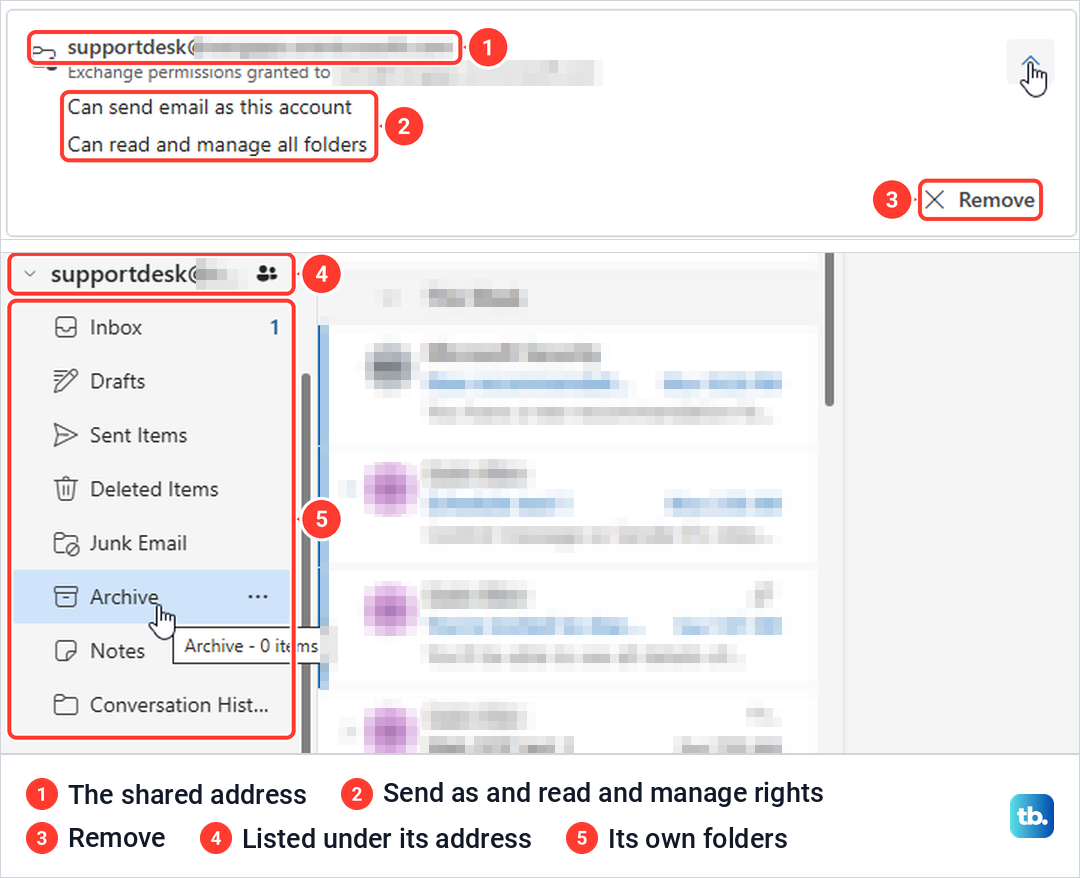
To take it off the list, select Remove on that card. Outlook asked us to confirm, with a note that this removes the mailbox from your folder list, that you can re-add it at any time, and that no emails or contents will be deleted.
Open the shared mailbox in its own browser tab
The second web method keeps the shared mailbox apart from your own. Select your account picture at the top right, choose Open another mailbox, type the shared address, pick the mailbox and select Open. Microsoft says that to get notifications of new messages in a shared Inbox, you must open the shared mailbox in a separate browser window.
Microsoft describes Open another mailbox as opening a separate window. On our PC it opened in a new tab of the same Edge window instead, titled with the mailbox's name and showing only its folders.
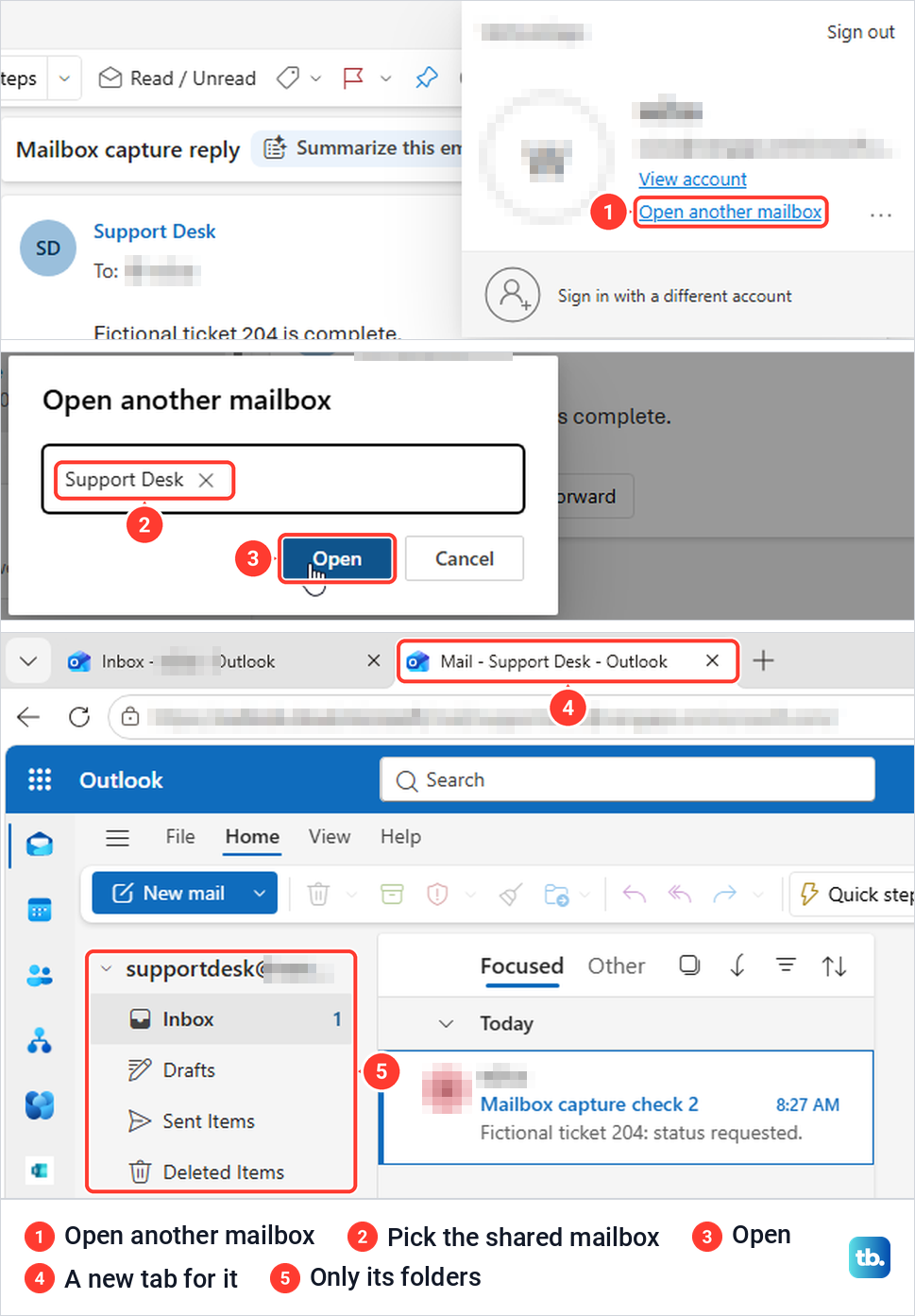
A brand-new mailbox may not be found by name at first. For a while after Support Desk was created, typing its address in a new message's To box offered only Use this address instead of a match. By 28 minutes after creation it came up as Support Desk in the Open another mailbox box.
Check the spelling before you select Open. Microsoft says a mistyped address gives No match was found, but ours did not: the list offered Use this address, Show more results said No results found, and Open still worked. It loaded a new tab reading Something went wrong, with a Refresh the application button that will not fix a mistyped address.
Add a shared mailbox in Outlook for Mac
In Outlook for Mac, open the Tools menu, choose Accounts and select the account that has access to the mailbox. Select Delegation and Sharing, open the Shared With Me tab and choose + to add the shared mailbox. Microsoft also gives File > Open > Shared Mailbox as another way in.
Because a Mac never adds a shared mailbox by itself, these steps are the only route there. Microsoft says Outlook for Mac currently supports only Full Access permissions for shared mailboxes. The shared address appears in the From list either way, but without Send As or Send on Behalf, mail from it will not be sent.
Add a shared mailbox on iPhone or Android
In Outlook for iPhone or Android, sign in to your own work account first. Tap the Add Account button in the left navigation pane, then tap Add a Shared Mailbox, and if you have several accounts in the app, pick the one that has permission to the mailbox. When setup finishes, the shared mailbox appears in your account list.
Microsoft says the phone apps support shared mailboxes when your mailbox and the shared mailbox are both in Exchange Online and use Microsoft's native sync. To remove it later, go to Settings > Accounts, tap the shared mailbox and select Delete Account.
Send email from a shared mailbox
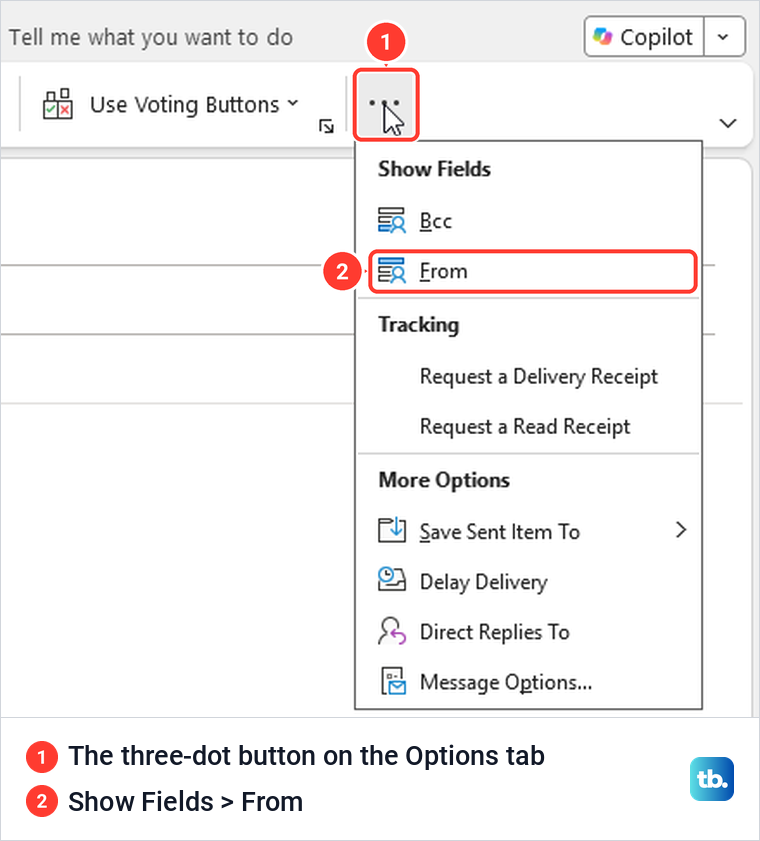
Starting a message from inside the shared Inbox does not change the sender. In classic Outlook, New Email from Support Desk's Inbox opened with no From field at all, and once we showed it, it held our own address. Microsoft's steps say to choose Options and From, but with the Simplified Ribbon, From sat behind the three-dot button at the end of the Options tab, under Show Fields.
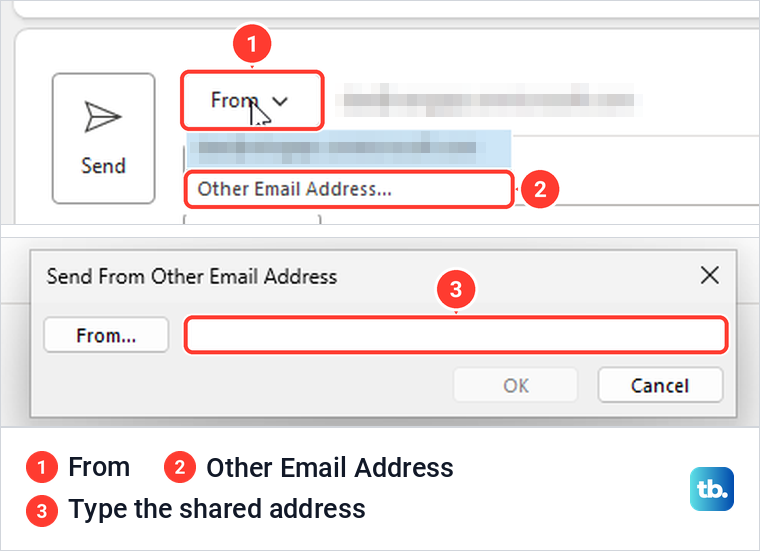
Select From in the message, then Other Email Address, since the list offered only our own address and that option. In the Send From Other Email Address box, type the shared address, select OK and send as usual. Microsoft says the address then stays in your From list for next time.
The message we sent this way arrived showing Support Desk as the sender, with no on behalf of line, because the account we used had Send As. Microsoft says that with Send on Behalf the recipient sees your name on behalf of the shared mailbox instead. If the From address is right and the message still sits in the Outbox, see how to fix Outlook when it will not send email.
For replies, Microsoft says the From field should already show the shared mailbox, and if it does not, choose it from the From list. To add a team line to your own signature, see how to change your signature in Outlook.
Send from the shared mailbox on the web
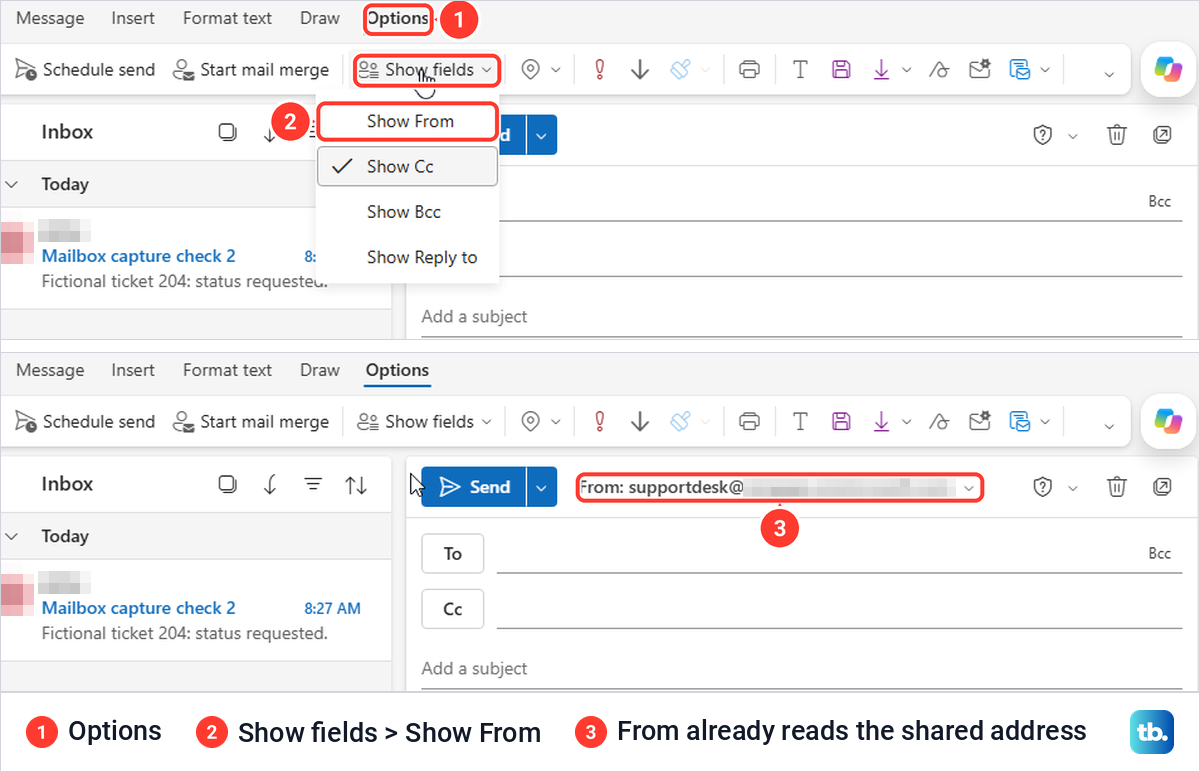
In the tab opened with Open another mailbox, start a new message, open the Options tab and select Show fields, then Show From. The same menu has Show Cc, Show Bcc and Show Reply to, while the three-dot menu of the message did not offer Show From. Once it was showing, From already read the shared address.
In your own mailbox's tab, Microsoft says to show From, right-click the From address, choose Remove and type the shared address the first time. After that it is offered in the From list.
Send from the shared mailbox in new Outlook
In new Outlook, Microsoft's steps start with New > Mail on the Home tab. If there is no From field next to Send, select Show From on the Options tab. Then select From and change it to the shared address, or choose Other email address and type it if it is not listed.
Where messages sent from a shared mailbox are saved
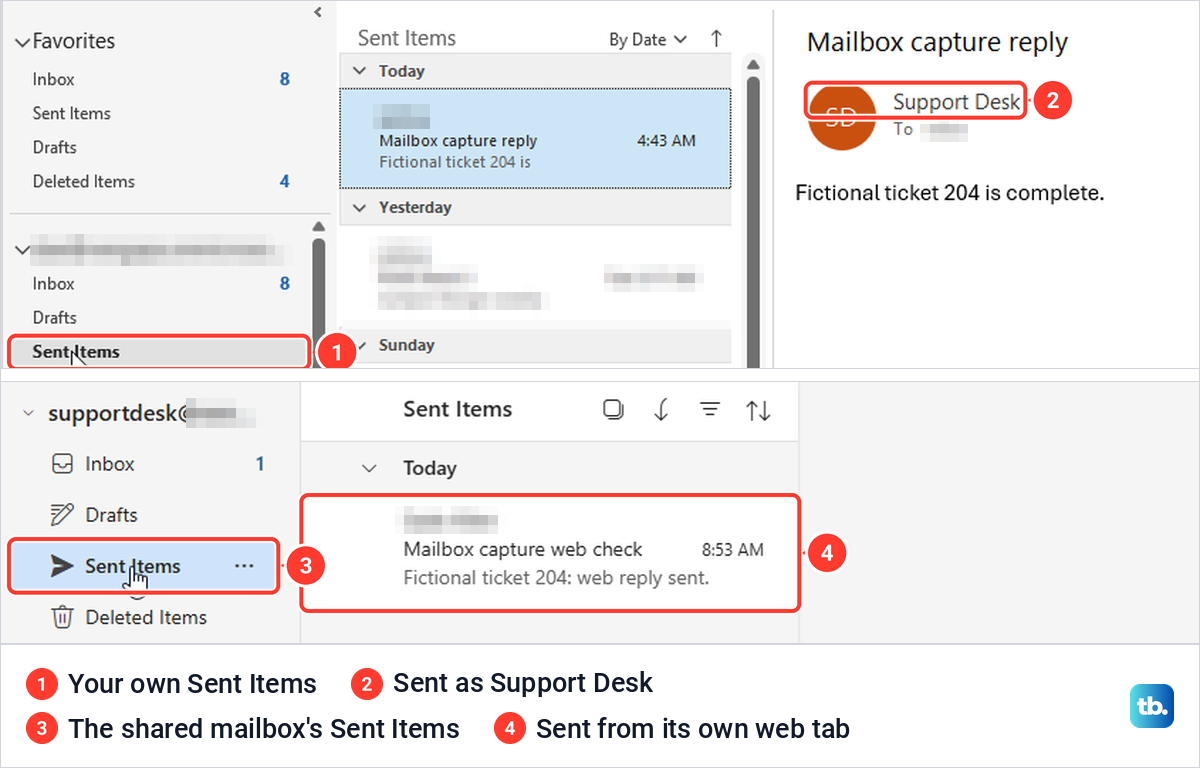
By default, Microsoft says, messages sent from a shared mailbox are saved in the Sent Items folder of the person who sent them, not in the shared mailbox. That is what we saw from classic Outlook. The message we sent as Support Desk landed in our own Sent Items, shown from Support Desk, while the shared mailbox's Sent Items stayed empty.
Sending from the shared mailbox's own tab in Outlook on the web was different. That message was kept in Support Desk's own Sent Items, and it arrived showing Support Desk as the sender.
If the team needs every reply kept in the shared Sent Items, that is an admin setting. Microsoft says the admin edits the shared mailbox in the admin center and selects Edit under Sent items to choose the options. Search works inside the shared mailbox too, once you select one of its folders, and if results still go missing, our guide to fix missing Outlook search results covers the causes.
Microsoft's shared mailbox page says only your Microsoft 365 admin can set up automatic replies from a shared mailbox, while its new Outlook page lists Automatic Replies among the settings you can manage once the mailbox is added as an account with Full Access. For your own mailbox, see how to set up out of office in Outlook.
Fix a shared mailbox that is missing or will not open
If the mailbox is missing, give a new permission up to an hour, then close and reopen Outlook. If it is still missing, ask whether your access came through a security group, and add it manually or open it on the web. If it is listed but will not expand, restart again later, and if that keeps failing, ask your admin to confirm your Full Access.
If the mailbox opens but expected mail never arrives, make sure the sender used the shared address, then fix Outlook when mail is not arriving. If it appears twice, remove the copy you added from the Advanced tab. The automatic copy is harder, because when we right-clicked it and chose Close, classic Outlook said this group of folders is associated with an email account and to remove the account in Account Settings.
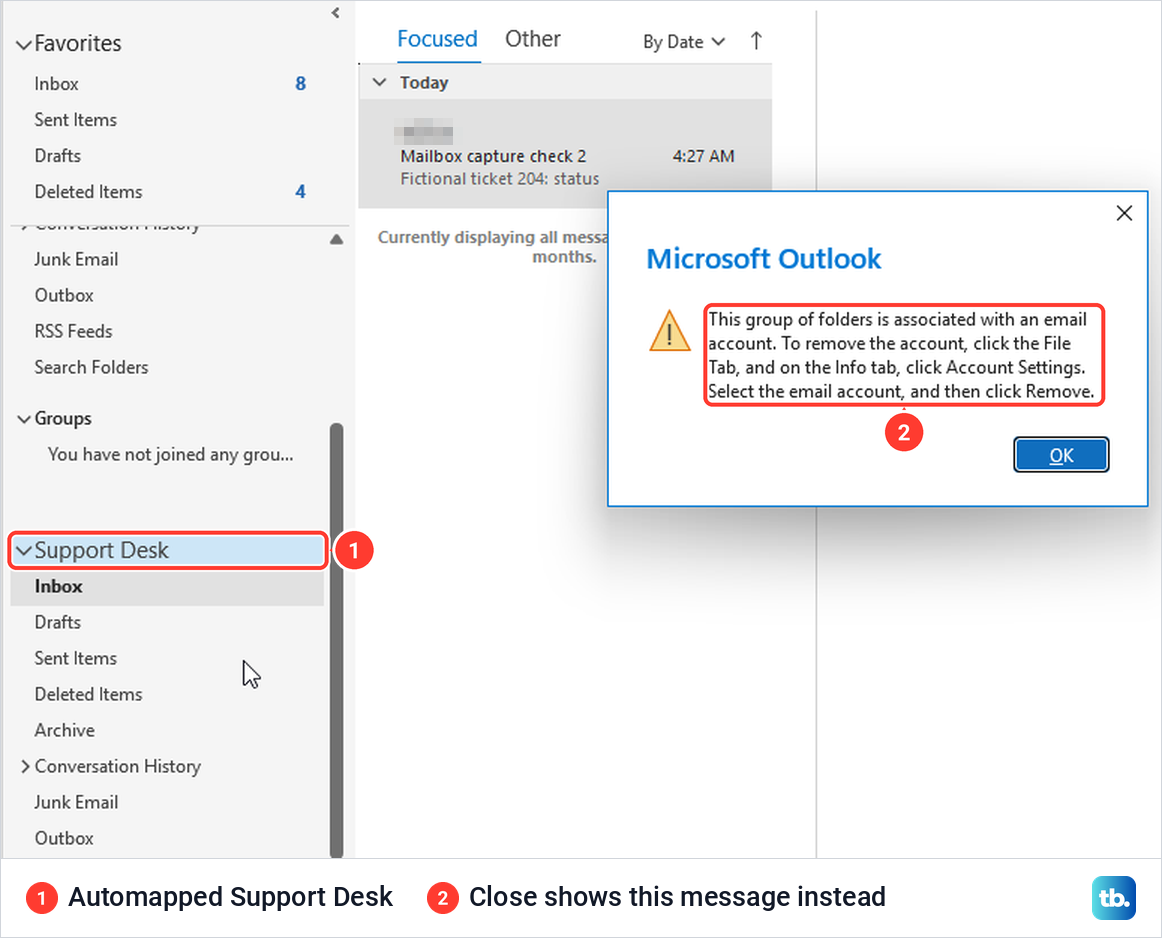
That advice does not help with a shared mailbox, because it was neither listed in Account Settings nor under Open these additional mailboxes. Microsoft says removing automapping is an admin task in Exchange Online PowerShell, which removes your Full Access and adds it back with automapping turned off. Ask your admin, and do not try to sign in to the shared mailbox itself to get around it.
How we tested this guide
We tested this in classic Outlook for Microsoft 365 on Windows 11, version 25H2, and in Outlook on the web in Microsoft Edge, adding a shared mailbox named Support Desk.
Frequently Asked Questions
Can I add a shared mailbox without my admin?
No. Microsoft says the Microsoft 365 admin has to create the shared mailbox and add you as a member first. After that, you open it with your own work account, not a separate password.
Why is my shared mailbox not showing in Outlook?
A new permission can take time to reach Outlook, and our admin center warned it might take up to 60 minutes, so close and reopen Outlook again after a while. If your access came through a security group, Outlook does not add it by itself, so add it manually.
Why does my shared mailbox say Cannot expand the folder?
In our test the mailbox showed up before it could open, and the message went away after a later restart. If it persists, ask your admin to check that you have Full Access.
Why do I see the shared mailbox twice?
It shows twice when Outlook added it automatically and a second copy was added by hand, under Advanced or as an extra account. In our test it was the Advanced copy, and removing it there left the automatic one.
Can I send email from a shared mailbox?
Yes, if your admin gave you Send As or Send on Behalf as well as Full Access. Show the From field and choose the shared address.
Where do emails sent from a shared mailbox go?
By default, into your own Sent Items, which is what happened when we sent from classic Outlook. When we sent from the shared mailbox's own tab in Outlook on the web, the copy stayed in the shared mailbox's Sent Items. An admin can change the shared mailbox's settings so that sent mail is kept there too.
How do I add a shared inbox in Outlook on my phone?
In Outlook for iPhone or Android, tap Add Account in the left pane, then Add a Shared Mailbox, and choose the account that has permission. Microsoft says this works when both mailboxes are in Exchange Online.