Outlook updates do not all come from the same place. Classic Outlook, new Outlook, Outlook for Mac, mobile Outlook, and Outlook on the web each use a different official update path. Start with the version you use, then follow the exact menu labels below to get Outlook current.
1. Update classic Outlook for Windows
This fixes outdated classic Outlook desktop builds included with Microsoft 365 Apps or supported Click-to-Run Office versions.
- 1.Open Outlook.
- 2.Select File.
- 3.Select Account. If you see Office Account, select that instead.
- 4.Under Product Information, select Update Options.
- 5.Select Update Now.
- 6.When the update finishes, close the You're up to date! or Updates were installed window.
2. Restore Windows update controls
When the manual update button is gone because updates were disabled locally, open Outlook and use File > Account > Update Options > Enable Updates, then use Update Options > Update Now.
If the page shows only About and no Update Options, you have either a volume license install or a company that manages Microsoft 365 and Office updates with Group Policy, so try Microsoft Update if your version is eligible, or contact your company help desk on a managed device.
3. Check new Outlook for Windows
Open Microsoft Store, then select Library and select Get updates. Wait while Microsoft Store installs the Outlook update when one is available.
The new Outlook for Windows also updates automatically. Microsoft says new build updates ship weekly.
4. Enable automatic Store updates
This fixes Store-installed Outlook versions that are not updating on their own.
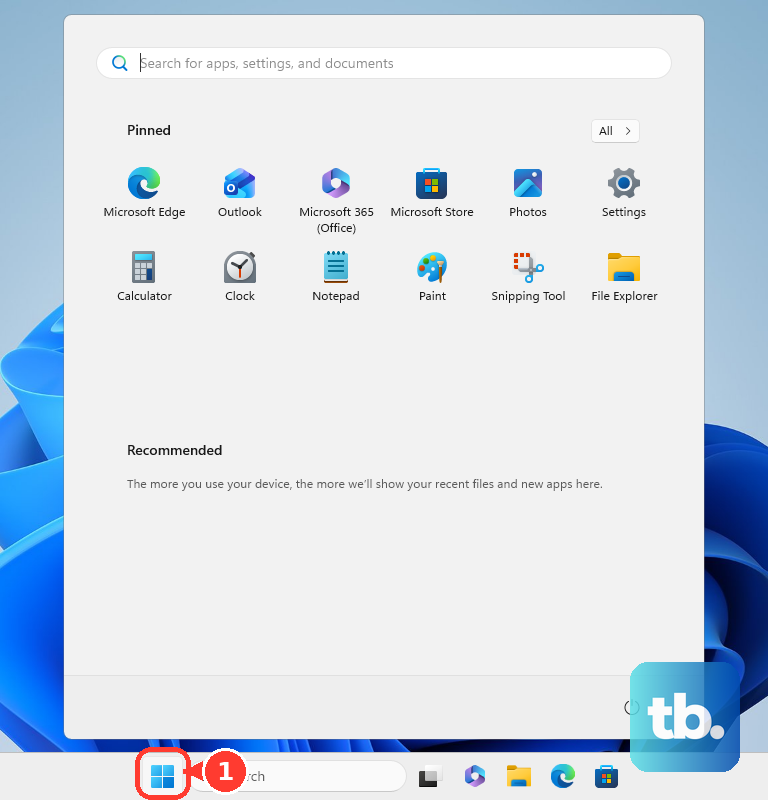
Select Start, then search for and open Microsoft Store. Select your Profile picture, select Store Settings, and turn App updates on.
5. Run Outlook for Mac updates
Open Outlook, Word, or another Microsoft 365 app. In the menu bar, select Help, then select Check for Updates.
When Microsoft AutoUpdate opens, select Update, Update All, or the update button next to Outlook. Restart Outlook after the update finishes.
For Outlook installed from the Mac App Store, open App Store, click Updates, then click Update next to Microsoft Outlook or click Update All.
6. Allow Mac background updates
For Microsoft AutoUpdate-managed installs on macOS Ventura and later, open System Settings > General > Login Items & Extensions > Allow in the Background and turn Microsoft AutoUpdate on.
To enable automatic Microsoft app updates, open a Microsoft 365 app and use Help > Check for Updates > Automatically keep Microsoft apps up to date.
7. Update Outlook on iPhone or iPad
This fixes an outdated Outlook mobile app installed from Apple's App Store.
Open the App Store on your iPhone or iPad, search for Microsoft Outlook, and tap Update. If the button says Open, Outlook is already on the latest version.
You can also open the App Store, tap the My Account button or your photo at the top of the screen, tap App Updates, then tap Update next to Outlook or Update All.
For automatic updates, open Settings, tap Apps, tap App Store, and turn App Updates on.
8. Refresh Outlook on Android
Open Google Play Store > profile icon > Manage apps & device > Updates available > See details, then tap Update next to Microsoft Outlook or tap Update all.
You can also search for Microsoft Outlook in the Play Store and tap Update; when the button says Open, Outlook is already current.
For automatic updates, use Google Play Store > profile picture > Settings > Network Preferences > Auto-update apps, or use Google Play Store > profile picture > Manage apps & device > Manage, tap Microsoft Outlook to open its details page, tap More, and turn on Enable auto update.
9. Handle Outlook on the web and old apps
For Outlook.com or Outlook on the web, skip app updates because there is no Outlook app update to install. Use a current supported browser, close the browser, and sign back in when Outlook shows an old or light web experience.
Install Outlook on the web as a progressive web app in Microsoft Edge or Google Chrome if you want it to open like a desktop app. To move from classic Outlook to the new Outlook, turn on the Try the new Outlook toggle in the upper corner and let the app download and open.
Support for Windows Mail, Calendar, and People ended on December 31, 2024, so from those apps open the app and select Open Outlook in the dialog box that appears, or download new Outlook from Microsoft Store.
To reinstall Microsoft 365 or Office desktop apps, go to Microsoft's official Microsoft 365 apps page, sign in, select Install apps, and run the installer.
Skip old update paths for Office 2010, Office 2013, Office 2016, Office 2019, Outlook Lite for Android, and the retired OWA mobile apps.
Frequently Asked Questions
Why does Outlook say Open instead of Update?
On iPhone, iPad, or Android, Open means the store does not have a newer Outlook update ready for your device.
Can Windows Update update Outlook too?
Yes. On Windows, you can turn on updates for other Microsoft products in Windows Update so eligible Office and Outlook versions receive updates through Microsoft Update.
What should I do if Check for Updates is missing on Mac?
For Microsoft AutoUpdate-managed Office installs, install the latest Microsoft AutoUpdate package from Microsoft, then check for Outlook updates again.
Can I update Outlook on a work computer myself?
Use the update controls only when they are available. If update controls are missing or locked, your organization manages Outlook updates through admin tools such as cloud update, policy, Intune, or Configuration Manager.