
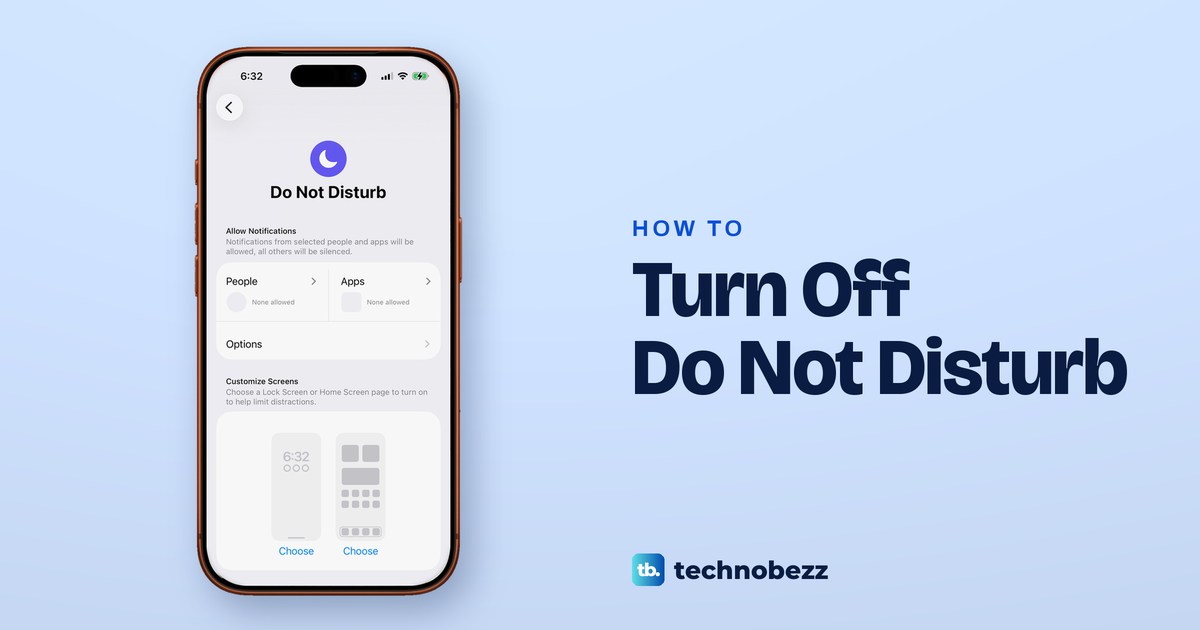
To turn off Do Not Disturb on iPhone, open Control Center and tap the moon on the Focus button. Swipe down from the top-right corner on an iPhone with Face ID, or up from the bottom edge on one with a Home button. Do Not Disturb is off when the button reads Focus again.
Two things catch people out. If the button shows Sleep, Work, Personal, Driving or Reduce Interruptions instead, that Focus is the one silencing your calls, so tap its icon. And if Do Not Disturb keeps turning back on, something is switching it on, and each cause has its own off switch further down.
The short version
- Fastest way: open Control Center and tap the moon on the Focus button until the button reads Focus.
- Another Focus on? Sleep, Work, Personal and Driving can silence calls too, so tap whichever one the button shows.
- Settings is for the rules: on our iPhone 17 Pro with iOS 26.6, Settings > Focus says to turn it on and off in Control Center.
- Keeps coming back: check for a schedule, your sleep schedule, Driving, a linked Lock Screen, the Action button or another Apple device.
- Alarms still ring: Apple says Clock alarms sound with Do Not Disturb on.
Turn off Do Not Disturb in Control Center
Control Center is the quickest way to switch Do Not Disturb off, and it is where Apple's own instructions start. Open it with the swipe above, then tap the moon on the left of the Focus button.
Apple's check is simple. If the icon colour dims and the button text changes to Focus, Do Not Disturb has been turned off. With no Focus on, the button on our iPhone 17 Pro with iOS 26.6 read Focus beside a white moon, with two small arrows after the word.
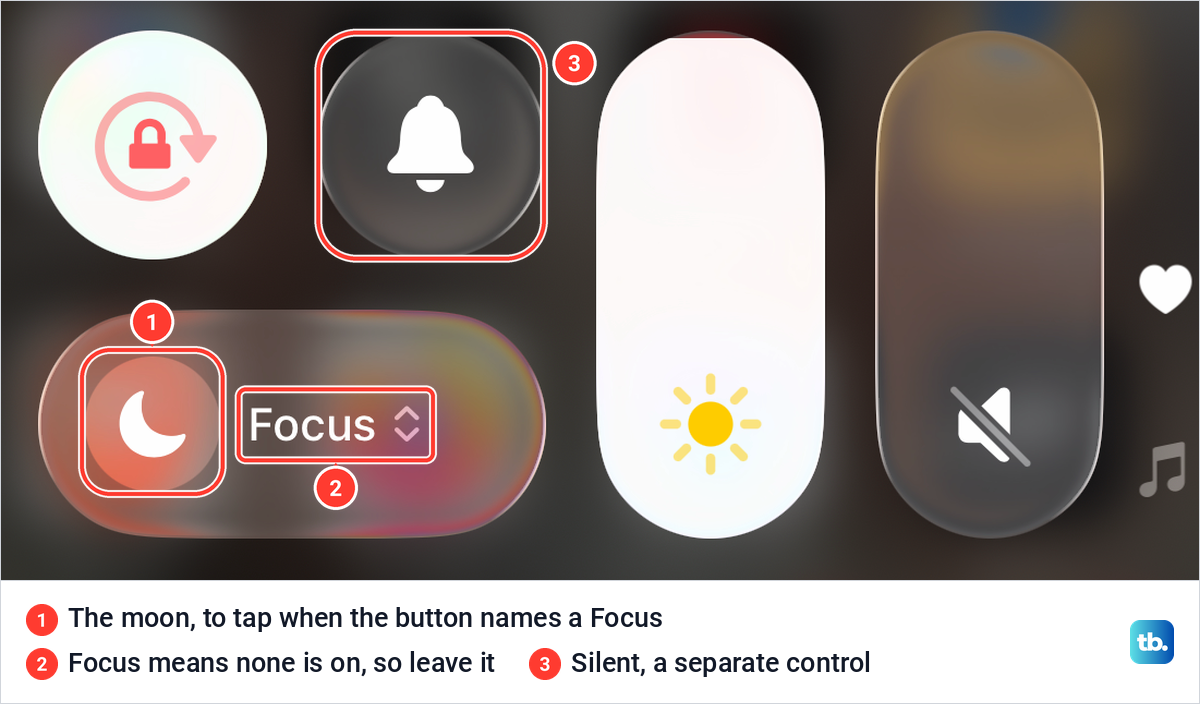
An icon stays on that button even when nothing is on, and on ours the moon sat on a tinted circle, so go by the label rather than the moon. Apple's own pictures show the off state as a white moon beside the word Focus, and the on state as a purple moon with the words Do Not Disturb. If your button already reads Focus, Do Not Disturb is off and there is nothing to tap.
If the button shows Sleep, Work or another Focus
Do Not Disturb is only one Focus. Apple's Do Not Disturb article adds that if the Focus button shows another one, such as Personal, Work, Sleep, Reduce Interruptions or Driving, you tap its icon to turn it off. Apple says these can also stop you from receiving calls, alerts and notifications.
Only one Focus is on at a time, because Apple says the old one turns off when you tap a new one. Reduce Interruptions is the easiest to mistake for Do Not Disturb. Apple describes it as a Focus that uses Apple Intelligence to show only the most important notifications, so it only appears when Apple Intelligence is turned on.
Add the Focus control if it is missing
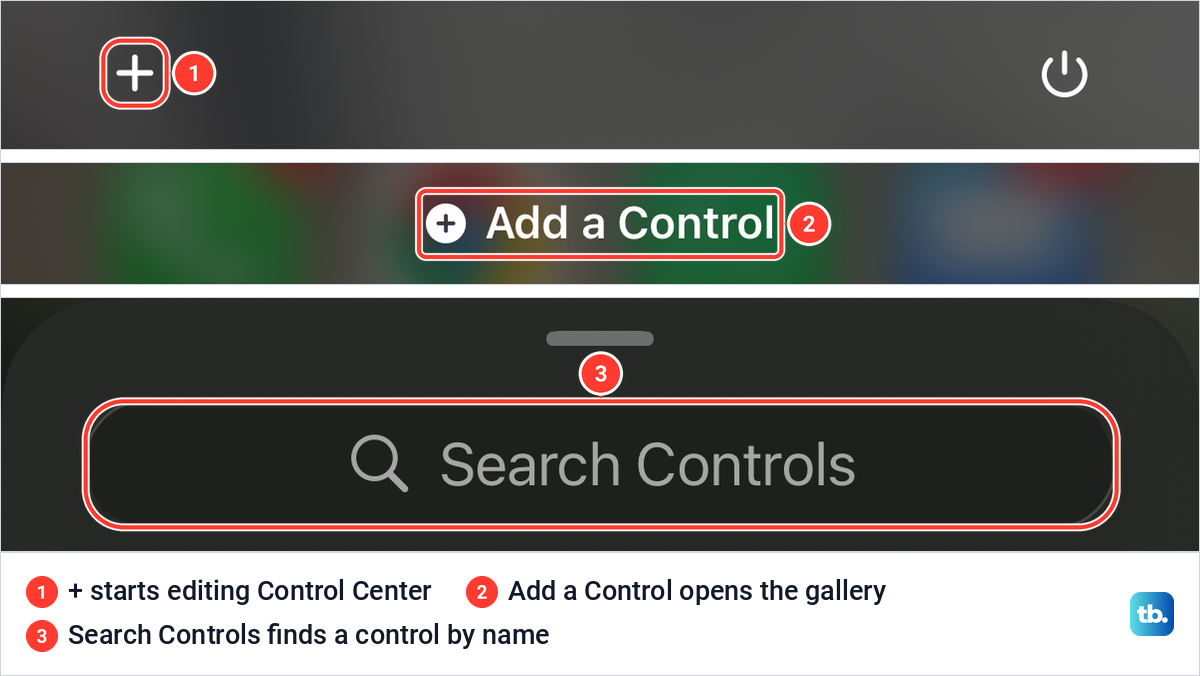
Control Center can be rearranged, so the Focus button may have been removed or moved to another page. To put a control back, tap the + button at the top left of Control Center to start editing, then tap Add a Control at the bottom of the screen and tap the control you want.
On our iPhone 17 Pro, the + sat in the top-left corner of Control Center, and tapping it gave every control a small minus badge, with Add a Control at the bottom. The gallery it opened had a Search Controls box at the top, which is quicker than scrolling when you are looking for Focus.
Use the Focus menu to pick an end time
The Focus menu is a second way in. Apple's instructions open it by touching and holding the Focus button, or by tapping Focus. Then tap the Focus that is on to turn it off.
The same menu is where a Focus gets an end time. Apple says you tap the small button beside a Focus and choose how long it stays on, with options such as For 1 hour, Until this evening, or until you leave your current location. A Focus set that way switches itself off later, which explains why Do Not Disturb sometimes ends on its own, and it is the better habit for a meeting or a film.
Turn it off from the Lock Screen or with Siri
The Lock Screen has its own route. Apple's instruction is to touch and hold the Focus icon on the Lock Screen, then tap the Focus that is on, and Sleep works the same way. Note the verb, because Apple says touch and hold, not tap.
Siri can do it hands-free. Say "Siri" or "Hey Siri", or press and hold the side button on an iPhone with Face ID or the Home button on older models, then say "Turn off Do Not Disturb". Apple says you can ask Siri to turn Do Not Disturb on or off, and its example for other modes is "Turn on the Work Focus".
If Siri does not respond, it may be switched off. Apple also says the side button only calls Siri when Press Side Button for Siri is turned on.
How to tell Do Not Disturb is really off
Apple says that when Do Not Disturb is on, a crescent moon icon appears in the status bar and on your Lock Screen. When those moons are gone and the Focus button in Control Center reads Focus, it is off.
People who message you can see a sign too. Apple says that while a Focus is on, Messages can show them that you have notifications silenced, and they can still notify you if something is urgent. The same note can also come from a muted conversation, which the last section covers.
To catch up afterwards, Apple says Notification Center shows your notifications history, so you can scroll back and see what you missed. You can then clear it with the steps to delete notifications on iPhone. The table sums up the main ways to switch Do Not Disturb off.
| Where you are | What to do | How you know it worked |
|---|---|---|
| Control Center, iPhone with Face ID | Swipe down from the top-right corner, tap the moon on the Focus button | The button reads Focus |
| Control Center, iPhone with a Home button | Swipe up from the bottom edge, tap the moon on the Focus button | The button reads Focus |
| Control Center, another Focus showing | Tap that Focus's icon, such as Sleep, Work or Driving | The button reads Focus |
| Lock Screen | Touch and hold the Focus icon, tap the Focus that is on | The moon leaves the Lock Screen |
| Siri | Say "Turn off Do Not Disturb" | The moon leaves the status bar |
| Apple Watch | Press the side button, tap the Focus control | The Do Not Disturb button is gray |
| Mac | Open Control Center in the menu bar, click the Focus that is on | Its icon is no longer highlighted |
What the Do Not Disturb page in Settings does
Settings is where you change what Do Not Disturb allows and what turns it on. On our iPhone 17 Pro with iOS 26.6, Settings > Focus listed Do Not Disturb, Personal, Sleep and Work, and the note under the list read Focus lets you customize your devices and silence calls and notifications. Turn it on and off in Control Center.
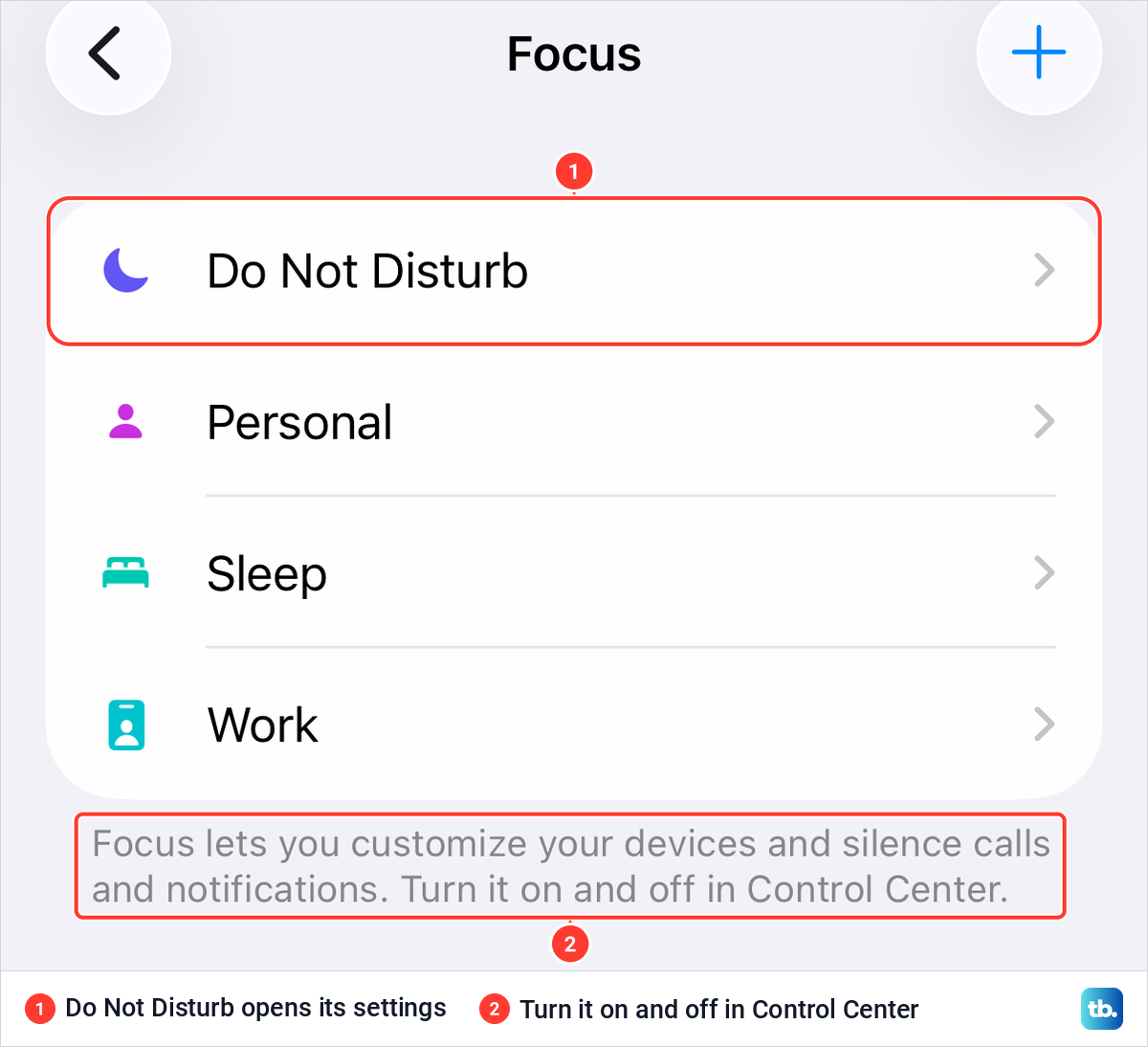
Tap Do Not Disturb to open its page. Ours opened with Allow Notifications, where the People and Apps tiles both read None allowed, then Options and Customize Screens, with no on and off switch at the top of the page. The text under Allow Notifications reads Notifications from selected people and apps will be allowed, all others will be silenced.
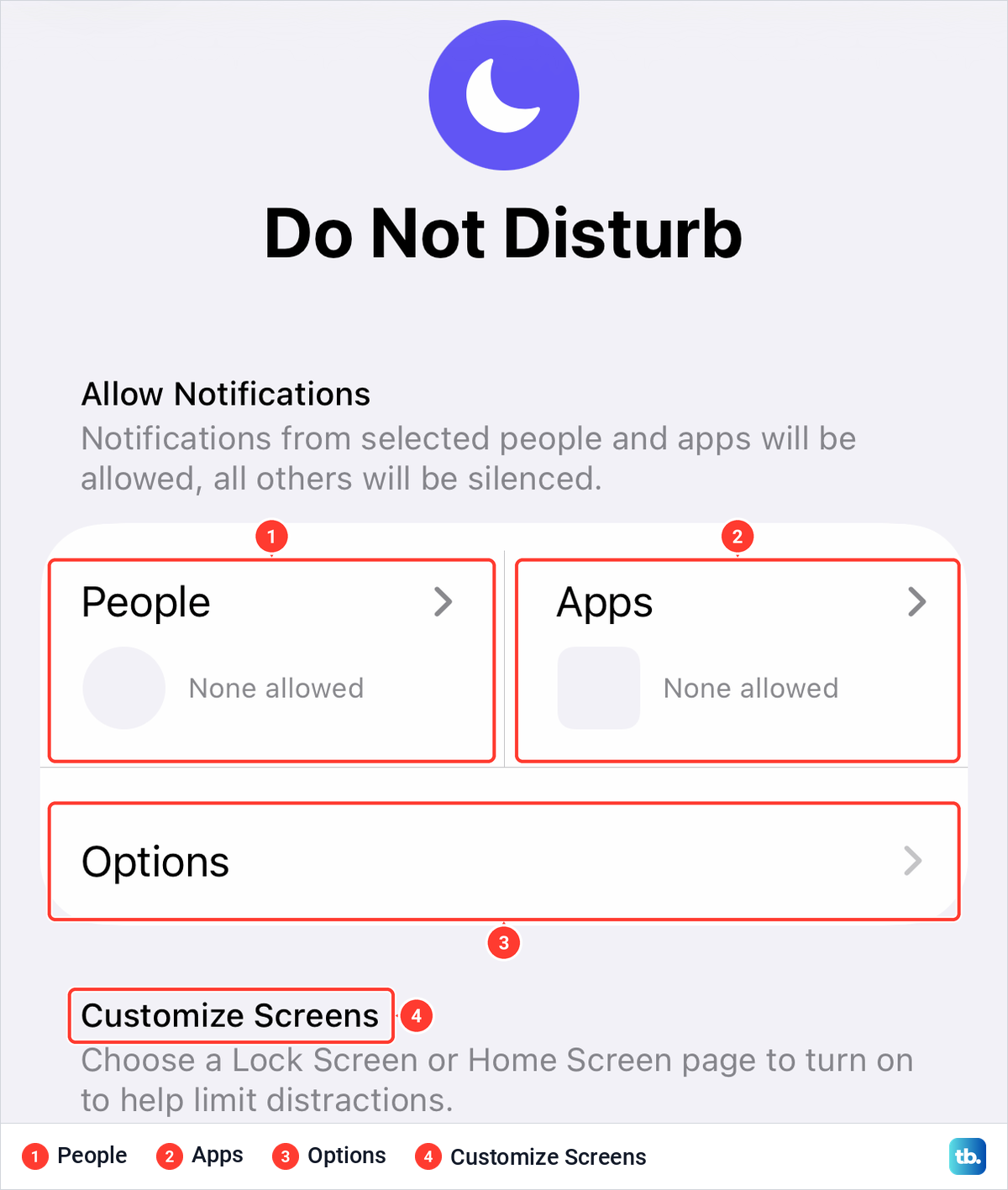
Each part answers a different question. People and Apps decide who still gets through, Options covers whether silenced notifications show on the Lock Screen and whether it dims, and Customize Screens links a Lock Screen or Home Screen page to Do Not Disturb. Apple's support article adds Set a Schedule and Focus Filters further down, and Customize Screens and Set a Schedule can both turn it on by themselves.
Why Do Not Disturb keeps turning back on
When Do Not Disturb returns by itself, something is switching it on. Six things can switch it on, and each one has a different place to stop it.
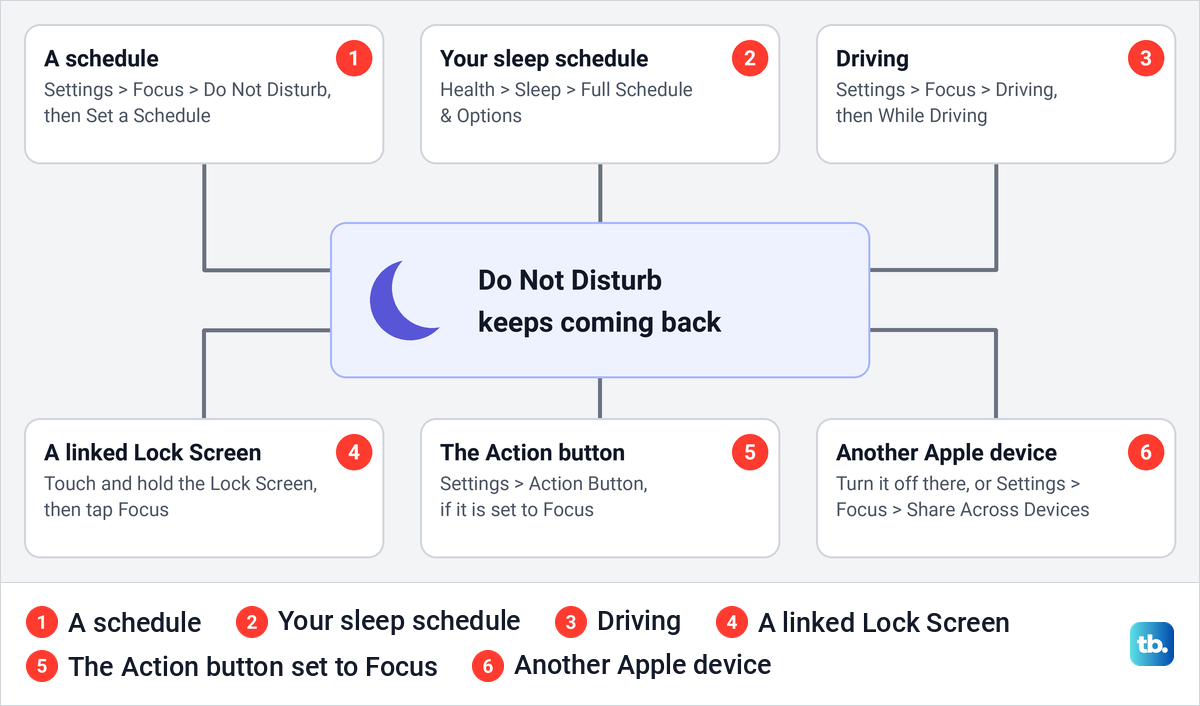
Apple's Do Not Disturb article points to schedules when it turns back on automatically. Open Settings > Focus > Do Not Disturb, scroll down to Set a Schedule and check for any active schedules to turn off. Apple says a schedule can start a Focus at certain times, when you are at a particular location or when you open a specific app, so one tied to an app can look random.
A schedule set on an Apple Watch counts too, because Apple says a Focus schedule set on either your iPhone or Apple Watch works on both. On the watch, open Settings, tap Focus, choose the Focus and then the schedule, scroll down and turn off Enabled or tap Delete.
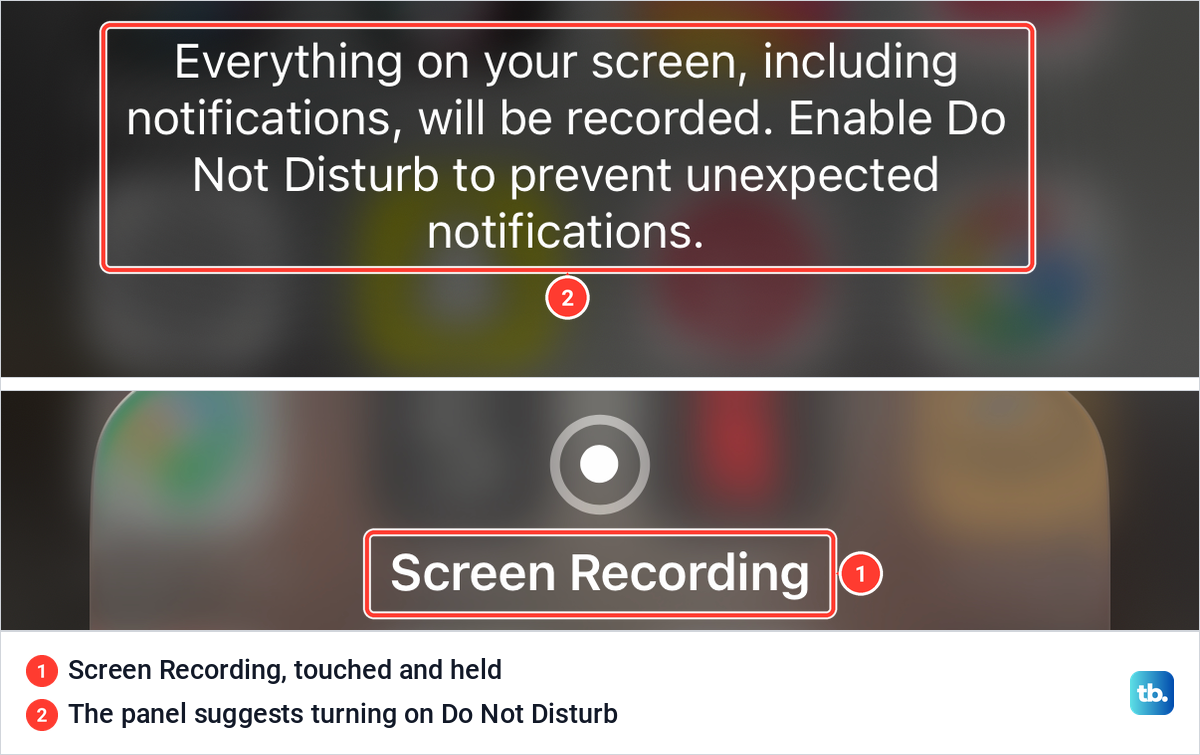
Do Not Disturb can also be left on rather than turned back on. When we touched and held the Screen Recording control in Control Center on our iPhone 17 Pro, the panel advised Enable Do Not Disturb to prevent unexpected notifications. If you turned Do Not Disturb on for a recording, it stays on until you switch it off or an end time you chose runs out.
Stop Sleep and Driving from switching on
Sleep comes back on a timetable. Apple says Sleep Focus follows the sleep schedule you set in the Health app and turns on or off again at your next scheduled bedtime or wake-up time. Switching it off in Control Center therefore only lasts until the next bedtime.
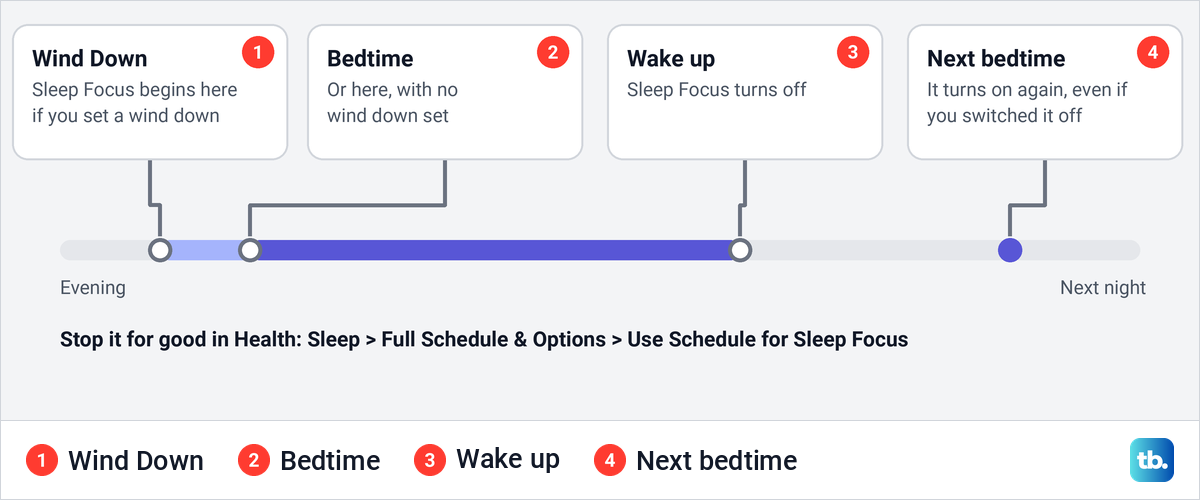
To stop that for good on iOS 26, open the Health app, tap the Search button at the bottom right and tap Sleep. Tap Sleep again, scroll down to Your Schedule, tap Full Schedule & Options and turn off Use Schedule for Sleep Focus. Apple says your sleep schedules stay in effect, but Sleep Focus no longer turns on automatically.
On iOS 27, Apple's guide has you tap Browse instead of Search. If your sleep schedule has a wind down period, in Health or on an Apple Watch, Apple says Sleep Focus begins at the start of it, which can be up to 3 hours before bedtime. If you set up sleep tracking on Apple Watch, check the Wind Down time there too.
Driving can switch on with no tap at all. The setting is under Settings > Focus > Driving > While Driving, where Apple lists turning on automatically when iPhone detects you might be driving, when it connects to your car's Bluetooth, or with CarPlay. Choose Manually, and if your car uses CarPlay, also check Activate With CarPlay in the same list, which Apple describes as turning Driving on automatically when iPhone is connected to CarPlay.
Check a linked Lock Screen or the Action button
A Lock Screen can carry its own Focus. Apple says that when you choose a wallpaper connected to Do Not Disturb, Do Not Disturb turns on automatically, and that switching away from a Lock Screen linked to a Focus also switches your Focus. Swiping between Lock Screens can therefore turn it on without you noticing.
To see which Focus a Lock Screen is linked to, press the side button, touch and hold the Lock Screen until the Customize button appears, then tap Focus near the bottom of the wallpaper. If you never use that Lock Screen, switch to another one or remove it, as shown in how to delete wallpapers on iPhone.
On models with an Action button, check Settings > Action Button as well. Apple lists Focus as one of the actions the button can be set to, described as turning on a Focus to silence notifications, and the button works with a press and hold. If yours is set to Focus, a press and hold can switch it on.
Stop an Apple Watch, iPad or Mac turning it on
Focus can follow you between devices. On our iPhone 17 Pro, Share Across Devices sat under the Focus list in Settings > Focus, switched on, with the note Focus is shared across your devices, and turning one on for this device will turn it on for all of them. Apple adds that a notification appears on your other devices when Do Not Disturb turns on or off.
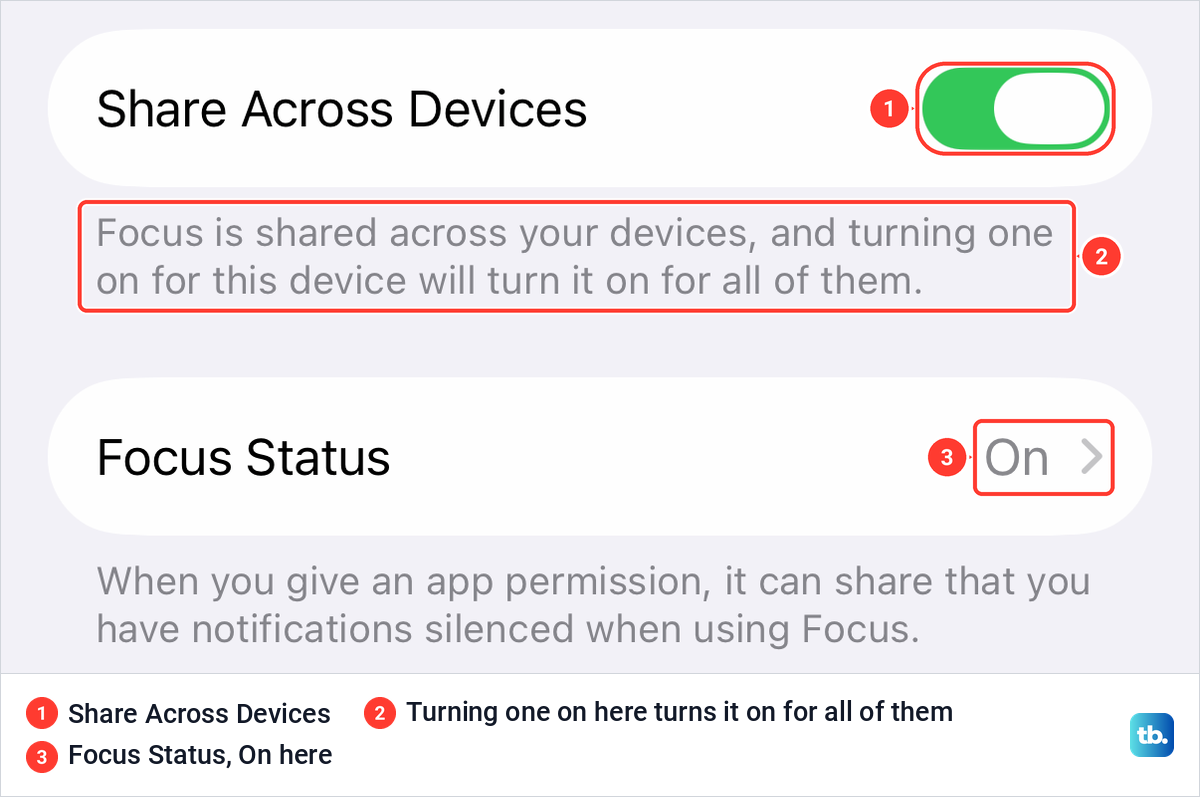
That means a Mac or iPad signed in to the same Apple Account can switch your iPhone's Do Not Disturb on. Turn it off on that device, or turn off Share Across Devices on the iPhone.
An Apple Watch is tied more closely. Apple says a Focus you turn on at your Apple Watch automatically activates on your iPhone as well, and that Focus settings are shared between the two. To turn it off on the watch, press the side button to open Control Center and tap the Focus control.
On a Mac, click Control Center in the menu bar, then the Focus section, then the Focus that is on. Apple says holding Option while you click the date and time in the menu bar also switches Do Not Disturb. Apple says that when Focus is kept up to date across your devices, turning a Focus on at the Mac turns it on at the others. Our guide to silence notifications on Mac covers the Mac's Focus schedules and shortcuts.
Keep it on but let important calls through
If you like the quiet but cannot miss certain calls, change what Do Not Disturb allows instead of turning it off. On the Do Not Disturb page shown earlier, People and Apps both read None allowed on our iPhone, so nobody and no app was on the allowed list yet.
Tap People, then Allow Notifications From, tap the Add People button and pick contacts. On the same screen Apple lets you allow calls from certain groups of people and allow repeated calls, which it defines as two or more calls from the same person within 3 minutes. Under Apps, Time Sensitive Notifications lets any app send time-sensitive alerts straight away.
For one person who must always get through, Apple's route is Emergency Bypass. Open Contacts, select the contact, tap Edit, tap Ringtone or Text Tone and turn on Emergency Bypass. If one person is the problem rather than everyone, you can silence a contact on iPhone and leave Do Not Disturb off.
When the noise comes from one app, turn off notification alerts for that app instead of silencing the whole phone. Apple also lets you mute an app for an hour or for the day from one of its notifications.
Do Not Disturb is not Silent mode
Silent mode is a separate switch with a similar effect. Apple says that with Silent mode on, iPhone does not ring or play alerts or other sound effects, but may still vibrate. Do Not Disturb, by contrast, silences calls, alerts and notifications.
On models with an Action button, go to Settings > Sounds & Haptics and turn Silent mode on or off. Apple says Silent Mode is the Action button's default action, and other models have a Ring/Silent switch. Control Center on our iPhone 17 Pro also had a Silent control, the bell just above the Focus button.
Silent mode can still buzz, and you choose that in the steps to make your iPhone vibrate on silent. Alarms are the exception to both modes, because Apple says your alarm sounds even when Silent mode or Do Not Disturb is on.
So if an alarm seemed quiet, turn up the alarm volume on iPhone rather than changing your Focus. Apple adds that audio apps and many games still play through the speaker in Silent mode.
Still missing calls or texts after turning it off
If the Focus button reads Focus and calls or alerts still arrive in silence, work through the other switches in order. The chart runs from the broadest check to the most specific.
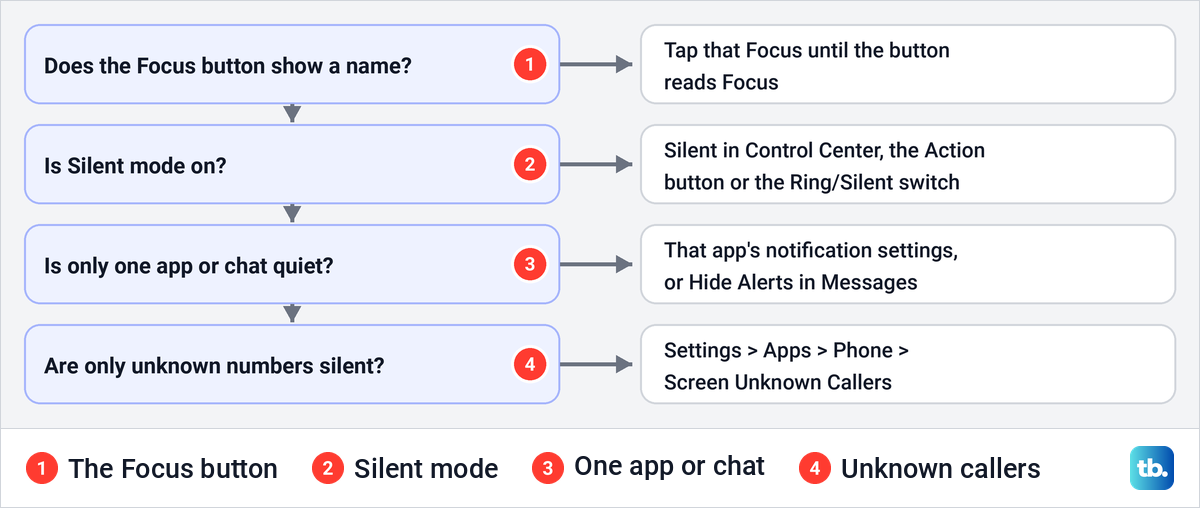
The Focus button and Silent mode are covered above. After that, check the app itself. If alerts arrive but make no sound, check the tone in that app's sound settings, which our guide to change notification sounds on iPhone walks through.
Messages has a mute of its own. Apple says turning on Hide Alerts for a conversation, or turning off Messages notifications, also sends senders a note that you have notifications silenced, with no Focus involved. If texts still arrive in silence with every Focus off, work through our fixes for text message notifications not working on iPhone.
Calls from numbers you have not saved have their own filter. On our iPhone 17 Pro with iOS 26.6, Settings > Apps > Phone had Screen Unknown Callers with three choices, Never, Ask Reason for Calling and Silence, and the screen says Silence sends calls from unsaved numbers to voicemail. Our guide to set up and use call screening on iPhone explains each choice.
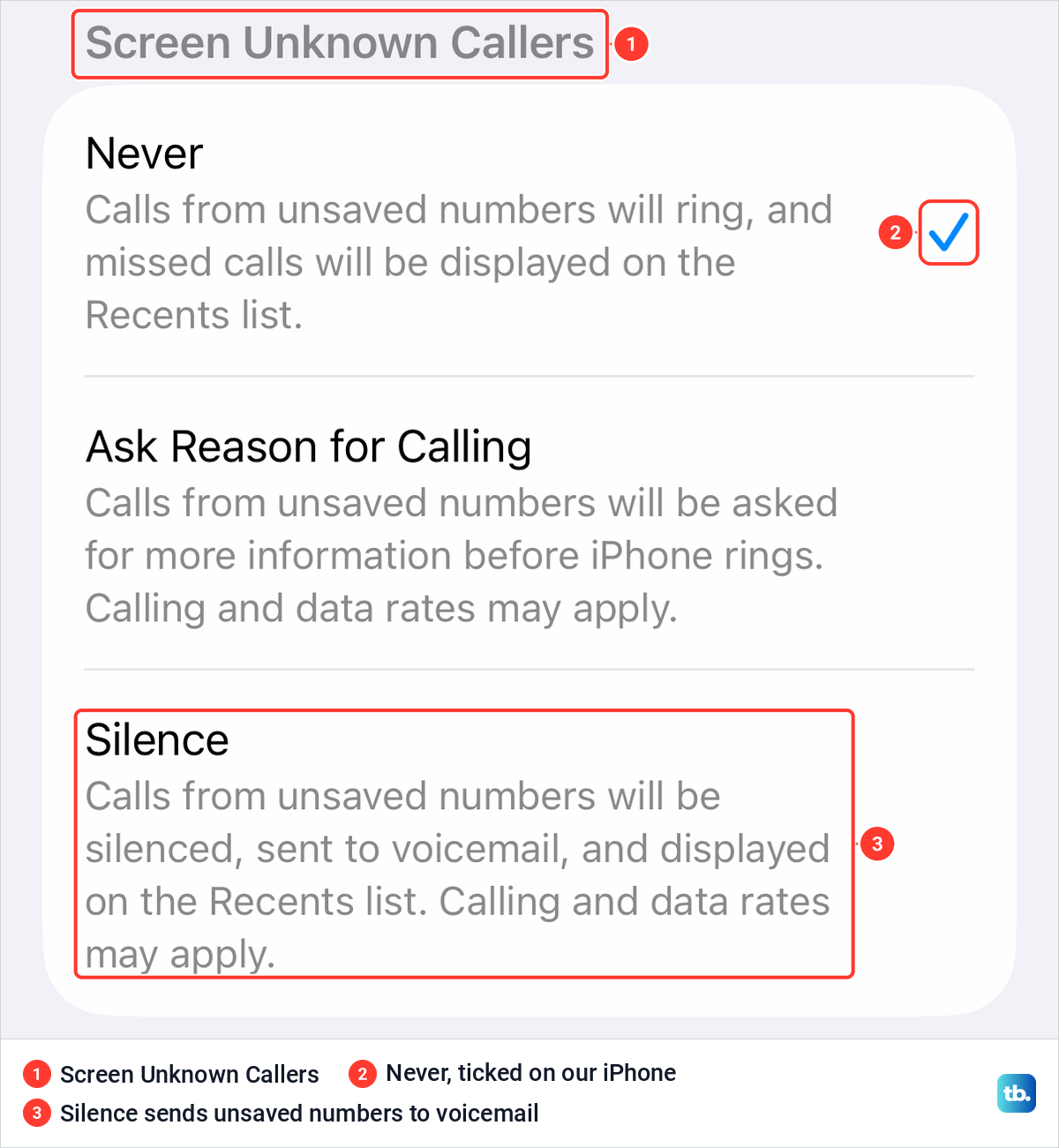
The same setting is one of the ways to stop spam calls on your iPhone, so check it before you blame Do Not Disturb. Apple's first advice in its Do Not Disturb article is to update iOS, and our guide to update Apple software on iPhone, iPad and Mac walks through it.
How we tested this guide
We tested on our iPhone 17 Pro with iOS 26.6. We opened Control Center with no Focus on, its edit mode and the Add a Control gallery, and the Screen Recording options. In the Settings app we opened the Focus list, the Do Not Disturb page and the Phone settings with Screen Unknown Callers.
The other steps follow Apple's own instructions for iPhone, Apple Watch and Mac. Labels can differ slightly on other iOS versions.
Frequently Asked Questions
Why does Do Not Disturb keep turning on by itself?
Something is switching it on, such as a schedule, your sleep schedule, Driving, a linked Lock Screen, an Action button set to Focus or another Apple device. Each has its own off switch, shown in the chart above.
How do I turn off Do Not Disturb permanently?
Turn it off in Control Center, then remove whatever keeps turning it on. Start with Set a Schedule on the Do Not Disturb page in Settings, then work through the other causes in the chart.
What does the moon on my iPhone mean?
Apple says a moon in the status bar or on the Lock Screen means Do Not Disturb is on. On the Focus button in Control Center, a white moon beside the word Focus is the off state Apple shows.
Will my alarm go off if Do Not Disturb is on?
Yes. Apple says Clock alarms sound even with Silent mode, Do Not Disturb or another Focus on.
Do calls come through when Do Not Disturb is on?
Only from people you allow, from anyone who calls twice within 3 minutes if you allow repeated calls, and from contacts with Emergency Bypass turned on. Apple's Focus settings silence everyone else.
Can people see that I have Do Not Disturb on?
If Focus Status is shared, Messages tells them you have notifications silenced. Apple's switch is Share Focus Status in Settings > Focus > Focus Status, or for one conversation under its contact icon.
Is Do Not Disturb the same as Silent mode?
No. Silent mode stops rings and alert sounds, though iPhone may still vibrate, while Do Not Disturb silences calls, alerts and notifications.
How do I turn off Do Not Disturb on my Apple Watch?
Press the side button to open Control Center and tap the Focus control. Apple says a Focus turned on at the watch also turns on at your iPhone.