Text message notifications can go quiet even when your iPhone is still receiving messages. The usual blockers are Messages notification settings, a muted conversation, Focus, silent sound settings, filters, or Apple Watch routing. Start with the most common switches below, then move through the deeper iPhone settings that can hold alerts back.
1. Turn Messages Notifications On
Start with the main Messages switch. If this is off, banners, sounds, Lock Screen alerts, and badges will not behave the way you expect.
Open Settings.
Tap Apps.
Tap Messages.
Turn on Allow Notifications.
Choose the alert style, sound, and behavior you want for Messages.
If Messages alerts are on but nothing appears on the Lock Screen, go to Settings > Notifications > Messages, then choose the alert style you want under Alerts.
2. Unmute The Conversation That Went Silent
Open Messages.
Open the conversation that is not alerting you.
Tap the image or icon at the top of the conversation.
Turn off Hide Alerts.
If only one person or group is missing alerts, that conversation is probably muted. This changes alerts for that conversation only. It does not reset notification behavior for every Messages thread.
3. Shut Off Focus Or Let Messages Through
Focus can silence Messages while every Messages notification switch still looks correct.
Open Control Center, tap and hold Focus, Do Not Disturb, or the active Focus, then tap the active Focus again to turn it off. On iPhone X or later, swipe down from the top-right corner to open Control Center. On iPhone SE and iPhone 8 or earlier, swipe up from the bottom edge.
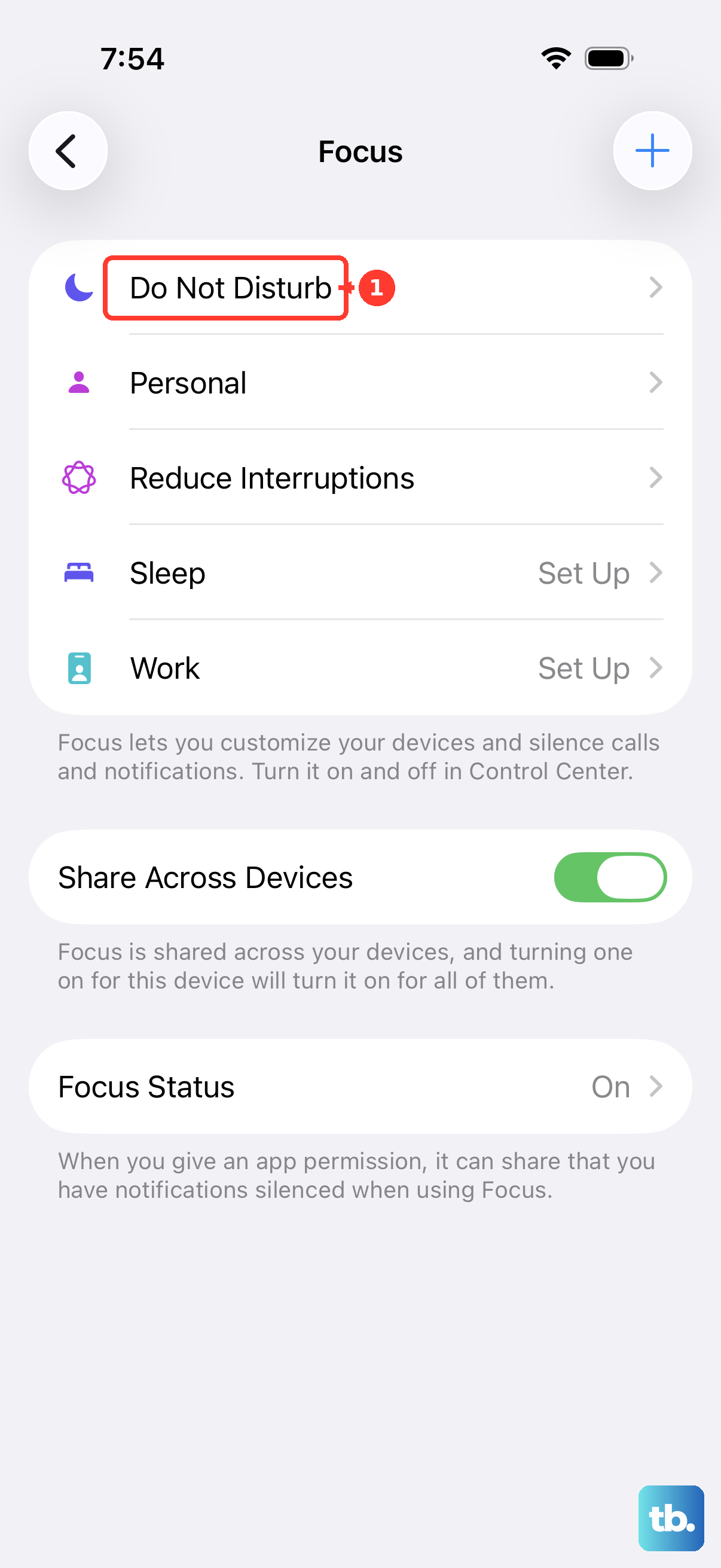
To stop Do Not Disturb from turning itself back on, go to Settings > Focus > Do Not Disturb > Set a Schedule, then turn off active schedules.
To allow Messages during most Focus modes, go to Settings > Focus, choose the Focus, tap Apps, tap Allow Notifications From, tap Add Apps, then select Messages. The Driving Focus does not let you allow apps, so turn it off or change its activation, or allow specific contacts under People instead.
To allow certain contacts, go to Settings > Focus, choose the Focus, tap People, tap Allow Notifications From, tap Add People, then select the contacts.
To let urgent supported alerts through, turn on Time Sensitive Notifications where that option appears.
4. Restore Sound Vibration And Silent Mode
Go to Settings > Notifications > Messages > Sounds.
Choose a sound instead of None.
Tap Haptics.
Choose a haptic option instead of None.
If banners show up but your iPhone stays quiet, check the sound path next. A silent tone, low alert volume, no haptic, or Silent mode can make Messages feel broken.
For the global text tone, go to Settings > Sounds & Haptics > Text Tone, then choose a sound under Alert Tones. To raise alert volume, use the volume slider in Settings > Sounds & Haptics.
On iPhone models with an Action button, go to Settings > Sounds & Haptics and turn off Silent mode. On models with a Ring/Silent switch, flip the switch toward the front of the iPhone.
5. Allow Alerts From Unknown Senders
When alerts work for saved contacts but not for verification codes, businesses, or new numbers, check message filtering.
Open Messages.
Tap the Filter button at the top right of the conversation list.
Tap Manage Filtering.
Tap Screen Unknown Senders.
Tap Allow Notifications, then turn the categories on or off.
In iOS 26, unknown senders and spam can be screened, and those messages will not notify you unless alerts are allowed. To mark one sender as known, go to Messages > Filter > Unknown Senders, open the message, then tap Mark as Known. You can also tap the sender phone number or email and choose Create New Contact.
If a filtering extension is installed, go to Messages > Filter > Manage Filtering > Text Message Filter, then turn the filter off or adjust its categories.
6. Bring Alerts Back To The Lock Screen
For Lock Screen layout, go to Settings > Notifications > Display As, then choose List or Stack instead of Count.
For hidden message text, go to Settings > Notifications > Messages > Show Previews, then choose Always, When Unlocked, or Never.
For Messages alerts muted from Notification Center, swipe left on a Messages notification in Notification Center, tap Options, then tap Unmute.
For summary delivery, go to Settings > Notifications > Scheduled Summary > A to Z, then turn off Messages. You can also go to Settings > Notifications > Messages and choose Immediate Delivery where shown.
Sometimes Messages is notifying you, but the alert is hidden, summarized, or collapsed. These settings control how visible the alert is.
Skip old fixes that tell you to use Deliver Quietly. Apple’s current iOS controls use Mute for 1 Hour, Mute for Today, Unmute, Scheduled Summary, and Immediate Delivery.
7. Check Apple Watch Screen Time And Announcements
If you use an Apple Watch, notification routing can make the iPhone look silent.
Apple Watch notifications go to either your iPhone or your watch, not both. When your iPhone is unlocked, alerts appear on the iPhone. When your iPhone is locked or asleep, alerts route to Apple Watch unless the watch is locked.
Open the Apple Watch app on iPhone.
Tap My Watch.
Tap Notifications.
Tap Messages.
Choose Mirror my iPhone, or choose Custom > Allow Notifications.
Avoid Custom > Send to Notification Center or Notifications Off when you want Apple Watch alerts.
Screen Time can restrict communication too. Go to Settings > Screen Time > Communication Limits > During Screen Time and choose Everyone when unknown-number messages should come through. Then tap Back > During Downtime and adjust the allowed contacts.
If the missing alert is a Siri announcement through supported headphones or CarPlay, go to Settings > Siri or Apple Intelligence & Siri > Announce Notifications. Turn on Announce Notifications, tap Messages, then turn on Announce Notifications for Messages.
8. Restart Update Or Reset Last
To restart iPhone X, 11, 12, 13, or later, press and hold either volume button and the side button until the power-off slider appears. Drag the slider, wait 30 seconds, then press and hold the side button until the Apple logo appears.
To restart iPhone 6, 7, 8, or SE 2nd or 3rd generation, press and hold the side button until the power-off slider appears. Drag the slider, wait 30 seconds, then press and hold the side button until the Apple logo appears.
To restart iPhone SE 1st generation, iPhone 5, or earlier, press and hold the top button until the power-off slider appears. Drag the slider, wait 30 seconds, then press and hold the top button until the Apple logo appears.
To update iOS, go to Settings > General > Software Update, then tap Download and Install when an update is offered.
To reset settings, go to Settings > General > Transfer or Reset iPhone > Reset > Reset All Settings.
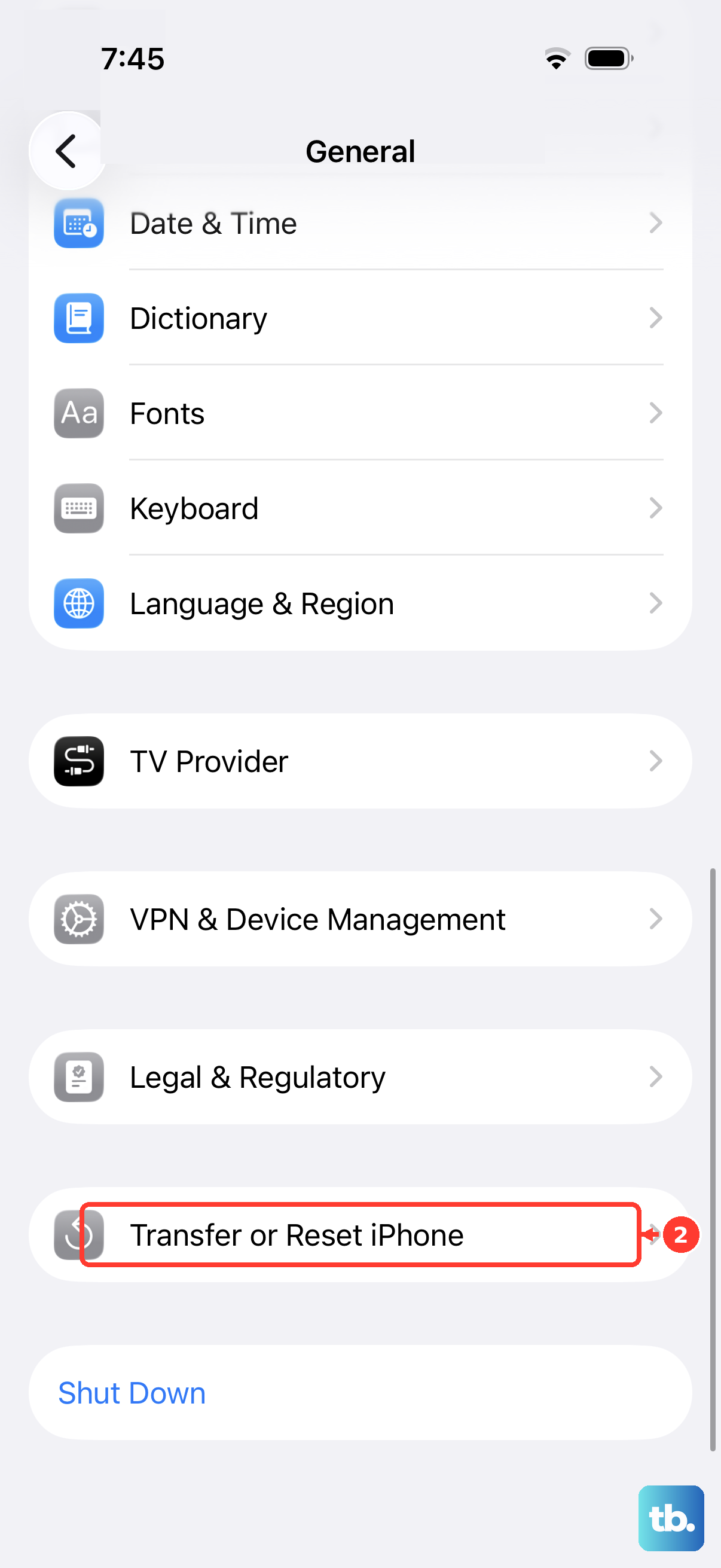
Once the notification settings are correct, move to system-level fixes. Restart first, update iOS next, and use Reset All Settings only after the Messages, Focus, filtering, Watch, and Screen Time settings check out.
Reset All Settings resets settings including network, keyboard dictionary, location, privacy, and Apple Pay cards without deleting your data or media.
For a work or school iPhone, go to Settings > General > VPN & Device Management. If the iPhone is managed, the organization can enforce restrictions that you cannot override locally. Ask the administrator to change the restriction.
Frequently Asked Questions
Why do Messages notifications stop when I am already in the Messages app?
When Messages is open and active, your iPhone does not send a separate notification for each new message. That is expected behavior.
Can one contact still make sound when other notifications are silenced?
Yes. Open Contacts, select the contact, tap Edit, tap Ringtone or Text Tone, then turn on Emergency Bypass.
Will Reset All Settings delete my messages?
No. Reset All Settings resets settings such as network, keyboard dictionary, location, privacy, and Apple Pay cards without deleting data or media.
Should I reinstall Messages to fix missing text alerts?
No. Use the notification, Focus, filtering, Apple Watch, Screen Time, update, and reset settings covered above instead.