Your Apple software update can happen in Settings, System Settings, Finder, or the Apple Devices app, depending on the device and what went wrong. Start with the built-in updater first, then use the computer or recovery options when the normal update button fails. Here are the Apple-supported paths that matter for iPhone, iPad, and Mac.
1. Update iPhone or iPad from Settings
For an iPhone or iPad that turns on normally, start here. Back up the device, plug it into power, and connect it to Wi-Fi before you begin.
Open Settings, tap General, and tap Software Update. Tap Download and Install, then follow the onscreen instructions.
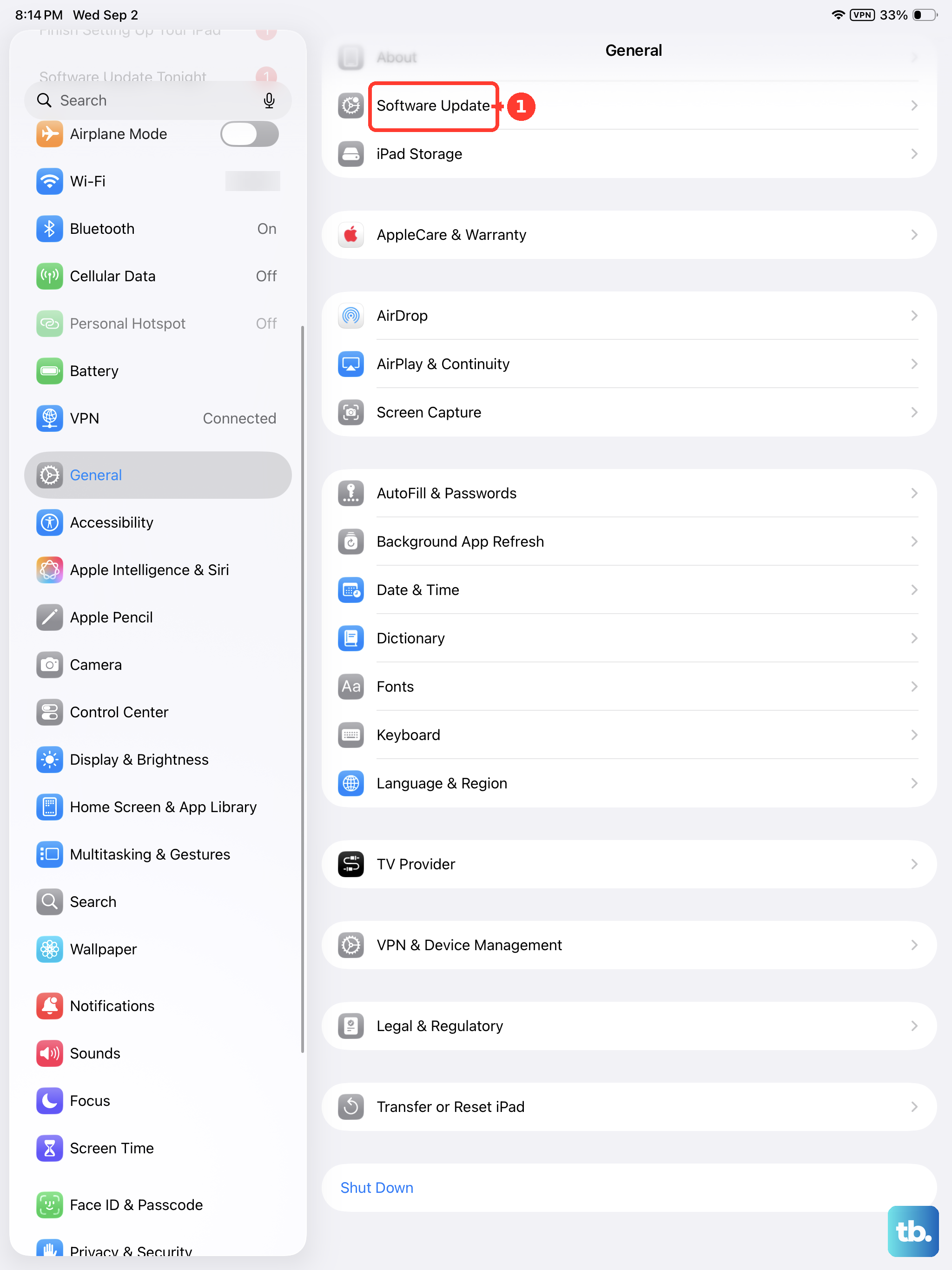
If iOS or iPadOS asks to temporarily remove apps for storage, tap Continue. After installation, those apps are automatically reinstalled.
2. Upgrade your Mac in System Settings
Open the Apple menu, click System Settings, and click General. Click Software Update, then click Update, Upgrade, or Restart Now when one appears.
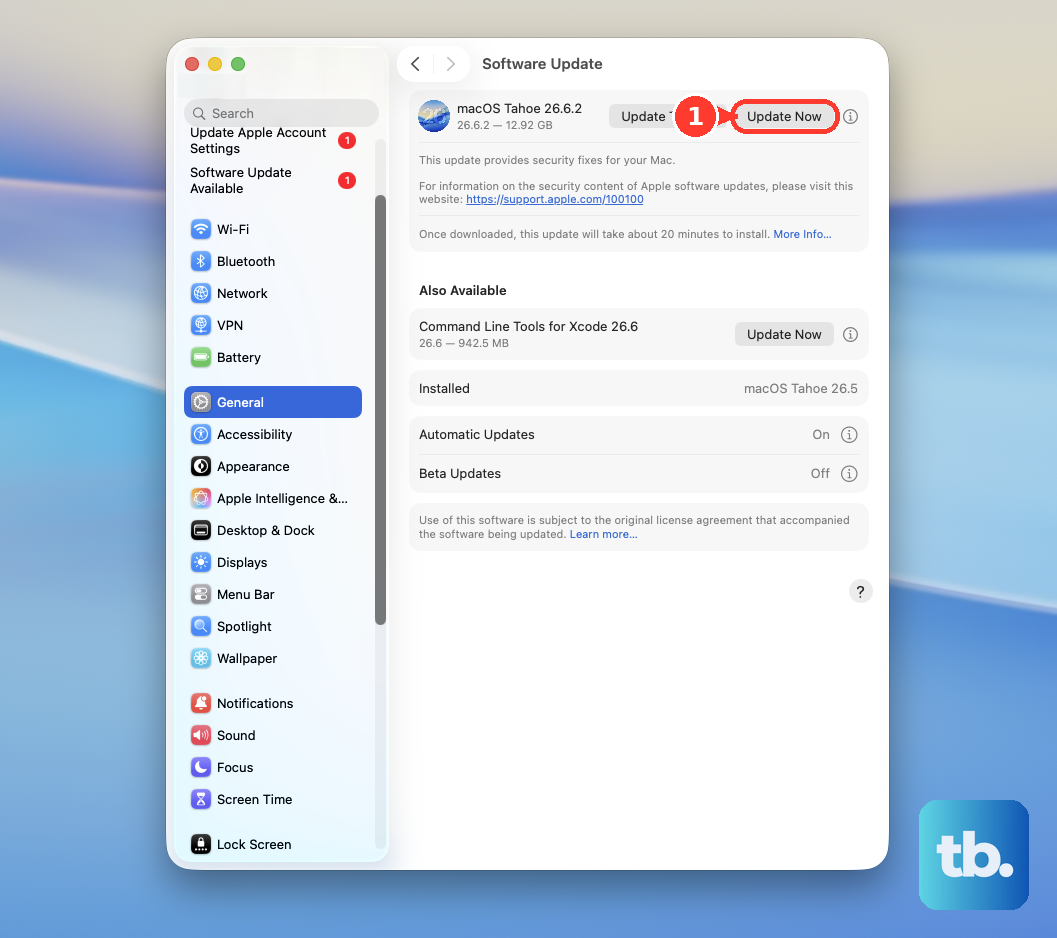
On a current Mac, Software Update lives in System Settings and shows compatible updates and upgrades for that Mac. To check again, click Check for Update, press Command-R, or close and reopen Software Update. You can also click Spotlight, search for Software Update, and open it from the results.
3. Turn on automatic updates
Automatic updates save you from checking the same menu every week. The setting is different on iPhone, iPad, and Mac, but the goal is the same: download and install updates when Apple makes them available for your device.
On iPhone or iPad, open Settings, tap General, and tap Software Update. Tap Automatic Updates, then turn on Automatically Install.
To download iPhone or iPad updates without installing them right away, turn off Automatically Install. After that, turn on Automatically Download.
On Mac, open the Apple menu, click System Settings, and click General. Click Software Update, then click the Info button next to Automatic Updates.
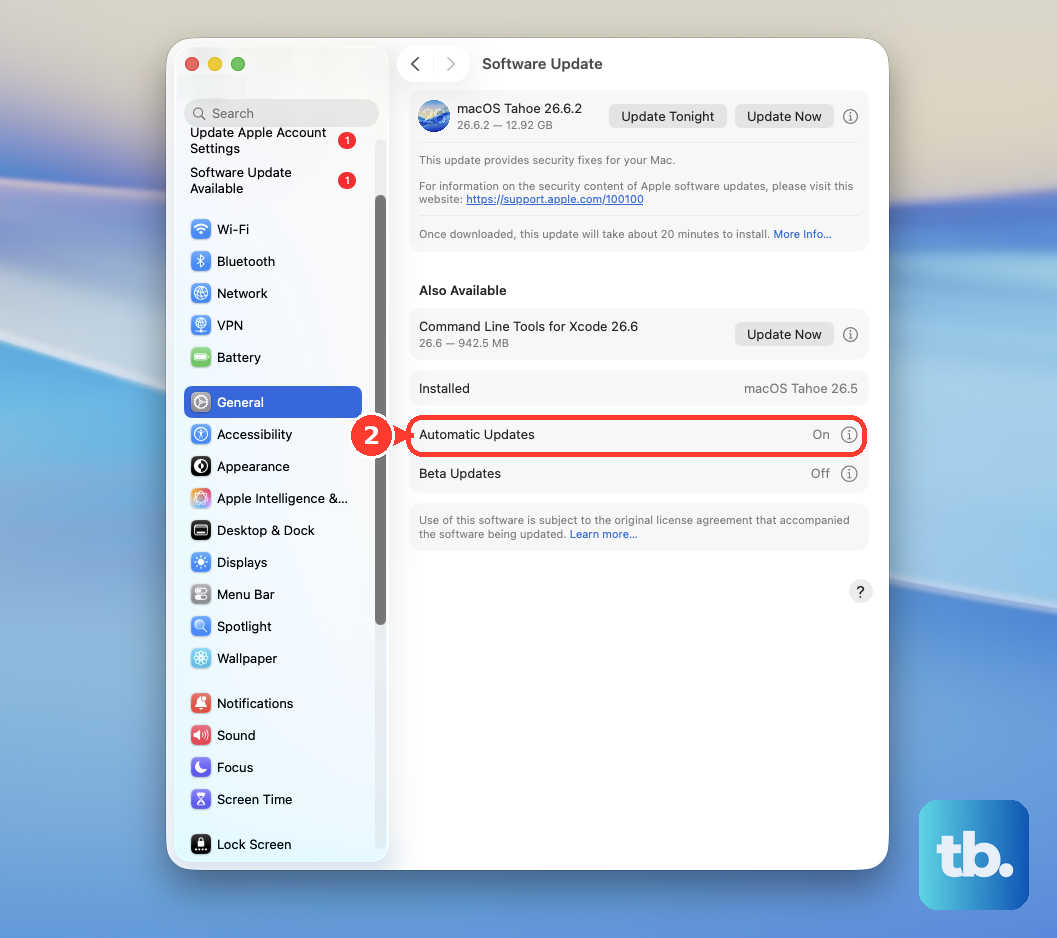
Turn on Download new updates when available, turn on Install macOS updates, and turn on Install Security Responses and system files. Click Done.
4. Keep security improvements installing
Apple also delivers system files and security improvements outside a full operating system update. On iPhone or iPad, go to Settings > General > Software Update > Automatic Updates. Under System Files, turn on Automatically Install.
On iOS 26.1 or later and iPadOS 26.1 or later, open Settings > Privacy & Security > Background Security Improvements. Turn on Automatically Install.
On macOS 26.1 or later, open System Settings > Privacy & Security > Background Security Improvements. Turn on Automatically Install. Turn these on so the device gets those files automatically.
5. Update App Store apps separately
On iPhone or iPad, open App Store, tap the My Account button or your photo, and tap App Updates. Tap Update next to one app, or tap Update All.
System updates and app updates are separate jobs. Built-in default Apple apps update with iOS or iPadOS, while apps downloaded from the App Store update through the App Store.
To make iPhone or iPad app updates automatic, open Settings > Apps > App Store. Turn on App Updates.
On Mac, open App Store and click Updates in the sidebar. Click Update next to one app, or click Update All.
For automatic Mac App Store updates, open App Store > Settings or Preferences. Select Automatic Updates. If a Mac app did not come from the App Store, Apple directs you to the developer for updates.
6. Delete a failed iPhone or iPad update
A bad download can block the install button. Delete the downloaded update, then grab the latest version again from Software Update.
Open Settings, tap General, and tap [Device] Storage. Find the update in the list of apps, tap the update, and tap Delete Update.
Open Settings > General > Software Update. Download the latest update again.
7. Use a computer when iPhone or iPad will not update
On a Mac with macOS Catalina 10.15 or later, open Finder. Connect the iPhone or iPad, select the device in the Finder sidebar, and click General. Click Check for Update, click Download and Update, and follow the onscreen instructions.
When the on-device update fails, use Finder on a current Mac or Apple Devices on Windows. On Windows, open Microsoft Store, search for Apple Devices, select Apple Devices, and click Get.
Connect the iPhone or iPad by USB, USB-C, or Wi-Fi, then open Apple Devices. Select the device in the sidebar, select General, select Check for Update, and select Update.
8. Reinstall when updates still fail
Use recovery options when a device refuses to update normally, gets stuck during startup, or needs the operating system installed again. If you have not tried updating with a computer yet, choose Update first.
If a computer update already failed and the device still will not start up, Apple says to choose Restore. Restore reinstalls the software and erases all of your data.
For iPhone 8 or later, update the Mac, or install the latest Apple Devices app on Windows. Connect the iPhone by USB, then open Finder or Apple Devices.
Press and release Volume Up, then press and release Volume Down. Hold the Side button until the connect-to-computer screen appears, then locate the iPhone on the computer.
Choose Update if you have not tried a computer update yet. If that already failed and the iPhone still will not start up, choose Restore, which erases all of your data.
For an iPad without a Home button, update the Mac, or install the latest Apple Devices app on Windows. Connect the iPad by USB, then open Finder or Apple Devices.
Press the volume button closest to the top button, then press the volume button farthest from the top button. Hold the Top button until the recovery screen appears, then locate the iPad on the computer.
Choose Update if you have not tried a computer update yet. If that already failed and the iPad still will not start up, choose Restore, which erases all of your data.
For a Mac, start up from macOS Recovery. On Apple silicon, shut down the Mac, then hold the Power button until Loading startup options or Options appears. Click Options, then click Continue.
On an Intel Mac, turn on the Mac and immediately hold Command-R until the Apple logo or spinning globe appears. Select Reinstall macOS or Install macOS, click Continue, and follow the onscreen instructions.
Apple also documents Restore Nearby for selected newer iPhone and iPad models. Connect the recovery-mode device to power, then place it near another unlocked iPhone or iPad on Wi-Fi running iOS 18 or later or iPadOS 18 or later.
Tap Continue when Restore Nearby [device] appears. Enter the six-digit code, then tap OK. For work or school devices, an organization’s device management service can control update availability, deferrals, deadlines, minimum OS requirements, and Background Security Improvements policies.
Frequently Asked Questions
Why does Software Update show nothing available?
Software Update shows compatible updates and upgrades for that device. On iPhone or iPad, check Settings > General > Software Update. On Mac, check Apple menu > System Settings > General > Software Update.
Does an iOS update also update my apps?
Built-in default Apple apps update with iOS or iPadOS. Apps downloaded from the App Store update separately in App Store > My Account > App Updates.
Should I choose Update or Restore in recovery mode?
Try Update first if you have not already updated with a computer. If a computer update failed and the device still will not start up, Apple says to choose Restore, which reinstalls iOS or iPadOS and erases all of your data.
Can I update an iPhone or iPad from Windows?
Yes. Install Apple Devices from the Microsoft Store, select the connected device, open General, then use Check for Update and Update.











