
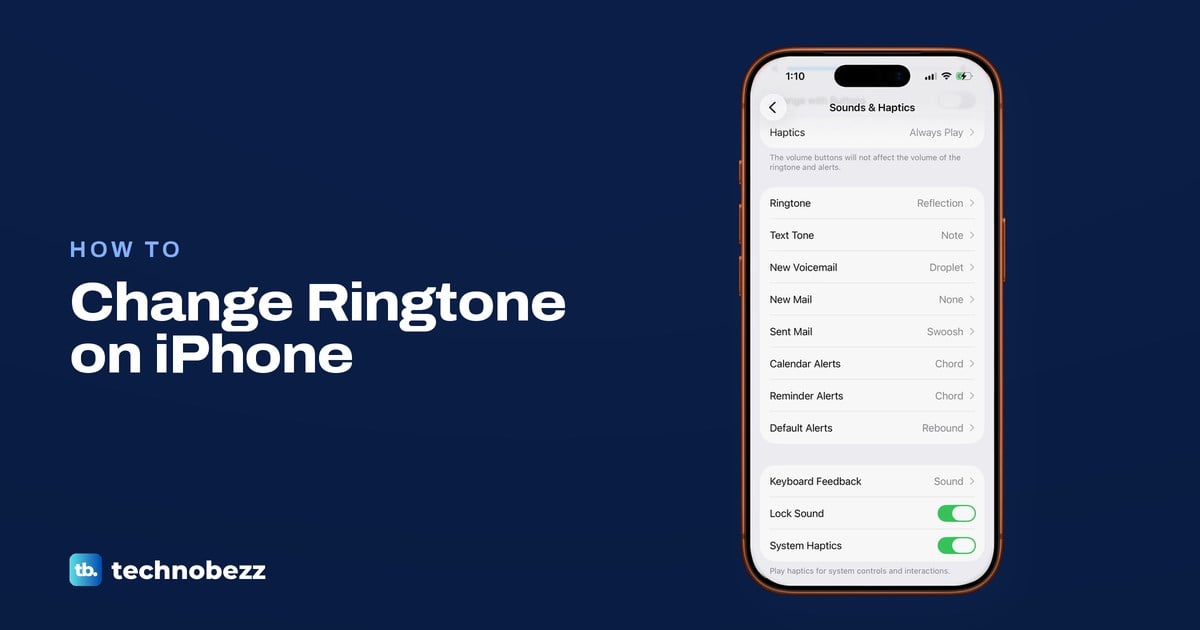
To change your ringtone on iPhone, open Settings, tap Sounds & Haptics, tap Ringtone, then tap the tone you want. Each tap plays the tone and makes it your ringtone straight away, so there is nothing to save. To set a song as your ringtone, Apple's documented route is GarageBand, which exports up to 30 seconds of a song as a ringtone.
One person can also get their own ringtone from their contact card, and text messages use a separate Text Tone. If the new tone never plays when someone calls, the checks near the end of this guide find the setting that is silencing it.
The short version
- Built-in tone: Settings > Sounds & Haptics > Ringtone, then tap a tone. The checkmark moves to it.
- Older sounds: scroll to the bottom of the Ringtone list and tap Classic.
- A song: GarageBand exports up to 30 seconds of an unprotected song or audio file as a ringtone.
- One person: Contacts, their name, Edit, Ringtone.
- Still silent? Check Silent Mode, the Ringtone and Alerts slider and Focus first.
How to change your iPhone ringtone
Open Settings and tap Sounds & Haptics. Scroll past the volume controls to the list of sounds. On our iPhone 17 Pro with iOS 26.6, Ringtone was the first row of that list, with the current tone's name on the right, and Text Tone sat directly under it.
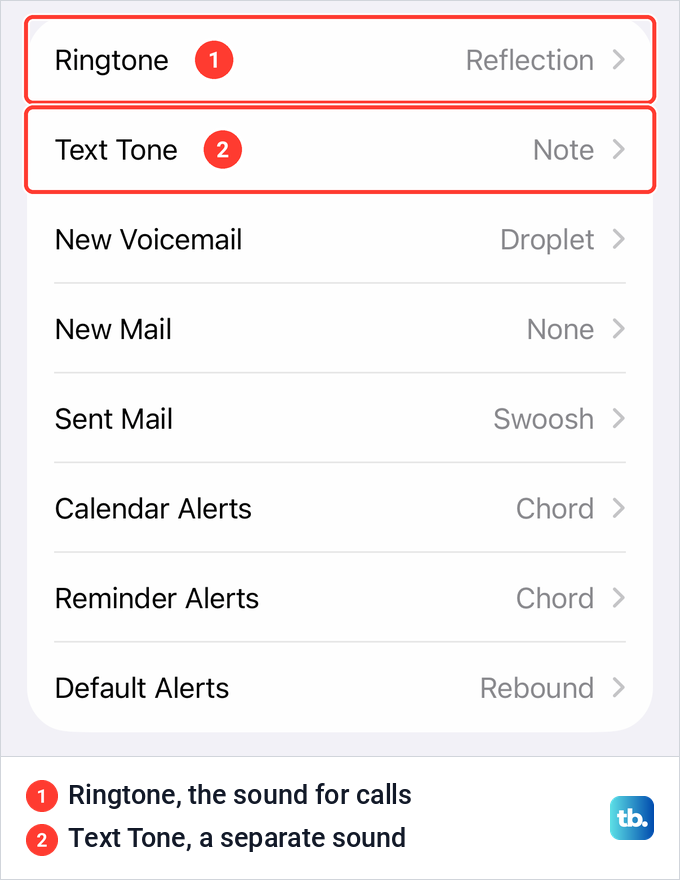
Each row in that group is its own sound. Ringtone is the sound for incoming calls, while New Voicemail, New Mail, Calendar Alerts, Reminder Alerts and Default Alerts each have their own picker. Changing one leaves the others as they are.
Tap Ringtone. The list opens with a Haptics row, then a Store section, then every built-in tone. On our iPhone the checkmark sat next to Reflection, which the list labels Default, so that is the tone you hear if you have never changed it.
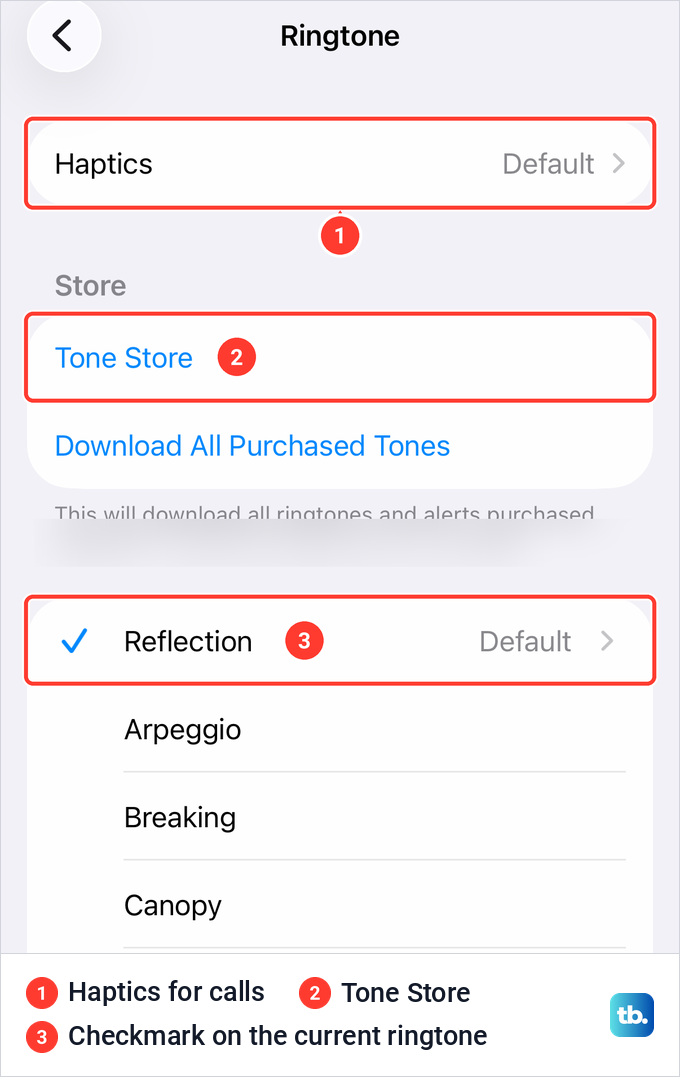
Tap any tone to hear it. Apple's instruction is that tapping a ringtone plays it and sets it as the new sound, and the checkmark moves to the tone you tapped. There is no Save or Done button on this screen, so tap the back arrow when you have found one you like.
Apple's iOS 27 guide words the layout differently. It groups the ringtone settings below a Ringtone heading in Sounds & Haptics: the Ringtone row, the ringer volume slider, Haptics and Change with Buttons. Tap Ringtone there, and Apple's step is the same: tap a ringtone to preview it and select it.
Which ringtone setting you need
The Ringtone list is only one of several places that decide what you hear. Use this table to go straight to the one that matches what you want to change.
| What you want | Where to go | What happens |
|---|---|---|
| A different built-in ringtone | Settings > Sounds & Haptics > Ringtone | Tapping a tone plays it and sets it |
| An older classic sound | Ringtone > Classic, the last row of the list | Opens the Classic tones, from Alarm onward |
| A ringtone you buy | Ringtone > Tone Store | Purchased tones appear at the top of the list |
| A song or audio clip | GarageBand > Share > Ringtone | Exports up to 30 seconds as a ringtone |
| One person's calls | Contacts > their name > Edit > Ringtone | That contact rings with their own tone |
| Text messages only | Settings > Sounds & Haptics > Text Tone | Changes the message sound, not the ringtone |
| How the iPhone vibrates for calls | Ringtone > Haptics | Pick a pattern or create your own |
Find the classic ringtones
The older iPhone sounds are still there, just tucked away. Scroll to the very bottom of the Ringtone list. On our iPhone, Classic was the last row, under Valley, with an arrow showing that it opens another list.
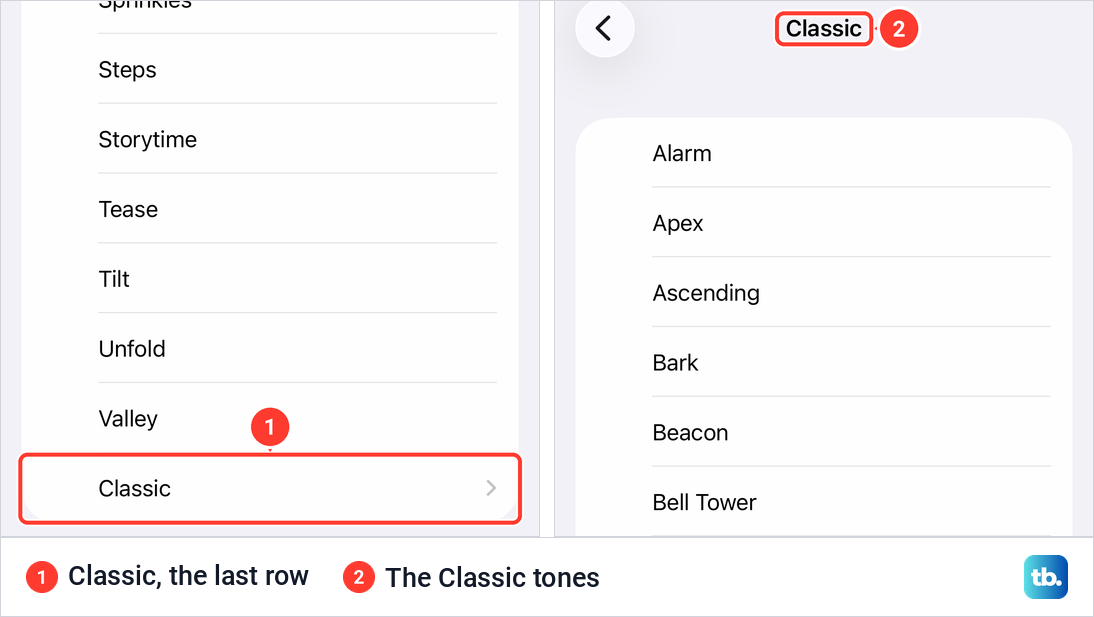
Tap Classic to open the older tones. Ours started with Alarm, Apex, Ascending, Bark, Beacon and Bell Tower, in alphabetical order. They work exactly like the main list: tap one to hear it and choose it, then go back.
Buy a ringtone from the Tone Store
The built-in tones are free. Apple also sells ringtones through the Tone Store, which sits at the top of the Ringtone list under the Store heading. Apple's support page calls the row Ringtones, but on our iPhone with iOS 26.6 the row in Sounds & Haptics read Ringtone.
Apple says these purchases are tied to your Apple Account and the payment method on file. After you buy a tone, Apple says it appears at the top of the list of sounds, above the built-in tones, and you choose it with a tap like any other.
Under Tone Store is Download All Purchased Tones. Apple's advice is to tap it on a new iPhone, or when earlier purchases are missing. On our iPhone, the line under that button named the Apple Account it downloads for, so check that it is the account you bought the tones with.
Apple adds that you might not see the option if everything is already downloaded or you have never bought a tone. Some older purchases might not download again, and the store's availability varies by country or region.
Make a song your ringtone with GarageBand
To make a song your ringtone, Apple's documented route is GarageBand, its free music app. Apple says it can make a ringtone from an audio file, a song in your Apple Music library, or a song you made.
The current App Store version of GarageBand needs iOS 26 or later. If an older copy is already on an iPhone with an earlier iOS version, check whether its Share menu in My Songs offers Ringtone; if it does, the steps below apply. If not, update Apple software on your iPhone if it can run iOS 26, or use the Tone Store in Settings, which needs no extra app.
On the Home Screen, touch and hold the GarageBand icon and choose Create New Audio Recording. Tap the Tracks button at the top, tap the instrument icon on the left to select the track, then tap the Loops Browser button.
Tap Files, then Browse items from the Files app, to pick an audio file on your iPhone or in iCloud, or tap Music for a song in your library. Apple says the song must be downloaded to your iPhone. If it shows dimmed, it is protected or not downloaded, and a protected song cannot become a ringtone.
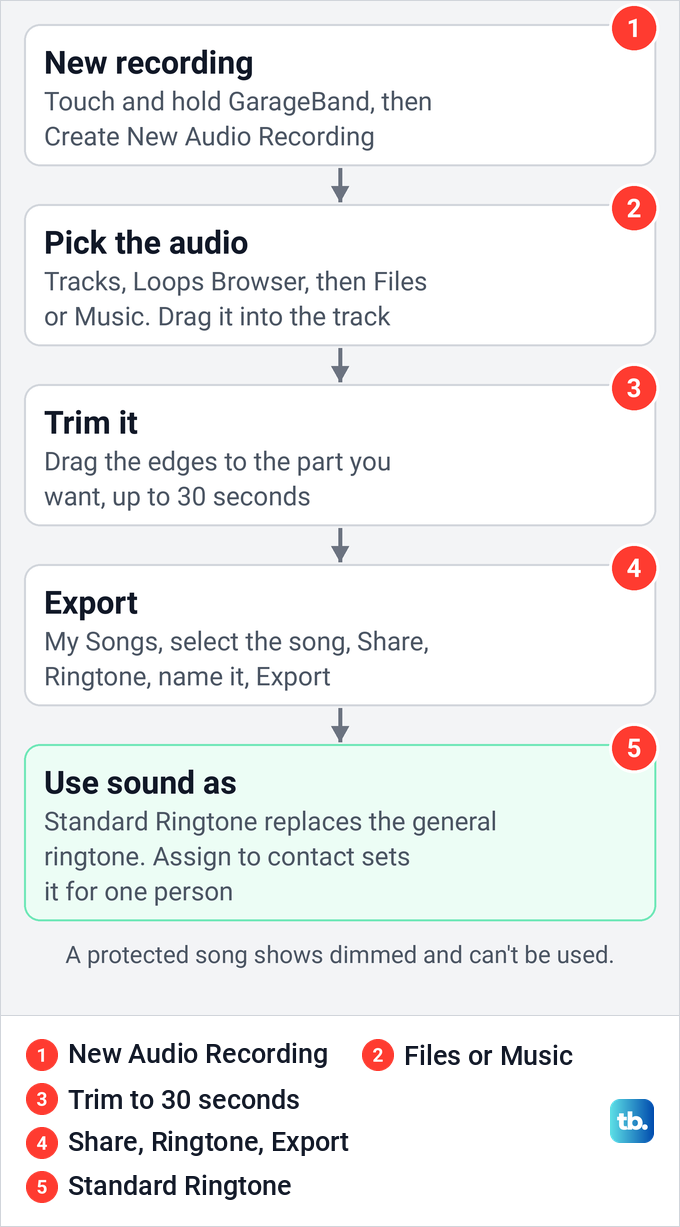
Touch and hold the file and drag it all the way to the left in the Tracks view. To use only part of it, tap the audio, drag its left or right edge, then drag the region back to the left so there is no silence before it. Apple says ringtones can be up to 30 seconds long.
Tap the navigation button, then My Songs. Tap the More button, tap Select, pick your song, tap Share and choose Ringtone. Name it and tap Export; if the clip runs over 30 seconds, Continue lets GarageBand shorten it for you.
When the export finishes, tap Use sound as. Standard Ringtone replaces your general ringtone, the one for callers without a tone of their own, Standard Text Tone replaces the message sound, and Assign to contact gives the tone to one person. Tap Done instead to go back to My Songs without assigning it.
Set a different ringtone for one contact
A tone for one person makes it easy to know who is calling before you look. Open Contacts and tap the person's name. Tap Edit in the upper right corner of their card, tap Ringtone, then choose a sound, following Apple's steps.
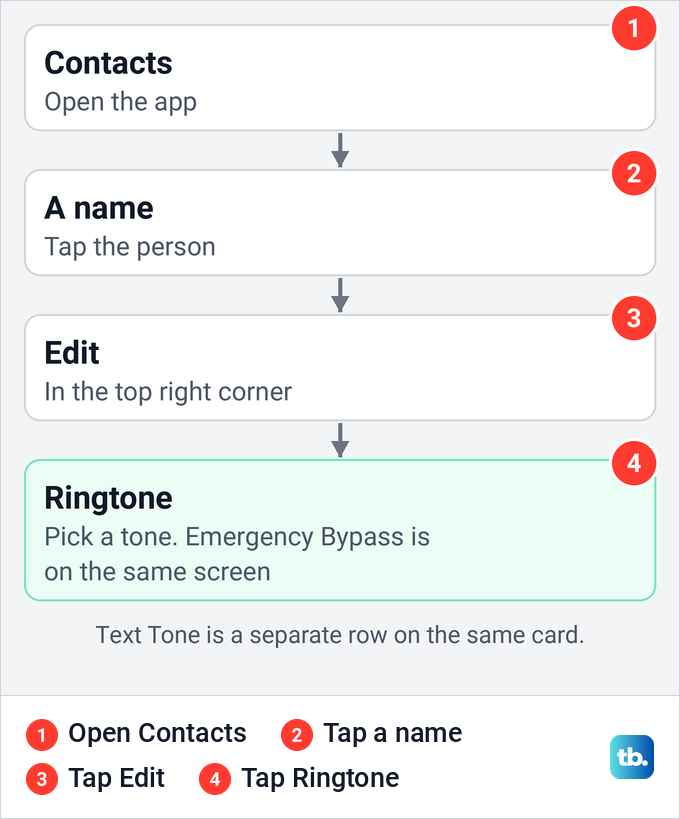
The same card has a separate Text Tone row for that person's messages. Everyone else keeps the ringtone you chose in Settings, so you can give a distinct sound to a partner, a parent or your child's school.
The contact's Ringtone screen also holds Emergency Bypass. Apple says turning it on lets sounds and vibrations from that person come through even when your iPhone or notifications are silenced. If you want the opposite effect, you can silence one contact instead.
Change the text tone without changing your ringtone
Messages have their own sound. In Settings > Sounds & Haptics, tap Text Tone rather than Ringtone. On our iPhone it opened its own list with a separate Haptics row, the same Store section, and Note (Default) ticked.
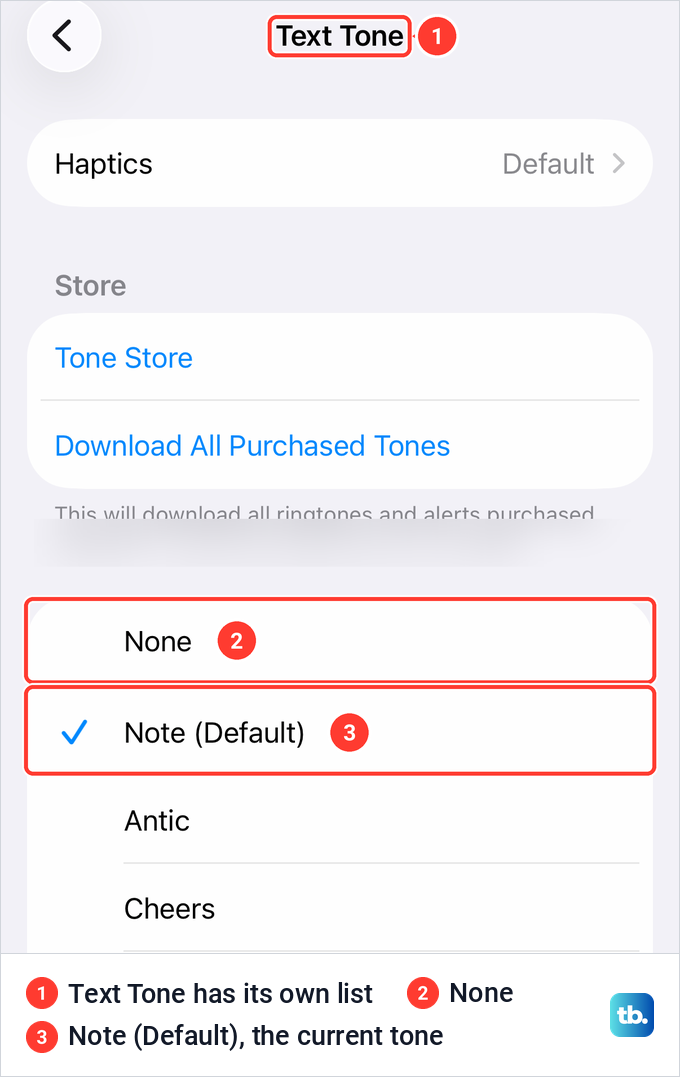
The Text Tone list starts with None, which turns the message sound off. The Ringtone list on our iPhone had no None row at all: it ran from Reflection to Classic. To keep calls quiet, use Silent Mode or a Focus set to silence calls rather than looking for a silent ringtone.
Default Alerts, under Sounds & Haptics, is another separate list. To change notification sounds for apps as well, use those settings instead of the ringtone. If calls ring but messages stay quiet, fix an iPhone text tone that does not play with its own checks.
No row in that list is for alarms. Apple says Clock alarms play through the speaker even when Silent mode is on. To pick a different wake-up sound, see how to change the alarm sound.
Choose how your iPhone vibrates for calls
The ringtone has its own vibration. In the Ringtone list, tap Haptics at the top. On our iPhone 17 Pro with iOS 26.6, Synchronized (Default) was ticked, eight Standard patterns followed from Accent to Symphony, and Create New Vibration sat under Custom, with None at the bottom.
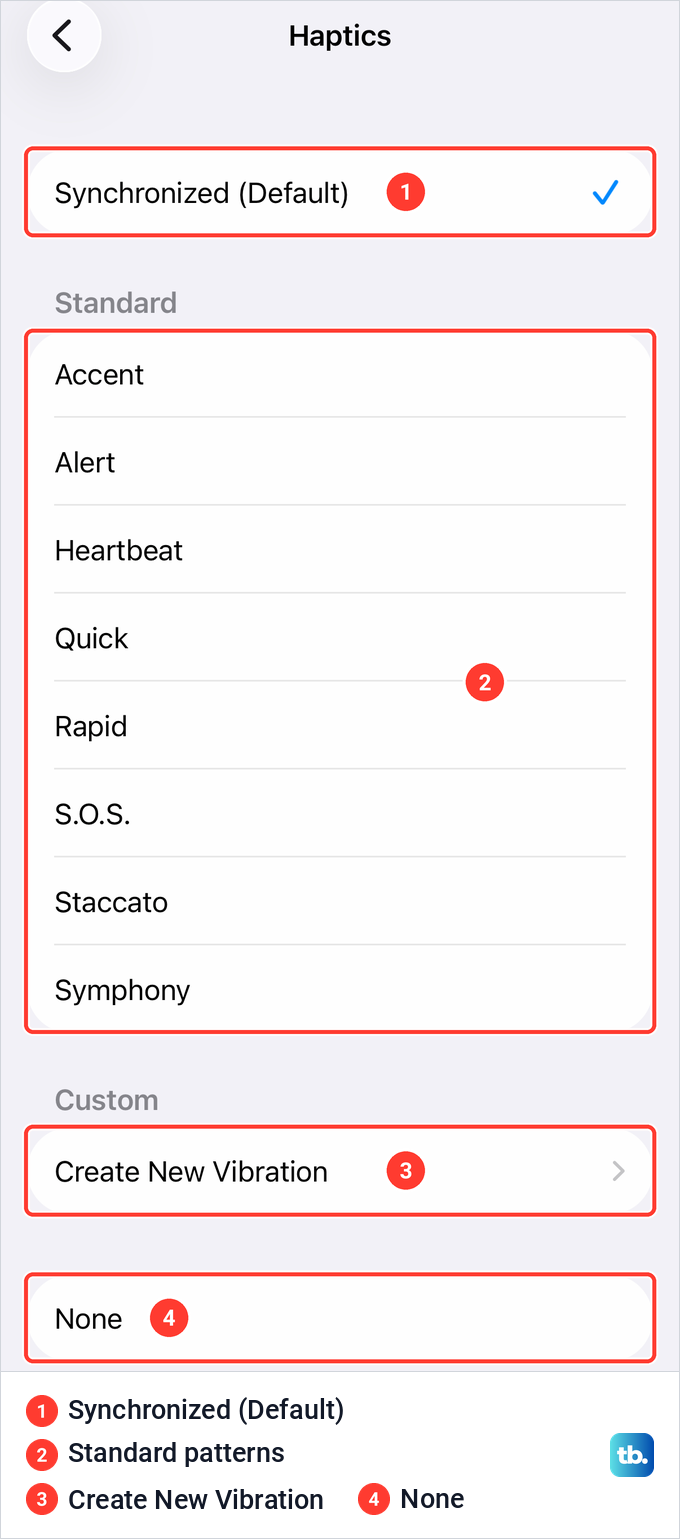
Tap Create New Vibration to tap out your own rhythm. The screen we opened read "Tap to create a vibration pattern.", with Save dimmed until something is recorded and Play and Stop along the bottom. We closed it with the X and nothing was saved, but the same screen lets you make a custom vibration pattern of your own.
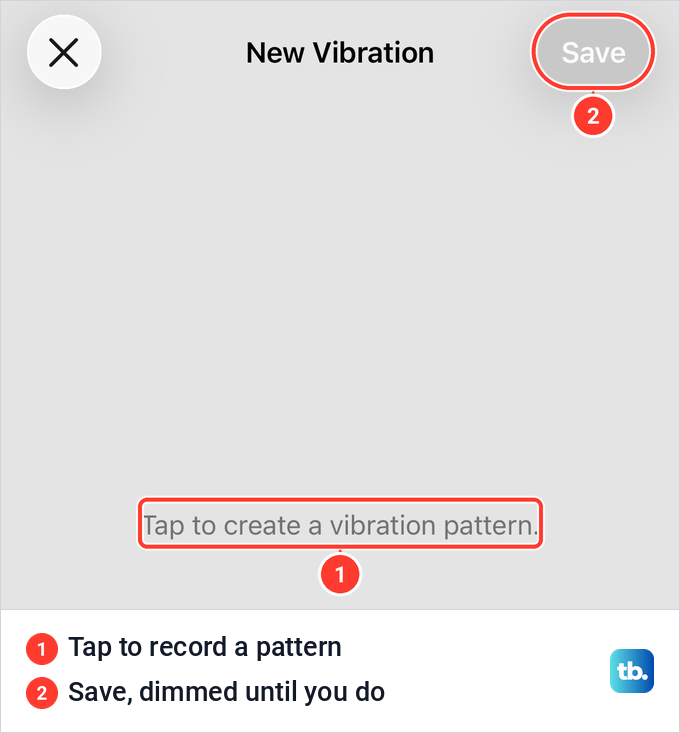
There is also a general Haptics row in Sounds & Haptics, under the volume slider. Ours read Always Play, and Apple lists the other choices as Play in Silent Mode, Don't Play in Silent Mode and Never Play. Apple warns that with Never Play you won't feel vibrations for incoming calls and alerts. Apple's iOS 27 guide lists Haptics, with Create New Vibration, below the same Ringtone heading as the ringer volume slider.
Set the ringer volume and Silent Mode
The top of Sounds & Haptics holds the controls that decide whether you hear the ringtone at all. On our iPhone, Silent Mode was off, with the line "iPhone will play ringtones, alerts, and system sounds." Below it, the Ringtone and Alerts slider sets the volume.
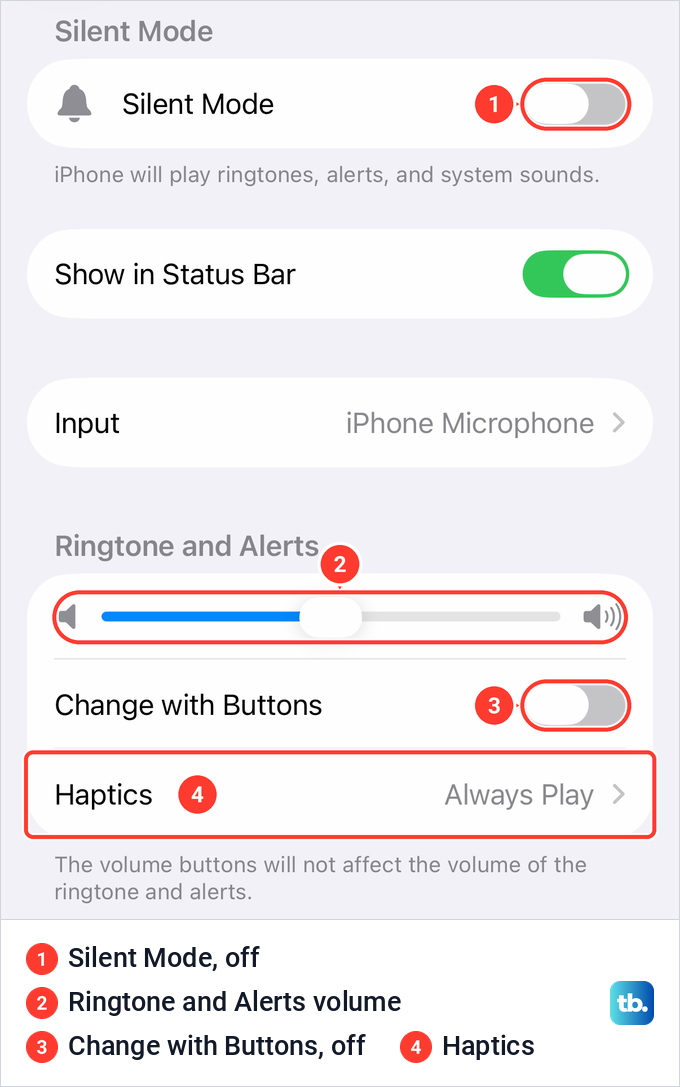
Drag the slider to the right for a louder ring. It is the first place to raise your iPhone volume for incoming calls, and Apple's speaker check at the end of this guide uses the same slider.
On iOS 26, Apple says this slider sets the volume for all sounds. Apple's iOS 27 guide calls it the ringer volume and says alarms, timers, alerts and system sounds match it by default. There, turning off Match Ringtone Volume under Alarms and Timers or Alerts and System Sounds gives those sounds a slider of their own.
The Change with Buttons switch decides what the volume buttons do. Ours was off, and the line under it read "The volume buttons will not affect the volume of the ringtone and alerts." Apple says the buttons change call or media volume while something is playing, and otherwise the ringer, unless this switch is off.
Silent Mode itself depends on the model. Apple's steps for an iPhone with an Action button are to turn it on or off in Settings > Sounds & Haptics, or with the Action button if you set it up for that. On other models, flipping the Ring/Silent switch toward the back turns Silent mode on. Apple notes that the iPhone may still vibrate.
Why your iPhone still does not ring
Choosing a tone does not guarantee that you hear it. If calls arrive silently, work through these checks in order, starting with the ones that take seconds.
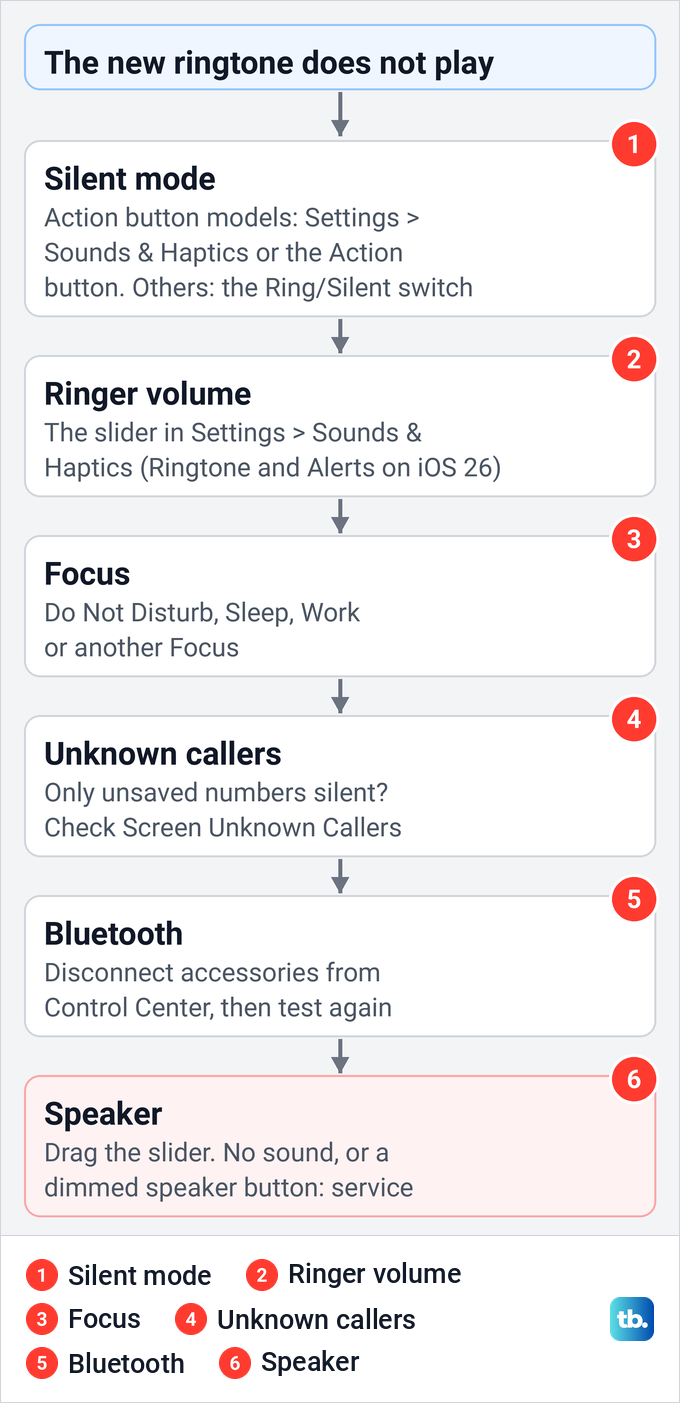
Start with Silent mode. On our iPhone 17 Pro with iOS 26.6, Control Center (swipe down from the top right corner) showed a bell button for Silent mode beside the Focus button, so one look shows whether either is on. On a model with a Ring/Silent switch, Apple's step is to flip it toward the front to turn Silent mode off. For the ring volume itself, use the ringer volume slider in Settings > Sounds & Haptics, labelled Ringtone and Alerts on iOS 26.
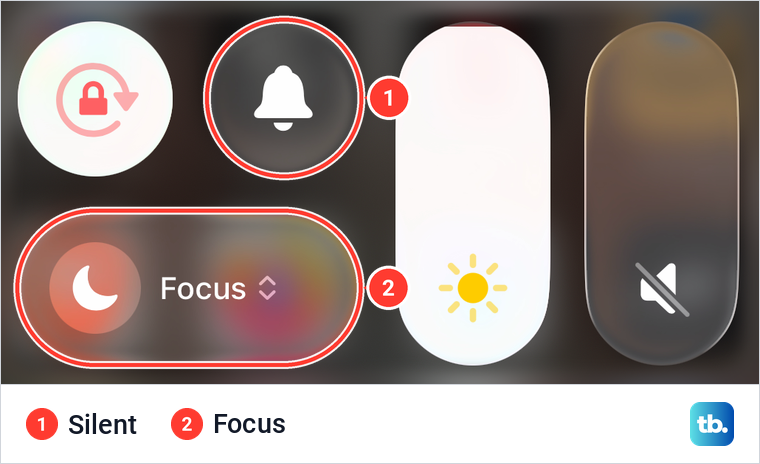
Next, check Focus. Apple says that when Do Not Disturb is on, you won't hear ringtones for incoming calls, and that its icon appears in the status bar. If you see it, turn off Do Not Disturb before judging the new ringtone. On our iPhone, Settings > Focus also listed Personal, Sleep and Work.
If Sleep or Work is active instead, turn off that Focus or review which calls it allows. Apple says a Focus can still let through calls from chosen groups of people, and repeated calls from the same person within 3 minutes.
If only unknown numbers never ring, look at Settings > Apps > Phone > Screen Unknown Callers. On our iPhone it offered Never, Ask Reason for Calling and Silence, and Never was ticked. Apple says Silence sends calls from unsaved numbers to voicemail and lists them in Recents; to change it, see how to set up iPhone call screening.
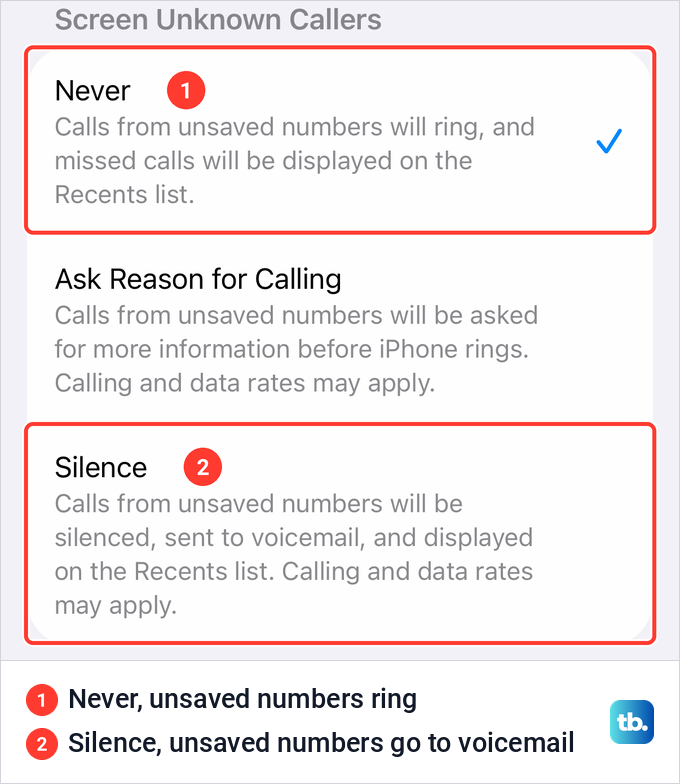
Apple adds that its spam filter silences calls your carrier identifies as potential spam or fraud and sends them to voicemail. If a call you wanted went there, the steps to stop unwanted calls on iPhone cover those filters.
Then rule out a connected headset or speaker: open Control Center and tap the Bluetooth button; Apple's support page says to tap it a second time, until the icon dims. That disconnects your accessories, except Apple Watch and a few others, without turning Bluetooth off. To reconnect, Apple says to tap the button again or pick the accessory in Settings > Bluetooth, and it also reconnects at 5 a.m. or after a restart.
Last, test the speaker. Apple's check is to drag the Ringtone and Alerts slider back and forth a few times. If you hear nothing, or the speaker button on the slider is dimmed, Apple says the speaker might need service.
How we tested this guide
We tested this on an iPhone 17 Pro with iOS 26.6, going through Sounds & Haptics and the Ringtone list.
Frequently Asked Questions
How do I change my ringtone without buying one?
Go to Settings > Sounds & Haptics > Ringtone and tap any built-in tone. The built-in tones, including Classic at the bottom, are free; the Tone Store sells additional sounds, and any you buy appear at the top of the same list.
Can I use a song from Apple Music as my ringtone?
Only if the downloaded file is not protected. Apple's GarageBand steps can use a song from your Music library, but a protected song shows dimmed and can't be used for a ringtone. If a song still shows dimmed in GarageBand's Music list after you have downloaded it, it is protected. A Tone Store ringtone or your own unprotected audio file works instead.
Can I set a different ringtone for one person?
Yes. Open Contacts, tap their name, tap Edit, tap Ringtone and choose a sound. Their calls use that tone, and everyone else keeps your main ringtone.
Why don't my volume buttons change the ringtone volume?
Change with Buttons is probably off in Settings > Sounds & Haptics. Apple says the buttons control media while something plays, and the ringer otherwise only when that switch is on.
Can I make my ringtone silent?
The Ringtone list on our iPhone had no None option, unlike Text Tone. To stop calls ringing, turn on Silent Mode, or set up a Focus so that it silences calls. You can also silence just one contact.
Why does my iPhone still not ring after I choose a new tone?
Check Silent Mode, the ringer volume slider (Ringtone and Alerts on iOS 26) and any active Focus first. Then look at Screen Unknown Callers if only unsaved numbers are silent, disconnect Bluetooth accessories, and use Apple's slider test for the speaker.