
To delete a wallpaper on iPhone, touch and hold the Lock Screen, unlock with Face ID, Touch ID or your passcode, swipe to the wallpaper, swipe up on it, tap the trash icon, then tap Delete This Wallpaper. To change your wallpaper, go to Settings > Wallpaper and tap Add New Wallpaper, or swipe to a saved pair there and tap Set as Current.
Settings can switch wallpapers but cannot delete them. On our iPhone 17 Pro with iOS 26.6, every saved wallpaper pair sat in a row on the Settings page, and each one not in use had a Set as Current button, while deleting stayed in the gallery.
The short version
- Delete: touch and hold the Lock Screen, unlock it, swipe to the wallpaper, swipe up, tap the trash icon, then Delete This Wallpaper.
- Change: Settings > Wallpaper > Add New Wallpaper, pick a photo or a style, then tap Add.
- Switch back: swipe to a saved pair in Settings > Wallpaper and tap Set as Current.
- One screen or both: Set as Wallpaper Pair uses one picture for both; Customize Home Screen gives the Home Screen its own.
- Keeps changing: look for a Focus linked to that Lock Screen, or Photo Shuffle.
Where iPhone wallpaper settings live
Every wallpaper on a current iPhone is a pair: a Lock Screen and the Home Screen that goes with it. You reach your pairs through two doors. The Lock Screen gallery opens when you touch and hold the Lock Screen, and Settings > Wallpaper shows the same pairs as a row of previews.
The gallery is the only place that deletes a wallpaper, while Settings is the easier place to add one, edit one or switch between them. Apple's tip card on the Settings page points you to the Lock Screen too, saying you can touch and hold it to add, edit or switch wallpapers and widgets. On our iPhone, swiping across the previews in Settings moved through every saved pair, and the table below sums up where each job starts.
| What you want | Where to start | What to tap |
|---|---|---|
| Delete a wallpaper | Lock Screen gallery | Swipe up on it, trash icon, Delete This Wallpaper |
| Switch to a wallpaper you already made | Lock Screen gallery | Swipe left or right, then tap it |
| Switch from Settings instead | Settings > Wallpaper | Swipe to the pair, Set as Current |
| Add a new wallpaper | Settings > Wallpaper | Add New Wallpaper, pick one, Add |
| Use one picture on both screens | After tapping Add | Set as Wallpaper Pair |
| Give the Home Screen its own look | Settings > Wallpaper | Customize under the Home Screen preview |
| Change the clock, widgets or filter | Settings > Wallpaper or the gallery | Customize under the Lock Screen |
| Rotate through several photos | Add New Wallpaper | Photo Shuffle, then a frequency |
| Tie a wallpaper to a Focus | Lock Screen gallery | Focus, pick one, Close |
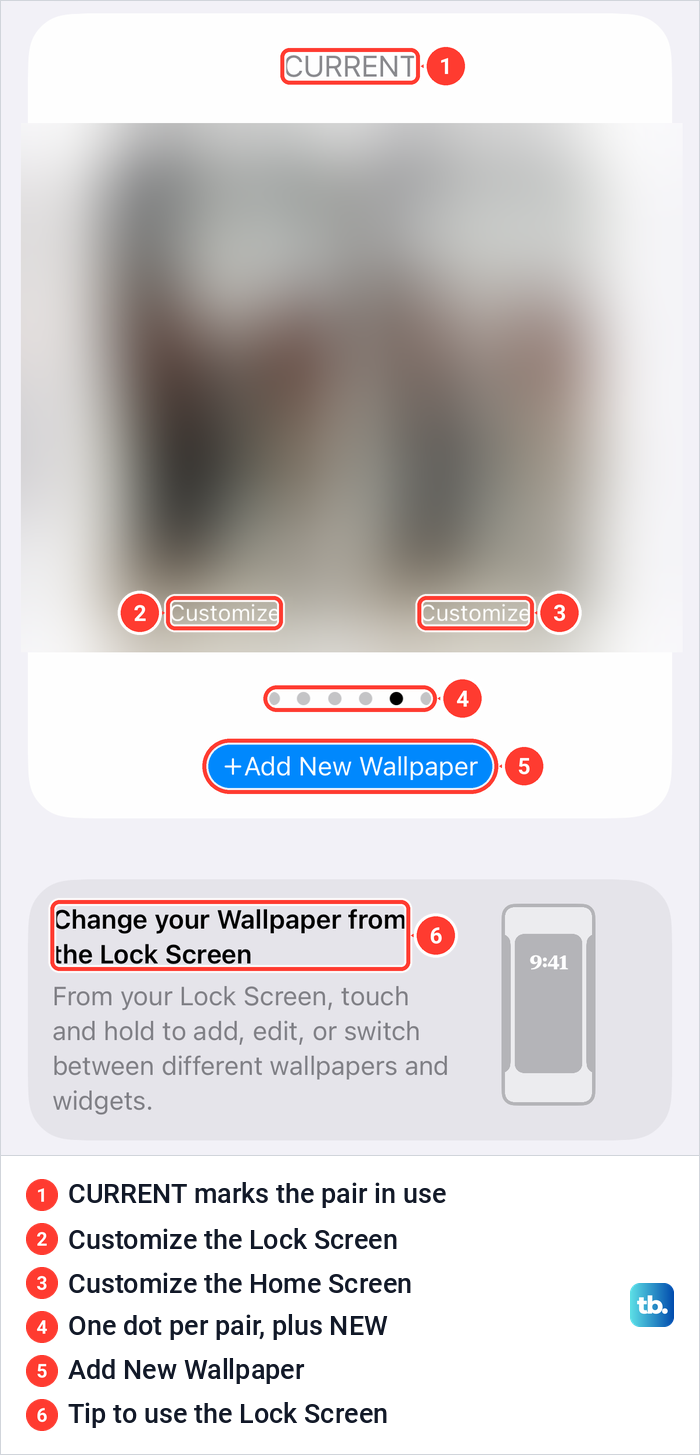
Delete a wallpaper from the Lock Screen gallery
Deleting happens only in the gallery. Apple's steps for iOS 16 or later are to press the side button to go to the Lock Screen, touch and hold it, then use Face ID, Touch ID or your passcode to open the gallery. Swipe to the wallpaper you want to delete, swipe up on it, tap the trash icon, then tap Delete This Wallpaper.
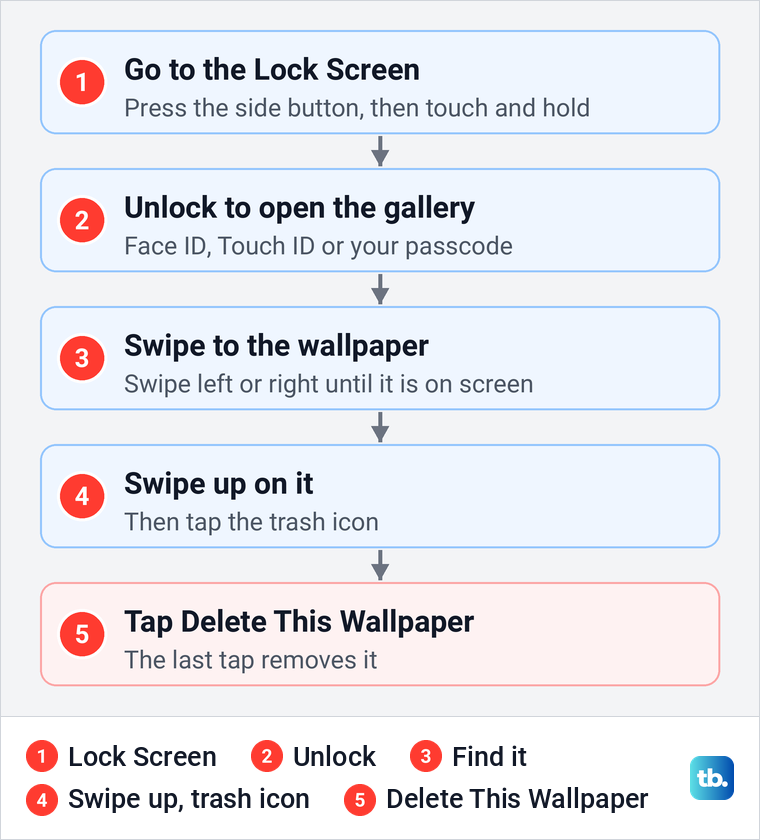
Apple says you can swipe up on any wallpaper to reveal the trash icon. If you might want a wallpaper again, switch to another one instead, either in the gallery or with Set as Current in Settings as shown further down, and leave it in place.
On iOS 15 and earlier there is no gallery. Apple says you set a new wallpaper in the Settings app there, and to delete an image you set as a wallpaper, you delete it in the Photos app.
No delete button in Settings
Some guides tell you to swipe up on a wallpaper in Settings > Wallpaper and tap a delete button. On our iPhone, swiping up on a saved pair in Settings changed nothing, with no trash icon and no delete control anywhere on the page.
On iOS 16 and later, Apple's instructions only delete from the Lock Screen gallery. On our iPhone, Settings offered Set as Current, Customize and Add New Wallpaper instead, so if you came to Settings to delete a wallpaper, go back to the Lock Screen and use the gallery.
Change your wallpaper from the Lock Screen
The gallery opens only from the Lock Screen, and only once your iPhone knows it is you. Apple says to press the side button once in its steps for deleting or switching, and two times in its steps for editing a Lock Screen or creating a new one. Both work, because one press wakes a dark iPhone, while on an iPhone in use the first press locks it and the second wakes it.
Stay on the Lock Screen, touch and hold an empty part of it, and let Face ID, Touch ID or your passcode open the gallery. Apple says to swipe left or right to a wallpaper you already made and tap it, or tap the Add button to make a new one. Each wallpaper in the gallery also has a Customize button and a Focus button, which later sections cover.
If Face ID does not open the gallery, Apple's fix is to touch and hold the Lock Screen again and enter your passcode. If you forgot your passcode, that is a separate problem with its own fix.
Switch between saved wallpapers in Settings
Settings can switch wallpapers as well, which saves a trip to the Lock Screen. On our iPhone, swiping the previews to a pair that was not in use replaced the CURRENT label with a Set as Current button. When we tapped Set as Current, that pair was marked CURRENT and the Home Screen showed it.
Swiping past the last saved pair ends on a page labelled NEW, with an empty Lock Screen tile carrying a blue plus and a grey Home Screen tile. This route is handy when Face ID will not open the gallery, or when you find the large previews easier to read.
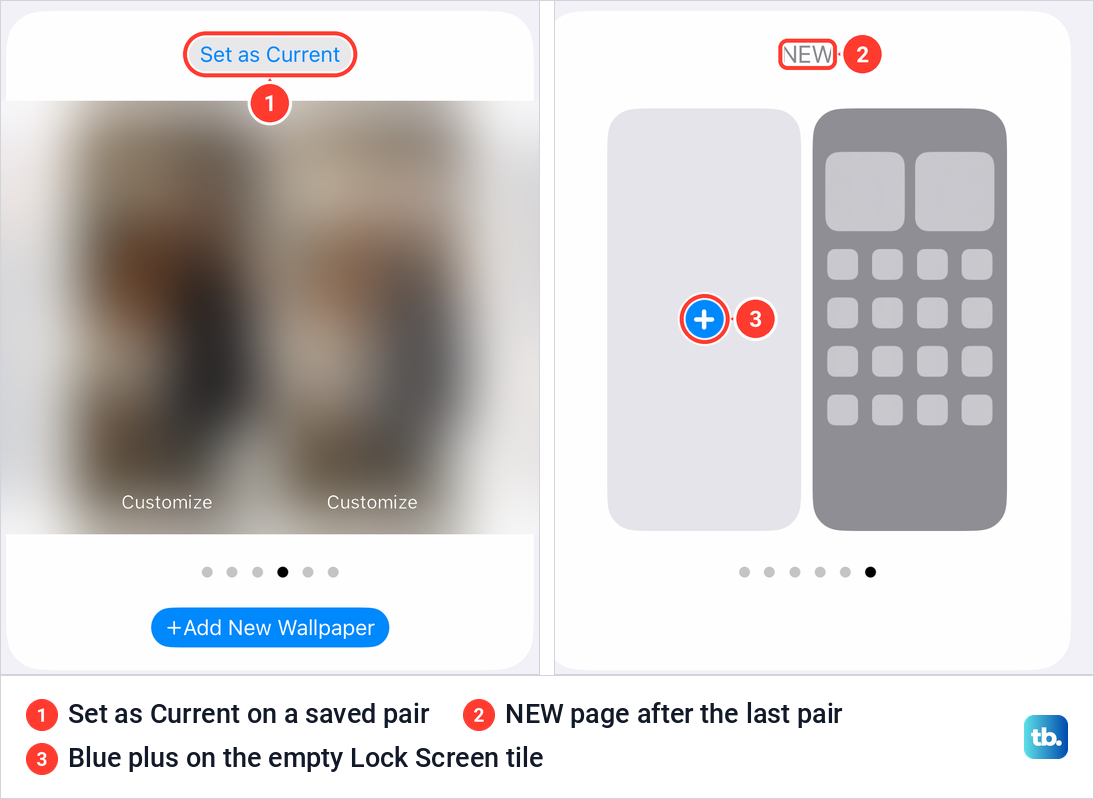
The switch covers both screens at once, because Settings treats the Lock Screen and Home Screen as one pair. To change only one of them, use the Customize buttons described further down.
Add a new wallpaper in Settings
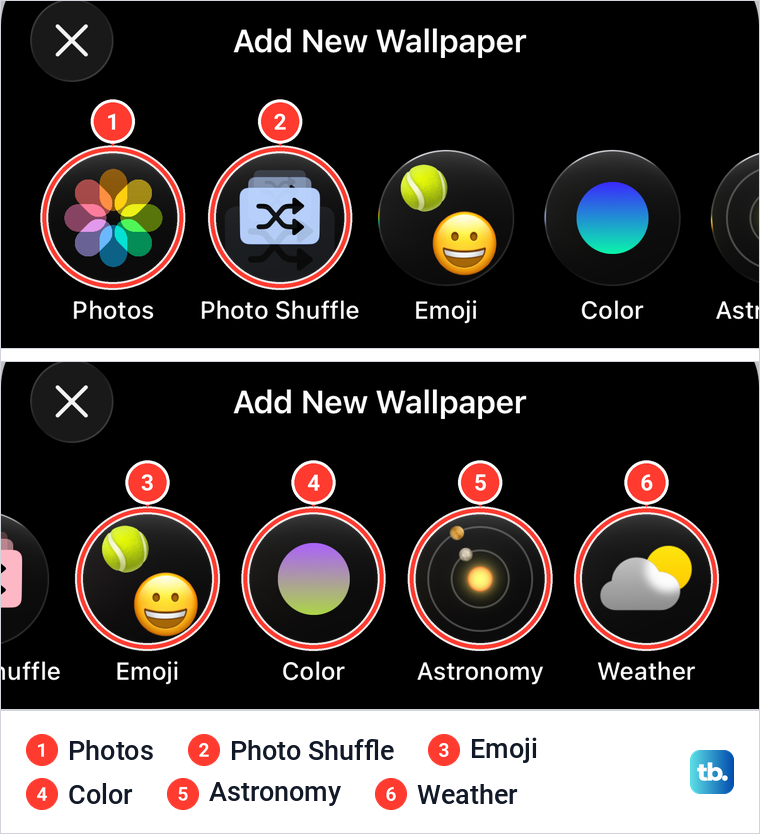
Open Settings > Wallpaper and tap Add New Wallpaper. A sheet opens with a row of round buttons across the top, and on our iPhone they read Photos, Photo Shuffle, Emoji, Color, Astronomy and Weather, with the last two reached by swiping the row left. Tap one to start designing a wallpaper of that kind.
Apple notes that if you don't see an option you want, such as Weather or Astronomy, you scroll down and tap Get below it. Further down our sheet, each built-in set had its own card with a short description and a grey Get button: Weather, Astronomy, Emoji, Kaleidoscope, Unity and Pride, then an iOS 26 collection.
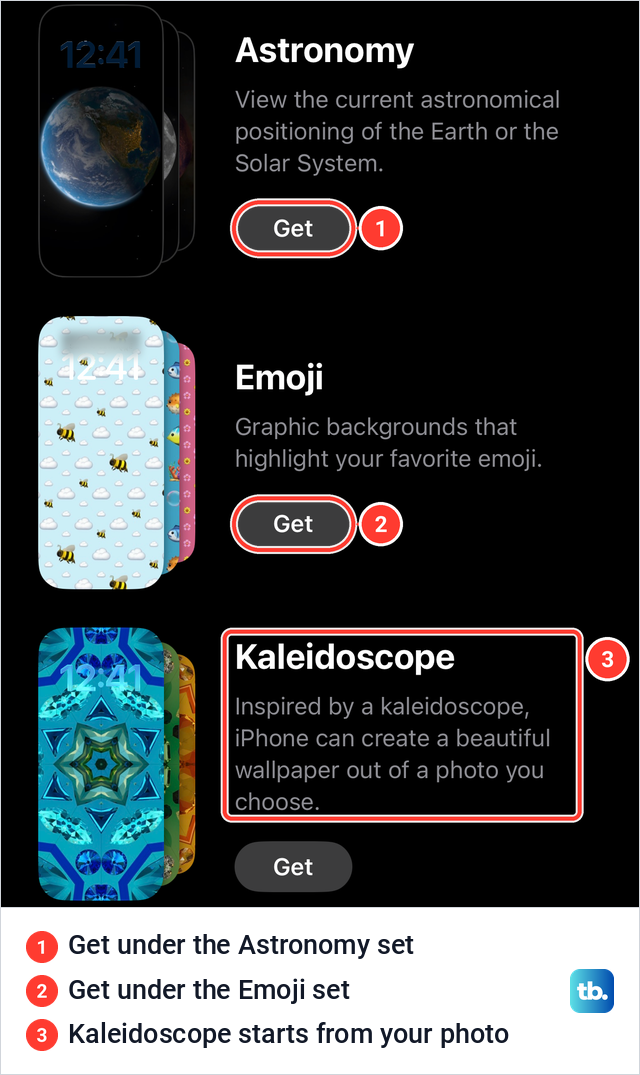
The descriptions tell you what each set does. Weather shows live weather conditions for your current location, Astronomy shows the current positions of the Earth or the Solar System, and Kaleidoscope builds a wallpaper out of a photo you choose. The iOS 26 collection can change over the course of the day, or you can choose a favorite.
Pick one of your photos
Tap Photos in the top row to choose a picture from your library. Apple says to pinch open to zoom in, drag the image with two fingers to move it, then pinch closed to zoom out. If the part you want will not fit, crop the picture in Photos first, then pick it again. You can also start from the photo itself, because Apple lists Use as Wallpaper among the options in the Share menu of a photo in the Photos app.
For a 3D look, Apple says iPhone 12 or later with iOS 26 can turn certain photos into spatial scenes. In the Photos picker, scroll the top bar to the right, tap the Spatial Scene tab and choose a photo, and a Generating Spatial Scene message disappears once the effect is ready. Only the Lock Screen shows the 3D effect, and Apple says eligible photos typically have high-quality lighting, a clear separation between subject and background, or a landscape orientation.
The Photos app also offers ready-made ideas, and Apple's steps are to open Photos, tap Collections, swipe up, then tap a suggestion below Wallpaper Suggestions. Apple says these stylize photos of your favorite people and pets.
Set as Wallpaper Pair or Customize Home Screen
When the new wallpaper looks right, tap Add, and Apple says you then choose between two buttons. Set as Wallpaper Pair puts your selection on both the Lock Screen and the Home Screen. Customize Home Screen creates a separate Home Screen wallpaper that you can edit.
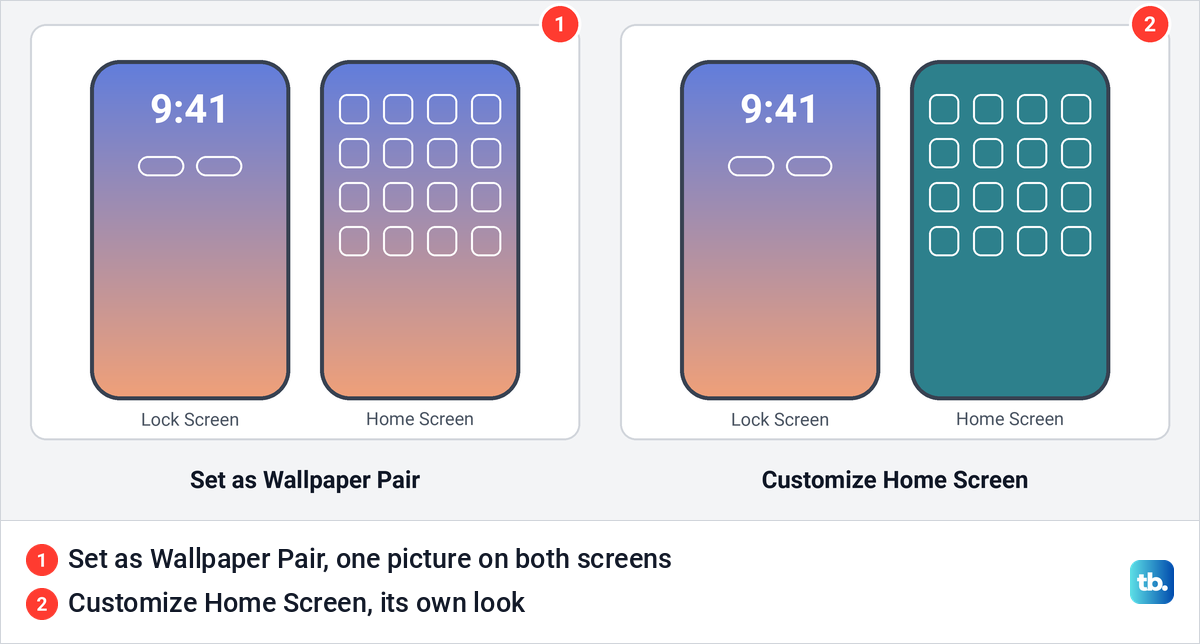
Pick the pair when the picture still works behind your apps. Pick Customize Home Screen when a busy photo makes the icons hard to read, then use the Home Screen options described below to blur it or swap it for a color.
Customize the Lock Screen
In Settings > Wallpaper, tap Customize under the Lock Screen preview. On our iPhone that went straight into the Lock Screen editor, with no question about which screen to edit. The editor had Cancel and Done at the top, the date and clock, an Add Widgets area, a More button, and the flashlight and camera controls, each with a minus badge.
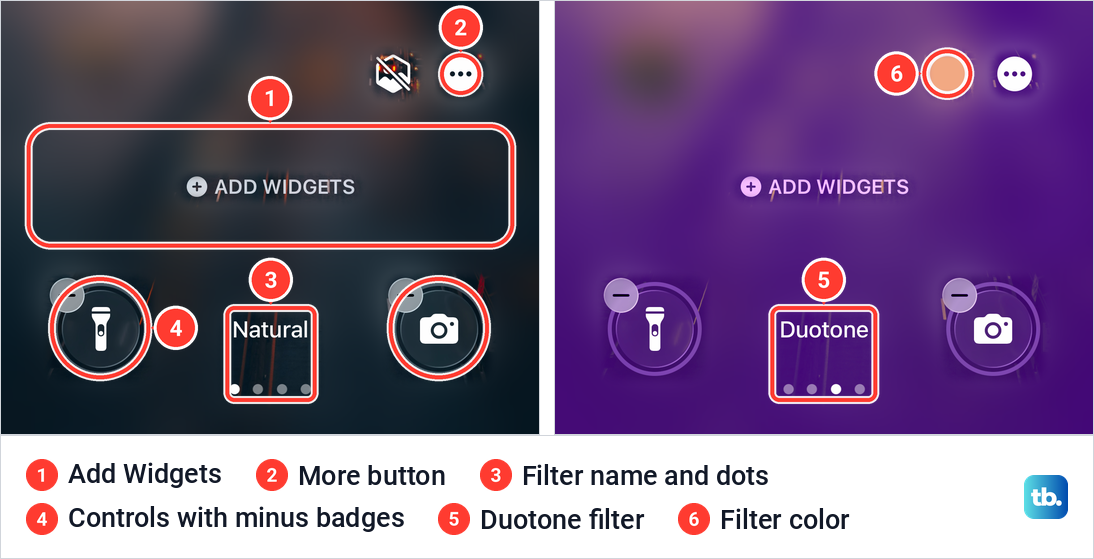
Swipe across the picture to change its style. On a photo wallpaper each swipe moved to another filter, with its name shown above four dots: Natural on the first dot, and two swipes later Duotone, which added a color swatch beside the More button. Apple's list of editor options also includes dragging the bottom right corner of the clock to make it taller and tapping the time to change the Lock Screen clock font and its look.
Tap Add Widgets, or an existing widget, to change what sits under the clock. To swap a control, Apple says to tap the Remove button on the flashlight or camera, then tap the Add Quick Action button. If you picked a Live Photo that can play in slow motion, the Live Photo button makes it play when your iPhone wakes.
The More button holds a short menu. On a photo wallpaper on our iPhone it offered Extend Wallpaper and Depth Effect, which was ticked, and nothing called Perspective Zoom. Apple describes Depth Effect as a multilayered effect and notes that the options depend on the wallpaper you choose.
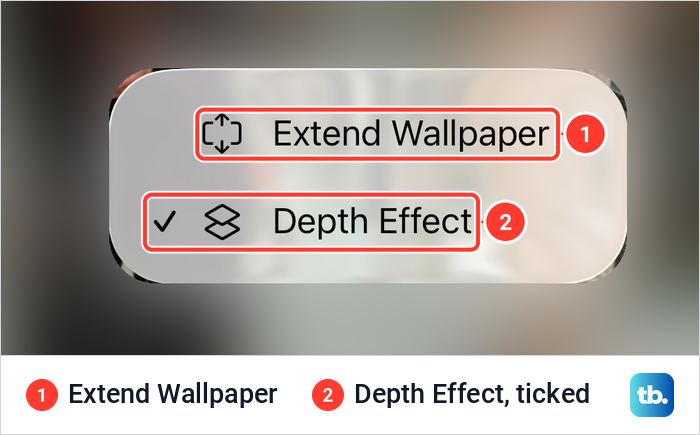
When you finish, tap Done to keep the changes. If the background has a light and a dark version, Apple says an appearance button switches between the two.
Give the Home Screen its own wallpaper
In Settings > Wallpaper, tap Customize under the Home Screen preview. Apple's guide names a color, a Select a Photo button and Blur, but the row on our iPhone read Pair, Color, Gradient, Photo and Blur. Pair was selected, so the Home Screen used the Lock Screen picture, and Blur was switched on.
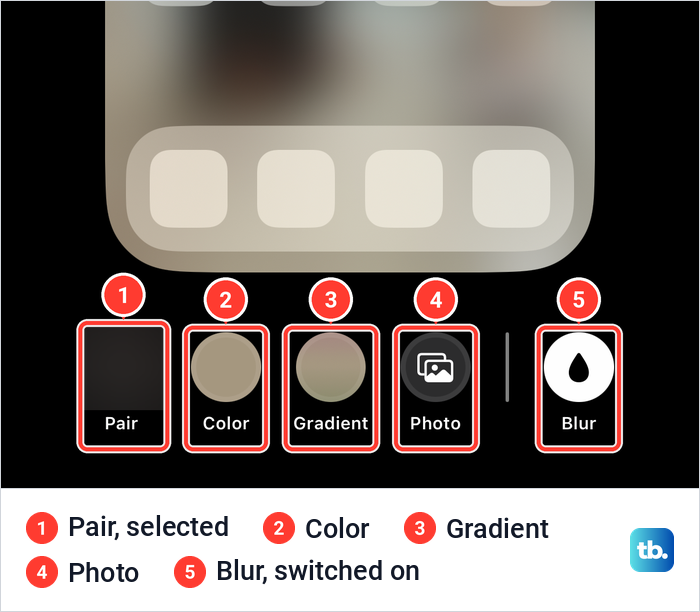
Color and Gradient replace the picture with a solid color or a gradient, Photo picks a different picture for the Home Screen, and Apple says Blur blurs the wallpaper so the apps stand out. The screen had only a Done button, with no Cancel.
Once the Home Screen picture is set, you can tint your app icons with a color picked from the wallpaper, which Apple's eyedropper does. If icons cover the part of the photo you care about, move apps and widgets around rather than zooming the picture.
Shuffle your photos with Photo Shuffle
Photo Shuffle rotates several photos on the Lock Screen. In Settings > Wallpaper > Add New Wallpaper, tap Photo Shuffle in the top row, then choose categories such as People, Nature or Cities, or an existing album. Apple's frequency choices are On Tap, On Lock, Hourly and Daily.
Tap Use Featured Photos or Use Album to finish, depending on what you picked. To choose every picture yourself, Apple says to tap Select Photos Manually, pick your images, tap the checkmark, then use the ellipsis button to set the frequency and tap Add.
Changes later happen in the Lock Screen editor. Apple says to tap the photo thumbnail to change the selection, or the More button to change how often it shuffles.
Link a wallpaper to a Focus
A Focus can bring its own Lock Screen with it. Apple's steps are to touch and hold the Lock Screen, tap Focus near the bottom of a wallpaper, choose a Focus such as Do Not Disturb, Personal, Sleep or Work, then tap the Close button. From then on, that Lock Screen appears whenever the Focus is on.
You can make the same link from the Focus side. Go to Settings > Focus and tap the Focus, and Apple says to choose the Lock Screen or Home Screen page to switch to while the Focus is on. On our iPhone, the Do Not Disturb page in Settings had a Customize Screens block with a Choose button under a Lock Screen and under a Home Screen page.
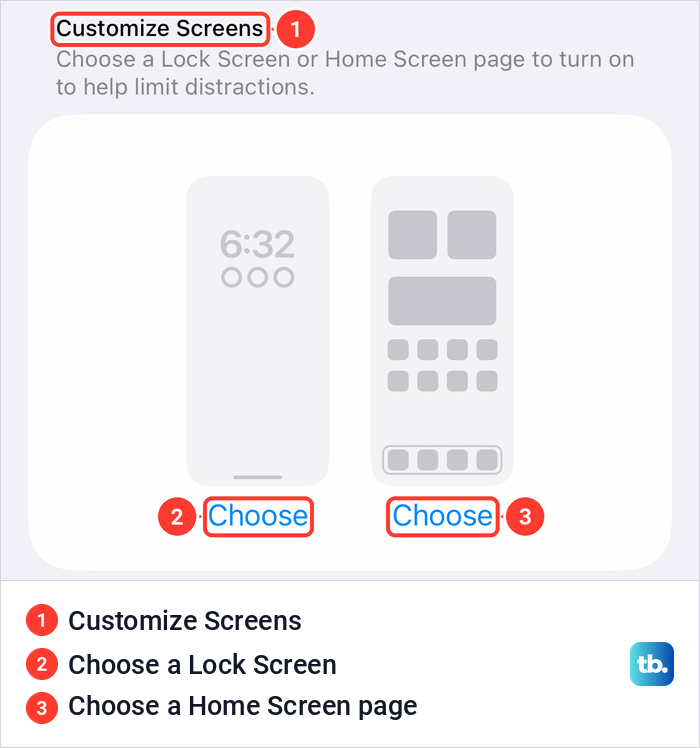
Apple notes the link works both ways: switching from a Lock Screen linked to a Focus to another one also switches your Focus. Keep that in mind before you link your everyday wallpaper to Sleep or Work.
When the wallpaper changes by itself or will not change
A Lock Screen linked to a Focus changes whenever that Focus turns on, which Apple documents as a feature. Apple's Focus settings also let a Focus turn on automatically at a set time, at a location or while you use a certain app, so a linked Lock Screen can appear without you touching anything.
If the wallpaper switched because a Focus came on, turn the Focus off, then pick the Lock Screen you want in the gallery, or swipe to that pair in Settings > Wallpaper and tap Set as Current. Turning the Focus off only lasts until it turns on again, and while the link stays in place, that Lock Screen comes back every time.
The link is set in two places. One is the Focus button on the wallpaper in the gallery, and the other is the Customize Screens block on that Focus's page in Settings > Focus.
Photo Shuffle is the second cause, because it changes the picture on tap, on lock, hourly or daily. Weather and Astronomy wallpapers are built to change as well, since their cards describe live weather conditions and the current positions of the Earth or the Solar System.
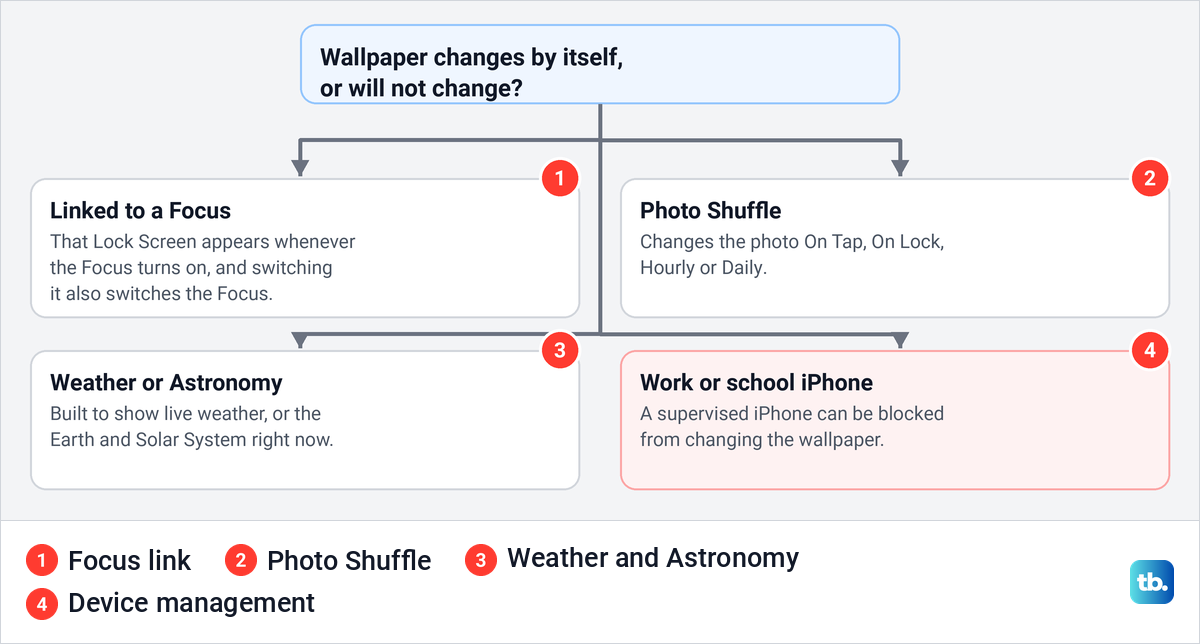
If the wallpaper will not change at all, check who manages the iPhone. Apple's device management documentation lists a Modify Wallpaper restriction for supervised devices, under which users can't modify the wallpaper for the Lock Screen or Home Screen. Only the organization that manages the iPhone can lift it.
On iPhones with an Always-On display, Apple says you can choose whether the dimmed Lock Screen shows your wallpaper. Go to Settings > Display & Brightness > Always On Display and turn Show Wallpaper on or off.
How we tested this guide
We tested on our iPhone 17 Pro with iOS 26.6. We went through Settings > Wallpaper, switched pairs with Set as Current, opened the Add New Wallpaper sheet, the Home Screen options and the Lock Screen editor with its filters and More menu, and read the Customize Screens block on the Do Not Disturb page.
Opening the Lock Screen gallery, deleting a wallpaper, Photo Shuffle, spatial scenes, the Photos app route, Always On Display and the side button steps follow Apple's instructions. Apple's iOS 27 editions of its wallpaper and Lock Screen guides word the gallery and editor steps the same way as the iOS 26 editions.
Frequently Asked Questions
Can you delete wallpapers in Settings on iPhone?
No. On our iPhone 17 Pro with iOS 26.6, swiping up on a saved pair in Settings > Wallpaper showed no trash icon or delete control. Delete from the Lock Screen gallery instead, as Apple's steps describe.
How do I switch back to an old wallpaper without deleting the new one?
Open Settings > Wallpaper, swipe to the pair you want and tap Set as Current. You can also touch and hold the Lock Screen, swipe to it in the gallery and tap it.
How do I change only the Home Screen wallpaper?
Go to Settings > Wallpaper and tap Customize under the Home Screen preview. Choose Color, Gradient or Photo, or turn on Blur, then tap Done.
Why does my iPhone wallpaper keep changing?
The usual causes are a Lock Screen linked to a Focus, which appears whenever that Focus turns on, and Photo Shuffle, which changes the picture on tap, on lock, hourly or daily. Weather and Astronomy wallpapers also change by design.
Can I use a Live Photo as my wallpaper?
Yes, if the Live Photo can be translated into slow motion. Apple says to tap the Live Photo button in the editor, and it plays when your iPhone wakes.
Why can't I change my wallpaper at all?
On a supervised work or school iPhone, the Modify Wallpaper restriction stops users from changing the Lock Screen or Home Screen wallpaper. Ask whoever manages the iPhone to lift it.