An unfamiliar number shouldn't leave you guessing whether to answer. Call Screening asks unsaved callers who they are and why they're calling before your iPhone rings. Turn it on, read their response, and decide whether the call deserves your attention.
Turn on automatic Call Screening
Unsaved callers ring normally when automatic screening is set to Never.
Open Settings > Apps > Phone.
Under Screen Unknown Callers, select Ask Reason for Calling.
That's the setting that asks unsaved callers to identify themselves and explain their call before your phone rings. It works on compatible iPhones running iOS 26 or iOS 27, in supported languages and regions.
Read the response before you answer
When a screened call reaches you, read the caller's response on the incoming-call screen.
Answer if you want to speak with them.
To ask a follow-up question without answering, tap Type to Reply on the iOS 27 incoming-call interface where that option is available.
Enter your question. Your iPhone speaks it to the caller and displays their response as text.
Save important expected callers in Contacts so their numbers aren't treated as unsaved callers.
Send unknown callers straight to voicemail
Choose silencing when you want unsaved callers sent to voicemail without ringing. To let those calls ring normally again, turn automatic screening off.
Open Settings > Apps > Phone.
Under Screen Unknown Callers, select Silence to route unsaved callers to voicemail without ringing.
To turn automatic screening off instead, select Never.
Older instructions use the labels Silence Unknown Callers and Silence Junk Callers. On iOS 26 and iOS 27, the current controls are Screen Unknown Callers and the separate Spam filter.
Use Live Voicemail to read a message as it arrives
On iOS 27, use Live Voicemail to read an incoming message and join the call, with availability depending on your language, region, and service.
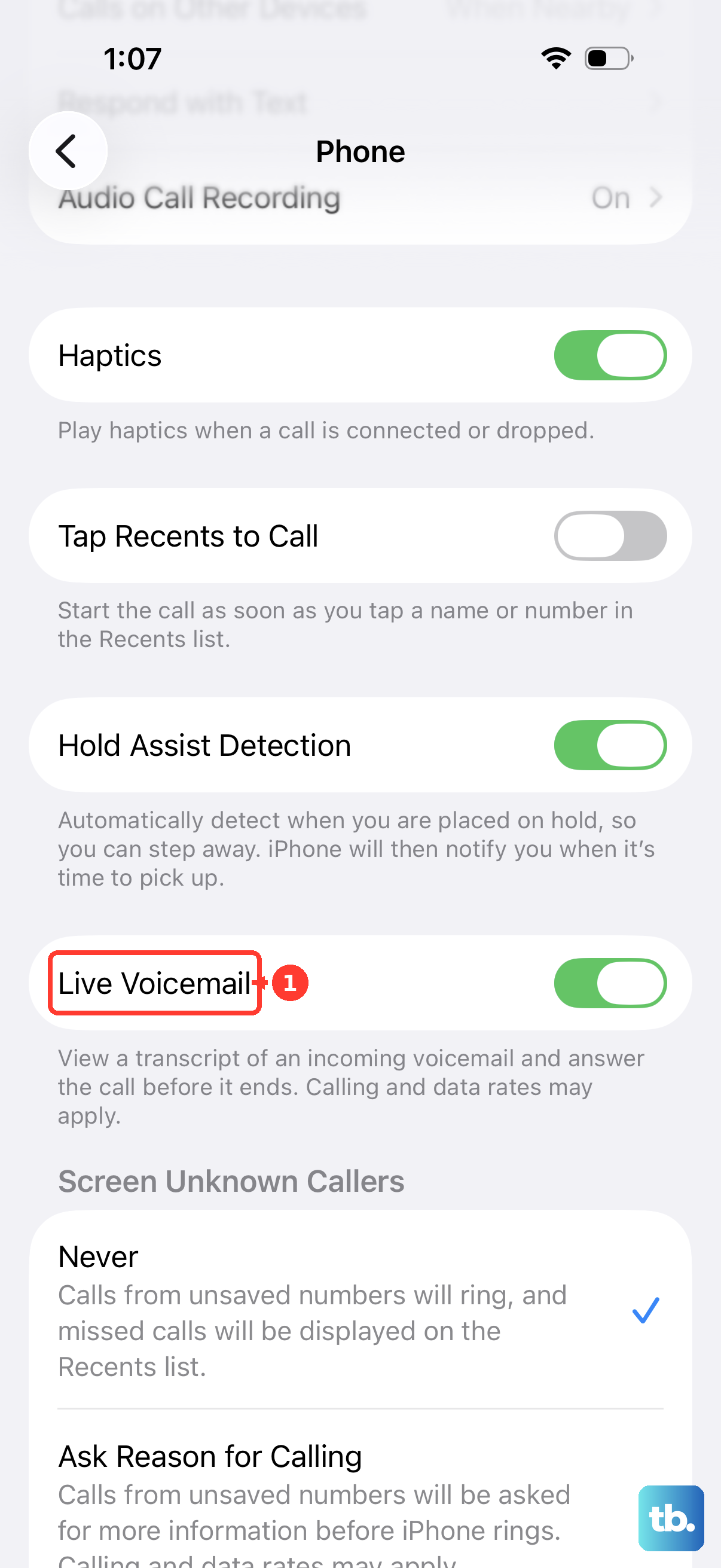
- 1.Open Settings > Apps > Phone > Live Voicemail.
- 2.Turn on Live Voicemail.
- 3.To send an individual incoming call to voicemail, expand the call banner and tap Voicemail.
- 4.Read the transcription while the caller leaves their message.
- 5.Answer the call to join it, or tap Stop to end the incoming voicemail.
Separate unknown calls and filter spam
Open Settings > Apps > Phone and enable Unknown Callers under Call Filtering. This puts unknown calls and voicemail in a separate list. Filtering organizes calls; automatic screening asks callers why they're calling.
To review that list, open Phone > filter button > Unknown Callers. You'll find the filter in Calls with the Unified layout or Recents with the Classic layout.
For carrier-identified spam, enable Spam under Settings > Apps > Phone > Call Filtering. Carrier-flagged calls are silenced, routed to voicemail, and placed in the spam list. Your carrier must support spam identification.
Check why Call Screening is missing or paused
A missing option or an unscreened call doesn't always mean you've chosen the wrong setting.
Check your language and region against Apple's Call Screening availability list. Supported English locales include the United States, United Kingdom, Australia, Canada, India, Ireland, New Zealand, Puerto Rico, Singapore, and South Africa.
Check Settings > General > Software Update for an update. Built-in automatic Call Screening requires iOS 26 or iOS 27 on a compatible iPhone.
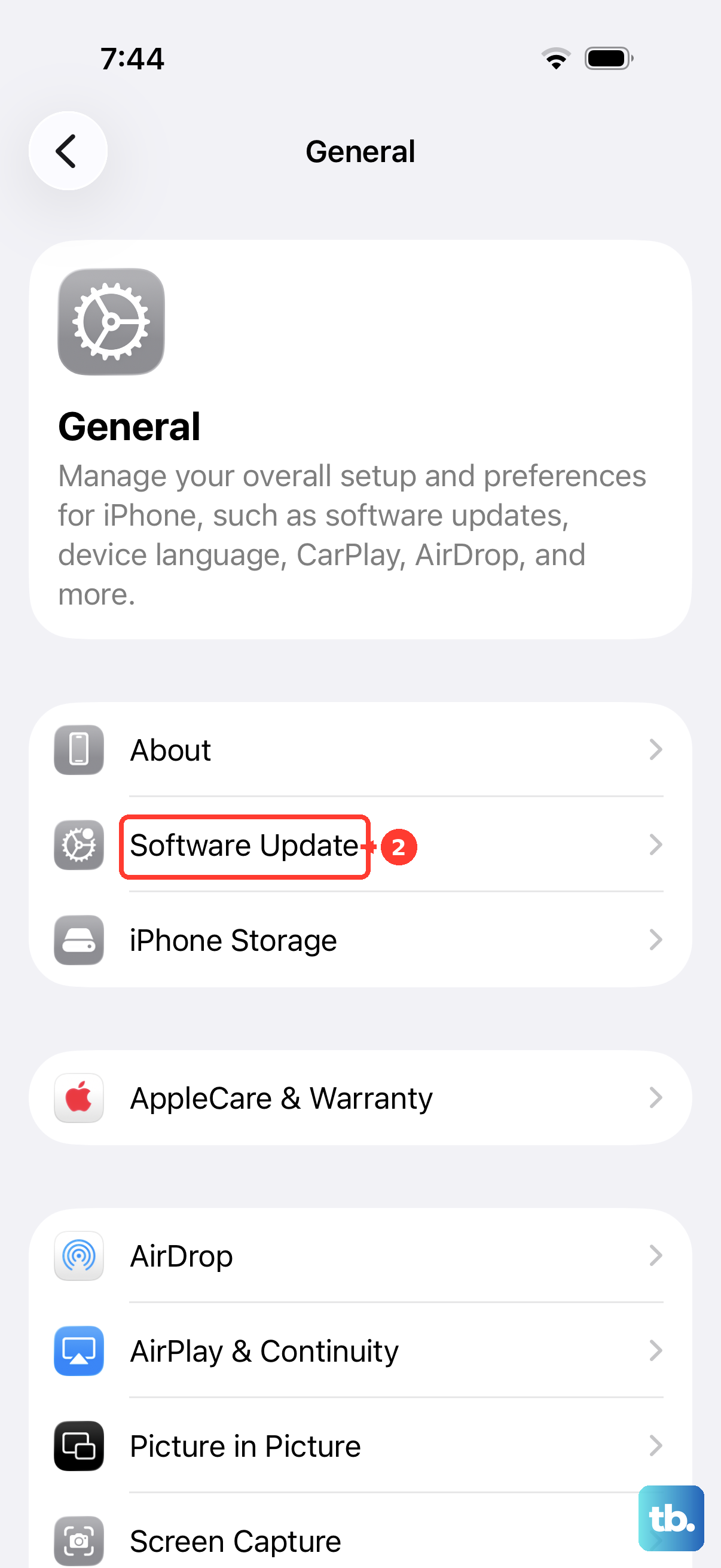
Before installing an offered update, back up your iPhone and connect it to power and Wi-Fi.
Select Download and Install when an update is offered. The available update depends on your iPhone model.
Check whether you're roaming. Apple's Call Screening is unavailable while roaming.
Wait 24 hours after an emergency call, since automatic screening pauses for that period.
If automatic screening isn't supported for your setup, use Live Voicemail when your language, region, and service support it.
Frequently Asked Questions
How do I move a recognized caller out of the unknown-callers list?
Open Phone > filter button > Unknown Callers. For the caller you recognize, select Mark as Known and confirm. This controls placement in the unknown-callers list. To reverse it, open the number's contact card and choose Mark as Unknown.
Can I silence a call without declining it?
Yes. Press the side button or either volume button once. The ringing stops, and you can still answer before voicemail takes over. This action doesn't ask the caller any questions.
Does Call Screening work for FaceTime?
FaceTime has separate silencing and filtering controls. Open Settings > Apps > FaceTime and enable Silence Unknown Callers. To move missed calls and voicemails from unknown numbers into a separate list, turn on Unknown Callers under Call Filtering in the same FaceTime settings. Apple's FaceTime guide also says you can screen FaceTime audio calls from unknown numbers to get more information before the call comes through, and refers you to its Phone call-screening instructions.
Why did Truecaller Assistant stop receiving calls after I enabled Apple Call Screening?
Truecaller documents an iOS 26 conflict in which Apple's screening prevents the forwarding Assistant needs. To use Truecaller Assistant, open Settings > Apps > Phone, turn off Live Voicemail, and select Never under Screen Unknown Callers. Then return to Truecaller.