Your iPhone can stay quiet and still buzz for calls, texts, and app alerts. On current iOS versions, the setting lives under Haptics, so the older Vibrate on Silent wording can send you to the wrong place. Start with the main Silent mode switch, then clear the notification and Focus blockers that stop alerts from reaching you.
Turn On Silent Mode Haptics
This fixes the main setting when your iPhone is on silent but calls or alerts are not vibrating.
Open Settings.
Tap Sounds & Haptics.
Tap Haptics.
Select Play in Silent Mode.
Go back, then test with a call or message while your iPhone is in Silent mode.
Put Your iPhone In Silent Mode
This applies after Play in Silent Mode is enabled. The haptics setting allows silent alerts to vibrate, but the phone still needs to be in Silent mode.
On iPhone models with a Ring/Silent switch, flip the switch toward the back of the phone.
Check the switch for orange, which means the iPhone is in Silent mode.
On supported Action button models, press and hold the Action button when it is assigned to Silent Mode.
To assign it, open Settings, tap Action Button, then swipe to Silent Mode.
Use Settings Or Control Center
Open Settings.
Tap Sounds & Haptics.
Turn Silent mode on.
Open Control Center if your iPhone offers the Silent mode control there.
Tap the Mute Switch button.
If you do not see that button, use the physical switch, the Action button, or Settings instead.
Control Center support depends on the iPhone model, so the hardware control is still the clearest check.
Make Sure Vibration Is Not Disabled
The most common hidden blocker is the global Vibration accessibility setting being turned off.
Open Settings.
Tap Accessibility.
Tap Touch.
Turn on Vibration.
Leave Play in Silent Mode enabled under Settings, Sounds & Haptics, and Haptics.
Choose A Vibration Pattern
Silent mode uses the alert vibration pattern you have selected for calls, texts, or another alert type.
Open Settings.
Tap Sounds & Haptics.
Tap Ringtone, Text Tone, or another alert type.
Choose a tone.
Tap Haptics.
Select a vibration pattern, or tap Create New Vibration.
For one person, open Contacts, tap the person’s name, tap Edit, choose a ringtone or text tone, then set Haptics on that tone screen.
If changing the pattern does not help, check that the app is allowed to notify and that Sounds is enabled for that app.
Fix Messages That Do Not Vibrate
This method applies when calls vibrate on silent but texts do not. Messages has its own notification and haptic path.
Open Settings.
Tap Notifications.
Tap Messages.
Tap Sounds.
Tap Haptics near the top.
Choose a vibration pattern instead of None.
For one conversation, open Messages, tap the contact icon at the top, tap Info, tap Edit, tap Edit Contact Info, choose Text Tone, then set Haptics.
Allow Notifications For The App
This fixes apps that never vibrate because their notifications are blocked.
Open Settings.
Tap Notifications.
Under Notification Style, tap the app that is not vibrating.
Turn on Allow Notifications.
Turn on Sounds, or choose a specific tone when the app offers one.
Silent mode stops the sound, but the app still needs notification permission for a vibration alert to happen.
Check Focus And Do Not Disturb
The most common reason correct vibration settings still do nothing is that Do Not Disturb or another Focus is blocking notifications.
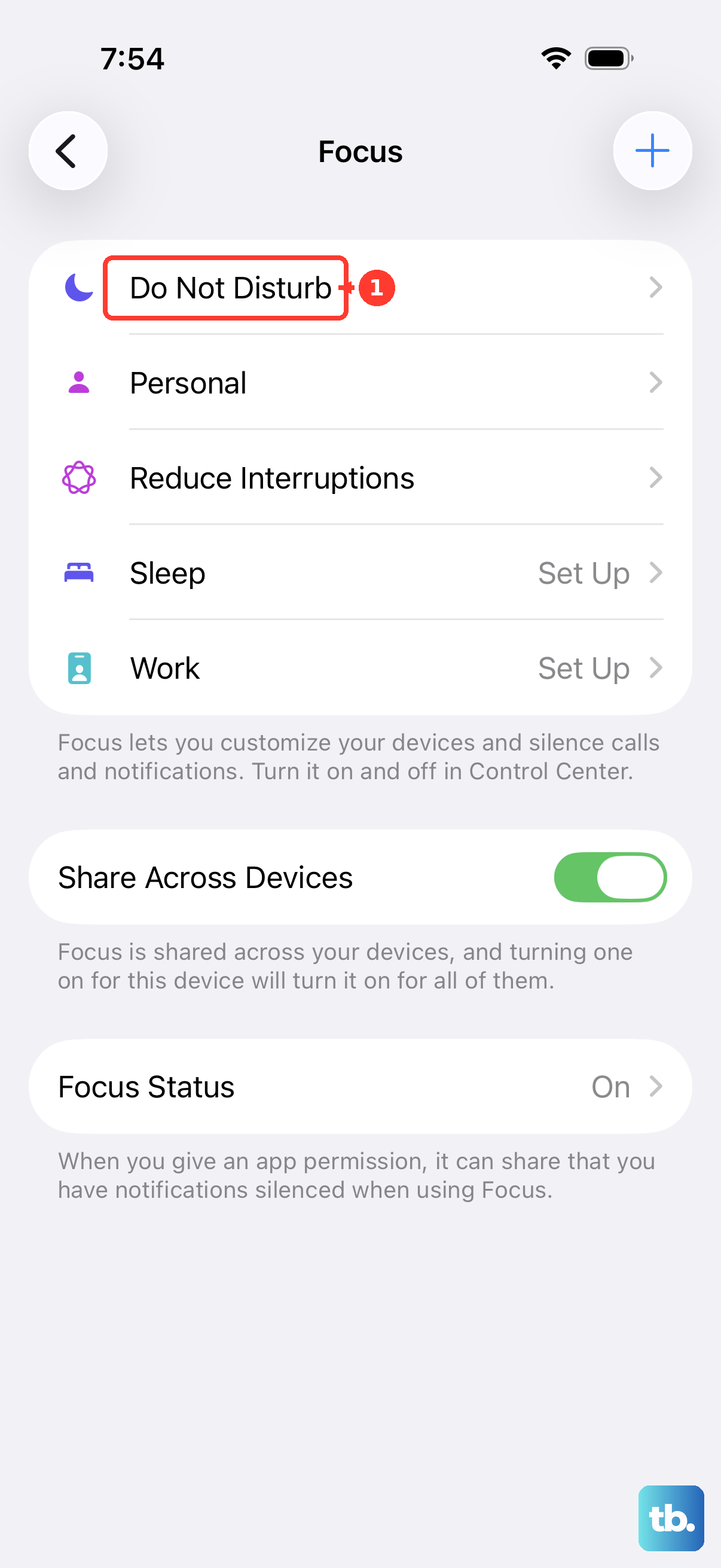
Open Control Center.
Tap the Do Not Disturb icon on the Focus button to turn it off.
If another Focus such as Personal, Work, Sleep, Reduce Interruptions, or Driving is active, tap its icon to turn it off.
To keep Do Not Disturb but allow key alerts, open Settings, tap Focus, tap Do Not Disturb, then use Allow Notifications to add people or apps.
To stop Do Not Disturb from turning itself back on, go to Settings, tap Focus, tap Do Not Disturb, tap Set a Schedule, then turn off active schedules.
On iOS 18.2 or later with Apple Intelligence on supported iPhone models, Intelligent Breakthrough & Silencing can let important notifications interrupt Do Not Disturb.
Turn On Keyboard Haptics
Open Settings.
Tap Sounds & Haptics.
Tap Keyboard Feedback.
Turn on Haptic.
If typing still has no feedback, open Settings, tap Accessibility, tap Touch, then make sure Vibration is on.
Keyboard haptics only affect typing feedback, not vibration for incoming calls or notifications.
Frequently Asked Questions
Why does my iPhone not vibrate when it is on silent?
The usual causes are that Haptics is not set to Play in Silent Mode, Vibration is turned off under Accessibility, the app is not allowed to send notifications, or a Focus such as Do Not Disturb is blocking alerts.
Where is Vibrate on Silent on newer iPhones?
Use Settings > Sounds & Haptics > Haptics > Play in Silent Mode. The older Vibrate on Silent name is not the current Apple-documented path.
Can my iPhone vibrate on silent for only certain contacts?
Yes. Open Contacts, choose the person, tap Edit, choose a ringtone or text tone, then use Haptics on that tone screen to choose or create a vibration pattern.
Can Siri turn vibration on for Silent mode?
Siri can turn Do Not Disturb on or off, which helps when Focus is blocking alerts. The Silent mode haptics setting itself is changed from Settings.
Why does my work or school iPhone still not vibrate?
A managed iPhone can have notification behavior controlled by the organization. If the normal Haptics, Vibration, Notifications, and Focus settings are correct, contact the admin for that device.